How to Count Inventory From a Photo and Track It Day by Day
Photograph shelves and stacks, check the marked count, save it and track daily stock. Includes where photo counting stops being reliable.
Written by the Pixoate team. We check how each tool behaves before we describe it, and we date any prices or portal rules we quote.
You can count stock from a photo: photograph one shelf, crate or stack at a time, review each marker the tool places, and save the reviewed number with a label that says where and when it was counted.
Counting stock by hand is slow, easy to get wrong, and usually done at the worst time: at closing, or during a delivery. Many owners lose count halfway through a shelf and start again.
A photo can take over the repetitive part. You photograph a shelf, crate or stack, the tool marks what it recognizes, and you check the markers and save the number. This guide shows how to do that properly, how to keep a daily record, and where photo counting stops being reliable.
The routine in six steps
- Decide exactly what one unit is: a bottle, a carton, a box of six.
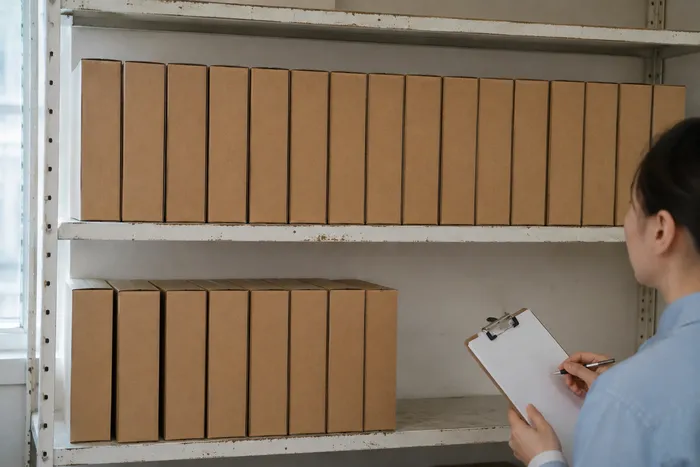
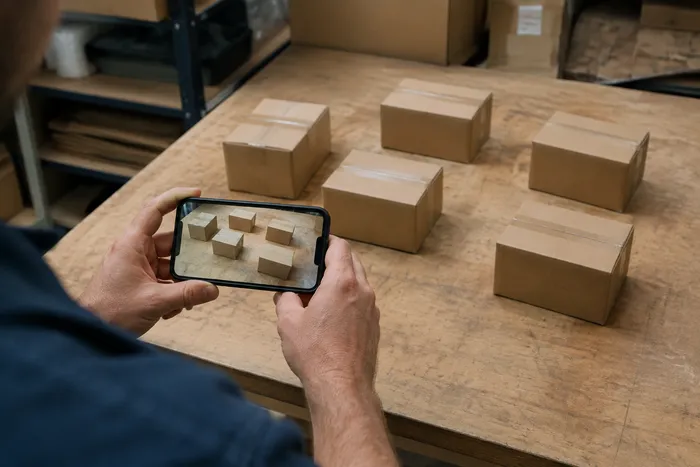
- Photograph one shelf, crate or stack at a time, front-on and in even light.
- Upload it, mark an example item if the tool needs one, and run the count.
- Review every marker against the photo and correct misses and duplicates.
- Save the reviewed number with a label that says where and when it was counted.
- Repeat at the same time each day to build a trend.
What photo counting can and cannot do
A photo count estimates the objects it can see. It does not read hidden stock, tell two near-identical products apart, or replace a stock system. Treat it as a fast, reviewable physical count that you check, not as an automatic inventory record.
It works well for:
- Rows of similar items on an open shelf.
- Cartons stacked with one face visible.
- Crates, bags or bottles laid out in view.
- Quick cycle counts of fast-moving lines.
It works poorly for items hidden behind others, mixed products in one pile, and very dark or blurry pictures.
Step 1: Define the unit
A single bottle, a six-pack and a shipping carton are three different units. Decide which one you are counting and stay with it. If you mix them, your totals will not match your stock records.
Step 2: Take a photo that supports a count
- Stand square to the shelf so rows look straight.
- Keep the whole shelf in frame and avoid heavy glare.
- Photograph one product line at a time where you can.
- Do not photograph the same items twice from different angles in one count.
- For deep shelves, photograph each level separately, and count hidden units by hand.
Step 3: Count with Pixoate
Open the AI Inventory Counter, upload the photo and enter the product you want counted. For repeated items, you can mark one to three whole examples with tight boxes, then run the count. If you are counting a single kind of item, a dedicated page such as the box and carton counter may suit it better. Premium can also count many photos in one batch.
Every detected item is marked on the picture, so you can see what was included.
Step 4: Review the markers
This is the step that makes the number trustworthy. Check for:
- Items without a marker.
- Two markers on one item.
- Markers on things that are not stock, such as price tags or shelf edges.
- Similar products counted as the product you wanted.
Correct the tally against the picture and the physical shelf. If the photo is not good enough to support a count, retake it or count that area by hand.
Step 5: Save a labelled count
Give the count a name that someone else could understand later, such as "Back wall, shelf 2, 500 ml bottles." Add the reviewed count to your tally, and export it as a CSV file or a PDF report if you need it elsewhere.
Deciding what to count first
You do not need to count everything. Many shops find that a small share of their products accounts for most of their sales and most of their stock value, and those are the lines where a count pays for itself. Start with the items you run out of most often, the ones that are expensive to carry, and the ones that are easy to miscount by eye, such as rows of identical bottles.
A useful way to choose is to ask three questions about each product. How quickly does it sell? How costly is it if it runs out? How costly is it to hold too much? Products that score high on any of those deserve a regular count. Slow, cheap items that never cause trouble can be counted occasionally, and you can leave them out of the photo routine entirely while you build the habit.
Build a daily record and chart
If you are signed in, the Count history tab lets you create a counting setup for a place or product, record each new count with the time it was observed, tick that you have checked it, and save it. The history shows the last count recorded for each day, so you can see how a line moves across a week or month, and you can export the history as a CSV file.
Two cautions. Missing days stay missing, so a gap does not mean zero. And several photos on the same day are not added together: the history shows the last count for that day. Use it to spot trends and unusual drops, then investigate with a recount.
A worked example: one shelf of soft drinks
Here is an illustrative case from a small corner shop, with made-up numbers to show the logic. At opening, a reviewed photo count of the soft-drink shelf shows 48 bottles. During the day, a delivery adds 24 bottles and the till records 31 sales. Opening stock plus the delivery minus sales gives an expected closing count of 41 bottles, because 48 plus 24 minus 31 is 41.
At closing, the reviewed photo count shows 38. That is three fewer than expected, and it deserves a look rather than a conclusion. Was a damaged bottle thrown away without being logged? Did someone take a drink for the break room? Was one case put in the back room instead of on the shelf? Did a single bottle hide behind another and escape the count? The photo cannot answer those questions, but it tells you exactly which shelf and which time window to investigate, which is far better than discovering at month end that the totals do not match.
If the difference is one bottle, many shops would let it go. If the same shelf is short by three every night, that is a pattern worth fixing.
Use a difference as a prompt to check
If today's reviewed count is lower than expected, look at recent deliveries, sales, returns, damage and transfers before drawing a conclusion. A photo cannot see stock behind other stock or say who moved something. Use the gap to decide what to recount.
Mistakes that quietly spoil a count
Most counting errors are not the tool's fault. They come from how the photo was taken or how the result was recorded.
Counting the same shelf from two angles and adding the numbers is the classic one. Photographing straight after a restock, before the front row is tidied, produces a count of something that will not exist an hour later. Including price tags, shelf labels or the edge of a neighboring product in an example box teaches the counter to look for the wrong thing. Skipping the review because the first result looked plausible is the habit that does the most harm, since a plausible number with two missed items is still wrong.
Recording is the second half of the problem. A count with the label "shelf" tells nobody anything three weeks later. A count labelled with the area, product, unit and time can be compared, charted and trusted. Small habits like these are what turn a quick photo into a reliable record.
Where to go from here
For specialist counts, read the guides on counting boxes and pallets in a warehouse and counting livestock from a photo. If your stock lists arrive as photos or scans, you can turn an image into an Excel sheet to keep a record alongside your counts. To turn counts into a routine, see how to create daily stock reports for a small business.
When a photo count is the wrong tool
Photo counting is not the answer to every stock question. If items are stacked several deep and you cannot see the back rows, a physical count will be more reliable. If you need to tell apart products that look identical but have different codes, a barcode scan or a manual check will do better. If you need a legally accurate stock figure for accounts or an audit, use your normal stocktake process and treat the photo count as a quick check between formal counts.
It also helps to be honest about the very small jobs. Counting five items by hand is faster than photographing them. The sweet spot for photos is the repetitive middle ground: dozens or hundreds of similar items in plain view, counted often enough that saving a minute each time adds up to real hours over a month.
Related guides
For the wider picture, see our overview of counting from photos.
Frequently asked questions
Is photo counting accurate enough for inventory?
A photo count is accurate enough to speed up a stock check that you then review, but it is an estimate of visible items, not an audited figure. Accuracy depends on the photo, how visible the items are and how carefully you check the markers, so never treat an unreviewed count as final.
Can a photo count connect to my point-of-sale or stock system?
Not automatically. The counting tools export a reviewed tally as a CSV file or PDF report, which you then enter or import into your own system. Pixoate does not claim point-of-sale synchronization, barcode identification or sales reconciliation for photo counts.
How often should I count stock from photos?
Count fast-moving and high-value lines more often, and slow lines less often, using the same shelf, camera position and time each day so counts are comparable. Daily for critical lines and weekly for slower ones is a common starting point, but pick a schedule you can actually keep.
What should I do if the photo count looks wrong?
Check the example you marked, the lighting and whether items are hidden behind others, then correct the tally against the physical shelf. If the photo cannot support a reliable count, retake it from a better position or count that area by hand.