Why Your Logo Looks Sharp on Your Website and Blurry in a Presentation
A logo can look sharp online and blurry in a presentation. Understand vector and raster sizing, then choose a suitable Pixoate export for its destination.
The logo looked crisp in the website header. On a presentation slide, the same file has soft edges and uneven lettering. The brand has not changed; the size of the job has.
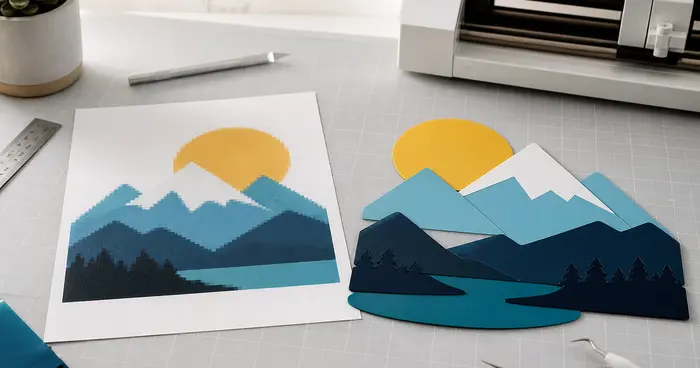
A small raster logo contains a fixed number of pixels. Enlarging it asks those pixels to cover more space, which can expose the limits of the source.
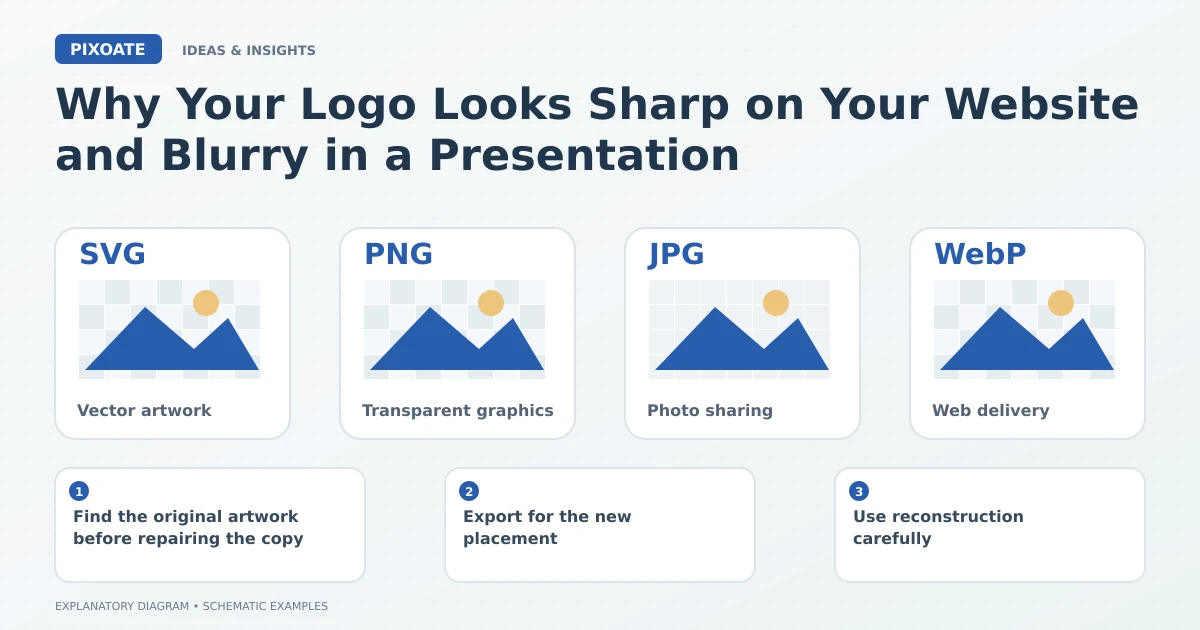
Original explanatory graphic. The scenes and sample records are schematic illustrations, not screenshots or measured tool results.
Find the original artwork before repairing the copy
Look for an approved vector master or a higher-resolution source. An image copied from an email signature or website thumbnail may already be a small delivery copy.
SVG can contain scalable vector shapes, but it can also include embedded raster images. Check the actual artwork instead of assuming the extension guarantees that every element is vector-based.
Export for the new placement
Pixoate SVG to PNG can create a raster output from suitable vector artwork. Choose dimensions appropriate to the presentation and inspect the downloaded logo at its intended display size.
Check transparency and edge quality against the actual slide background. A white rectangle may be part of the source artwork rather than a problem caused by the viewer.
Use reconstruction carefully
Image to Vector can help with suitable raster-to-vector tasks. Review letters, curves, spacing and small symbols against the approved brand reference.
A reconstructed logo can look clean while differing subtly from the original. When precise brand reproduction matters, obtain the verified source rather than approving a plausible substitute from a blurry thumbnail.
Keep a small set of purposeful brand files
Store the original artwork and clearly labelled delivery versions for common uses. Include the appropriate background treatment and dimensions so colleagues do not keep enlarging the smallest convenient file.
| File role | Useful distinction |
|---|---|
| Master artwork | Preserved source for future exports |
| Presentation copy | Sized for the intended display |
| Email or web copy | Prepared for the receiving application |
The useful fix begins with understanding which file you have. Use Pixoate SVG to PNG when a suitable vector source needs a presentation-ready raster copy, and keep the master available for the next change in scale.