


Day to Dusk AI
Generative output can vary; review the full result before publishing
Twilight exteriors are among the most inviting shots in a listing and the hardest to schedule: the usable window is short, once a day, weather permitting. This direction converts a daylight exterior into that dusk look — warm interior glow, deep blue sky, lit landscaping — and asks the AI to keep the property as it is, so what changes is the hour rather than the house. The AI redraws the whole photo, so compare the result with the original.
- Prepared Day to Dusk AI direction
- Editable prompt
- Full-result review required
Generative output can vary; review the full result before publishing
Choose a source image for Day to Dusk AI
JPG, PNG, WebP, HEIC, and other supported formats. Free up to 20 MB; Premium and higher up to 50 MB for this tool.
Choosing and checking a daylight exterior for a dusk conversion
The best candidate is a straight-on front elevation taken from the street or the end of the driveway, with the whole roofline and a band of sky above it in frame. Keep the camera level so the walls stay vertical, close the garage door, and switch on porch and interior lights before you shoot if you can; real lamps give the AI an honest hint about which windows should glow. Trash cans and cars in the driveway will be carried into the evening version, so move them first.
This page edits the whole frame from one written direction, so the light on the walls, the lawn and the windows can all change together. When the only problem is a gray sky and the house should stay exactly as shot, swap just the sky instead; that tool detects the sky on its own and restores the foreground after generation.
Review the result in the before-and-after compare. Count the windows, read the house number and any mailbox lettering, and make sure no streetlight, lantern or path light has appeared that the property does not have. A twilight version is a concept of the evening look, so mark it as edited and keep the daylight original in the gallery; a short caption placed on the image stays with it wherever the photo is shared.
Day to dusk photo editing: turn a daytime exterior into a twilight photo
This day to dusk tool converts a daylight photo of a house or building exterior into a twilight look, with a deep blue sky, warm light in the windows and softer light on the walls. Agents, photographers and homeowners use it to get a dusk image without waiting for a short evening window. The AI redraws the whole frame, so you compare the result with your original and label it as an edit.
Convert a day photo to dusk in 5 steps
The page is set up for exterior photos. Choose a straight-on shot and keep the prepared direction, which already asks the AI to keep the property and change only the time of day.
- Upload a daylight exterior with the whole roofline and a band of sky in frame.
- Leave the prepared sentence in Custom instructions (optional) and add details such as lit front windows or a porch light.
- Select Generate Text-based edit.
- Compare windows, roofline, house number and landscaping with the original in the slider.
- Select Edit again to try different wording, or download the PNG.
Describe the twilight look: sky, window glow and exterior lights
Give one short phrase per element: a deep blue sky with a thin warm band near the horizon, warm light in the living room and kitchen windows, the porch light on. Leave out lights the property does not have, such as a lamp post or pool lighting, because the AI may draw them. Name which rooms are lit and leave the rest dark, since a house with every window glowing the same looks artificial.
Dusk conversion, sky replacement and staging: which one to use
This edit changes the hour of the whole photo: sky, light on the walls and glowing windows. Swapping only the sky restores the house as photographed, which suits a gray day when the building itself looks fine. For other listing problems, clearing clutter from a room and furnishing an empty room each have their own page.
Keep a set of exterior photos consistent
Settle the wording on the front elevation, then use the same wording for every other photo in the listing. Skies and window glow still differ a little from one result to the next, so compare them as a set before publishing. A Premium option, Batch images, applies one instruction to many exteriors and returns a ZIP. Put a short caption on the image, such as virtual twilight, so the label stays with the file.
Set up for Day to Dusk AI
Prepared settings
- Starting point
- Upload one source image
- The page opens on the correct edit workflow; upload is the only required setup step.
- Prepared workflow
- Prepared Day to Dusk AI workflow
- Day to Dusk AI opens with the Day to Dusk AI direction preselected, so there is no need to find the operation manually.
- Output shape
- Same as your upload
- The result keeps the shape of the image you upload.
- Review rule
- Review the complete generated result before use
- Generated imagery can vary; the final result stays under the user's approval before download.
Best-fit uses
- Hero listing images without waiting for a twilight window
- Reshoot-free dusk versions of an existing exterior set
- Seasonal listings where usable twilight is barely available
Frequently asked questions
- Do I have to disclose a day-to-dusk edit?
- Yes. Many listing services and local rules ask for virtual edits to be labeled, so check the rules where you list, and a dusk conversion is unambiguously an edit. Caption it as a twilight concept. Labeling is not a formality — an undisclosed edit misrepresents the property.
- What makes a day-to-dusk conversion look convincing?
- Window glow that matches the rooms behind it and a sky that agrees with the light on the building. Interiors lit uniformly bright in every window read as fake, because real houses have some rooms lit and some dark. Check that the shadows on the facade still make sense against the new sky.
- Which source photos work best?
- Overcast or open-shade exteriors, because they carry no strong directional sunlight to contradict a dusk sky. A photo shot in hard midday sun has crisp shadows pointing one way, which fights the twilight lighting and is the usual cause of an unconvincing result.
- Can I use a dusk image as the main listing photo?
- Many agents do, because a twilight cover stands out in a gallery. Pair it with an accurate daylight image so buyers see the property as they will actually view it, and keep the disclosure visible. A gallery of only enhanced views invites complaints at the first in-person viewing.
- What is a day to dusk photo?
- It is a daylight exterior shot that has been edited to look like twilight, with a dusk sky, lit windows and softer light on the building. Photographers also call it virtual twilight. Here the AI makes the change from your daytime photo, so no evening reshoot is needed.
- Can I turn an interior photo into a dusk scene?
- This page is prepared for exteriors, and its starting direction asks for a daylight exterior to become dusk. A room photo is better served by the staging, decluttering and lighting pages, which each start from a direction written for interiors.
- How do I stop the AI changing the house in a dusk edit?
- Add a line such as keep the roofline, windows, garage door and landscaping exactly as they are, then run it again. For tighter control, select Refine area manually and brush the areas that should change, such as the sky and the windows; pixels outside the painted area stay as photographed. Check the result against the original.
- What if some windows glow too brightly or not at all?
- Name the windows in your instruction, for example warm light in the 2 front windows and the porch light, garage windows dark, and generate again. If one window still comes out wrong, paint just that area. Several runs from the same photo are normal, since results vary.
- Can I try day to dusk editing before paying?
- Yes. You can upload an exterior photo and generate a dusk version to see the result before you choose a plan. A web-size copy downloads without a paid plan, and Premium or a credit returns the original resolution for a listing. No watermark is added to the image.
- Is there an exterior daytime to dusk AI option for a house photo?
- Yes. Upload a daylight photo of a house or building and the edit asks for a deep blue sky, warm light in the windows and softer light on the walls while keeping the property. It is made for exteriors, so use other pages for rooms.
What you can do with AI Real Estate Photo Editor
Review the main capabilities before you begin.
- Stage complete rooms automatically for disclosed concepts
- Add selected TVs, wall colors, or landscaping precisely
- Remove described cables, bins, signs, and distracting clutter
- Replace skies and create realistic twilight exteriors
- Refine automatic edit areas manually when needed
Settings reference
5 settings
Available controls for AI Real Estate Photo Editor.
Tasks
- Edit typeDropdown
- Choose the edit to perform; prompts, selection tools and output controls follow the selected edit type.Options: Text-based editGenerative fillMagic eraserSky replacementRoom staging
- One-tap presetsPresets
- Pick a ready-made direction with one tap; generation uses the selected preset automatically.Options: Add furnitureAdd TVPaint walls warm whiteTwilight skyReplace skyRemove clutterRefresh landscaping
- Custom instructions (optional)Text input
- Describe the requested change, relevant materials, lighting, perspective, and details that must remain unchanged.
Selection
- Selection brush sizeSliderRange: 4–160px · Default: 32px
- Set the brush width used to mark the exact add, fill, or replacement area required before generation.
Output
- Ask AI to preserve subject identity and product detailsOn / Off
- Adds an explicit instruction to retain the main subject, shape, branding, labels, and readable text unless the request changes them.
Related tools for Day to Dusk AI
Tools for common next steps after Day to Dusk AI.
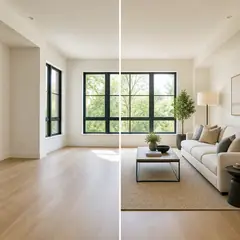
Virtual Staging & Property
Virtual Staging AI
Virtually stage empty rooms with AI furniture for real-estate listings. Create living room, bedroom, office, dining, and luxury concepts.
Try it now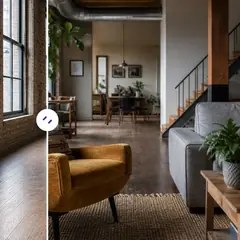
Virtual Staging & Property
AI Room Staging
Stage empty or dated rooms with AI furniture and décor. Create living rooms, bedrooms, offices, dining rooms, and interior style concepts.
Try it now
Photo Enhancement
AI Photo Enhancer
Adjust noise, sharpness, color and scale in one enhancement workflow, then compare the result with the original.
Try it nowGuides for this tool
- How to Prepare Real Estate Listing Photos in Bulk for an AgencyOrganize bulk real estate photo editing with Pixoate. Keep properties, room sequences and concept images clear across an agency's listing workflow.
- How to Remove Temporary Clutter from Real Estate Photos with AIRemove temporary clutter from real estate photos with Pixoate. Review cables and stray objects while preserving the property's actual condition.
Watch each transformation land
Every photo crosses the slash untouched and comes out the other side finished.























