


Declutter Room AI
Generative output can vary; review the full result before publishing
Buyers cannot see a room past someone else's belongings — the laundry basket, the cables, the crowded countertop. This direction removes loose clutter, reconstructs the surfaces underneath and asks the AI to leave fixed architecture alone, so the room reads clearly without becoming a different room. Paint the clutter with Refine area manually when you need exact boundaries.
- Prepared Declutter Room AI direction
- Editable prompt
- Full-result review required
Choose a source image for Declutter Room AI
JPG, PNG, WebP, HEIC, and other supported formats. Free up to 20 MB; Premium and higher up to 50 MB for this tool.
Telling the AI exactly which clutter to take out of an occupied room
The prepared instruction asks for loose clutter only, which works best when that clutter is easy to name. Rewrite it with the actual items when a room has a few obvious offenders: 'remove the laundry basket, the phone chargers on the nightstand and the shoes by the door'. Named objects give the AI something specific to locate, while a vague request leaves it guessing at what counts as mess.
Big piles hide a lot of floor, and everything under them has to be invented. Tidy the largest heaps by hand, shoot the room, and use the edit for what is left over: cables, fridge magnets, toiletries, mail on the counter. If automatic detection cannot find an item's outline, the page asks you to paint it; a quick brush over the object is enough.
Before you publish, study both versions at the spots where objects stood. Rug patterns, wood grain and tile grout are where a rebuilt surface shows. Check that switches, outlets, radiators and built-in shelving survived, since a buyer will find those at the showing. To take out whole pieces of furniture rather than small items, empty the room of movable furniture; for a full set of photos from one occupied home, Premium batch applies the same instruction to every file and returns a ZIP.
Declutter a room photo: remove loose clutter before you list or share it
This page takes loose items out of a photo of a lived-in room, such as boxes, bags, laundry and small things on the floor, and rebuilds the surfaces they were covering. It runs one edit, the Magic eraser, on one photo at a time. It suits rooms whose furniture and structure are fine and whose problem is the mess on top, whether the photo is for a listing, a rental turnover or a family album.
Declutter a room photo in five steps
The box is labeled What should we remove? and opens with a prepared sentence that asks for loose clutter only, with the surfaces underneath rebuilt naturally. Leave it for a general tidy-up, or replace it with the exact items you want gone.
- Upload a daylight photo where the clutter and the surface under it are both in view.
- Replace the prepared sentence with the items and where they sit, such as the shoes by the door and the cables behind the TV.
- Press Generate Magic eraser and wait for the result.
- Drag the before-and-after slider across every spot where something stood.
- Press Edit again, add any missed item to the same sentence and run it once more from your original.
What counts as clutter on this page, and what stays
The request behind this page is written for loose items: cardboard boxes, bags, laundry and small objects on the floor. It also tells the AI to keep main furniture and fixed architecture unless you say otherwise, so a sofa or a built-in wardrobe is meant to stay even when it fills the frame. If a piece of furniture should go too, name it, or use the furniture removal page, which is prepared for that job.
When the page cannot find the item you described
The AI locates each item from your words, so a vague description can fail. When no safe automatic area is found, the page turns on Refine area manually, keeps your sentence and asks you to brush over the item. The brush mark is pink, and the page notes that only the pink area is replaced. The same button then reads Use automatic edit area and switches the helper off again.
Declutter first, then stage the room
Decluttering is the lightest of the room jobs because it keeps the furniture. Once the room is empty, virtual staging can furnish it as a labeled concept. The AI Real Estate Photo Editor lists a Remove clutter task next to staging and sky tasks, which suits a gallery where each photo needs a different fix.
Declutter every photo of one home
A whole home can go through at once with Batch images, a Premium option that applies one instruction to every photo in the queue and returns a ZIP of PNGs. A batch cannot use painting, so write the instruction for kinds of items, such as bags, boxes and laundry, instead of positions in one room. Run a single photo first, then check every file afterward, because a hallway and a bedroom respond differently to the same words.
Set up for Declutter Room AI
Prepared settings
- Starting point
- Upload one source image
- The page opens on the correct edit workflow; upload is the only required setup step.
- Prepared workflow
- Prepared Declutter Room AI edit direction
- Declutter Room AI opens with the Declutter Room AI direction preselected, so there is no need to find the operation manually.
- Output shape
- Same as your upload
- The result keeps the shape of the image you upload.
- Review rule
- Review the complete generated result before use
- Generated imagery can vary; the final result stays under the user's approval before download.
Best-fit uses
- Listing photos of an occupied home before a full tidy
- Clearing countertops and surfaces in kitchen and bathroom shots
- Removing personal items ahead of a public listing
Frequently asked questions
- What counts as clutter versus part of the room?
- Clutter is what leaves when the occupant does: bins, laundry, cables, toiletries, paperwork, small appliances. Fixed features — built-in units, radiators, flooring, tiling, light fixtures — are part of the property, and the prompt asks the AI to keep them; check that it did. Removing those would change what is actually being sold.
- Do I need to disclose a decluttered photo?
- Follow your local listing rules, and label it where they require it. The practical test is whether a buyer arriving in person would feel misled. Removing a laundry basket rarely surprises anyone; removing a wall-mounted unit that stays with the property certainly would.
- Can it remove personal photos and identifying items?
- Yes, and that is one of the better reasons to use it — listing photos are published widely and family pictures, mail and documents do not belong in them. Check the result carefully for anything identifying left in a mirror or a reflective surface.
- Why does the area under removed clutter sometimes look odd?
- Because the surface underneath has to be reconstructed, and the more of it was hidden, the more is being invented. A countertop under a kettle is easy; a floor under a large pile is not. Where reconstruction looks unconvincing, tidy that area physically and reshoot instead.
- Can I declutter only one corner of a room photo?
- Yes. Describe the corner and its items in the box, or choose Refine area manually and brush that corner so the edit stays there. The page's note says the surroundings outside the final edit area stay unchanged, so look closely at the border of what you painted when you drag the slider.
- How many items can I remove in one run?
- The box holds up to 1,000 characters, so a list of several items fits. A handful of named items keeps each one easy to check in the result. For a large mess, run twice: download the first result and upload it as the photo for the second run, because Edit again starts from your original.
- Will the room look too empty after decluttering?
- It can, if everything goes. Remove what a viewer would not keep, such as cables, bins and piles, and leave a lamp, a plant or a framed print so the room still looks lived in. Naming the items one by one keeps those everyday objects in the picture.
- How is this different from the Remove clutter task in the AI Real Estate Photo Editor?
- Both run the same kind of edit. The Real Estate Photo Editor lists Remove clutter among several tasks, with cables, bins and signs named in its sentence. This page is the single-purpose version for rooms, with the sentence written for boxes, bags, laundry and small floor items.
- What file should I upload, and what do I get back?
- Upload an opaque JPG, PNG, WebP or HEIC photo, since transparent images are refused. Photos above 2048 px on the long side are prepared at 2048 px. The result is a PNG at web size without a paid plan, and Premium or a credit returns the full-resolution result.
- What do the buttons under Styles do on this page?
- They list three prepared directions. Declutter Room AI is selected when the page opens. Remove Furniture from Photo swaps in a furniture sentence for the same Magic eraser. Day to Dusk AI is written for exterior photos, so it does not suit a room. Pressing a button replaces the sentence in the What should we remove? box.
What you can do with AI Real Estate Photo Editor
Review the main capabilities before you begin.
- Stage complete rooms automatically for disclosed concepts
- Add selected TVs, wall colors, or landscaping precisely
- Remove described cables, bins, signs, and distracting clutter
- Replace skies and create realistic twilight exteriors
- Refine automatic edit areas manually when needed
Settings reference
5 settings
Available controls for AI Real Estate Photo Editor.
Tasks
- Edit typeDropdown
- Choose the edit to perform; prompts, selection tools and output controls follow the selected edit type.Options: Text-based editGenerative fillMagic eraserSky replacementRoom staging
- One-tap presetsPresets
- Pick a ready-made direction with one tap; generation uses the selected preset automatically.Options: Add furnitureAdd TVPaint walls warm whiteTwilight skyReplace skyRemove clutterRefresh landscaping
- Custom instructions (optional)Text input
- Describe the requested change, relevant materials, lighting, perspective, and details that must remain unchanged.
Selection
- Selection brush sizeSliderRange: 4–160px · Default: 32px
- Set the brush width used to mark the exact add, fill, or replacement area required before generation.
Output
- Ask AI to preserve subject identity and product detailsOn / Off
- Adds an explicit instruction to retain the main subject, shape, branding, labels, and readable text unless the request changes them.
Related tools for Declutter Room AI
Tools for common next steps after Declutter Room AI.
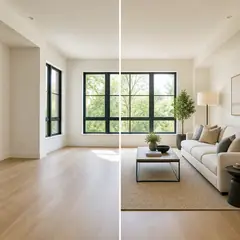
Virtual Staging & Property
Virtual Staging AI
Virtually stage empty rooms with AI furniture for real-estate listings. Create living room, bedroom, office, dining, and luxury concepts.
Try it now
Virtual Staging & Property
AI Room Staging
Stage empty or dated rooms with AI furniture and décor. Create living rooms, bedrooms, offices, dining rooms, and interior style concepts.
Try it now
Photo Enhancement
AI Photo Enhancer
Adjust noise, sharpness, color and scale in one enhancement workflow, then compare the result with the original.
Try it nowGuides for this tool
- How to Prepare Real Estate Listing Photos in Bulk for an AgencyOrganize bulk real estate photo editing with Pixoate. Keep properties, room sequences and concept images clear across an agency's listing workflow.
- How to Remove Temporary Clutter from Real Estate Photos with AIRemove temporary clutter from real estate photos with Pixoate. Review cables and stray objects while preserving the property's actual condition.
Watch each transformation land
Every photo crosses the slash untouched and comes out the other side finished.























