


Garden Design AI
Generative output can vary; review the full result before publishing
Gardens are designed twice: once in the imagination, and again by trial and error over five growing seasons. This tool shortens the first pass — upload a photo of your actual garden and see planting design on it: beds shaped and filled, paths laid, lawn edges drawn, at a scale that respects the space you really have. It works for a suburban back garden and just as well for a balcony or terrace, where every pot must earn its place. Gardeners use it to commit to a structure before ordering plants; the plants themselves still get to disagree, but they disagree inside a plan.
- Prepared Garden Design AI direction
- Editable prompt
- Full-result review required
Choose a source image for Garden Design AI
JPG, PNG, WebP, HEIC, and other supported formats. Free up to 20 MB; Premium and higher up to 50 MB for this tool.
Writing a planting structure the AI can draw and you can plant
Gardens are described in plants, but they are built in structure: bed shape, bed depth, path material, edging, and the height of planting from front to back. Put those in your instruction instead of species names, for example 'deep curved border along the fence, tall grasses at the back, low mounding plants at the front, gravel path with steel edging'. Structure is what the concept shows reliably; individual plants are placeholders.
Check the result for things a real garden cannot do: shrubs growing through paving, paths that end at a wall, a pond that sits higher than the lawn around it, or plants in deep shade under a tree that need full sun. Also look at the fence line and the neighbors' side, which should be unchanged.
Run the same photo twice for two seasons if the view matters year round; a border that only works in midsummer is worth knowing about before planting. To try a different bloom color on a version you like, recolor the flowers in the image. For a rooftop or apartment space with containers rather than beds, start from the terrace garden page.
AI garden design from a photo: shape beds, paths and borders on your own garden
This AI garden design page works from a photo of your own garden, balcony or terrace. Upload one view, describe the beds, paths and planting you want, and compare the picture with the original before you order a single plant. It shows structure and mood at believable scale. It does not choose plants for your climate, soil or light, and it does not produce a planting list.
Plan the bones before the plants
Garden design starts with the shapes that stay: the edge of the lawn, the line of a path, the depth of a border. Describe those first, for example a curved gravel path from the back door to the far corner, a border about an arm length deep along the fence, lawn kept in the middle. Run that on its own. Plants can then be added in a second pass, so you can tell whether a layout works before you worry about what grows in it.
Fill each bed by role, not by plant name
The tool draws plants as illustrations, so ask for roles instead of species: a tall airy plant behind, a mounding shrub in the middle, a low edging plant in front, a trailing plant over the wall. Mention the color family and the season, such as soft blues and whites in early summer. The result shows how those masses sit together, and a nursery can then tell you what fills each role where you live.
Balconies and terraces: design pot by pot
A balcony or roof terrace works differently: there are no beds, only containers, a rail and a floor. Photograph from the door, and describe each container by position and size: a long trough on the rail, two tall pots by the door, a climber on a trellis at the end. Counting pots keeps the space from filling up, and a small space is judged by whether you can still walk and sit.
Show the same garden in two seasons
Ask for the same layout in early spring and late summer, or with and without leaves on the trees, and compare the two. A border that is all green in July may look bare in March, and the picture makes that visible before you plant. When the existing lawn or trees begin to change, switch to Refine area manually and paint the new beds only. For the wider yard, the backyard design page covers patios and pools too, and the patio page starts from paving.
What to bring to a nursery or designer
- The picture you chose and the original photo it came from.
- A note of where the sun falls in the morning and in the afternoon.
- The soil type and wind exposure, if you know them.
- The width and length of each bed, measured on site.
Set up for Garden Design AI
Prepared settings
- Starting point
- Upload one source image
- The page opens on the correct edit workflow; upload is the only required setup step.
- Prepared workflow
- Prepared Garden Design AI workflow
- Garden Design AI opens with the Garden Design AI direction preselected, so there is no need to find the operation manually.
- Output shape
- Same as your upload
- The result keeps the shape of the image you upload.
- Review rule
- Review the complete generated result before use
- Generated imagery can vary; the final result stays under the user's approval before download.
Best-fit uses
- Shape beds and paths on your real garden photo
- Preview a border planted before ordering plants
- Plan a balcony or terrace garden pot by pot
Frequently asked questions
- What photo of my garden works best?
- A daylight photo from where you most often view the garden — the kitchen window, the patio doors, the balcony threshold — showing the ground you want to redesign. Gardens are experienced from fixed viewpoints, so designing on the view you actually see daily produces a plan you will actually love living with.
- How faithful is the planting in the concept?
- Beds, paths and plant masses appear at believable scale in your real space, which makes the structure useful to plan from. Individual plants are illustrative: the concept shows a mounding shrub of about that size in that spot, not a specific cultivar at maturity. Fix the structure from the image, then choose real plants to fill the roles it defines.
- Are the plants shown right for my climate and light?
- The concept designs for how the garden looks, not for your hardiness zone — treat the planting as placeholders for shape and color. Take the concept to a local nursery and ask what fills each role in your climate, soil and light; that conversation is where a picture becomes a planting list that will actually survive the winter.
- Whose photos can I use, and should I review before sharing?
- Use photos of your own garden, or ask before designing on a neighbor's or a community plot — for shared spaces like community gardens, a concept is a great proposal to bring to the group, with their blessing. Review the full result before sharing, and garden designers using concepts with clients should present them as visualizations, not finished designs.
- Can I design a vegetable garden or raised beds from a photo?
- Yes. Describe the number and shape of the raised beds, the paths between them and any fence or trellis, such as four raised beds in a grid with gravel paths and a trellis along the back wall. The picture shows layout and proportion. It does not plan crops, spacing or sun hours, so check those against a growing guide for your area.
- How do I make a new garden design look established?
- Ask for mature planting, for example shrubs at full size and a border that has filled in. The picture then shows the garden you are working toward rather than the day it is planted. Real plants take seasons to reach that size, so the garden on day one will look sparser than the image.
- Does the tool give me a plant list or plant names?
- No. It draws a picture, not a list. Plants in the result are illustrations of a shape and a color, and any names you read into them are not reliable. Take the image to a nursery or a garden designer and ask what suits each position in your soil, light and climate.
- How do I keep my existing trees and lawn?
- Say which ones stay, for example keep the oak on the left and the central lawn, then paint only the new beds and paths with Refine area manually. Pixels outside the pink area stay as photographed, so the trees are not redrawn. Check the lawn edge against the original after the run.
- Why did the AI add plants over my path or windows?
- Without a boundary it fills space with whatever matches the words. Add a line that keeps the path and the windows clear, or paint the beds only with Refine area manually. A shorter instruction with two or three clear requests usually behaves better than a long list.
What you can do with AI Real Estate Photo Editor
Review the main capabilities before you begin.
- Stage complete rooms automatically for disclosed concepts
- Add selected TVs, wall colors, or landscaping precisely
- Remove described cables, bins, signs, and distracting clutter
- Replace skies and create realistic twilight exteriors
- Refine automatic edit areas manually when needed
Settings reference
5 settings
Available controls for AI Real Estate Photo Editor.
Tasks
- Edit typeDropdown
- Choose the edit to perform; prompts, selection tools and output controls follow the selected edit type.Options: Text-based editGenerative fillMagic eraserSky replacementRoom staging
- One-tap presetsPresets
- Pick a ready-made direction with one tap; generation uses the selected preset automatically.Options: Add furnitureAdd TVPaint walls warm whiteTwilight skyReplace skyRemove clutterRefresh landscaping
- Custom instructions (optional)Text input
- Describe the requested change, relevant materials, lighting, perspective, and details that must remain unchanged.
Selection
- Selection brush sizeSliderRange: 4–160px · Default: 32px
- Set the brush width used to mark the exact add, fill, or replacement area required before generation.
Output
- Ask AI to preserve subject identity and product detailsOn / Off
- Adds an explicit instruction to retain the main subject, shape, branding, labels, and readable text unless the request changes them.
Related tools for Garden Design AI
Tools for common next steps after Garden Design AI.
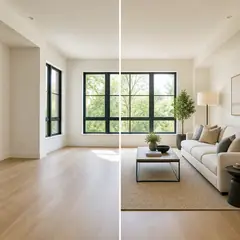
Virtual Staging & Property
Virtual Staging AI
Virtually stage empty rooms with AI furniture for real-estate listings. Create living room, bedroom, office, dining, and luxury concepts.
Try it now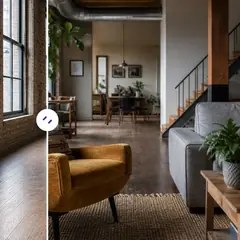
Virtual Staging & Property
AI Room Staging
Stage empty or dated rooms with AI furniture and décor. Create living rooms, bedrooms, offices, dining rooms, and interior style concepts.
Try it now
Photo Enhancement
AI Photo Enhancer
Adjust noise, sharpness, color and scale in one enhancement workflow, then compare the result with the original.
Try it nowGuides for this tool
- How to Prepare Real Estate Listing Photos in Bulk for an AgencyOrganize bulk real estate photo editing with Pixoate. Keep properties, room sequences and concept images clear across an agency's listing workflow.
- How to Remove Temporary Clutter from Real Estate Photos with AIRemove temporary clutter from real estate photos with Pixoate. Review cables and stray objects while preserving the property's actual condition.
Watch each transformation land
Every photo crosses the slash untouched and comes out the other side finished.























