


Backyard Design AI
Generative output can vary; review the full result before publishing
A backyard is often the room people never finish, because every decision — pool or lawn, deck or patio, where the planting goes — is irreversible once the digging starts. This tool takes a photo of your actual yard and produces design concepts on it: realistic materials, believable planting, the fence line and light you really have. Compare a pool against a garden on the same photo, see the deck before a single board is bought, and walk into conversations with landscapers already knowing the direction — deciding on pictures is cheap, and undoing concrete is not.
- Prepared Backyard Design AI direction
- Editable prompt
- Full-result review required
Choose a source image for Backyard Design AI
JPG, PNG, WebP, HEIC, and other supported formats. Free up to 20 MB; Premium and higher up to 50 MB for this tool.
Designing the yard one zone at a time on the same photo
A whole yard in one instruction usually produces a crowded result: pool, deck, fire pit, beds and a play set all fighting for the same patch of lawn. Break it into zones and give each zone a run. Start with the largest decision, often water or no water, and keep the winner as the base for the next step by downloading it and uploading it again.
Each zone has its own page with a narrower direction, such as a shaded structure over seating or a play area with soft surfacing. Name what must stay in every instruction: the shed, the air conditioning unit, the large tree, the gate to the side passage. Those are what tend to disappear when the AI is asked for a big change.
When the concepts are done, check the boundaries. Neighbors' roofs, trees overhanging the fence and their windows should look the same as in the original, because a concept that redesigns next door is not one you can show around. For a single trade decision, the dedicated pages go further, such as a pool with coping and spa options.
AI backyard design from a photo: AI landscape design for your yard
This AI backyard design page turns a photo of your yard into concept images: a patio, a deck, a pool, new planting or a fire pit placed where you can see it. You upload one photo, describe the change in plain words, and compare the concept with your original before you talk to a landscaper or buy anything. It is a visual idea tool for AI landscape design, not a measured plan.
Design backyard online from a photo in 5 steps
The page edits your own photo and asks the AI to keep the fence, the house and the ground you actually have in the picture. Take the photo from the spot where you usually look at the yard, in daylight, with the whole area in view.
- Upload a daylight photo of the yard, taken from the back door or a window.
- Open Custom instructions (optional) and add your design after the prepared sentence rather than deleting it.
- Select Generate Text-based edit.
- Drag the before-and-after slider and check the fence line, the house and any trees.
- Select Edit again to change one detail, or New image to start with another yard.
How to use AI for landscape design: ask in layers
Think from the ground up. Say what the surface is, such as lawn, gravel or pavers. Say where the edges go, such as steel edging, a low wall or a raised bed. Then name the planting, tall at the back and low at the front, and the extras, such as a pergola, a fire pit or string lights. A sentence like gravel path curving from the back door to a paved seating area with a low stone wall gives the AI something to build; a request to make it beautiful does not.
AI garden design, patio or front yard: pick the right page
A narrower page starts closer to the job. Use the AI garden design page for planting and beds. For paving and shelter, the patio visualizer handles AI patio design, and the front yard page suits the street side. For a rooftop or balcony with containers rather than beds, the terrace garden page is the better start.
Design your backyard online with a free preview
A free preview is enough to judge direction in AI yard design. Upload the photo, generate and compare before you choose a plan; without a paid plan the result downloads at web size, which is plenty for weighing ideas on a screen. Premium or a credit returns the original resolution if you want to print the concept for a landscaper. The image carries no watermark.
Compare 2 or 3 backyard ideas on one photo
Run the same photo with a different idea each time, such as lawn and patio against a pool, and keep every result. Each run starts from the photo you uploaded, so every idea begins from the same camera angle, light and fence, which keeps the comparison fair. Put the downloads side by side in a collage for family or neighbors, and let the one that survives the discussion become the brief for a landscaper.
Set up for Backyard Design AI
Prepared settings
- Starting point
- Upload one source image
- The page opens on the correct edit workflow; upload is the only required setup step.
- Prepared workflow
- Prepared Backyard Design AI workflow
- Backyard Design AI opens with the Backyard Design AI direction preselected, so there is no need to find the operation manually.
- Output shape
- Same as your upload
- The result keeps the shape of the image you upload.
- Review rule
- Review the complete generated result before use
- Generated imagery can vary; the final result stays under the user's approval before download.
Best-fit uses
- Compare pool versus garden on your actual yard
- See the deck and patio before materials are bought
- Give landscapers a direction, not a description
Frequently asked questions
- What photo of my yard should I upload?
- A daylight photo from the back of the house looking down the yard — the view you will actually live with — showing the fence lines and as much ground as fits. If the yard is large, one photo per zone works: the patio area by the house, the open lawn, the back corner. The concept designs what the photo shows.
- Are the materials and planting in the concept realistic?
- The concepts use plausible materials and planting at believable scale in your real yard, which is what makes them worth deciding from. They are still concepts: levels, drainage, soil and sun exposure through the seasons shape what can actually be built and grown, so brief a landscaper with the image and let the site visit set the specifics.
- Can it tell me whether a pool actually fits my yard?
- It can show a pool at plausible scale in your photo, which answers the aesthetic question — whether you want a pool there. Whether one fits is a measurement and permits question: setbacks, utilities, access for excavation. If the concept sells you on the idea, a pool contractor's site survey is the step that makes it real.
- Whose photos can I use, and should I check results before sharing?
- Use photos of your own property; renters dreaming on a landlord's yard should treat the concept as a conversation starter, not a plan. Review the full image before sharing — fence lines and neighboring structures are where glitches hide — and any concept used in a listing or by a landscaping business should be disclosed as a visualization.
- Can AI design my backyard for me?
- AI yard design can draw an idea onto your own photo, but you decide what goes in it. You describe the patio, planting or pool, and the page shows it in your yard. It does not survey the site, calculate sizes or choose plants for your soil and climate, so use the image as a starting point for a landscaper.
- Is there an AI landscape generator from photo uploads, with a free preview?
- Yes. Upload one yard photo, describe the change in plain words and preview the concept before you choose a plan. Without a paid plan the result downloads at web size, while Premium or a credit returns the original resolution, which matters if you want to print the concept for a landscaper. The image carries no watermark.
- Is there an AI backyard design app for my phone?
- It runs as a web page, so you open it in your phone's browser instead of installing anything. Take a daylight photo of the yard or choose one from your gallery, and follow the same steps as on a computer. Stand where you usually look at the yard so the whole area is in view.
- How do I stop the AI from changing my house or fence?
- Add a short line such as keep the house, fence and trees exactly as they are. For tighter control, select Refine area manually and brush only the part of the yard that should change; pixels outside the painted area stay as photographed. Check the neighbors' fences and roofs in the result as well.
- Can I use it for a small patio or a balcony?
- Yes. Upload a photo of the patio, balcony or courtyard and describe what you want in it, such as container planting, a bistro set or a trellis. Keep the request small, since a small space fills up quickly, and look closely at railings, walls and furniture scale in the result.
What you can do with AI Real Estate Photo Editor
Review the main capabilities before you begin.
- Stage complete rooms automatically for disclosed concepts
- Add selected TVs, wall colors, or landscaping precisely
- Remove described cables, bins, signs, and distracting clutter
- Replace skies and create realistic twilight exteriors
- Refine automatic edit areas manually when needed
Settings reference
5 settings
Available controls for AI Real Estate Photo Editor.
Tasks
- Edit typeDropdown
- Choose the edit to perform; prompts, selection tools and output controls follow the selected edit type.Options: Text-based editGenerative fillMagic eraserSky replacementRoom staging
- One-tap presetsPresets
- Pick a ready-made direction with one tap; generation uses the selected preset automatically.Options: Add furnitureAdd TVPaint walls warm whiteTwilight skyReplace skyRemove clutterRefresh landscaping
- Custom instructions (optional)Text input
- Describe the requested change, relevant materials, lighting, perspective, and details that must remain unchanged.
Selection
- Selection brush sizeSliderRange: 4–160px · Default: 32px
- Set the brush width used to mark the exact add, fill, or replacement area required before generation.
Output
- Ask AI to preserve subject identity and product detailsOn / Off
- Adds an explicit instruction to retain the main subject, shape, branding, labels, and readable text unless the request changes them.
Related tools for Backyard Design AI
Tools for common next steps after Backyard Design AI.
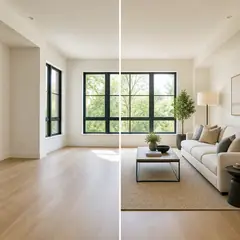
Virtual Staging & Property
Virtual Staging AI
Virtually stage empty rooms with AI furniture for real-estate listings. Create living room, bedroom, office, dining, and luxury concepts.
Try it now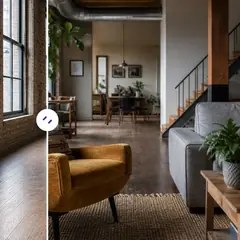
Virtual Staging & Property
AI Room Staging
Stage empty or dated rooms with AI furniture and décor. Create living rooms, bedrooms, offices, dining rooms, and interior style concepts.
Try it now
Photo Enhancement
AI Photo Enhancer
Adjust noise, sharpness, color and scale in one enhancement workflow, then compare the result with the original.
Try it nowGuides for this tool
- How to Prepare Real Estate Listing Photos in Bulk for an AgencyOrganize bulk real estate photo editing with Pixoate. Keep properties, room sequences and concept images clear across an agency's listing workflow.
- How to Remove Temporary Clutter from Real Estate Photos with AIRemove temporary clutter from real estate photos with Pixoate. Review cables and stray objects while preserving the property's actual condition.
Watch each transformation land
Every photo crosses the slash untouched and comes out the other side finished.























