
Realtor AI Headshot Generator
Review facial likeness and identity-relevant details before publishing
Real estate is the one industry where your face is literally the brand — on yard signs, listing portals, business cards, and every Zillow search result. This direction produces a confident, warm portrait with clean studio polish that stays sharp when shrunk to a portal thumbnail, and its direction tells the AI not to add a sold sign or a staged luxury interior behind you.
- Stays sharp on portals, signs, and cards
- Explicit same-person identity constraints
- Full likeness and generated-detail review
Choose a clear portrait for your realtor headshot
JPG, PNG, WebP, HEIC, and other supported formats. Free up to 20 MB; Premium and higher up to 50 MB for this tool.
An agent photo for listing portals, yard signs, and cards
A realtor's face appears on listing portals, agent search results, open house flyers, yard signs, and business cards, sometimes all in the same week. One file has to work both as a thumbnail and as a printed image. The Realtor chip asks for polished clothing on a bright clean studio backdrop and tells the AI to leave out sold signs, house keys, staged interiors, and brokerage branding.
Brokerages may set their own photo format for the agent roster, so check their guidelines first. For printed signs and cards, download the original resolution with Premium or a credit, because the free web-size result can look soft when printed large. Once the portrait is approved, you can design the business card itself separately.
Clients meet you at the door after seeing the photo, so it should match how you look today. Compare hair color, glasses, and apparent age with a recent snapshot. Portal profiles often use a circle, so check how the round crop looks before you upload.
Set up for Realtor AI Headshot Generator
Prepared settings
- Starting point
- One clear, recent portrait
- Choose a clear portrait for your realtor headshot
- Prepared direction
- Realtor
- Bright, confident styling for agent branding.
- Output shape
- Same framing as your upload
- The result keeps the frame of the photo you upload, so crop to head and shoulders before you start.
- Review rule
- Compare likeness and every identity-relevant detail
- Check facial structure, skin tone, hair, age, clothing, and background before professional use.
Best-fit uses
- Realtor profile artwork
- Stays sharp on portals, signs, and cards
- Reviewed web, directory, biography, or professional profile images
Realtor headshot example


Synthetic style illustration, not an output from this tool. These images were authored separately to illustrate the Realtor direction; they do not demonstrate a transformation or typical results.
Original image by Pixoate Studio under the Pixoate Original Synthetic Photography.
Frequently asked questions
- Why do realtor photos matter more than most?
- Because buyers and sellers see the photo before any conversation — on the portal search grid, the sign, the card. It runs at every size from billboard to 60-pixel thumbnail, so it must be sharp, warm, and recent enough that clients recognize you at the door.
- How often should an agent update their headshot?
- Every two to three years, or after any significant change in appearance. An outdated photo costs trust at the first meeting — the client's silent question becomes "what else is staged?" Keep the portrait honest and current.
- Will a realtor headshot keep me recognizable?
- The prompt treats identity as a constraint, but generative results can vary. Inspect the face, hair, age, expression character, clothing, jewelry, and background, and reject any result that changes who you appear to be.
- Can I use the realtor result professionally?
- Use it only when you own or may use the source, the result remains an honest representation, and the destination accepts AI-assisted imagery. It is not an identity document or proof of a role or qualification.
What you can do with LinkedIn Headshot Generator
Review the main capabilities before you begin.
- Turn a selfie into a professional headshot
- Add a clean studio background
- Get polished head-and-shoulders framing
- Even out lighting for a work-ready look
- Prepare a headshot for LinkedIn and resumes
- Direct clothing, background, and lighting with a style prompt
Settings reference
5 settings
Available controls for LinkedIn Headshot Generator.
Workflow
- Single image or Batch imagesPresets
- Process one image, or use Premium Batch images to apply the same automatic recipe to a set and download one ZIP.Options: Single imageBatch images
Styles
- One-tap presetsPresets
- Pick a ready-made direction with one tap; generation uses the selected preset automatically.Options: Neutral studioModern officeWarm editorial
- Custom instructions (optional)Text input
- Describe the requested change, relevant materials, lighting, perspective, and details that must remain unchanged.
Output
- Headshot aspect ratioPresets
- The generated headshot keeps the framing of the photo you upload whichever ratio is selected, so crop your selfie to head and shoulders first.Options: Portrait 4:5Square 1:1Portrait 3:4
- Ask AI to preserve subject identity and product detailsText input
- Adds an explicit instruction to retain the main subject, shape, branding, labels, and readable text unless the request changes them.
Related tools for Realtor AI Headshot Generator
Tools for common next steps after Realtor AI Headshot Generator.
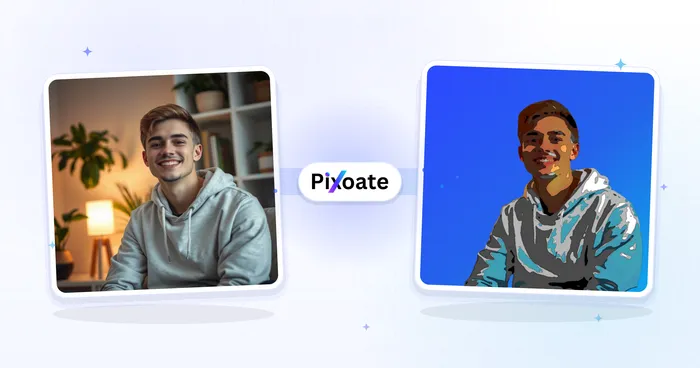
Portrait & Headshot Studio
Avatar Generator
Create corporate, gaming, social, or illustrated avatars from a portrait with editable AI style directions.
Try it now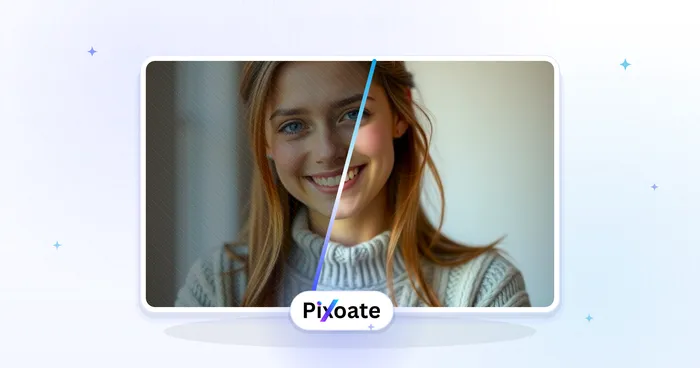
Portrait & Headshot Studio
Beautify Face
Apply adjustable skin smoothing and tone correction while reviewing facial detail and edges.
Try it now
Background Studio
Remove Background
Remove a photo background and download a transparent PNG. Review hair and edges before use.
Try it nowHow LinkedIn Headshot Generator helps you get it done
Real problems it solves every day — for businesses, creators, and everyday tasks. Find the use case that fits you and start.
LinkedIn Profile Photos
Turn a casual selfie into a professional LinkedIn headshot with a clean studio background
Resumes & Job Applications
Create a polished headshot for resumes, CVs, and job applications without a photo studio
Company Directories & Team Pages
Standardize team headshots with consistent framing and backgrounds for about and team pages
Speaker Bios & Conference Profiles
Produce a professional headshot for conference speaker bios, panels, and event profiles
Brand-Color Team Headshots for Startups
Use the custom background color picker to match your exact brand hex behind every teammate's headshot, so the About page and team directory look cohesively branded without booking a real studio.
Real Estate Agent Profile Photos
The Soft Blue and Warm Beige backdrop presets read as approachable and trustworthy for agent bios and listing sites — keep retouch strength low for a credible, authentic look buyers trust.
Freelancer & Consultant Portfolio Photos
Swap in the Charcoal or Brand Blue backdrop for a confident, premium portrait to reuse across Upwork, a personal website and pitch decks.
Alumni & University Directory Photos
White or Light Gray backdrops give every submitted photo the same neutral background, so an alumni directory or faculty page looks consistent even when everyone uploads a different selfie.
Guides for this tool
- How to Create Consistent Staff Headshots for a Company WebsiteCreate consistent staff headshots for a company website with Pixoate. Coordinate framing and backgrounds while keeping each person's likeness clear.
- A Better Team Page Starts with Headshots That Belong TogetherA coherent team page starts with portraits that belong together. Explore Pixoate framing and background choices that preserve individual likenesses.
Watch each transformation land
Every photo crosses the slash untouched and comes out the other side finished.























