
Kitchen Remodel Visualizer
Generative output can vary; review the full result before publishing
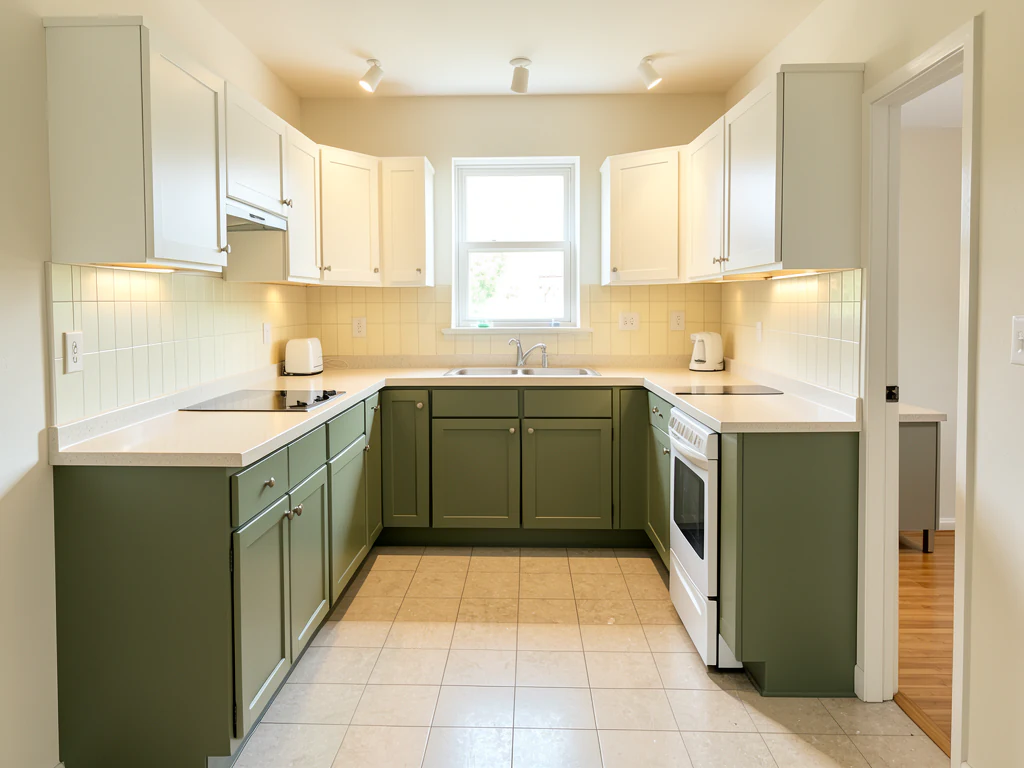
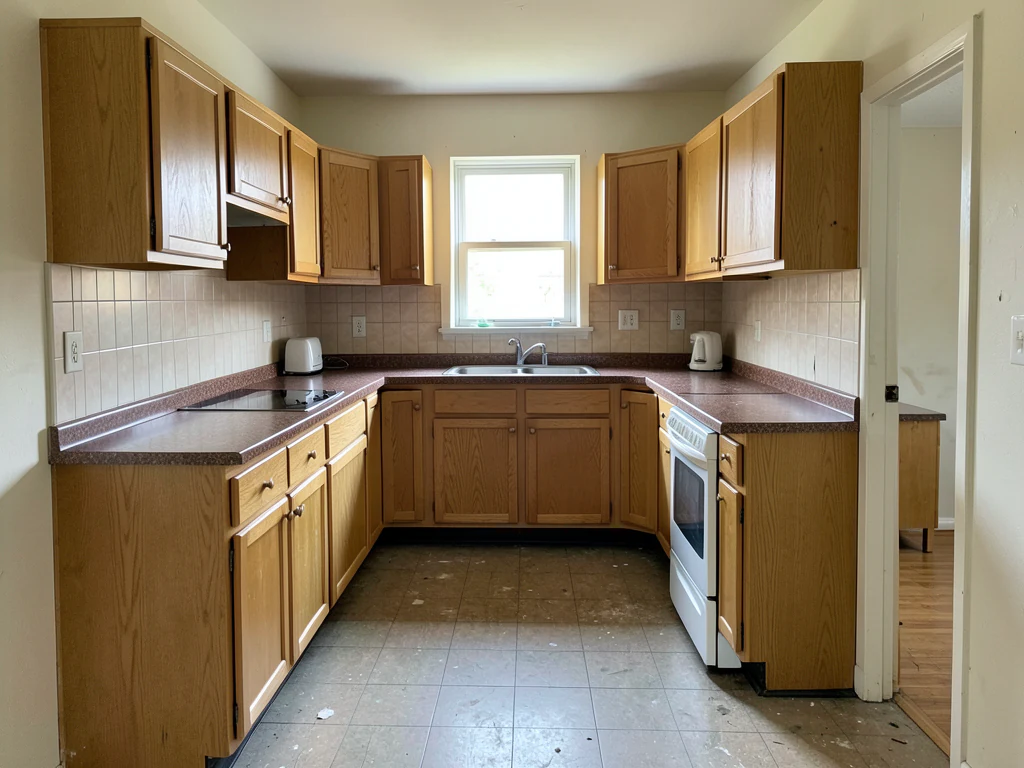
A kitchen is one of the most expensive rooms to renovate and the hardest to picture from samples, because a cabinet color that looks calm on a chip can dominate an entire room. This direction applies new finishes, cabinetry and fixtures to a photo of your existing kitchen and asks the AI to keep the room's shape and viewpoint, so each option is comparable.
- Prepared Kitchen Remodel Visualizer direction
- Editable prompt
- Full-result review required
Generative output can vary; review the full result before publishing
Choose a source image for Kitchen Remodel Visualizer
JPG, PNG, WebP, HEIC, and other supported formats. Free up to 20 MB; Premium and higher up to 50 MB for this tool.
Testing cabinet, counter and backsplash pairings on your own kitchen
Kitchens are judged as surfaces that meet: door color against counter, counter against backsplash, all of it against the floor. Photograph the longest cabinet run from the opposite side of the room at roughly chest height, with upper and lower cabinets both in frame. If you can step back instead of switching to the phone's ultra-wide lens, do; the ultra-wide bends cabinet lines, and the AI follows those curves.
Change one pairing per run so you can tell what made the difference. A useful order is door color, then counter material, then backsplash, written plainly ('sage green shaker doors, keep the white counters and stainless appliances'). When door color is the only open question, recolor just the cabinets to keep the rest of the kitchen steadier. Once the doors are settled, try counter surfaces against them.
Check the details AI tends to invent: the number and position of handles, knobs and logos on appliances, the faucet, and whether the sink is still under the window. If the range hood or fridge changed shape, the concept is no longer about your kitchen. Free results download at web size, which is fine for comparing on a screen; Premium or a credit unlocks the original resolution when you want a print to take to a showroom.
Kitchen visualizer: preview an AI kitchen remodel on a photo of your kitchen
This kitchen remodel visualizer works from a photo and shows your existing kitchen with new cabinet colors, countertops, backsplash or flooring, so you can judge a design before you buy paint or book a contractor. You upload a photo, write the changes in plain words and compare the result with your original. It previews finishes and styles; it does not draw a floor plan or confirm that a layout can be built.
Virtual kitchen remodel from a kitchen remodel photo, step by step
The page edits the photo you upload, so the shape of the room, the window and the light should stay recognizable. You describe what should change and ask the AI to leave everything else alone, which is why a short, specific sentence is easier to check than a long wish list.
- Upload a daylight photo that shows the cabinets, counters and sink.
- Open Custom instructions (optional) and add your change after the prepared sentence, for example: matte navy base cabinets, keep the white uppers and counters.
- Select Generate Text-based edit.
- Drag the before-and-after slider across the cabinets, counters and sink.
- Select Edit again to change one detail, or download the PNG.
Kitchen cabinet paint visualizer: try cabinet colors before you paint
Cabinet color is the change most people test first. Write the color and the finish, such as matte navy, and say what stays: the countertop, the backsplash and the appliances. Run 2 or 3 colors on the same photo, keep the finish the same each time, and save the results as kitchen cabinets design images, so the comparison is about color and not about shine. For a makeover that starts from a cabinet-focused brief, the cabinet makeover page is the narrower start.
Preview countertops, backsplash and flooring
Name the material and its look: white quartz with soft gray veining, pale oak plank flooring, a square white tile backsplash laid in a grid. Change one surface per run and build on the version you liked, starting with the countertop. Pages for a backsplash change and new flooring each open on that single decision. Hold a real sample in the room before you buy; the picture narrows the choices and the sample settles them.
Redesign your kitchen online: what the preview can and cannot show
A virtual kitchen renovation here is a picture of your own kitchen with new finishes, made from the photo you took. It can show how a color, a material or a style sits in your light. It is not built for moving walls, sinks or cooktops, it does not check clearances or price the work, and it is not a gallery of other people's kitchens, so use it to settle the look and leave the plan to a designer.
Brief a kitchen designer or contractor with the preview
Download the result and keep your original beside it, or put the two on a before-and-after slider. Under the picture, write the finishes in words: door style and color, counter material, backsplash, hardware finish and flooring. A designer can price and plan from a list far more easily than from a single image. Say plainly that the picture is generated, so nobody quotes for a handle, a window or an appliance that the AI invented.
Set up for Kitchen Remodel Visualizer
Prepared settings
- Starting point
- Upload one source image
- The page opens on the correct edit workflow; upload is the only required setup step.
- Prepared workflow
- Prepared Kitchen Remodel Visualizer workflow
- Kitchen Remodel Visualizer opens with the Kitchen Remodel Visualizer direction preselected, so there is no need to find the operation manually.
- Output shape
- Same as your upload
- The result keeps the shape of the image you upload.
- Review rule
- Review the complete generated result before use
- Generated imagery can vary; the final result stays under the user's approval before download.
Best-fit uses
- Comparing cabinet colors at full room scale
- Testing countertop and backsplash combinations together
- Deciding between refacing and full replacement
Frequently asked questions
- How do I choose a kitchen cabinet color?
- Judge it at room scale rather than sample scale — a color occupying two full walls behaves very differently from a paint chip. Visualize the leading options, then buy sample pots or door samples and live with them in the actual light for a few days before committing.
- Can I see a new layout, not just new finishes?
- You can visualize layout changes, but treat them as sketches. Kitchen layouts are governed by plumbing, gas, ventilation and electrical positions that an image knows nothing about. Moving a sink or cooktop is a real project, and a kitchen designer should confirm what is feasible.
- Will the countertop material look accurate?
- Broadly for tone and pattern scale, not for the specifics. Natural stone in particular varies slab to slab, so nothing generated will match the piece you receive. Use it to decide between marble-like and wood-like directions, then select the actual slab in person.
- Is refacing or replacing better?
- That depends on the condition of your cabinet boxes and the layout, not on the image. Visualizing a new door color on the existing layout is a quick way to see whether refacing gets you most of the way there — sometimes it does, for less than replacement.
- Is this a kitchen remodel design tool or a simulator?
- It is a visual preview. As a kitchen renovation design tool it shows finishes and styles on your own photo, so you can judge a color or a material before you buy. It does not estimate costs, check clearances or draw plans, so a designer or contractor still has to confirm what can be built.
- Is there an AI kitchen design generator that works from a photo?
- Yes. This page does AI kitchen design from a photo of your real kitchen: you describe the change, and the result shows it in your own room. It edits the photo rather than building a new room from scratch, so it keeps your window, layout and light as a base.
- How is this different from a kitchen rendering?
- A kitchen rendering is usually built from a drawn 3D model of a planned room. This page edits a photograph of the real kitchen to show finishes, which makes it faster for judging colors and materials. It holds no measurements, so it cannot confirm what fits.
- Does this show kitchen reno photos or remodeled kitchens images from other homes?
- No. It shows your own kitchen with new finishes, made from the photo you upload, and it is not a gallery of remodeled kitchens images from other homes. Collect inspiration first, put those pictures beside your own photo in the Photo Collage Maker if you like, then use this page to see how the chosen look sits in your light and your room.
- Is there a kitchen visualizer app I can use on my phone?
- It runs as a web page, so you open it in your phone's browser instead of installing anything. Take or choose a photo of the kitchen and follow the same steps as on a computer. Stand across the room, keep the phone level and use the normal lens, since a wide-angle view bends the cabinet lines.
- Is this a kitchen layout maker, or can I design a kitchen layout without a photo?
- No. The visualizer works from a photo of a real kitchen and shows finishes and styles on it. It is not a kitchen design layout tool: it does not offer a drag-and-drop planner, cabinet sizes or a floor plan. Use it to settle colors and materials, then have a kitchen designer draw the layout.
- Can I change only the cabinets and keep the rest of the kitchen the same?
- Yes. Say what must stay, for example keep the counters, backsplash and appliances. For tighter control, select Refine area manually and brush over the cabinets; pixels outside the painted area stay as photographed. Ticking the checkbox Ask AI to preserve subject identity and product details adds a request to keep geometry and color outside your change.
- Can I try an AI kitchen remodel before paying?
- Yes. You can upload a kitchen photo and generate a preview to see the idea before you choose a plan. A result downloads at web size without a paid plan, which is fine for judging colors on a screen, and Premium or a credit returns the original resolution for a showroom print. The image carries no watermark.
- How do I compare 2 kitchen designs side by side?
- Generate each version from the same photo, download both and open them in the Image Compare tool or a collage. Because every run starts from your original, the angle and light start out the same, so the differences should come from the finishes. Keep a note of the instruction behind each version.
What you can do with AI Real Estate Photo Editor
Review the main capabilities before you begin.
- Stage complete rooms automatically for disclosed concepts
- Add selected TVs, wall colors, or landscaping precisely
- Remove described cables, bins, signs, and distracting clutter
- Replace skies and create realistic twilight exteriors
- Refine automatic edit areas manually when needed
Settings reference
5 settings
Available controls for AI Real Estate Photo Editor.
Tasks
- Edit typeDropdown
- Choose the edit to perform; prompts, selection tools and output controls follow the selected edit type.Options: Text-based editGenerative fillMagic eraserSky replacementRoom staging
- One-tap presetsPresets
- Pick a ready-made direction with one tap; generation uses the selected preset automatically.Options: Add furnitureAdd TVPaint walls warm whiteTwilight skyReplace skyRemove clutterRefresh landscaping
- Custom instructions (optional)Text input
- Describe the requested change, relevant materials, lighting, perspective, and details that must remain unchanged.
Selection
- Selection brush sizeSliderRange: 4–160px · Default: 32px
- Set the brush width used to mark the exact add, fill, or replacement area required before generation.
Output
- Ask AI to preserve subject identity and product detailsOn / Off
- Adds an explicit instruction to retain the main subject, shape, branding, labels, and readable text unless the request changes them.
Related tools for Kitchen Remodel Visualizer
Tools for common next steps after Kitchen Remodel Visualizer.
Virtual Staging & Property
Virtual Staging AI
Virtually stage empty rooms with AI furniture for real-estate listings. Create living room, bedroom, office, dining, and luxury concepts.
Try it now
Virtual Staging & Property
AI Room Staging
Stage empty or dated rooms with AI furniture and décor. Create living rooms, bedrooms, offices, dining rooms, and interior style concepts.
Try it now
Photo Enhancement
AI Photo Enhancer
Adjust noise, sharpness, color and scale in one enhancement workflow, then compare the result with the original.
Try it nowGuides for this tool
- How to Prepare Real Estate Listing Photos in Bulk for an AgencyOrganize bulk real estate photo editing with Pixoate. Keep properties, room sequences and concept images clear across an agency's listing workflow.
- How to Remove Temporary Clutter from Real Estate Photos with AIRemove temporary clutter from real estate photos with Pixoate. Review cables and stray objects while preserving the property's actual condition.
Watch each transformation land
Every photo crosses the slash untouched and comes out the other side finished.























