
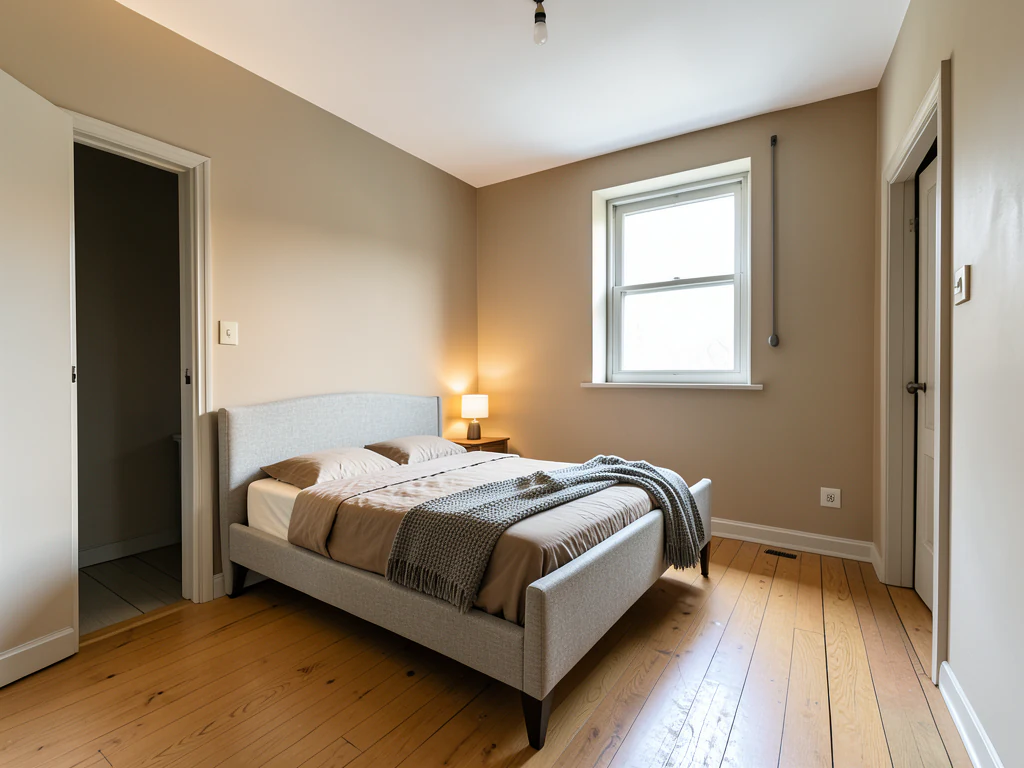
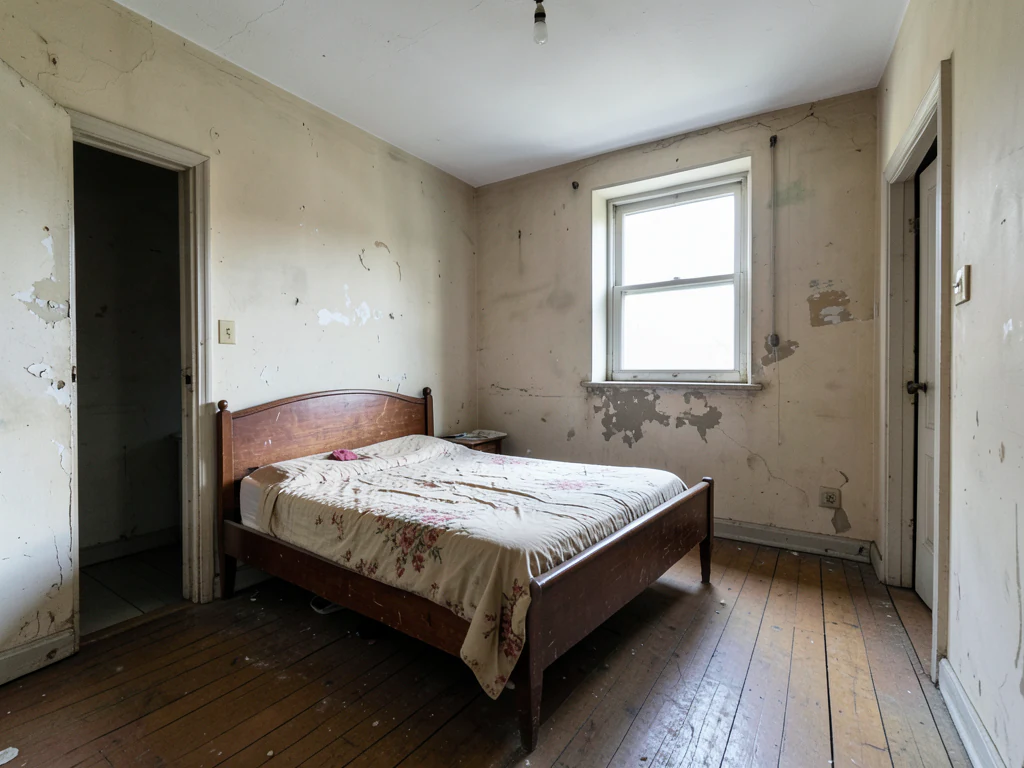
Room Makeover AI
Generative output can vary; review the full result before publishing
Most rooms do not need building work, they need a direction — a palette, a coherent set of furnishings, a reason for the pieces to belong together. This direction restyles decor, color and soft furnishing from one photo of the room and asks the AI to keep fixed architecture, so the makeover is something achievable rather than a different house.
- Prepared Room Makeover AI direction
- Editable prompt
- Full-result review required
Choose a source image for Room Makeover AI
JPG, PNG, WebP, HEIC, and other supported formats. Free up to 20 MB; Premium and higher up to 50 MB for this tool.
Restyling a room with paint, textiles and furniture before buying anything
A makeover concept suits a room whose walls, windows, flooring and built-ins are staying; what changes is paint, furniture, textiles and lighting. Photograph it from a corner so two walls show, with curtains open and the main light on. Leave the furniture in place if you want it restyled, or take the old pieces out of the photo first when you would rather plan from a blank room.
Write the direction as a short brief: a palette, a mood and two or three anchor pieces, such as 'terracotta and cream palette, low linen sofa, round jute rug, rattan pendant'. Three different briefs run on the same photo show quickly which direction the room carries. If you need color names to type in, build a color scheme first and paste the ones you like into the instructions.
Furniture in the result is representative, not a product you can order, so measure the room before buying anything it inspired. Watch for pieces drawn too small for the space, rugs that run under walls, and lamps with no outlet nearby. When a single piece is the decision, place one sofa or chair in the room at scale.
Room makeover AI: restyle the decor of a room from one photo
This page restyles a room's decor, color and furnishing from a single photo, while the walls, windows and fixed features are meant to stay. It suits rooms that need a direction rather than building work: a palette, a style, a coherent set of pieces. You get a picture of the makeover in your own room to react to before you buy anything.
Restyle a room in four steps
The page runs a Text-based edit with a prepared sentence that asks for a disclosed makeover concept and for fixed architecture to be preserved. Your own sentence goes after it, so that request stays in place.
- Upload a photo of the room as it is now, with the lights on and the curtains open.
- Write a palette, a style and two or three anchor pieces in Custom instructions (optional).
- Press Generate Text-based edit.
- Slide between the original and the result, then press Edit again to try a second direction.
Name a style the way a designer would
There are twelve named styles with their own pages under the Home Renovation Visualizer: Modern, Minimalist, Scandinavian, Farmhouse, Industrial, Coastal, Traditional, Contemporary, Luxury, Bohemian, Mid-Century Modern and Rustic. They are useful as vocabulary. Pair a style word with a palette and a mood, such as coastal, sand and soft blue, calm, so the sentence tells the AI what to change.
Makeover, renovation or one change: pick the page
A makeover restyles paint, furniture, textiles and lighting in a room that stays as built. When floors, tiles or cabinets are changing, the renovation visualizer is the closer fit. For one surface or fitting, the single-change editor keeps the rest of the photo quieter. For an empty room that will be listed, virtual staging adds room-type buttons and a disclosure note.
Run the cheap version before the full one
Sort the changes by cost. Run one sentence that changes only paint and textiles, then a second that adds new furniture, and compare both with the original. In many rooms most of the effect sits in the first version, which tells you where the money is worth spending. The same photo can carry both runs, since each one starts from your upload.
Tell the page what to keep
A makeover goes further than a one-change edit, so protect what you love. Name the pieces and surfaces that stay, such as keep the oak floor, the gray sofa and the window, and say what may change, such as walls, rug, curtains and lamps. The checkbox Ask AI to preserve subject identity and product details starts unticked on this page. Ticking it adds a request to keep the geometry, color and exposure outside the change.
Set up for Room Makeover AI
Prepared settings
- Starting point
- Upload one source image
- The page opens on the correct edit workflow; upload is the only required setup step.
- Prepared workflow
- Prepared Room Makeover AI workflow
- Room Makeover AI opens with the Room Makeover AI direction preselected, so there is no need to find the operation manually.
- Output shape
- Same as your upload
- The result keeps the shape of the image you upload.
- Review rule
- Review the complete generated result before use
- Generated imagery can vary; the final result stays under the user's approval before download.
Best-fit uses
- Finding a decor direction before buying anything
- Restyling a room using paint and furnishing rather than building
- Presenting several coherent schemes for one room
Frequently asked questions
- How do I find a decor style that suits my room?
- Generate several distinct directions from the same photo and compare them side by side, rather than judging one at a time. Seeing your actual room in three different schemes reveals which one the space itself wants — usually determined by its light and proportions more than by taste.
- What stays the same in a makeover?
- The direction asks the AI to keep fixed architecture — walls, windows, doors, flooring where it is staying, built-in units, radiators — and change decor: paint, furniture, textiles, lighting, accessories. Check that the fixed elements stayed honest, because that is what makes the result something you could actually achieve.
- Can I get a shopping list from the makeover?
- Not directly — the pieces shown are representative rather than real products. Use the image to define what you are looking for, then search for actual pieces that match the shape, tone and scale. Treating a generated interior as a catalog leads to disappointment.
- Does the room look bigger than it is?
- It should not — the prompt asks the AI to keep the perspective and architecture from your photo. Be alert to furniture scaled slightly small, which is the usual way a generated interior flatters a room. If the pieces look neat but implausibly compact, check against real dimensions.
- Is a room makeover the same as a renovation?
- They overlap, but a makeover changes what you can move or repaint, such as paint, furniture, textiles and lighting, while a renovation changes what is built, such as floors, tiles, cabinets or walls. This page is prepared for the first kind. The renovation visualizer is the page for the second.
- Can I restyle only the walls and keep my furniture?
- Yes. Say that the walls change and the furniture stays, with the new color and finish named. For tighter control, choose Refine area manually and brush the wall surfaces. Afterward, compare the sofa, rug and curtains with the original, since the whole photo is redrawn when no area is painted.
- Why did the furniture change when I only asked for a new color?
- Without a painted area the whole picture is redrawn, so a short request can spread beyond the surface you named. Add a keep list, such as keep all furniture and the floor exactly as they are, tick the preserve checkbox, or brush only the wall with Refine area manually and run it again.
- Can I use a makeover picture in a property listing?
- Only as a labeled concept, and only where the listing rules for your platform and place allow it. A makeover shows what could be, not what is for sale. For a room that will be listed, virtual staging is the page prepared for it, and the original photo should stay in the gallery.
- Does the makeover change the light in the room?
- It can, because the AI redraws the photo and new colors and pieces change how bright a room feels. A darker wall color makes the room look dimmer. Compare brightness and shadows with the original, and state that the window and the light stay as they are if that matters to your decision.
What you can do with AI Real Estate Photo Editor
Review the main capabilities before you begin.
- Stage complete rooms automatically for disclosed concepts
- Add selected TVs, wall colors, or landscaping precisely
- Remove described cables, bins, signs, and distracting clutter
- Replace skies and create realistic twilight exteriors
- Refine automatic edit areas manually when needed
Settings reference
5 settings
Available controls for AI Real Estate Photo Editor.
Tasks
- Edit typeDropdown
- Choose the edit to perform; prompts, selection tools and output controls follow the selected edit type.Options: Text-based editGenerative fillMagic eraserSky replacementRoom staging
- One-tap presetsPresets
- Pick a ready-made direction with one tap; generation uses the selected preset automatically.Options: Add furnitureAdd TVPaint walls warm whiteTwilight skyReplace skyRemove clutterRefresh landscaping
- Custom instructions (optional)Text input
- Describe the requested change, relevant materials, lighting, perspective, and details that must remain unchanged.
Selection
- Selection brush sizeSliderRange: 4–160px · Default: 32px
- Set the brush width used to mark the exact add, fill, or replacement area required before generation.
Output
- Ask AI to preserve subject identity and product detailsOn / Off
- Adds an explicit instruction to retain the main subject, shape, branding, labels, and readable text unless the request changes them.
Related tools for Room Makeover AI
Tools for common next steps after Room Makeover AI.
Virtual Staging & Property
Virtual Staging AI
Virtually stage empty rooms with AI furniture for real-estate listings. Create living room, bedroom, office, dining, and luxury concepts.
Try it now
Virtual Staging & Property
AI Room Staging
Stage empty or dated rooms with AI furniture and décor. Create living rooms, bedrooms, offices, dining rooms, and interior style concepts.
Try it now
Photo Enhancement
AI Photo Enhancer
Adjust noise, sharpness, color and scale in one enhancement workflow, then compare the result with the original.
Try it nowGuides for this tool
- How to Prepare Real Estate Listing Photos in Bulk for an AgencyOrganize bulk real estate photo editing with Pixoate. Keep properties, room sequences and concept images clear across an agency's listing workflow.
- How to Remove Temporary Clutter from Real Estate Photos with AIRemove temporary clutter from real estate photos with Pixoate. Review cables and stray objects while preserving the property's actual condition.
Watch each transformation land
Every photo crosses the slash untouched and comes out the other side finished.























