Digits get transposed
One mistyped digit can make a vehicle appear to travel thousands of extra miles or create an impossible service history.
A photo and extracted reading are not a complete tax record. Verify the mileage and add every record your business or tax rules require.
The reading is already on the dashboard. The tedious part is typing it later, matching it to the right vehicle, and remembering why the trip happened. Photograph the display and finish the log while the details are fresh.
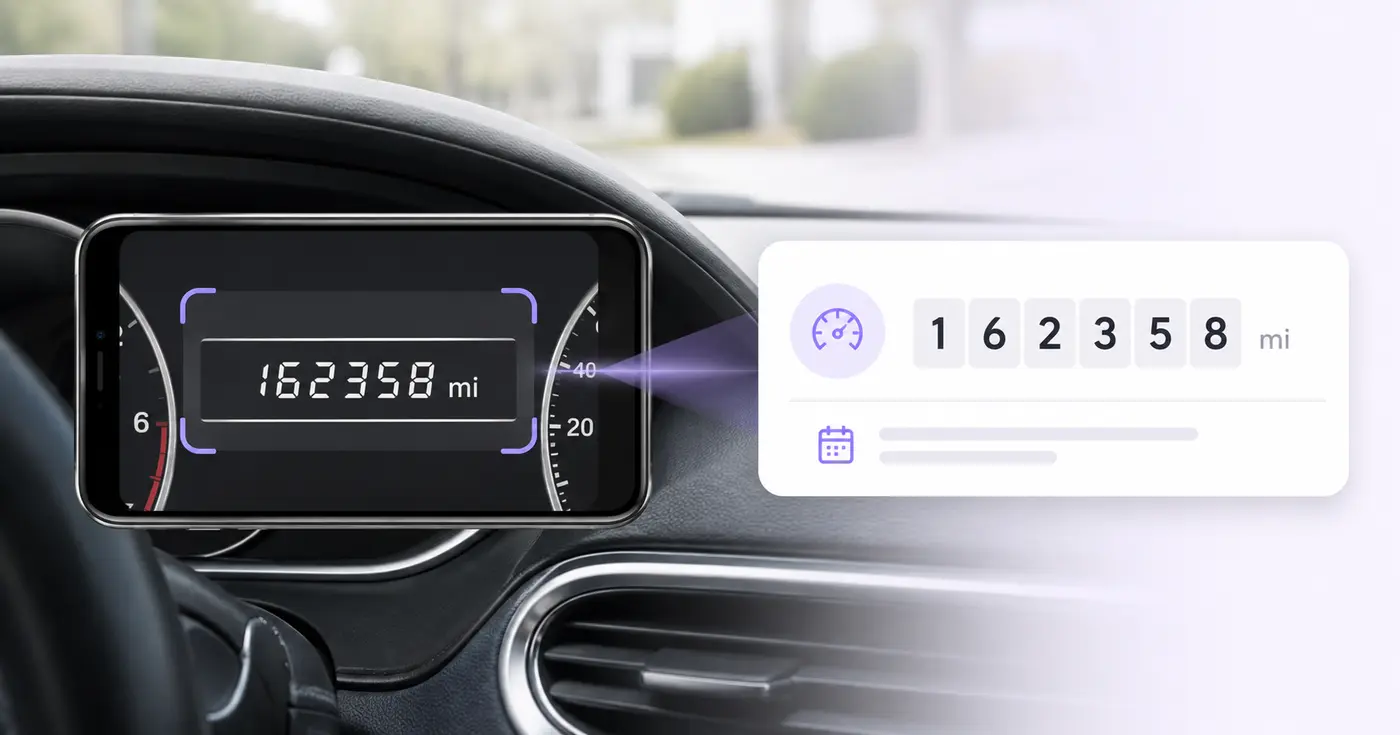
This odometer scanner reads the mileage on a dashboard photo and places it in an editable row with the vehicle, date, driver, destination and business purpose. Use it when you photograph the display at the start or end of a trip and want the numbers in a log instead of a camera roll. Download the rows as CSV, or save them to your account to build a reading history for each vehicle.
Park safely and make sure the display shows total distance, not a trip counter. Keep the digits and the mi or km marking in the frame. The reader looks for a number with a unit beside it, and a bare number with no caption and no unit is not guessed at, because it could be speed, range or a trip meter. If no reading is found, the page asks for a close-up of the mileage display.
The Odometer Reading cell takes digits only, with commas for thousands and a decimal point if the display shows one. Anything else, such as a unit typed into the number, is flagged, because the unit has its own cell. A reading picked up from a number and unit alone, with no Odometer or Mileage caption, carries a note to verify the total against the photo. If you fill the optional VIN cell, it is checked for 17 characters, no I, O or Q, and a matching check digit, and a failed check stops the save.
Each row also holds Vehicle, Reading Date, Driver, Destination and Business Purpose, so the number and the reason for the trip stay together. Up to 25 photos can be read in one run, for example every van in a yard. Saved readings are listed under Saved records, where you can edit a row or delete it, and Download saved register (CSV) exports the whole log for your accounting or fleet workflow.
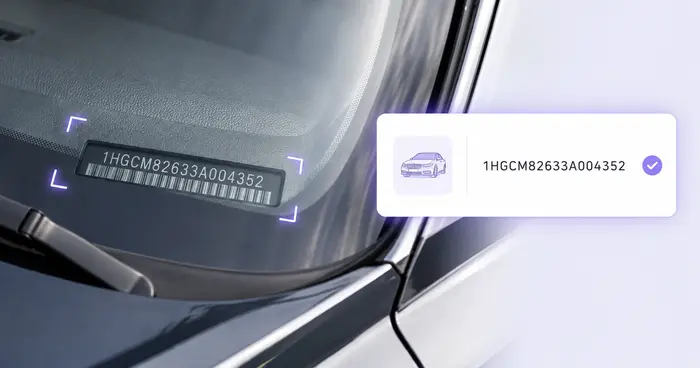
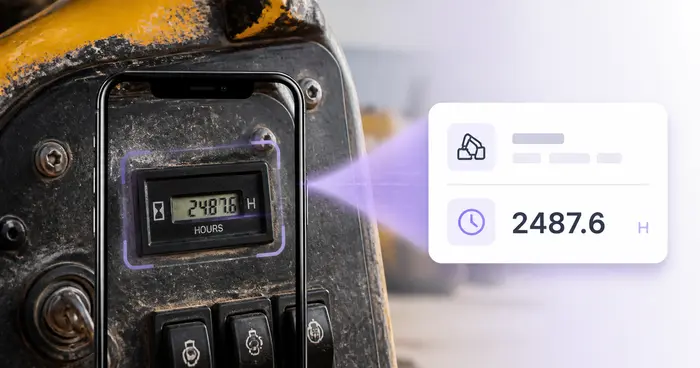
It records readings. It does not subtract one reading from another, calculate business miles or a tax deduction, schedule service, or send reminders. A photo and a transcribed number are not a complete mileage record by themselves, so keep the other details your business or tax rules require. Machines that count hours rather than miles belong in an hour-meter log, and the vehicle itself can be identified by reading the VIN from its label.
The real problem
Drivers take a quick photo because it is easy. Weeks later, the office has a camera roll of anonymous numbers with no vehicle, route, date, or business purpose attached.
One mistyped digit can make a vehicle appear to travel thousands of extra miles or create an impossible service history.
A reading without the vehicle, date, destination, and purpose is hard to reconcile and may be inadequate for the record you need.
Postponed entry turns a simple daily habit into month-end detective work across photos, calendars, and receipts.
How Pixoate helps
Pixoate reads the visible dashboard value into an editable row alongside vehicle, date, driver, destination, and purpose fields. You verify the source, fill the missing context, and export or save the result.
Park safely, make sure the odometer—not a trip meter—is selected, and take a sharp straight-on photo.
Check every digit, select miles or kilometers, and enter the vehicle, date, driver, destination, and business purpose.
Download CSV for your accounting or fleet workflow, or retain the editable record in Pixoate.
Reduce the friction of keeping contemporaneous vehicle readings for business travel.
Collect periodic readings from vans, trucks, and pool vehicles without retyping dashboard photos.
Record mileage when a vehicle changes drivers, locations, rentals, or service providers.
No. It creates an administrative reading log. Tax records can require dates, business mileage, destinations, purposes, annual totals, and supporting evidence; confirm the requirements that apply to you.
It requests an odometer reading, but dashboards vary and OCR cannot reliably know which display mode you selected. Confirm the dashboard label and value before saving.
Yes. Unit is a separate editable field. Check the dashboard indicator because the same digits have very different meaning when the unit is wrong.
Yes. The row includes destination and business-purpose fields, plus vehicle, VIN, driver, and reading date.
Use a sharp, glare-free, straight-on image taken while safely parked. Make the digits and the miles-or-kilometers indicator large enough to read.
No. Digital segments, reflections, warning lights, and analog dials can confuse OCR. Compare every extracted digit with the source photo and correct it before use.
Digital readouts with a mi or km marking read most cleanly. Analog dials, reflections and warning lights can confuse the reader, so compare every digit with the photo. When nothing usable is found, the page says so, and a closer photo with the unit in the frame is the fix.
The reader found no number with a mi or km unit or an Odometer or Mileage caption, or it found several different numbers with units and no caption to choose between them. Either way it created no row for that photo. Retake it closer, with the digits and unit sharp and no glare, and with the total odometer showing instead of a trip meter. In a multi-photo run, the run stops at that photo.
Each row is one reading, and the tool does not subtract one from another. Save the readings with their dates, then export the register and work out the distance between two dates in your spreadsheet.
The first column is Source file, followed by Vehicle, Odometer Reading, Unit (mi or km), Reading Date, VIN, Driver, Destination and Business Purpose. The same columns are used when you export the saved register, so current rows and saved history can be combined in one sheet.
Saved readings are kept in your account, listed under Saved records with the vehicle, VIN or reading as the title. Only the typed values and the file name are stored, not the dashboard photo. Delete a record there when you no longer need it.
Yes. The page works in a phone browser, so you can photograph the dashboard, upload the picture and fill in the trip details on the spot. Sign in first if you want the reading saved, because saving needs an account.
The log has a VIN column, so read the VIN from the windshield plate rather than typing it, and during the same check you can record tire DOT codes and their manufacture week. Fuel and toll slips from the trip can be turned into vendor, date and total fields.
Tools for common next steps after Odometer Scanner.
OCR & Data Extraction
Read a VIN from a vehicle photo, label, document, or supported barcode and check its modern 17-character format.
Try it nowOCR & Data Extraction
Read machine hour meters from photos, verify the digits and decimals, and build an editable equipment utilization log.
Try it nowOCR & Data Extraction
Extract custom fields from an image, scan, invoice, receipt, form, or ID into clean JSON for spreadsheets, accounting, and APIs.
Try it nowEvery photo crosses the slash untouched and comes out the other side finished.