
For students, ops & finance teams
Free Online OCR Tools — Convert Image to Text, Excel and Data
Copy text out of screenshots and photos, convert scans into editable Word and Excel files, and pull receipts, business cards and handwriting into clean structured data.
OCR & Data Extraction
Image to text, Word, Excel and CSV — plus receipts, business cards, custom fields and handwriting.
Image Translator
Translate text from menus, signs, labels, documents and screenshots in 20+ supported languages.
Try it now
Image to Text (OCR)
Extract editable text from a screenshot, photo or scan in 30+ supported languages.
Try it nowCopy Text from Image
Overlay recognized text on an image so you can select and copy the specific passage you need.
Try it now
Image to Word
Place a photo or screenshot inside a .docx as a picture, or use OCR to extract its text into editable paragraphs.
Try it now
Image to Excel
Extract a table from a photo or screenshot and download an editable .xlsx with rows and columns preserved.
Try it now
Image to CSV
Extract a table from a screenshot or photo and download the recognized rows and columns as CSV.
Try it now
Image to HTML
Embed an image in portable HTML, extract semantic content with OCR, or keep its visual layout searchable.
Try it now
Image to Markdown
Convert a screenshot or photo into Markdown text, with tables rebuilt as pipe tables.
Try it nowHandwriting OCR
Extract editable text from a clear photo of handwriting, including supported cursive writing.
Try it nowReceipt Extractor
Extract vendor, date, total, tax, currency and line items from a receipt into structured JSON.
Try it nowExtract Data from Images
Extract custom fields from an image, scan, invoice, receipt, form, or ID into clean JSON for spreadsheets, accounting, and APIs.
Try it nowSerial Number Scanner
Turn equipment-label photos into an editable asset list with serial numbers, models, manufacturers, tags and CSV export.
Try it nowCOI Expiration Tracker
Extract certificate-of-insurance details into an editable vendor register and schedule renewal reminders before expiration.
Try it nowExpiration & Lot Code Scanner
Extract product dates and lot codes from label photos, build an editable watchlist and schedule optional reminders.
Try it now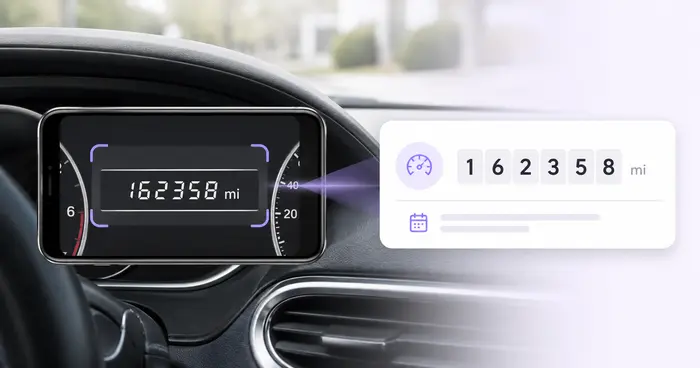
Odometer Scanner
Read dashboard odometers from photos, verify the mileage, add vehicle and trip context, and export or save an editable log.
Try it now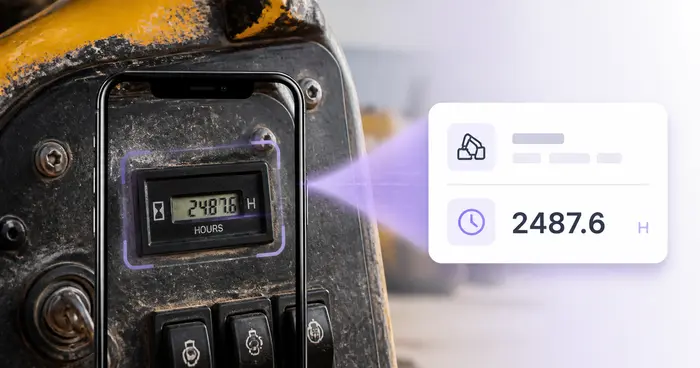
Equipment Hour-Meter Reader
Read machine hour meters from photos, verify the digits and decimals, and build an editable equipment utilization log.
Try it now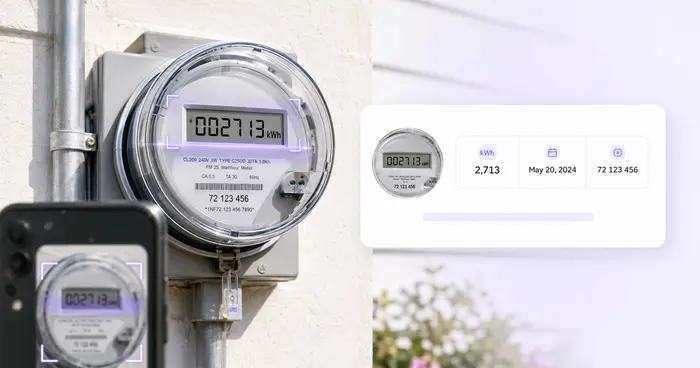
Utility Meter Reader
Turn electric, gas, or water meter photos into editable readings with meter, unit, date, and location details.
Try it now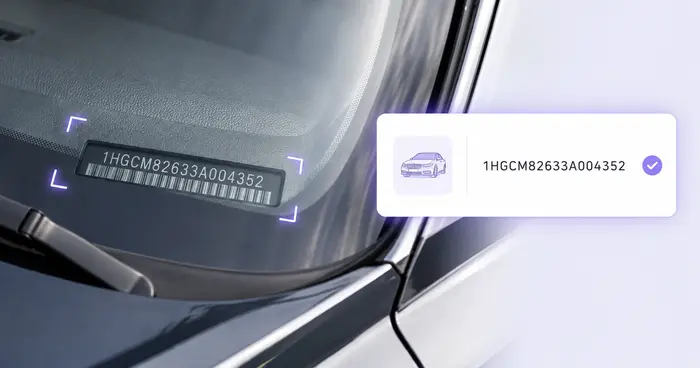
VIN Scanner
Read a VIN from a vehicle photo, label, document, or supported barcode and check its modern 17-character format.
Try it now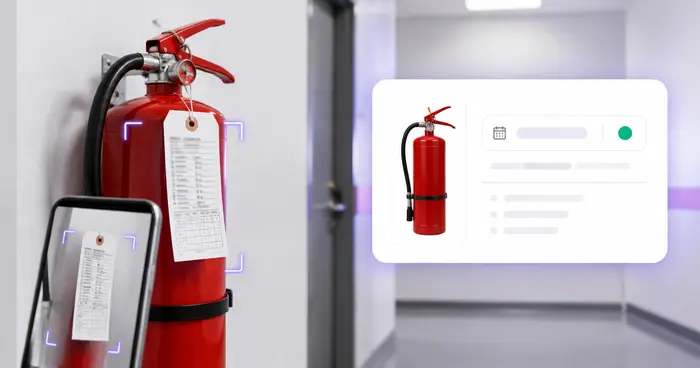
Fire Extinguisher Inspection Tracker
Extract extinguisher tag details into a location register and schedule reminders before a verified next-service date.
Try it now
Warranty Receipt Tracker
Index receipts, products, serial numbers, purchases, and user-verified warranty dates from images or PDFs.
Try it now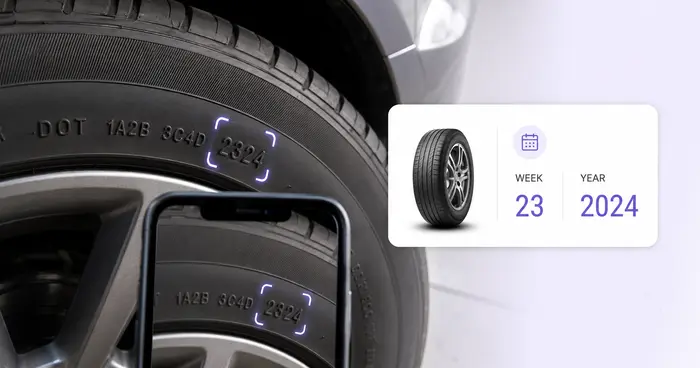
Tire DOT Code Scanner
Read a tire identification number from a sidewall photo and derive week and year from a valid final date code.
Try it now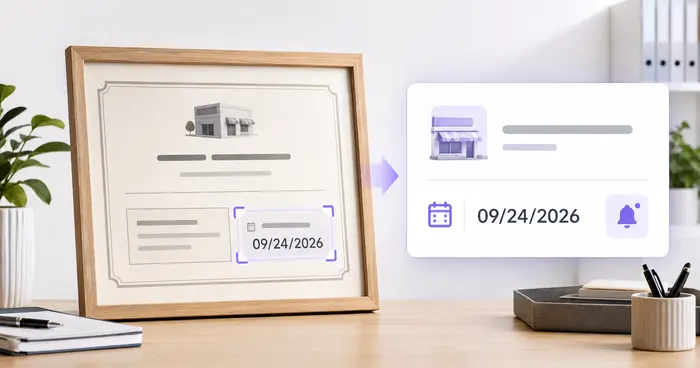
Business License Expiration Tracker
Extract license and permit details from documents, verify jurisdictions and dates, and schedule renewal reminders.
Try it nowBusiness Card Scanner
Extract contact details from a business card and download a vCard (.vcf) for Contacts or your CRM.
Try it nowWhich OCR tool to use for text, tables, handwriting, receipts and scans
OCR reads the letters and numbers in a picture so you can copy, edit or export them. The right tool depends on what the picture holds: plain text, a table, handwriting, a receipt or a scanned page. Start with the job below, then check the recognized result against the image, because small print, blur and glare can all cause misreads.
Copy text from an image or screenshot
To extract text from an image, choose the language shown in the picture, run the recognition and copy the result or download it as a .txt file. If you only need one passage and want to select it in place like text on a web page, copy text straight from the picture instead; it lays selectable words over the image. Screenshots, signs and scanned pages work as long as the text is readable to a person.
Turn a photographed table into Excel or CSV
To convert a photo of a table to Excel, upload the picture, review the editable grid where uncertain cells are highlighted, fix any mistakes and download the .xlsx. The same table can be saved as plain CSV for databases and accounting imports. If the table sits inside a PDF instead of a picture, pull the PDF tables into Excel.
Read handwriting from a photo
Handwriting is harder than print, so it has its own reader. Convert handwritten notes to text with a straight-on, evenly lit photo of neat writing; cursive and rushed notes need more correction. It handles one image at a time, so photograph each page and join the results yourself.
Pull fields from receipts, business cards and forms
Extract receipt data to read the vendor, date, total, tax, currency and line items into structured JSON. Scan a business card to get a vCard contact your phone can import. For anything else, such as an invoice number or an ID field, name the fields you want and get them back as JSON. Check totals and dates against the original before they reach your books, and when finance teams handle documents in volume, the document-to-data workflow keeps a review step in place.
Make a scan searchable or translate what it says
Add a text layer to a scanned document so you can search and copy from the PDF; it takes image files, so turn the pages of an existing scanned PDF into images first, or extract its plain text directly when text is all you need. When the text is in a language you do not read, translate the text in the photo in one pass instead of copying it into a separate translator.
For a cleaner read
- Photograph straight on, in even light, with the page filling the frame.
- Set the language to match the text in the picture; a wrong language is the most common cause of garbled letters.
- Rotate sideways or mirrored pictures upright before you upload them.
- Table, handwriting, receipt and field-extraction tools are Premium tools, so check the on-screen result before you export it.
- Compare names, numbers and dates with the original before you use the result.
Frequently asked questions
- What is OCR and what can it read?
- OCR, or optical character recognition, turns the letters and numbers in a picture into text a computer can edit. Printed text in a clear photo is read most reliably. Handwriting, curved pages and low-light photos need more review.
- How do I convert a picture or screenshot to text?
- Upload the JPG, PNG or screenshot to Image to Text, pick the language of the writing and download the result as a .txt file. To fix a misread word first, edit it in the result box and use Copy to take the corrected text.
- How do I get text out of a scanned PDF?
- Use PDF to Text to extract plain text from a scanned or image-only PDF. To keep the pages looking the same and add a hidden text layer for searching, turn the pages into images and run them through Searchable PDF.
- Does OCR work on handwriting?
- Often, with limits. Neat printed handwriting reads more reliably than cursive, and Handwriting OCR is the tool built for connected writing. Clear light, a straight-on photo and a quick proofread make the biggest difference.
- Can I extract data from invoices and receipts into a spreadsheet?
- Yes, in 2 shapes. Receipt Extractor and Extract Data return fields and totals as JSON, while Image to Excel and Image to CSV return rows and columns. Choose by the shape of the data you need.
- Are my uploaded images kept after text recognition?
- Images are sent over an encrypted connection, processed on secure servers and removed under the Security policy. A result you choose to share stays available at its link, so share only what you want others to see.
Watch each transformation land
Every photo crosses the slash untouched and comes out the other side finished.























