
Entryway Virtual Staging AI
Generative output can vary; review the full result before publishing
The entry shot sets the tone for every photo after it, and bare entries read as rentals. Ask for the classic welcome grammar — slim console, mirror doubling the light, a landing spot for keys — sized to the visible hall, so the listing opens with arrival instead of vacancy.
- Prepared Entryway direction
- Editable prompt
- Full-result review required
Choose a source image for Entryway
JPG, PNG, WebP, HEIC, and other supported formats. Free up to 20 MB; Premium and higher up to 50 MB for this tool.
Staging a narrow entry or foyer so the path stays clear
Entries are shot from just inside the front door looking in, or from the stairs looking back toward the door. Either way, include the floor and both walls, and open interior doors so the photo leads somewhere. Coats, shoes and mail need to go before the shoot; the AI may restyle them into odd shapes instead of removing them.
Keep the instruction small: 'a slim console table on the left wall, a round mirror above it, a runner rug, keep the stair rail and front door unchanged'. A console that is too deep closes off a hallway in the photo, so if the result looks crowded, ask for a wall shelf or a narrow bench instead.
Mirrors in a staged entry reflect something, and the AI decides what. Check that the reflection matches the space it faces and that you are not in it. Look at the glass in the front door, the house number and any doormat lettering, none of which should change. When an entry is too dim to stage well, lift the exposure and clean up grain on the original first.
Set up for Entryway Virtual Staging AI
Prepared settings
- Starting point
- Upload one source image
- The page opens on the correct edit workflow; upload is the only required setup step.
- Prepared workflow
- Prepared Entryway staging direction
- Entryway Virtual Staging AI opens with the Entryway direction preselected, so there is no need to find the operation manually.
- Output shape
- Same as your upload
- The result keeps the shape of the image you upload.
- Review rule
- Review the complete generated result before use
- Generated imagery can vary; the final result stays under the user's approval before download.
Best-fit uses
- Opening listing galleries with a staged welcome
- Making narrow halls read purposeful, not tight
- Adding warmth to bare foyer photos
Frequently asked questions
- Is staging a small entryway worth a photo slot?
- As the gallery opener or closer, yes — it frames the home as cared-for. Buyers do not consciously evaluate the console table; they absorb "this home welcomes," which colors how they read every room that follows.
- What fits an honest narrow-hall staging?
- A console no deeper than a hand-span, a mirror above it, one lamp or plant — pieces that keep the walking path visibly clear. If the staged hall looks hard to walk through, the staging subtracted value instead of adding it.
- What should I review in a Entryway result?
- Inspect faces, hands, object geometry, small details, perspective, readable marks, and any claim implied by the scene. Regenerate or reduce the requested change when something is inaccurate.
- What rights checks apply to a Entryway client project?
- Use only source material and references you have rights to, follow the destination platform rules, and obtain any required person or property permissions. Generated output still needs a human accuracy and rights review.
What you can do with Virtual Staging AI
Review the main capabilities before you begin.
- Stage the full room automatically without painting
- Create living, bedroom, office, and dining layouts
- Protect fixed architecture through strict preservation instructions
- Process multiple listing photos in Premium batch mode
Settings reference
5 settings
Available controls for Virtual Staging AI.
Workflow
- Single image or Batch imagesPresets
- Process one image, or use Premium Batch images to apply the same automatic recipe to a set and download one ZIP.Options: Single imageBatch images
Styles
- One-tap presetsPresets
- Pick a ready-made direction with one tap; generation uses the selected preset automatically.Options: Stage living roomStage bedroomStage home officeStage dining roomLuxury staging
- Custom instructions (optional)Text input
- Describe the requested change, relevant materials, lighting, perspective, and details that must remain unchanged.
Selection
- Selection brush sizeSliderRange: 4–160px · Default: 32px
- Automatic selection is the default. Open Refine area manually and set this brush width only when the image needs a tighter edit boundary.
Output
- Ask AI to preserve subject identity and product detailsOn / Off
- Adds an explicit instruction to retain the main subject, shape, branding, labels, and readable text unless the request changes them.
Related tools for Entryway Virtual Staging AI
Tools for common next steps after Entryway Virtual Staging AI.
Virtual Staging & Property
AI Real Estate Photo Editor
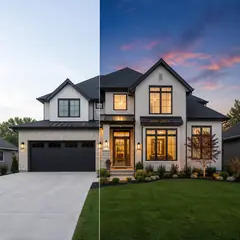
Edit real-estate photos with AI: add furniture or a TV, paint walls, remove clutter, replace skies, improve landscaping, and create twilight exteriors.
Try it now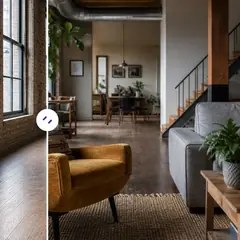
Virtual Staging & Property
AI Room Staging
Stage empty or dated rooms with AI furniture and décor. Create living rooms, bedrooms, offices, dining rooms, and interior style concepts.
Try it now
Photo Enhancement
AI Photo Enhancer
Adjust noise, sharpness, color and scale in one enhancement workflow, then compare the result with the original.
Try it nowGuides for this tool
- Virtual Staging for Unfurnished Rentals: Show Layout Ideas to Prospective TenantsUse virtual staging to show furniture layout ideas for unfurnished rentals. Create Pixoate concepts that help tenants picture a room's possible use.
- People Buy Possibilities: Why Empty Rooms Need a Visual StoryEmpty rooms can leave buyers struggling to picture everyday life. Explore believable Pixoate virtual staging concepts and what home-staging research says.
Watch each transformation land
Every photo crosses the slash untouched and comes out the other side finished.























