
Patio Virtual Staging AI
Generative output can vary; review the full result before publishing
Outdoor space is unpriced square footage until a photo makes it livable. Ask for weather-credible lounge or dining pieces sized to your patio or deck — an outdoor room, not a furniture catalog — and the prompt asks the AI to keep the hardscape, railing, and view; compare them with the original.
- Prepared Patio direction
- Editable prompt
- Full-result review required
Choose a source image for Patio
JPG, PNG, WebP, HEIC, and other supported formats. Free up to 20 MB; Premium and higher up to 50 MB for this tool.
Furnishing a patio, deck or balcony photo at its real size
Outdoor spaces have fewer cues for scale than rooms, so include something of known size in the frame: a door, a railing, deck boards, paving slabs. Shoot from the house looking out so the step from inside to outside is visible, and pick a time of even light; hard midday shadows make staged furniture's shadows disagree with the real ones.
Write the furniture to fit the space: 'two lounge chairs and a small side table' for a balcony, 'a dining table for six under the pergola' for a large deck. Add 'keep the railing, the grill and the planters as they are' so existing features are not reshaped. AI sometimes adds string lights, an outdoor heater or a shade structure; anything fixed or wired that the property lacks has to come out.
Check where chair legs meet the boards and whether cushions catch light from the same direction as the house wall. Plants in staged pots should suit the season you shot in. For a new paving or shelter idea rather than furniture, the patio visualizer previews hardscape changes as a concept.
Set up for Patio Virtual Staging AI
Prepared settings
- Starting point
- Upload one source image
- The page opens on the correct edit workflow; upload is the only required setup step.
- Prepared workflow
- Prepared Patio staging direction
- Patio Virtual Staging AI opens with the Patio direction preselected, so there is no need to find the operation manually.
- Output shape
- Same as your upload
- The result keeps the shape of the image you upload.
- Review rule
- Review the complete generated result before use
- Generated imagery can vary; the final result stays under the user's approval before download.
Best-fit uses
- Turning bare concrete pads into outdoor rooms
- Previewing what furniture a balcony could hold
- Summer-selling listings with outdoor lifestyle proof
Frequently asked questions
- What furniture reads credible on a small patio?
- A compact lounge pair or a bistro set — whichever the true dimensions support with walking room left. The AI estimates size from the visible hardscape, so check it; an eight-seat staged dining set on a six-foot balcony is the fastest way to get caught.
- Does patio staging work off-season?
- Yes — buyers shopping in winter still buy the summer story, and staged outdoor photos carry it. Keep planting seasonally plausible for the shoot date; staged tulips in a November photo undercut the honesty the rest of the listing needs.
- What should I review in a Patio result?
- Inspect faces, hands, object geometry, small details, perspective, readable marks, and any claim implied by the scene. Regenerate or reduce the requested change when something is inaccurate.
- What rights checks apply to a Patio client project?
- Use only source material and references you have rights to, follow the destination platform rules, and obtain any required person or property permissions. Generated output still needs a human accuracy and rights review.
What you can do with Virtual Staging AI
Review the main capabilities before you begin.
- Stage the full room automatically without painting
- Create living, bedroom, office, and dining layouts
- Protect fixed architecture through strict preservation instructions
- Process multiple listing photos in Premium batch mode
Settings reference
5 settings
Available controls for Virtual Staging AI.
Workflow
- Single image or Batch imagesPresets
- Process one image, or use Premium Batch images to apply the same automatic recipe to a set and download one ZIP.Options: Single imageBatch images
Styles
- One-tap presetsPresets
- Pick a ready-made direction with one tap; generation uses the selected preset automatically.Options: Stage living roomStage bedroomStage home officeStage dining roomLuxury staging
- Custom instructions (optional)Text input
- Describe the requested change, relevant materials, lighting, perspective, and details that must remain unchanged.
Selection
- Selection brush sizeSliderRange: 4–160px · Default: 32px
- Automatic selection is the default. Open Refine area manually and set this brush width only when the image needs a tighter edit boundary.
Output
- Ask AI to preserve subject identity and product detailsOn / Off
- Adds an explicit instruction to retain the main subject, shape, branding, labels, and readable text unless the request changes them.
Related tools for Patio Virtual Staging AI
Tools for common next steps after Patio Virtual Staging AI.
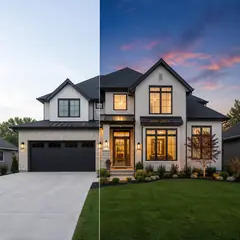
Virtual Staging & Property
AI Real Estate Photo Editor
Edit real-estate photos with AI: add furniture or a TV, paint walls, remove clutter, replace skies, improve landscaping, and create twilight exteriors.
Try it now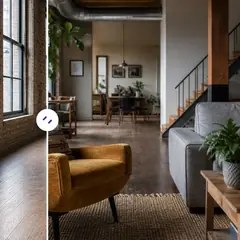
Virtual Staging & Property
AI Room Staging
Stage empty or dated rooms with AI furniture and décor. Create living rooms, bedrooms, offices, dining rooms, and interior style concepts.
Try it now
Photo Enhancement
AI Photo Enhancer
Adjust noise, sharpness, color and scale in one enhancement workflow, then compare the result with the original.
Try it nowGuides for this tool
- Virtual Staging for Unfurnished Rentals: Show Layout Ideas to Prospective TenantsUse virtual staging to show furniture layout ideas for unfurnished rentals. Create Pixoate concepts that help tenants picture a room's possible use.
- People Buy Possibilities: Why Empty Rooms Need a Visual StoryEmpty rooms can leave buyers struggling to picture everyday life. Explore believable Pixoate virtual staging concepts and what home-staging research says.
Watch each transformation land
Every photo crosses the slash untouched and comes out the other side finished.























