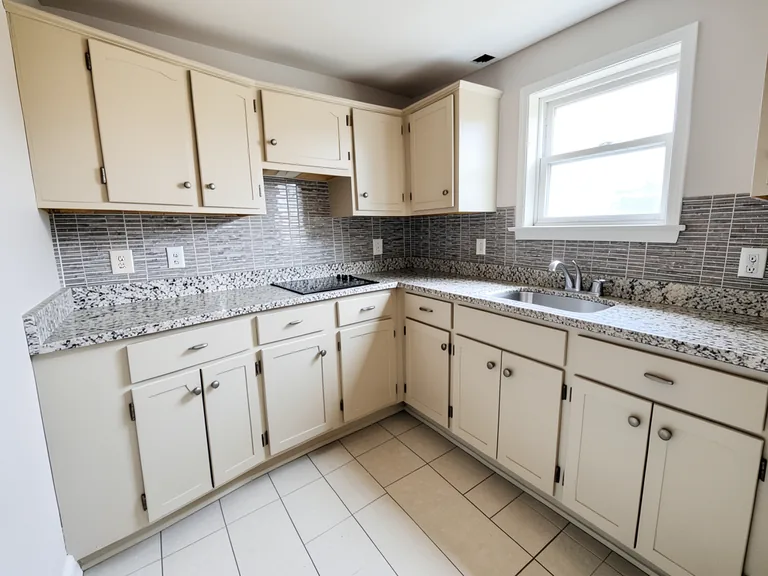
Virtual Room Staging Tools
Furnish empty rooms, clear clutter and restyle a space, then compare each concept with the real room.
Room Staging tools
Virtual Staging AI
Virtually stage empty rooms with AI furniture for real-estate listings.
Try it nowAI Room Staging
Stage empty or dated rooms with AI furniture and décor.
Try it nowEmpty Room Converter
Can't decide what your spare room should become?
Try it nowDeclutter Room AI
Clear loose clutter from a room photo while keeping walls, floors and fixed features as photographed.
Try it nowRemove Furniture from Photo
Take movable furniture out of a room photo and rebuild the floor and walls behind it, keeping fixed architecture as photographed.
Try it nowRoom Makeover AI
Restyle a room's decor, color and furnishing from a single photo while keeping walls, windows and fixed architecture as photographed.
Try it nowBrowse every ready-made page
Virtual staging by room and style
By room
- Living Room Virtual Staging AI
- Bedroom Virtual Staging AI
- Kitchen Virtual Staging AI
- Dining Room Virtual Staging AI
- Home Office Virtual Staging AI
- Bathroom Virtual Staging AI
- Nursery Virtual Staging AI
- Basement Virtual Staging AI
- Studio Apartment Virtual Staging AI
- Entryway Virtual Staging AI
- Patio Virtual Staging AI
- Outdoor Space Virtual Staging AI
Empty Room Converter13 pages
By space type
- Empty Room to Playroom Converter
- Empty Room to Nursery Converter
- Empty Room to Home Office Converter
- Empty Room to Home Gym Converter
- Empty Room to Home Theater Converter
- Empty Room to Library Converter
- Empty Room to Man Cave Converter
- Empty Room to Yoga Room Converter
- Empty Room to Game Room Converter
- Empty Room to Pooja Room Converter
- Empty Room to Kindergarten Room Converter
- Empty Room to Guest Bedroom Converter
- Empty Room to Music Studio Converter
More in Virtual Staging & Room Visualizers
Virtual room staging: furnish an empty room or clear a cluttered one
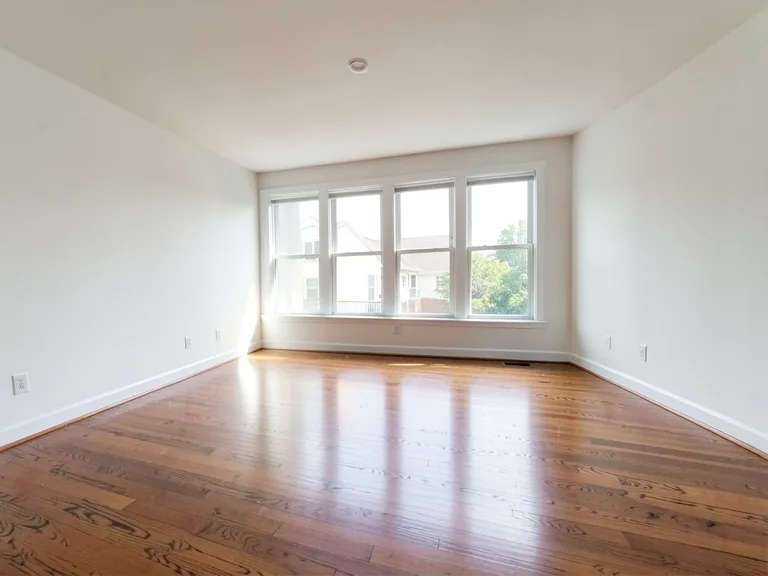
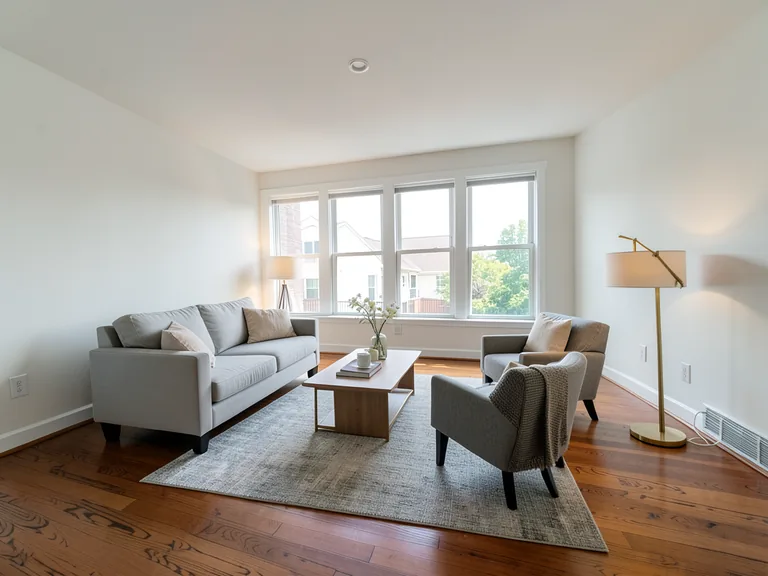
Room staging tools turn the room in your photo into the room you want people to imagine. Furnish a bare space in a chosen style, convert it into a different kind of room, or remove what is in the way first. Every tool here keeps the architecture of the photo and changes the contents, so the result still looks like your room.
Stage an empty room in a style
Virtual Staging AI plans the whole layout for you. Pick a style button, add items such as curtains or a wall-mounted TV under Add to your result, and describe anything the buttons cannot, like pale oak or a reading corner by the window. If the layout is wrong, use Refine area manually to paint where furniture belongs.
Turn a bare room into a different kind of space
Empty Room Converter answers the question of what a spare room could become. Its purpose buttons cover rooms such as a home gym, a nursery, a library, a music studio or a guest bedroom, and each purpose arrives with a furniture layout that fits it. Try two or three purposes on the same photo before you decide.
Restyle a furnished room
AI Room Staging accepts furnished rooms as well as empty ones, and Room Makeover AI restyles a room in a new interior style while the structure stays put. Use them when you want to compare a Scandinavian or farmhouse version of the room you already have, without moving a single chair.
Clear the room first
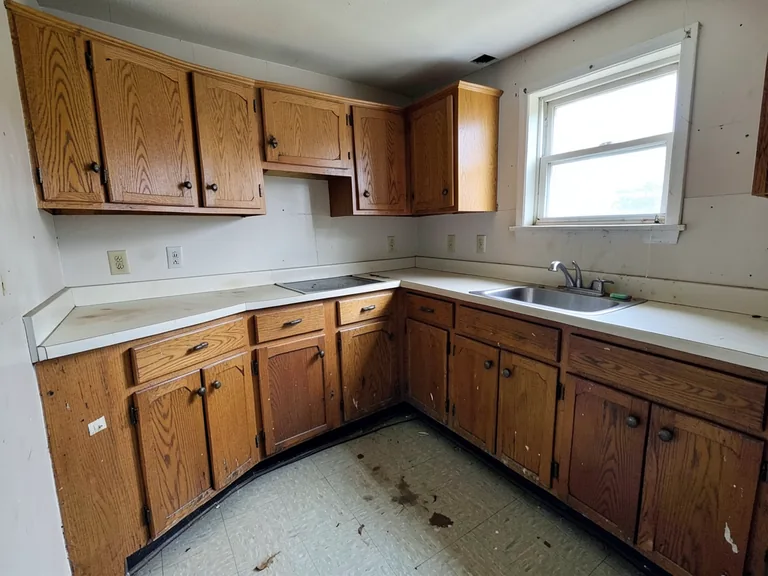
When old furniture or clutter is in the photo, Declutter Room AI removes loose items and Remove Furniture from Photo takes out movable furniture, rugs and decor. Staging on a cleared photo produces cleaner floors and wall edges, which makes the finished concept easier to trust.
- Open the Declutter or Remove Furniture page and upload the photo.
- Generate and check the floor and wall edges.
- Send the cleared photo to a staging tool.
- Choose a style and generate the staged room.
Browse by room type or style
Ready-made pages exist for each common room and each popular style, so you can open the one that matches your photo, such as a nursery, a basement or an entryway, or a coastal or industrial look. They open with the right direction already prepared, which saves typing and keeps the result on topic.
Choose a style that suits the person who will see it
Staging works when the style matches the viewer. A family buyer expects warm, practical furniture, a city renter may prefer a compact and minimal layout, and a holiday guest wants light and comfort. Pick the style from the buttons first, then use the custom instruction to name colors or materials, such as pale oak floors or linen curtains. One clear direction beats a long list of mixed ideas.
Fix common problems with a staged result
If furniture floats, the legs look too thin or the scale feels wrong, generate again before you change anything else. Shorter instructions often work better than long ones, and naming what to leave out, such as a rug or a ceiling light, keeps the result tidy. For an awkward corner, paint the furniture area with Refine area manually on Virtual Staging AI so the layout follows your plan.
A good photo for staging
- Shoot from a corner so two walls and the floor are visible.
- Keep windows and doors in view.
- Turn the lights on and avoid strong shadows.
- Remove loose cables and bags from the floor.
Frequently asked questions
- Can I stage a room with no furniture at all?
- Yes. An empty room is the easiest case, because the tool plans the layout across the whole space. Include the floor, walls and windows in the photo so it can place furniture at a believable scale.
- How do I choose between the staging tools?
- Use Virtual Staging AI for a style-led layout, Empty Room Converter when the room should become a specific kind of space, and Room Makeover AI when a furnished room needs a new look. Declutter Room AI comes first when the room is full.
- Can I add specific items such as a rug or a fireplace?
- Yes. Tap items under Add to your result, and add your own wording in the custom instruction for details the buttons do not cover. Items and the style you pick are combined into one request.
- What if the furniture lands in the wrong place?
- On Virtual Staging AI, choose Refine area manually and paint the area where furniture should go. Cover the full footprint of each piece, and leave walls, windows and doors outside the painted area.
- Can I stage several rooms in the same style?
- The Premium batch option on Virtual Staging AI and AI Room Staging applies one style to every queued room photo and returns the results together. Try one room first so you are happy with the direction.
- Does the tool change the walls or the flooring?
- Staging tools add and restyle contents while keeping the architecture, but they may adjust small details. If you want new paint or flooring, use the Interior Paint Visualizer or the Flooring Visualizer instead, where those changes are the goal.
- Which photos work best?
- Bright, level photos taken from a corner work best, with the floor and at least two walls visible. Very dark photos, extreme wide angles and heavily cropped rooms leave the tool guessing about scale.
- Is a staged room safe to use in a listing?
- Use it as a concept and say so. Label the image as virtually staged and keep the original photo available, because buyers expect to see what the room really looks like.
Watch each transformation land
Every photo crosses the slash untouched and comes out the other side finished.