
Modern Virtual Staging AI
Generative output can vary; review the full result before publishing
Modern is the staging default because it subtracts: low-profile furniture, neutral palette, clean lines that let the architecture speak. This direction stages your room photo in that broad-appeal register — a style that suits many listings and offends few buyers — while the prompt asks the AI to keep walls, floors, and windows as shot.
- Prepared Modern direction
- Editable prompt
- Full-result review required
Choose a source image for Modern
JPG, PNG, WebP, HEIC, and other supported formats. Free up to 20 MB; Premium and higher up to 50 MB for this tool.
Modern staging with clean-lined furniture and the architecture left alone
Modern staging suits rooms whose bones are already plain: drywall, simple trim, large windows, a neutral floor. Before you upload, look for anything that will fight a low, clean-lined sofa, such as an ornate radiator cover or a heavy curtain rail, and decide whether to name it in the instructions so the AI leaves it in place.
Glass, chrome and lacquer turn up often in this style, and reflective surfaces are where AI slips: a glass coffee table reflecting a window on the wrong side, chrome legs that bend, a glossy floor showing furniture that is not in the room. Zoom into each reflective piece before you keep a result.
The style also tempts the AI to modernize the room itself, with recessed lights in a ceiling that has none, a flush fireplace surround, or slimmer window frames. Compare the ceiling, the trim and the window frames against the original with the before-and-after slider. If modern feels too cold for the house, stage the same photo in mid-century modern, which keeps clean lines but adds warm wood.
Set up for Modern Virtual Staging AI
Prepared settings
- Starting point
- Upload one source image
- The page opens on the correct edit workflow; upload is the only required setup step.
- Prepared workflow
- Prepared Modern staging direction
- Modern Virtual Staging AI opens with the Modern direction preselected, so there is no need to find the operation manually.
- Output shape
- Same as your upload
- The result keeps the shape of the image you upload.
- Review rule
- Review the complete generated result before use
- Generated imagery can vary; the final result stays under the user's approval before download.
Best-fit uses
- Default staging for the widest buyer pool
- Letting strong architecture stay the hero
- Consistent modern styling across a whole listing
Frequently asked questions
- Why is modern the safest staging style choice?
- It encodes the least taste to disagree with — neutral tones and simple forms read as "finished" without reading as someone else's personality. When you cannot profile the buyer, modern loses the fewest of them.
- When is modern staging the wrong call?
- Character properties — a craftsman bungalow or historic apartment staged starkly modern reads as a fight between house and furniture. Match period character with warmer styles and save modern for spaces whose bones are already clean.
- What should I review in a Modern result?
- Inspect faces, hands, object geometry, small details, perspective, readable marks, and any claim implied by the scene. Regenerate or reduce the requested change when something is inaccurate.
- What rights checks apply to a Modern client project?
- Use only source material and references you have rights to, follow the destination platform rules, and obtain any required person or property permissions. Generated output still needs a human accuracy and rights review.
What you can do with Virtual Staging AI
Review the main capabilities before you begin.
- Stage the full room automatically without painting
- Create living, bedroom, office, and dining layouts
- Protect fixed architecture through strict preservation instructions
- Process multiple listing photos in Premium batch mode
Settings reference
5 settings
Available controls for Virtual Staging AI.
Workflow
- Single image or Batch imagesPresets
- Process one image, or use Premium Batch images to apply the same automatic recipe to a set and download one ZIP.Options: Single imageBatch images
Styles
- One-tap presetsPresets
- Pick a ready-made direction with one tap; generation uses the selected preset automatically.Options: Stage living roomStage bedroomStage home officeStage dining roomLuxury staging
- Custom instructions (optional)Text input
- Describe the requested change, relevant materials, lighting, perspective, and details that must remain unchanged.
Selection
- Selection brush sizeSliderRange: 4–160px · Default: 32px
- Automatic selection is the default. Open Refine area manually and set this brush width only when the image needs a tighter edit boundary.
Output
- Ask AI to preserve subject identity and product detailsOn / Off
- Adds an explicit instruction to retain the main subject, shape, branding, labels, and readable text unless the request changes them.
Related tools for Modern Virtual Staging AI
Tools for common next steps after Modern Virtual Staging AI.
Virtual Staging & Property
AI Real Estate Photo Editor
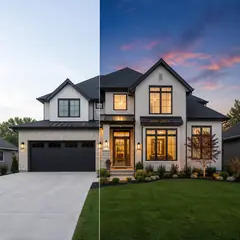
Edit real-estate photos with AI: add furniture or a TV, paint walls, remove clutter, replace skies, improve landscaping, and create twilight exteriors.
Try it now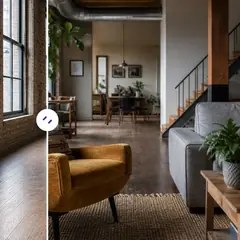
Virtual Staging & Property
AI Room Staging
Stage empty or dated rooms with AI furniture and décor. Create living rooms, bedrooms, offices, dining rooms, and interior style concepts.
Try it now
Photo Enhancement
AI Photo Enhancer
Adjust noise, sharpness, color and scale in one enhancement workflow, then compare the result with the original.
Try it nowGuides for this tool
- Virtual Staging for Unfurnished Rentals: Show Layout Ideas to Prospective TenantsUse virtual staging to show furniture layout ideas for unfurnished rentals. Create Pixoate concepts that help tenants picture a room's possible use.
- People Buy Possibilities: Why Empty Rooms Need a Visual StoryEmpty rooms can leave buyers struggling to picture everyday life. Explore believable Pixoate virtual staging concepts and what home-staging research says.
Watch each transformation land
Every photo crosses the slash untouched and comes out the other side finished.























