
Count Logs in a Photo — Log Counting App for Timber
Works with JPG, PNG, WEBP · Free up to 20 MB, Premium 50 MB
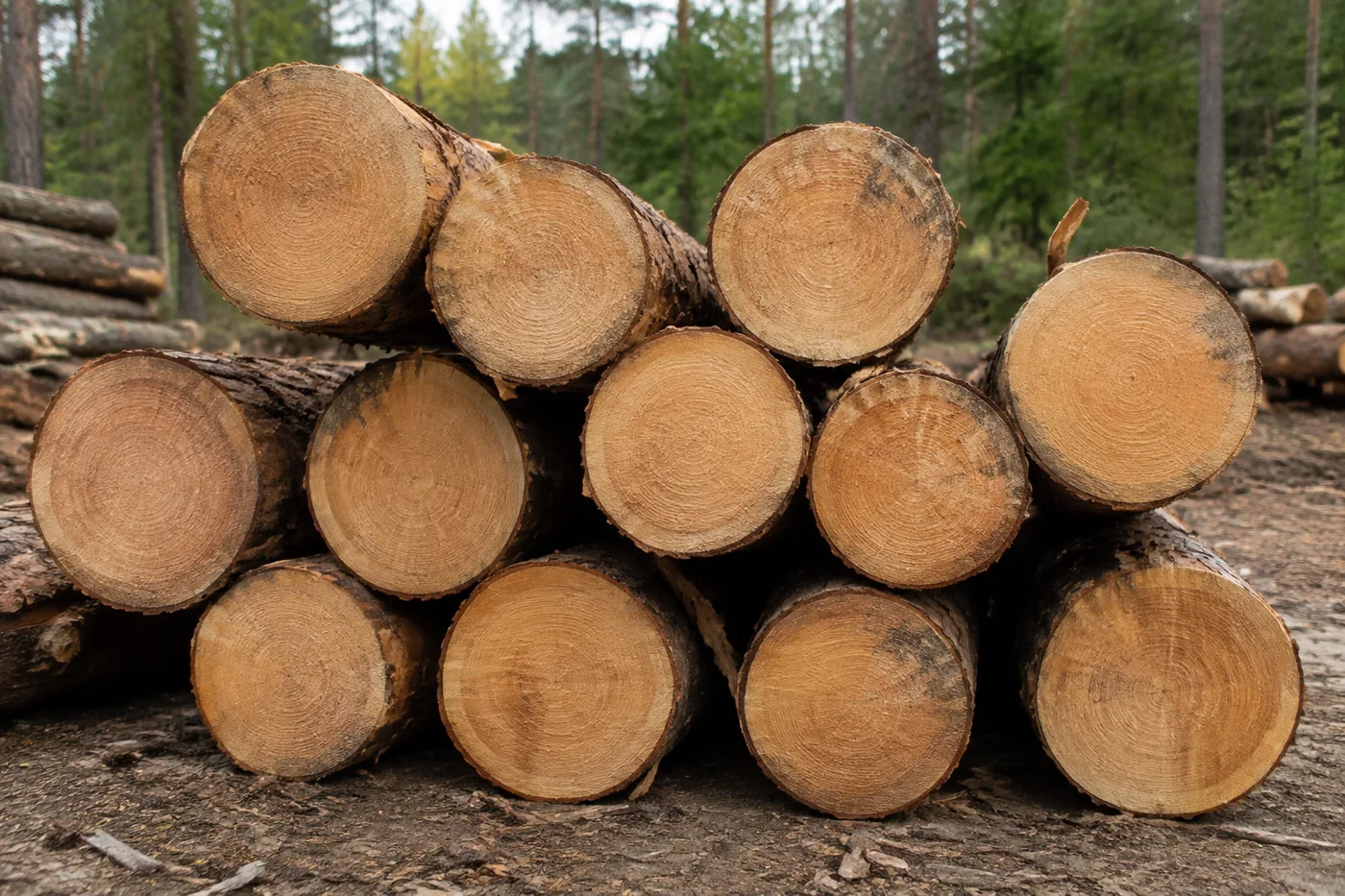
Photograph the pile or truck load end-on, upload the photo and review the tally markers against the photo. Built for timber deliveries, yard inventories and haulage checks.
- Review the photo, then count visible logs
- Upload a photo and get an automatic count
- Review the markers to catch logs counted twice or missed
- Free to use · No signup required · Without watermark
Works with JPG, PNG, WEBP · Free up to 20 MB, Premium 50 MB
Upload Image
Tips for an accurate count
• Use an even, well-lit photo with the logs fully in frame
• Keep your logs visible and avoid overlapping items
• Dots and heatmap show retained detections — review and correct the tally
About the Log Counter
The log counter counts visible logs from your photo and marks detections for review. Counting starts automatically once the photo and item are ready. Visibility, overlap and similar-looking items can affect the total. Built for timber yards, sawmills and forestry teams.
How It Works
1. Photograph your logs
2. Upload your photo to count logs automatically
3. Review the markers and correct the tally if needed
4. Add to the tally sheet and export your count as CSV
Perfect For
• Reviewed timber truck-load drafts
• Sawmill and yard inventories
• Forestry harvest tallies
• Firewood stock counts
How to count logs on a truck or in a pile from a photo of the ends
A log counting app needs one thing from your photo: the cut ends facing the camera. Shoot a truck load or pile of timber end-on, and this log counter marks each log end it can see. You check the dots, correct the total and log it per load or stack. It counts logs only; it does not measure volume, diameter or weight.
Count logs on a truck load from behind
Stand square to the back of the load, far enough away that the whole stack of ends is in frame, with the camera level. The counter works from the ends, so a photo from the side shows bark and no countable ends.
- Stand square to the load so the cut ends fill the frame.
- Upload the photo; log counting starts automatically.
- Review the automatic count and compare the dots with the ends.
- Look closely at shadowed ends near the edge and check each one has a dot.
- Add the load to the tally under the truck or ticket number.
Count a roadside pile or firewood stack
A pile with all its ends on one face counts like a truck load. When the ends point in different directions, only those facing the camera can be marked, so walk around and photograph each face you can reach and log a row per face. Split firewood has irregular ends, so give the dots a slower review. Firewood has a page of its own to count firewood from a photo, and sawn timber has one to count planks from their ends.
Count mixed diameters and species separately
Mixed sizes are harder than a uniform pile. Photograph separate groups if you need a count per size or class, then review each result and add it to a labelled tally row. Hidden log ends cannot be counted reliably from the visible face alone.
Keep a record for each load or stack
Name each row for the load, ticket or stack and retype the Count if your review changes it. Export CSV for the yard record. The log count is a count only, so scale or measure the load by your usual method for volume, board feet or weight.
Before you photograph the pile
- Clear snow, mud or loose bark from the ends if you can, so each end reads as a round face.
- Keep the camera level with the middle of the face, not looking up or down.
- Avoid shooting into low sun, because even shade shows ends better.
- Count steel bundles from a photo of the bar ends, and stacks of timber pallets from a side-on yard photo.
After tallying the timber
Steel rebar and pipe bundles shot end-on have their own bundle-end counter, and stacks of timber pallets can be counted from a yard or trailer photo. Forestry and sawmill crews can also log loader and machine hours from meter photos.
What you can do with Log Counter
Review the main capabilities before you begin.
- Count logs and timber on a pile or truck end-on
- Tally a load for scaling and delivery checks
- Review each counted-log marker and correct the total
- Audit several loads in one bulk session
- Add each truck to a running tally by label
- Optionally mark a log to refine the count
Settings reference
7 settings
Available controls for Log Counter.
Upload
- Single photo / Bulk auditPresets
- Choose a single-photo count or a Premium bulk audit. Review every result.Options: Single photoBulk audit
Count
- Add to tallyOne-click
- Add this photo as a row in the current stock-take.
- Included markersSliderRange: 0–1 · Default: 0.21
- Starts at 21%; slide toward Show more to include weaker markers or Only strongest to hide them.
- Overlay stylePresets
- Choose dots, a heatmap, both or a clean preview.Options: BothDotsHeatNone
Tally
- LabelText input
- Rename this row so it is identifiable in the exported stock-take.
- CountNumber input
- Correct this row's count; totals and exports update automatically.
Advanced
- Result overlayDropdown
- Choose how count markers appear in the on-screen preview; the download keeps its own markers.Options: Dots + heatmapDots onlyHeatmap only
Related tools for Log Counter
Tools for common next steps after Log Counter.

Counting & Inventory
Object Counter
Estimate an object count from a photo. Review and correct the numbered markers before using the count.
Try it now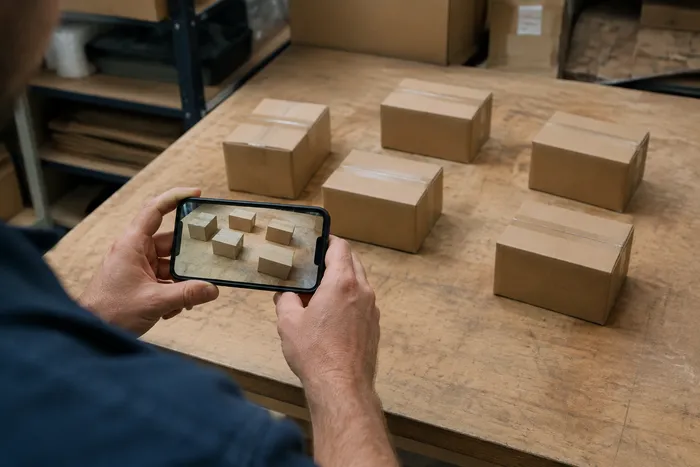
Counting & Inventory
Live Object Counter
Aim your phone at separated, fully visible items and review the detector markers as the count updates in real time.
Try it now
Counting & Inventory
Bottle Counter
Count bottles on shelves, in crates, or in cold rooms from one photo, with counted detections marked for review.
Try it nowFrequently Asked Questions
How Log Counter helps you get it done
Real problems it solves every day — for businesses, creators, and everyday tasks. Find the use case that fits you and start.
Timber Truck Delivery Review
Photograph the truck's log ends straight-on for an AI-assisted draft, then review the physical load, correct the tally, and follow the normal delivery procedure before signing. Do not sign from the image alone.
Sawmill Intake Yard Audits
Open Bulk audit to run Distinct objects mode across every stack photo, then review every marked result before weekly reconciliation.
Firewood Supplier Stock Counts
Use Similar items mode for a draft tally of cut and stacked firewood, then review and correct the markers against the physical load before quoting a count in a listing.
Forestry Harvest Tally by Diameter Class
For a per-size breakdown, mark an example log in the Examples setting one diameter class at a time before each count, and log each reviewed pass as its own tally row instead of using one mixed total.
Insurance and Storm-Damage Timber Records
Use the marked image as an AI-assisted draft when documenting downed or salvaged timber, then obtain the qualified manual evidence required by the insurer or contract process. The image and AI tally are not proof of loss or quantity by themselves.
Personal Firewood Stockpile Counting for Winter Prep
Count your own stacked firewood before winter to know how many logs you have on hand and whether you need to order more, using Similar items mode on a home wood stack rather than a commercial timber-yard load.
Watch each transformation land
Every photo crosses the slash untouched and comes out the other side finished.























