Empty Room to Music Studio Converter
Generative output can vary; review the full result before publishing
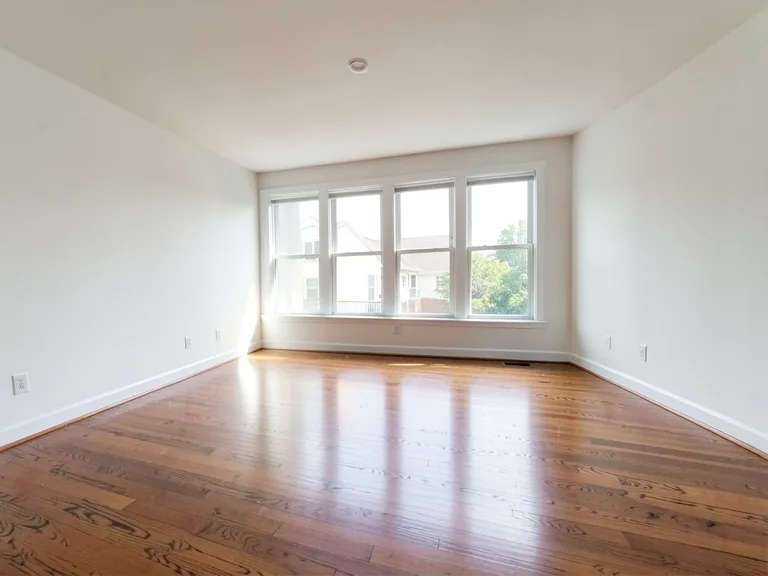
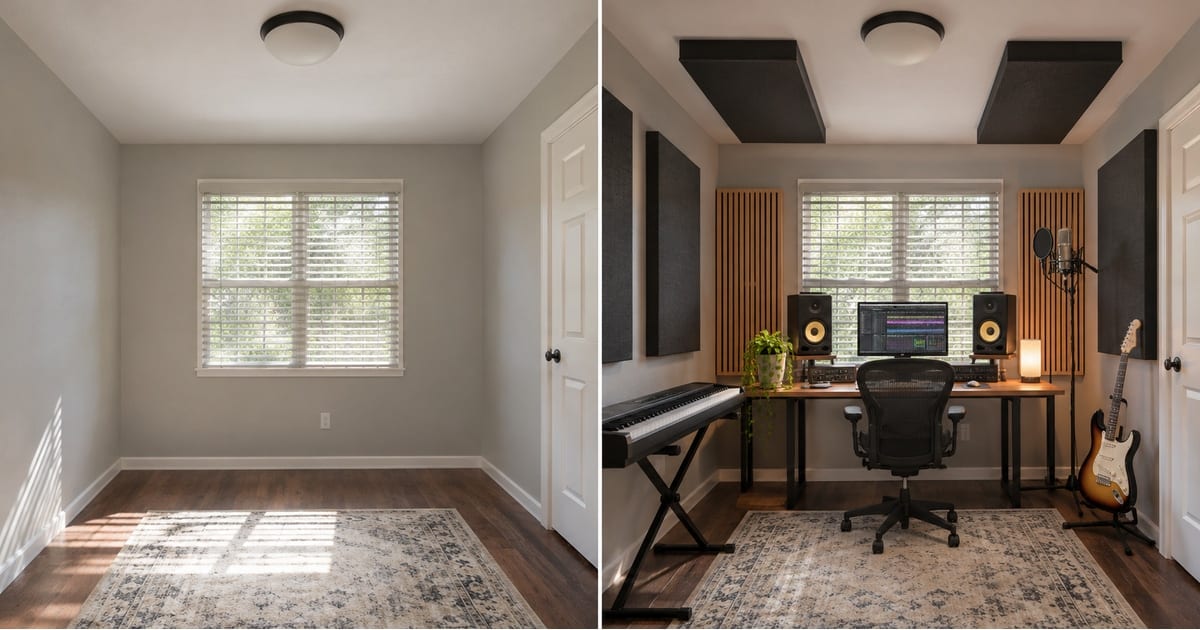
A music room is part instrument store and part acoustic space, and the layout decides how it sounds and how you work: the desk away from the corner, the panels where the sound bounces, the guitar within reach. Upload a photo of the empty room and this page converts it into a music studio, so you can plan the setup before you buy gear or build panels.
- Prepared Music Studio direction
- Editable prompt
- Full-result review required
Choose a source image for Music Studio
JPG, PNG, WebP, HEIC, and other supported formats. Free up to 20 MB; Premium and higher up to 50 MB for this tool.
Laying out a room for keys, guitars and a computer
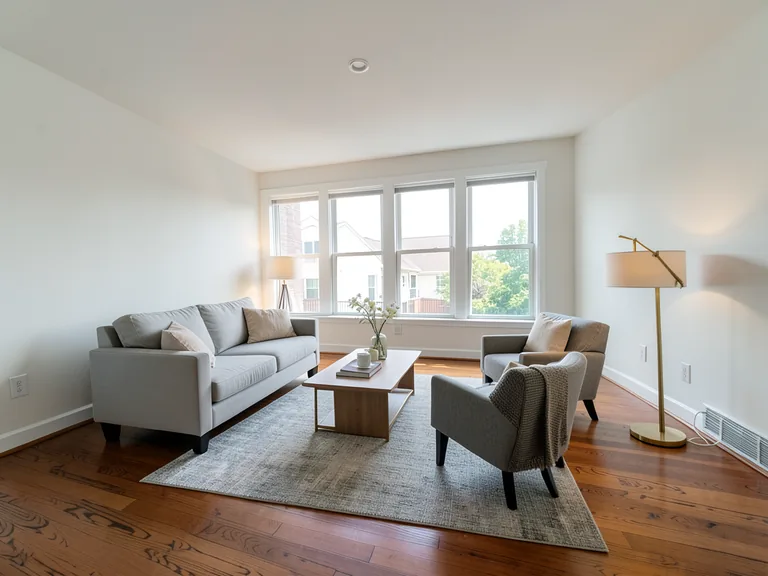
A music room is organized around the desk and the speakers, and those want to be away from corners and symmetrical in the room. Photograph the empty room, apply the music studio look and check where the desk lands relative to the walls.
Acoustic panels are the visible part of the plan, and the picture shows where they could go but cannot predict the sound. Test the room with a recording before spending on treatment. Related ideas for a room that doubles as a workspace are in the home office conversion.
Photograph the room from the corner opposite the planned desk. Say in the custom instructions box which instruments will live there, and remember that treating real acoustics means testing with sound, not a picture.
Set up for Empty Room to Music Studio Converter
Prepared settings
- Starting point
- Upload one source image
- The page opens on the correct edit workflow; upload is the only required setup step.
- Prepared workflow
- Prepared Music Studio staging direction
- Empty Room to Music Studio Converter opens with the Music Studio direction preselected, so there is no need to find the operation manually.
- Output shape
- Same as your upload
- The result keeps the shape of the image you upload.
- Review rule
- Review the complete generated result before use
- Generated imagery can vary; the final result stays under the user's approval before download.
Best-fit uses
- Plan a desk, monitors and instrument layout
- See where acoustic panels would go
- Show a partner or landlord the studio concept
Frequently asked questions
- Will the preview tell me how the room will sound?
- No. It shows the look and layout, not the acoustics. Treat the picture as the plan for where things go, and test the room with a recording and a specialist or measurement before spending on panels.
- Can I show instruments and gear?
- Yes, in general terms. Describe the instruments in the custom instructions, such as a keyboard and a guitar stand, and add a screen or plants with the add-on buttons. It does not draw specific brands.
- What should I review in a Music Studio result?
- Inspect faces, hands, object geometry, small details, perspective, readable marks, and any claim implied by the scene. Regenerate or reduce the requested change when something is inaccurate.
- What rights checks apply to a Music Studio client project?
- Use only source material and references you have rights to, follow the destination platform rules, and obtain any required person or property permissions. Generated output still needs a human accuracy and rights review.
What you can do with AI Room Staging
Review the main capabilities before you begin.
- Plan complete-room furniture placement automatically
- Restyle living rooms, bedrooms, offices, and dining rooms
- Preserve fixed architecture and camera perspective
- Process property sets in Premium batch mode
Settings reference
5 settings
Available controls for AI Room Staging.
Workflow
- Single image or Batch imagesPresets
- Process one image, or use Premium Batch images to apply the same automatic recipe to a set and download one ZIP.Options: Single imageBatch images
Styles
- One-tap presetsPresets
- Pick a ready-made direction with one tap; generation uses the selected preset automatically.Options: Modern living roomScandinavianLuxury interiorHome officeBedroomDining roomBohemianIndustrialMid-century modernFarmhouseCoastalKids' room
- Custom instructions (optional)Text input
- Describe the requested change, relevant materials, lighting, perspective, and details that must remain unchanged.
Selection
- Selection brush sizeSliderRange: 4–160px · Default: 32px
- Automatic selection is the default. Open Refine area manually and set this brush width only when the image needs a tighter edit boundary.
Output
- Ask AI to preserve subject identity and product detailsOn / Off
- Adds an explicit instruction to retain the main subject, shape, branding, labels, and readable text unless the request changes them.
Related tools for Empty Room to Music Studio Converter
Tools for common next steps after Empty Room to Music Studio Converter.
Virtual Staging & Property
AI Real Estate Photo Editor
Edit real-estate photos with AI: add furniture or a TV, paint walls, remove clutter, replace skies, improve landscaping, and create twilight exteriors.
Try it now
Virtual Staging & Property
Virtual Staging AI
Virtually stage empty rooms with AI furniture for real-estate listings. Create living room, bedroom, office, dining, and luxury concepts.
Try it now
Photo Enhancement
AI Photo Enhancer
Adjust noise, sharpness, color and scale in one enhancement workflow, then compare the result with the original.
Try it nowGuides for this tool
- How to Create Furnishing Proposals for Interior Design Clients with AICreate AI furnishing proposals for interior design clients with Pixoate. Compare room concepts and assemble clear presentation PDFs for discussion.
- Beautifully Staged, Believably Sized: Why Virtual Furniture Must Fit the RoomVirtual furniture needs believable proportions. Explore room-scale reviews and Pixoate comparisons that keep attractive staging concepts grounded in reality.
Watch each transformation land
Every photo crosses the slash untouched and comes out the other side finished.