Stock expires quietly
The cost appears later as waste, a rush replacement, a customer complaint, or a missing critical supply.
Illustrative preview
Date labels can be ambiguous or obscured. Verify the product and date before disposal, sale, use, or a safety decision.
Expired stock is usually found when someone needs it—not when there is still time to use, rotate, discount, return, or replace it. Photograph the label and turn the date into an actionable list.
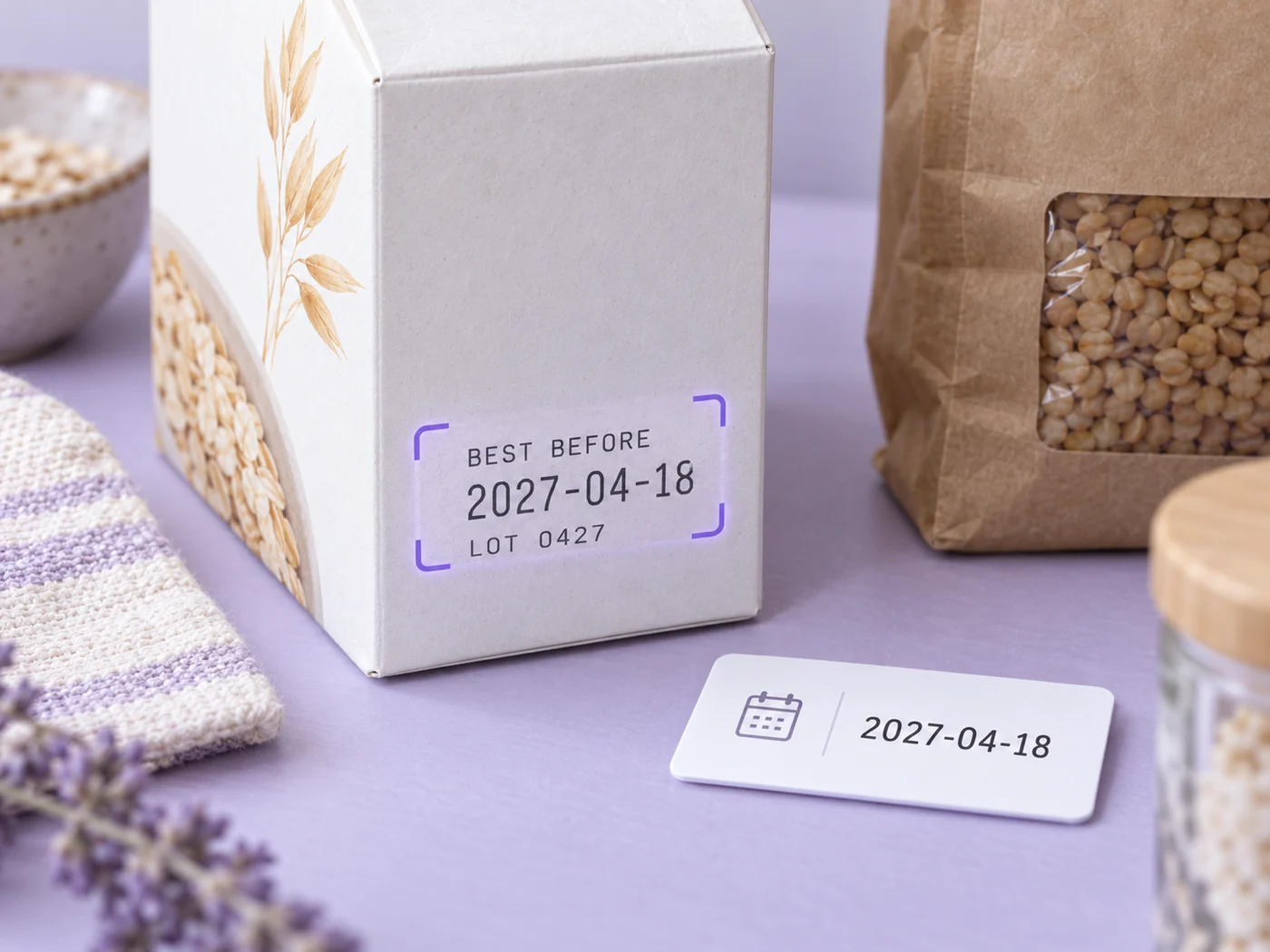
This expiration date scanner reads the printed or stamped dates and lot codes on a photo of a product label and places them in an editable row with the product, quantity and storage location. Use it for stock, supplies and test kits that need rotating before they expire. Download the rows as CSV, or save them and choose email reminders for the days before the date.
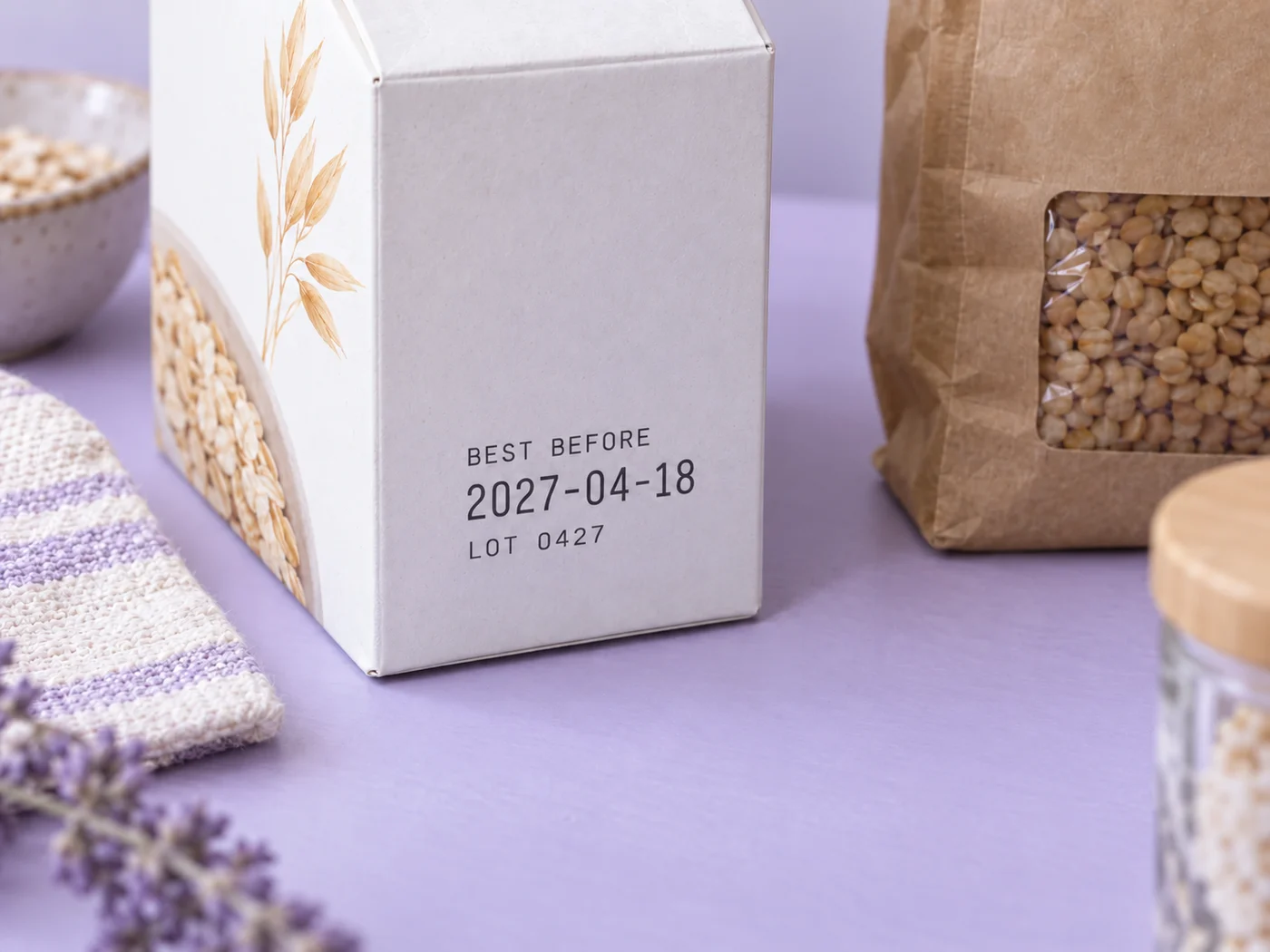
Fill the frame with the stamped or printed dates and any lot information. The reader looks for common label words such as EXP, expiry, use by, best before, BBE and MFG, and for lot or batch numbers. When nothing is found, the page asks you to include the printed LOT and EXP labels in the photo. Retake an embossed or blurry code with light from the side, close to the code.
Each date is written as YYYY-MM-DD in its cell and has to be a real calendar day. The scanner converts a date only when its order is clear: a month name, a day above 12 or a printed format hint such as DD/MM/YYYY settles it. A numeric date like 03/04/2026 comes through as printed and is flagged, and a label that shows only a month and year gives no full date, so you type one in.
Expiration Date is the required cell and the one reminders count from, so when a label prints only a best-by date, copy it there if that is the date you want to act on. Best By Date and Manufacture Date stay as separate cells. Under the table, the reminder box shows how many days before you will be emailed, and Change opens the choices from 90 days down to 1 day, with 14, 7 and 1 days preselected. Saving needs a signed-in account, so sign in, then choose Save records & reminders.
Saved records lists every item you kept with the earliest date first, and shows a badge when one is overdue or due within 30 days. You can edit a lot code or date there, change the reminders on an item, delete a record for stock you no longer hold, or download the whole register as CSV. Reminder emails go to your account address once it is verified and the Product updates & account emails setting is on. To know how much of an item is left, count the units on the shelf, and dates printed on extinguisher service tags have a tracker of their own.
The real problem
The date is sitting on the box, bottle, package, or test kit. But small teams rarely have the time or systems to type every code into a spreadsheet and keep checking it.
The cost appears later as waste, a rush replacement, a customer complaint, or a missing critical supply.
Small fonts, stamped characters, and mixed date formats make repetitive manual entry slow and error-prone.
Even a correct spreadsheet does nothing unless someone remembers to open and sort it before the date.
How Pixoate helps
Pixoate extracts common date and lot fields, gives you an editable row for the product, quantity, and location, and can remind the signed-in owner before the verified expiration date.
Fill the frame with the printed or stamped date and lot information; avoid glare and blur.
Review ambiguous month/day order, product identity, lot code, quantity, and storage location.
Download CSV for your existing process or save selected intervals as email reminders.
Track dated kits and supplies as an administrative aid, with required professional checks still in place.
Create a rotation list for packaged inventory without typing every code at a desk.
Track adhesives, sealants, filters, chemicals, test kits, and other date-sensitive consumables.
The scanner reads expiration, manufacture, and best-by dates, plus product, lot code, quantity, and location. Common EXP, MFG, and LOT labels are supported. Stamped or embossed labels may be difficult to read.
The extractor normalizes unambiguous dates. If a numeric date can be interpreted more than one way, the user must compare it with the package context and correct the editable value.
Yes. Lot Code is a separate editable field and is included in CSV exports and saved records.
Yes, for records saved by a signed-in user. Choose supported intervals between 90 days and 1 day before the verified expiration date.
Not necessarily. Date-label meaning depends on the product, manufacturer, regulation, storage, and condition. Pixoate transcribes and tracks the printed information; it does not make a safety or disposal decision.
Retake the photo with side lighting, tap to focus, and crop close to the code. If OCR still cannot read it reliably, enter the value manually rather than guessing.
It looks for EXP, expiry, use by, valid until and best before, plus BBE, MFG or manufacturing date, and lot, lot number, batch number or batch code. The value after the word fills the matching cell. If your label uses other wording, type the value into the cell yourself.
A date cell is accepted only as a real calendar date in YYYY-MM-DD form. When the label date is ambiguous, such as 03/04/2026, the cell is flagged with a request to verify it. A label with only a month and year gives no full date, so the cell stays empty until you type one. Type the full date, and the flag clears.
Reminders belong to saved records. Download current rows (CSV) gives you a file but schedules nothing. Sign in, set the reminder days if you want different ones, then choose Save records & reminders, and an email is sent before the date.
It stays in Saved records with an overdue badge that counts the days, and the page includes it in the overdue total. Enter a new date if you restock the item, or delete the record when it is gone.
Photograph one product at a time. A shelf photo still produces a single row, with one expiry value and one lot value at most, so the other items are not captured. Each photo becomes one row, which keeps a product and its codes together.
Dates tell you when stock runs out of time, not how much is left, so count the units on each shelf for a stock-take alongside the watchlist. Bars and shops can count bottles on a shelf or in a crate, and clinics checking dated supplies can double-check a tray of tablets visually.
Tools for common next steps after Expiration Date Scanner.
OCR & Data Extraction
Extract vendor, date, total, tax, currency and line items from a receipt into structured JSON.
Try it nowOCR & Data Extraction
Extract custom fields from an image, scan, invoice, receipt, form, or ID into clean JSON for spreadsheets, accounting, and APIs.
Try it nowOCR & Data Extraction
Extract a table from a photo or screenshot and download an editable .xlsx with rows and columns preserved.
Try it nowEvery photo crosses the slash untouched and comes out the other side finished.