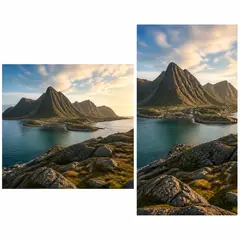
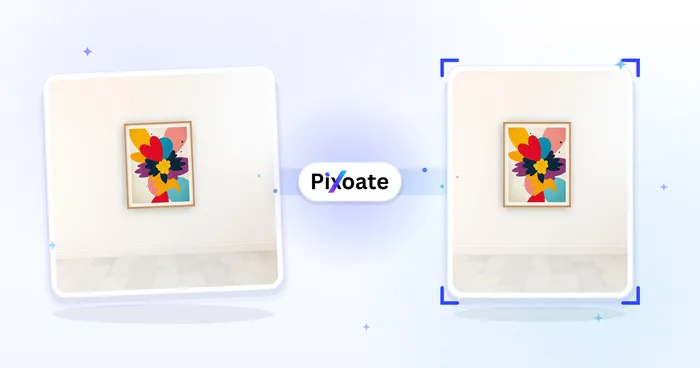
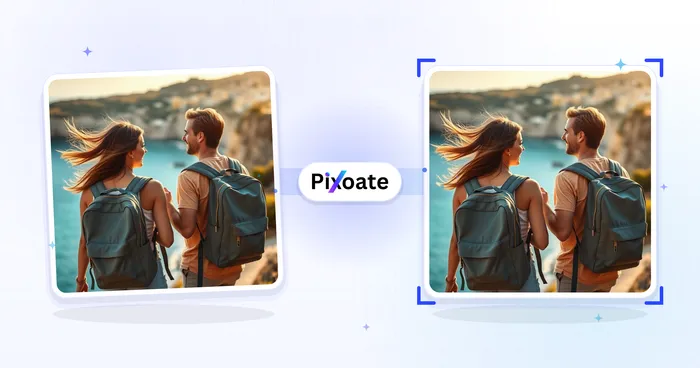
Phone-recorded interviews
Fit a vertical interview excerpt into a landscape video project while retaining the speaker's full framing and original audio.
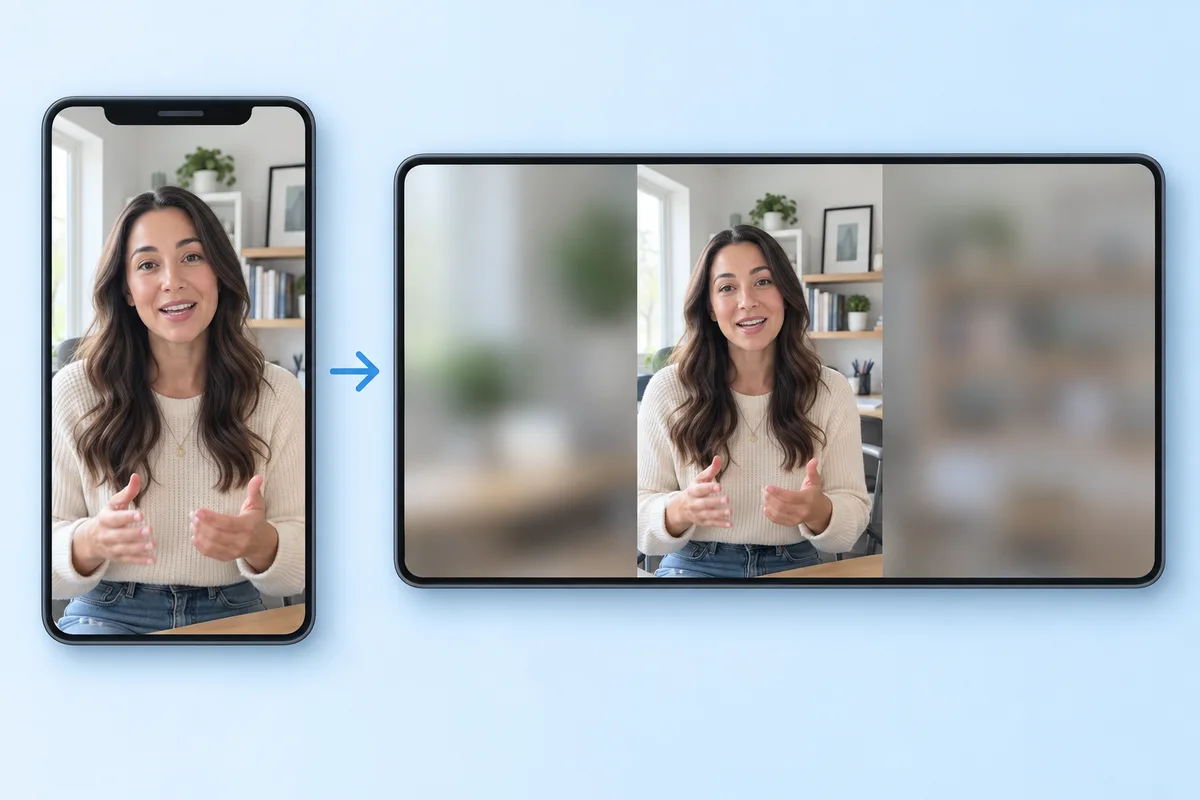
1920 × 1080 · 16:9 · Keep whole video
Prepare a vertical phone clip for a 16:9 video project. Keep the whole portrait frame with side backgrounds, or choose a wider crop before downloading your MP4.
MP4, MOV, WebM · Trim before exporting · Checking your upload limit…
Files are uploaded for conversion. Your upload is removed as soon as it is converted, and converted videos are automatically deleted within 24 hours.
YouTube accepts different aspect ratios and adapts its player. You do not need to add side bars simply to upload a portrait video. Use this conversion when a wider composition is part of your video project or presentation.
Upload a local video and choose the segment to keep in Trim. The 1920 × 1080 preset preserves the full portrait picture and adds a blurred copy in the extra space at the sides.
Fit keeps the person or object intact from top to bottom. Crop to frame fills the landscape canvas but removes a large portion of a tall picture. Check headroom, hands, and subtitles during playback.
Download the converted clip and use it in your editor, presentation, or YouTube upload. A larger canvas changes the output dimensions; it cannot recover detail that the phone recording did not capture.
Fit a vertical interview excerpt into a landscape video project while retaining the speaker's full framing and original audio.
Prepare a short vertical testimonial for a wider presentation. Use a solid background or an uploaded image that suits the rest of the project.
Place a portrait phone recording into a widescreen canvas for a compilation without cutting away the top and bottom of the memory.
No. YouTube supports multiple aspect ratios and adapts its player. Create a 16:9 version here when you specifically want a landscape composition or need matching dimensions for another project.
Upload the clip with this page's default Wide (16:9) and Keep whole video settings. Choose the side background, preview, and export. The portrait picture remains complete inside a 1920 × 1080 MP4.
YouTube's Shorts guidance points to a wider ratio such as 16:9 when you do not want an upload categorized as a Short. The converter only changes the file; YouTube determines the final classification.
Free exports a clip of up to 60 seconds at web size (720p); Premium exports up to 20 minutes at 1080p, Pro 40, and Scale 120. A paid plan or active pass allows up to five videos within your upload limits. Set each video's trim separately; framing settings apply to the batch. Downloads remain separate videos, and merging is not included.
YouTube uses a standard 16:9 desktop player but adapts to other ratios. Its guidance recommends avoiding added padding when you only need to upload the original format. YouTube video resolution and aspect ratios
Explore every ratio in the portrait and landscape video converter, or resize a still image with the landscape to portrait photo converter.
Review the main capabilities before you begin.
Available controls for Portrait & Landscape Video Converter.
Tools for common next steps after Portrait & Landscape Video Converter.
Photo Editing & Utilities
Convert landscape to portrait or portrait to landscape with fast background fills or AI-generated scenery, without cropping the original photo.
Try it nowPhoto Editing & Utilities
Resize an image to exact dimensions or by percentage. Preview and download the result.
Try it nowPhoto Editing & Utilities
Drag to crop an image. Choose a preset ratio or enter exact dimensions.
Try it nowEvery photo crosses the slash untouched and comes out the other side finished.