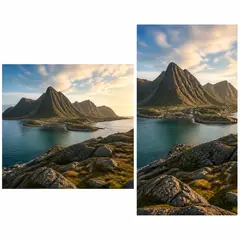
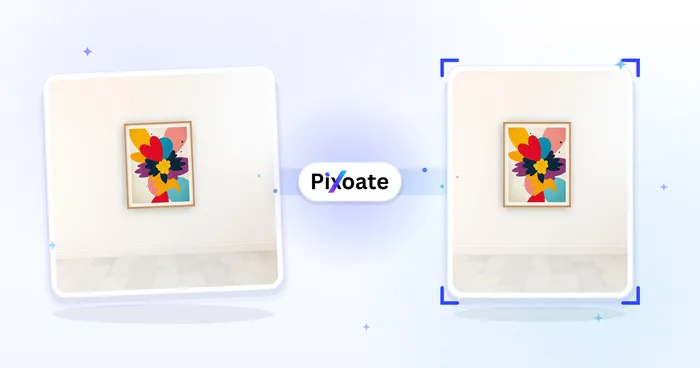
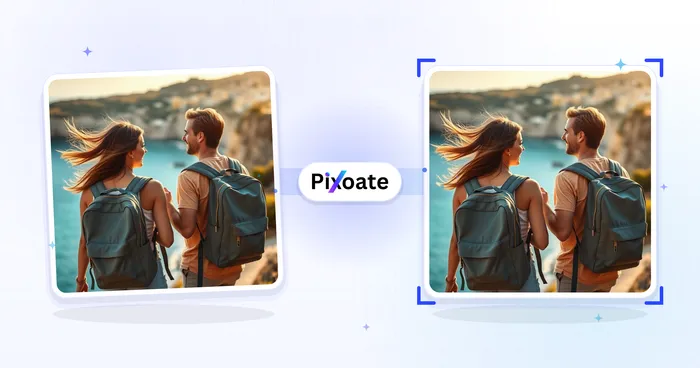
Product and portfolio grids
Give short product demonstrations a consistent square canvas when the website or portfolio layout uses equal-width and equal-height tiles.
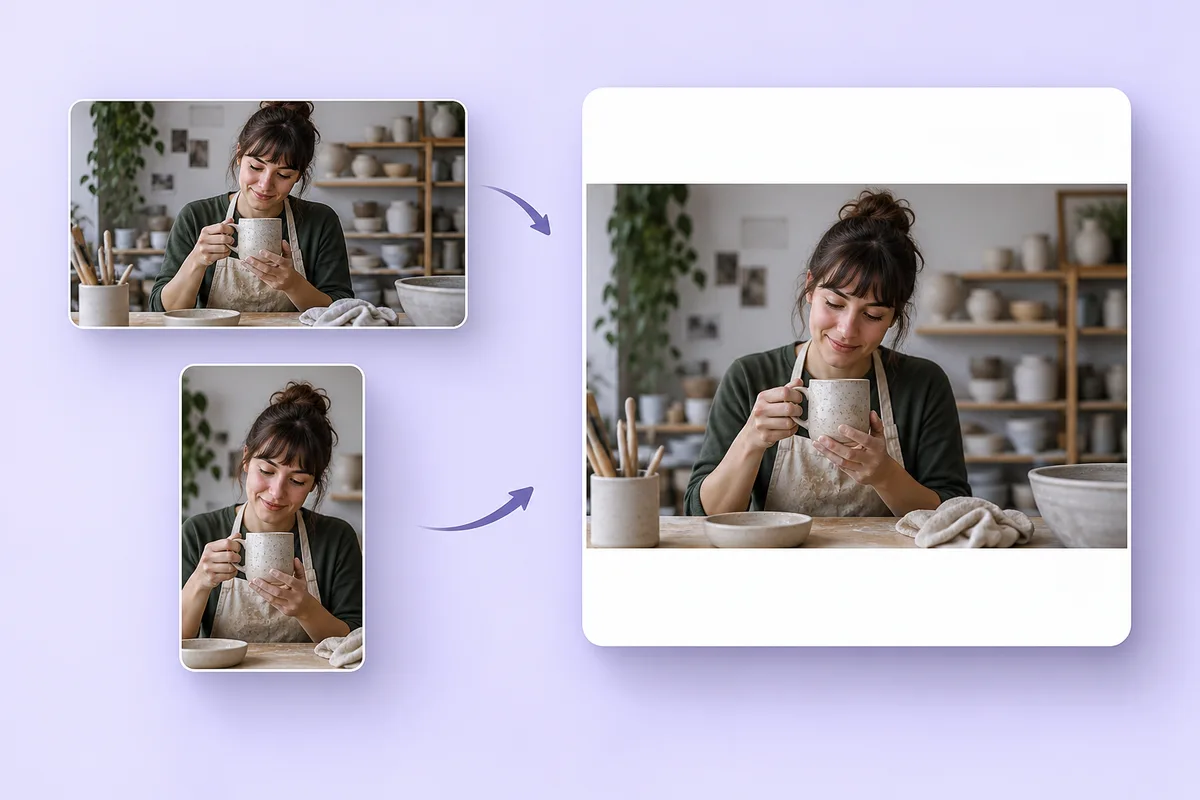
1080 × 1080 · 1:1 · Keep whole video
Make portrait or landscape clips square for product feeds, portfolio grids, and video campaigns. Start at 1080 × 1080 and keep the whole video or crop to fill.
MP4, MOV, WebM · Trim before exporting · Checking your upload limit…
Files are uploaded for conversion. Your upload is removed as soon as it is converted, and converted videos are automatically deleted within 24 hours.
Upload one video free, up to 250 MB, or use a paid plan or active pass to prepare up to 5 clips together. The same square settings apply to all clips, which helps prepare a consistent set of product or portfolio videos.
Fit preserves every edge. A landscape source gets space above and below; a portrait source gets space at the sides. Crop to frame fills the square by removing the parts outside it.
Start with the white background or choose your own color. A gradient, blurred moving copy, design, or uploaded photo can fill any remaining space. Preview each clip if the batch mixes different orientations.
Export your MP4, or download a paid batch as a ZIP. Confirm the destination supports square video; for a 4:5 version, switch to Vertical Portrait (4:5). A Reels or Shorts destination may suit 9:16 better.
Give short product demonstrations a consistent square canvas when the website or portfolio layout uses equal-width and equal-height tiles.
Prepare a square version of a short business clip for a placement that supports 1:1. Check the campaign's current requirements before uploading.
Convert a small set of portrait and landscape clips to the same output dimensions. Review the fit and background for each file before downloading the group.
Upload the video here and keep Square (1:1) with Keep whole video selected. The complete picture fits inside 1080 × 1080, and a background fills the unused space.
Yes. Equal width and height produce a 1:1 square. You can also enter another even square size using Custom dimensions, within the converter's output limits.
Yes. Change Aspect ratio to Vertical Portrait (4:5), which uses 1080 × 1350. Keep fit mode to preserve the entire picture or use a crop to fill the taller frame.
Yes, with a paid plan or an active pass. Add up to five videos and trim each separately. Premium allows 1 GB uploads and 20-minute 1080p exports; Pro 2 GB and 40 minutes; Scale 5 GB and 120 minutes. Passes allow 250 MB and 10 minutes at 1080p. All videos share output size and background settings. Fit preserves each full picture; the amount and position of background space will differ.
LinkedIn lists square 1:1 among its supported video ad ratios. Requirements depend on the placement and include more than aspect ratio alone. LinkedIn video ad specifications
Explore every ratio in the portrait and landscape video converter, or resize a still image with the landscape to portrait photo converter.
Review the main capabilities before you begin.
Available controls for Portrait & Landscape Video Converter.
Tools for common next steps after Portrait & Landscape Video Converter.
Photo Editing & Utilities
Convert landscape to portrait or portrait to landscape with fast background fills or AI-generated scenery, without cropping the original photo.
Try it nowPhoto Editing & Utilities
Resize an image to exact dimensions or by percentage. Preview and download the result.
Try it nowPhoto Editing & Utilities
Drag to crop an image. Choose a preset ratio or enter exact dimensions.
Try it nowEvery photo crosses the slash untouched and comes out the other side finished.