
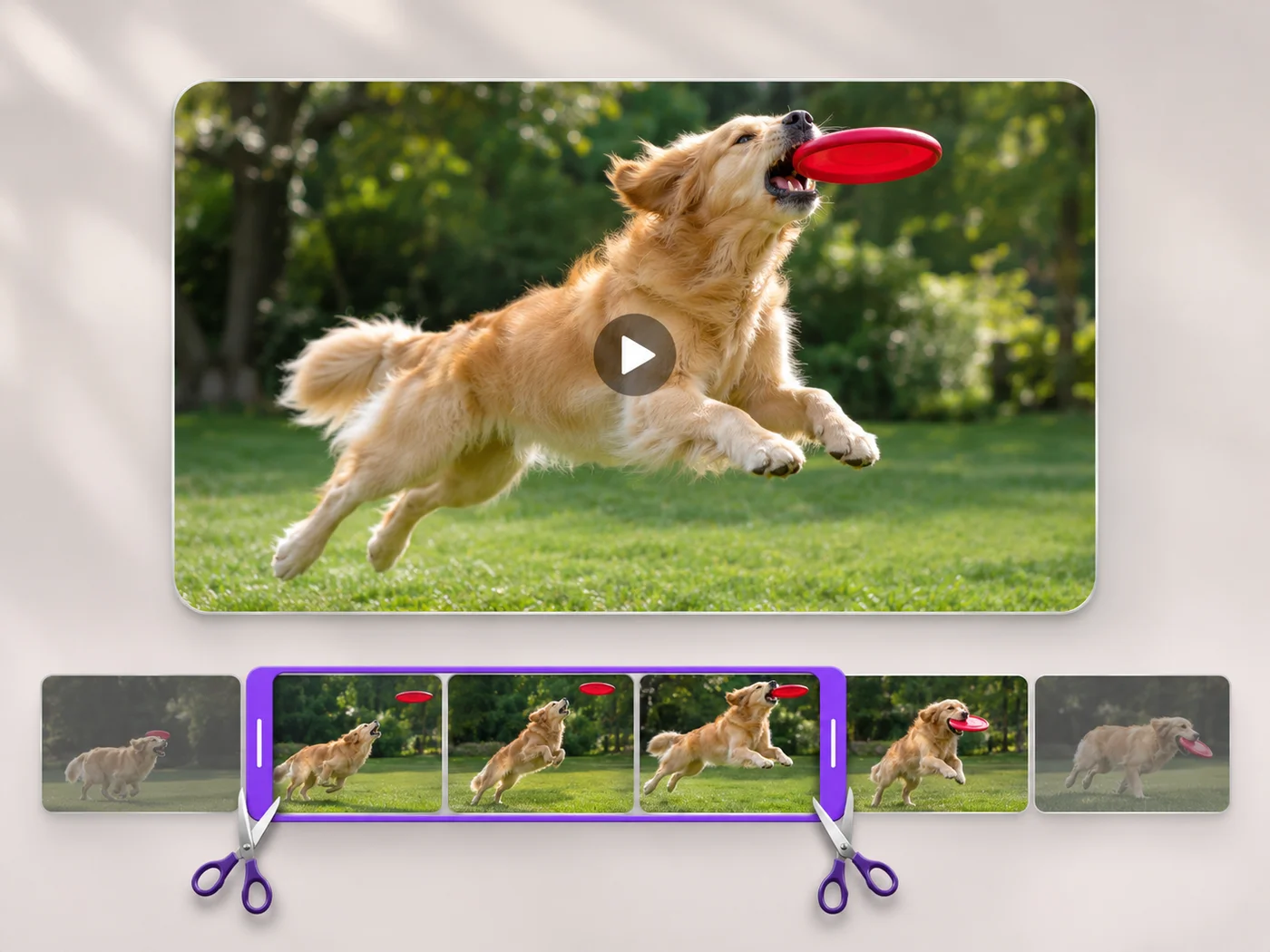
Illustrative preview
Trim Video Online — Free Video Cutter
MP4, MOV, WebM · Free short clips at web size · No watermark
Cut the start, the end or a section from the middle of your video. Preview the exact part you keep, then download an MP4 without a watermark.
- Keep one part, or cut a section out of the middle
- Exact start and end times, to a tenth of a second
- Preview first — nothing changes until you export
Upload your video
MP4, MOV, WebM · Checking your upload limit…
Files are uploaded for processing. Uploads and finished videos are automatically deleted within 24 hours.
How to trim a video
- Upload an MP4, MOV or WebM video.
- Drag the two handles, or type the start and end times.
- Choose Keep the selection, or Cut out the selection to remove a middle part.
- Press Trim video and download your MP4.
Cut a video down to the moment that matters
Phone recordings, screen captures and meeting clips often start too early and run too long. Trim the dead air at the start and end, or cut out a mistake in the middle, and the parts you keep are joined into one clip. You can also remove the sound in the same step.
Trim a video online: cut the start, the end or a middle section
This online video trimmer cuts a recording down to the part worth watching. Upload an MP4, MOV or WebM, drag the two handles on the timeline or type exact start and end times, and choose whether to keep that selection or remove it. The exported length updates as you drag, so you know how long the finished clip will be before you press Trim video. The download is an MP4 with no watermark.
Shorten a video by cutting the beginning and end
Most phone and screen recordings start a few seconds early and stop a few seconds late. Leave Keep the selection chosen, drag the left handle to the first moment you want and the right handle to the last. Start (seconds) and End (seconds) accept tenths of a second when a handle is hard to place by eye, and Reset trim brings back the full length.
- Upload the video and wait for the preview to load.
- Drag the handles, or type the start and end times in seconds.
- Play the selection to check the first and last frames.
- Press Trim video, then Download video.
Remove a section from the middle of a video
A cough, a wrong slide or a phone ringing halfway through does not mean recording again. Select just that part, switch to Cut out the selection, and the video before and after it is joined into one clip. The exported length shown under the timeline drops by the length you removed, which is a quick way to confirm you selected the right stretch.
Trim and mute in one export
Background noise or music you do not have rights to can go in the same step: open the Sound tab and tick Remove sound. Once the clip is the right length, shrink the file so it fits an email or chat app, or join it to other clips in the order you choose. When the trimmed clip also needs a title, a crop and a filter, the online video editor makes all of those changes in a single pass.
What trimming does to quality and file size
The kept part is processed again so the cut lands on the exact frame you chose, which keeps the picture close to the original at the export size of your plan. Free exports are short clips at web size; paid plans trim longer recordings and export in Full HD. A shorter clip is usually a smaller file too, because every second you cut is a second that no longer needs storing.
Before you trim
- Play the clip once and note the times you want to keep or remove.
- Keep the page open while the video uploads; the job carries on if the page reloads.
- For a loop of a few seconds rather than a video, make a GIF from the clip.
- Check the exported length before you press Trim video.
After you trim the clip
Once the clip is the right length, make it small enough to attach to an email or slow the best moment down. A clip that now starts or stops abruptly looks calmer with a fade in and fade out, and video filters give it a new look. Several trimmed parts can then be joined back into one video.
Questions about this tool
Is the video trimmer free?
Yes, with no watermark. Free exports are short clips at web size; paid plans export longer videos in Full HD and accept larger uploads.
Can I cut out a part from the middle of a video?
Yes. Select the part you do not want, choose Cut out the selection, and the parts before and after it are joined into one video.
Which video formats can I trim?
You can upload MP4, MOV and WebM videos. The trimmed video downloads as an MP4 that plays on phones, computers and social apps.
What happens to my video after trimming?
Your upload and the finished video are deleted automatically within 24 hours.
How precise can the start and end times be?
You can type times to a tenth of a second in Start (seconds) and End (seconds), and the handles snap to the same steps. Play the selection before exporting to confirm the first and last frames are the ones you want.
Can I trim a long screen recording?
Yes. Free exports cover short clips at web size, so for a long screen recording a paid plan trims the full length and exports in Full HD. Cutting out the parts you do not need also makes the upload of the finished file faster.
Why is the Trim video button asking me to choose what to change?
The handles still cover the whole video, so there is nothing to cut yet. Drag a handle, type a new start or end time, or tick Remove sound, and the trimmer has a change to export.
Can I trim a video on my phone?
Yes. The trimmer works in mobile browsers on iPhone and Android: pick the video from your gallery, drag the handles with your finger or type the times, and the finished MP4 downloads to your phone.
Will the trimmed video keep its sound?
Yes. The sound stays in sync with the parts you keep, including when you cut a section out of the middle. Tick Remove sound under the Sound tab if you want a silent clip instead.
Related tools for Video Trimmer
Tools for common next steps after Video Trimmer.
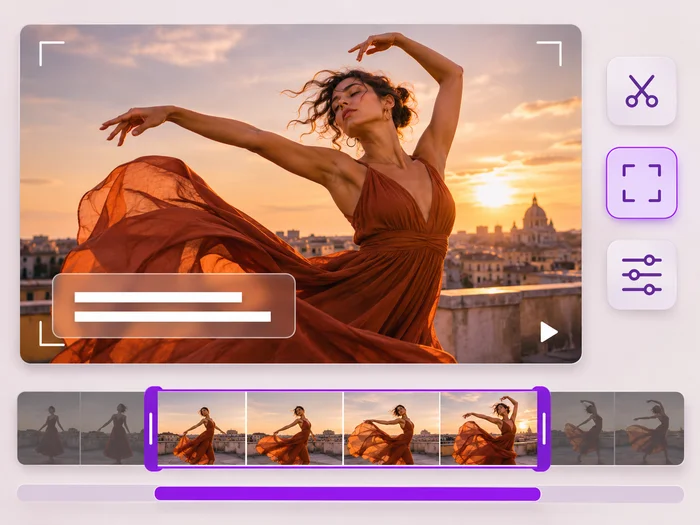
Video Tools
Video Editor
Make every common edit in one go: cut, crop, rotate, flip, add text and effects, change speed, then resize or compress. Preview it all before you export.
Try it now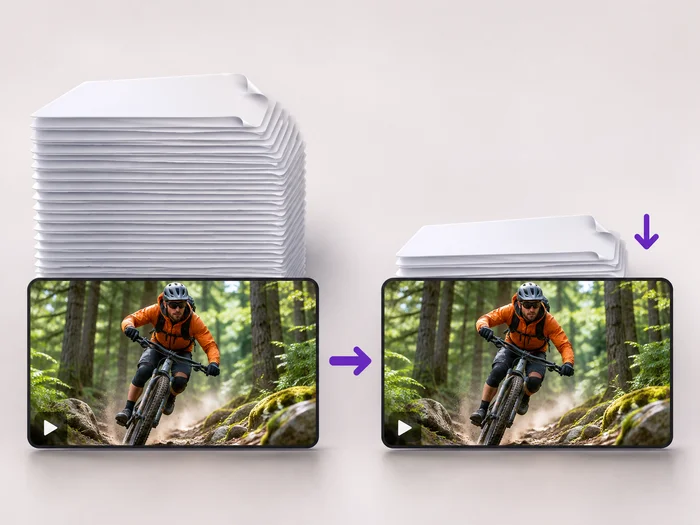
Video Tools
Video Compressor
Make a video file smaller so it fits email, chat and upload limits. Choose how much to shrink it and keep the picture sharp.
Try it now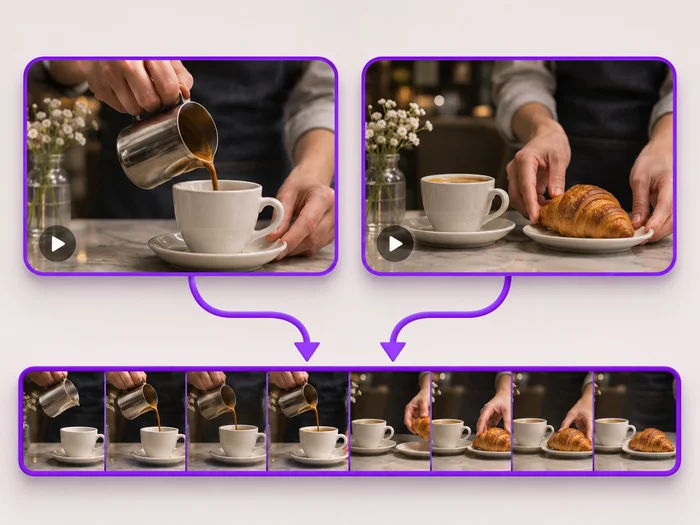
Video Tools
Video Merger
Join clips into one MP4 in the order you choose. Clips of different shapes are fitted onto one frame, so nothing is stretched.
Try it nowWatch each transformation land
Every photo crosses the slash untouched and comes out the other side finished.























