
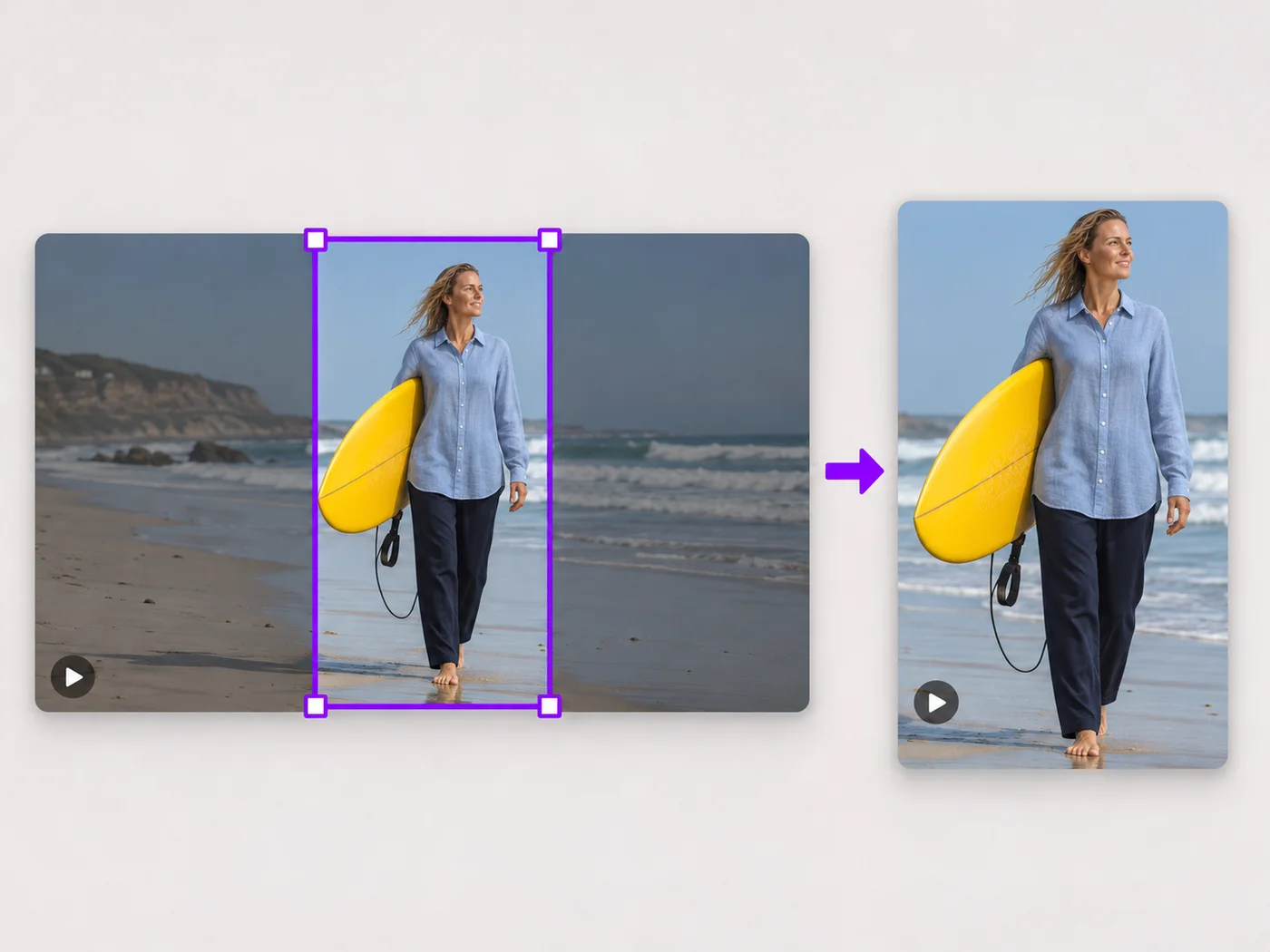
Illustrative preview
Crop Video Online — Keep Only the Area You Want
MP4, MOV, WebM · Free short clips at web size · No watermark
Drag a box over your video to cut away edges, black bars or anything in the background. Lock it to square, vertical or wide for social posts.
- Drag the box or its corners to choose the area
- Square, vertical, wide and 4:5 shapes
- Trim the length in the same step
Upload your video
MP4, MOV, WebM · Checking your upload limit…
Files are uploaded for processing. Uploads and finished videos are automatically deleted within 24 hours.
How to crop a video
- Upload your video.
- Drag the crop box, or choose a shape such as square or vertical.
- Play the video to check nothing important is cut off.
- Press Crop video and download your MP4.
Remove what you do not want in the frame
Cut off black bars from a screen recording, zoom in on the speaker, or reframe a landscape clip as a square or vertical video for social apps. The crop box shows exactly what stays.
Crop a video online: square, vertical, wide or any area you choose
This video cropper keeps only the part of the picture you want. Upload an MP4, MOV or WebM and drag the crop box or its corners over the video, or lock it to Square 1:1, Vertical 9:16, Wide 16:9 or Portrait 4:5 under Shape. Arrow keys nudge the box for precise placement. Play the clip to check nothing important leaves the frame, then press Crop video to download an MP4 without a watermark.
Crop a video to a square or vertical shape
Social feeds favor square and portrait posts, and phone screens favor vertical video. Choosing a shape sets the largest box of that shape that fits your video, centered on the picture; drag it toward the subject and it keeps its shape. Free unlocks the box so you can size it however you like, and Reset crop returns to the default box.
- Upload the MP4, MOV or WebM you want to reframe.
- Choose Square 1:1, Vertical 9:16, Wide 16:9 or Portrait 4:5 under Shape.
- Drag the box over the subject and play the clip through.
- Press Crop video and download the MP4.
Remove black bars and unwanted edges
Screen recordings, old footage and videos saved from other apps often carry black bars or a strip of interface around the picture. Leave Shape on Free and drag each edge of the box inside the bars. The box stays fixed for the whole clip, so it suits bars that never move; a subject that walks across the frame may leave a fixed crop.
Crop or keep the whole picture?
Cropping removes what is outside the box. When everything in the frame matters and you only need a new shape, convert between portrait and landscape with a background instead, which keeps the full picture. For a smaller video without cutting anything, scale the whole video down, and if the clip is mirrored, flip it the right way round in its own step.
Picture quality after cropping
The area you keep holds its detail; a tight crop of a small video simply has fewer pixels to show. Free exports are at web size and paid plans export in Full HD, so start from the highest-quality original you have. Crop and trim happen in one export, which saves a second wait when you also want a shorter clip.
Before you crop
- Play the whole clip with the box in place; the crop does not follow movement.
- Leave a little space around faces and text near the edge of the box.
- Use Trim in the same step to export only the part you need.
- For a still frame from the same scene, use the image cropper.
Other ways to reframe a video
A crop is often one of a few fixes: turn a sideways clip a quarter turn left, put the whole video in a square with bars instead, or give the cropped clip a black and white look. The video rotator also turns clips to the right, and a tighter frame often shrinks the file size too.
Questions about this tool
How do I crop a video to a square?
Choose Square 1:1 under Shape, move the box over the part you want to keep, and press Crop video.
Can I remove black bars from a video?
Yes. Drag the edges of the crop box inside the bars so only the picture is kept.
Does cropping lower the quality?
The area you keep keeps its detail. Free exports are at web size; paid plans export in Full HD.
Is the video cropper free?
Yes, with no watermark. Free exports are short clips at web size; paid plans export longer videos in Full HD and accept larger uploads.
How do I crop a video for Instagram?
Choose Portrait 4:5 for a feed post or Square 1:1 for a square post, drag the box over the subject and press Crop video. For Reels and Stories, choose Vertical 9:16 so the video fills a phone screen.
Can I move the crop box with the keyboard?
Yes. Select the crop box and use the arrow keys to move it in small steps. This helps when the edge of the box needs to line up exactly with a bar or the border of a screen recording.
Will cropping make my video smaller in file size?
Usually, because there is less picture to store. The saving depends on how much you cut away. If the file still needs to be smaller, run the cropped video through the video compressor.
Why did my crop cut off part of the subject?
The box stays in the same place for the whole clip, so a person or object that moves can leave it. Play the clip from start to end before exporting, make the box larger, or keep the whole picture with the portrait and landscape video converter instead.
Related tools for Video Cropper
Tools for common next steps after Video Cropper.
Video Tools
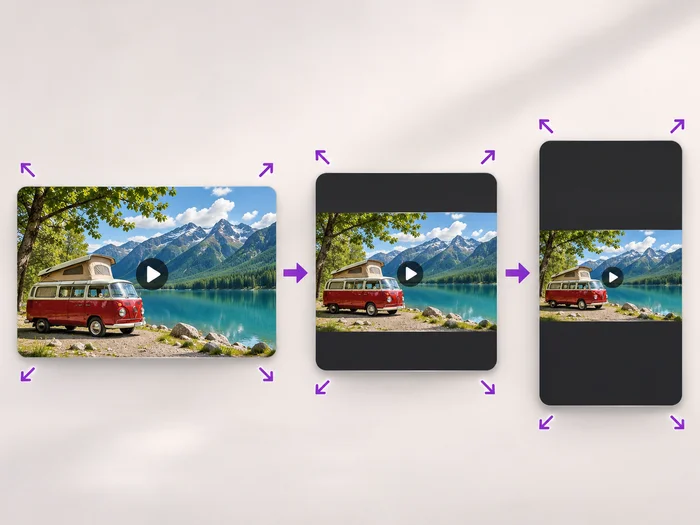
Video Resizer
Scale a video down to a smaller size, or set an exact width and height and choose whether to add bars, fill the frame or stretch.
Try it now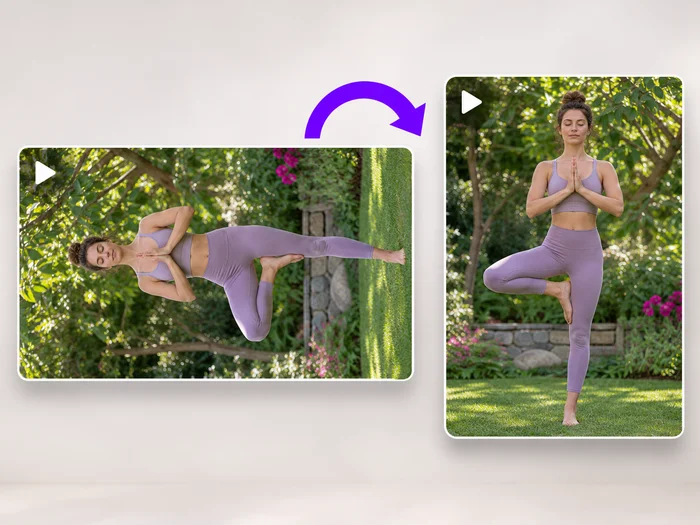
Video Tools
Video Rotator
Turn a video 90 degrees left or right, or 180 degrees, so it plays the right way up on every phone and computer.
Try it now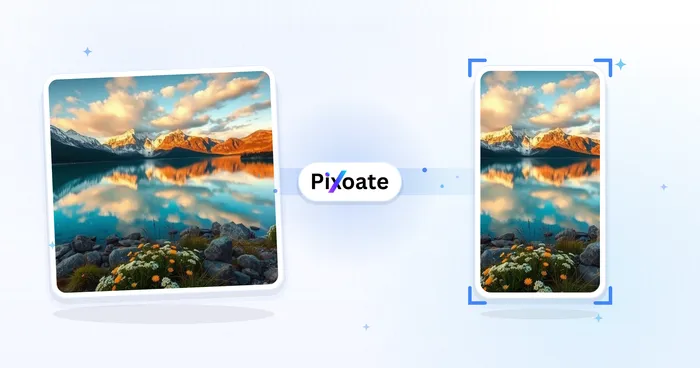
Social Publishing
Portrait & Landscape Video Converter
Convert videos between portrait, landscape, square, and custom sizes. Keep the whole frame, crop, add backgrounds, and download MP4 free without a watermark.
Try it nowWatch each transformation land
Every photo crosses the slash untouched and comes out the other side finished.























