
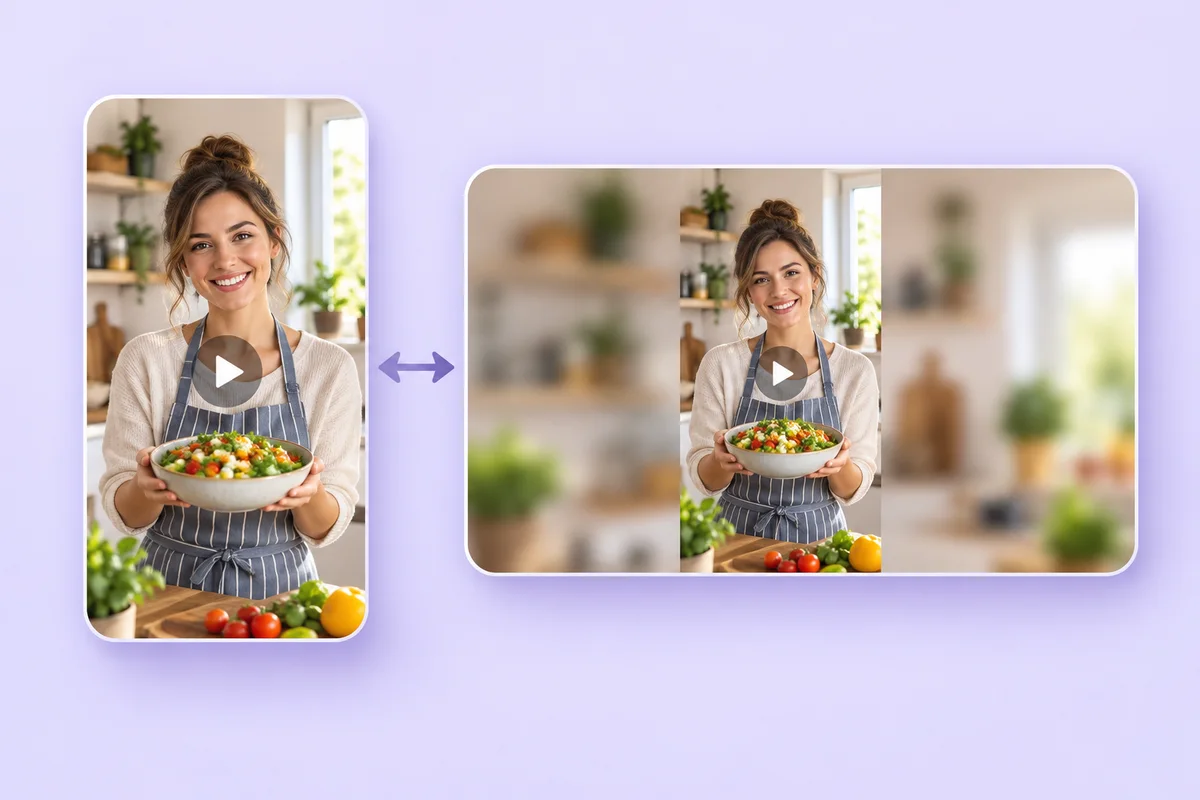
Portrait to Landscape Video Converter Online Free
MP4, MOV, WebM · Trim clips · Free exports up to 60 seconds at 720p
Turn vertical videos into landscape, or make horizontal videos vertical. Keep the whole picture with a background or choose a crop, then download your MP4 free without a watermark.
- Portrait, landscape, square, and custom sizes
- Crop or keep the whole video
- Download MP4 without a watermark
Upload your video
MP4, MOV, WebM · Trim before exporting · Checking your upload limit…
Files are uploaded for conversion. Your upload is removed as soon as it is converted, and converted videos are automatically deleted within 24 hours.
Portrait to landscape converter video online: fit, crop or fill the frame
Use this portrait to landscape video converter online free to reshape a clip with no editing software. Upload an MP4, MOV or WebM, choose Wide (16:9) for landscape, Tall (9:16) for portrait or another size, and decide whether to keep the whole frame on a background or crop it. You can trim the clip, mute it and download an MP4 with no added watermark. It works in both directions, so landscape and portrait clips can each become the other.
Turn portrait video into landscape without cropping
To make vertical video horizontal, upload the vertical clip and keep Wide (16:9), the default size. The converter fills the empty sides of the frame with a blurred copy of the video, a solid color, a gradient, a design or your own photo, while Keep whole video leaves the full picture in the middle. A playback preview shows the framing first, so you can check it before you convert.
- Upload an MP4, MOV or WebM video.
- Pick Wide (16:9) under Aspect ratio.
- Choose Keep whole video, then a Background style.
- Check the playback preview.
- Select Convert video free and download the MP4.
Convert landscape video to portrait without cropping
To turn a landscape video into portrait, choose Tall (9:16) and leave the fit setting on its default, which keeps the whole picture. That is all you need to convert horizontal video to vertical: the landscape video sits in the middle of the tall frame, and the space above and below is filled with the background you choose, so nothing is cut off. That space is a fill, not new scenery, because the converter does not generate anything outside the original frame. For a square clip, choose Square (1:1).
Crop video to portrait or landscape and choose what stays
To convert portrait to landscape video by cropping instead, choose Crop to frame, which fills the whole canvas and cuts away whatever does not fit. Drag the preview, or use Horizontal position, Vertical position and Crop zoom (1× to 3×) to choose the part that stays. The crop is fixed for the whole clip and does not follow a moving subject, so play the preview from start to end before you convert. Reset crop returns to the center. Stretch to exact size changes the proportions of people and objects, so use it only when you want that.
Landscape and portrait sizes, square and custom dimensions
The Aspect ratio list covers landscape and portrait shapes in one place: Wide (16:9), Landscape (4:3), Ultrawide (21:9), Tall (9:16), Portrait (3:4), Vertical Portrait (4:5) and Square (1:1), among others. Choose Use Custom under Output size to type your own Width and Height instead. Every size is a canvas, so the same Keep whole video, Crop to frame or Stretch choice decides how your clip sits in it.
Trim, mute and export the video as an MP4
Open Trim and enter a start and end time in seconds to keep only part of the clip. Output holds Export quality and Mute audio. The converted file is an MP4 with no added watermark, and the Download button sits under each converted video. With a paid plan or an active pass, Batch videos converts several clips with the same size and background settings, each with its own trim, and offers a ZIP of the results. To loop a few seconds as an animation, make a GIF from the clip, and for the cover of a YouTube upload, add a headline to a 1280 × 720 thumbnail.
Before you convert
- Keep the page open while the video uploads and converts; a long clip takes longer.
- A MOV preview may not play in every browser, so check the converted MP4 afterward.
- Resizing re-encodes the video, so it is not lossless and cannot add detail the source lacks.
- There is no flip, rotate or speed control; the tool changes shape, background, crop and length.
- For still photos, use the portrait to landscape photo converter, which can also extend the scene.
Landscape to portrait video without cropping
Keep interviews, product demos, tutorials, and group videos intact when you change aspect ratio. Choose 9:16 for a vertical canvas, 16:9 for landscape, or another preset. The fit mode preserves the entire original frame and fills the remaining space with your chosen background.
- Upload an MP4, MOV, or WebM video.
- Choose your aspect ratio and select Keep whole video or Crop to frame.
- Preview the clip, adjust the background or crop, and convert.
- Download your watermark-free MP4. Paid plans and active passes also support batch conversion and ZIP downloads.
One clip, different social formats
Prepare vertical clips for TikTok, Instagram Reels, and YouTube Shorts, square videos for your feed, and landscape videos for presentations and websites. Choose a format above to start with settings for your next video.
Working with a still image? Use the landscape and portrait photo converter for photo backgrounds, image formats, and optional AI background extension.
Video converter questions
Is this a portrait to landscape video converter online free without watermark?
Yes. Free conversion supports one video at a time, with uploads up to 250 MB and 720p exports up to 60 seconds, without a watermark. Premium allows 1 GB uploads and 20-minute 1080p exports; Pro allows 2 GB and 40 minutes; Scale allows 5 GB and 120 minutes. A pass allows 250 MB uploads and 10-minute 1080p exports. Active passes and paid plans unlock batches of up to five videos. Trim a longer source before exporting; the duration limit applies to the selected clip. Designs marked Premium require a paid plan. Hourly and server-capacity limits also apply.
How to convert landscape video to portrait without cropping?
Upload your horizontal video, choose Tall (9:16), and select Keep whole video. Choose blur, a color, a gradient, a design, or your own background photo, then convert and download. The full original frame stays visible inside the portrait canvas. The added space is a background fill; it does not reconstruct scenery outside the original video.
Is this a portrait to landscape video converter AI tool?
This converter uses standard video resizing and compositing, not AI. It does not generate new scenery, remove a moving background, or automatically track a person. If you are looking for a portrait to landscape video converter AI free, the free fit and crop options here may solve the framing task without generation. AI background extension remains available in the separate photo converter.
Can I convert horizontal video to vertical online free with AI?
You can convert horizontal video to vertical online free here using a background fill or a manually positioned crop. This tool does not include AI video generation or subject tracking. Use the playback preview to check that moving subjects stay inside a fixed crop, or choose Keep whole video to preserve the full scene.
How to convert portrait video to landscape in Canva?
The basic steps are to place your portrait clip on a landscape canvas, fit or crop the picture, and export. In Pixoate, upload your video, choose Wide (16:9), select Keep whole video or Crop to frame, and preview the result. Use Trim if you only need part of the clip, then download your MP4.
Do I need a portrait to landscape video converter app?
You can use this browser tool on a phone, tablet, or computer without installing a separate converter app. Keep the page open during upload and export. Browser playback support varies by codec, so an uploaded MOV may need conversion before your browser can preview it.
Which video aspect ratios and backgrounds are available?
Choose from Portrait (3:4), Vertical Portrait (4:5), Classic Movie Poster (2:3), ISO A-Series (1:1.414), Landscape (4:3), Square (1:1), Horizontal Landscape (1.91:1), Wide (16:9), Productivity Widescreen (16:10), Ultrawide (21:9), Panoramic (5:2 / 2.5:1), Tall (9:16). You can also enter even custom dimensions between 16 and 4096 pixels per side, up to 8.8 megapixels. Background options include blur, solid colors, two-to-six-color gradients, the design library, and uploaded JPEG, PNG, or WebP photos.
Can I trim a longer video before converting it?
Yes. Open Trim and enter the start and end times in seconds. The preview plays the selected segment, and the export keeps only that segment with its audio unless muted. Duration limits apply after trimming: Free allows 60 seconds, passes 10 minutes, Premium 20 minutes, Pro 40 minutes, and Scale 120 minutes per video. Upload size limits still apply to the original file. In a batch, select each video above the preview to set its trim separately.
Will my converted video keep its audio and quality?
The export keeps an audio track when present unless you choose Mute audio. MP4 exports use H.264 video and AAC audio at up to 30 frames per second. Resizing re-encodes the video, so it is not a lossless conversion. The quality slider balances file size and visual detail; a larger canvas cannot recover details missing from the original clip.
Can I convert several vertical videos to horizontal at once?
Yes, with a paid plan or an active pass. Switch to Batch videos and add the clips. Every video uses the same size, fit and background settings, each keeps its own trim, and the files can be downloaded individually or as a ZIP.
What happens to my video after I convert it?
Files are uploaded for conversion and removed under our Security policy. Download the finished MP4 before you close or leave the page, and convert again if you need another copy.
Which formats does the portrait to landscape converter video accept, and what do I get back?
You can upload MP4, MOV or WebM files. The download is an MP4 whichever format you started with, with your audio kept unless you choose Mute audio.
Why does my converted video have blurred bars or borders?
Keep whole video fits the entire picture inside the new shape, so the leftover space is filled with the background you chose. Pick Crop to frame to fill the whole canvas, at the cost of cutting the edges, or choose a size closer to the original shape to reduce the borders.
Can I use it as a vertical video converter for TikTok, Reels or Shorts?
Yes. Choose Tall (9:16), the vertical preset, then select Keep whole video to show everything or Crop to frame to fill the screen. Trim the clip and convert. Check each platform's current length and file rules before you post.
How to change a video from vertical to horizontal without black bars?
Choose Wide (16:9) and leave the fit setting on its default, then pick Blur, Color, Gradient, Designs or Photo as the background so the empty sides are filled instead of left black. Blur repeats a soft copy of your own video behind the sharp one. Crop to frame removes the bars completely by trimming the top and bottom.
How to make a portrait video landscape on my phone?
Open the page in your phone's browser and upload the clip from your gallery. Keep Wide (16:9) and leave Keep whole video selected to keep the whole picture, or choose Crop to frame to fill the screen. Select Convert video free, then download the MP4.
Can a landscape to portrait converter video AI follow the subject or extend the scene?
No. This converter uses standard resizing, not AI, so it does not follow a moving subject or generate scenery outside the original frame. Keep whole video fills the extra space with a background, and Crop to frame uses a fixed position that you set and preview. For a still photo, the photo converter can extend the scene.
How to make a video vertical from a horizontal clip?
Upload the clip and choose Tall (9:16) as the Aspect ratio. Keep whole video shows the entire picture on a blurred, colored or designed background, while Crop to frame fills the tall frame by cutting the sides. Preview the result, trim if needed, then select Convert video free and download the MP4.
What you can do with Portrait & Landscape Video Converter
Review the main capabilities before you begin.
- Convert portrait video to landscape or landscape video to portrait
- Keep the complete video with a blurred, colored, or designed background
- Choose portrait, landscape, square, widescreen, or custom dimensions
- Position and zoom a fixed crop with a playback preview
- Trim each video and preserve or mute its audio for MP4 export
- Convert a batch with a paid plan or active pass
- Download videos individually or as a ZIP up to 1 GB
- Download free MP4 videos without an added watermark
Settings reference
21 settings
Available controls for Portrait & Landscape Video Converter.
Size
- Output sizePresets
- Choose an aspect-ratio preset or enter custom pixel dimensions.Options: Use PresetUse Custom
- Aspect ratioPresets
- Choose portrait, landscape, square, widescreen, or another output ratio.Options: Portrait (3:4)Vertical Portrait (4:5)Classic Movie Poster (2:3)ISO A-Series (1:1.414)Landscape (4:3)Square (1:1)Horizontal Landscape (1.91:1)Wide (16:9)Productivity Widescreen (16:10)Ultrawide (21:9)Panoramic (5:2 / 2.5:1)Tall (9:16)
- WidthNumber inputRange: 16–4096px · Default: 1920px
- Even pixel width; the total output must be 8.8 megapixels or smaller.
- HeightNumber inputRange: 16–4096px · Default: 1080px
- Even pixel height; the total output must be 8.8 megapixels or smaller.
Background
- Background stylePresets
- Fill the space around a fitted video. AI extension and background removal are not included.Options: BlurColorGradientDesignsPhoto
- Blur intensitySliderRange: 0–100 · Default: 49
- Blur a moving copy of the same video behind the original.
- Background colorColor picker
- Choose the solid background color.
- Gradient colorsColor picker
- Add, edit, or remove between two and six gradient colors.
- Gradient directionDropdown
- Choose the direction of the color blend.Options: VerticalHorizontalDiagonal
- DesignsGallery
- Browse background designs. Designs marked Premium require a paid plan.
- Upload a background imageFile input
- Use a JPEG, PNG, or WebP image up to 10 MB behind the video.
- Edge softeningSliderRange: 0–100 · Default: 0
- Blend only the padded edges of the video into the background.
Crop
- How should it fit?Presets
- Preserve the full frame with a background, crop to fill, or explicitly stretch the picture.Options: Keep whole videoCrop to frameStretch to exact size
- Horizontal positionSliderRange: 0–100 · Default: 50
- Move the fixed crop horizontally. You can also drag the preview.
- Vertical positionSliderRange: 0–100 · Default: 50
- Move the fixed crop vertically.
- Crop zoomSliderRange: 1–3 · Default: 1
- Zoom the crop from 1× to 3×. This does not track moving subjects.
Trim
- Start time (seconds)Number input
- Choose where the exported clip starts.
- End time (seconds)Number input
- Choose where it ends, or leave empty to keep the remainder. The selected clip must fit your plan's duration limit.
Output
- Export qualitySliderRange: 1–100 · Default: 80
- Balance MP4 quality and file size. Exports use H.264 and up to 30 fps.
- Mute audioOn / Off
- Remove the audio track. Otherwise the source audio is retained as AAC.
- Batch conversionFile input
- With a paid plan or active pass, upload up to five videos within your per-file size limit. Convert sequentially with the same settings, then download individually or as a ZIP.
Related tools for Portrait & Landscape Video Converter
Tools for common next steps after Portrait & Landscape Video Converter.
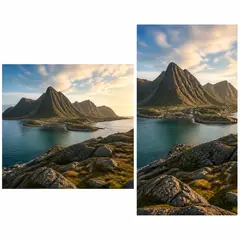
Photo Editing & Utilities
Landscape & Portrait Converter
Convert landscape to portrait or portrait to landscape with fast background fills or AI-generated scenery, without cropping the original photo.
Try it now
Photo Editing & Utilities
Resize Image
Resize an image to exact dimensions or by percentage. Preview and download the result.
Try it now
Photo Editing & Utilities
Crop Image
Drag to crop an image. Choose a preset ratio or enter exact dimensions.
Try it nowWatch each transformation land
Every photo crosses the slash untouched and comes out the other side finished.























