Behind the scenes at a small business
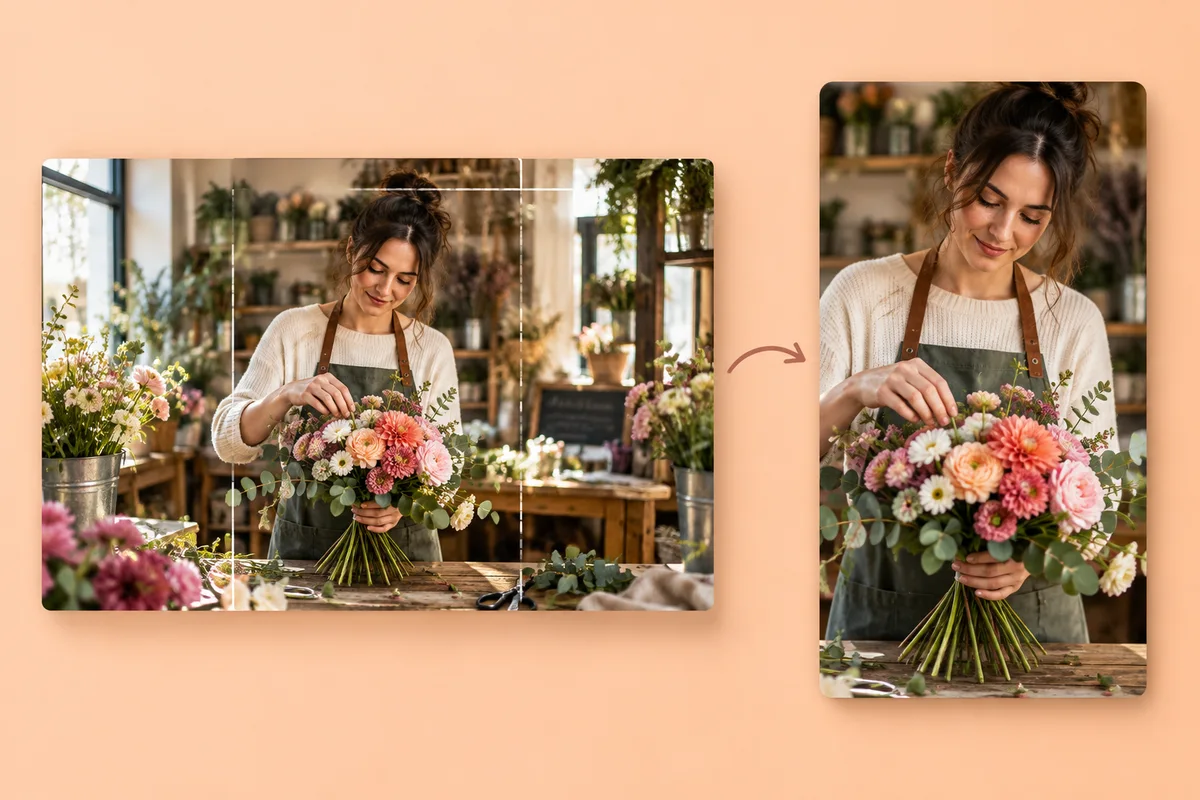
Preserve a wide view of a florist, bakery, or workshop inside the vertical canvas. A simple background lets viewers see the people and the workspace together.
1080 × 1920 · 9:16 · Keep whole video
Give a landscape video a vertical frame for Instagram Reels. Keep your full scene visible or crop around the action, then export a clean MP4 to upload.
MP4, MOV, WebM · Trim before exporting · Checking your upload limit…
Files are uploaded for conversion. Your upload is removed as soon as it is converted, and converted videos are automatically deleted within 24 hours.
Upload a clip from your camera roll or computer. This page keeps the full video on a 9:16 canvas with a gradient background, so a shop interior or group scene is visible from the start.
Open Background to use a solid color, moving blur, gradient, design, or uploaded photo. Backgrounds fill space around the video; they do not replace the scene behind a moving person.
For a single subject, select Crop to frame and reposition the picture. The crop removes the sides of a landscape video. Watch any movement before deciding that the closer view works for the whole clip.
Download the MP4 and preview it inside Instagram. Keep important text and faces away from app controls, and check how the cover appears separately. This converter does not create a Reel cover or publish to your account.
Preserve a wide view of a florist, bakery, or workshop inside the vertical canvas. A simple background lets viewers see the people and the workspace together.
Keep the full width of a landscape or street scene. Switch to a crop for a close-up when the destination is still recognizable in the narrower view.
Preview the full range of motion before choosing a crop. Use Keep whole video when an exercise reaches beyond the vertical frame.
Upload it here to start with a 1080 × 1920 canvas and Keep whole video selected. Choose a background and export. For an edge-to-edge picture, select Crop to frame and check what the crop removes.
A wide video cannot fill a taller canvas while preserving the whole picture and its proportions. Fit mode uses a background in the extra space. Crop mode fills the canvas by removing part of the picture.
No. This tool exports the video itself. Choose and inspect your cover in Instagram or create a separate cover image with the photo tools.
Yes. Open this page in your mobile browser, select a short video, adjust the frame, and download your MP4. Keep the page open until export finishes. Trim the clip to your plan's export limit: Free exports a web-size clip of up to 60 seconds at 720p from a 250 MB upload; Premium 20 minutes at 1080p and 1 GB; Pro 40 minutes and 2 GB; Scale 120 minutes and 5 GB. Passes allow 10 minutes at 1080p and 250 MB uploads.
Explore every ratio in the portrait and landscape video converter, or resize a still image with the landscape to portrait photo converter.
Review the main capabilities before you begin.
Available controls for Portrait & Landscape Video Converter.
Tools for common next steps after Portrait & Landscape Video Converter.
Photo Editing & Utilities
Convert landscape to portrait or portrait to landscape with fast background fills or AI-generated scenery, without cropping the original photo.
Try it nowPhoto Editing & Utilities
Resize an image to exact dimensions or by percentage. Preview and download the result.
Try it nowPhoto Editing & Utilities
Drag to crop an image. Choose a preset ratio or enter exact dimensions.
Try it nowEvery photo crosses the slash untouched and comes out the other side finished.