Cooking and drink tutorials
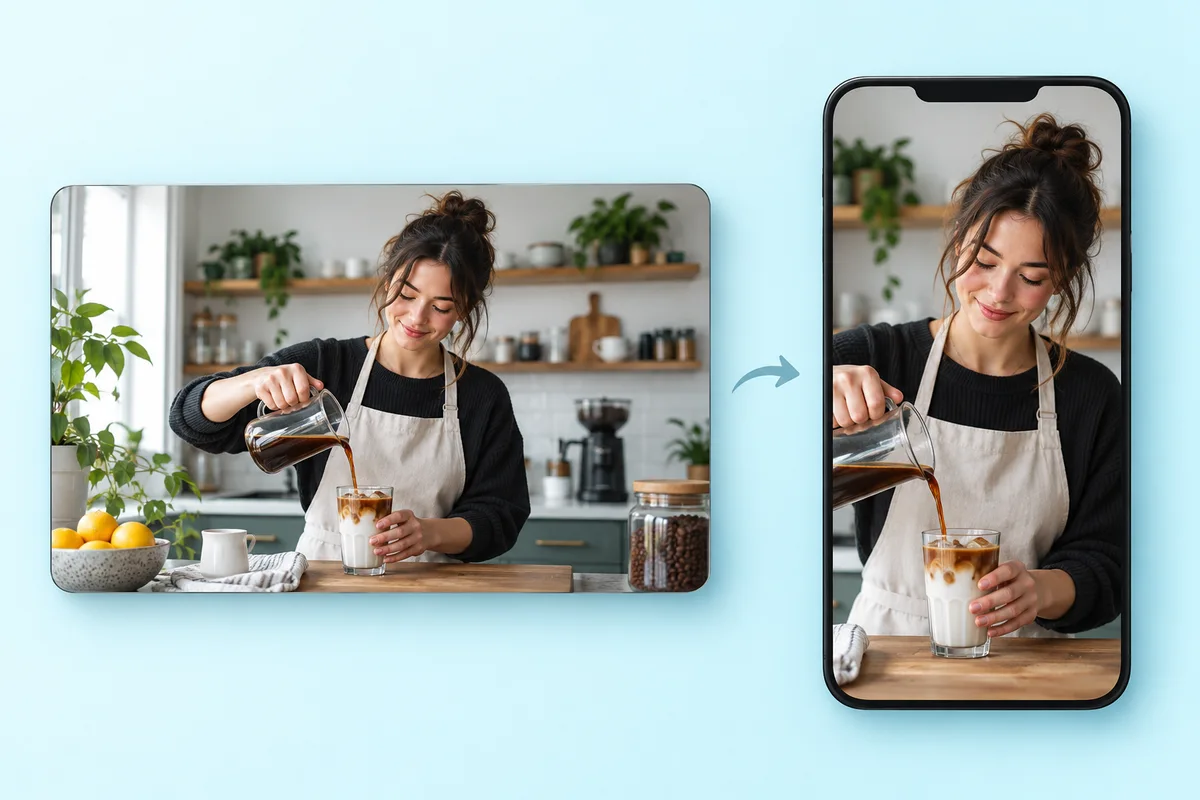
Bring the bowl, glass, or preparation area into a vertical frame. Use the full-frame option when a recipe needs both hands and a wide counter in view.
1080 × 1920 · 9:16 · Crop to frame
Turn a horizontal clip into a vertical TikTok video. Start with a 9:16 crop, reposition the frame around your subject, and download an MP4 without a watermark.
MP4, MOV, WebM · Trim before exporting · Checking your upload limit…
Files are uploaded for conversion. Your upload is removed as soon as it is converted, and converted videos are automatically deleted within 24 hours.
Upload an MP4, MOV, or WebM video and use Trim to choose the part you want to export. A cooking step, product demonstration, or talking-head clip is easier to reframe when the main action stays in one area.
The 1080 × 1920 crop is ready when you upload. Drag the preview or adjust horizontal position, vertical position, and zoom. Play the whole clip: the crop stays fixed and does not follow a moving person.
If hands, products, or other people fall outside the crop, switch to Keep whole video. A blur or color background fills the remaining vertical space without changing the original proportions.
Export your MP4, then upload it to TikTok. Check that captions and app controls do not cover the subject. Add any captions, music, or timed edits in your preferred editor or TikTok.
Bring the bowl, glass, or preparation area into a vertical frame. Use the full-frame option when a recipe needs both hands and a wide counter in view.
Reframe a short landscape product demo for a phone screen. Keep the product label and the movement that demonstrates its use inside the crop.
Reuse an already edited short explainer with the presenter centered vertically. Keep the source audio or mute it before adding a new soundtrack elsewhere.
This page starts at 1080 × 1920 pixels, a 9:16 vertical canvas. You can choose another aspect ratio or enter custom even dimensions before exporting.
Yes. Change How should it fit? to Keep whole video. The entire horizontal picture stays visible, with a background above and below it. It will occupy less of the vertical screen than a crop.
No. Position and zoom define one fixed crop for the entire clip. Preview your movement before converting; keep the whole video if a fixed frame cannot contain the action.
Yes. A paid plan or active pass lets you resize up to five clips together, with separate trim times for each video. They share framing settings and download as individual MP4 files; batches up to 1 GB also support ZIP downloads. Free users can upload 250 MB and export a short web-size clip (720p, up to 60 seconds). Premium exports up to 20 minutes at 1080p, Pro 40, and Scale 120.
TikTok recommends 9:16 for vertical in-feed ads. Ad requirements differ from organic uploads; review the requirements for your intended placement. TikTok in-feed ad specifications
Explore every ratio in the portrait and landscape video converter, or resize a still image with the landscape to portrait photo converter.
Review the main capabilities before you begin.
Available controls for Portrait & Landscape Video Converter.
Tools for common next steps after Portrait & Landscape Video Converter.
Photo Editing & Utilities
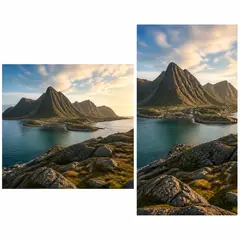
Convert landscape to portrait or portrait to landscape with fast background fills or AI-generated scenery, without cropping the original photo.
Try it nowPhoto Editing & Utilities
Resize an image to exact dimensions or by percentage. Preview and download the result.
Try it nowPhoto Editing & Utilities
Drag to crop an image. Choose a preset ratio or enter exact dimensions.
Try it nowEvery photo crosses the slash untouched and comes out the other side finished.