
Vehicle Listing Photo Editor
Generative output can vary; review the full result before publishing
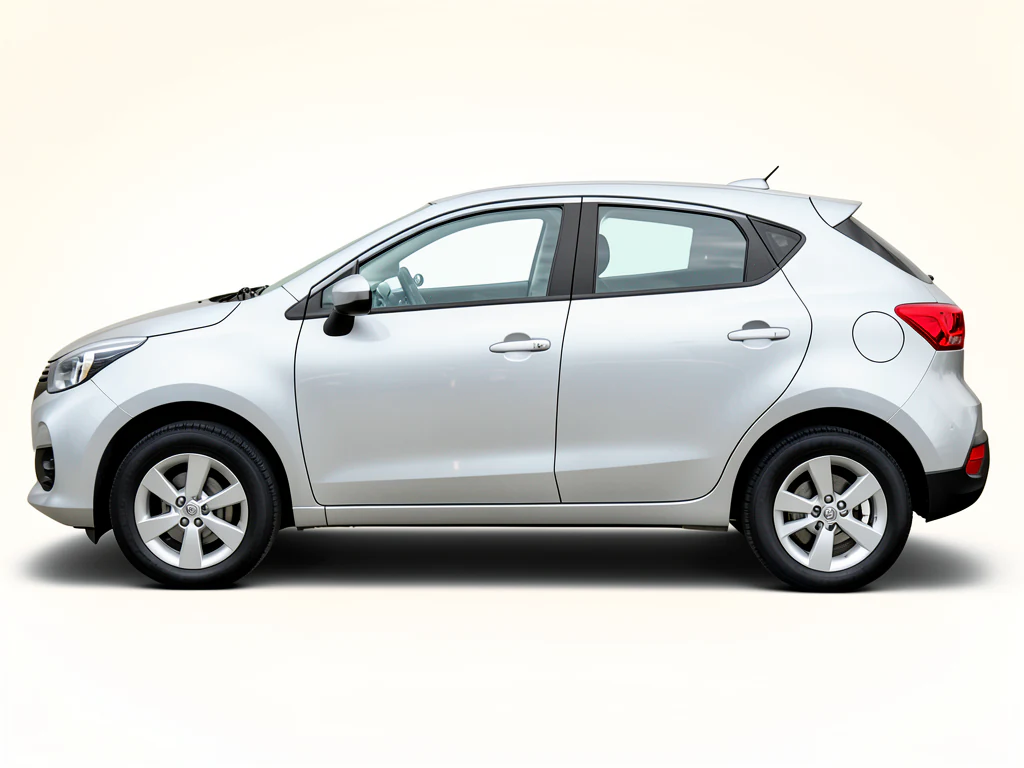
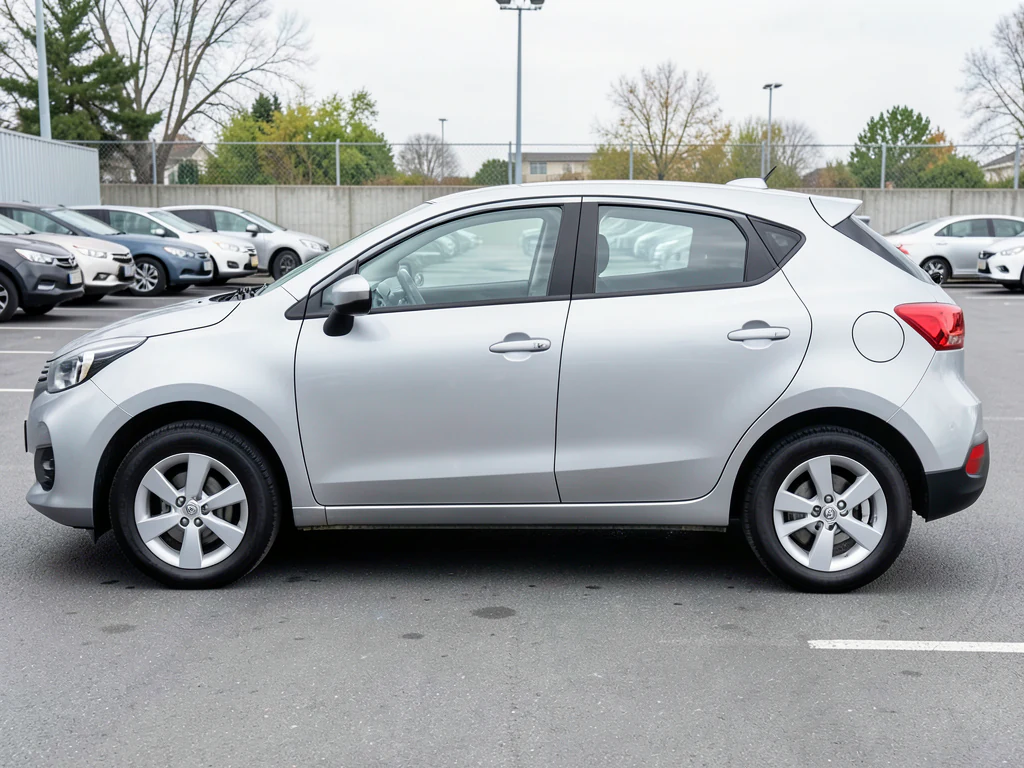
Vehicle marketplaces show listings in a tight grid where the thumbnail decides whether anyone clicks. A photo shot at dusk against a hedge is easy to scroll past. This direction replaces the background with a clean, plain one, without altering the vehicle or its condition; the light on the vehicle stays as you shot it.
- Prepared Vehicle Listing Photo Editor direction
- Editable prompt
- Source-detail review required
Choose a source image for Vehicle Listing Photo Editor
JPG, PNG, WebP, HEIC, and other supported formats. Free up to 20 MB; Premium and higher up to 50 MB for this tool.
Building a listing gallery that holds up in a marketplace grid
The first photo is a thumbnail before it is a photo, so make it the front three-quarter with the whole car filling most of the frame and nothing behind it competing for attention. Clean the background here, then keep the rest of the gallery honest and plain: interior front and back, dashboard with the odometer readable, each wheel, the trunk and any damage up close.
Use the cleaned background only where it helps. Interior shots, the engine bay and close-ups of scratches are better left as photographed, because buyers read a too-perfect interior as hidden wear. On the exterior shots, compare the result with the original at full size: badges, trim pieces, wheel spokes and tire lettering should match, and any dent you photographed should still be there.
Classified sites crop and compress differently. Crop each photo to the shape the site shows, then compress the gallery to a smaller file size so uploads on a phone connection do not stall. Free downloads come at web size, which is usually enough for a listing; Premium or credits unlock the original resolution when a site shows large zoomable photos.
A complete listing gallery
- Front three-quarter as the first photo
- Both sides, rear and rear three-quarter
- Dashboard with the odometer readable
- Close-ups of every known defect
- Tires, trunk and seats
Vehicle listing photo editor: a matching set of clean exterior photos
This vehicle listing photo editor replaces the surroundings in exterior photos of a car, motorcycle or van so that every photo in a listing gallery has the same clean backdrop. The vehicle is found automatically and placed back from your original photo, so its condition stays visible. It is made for exteriors; leave the interior, odometer and paperwork photos as shot.
Build the exterior set in 5 steps
Take every exterior angle from the same distance and height, with the whole vehicle in frame and ground around it. The result keeps the shape of each photo, so crop the set to one shape before you start.
Park on level ground a few steps from other vehicles, with clear space around the bumpers and a view of the tires meeting the ground. Overcast light or open shade keeps reflections plain, and wheels turned slightly toward the camera show the rims. A vehicle that touches the frame edge leaves the page little ground to rebuild.
- Upload the front three-quarter photo first, since it becomes the cover image.
- Under Styles, choose Showroom floor or Plain backdrop.
- Select Generate Product background.
- Compare badges, wheels and trim with the original, then download the PNG.
- Repeat with the same look for the side, rear and rear three-quarter photos.
Keep one backdrop across every exterior angle
A gallery with a different background in every frame looks like several vehicles. Pick one look and use it on every exterior photo of the unit. Showroom floor gives a polished indoor floor under even light with a pale wall, and Plain backdrop gives a smooth gray sweep. Batch images, a Premium option, runs a folder of exterior photos with one look and returns one ZIP of PNGs.
Leave the evidence photos as they were shot
This page is built for the outside of a vehicle. On a dashboard, VIN plate or service record photo there is no vehicle to place back, so the detail you most want exact is the detail most at risk. Upload the odometer, interior and paperwork photos as the camera captured them, together with close-ups of any damage, because buyers use those photos to verify the listing.
Check each edited exterior against its original
Put the result next to the original on an image comparison slider and look at badges, trim, wheel spokes and tire lettering. Dents, rust and paint chips should still be there. Thin parts such as mirrors and antennas are where the edge of the cutout can trim or pad the vehicle. Classified sites crop and compress on their own, so crop each photo to the shape the site shows before you upload.
Set up for Vehicle Listing Photo Editor
Prepared settings
- Starting point
- Upload one source image
- The page opens on the correct edit workflow; upload is the only required setup step.
- Prepared workflow
- Prepared Vehicle Listing Photo Editor background direction
- Vehicle Listing Photo Editor opens with the Vehicle Listing Photo Editor direction preselected, so there is no need to find the operation manually.
- Output shape
- Same as your upload
- The result keeps the shape of the image you upload.
- Review rule
- Preserve the source subject and verify factual details
- Generated imagery can vary; the final result stays under the user's approval before download.
Best-fit uses
- Private-sale listings on classifieds and marketplaces
- Consistent thumbnails across a small trader's inventory
- Reusing one photo set across several listing sites
Frequently asked questions
- What makes a vehicle listing photo get clicked?
- A clean, well-lit three-quarter front view where the vehicle fills the frame and nothing competes with it. Fill the frame when you shoot, because the vehicle keeps the size and position it has in your photo. Everything else — interior, engine bay, odometer, wheels, defects — earns its place further down the gallery once the click has happened.
- How many photos should a listing have?
- More than most sellers post. Buyers look for exterior angles, interior front and rear, dashboard with odometer, wheels, trunk space and honest close-ups of any damage. Gaps in coverage can read as concealment.
- Is editing listing photos allowed?
- Presentation edits like background cleanup are often allowed; misrepresenting the vehicle is not. Rules vary by marketplace and jurisdiction, and some are explicit about it. The line that holds everywhere is that condition, specification and identity must remain accurate.
- Should I blur the number plate?
- Many private sellers do, and some marketplaces do it automatically. It is a privacy decision rather than a photographic one, so handle it as a deliberate separate step before publishing rather than expecting a background edit to cover it.
- Will scratches, dents and rust still be visible after the change?
- Yes, because the page places the vehicle back from your original photo, so its panels, paint and wear are the pixels you shot. The edges where the vehicle meets the new scene are what to inspect for trimming or halos. Photograph damage up close as well, and keep those close-ups in the gallery.
- What if two vehicles appear in one photo?
- Photograph one vehicle at a time when you can. With two in frame, the automatic selection may include both or only one, so check which was kept and whether the other has a ragged edge. Move the second vehicle away or crop it out before you upload, or brush only the background with Refine area manually.
- Can I get a white background for a listing photo?
- Plain backdrop gives a smooth gray sweep with a gentle shadow, and you can ask for a plain white one in Custom instructions. For a pure white or transparent result, cut the car out with the car background remover and place it yourself. Results from this page are opaque PNG files.
- Should the first photo use a studio backdrop or the real location?
- Either can work, but be consistent: use the same treatment on every exterior photo so the gallery reads as one vehicle. A plain or showroom backdrop keeps attention on the vehicle, while the real location shows ordinary use. Do not use either to hide condition.
- Can I use the same edited photos on several listing sites?
- Yes, they are ordinary PNG files. Each site crops and compresses on its own, so keep the originals and results together, crop to the shape each site shows and reduce file size before upload. Check each site's current photo rules, since some are explicit about edited images.
What you can do with AI Product Scene Generator
Review the main capabilities before you begin.
- Build a scene around your product from a single photo
- Create editorial, ecommerce, and social campaign concepts
- Generate coherent props, surfaces, lighting, and shadows
- Ask the AI to keep the product as photographed
Settings reference
4 settings
Available controls for AI Product Scene Generator.
Workflow
- Single image or Batch imagesPresets
- Process one image, or use Premium Batch images to apply the same automatic recipe to a set and download one ZIP.Options: Single imageBatch images
Scenes
- One-tap presetsPresets
- Pick a ready-made direction with one tap; generation uses the selected preset automatically.Options: Bathroom counterKitchen lifestyleOutdoor lifestyleEditorial podiumSocial ad
- Custom instructions (optional)Text input
- Describe the requested change, relevant materials, lighting, perspective, and details that must remain unchanged.
Selection
- Selection brush sizeSliderRange: 4–160px · Default: 32px
- The subject area is found automatically. This brush appears only if that automatic area could not be found; paint the area to edit, then generate again.
Related tools for Vehicle Listing Photo Editor
Tools for common next steps after Vehicle Listing Photo Editor.

Background Studio
Remove Background
Remove a photo background and download a transparent PNG. Review hair and edges before use.
Try it now
Background Studio
Background Changer
Replace a background with a photo, color, gradient or library design. Choose from 21,000+ backgrounds.
Try it now
Photo Enhancement
AI Photo Enhancer
Adjust noise, sharpness, color and scale in one enhancement workflow, then compare the result with the original.
Try it nowWatch each transformation land
Every photo crosses the slash untouched and comes out the other side finished.























