
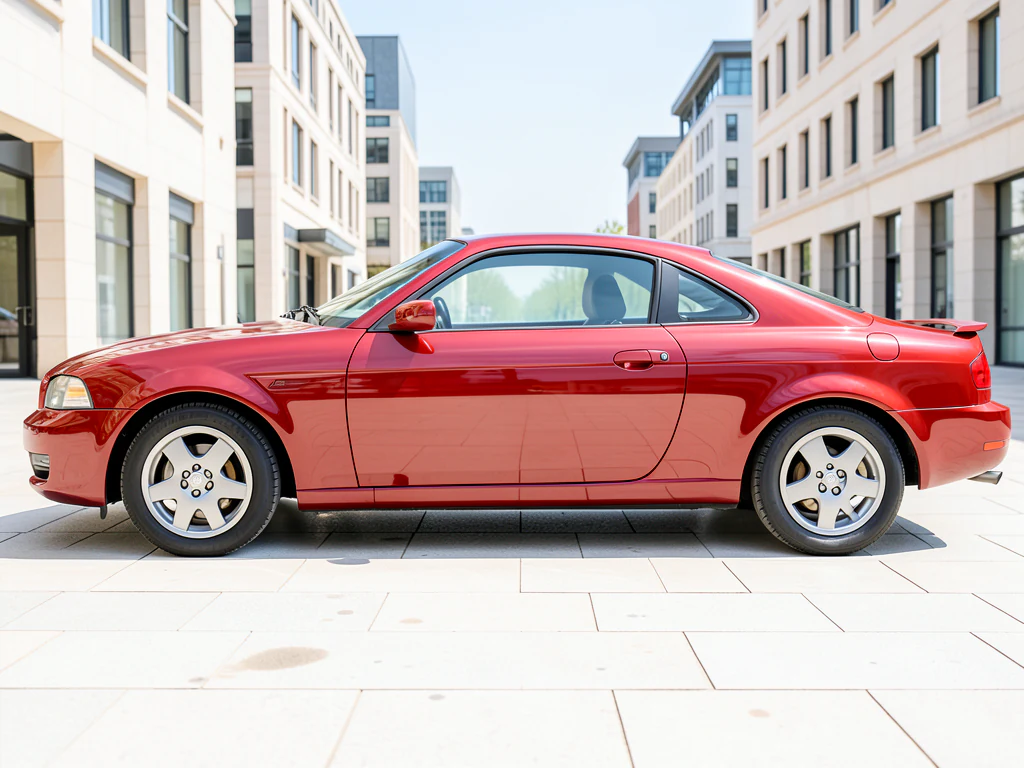
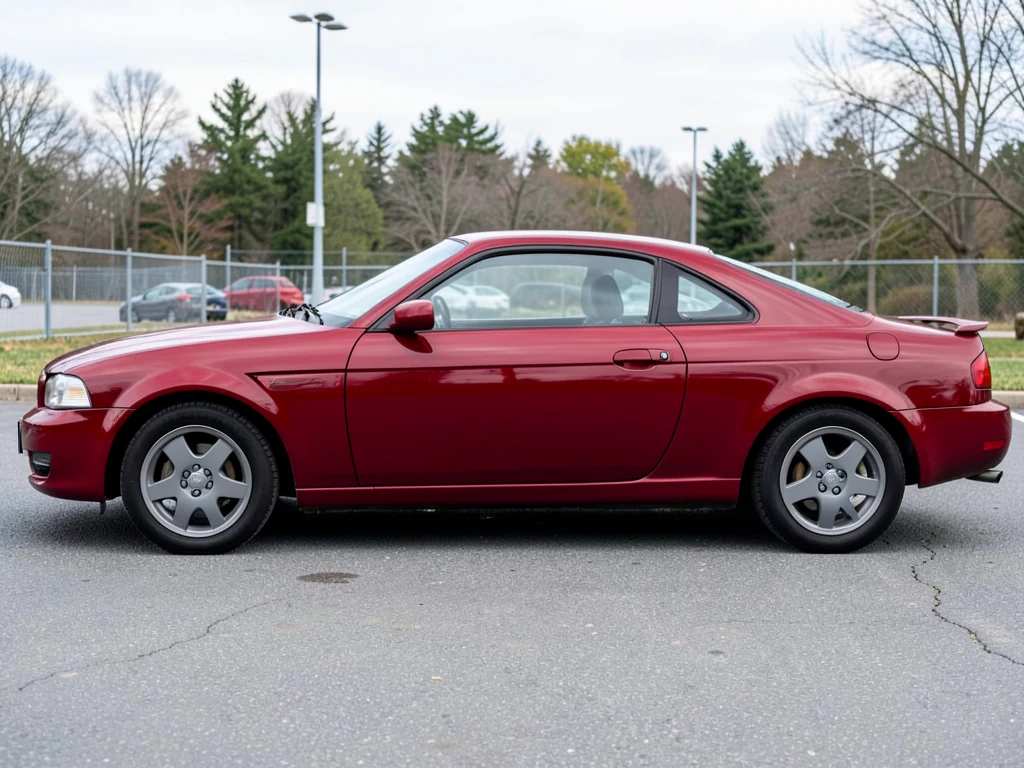
Car Background Changer
Generative output can vary; review the full result before publishing
The background behind a car is usually whatever happened to be there — a neighbor's driveway, a supermarket parking lot, a trash can. Swapping it is straightforward; making the swap believable is not, because a vehicle is a large reflective object that has to sit on the ground with the right shadow. This direction generates the environment and contact shadow together, with the vehicle preserved. The light on the car stays as you shot it, so choose a scene whose light suits it.
- Prepared Car Background Changer direction
- Editable prompt
- Source-detail review required
Choose a source image for Car Background Changer
JPG, PNG, WebP, HEIC, and other supported formats. Free up to 20 MB; Premium and higher up to 50 MB for this tool.
Swapping the scene behind one car for a private sale or a post
Private sellers usually have one car, one afternoon and a driveway. Park so the car sits on flat, even ground with nothing touching it, back up far enough to fit the whole vehicle with a margin on every side, and shoot at a front three-quarter angle. The new setting is drawn around the car, so a clear gap between the car and the garage door gives the AI room to work.
Pick a setting that matches the light already on the car. If the sun lit the car from the left, a scene lit from the right will look pasted no matter how good the backdrop is, so Golden hour suits a photo taken late in the day, while Plain backdrop or Showroom floor suits a photo from an overcast morning. The result keeps the shape of your original photo, so crop to the frame you want before uploading.
Most classifieds do not need your license plate. Blur or pixelate the plate in a box you draw after the background change. For social posts, fit the image to an Instagram size, and if you would rather place the car on your own design, cut it out to a transparent PNG instead.
Change the background behind a car photo and keep the real car
This car background changer finds the car in your photo, builds a new setting around it, and places the car back from your original picture. You choose Showroom floor, Plain backdrop, Golden hour or City street, or describe your own, then compare the result with your original before you download a PNG. Dents, scratches and wear stay, because the car itself is not regenerated.
Change a car background in 5 steps
Take the photo with the whole car in view and some ground and sky around it. The result keeps the shape and framing of your upload, so crop to the frame you want first.
- Upload a photo with the entire car in frame and space around it.
- Under Styles, choose the setting that suits the light already on the car.
- Select Generate Product background.
- Check windows, paint and wheels for reflections of the old surroundings.
- Download the PNG, or select Edit again to try another setting.
What the page changes and what it keeps
The surroundings, the ground and the shadow under the car are generated. The car is detected and put back from your original photo, so its paint, glass, wheels and number plate are the pixels you shot, including the reflections of whatever was around it. That is why a dent still shows, and also why a reflected garage door or tree still shows on the doors and windows. Thin parts at the cutout edge, such as mirrors, deserve a close look. The plate stays as photographed, so hide it as a separate step with a pixelate or blur tool if the picture is going public.
Make the scene fit the car's light and angle
A new scene cannot change the light already on the car or the height you shot from. Golden hour suits a car lit by low warm sun, while Plain backdrop and Showroom floor suit flat overcast light or an indoor photo. Shooting from around headlight height gives the ground a believable horizon, whereas a high angle makes any road look tilted. City street adds blurred buildings, so give it a photo with space behind the car. For the car alone on a transparent background, to place on a design of your own, use the car background remover instead.
When the page cannot find a safe edit area
A car that takes up almost all of the frame, one that is tiny in a wide lot photo, or one that blends into nearby vehicles can leave no area the page can change safely. It then says it could not identify a safe automatic edit area and offers Refine area manually. Brush over the old background, not the car, and generate again; only the brushed area is replaced.
Set up for Car Background Changer
Prepared settings
- Starting point
- Upload one source image
- The page opens on the correct edit workflow; upload is the only required setup step.
- Prepared workflow
- Prepared Car Background Changer background direction
- Car Background Changer opens with the Car Background Changer direction preselected, so there is no need to find the operation manually.
- Output shape
- Same as your upload
- The result keeps the shape of the image you upload.
- Review rule
- Preserve the source subject and verify factual details
- Generated imagery can vary; the final result stays under the user's approval before download.
Best-fit uses
- Cleaning up a private-sale listing photo
- Putting a car on a studio sweep for social content
- Standardizing backgrounds across a small vehicle fleet
Frequently asked questions
- Why do car background swaps often look fake?
- Often the shadow. A car is heavy and must visibly sit on the ground; a cutout floating with no contact shadow reads as wrong instantly, even to viewers who cannot say why. Light direction is the second culprit — a car lit from the left in front of a scene lit from the right never resolves.
- How should I photograph the car first?
- Get the whole vehicle in frame with a little space around it, shoot from around headlight height, and use overcast light or open shade. Three-quarter front and rear angles do most of the selling work. Avoid direct midday sun, which produces hard reflections that no background change will fix.
- Will the number plate be changed?
- The vehicle is preserved, so the plate stays as photographed. If you need it obscured for privacy before publishing a listing, do that deliberately with a separate edit — do not assume the background change will have handled it.
- Can I put the car in a location it has never been?
- Technically yes, and for creative or social use that is fine. For a sales listing, be careful that an aspirational backdrop does not imply something untrue about the vehicle, and check the advertising rules that apply where the listing runs.
- Why do I still see reflections of my old surroundings on the car?
- The car is placed back from your original photo, so its paint and glass keep whatever they reflected when you shot it, such as a garage door or trees. Look at the windows, doors and hood. Shooting in open shade or overcast light, away from buildings, keeps those reflections plain.
- Can I change the car's color or remove dents here?
- No. This page changes the surroundings only, and the car keeps its paint, dents and scratches. To try a different color on a car photo, use the Color Changer page for cars.
- Does it work for night photos or a car parked in a garage?
- It can, but the original light stays on the car. A car lit by garage tubes or headlights keeps that light, and a bright daylight street behind it will look mismatched. Pick the look closest to the light you shot in, such as Showroom floor for indoor photos, or reshoot in daylight.
- Can I move the car to a different spot in the frame?
- No. The result keeps the position and size the car has in your photo, and the page builds the ground and scene around it. Crop or reframe first with the Image Cropper if you want the car placed differently, then generate.
- Why do the wheels look like they float or sink?
- The page generates a contact shadow and ground under the car, but it cannot move the wheels. Look at where the tires meet the new surface. If the car seems to float or sink, try Plain backdrop or Showroom floor, which have simpler floors than City street and Golden hour.
What you can do with AI Product Scene Generator
Review the main capabilities before you begin.
- Build a scene around your product from a single photo
- Create editorial, ecommerce, and social campaign concepts
- Generate coherent props, surfaces, lighting, and shadows
- Ask the AI to keep the product as photographed
Settings reference
4 settings
Available controls for AI Product Scene Generator.
Workflow
- Single image or Batch imagesPresets
- Process one image, or use Premium Batch images to apply the same automatic recipe to a set and download one ZIP.Options: Single imageBatch images
Scenes
- One-tap presetsPresets
- Pick a ready-made direction with one tap; generation uses the selected preset automatically.Options: Bathroom counterKitchen lifestyleOutdoor lifestyleEditorial podiumSocial ad
- Custom instructions (optional)Text input
- Describe the requested change, relevant materials, lighting, perspective, and details that must remain unchanged.
Selection
- Selection brush sizeSliderRange: 4–160px · Default: 32px
- The subject area is found automatically. This brush appears only if that automatic area could not be found; paint the area to edit, then generate again.
Related tools for Car Background Changer
Tools for common next steps after Car Background Changer.

Background Studio
Remove Background
Remove a photo background and download a transparent PNG. Review hair and edges before use.
Try it now
Background Studio
Background Changer
Replace a background with a photo, color, gradient or library design. Choose from 21,000+ backgrounds.
Try it now
Photo Enhancement
AI Photo Enhancer
Adjust noise, sharpness, color and scale in one enhancement workflow, then compare the result with the original.
Try it nowWatch each transformation land
Every photo crosses the slash untouched and comes out the other side finished.























