
AI Headshot Generator
Review facial likeness and identity-relevant details before publishing
A professional headshot costs a booking, a half-day and a fee, which is why most people are still using a cropped photo from a wedding. This direction builds the professional treatment — even light, neutral backdrop, considered framing — around a face that must remain recognizably yours, because a portrait that is not you fails at the one job it has.
- AI Headshot Generator professional direction
- Head-and-shoulders portrait from your own photo
- Likeness and generated-detail review
Review facial likeness and identity-relevant details before publishing
Choose a clear portrait for AI Headshot Generator
JPG, PNG, WebP, HEIC, and other supported formats. Free up to 20 MB; Premium and higher up to 50 MB for this tool.
Matching the headshot to the places it will actually appear
Decide where the portrait will live before you generate, because that settles the frame. The 4:5 shape suits most profile pages and leaves headroom for a circular crop; square suits chat apps and staff badges; 3:4 fits the photo box of a printed CV or a conference program. Generating in the right shape is better than cropping a finished portrait and losing your shoulders. If your best recent photo includes other people, crop it down to just you before uploading.
Next to this page's own direction sit three looks: Neutral studio, Modern office and Warm editorial. Choose the one nearest to your field, then use the custom instructions for the specifics a preset cannot know, such as a navy jacket, an open collar or a lighter backdrop. Identity preservation stays switched on for headshots, so the instruction always asks the AI to keep you recognizable.
Asking is not the same as receiving. Beyond likeness, look for a logo the AI added to your clothing, shapes in the background that resemble lettering, and a skin tone that drifted warmer or cooler than yours. A web-size download is enough for a profile circle; Premium or one credit gives the original resolution for print. Advice for particular uses lives on pages such as a LinkedIn profile headshot.
AI headshot generator: turn a selfie into a professional headshot
This AI headshot generator restyles a portrait you already have, adding a clean backdrop, work-appropriate clothing and even light. You upload one clear photo, choose a look, and compare the result with your original before you download it. The page asks the AI to keep you recognizable, so the face is the part you check hardest.
Turn a selfie into a professional headshot
One portrait goes in and one portrait comes out, so there is no set of 10 or 20 selfies to collect. A selfie headshot starts with the sharpest recent photo you have, with your face front-facing and evenly lit, and the page changes the clothing, backdrop and light around it.
- Upload a clear, recent portrait with your head and shoulders in view, cropped the way you want it framed.
- Under Styles, choose AI Headshot Generator, Neutral studio, Modern office or Warm editorial.
- Open Custom instructions (optional) only if you want to add a detail such as a navy jacket.
- Select Generate Professional headshot and wait for the result.
- Drag the before-and-after slider, then download the PNG if the face still looks like you.
How to take a professional headshot by yourself
To take your own headshot, a phone photo you take in 2 minutes is enough if you set it up once. The goal is a sharp, evenly lit, front-facing frame, because the page restyles what it receives and cannot invent detail that the photo does not hold.
- Stand facing a window a few feet away so daylight falls evenly across your face.
- Prop the phone at eye level on a shelf or a stack of books and use the back camera.
- Set a 10-second timer, relax your shoulders and look straight into the lens.
- Wear a plain top with a clear neckline and stand in front of a plain wall.
- Take 12 frames and keep the sharpest one with your eyes open.
Choose a professional headshot background
The backdrop changes how a headshot reads faster than anything else. Neutral studio gives a clean gray wall with soft, even light. Modern office puts a softly blurred workplace behind you with window-style light, and Warm editorial uses a subtle warm-neutral backdrop with controlled light. To go beyond those looks, name one color or material in Custom instructions, such as a mid-gray wall or a soft blue backdrop, and keep it to one idea.
If you only want a headshot background editor that swaps the backdrop while the person stays as photographed, change the background of the photo instead. This page restyles the whole portrait, including clothing and light.
Write a prompt for professional headshot results in Custom instructions
A good AI headshot prompt needs far fewer than the 1,000 characters the Custom instructions box takes. Describe clothing, backdrop and light in plain terms, for example: charcoal blazer, white shirt, plain light-gray wall, soft window light from the left. Leave your face, hair and age out of it. The page already asks the AI to keep you recognizable, and your own words take priority over that request, so asking for a different hairstyle or a younger look can be carried out and make the portrait less like you.
Professional headshots for LinkedIn, resumes and profile photos
For a LinkedIn AI headshot, Neutral studio or Modern office is a sound start. Check the collar, glasses frames and hairline against your original before you upload. For a page framed around that site, open the LinkedIn headshot generator. A photo on a resume is not expected everywhere, because norms differ by country and employer, so confirm one is wanted. The pages for a LinkedIn profile headshot and a resume photo go into more detail.
Headshot or profile picture: which tool fits
A profile picture and a headshot can be different jobs. Used as an AI profile picture generator, this page keeps the result photorealistic. It makes a professional profile photo of you, not an illustrated character, so for a gaming or cartoon-style picture, create an AI avatar. To blur or replace the background of a selfie without redrawing the portrait, use the profile picture maker. When a site needs a set size, such as a Facebook profile slot, fit the picture to a Facebook profile size afterward.
What the free preview of the AI professional headshot generator includes
You can try the page before choosing a plan: upload a portrait, generate a result and judge the look. Without a paid plan the result downloads at web size, which suits a profile picture on screen, and Premium or a credit returns the original resolution for print or a large banner. The page does not stamp a watermark on the image, and each run returns one image.
Set up for AI Headshot Generator
Prepared settings
- Starting point
- Upload one source image
- The page opens on the correct edit workflow; upload is the only required setup step.
- Prepared workflow
- Prepared AI Headshot Generator portrait direction
- AI Headshot Generator opens with the AI Headshot Generator direction preselected, so there is no need to find the operation manually.
- Output shape
- 4:5
- The recommended composition is selected automatically and can be changed before processing.
- Review rule
- Preserve the source subject and verify factual details
- Generated imagery can vary; the final result stays under the user's approval before download.
Best-fit uses
- A professional profile photo without booking a studio
- Refreshing an outdated portrait for a job search
- A consistent portrait across professional platforms
Frequently asked questions
- What selfie works best for a headshot?
- Soft even light on your face — a window, not overhead lighting or a flash — with your whole head and shoulders in frame, eyes toward the camera and nothing covering your face. Sharpness matters: a soft source produces a soft portrait, because detail cannot be invented accurately.
- Will I still look like myself?
- You must, and this is the thing to check hardest. Compare the result to your source at full size and look at eye shape, nose, jaw and any distinctive features. If it has drifted into a different-looking person, reject it — a headshot that flatters but is not you causes a real problem at the first meeting.
- Is it acceptable to use an AI headshot professionally?
- Increasingly common and generally accepted where the person remains genuinely recognizable and current. Where it becomes a problem is when the portrait is materially not you — significantly younger, different build, different features. Some employers and platforms are also introducing their own rules.
- What should I check before uploading it?
- Likeness first. Then ears, glasses frames, hairline, teeth and the collar of your clothing — these are where generated portraits distort most and where colleagues notice something is off without being able to name it.
- Can I try an AI professional headshot with a free preview?
- Yes. Upload one portrait, pick a look and generate a result before you choose a plan. Without a paid plan the result downloads at web size, which suits a profile picture on screen, and Premium or a credit returns the original resolution. The page does not stamp a watermark on the image.
- How to get a professional headshot without a photographer?
- Take a sharp, evenly lit, front-facing photo of yourself with a phone, then upload it here and choose a look such as Neutral studio or Modern office. The page restyles the clothing, backdrop and light around you. Compare the result with your original before you use it, because the face must still look like you.
- How to create a professional LinkedIn profile picture with AI?
- Upload a clear, recent portrait, choose Neutral studio or Modern office under Styles and generate. Check the collar, glasses frames and hairline against your original, then download the PNG. Use a result only if the face still looks like you, because a profile photo should match how you appear in person.
- What is the difference between an AI headshot generator and a profile photo maker?
- An AI headshot generator redraws the whole portrait, including clothing, backdrop and light, as a professional head-and-shoulders photo. A profile photo maker such as Profile Picture Maker keeps the person as photographed and blurs or replaces the background. Choose the first for a new look and the second when only the backdrop must change.
- Is this a headshot editor that retouches my own photo?
- It restyles the portrait rather than editing it layer by layer: clothing, backdrop and light change while the page asks the AI to keep you recognizable. You cannot paint an area to edit. For manual retouching or layouts, open the Photo Editor, and use Blemish Remover for skin marks.
- Can I turn a photo into a headshot if it is not a selfie?
- Yes. Any clear, front-facing portrait works, including a photo someone else took of you. Keep your head and shoulders in view, choose a look under Styles and generate. The page restyles the clothing, backdrop and light and asks the AI to keep you recognizable.
- Can I make several headshot styles from the same photo?
- Yes. Select Edit again after a result, pick another look under Styles and generate again; every run starts from your original photo. Choosing a look replaces any text in Custom instructions, so add your own details after you pick the look.
- Can an AI headshot be used as a passport or visa photo?
- No. Passport, visa and other ID photos follow official rules for framing, background and unedited appearance, and an AI-restyled portrait is not made for them. Check the issuing authority's current requirements, which decide acceptance, and use the Passport Resize tool to size a photo that follows them.
- Why does my AI headshot not look like me?
- Results vary from run to run, and a soft, tilted or shadowed source gives the AI less to hold on to. Try a sharper, front-facing photo in even light, choose a plainer look, and remove any instruction that changes your hair or features. If the face still drifts after a few runs, use your original photo.
- What file do I get from the AI headshot generator?
- You download a PNG that keeps the frame of the photo you uploaded. Transparent portraits are prepared automatically and saved with a solid background. A very large camera file is scaled down before the headshot is made, to 2048 px on the long side at most.
- Can an AI headshot replace a professional photographer?
- For profile photos, directories and bylines an AI professional headshot can be a practical alternative, because you control the look and can try again. For a campaign, a press kit or a portrait that must hold up as a faithful likeness at large print size, a photographer controls light, expression and retouching in ways a generated image does not. Compare the result with your own photo before you choose.
What you can do with LinkedIn Headshot Generator
Review the main capabilities before you begin.
- Turn a selfie into a professional headshot
- Add a clean studio background
- Get polished head-and-shoulders framing
- Even out lighting for a work-ready look
- Prepare a headshot for LinkedIn and resumes
- Direct clothing, background, and lighting with a style prompt
Settings reference
5 settings
Available controls for LinkedIn Headshot Generator.
Workflow
- Single image or Batch imagesPresets
- Process one image, or use Premium Batch images to apply the same automatic recipe to a set and download one ZIP.Options: Single imageBatch images
Styles
- One-tap presetsPresets
- Pick a ready-made direction with one tap; generation uses the selected preset automatically.Options: Neutral studioModern officeWarm editorial
- Custom instructions (optional)Text input
- Describe the requested change, relevant materials, lighting, perspective, and details that must remain unchanged.
Output
- Headshot aspect ratioPresets
- The generated headshot keeps the framing of the photo you upload whichever ratio is selected, so crop your selfie to head and shoulders first.Options: Portrait 4:5Square 1:1Portrait 3:4
- Ask AI to preserve subject identity and product detailsText input
- Adds an explicit instruction to retain the main subject, shape, branding, labels, and readable text unless the request changes them.
Related tools for AI Headshot Generator
Tools for common next steps after AI Headshot Generator.
Portrait & Headshot Studio
Avatar Generator
Create corporate, gaming, social, or illustrated avatars from a portrait with editable AI style directions.
Try it now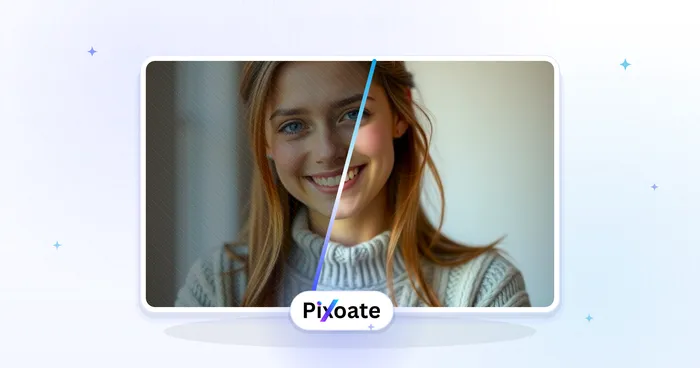
Portrait & Headshot Studio
Beautify Face
Apply adjustable skin smoothing and tone correction while reviewing facial detail and edges.
Try it now
Background Studio
Remove Background
Remove a photo background and download a transparent PNG. Review hair and edges before use.
Try it nowHow LinkedIn Headshot Generator helps you get it done
Real problems it solves every day — for businesses, creators, and everyday tasks. Find the use case that fits you and start.
LinkedIn Profile Photos
Turn a casual selfie into a professional LinkedIn headshot with a clean studio background
Resumes & Job Applications
Create a polished headshot for resumes, CVs, and job applications without a photo studio
Company Directories & Team Pages
Standardize team headshots with consistent framing and backgrounds for about and team pages
Speaker Bios & Conference Profiles
Produce a professional headshot for conference speaker bios, panels, and event profiles
Brand-Color Team Headshots for Startups
Use the custom background color picker to match your exact brand hex behind every teammate's headshot, so the About page and team directory look cohesively branded without booking a real studio.
Real Estate Agent Profile Photos
The Soft Blue and Warm Beige backdrop presets read as approachable and trustworthy for agent bios and listing sites — keep retouch strength low for a credible, authentic look buyers trust.
Freelancer & Consultant Portfolio Photos
Swap in the Charcoal or Brand Blue backdrop for a confident, premium portrait to reuse across Upwork, a personal website and pitch decks.
Alumni & University Directory Photos
White or Light Gray backdrops give every submitted photo the same neutral background, so an alumni directory or faculty page looks consistent even when everyone uploads a different selfie.
Guides for this tool
- How to Create Consistent Staff Headshots for a Company WebsiteCreate consistent staff headshots for a company website with Pixoate. Coordinate framing and backgrounds while keeping each person's likeness clear.
- A Better Team Page Starts with Headshots That Belong TogetherA coherent team page starts with portraits that belong together. Explore Pixoate framing and background choices that preserve individual likenesses.
Watch each transformation land
Every photo crosses the slash untouched and comes out the other side finished.























