


Airbnb Photo Optimizer
Generative output can vary; review the full result before publishing
Short-term rental listings lean heavily on their first few photos, and many are let down by light rather than by the property — dim corners, color casts, a room that looks smaller than it is. This direction asks the AI to improve presentation while keeping the space truthful, because a guest who arrives to something other than the photos leaves a review that costs more than the booking earned.
- Prepared Airbnb Photo Optimizer direction
- Editable prompt
- Full-result review required
Choose a source image for Airbnb Photo Optimizer
JPG, PNG, WebP, HEIC, and other supported formats. Free up to 20 MB; Premium and higher up to 50 MB for this tool.
Fixing the light in a short-term rental gallery without changing the stay
Most host photos are taken on a phone during a changeover, often with only the overhead light on and the curtains half shut. Before you upload, open the curtains fully, switch on every lamp, and shoot from a doorway corner with the phone level at chest height. iPhone HEIC files are accepted as they come off the phone.
The instruction box starts with a general direction to improve the photo while keeping the property and amenities truthful. Add the specific fault you can see: 'warm up the blue cast from the window, brighten the far corner, keep the furniture and artwork as they are'. One fault per run is easier to judge than five at once.
When the result comes back, look at what a guest checks on arrival: the number of beds and pillows, the TV, the coffee maker, the view through the window. An edit that adds or removes any of those no longer shows your listing. Each room has a more focused page, such as a brighter kitchen shot for self-catering guests or a cover photo that still reads at thumbnail size. Free downloads are web size, which suits a test; Premium or one credit unlocks the original resolution for the upload.
Airbnb photo optimizer: improve rental listing photos without changing the stay
This page improves how a short-term rental photo is presented, such as light, color and clarity, while asking the AI not to add amenities or change the space a guest will walk into. It is meant for hosts working through a listing gallery photo by photo. The result is a version of your own picture, to check against the real room before it goes online.
Improve one listing photo in four steps
The sentence the page starts with asks to improve the listing photo while keeping the property and its available amenities truthful. Add the one fault you can see after it, so the edit has a target.
- Upload the room photo with every lamp on and the curtains open.
- In Custom instructions (optional), name the fault, such as a blue cast or a dark far corner.
- Press Generate Text-based edit.
- Compare the bed, the windows and the appliances with the real room before you save the PNG.
The edit keeps your viewpoint
The AI is asked to keep the camera angle of the photo you upload, so a cramped doorway shot stays cramped after the edit. If a room looks small, step into the far corner, hold the phone level at chest height and shoot again. Fix the framing with your feet and the light with this page, and the two together do far more than either alone.
Build the gallery from the room and job pages
The optimizer has eight room pages for a living room, bedroom, kitchen, bathroom, dining area, balcony, patio and exterior. It also has six listing jobs: listing cover, amenity highlight, small space, luxury rental, family rental and beach rental. The small space page is the one to open for a studio or a compact bedroom, and the exterior page covers the front of the building. Each starts from its own sentence, so the direction already fits the shot.
Four rental pages, one editor
All four rental pages run on the same editor and differ in the sentence they start from. This page and the vacation rental editor both polish light and presentation, the second framed for holiday homes and several properties. Airbnb virtual staging furnishes an empty room as a labeled concept. The rental listing enhancer is written for long-term rental portals. Choose by what you are listing.
Say what you changed
An edited photo still has to match the stay. Rules for edited or staged images differ between listing services and places, so read the current ones for where you list. Keep the original photos, describe in the listing text anything a photo only suggests, and treat a result that adds or removes a bed, a view or an appliance as unusable. Light and color fixes are the easiest edits to stand behind, because the room itself is unchanged.
Set up for Airbnb Photo Optimizer
Prepared settings
- Starting point
- Upload one source image
- The page opens on the correct edit workflow; upload is the only required setup step.
- Prepared workflow
- Prepared Airbnb Photo Optimizer workflow
- Airbnb Photo Optimizer opens with the Airbnb Photo Optimizer direction preselected, so there is no need to find the operation manually.
- Output shape
- Same as your upload
- The result keeps the shape of the image you upload.
- Review rule
- Review the complete generated result before use
- Generated imagery can vary; the final result stays under the user's approval before download.
Best-fit uses
- Lifting dim interior photos of an existing listing
- Making a small property read accurately rather than cramped
- Bringing a multi-property portfolio to one standard
Frequently asked questions
- What makes short-term rental photos work?
- Bright, wide, honest images with the strongest room first, and full coverage of every space including the bathroom and kitchen. Guests filter fast on the thumbnail and then look for gaps. A missing room reads as something being hidden, and that can put guests off more than an unglamorous room does.
- Can I make the space look bigger?
- Only within honesty. Improving light and clearing clutter makes a room read accurately, which usually means larger than a bad photo suggested. Distorting proportions to exaggerate size is a different thing entirely, and it generates precisely the disappointed arrival reviews that damage a listing.
- Can I add amenities that are not there?
- No. Adding a hot tub, a coffee machine or a view that does not exist is misrepresentation, is likely to break your platform's rules — check its current policy — and invites complaints. This direction asks the AI not to add amenities, but generated results can still invent details, so verify every result against the actual property before publishing.
- How many photos should a listing have?
- Enough to cover every room and the key features. Lead with the most impressive space, keep a logical order so guests can build a mental map, and caption anything that might otherwise surprise them on arrival.
- Can I fix my cover photo so it reads well as a thumbnail?
- Start from the brightest, widest shot of your best room and name the fault in one sentence, such as lift the dark corners and keep everything in place. The listing cover page starts from a sentence written for that job. Check the picture at small size afterward, since a thumbnail hides detail and exposes a dim frame.
- Do I have to tell guests that a photo was edited?
- Rules differ by listing service and by place, so check the current ones for where you list. Light and color corrections are one thing, while staging or removing items is the kind of edit that usually needs a label. Keep original photos and describe in the listing text anything the pictures only suggest.
- Can I use iPhone photos straight from my camera roll?
- Yes. HEIC photos are accepted along with JPG, PNG and WebP. Images with transparency are refused because AI edits do not preserve it, and very large photos are scaled down before editing. The result downloads as a PNG.
- Why did a pillow or a lamp appear that is not in my room?
- The AI redraws the photo, and an edit can add or restyle small objects. Run it again with a keep list, such as keep every object where it is, tick the preserve checkbox, or brush only the area you want changed with Refine area manually. Never publish a result that shows an item the room lacks.
- Can I edit photos of the outside of the property here?
- Yes. The exterior page starts from a sentence for building fronts and gardens, and the same editor works on any outdoor photo. Keep to light and clarity. A sky or a dusk look shows a day or an hour guests may not get, so label it or leave it out.
- What are the four buttons under Styles on this page?
- They are the prepared sentences of the four rental pages: Airbnb Photo Optimizer, Vacation Rental Photo Editor, Airbnb Virtual Staging and Rental Listing Photo Enhancer. Pressing one replaces the sentence in the box. Leave Airbnb Photo Optimizer selected for a light and clarity fix, because the Airbnb Virtual Staging sentence asks for a staging concept.
What you can do with AI Real Estate Photo Editor
Review the main capabilities before you begin.
- Stage complete rooms automatically for disclosed concepts
- Add selected TVs, wall colors, or landscaping precisely
- Remove described cables, bins, signs, and distracting clutter
- Replace skies and create realistic twilight exteriors
- Refine automatic edit areas manually when needed
Settings reference
5 settings
Available controls for AI Real Estate Photo Editor.
Tasks
- Edit typeDropdown
- Choose the edit to perform; prompts, selection tools and output controls follow the selected edit type.Options: Text-based editGenerative fillMagic eraserSky replacementRoom staging
- One-tap presetsPresets
- Pick a ready-made direction with one tap; generation uses the selected preset automatically.Options: Add furnitureAdd TVPaint walls warm whiteTwilight skyReplace skyRemove clutterRefresh landscaping
- Custom instructions (optional)Text input
- Describe the requested change, relevant materials, lighting, perspective, and details that must remain unchanged.
Selection
- Selection brush sizeSliderRange: 4–160px · Default: 32px
- Set the brush width used to mark the exact add, fill, or replacement area required before generation.
Output
- Ask AI to preserve subject identity and product detailsOn / Off
- Adds an explicit instruction to retain the main subject, shape, branding, labels, and readable text unless the request changes them.
Related tools for Airbnb Photo Optimizer
Tools for common next steps after Airbnb Photo Optimizer.
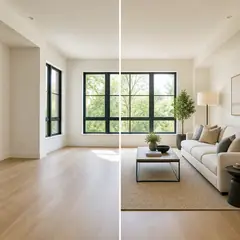
Virtual Staging & Property
Virtual Staging AI
Virtually stage empty rooms with AI furniture for real-estate listings. Create living room, bedroom, office, dining, and luxury concepts.
Try it now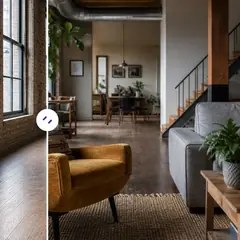
Virtual Staging & Property
AI Room Staging
Stage empty or dated rooms with AI furniture and décor. Create living rooms, bedrooms, offices, dining rooms, and interior style concepts.
Try it now
Photo Enhancement
AI Photo Enhancer
Adjust noise, sharpness, color and scale in one enhancement workflow, then compare the result with the original.
Try it nowGuides for this tool
- How to Prepare Real Estate Listing Photos in Bulk for an AgencyOrganize bulk real estate photo editing with Pixoate. Keep properties, room sequences and concept images clear across an agency's listing workflow.
- How to Remove Temporary Clutter from Real Estate Photos with AIRemove temporary clutter from real estate photos with Pixoate. Review cables and stray objects while preserving the property's actual condition.
Watch each transformation land
Every photo crosses the slash untouched and comes out the other side finished.























