
Airbnb Virtual Staging
Generative output can vary; review the full result before publishing
An unfurnished or half-furnished short-term rental photographs badly and lets guests imagine nothing, but staging it in a listing gallery is a promise about what they will find. This direction produces a furnishing concept and asks the AI to keep fixed architecture, for use where it can be clearly disclosed — planning a fit-out, showing an owner the potential, not passing off as the live listing.
- Prepared Airbnb Virtual Staging direction
- Editable prompt
- Full-result review required
Choose a source image for Airbnb Virtual Staging
JPG, PNG, WebP, HEIC, and other supported formats. Free up to 20 MB; Premium and higher up to 50 MB for this tool.
Using staging concepts to plan a short-term rental fit-out
Hosts setting up a new unit face a long shopping list and one chance to get the layout right. Photograph each empty room from the spot where the listing photo will be taken, then add a budget-shaped instruction to the staging direction: 'two-seat sofa, small dining table for four, durable washable fabrics'. The result shows whether that list fits the room before anything is ordered.
Staging plans furniture across the whole room automatically. Check scale against what you know: a bed needs walking room on at least one side, a sofa should not block a door, and chairs at a table for four should still pull out. Generated furniture is not a product you can buy; use the image to settle sizes and colors, then find real pieces that match. To test one particular shape before ordering, preview a single sofa in the room.
If a concept appears in a live listing at all, it needs a clear label and the real photos beside it, because guests book on what the images promise. Starting from a named look helps when you are comparing directions; a bright Scandinavian concept for rentals is a common first try.
Airbnb virtual staging: furnish an empty rental room as a labeled concept
This page furnishes a photo of an empty or sparsely furnished rental room as a concept, while preserving the walls, windows and the amenities that really exist. It suits hosts and owners planning a fit-out, comparing furnishing directions or briefing a designer. Because a guest books on what the photos promise, every staged image here is a concept to label, not a replacement for photos of the real room.
Stage a rental room in five steps
The page opens with a sentence asking for a disclosed staging concept that preserves fixed architecture and actual amenities. Add what the stay really sleeps and seats, since that is what the finished room has to match.
- Upload a photo of the empty room from a corner, with floor and windows in view.
- Add the beds, seating and table size you plan in Custom instructions (optional).
- Press Generate Room staging.
- Check the beds and seats against the number of guests the listing says it sleeps.
- Download the PNG and keep the unstaged photo beside it.
Choose a staging page for the room type
This page has no one-click room types, because its Styles buttons are the four rental pages. Describe the room yourself, such as a bedroom with a double bed, two nightstands and a wardrobe. For ready buttons, Virtual Staging AI offers Stage living room, Stage bedroom, Stage home office, Stage dining room and Luxury staging, and AI Room Staging offers Modern living room, Scandinavian, Luxury interior, Home office, Bedroom and Dining room. For a named look on a rental, the coastal style page starts from a staging sentence for that style.
Furnish for the guests you can host
A staged room that shows a king bed and two sofas implies a different stay than a twin room with one armchair. Write the sleeping and seating you can really provide, and keep the number of beds and seats in line with the guest count in the listing. If a concept shows more than you will install, it has stopped being a plan and become a promise you cannot keep.
A half-furnished unit
Units often hold a few leftover pieces. Say which ones stay, such as keep the wardrobe and the bed frame, and the AI plans around them. When old pieces should leave first, clear them from the photo, check the rebuilt floor and stage that cleaned version. Check every kept piece in the result, because the whole photo is redrawn when no area is painted.
Set up for Airbnb Virtual Staging
Prepared settings
- Starting point
- Upload one source image
- The page opens on the correct edit workflow; upload is the only required setup step.
- Prepared workflow
- Prepared Airbnb Virtual Staging staging direction
- Airbnb Virtual Staging opens with the Airbnb Virtual Staging direction preselected, so there is no need to find the operation manually.
- Output shape
- Same as your upload
- The result keeps the shape of the image you upload.
- Review rule
- Review the complete generated result before use
- Generated imagery can vary; the final result stays under the user's approval before download.
Best-fit uses
- Planning a fit-out before buying furniture
- Showing a property owner what a space could become
- Comparing furnishing directions for a new short-term rental
Frequently asked questions
- Can I use virtually staged photos in my live listing?
- Only if the space is genuinely furnished that way, or the image is unmistakably labeled as a concept and the real photos are also present. Guests booking a furnished stay expect the furniture in the photos. An unlabeled staged image of an empty property is misrepresentation and will be reported.
- What is staging actually useful for here?
- Deciding what to buy and where to put it. Comparing three furnishing directions in your actual space costs nothing and prevents the far more expensive mistake of ordering a sofa that does not suit the room. That planning use has no disclosure problem at all.
- Does staging change the room itself?
- The direction asks the AI to keep fixed architecture — walls, windows, doors, kitchen cabinets, bathroom fixtures — and add only furnishing, so check that it did. That boundary is what keeps a staged image honest about the space, even while it is explicit about the furniture being a concept.
- Can it add amenities like a hot tub or a workspace?
- It should not, and you must not present it as though it has. Guests often filter by amenities, which makes a faked one especially damaging. If you plan to add one, install it and photograph it — then it is a genuine selling point.
- Can I send staged images to an owner, a co-host or a designer?
- Yes. Planning is the cleanest use of a staged concept. Label each image as a concept, attach the unstaged photo, and list the furniture in words with the sizes you measured, since the pieces in the picture are representative designs and not products you can order.
- Can I stage a balcony or a patio?
- The staging engine is aimed at interior rooms. For outdoor spaces, the Balcony and Patio pages under the Airbnb Photo Optimizer start from sentences for them, and the Patio Visualizer is written for outdoor living concepts. Label any staged outdoor image the same way as an indoor one.
- Can I stage a studio where the bed and the sofa share one room?
- Yes. Name the sleeping zone and the seating zone separately and say where the walkway runs, for example a double bed against the left wall and a loveseat under the window. Studios fill up quickly, so check that doors open and the path to the kitchen or bathroom stays clear.
- How many style variations should I compare before I buy furniture?
- Two or three are plenty. Keep the same photo and the same guest-count sentence, and change only the style or palette. Choose the version that suits the room's light and your budget, then shop from a written list of the pieces, since the generated items are not products.
- How do I show the unstaged and staged versions together?
- Download the staged PNG and put it next to your original on an image compare slider or in a collage, with a caption that says which one is staged. Keeping the pair together makes the difference clear to an owner and shows guests what is real.
What you can do with AI Room Staging
Review the main capabilities before you begin.
- Plan complete-room furniture placement automatically
- Restyle living rooms, bedrooms, offices, and dining rooms
- Preserve fixed architecture and camera perspective
- Process property sets in Premium batch mode
Settings reference
5 settings
Available controls for AI Room Staging.
Workflow
- Single image or Batch imagesPresets
- Process one image, or use Premium Batch images to apply the same automatic recipe to a set and download one ZIP.Options: Single imageBatch images
Styles
- One-tap presetsPresets
- Pick a ready-made direction with one tap; generation uses the selected preset automatically.Options: Modern living roomScandinavianLuxury interiorHome officeBedroomDining room
- Custom instructions (optional)Text input
- Describe the requested change, relevant materials, lighting, perspective, and details that must remain unchanged.
Selection
- Selection brush sizeSliderRange: 4–160px · Default: 32px
- Automatic selection is the default. Open Refine area manually and set this brush width only when the image needs a tighter edit boundary.
Output
- Ask AI to preserve subject identity and product detailsOn / Off
- Adds an explicit instruction to retain the main subject, shape, branding, labels, and readable text unless the request changes them.
Related tools for Airbnb Virtual Staging
Tools for common next steps after Airbnb Virtual Staging.
Virtual Staging & Property
AI Real Estate Photo Editor
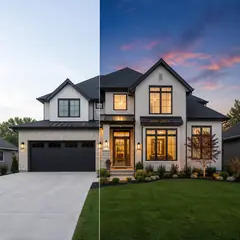
Edit real-estate photos with AI: add furniture or a TV, paint walls, remove clutter, replace skies, improve landscaping, and create twilight exteriors.
Try it now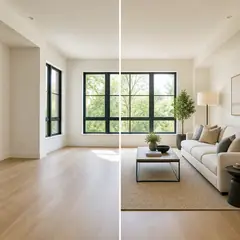
Virtual Staging & Property
Virtual Staging AI
Virtually stage empty rooms with AI furniture for real-estate listings. Create living room, bedroom, office, dining, and luxury concepts.
Try it now
Photo Enhancement
AI Photo Enhancer
Adjust noise, sharpness, color and scale in one enhancement workflow, then compare the result with the original.
Try it nowGuides for this tool
- How to Create Furnishing Proposals for Interior Design Clients with AICreate AI furnishing proposals for interior design clients with Pixoate. Compare room concepts and assemble clear presentation PDFs for discussion.
- Beautifully Staged, Believably Sized: Why Virtual Furniture Must Fit the RoomVirtual furniture needs believable proportions. Explore room-scale reviews and Pixoate comparisons that keep attractive staging concepts grounded in reality.
Watch each transformation land
Every photo crosses the slash untouched and comes out the other side finished.























