
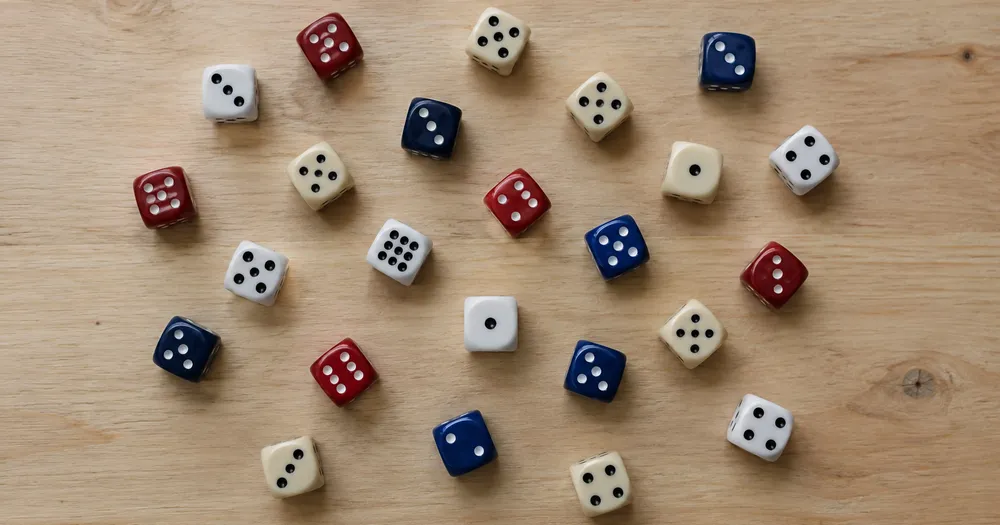
Dice Counter — Count dice in a tray from a photo
Works with JPG, PNG, WEBP · Free up to 20 MB, Premium 50 MB
Spread the dice one layer deep on a tray or flat surface and photograph from directly above — counted detections receive dots for review. Built for clubs, ranges, shops and collectors — review and correct each photo before adding it to a CSV or PDF tally.
- Review the photo, then count visible dice
- Upload a photo and get an automatic count
- Review the markers to catch dice counted twice or missed
- Free to use · No signup required · Without watermark
Upload Image
Tips for an accurate count
• Use an even, well-lit photo with the dice fully in frame
• Keep your dice visible and avoid overlapping items
• Dots and heatmap show retained detections — review and correct the tally
About the Dice Counter
The dice counter counts visible dice from your photo and marks detections for review. Counting starts automatically once the photo and item are ready. Visibility, overlap and similar-looking items can affect the total. Built for clubs, ranges, shops and collectors.
How It Works
1. Photograph your dice
2. Upload your photo to count dice automatically
3. Review the markers and correct the tally if needed
4. Add to the tally sheet and export your count as CSV
Perfect For
• Game and hobby shop stock counts
• Bulk pack verification against the label
• Club and event equipment checks
• Collection cataloguing with a marked reference image
Dice counter: counting dice, not adding up the pips
This dice counter tells you how many dice are in a photo. It does not read the faces or add up a roll, so it is for stock and inventory: game and hobby shops counting stock, checking a bulk pack against its label, clubs checking equipment after an event, and collectors cataloging a set. A marked image of the tray doubles as the record.
Spread the dice on a felt dice tray or a plain cloth in one layer, apart from each other. Polyhedral sets mix shapes, and a four-sided die, a cube and a twenty-sided die look nothing alike from above: in Similar items, mark one of each shape you need, up to three per count, and read the Found per example rows. For the remaining shapes, clear the examples, mark the next ones and count the same photo again. Translucent, glitter and metal dice reflect and show the background through them, so a dark, matte cloth helps.
Pipped cubes look busy because of their dots, so draw the example box around a whole die, not a single face. Each shape or set then goes into its own tally row after review. Poker chips from the same game night and marbles in bulk packs follow the same tray routine.
Dice tray checks
- Dice apart from each other in one layer
- Up to three shapes per count, one example each
- A dark matte cloth under translucent or metal dice
- One tally row per shape or set
Frequently asked questions
- Do the items need to be separated before counting?
- Slight touching can work, but full overlaps hide items and make the result less reliable. Spread them one layer deep under even light, mark a clear example, and review every result marker.
- What if the photo has more than just dice in it?
- The counter automatically looks for dice in your photo. Similar-looking distractors can still affect the result, so review every marker before using the total.
- Can I count several photos into one total?
- Yes — count each photo and add every reviewed result to the tally sheet as a labelled row. Export the tally as CSV or a PDF report, or save it to your account.
- Is it free and private?
- Yes. You can count, review and download a free result without an account. Downloads are free without a watermark. No signup required. Server-processed photos are encrypted in transit and removed under our Security policy.
What you can do with Object Counter
Review the main capabilities before you begin.
- Count objects in a photo instead of tallying by hand
- Tally coins, pills, cells, parts and beads
- Optionally mark an example to target a specific item
- Review counted detections with overlay markers
- Run a bulk audit across many photos
- Fine-tune sensitivity to ignore tiny specks
Settings reference
15 settings
Available controls for Object Counter.
Upload
- Single photo / Bulk auditPresets
- Choose a single-photo count or a Premium bulk audit. Review every result.Options: Single photoBulk audit
Count
- Included markersSliderRange: 0–1 · Default: 0.21
- Starts at 21%; slide toward Show more to include weaker markers or Only strongest to hide them.
- Overlay stylePresets
- Choose dots, a heatmap, both or a clean preview.Options: BothDotsHeatNone
- What to countText input
- Enter the item to count, then press Enter or leave the field to start automatically. Review every result marker.
Advanced
- Result overlayDropdown
- Choose how count markers appear in the on-screen preview; the download keeps its own markers.Options: Dots + heatmapDots onlyHeatmap only
Tally
- Add to tallyOne-click
- Add this count to the tally sheet under the name of the object that was counted. Signed-in accounts add finished counts automatically unless that is turned off under Account settings; in bulk mode every photo also has its own Add to tally button.
- LabelText input
- Rename a tally row. Edits and removals wait until you choose Save changes, so you can fix several rows at once.
- CountNumber input
- Correct a row's count; totals, the chart and exports follow once the change is saved.
- Save changesOne-click
- Apply every edited or removed tally row in one step, or choose Discard changes to leave the sheet as it was.
Chart
- By objectPresets
- The chart is the same in every counting tool and covers the tallies of all of them. By object draws a separate line chart for each tally name, such as pipes and people. By tool draws a chart for each counting tool.Options: By objectBy tool
- PeriodPresets
- Choose how far back the chart looks. Days without a count appear as zero.Options: 7 days30 days90 days12 months
History
- Counting setupGallery
- Keep comparable counts together. A first setup is created for you, so the first count can be saved straight away.
- Observed atText input
- The date and time of the count, shown as a date and a time field.
- NotesText input
- Starts with every detected object and its count, one per line, such as Pipes - 11. Edit it before saving.
- Save countOne-click
- Save the count to your account history. Open a saved count later to correct it or download its source photo.
Related tools for Object Counter
Tools for common next steps after Object Counter.
Counting & Inventory
Live Object Counter
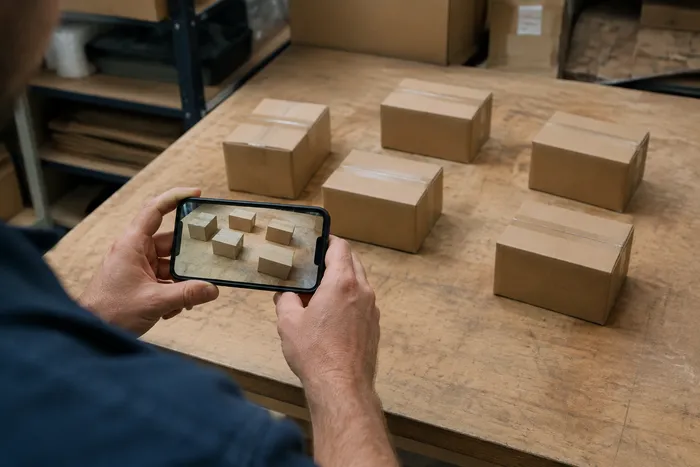
Aim your phone at separated, fully visible items and review the detector markers as the count updates in real time.
Try it now
Counting & Inventory
People Counter
Estimate how many people appear in a photo. Review the markers and verify the count before official use.
Try it now
OCR & Data Extraction
Image to Text (OCR)
Extract editable text from a screenshot, photo or scan in 30+ supported languages.
Try it nowHow Object Counter helps you get it done
Real problems it solves every day — for businesses, creators, and everyday tasks. Find the use case that fits you and start.
Reviewed Warehouse Cycle Counts
Use Bulk audit to run Distinct objects mode across every shelf photo in the queue, review every result, and correct the per-shelf tally before exporting a cycle count.
Small-Parts Inventory for Makers & Etsy Sellers
Mark the bead, screw or component you need in the Examples setting — 1-3 examples, one per part type — then run the count. Review the matching markers for background mistakes, then add the corrected result to the tally sheet.
Classroom & Lab Supply Counts
Create an AI-assisted draft of dice, counters, test tubes or lab kits, then review and correct the markers before exporting a reorder tally.
Shareable Stock-Take Reports for Teams
Save a completed stock-take to your account, generate a branded PDF report, and share a read-only link so managers or teammates can review the count without re-uploading anything.
Batch QC Counts for Packed Finished Goods
Run Similar items mode after marking 1-3 example units in the Examples setting — one per pack type in the shot. Review every marker and correct misses or duplicates before shipping.
Hobby Collection Counts for LEGO, Trading Cards & Models
Mark 1-3 example pieces in the Examples setting — one per piece type you're counting — then run the count. Review the result markers and correct the tally instead of starting a manual count from zero.
Guides for this tool
- A Shelf Can Look Full While the Products Customers Want Run LowA full-looking shelf can hide gaps in the products people want. Explore Pixoate visible-object counts and the context needed for a useful stock review.
- How to Count Shop Inventory from Shelf PhotosCount visible shelf stock, review object markers and export a tally. Learn how to handle hidden items, mixed products and inventory discrepancies.
Watch each transformation land
Every photo crosses the slash untouched and comes out the other side finished.























