
Patio Furniture Visualizer
Generative output can vary; review the full result before publishing
A patio furnished well becomes the summer living room — zones for lounging and eating, paths preserved, materials that survive your actual weather. This direction furnishes your patio photo as that outdoor room: believable deck scale, visible walkways, the season's best room planned before the sale ends.
- Prepared Patio direction
- Editable prompt
- Full-result review required
Choose a source image for Patio
JPG, PNG, WebP, HEIC, and other supported formats. Free up to 20 MB; Premium and higher up to 50 MB for this tool.
Zoning a patio for lounging, eating and getting through to the garden
A patio has to work as a route as well as a room: from the back door to the lawn, the shed or the trash cans. Describe the zones and the path together: "lounge corner with a sofa and low table against the house wall, bistro table for two near the steps, a clear path from the door to the lawn". One zone done generously usually reads better than two cramped ones, and the picture will show which your space supports.
Photograph from an upstairs window if you have one, or from the far corner of the patio looking back at the house. The higher view shows the floor area, which is what zoning is about, and the shadows already in your photo show where shade has to go.
Outdoor results can change planting, fences and paving, so compare the boundaries against your photo before sharing. To weigh one set at a time, try a single outdoor furniture set. If the surface itself is the open question, preview a new patio surface or pergola, and for the garden beyond, design the backyard.
Set up for Patio Furniture Visualizer
Prepared settings
- Starting point
- Upload one source image
- The page opens on the correct edit workflow; upload is the only required setup step.
- Prepared workflow
- Prepared Patio staging direction
- Patio Furniture Visualizer opens with the Patio direction preselected, so there is no need to find the operation manually.
- Output shape
- Same as your upload
- The result keeps the shape of the image you upload.
- Review rule
- Review the complete generated result before use
- Generated imagery can vary; the final result stays under the user's approval before download.
Best-fit uses
- Outdoor-room compositions on real decks
- Zone planning for lounge plus dining
- Umbrella and shade placement previews
Frequently asked questions
- How do I zone a small patio?
- One primary zone done properly, a secondary as accent — full lounge with a bistro corner, or dining with two loungers. The preview shows your square meters choosing.
- What about shade in the layout?
- Preview the umbrella or sail where the sun actually crosses — shade that misses the seating at 3pm is decoration. The photo's own shadows hint where cover belongs.
- What should I review in a Patio result?
- Inspect faces, hands, object geometry, small details, perspective, readable marks, and any claim implied by the scene. Regenerate or reduce the requested change when something is inaccurate.
- What rights checks apply to a Patio client project?
- Use only source material and references you have rights to, follow the destination platform rules, and obtain any required person or property permissions. Generated output still needs a human accuracy and rights review.
What you can do with AI Room Staging
Review the main capabilities before you begin.
- Plan complete-room furniture placement automatically
- Restyle living rooms, bedrooms, offices, and dining rooms
- Preserve fixed architecture and camera perspective
- Process property sets in Premium batch mode
Settings reference
5 settings
Available controls for AI Room Staging.
Workflow
- Single image or Batch imagesPresets
- Process one image, or use Premium Batch images to apply the same automatic recipe to a set and download one ZIP.Options: Single imageBatch images
Styles
- One-tap presetsPresets
- Pick a ready-made direction with one tap; generation uses the selected preset automatically.Options: Modern living roomScandinavianLuxury interiorHome officeBedroomDining room
- Custom instructions (optional)Text input
- Describe the requested change, relevant materials, lighting, perspective, and details that must remain unchanged.
Selection
- Selection brush sizeSliderRange: 4–160px · Default: 32px
- Automatic selection is the default. Open Refine area manually and set this brush width only when the image needs a tighter edit boundary.
Output
- Ask AI to preserve subject identity and product detailsOn / Off
- Adds an explicit instruction to retain the main subject, shape, branding, labels, and readable text unless the request changes them.
Related tools for Patio Furniture Visualizer
Tools for common next steps after Patio Furniture Visualizer.
Virtual Staging & Property
AI Real Estate Photo Editor
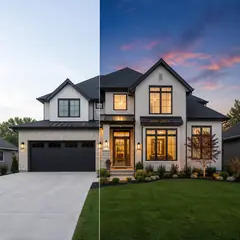
Edit real-estate photos with AI: add furniture or a TV, paint walls, remove clutter, replace skies, improve landscaping, and create twilight exteriors.
Try it now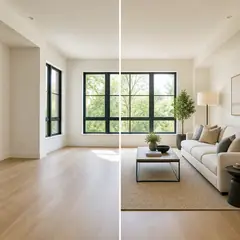
Virtual Staging & Property
Virtual Staging AI
Virtually stage empty rooms with AI furniture for real-estate listings. Create living room, bedroom, office, dining, and luxury concepts.
Try it now
Photo Enhancement
AI Photo Enhancer
Adjust noise, sharpness, color and scale in one enhancement workflow, then compare the result with the original.
Try it nowGuides for this tool
- How to Create Furnishing Proposals for Interior Design Clients with AICreate AI furnishing proposals for interior design clients with Pixoate. Compare room concepts and assemble clear presentation PDFs for discussion.
- Beautifully Staged, Believably Sized: Why Virtual Furniture Must Fit the RoomVirtual furniture needs believable proportions. Explore room-scale reviews and Pixoate comparisons that keep attractive staging concepts grounded in reality.
Watch each transformation land
Every photo crosses the slash untouched and comes out the other side finished.























