
AI Furniture Visualizer
Generative output can vary; review the full result before publishing
The hardest question in furniture buying is whether a piece suits the room, and a showroom cannot answer it — showroom rooms are larger, better lit and a different shape than yours. This direction places furniture into a photo of the actual space at believable scale and perspective, and asks the AI to keep the room's fixed architecture as photographed.
- Prepared AI Furniture Visualizer direction
- Editable prompt
- Full-result review required
Choose a source image for AI Furniture Visualizer
JPG, PNG, WebP, HEIC, and other supported formats. Free up to 20 MB; Premium and higher up to 50 MB for this tool.
Testing one piece of furniture in a photo of your own room
Most people land here with a product page open in another tab and a gap in the room they cannot quite picture filled. Photograph the room as it stands today, upload it, and rewrite the starting instruction to name the piece you are weighing: its type, its material and color, and its size compared with something already in the shot, such as "a low oak sideboard about as long as the window is wide". Plain description works better than store product names, which the AI cannot look up.
Left alone, the AI decides placement across the whole photo. To fix where the piece stands, choose Refine area manually and paint the patch of floor and the space above it that the piece should occupy, covering its whole footprint, its full height and the spot where its shadow will fall. Leave doors, windows and the ceiling unpainted, and do not paint nearly the whole photo, which is refused; anything outside the painted area is kept from your original photo.
The piece in the result is a representative design, not the retailer's exact model, and its size is estimated from the photo rather than measured. Pages for a narrower job go further, such as checking chaise direction on an L-shaped sofa or seeing whether a king bed leaves room to walk. If an old piece still occupies the spot, take it out of the photo first.
Before you photograph the room
- Move bags, laundry and boxes off the floor where the piece will stand
- Hold the phone level so door frames and wall corners stay upright
- Keep a door or window in the frame as a size reference
- Have the listing dimensions ready to compare against the result
Furniture visualizer: see a piece in your own room before you buy
This visualizer places a piece of furniture into a photo of your own room, so you can judge shape, scale and style against your real walls, floor and light. You describe the piece, the page furnishes the photo, and you compare the result with your original. It gives you a picture to react to, not measurements and not a specific product from a store.
See furniture in your room in four steps
Out of the box, the page already asks for suitable furniture at realistic scale with the fixed architecture preserved, so a first run with no changes shows what the AI would choose for the room. The edit type is Room staging, so the button reads Generate Room staging and placement is planned across the whole photo.
- Upload a photo of the room from a corner, with floor and two walls in view.
- Expand Custom instructions (optional) and describe the piece: type, material, color and where it goes.
- Press Generate Room staging.
- Slide between the original and the result, then press Edit again to change one detail.
What the edit changes and what it keeps
The page asks the AI to keep walls, windows, doors and the camera view, but with no painted area the whole photo is redrawn, so small things can drift: a window frame, a switch plate, the floor pattern. Compare those in the slider. The checkbox Ask AI to preserve subject identity and product details starts unticked here, and ticking it adds a request to keep the geometry, color and exposure outside the change. A painted area is the stronger control, since the page notes that surroundings outside the final edit area stay unchanged.
Which furniture page to start from
Four pages share this engine and differ in their starting sentence. This one suits any single piece, such as a table, a bed, a sideboard or a bookcase. The sofa page and the chair page are written for those two, and the whole-room page plans a complete layout. Their names also appear in the Styles list here as AI Furniture Visualizer, Sofa Visualizer, Chair Visualizer and Put Furniture in a Room, and pressing one swaps the sentence in the box.
Compare options on the same photo
Keep the photo and the camera position the same and change one thing per run: the shape, the wood tone or the size. Each run starts from the photo you uploaded, so the room does not drift between options. Download each result and line them up with the image compare slider, naming the files by what changed so the household judges the piece and not a lucky result.
When the room already has furniture
The AI plans around whatever is in the photo, so a new piece may squeeze between old ones. To replace something, take the old piece out of the photo first, check the rebuilt floor, then upload that cleared version here. If you want a different look overall instead, say what stays, such as keep the rug and the window as they are, and check them in the result.
Set up for AI Furniture Visualizer
Prepared settings
- Starting point
- Upload one source image
- The page opens on the correct edit workflow; upload is the only required setup step.
- Prepared workflow
- Prepared AI Furniture Visualizer staging direction
- AI Furniture Visualizer opens with the AI Furniture Visualizer direction preselected, so there is no need to find the operation manually.
- Output shape
- Same as your upload
- The result keeps the shape of the image you upload.
- Review rule
- Review the complete generated result before use
- Generated imagery can vary; the final result stays under the user's approval before download.
Best-fit uses
- Checking whether a piece suits a room before ordering
- Comparing layout options without moving anything
- Showing a partner or client an option they cannot visualize
Frequently asked questions
- How do I photograph my room for the best result?
- Stand in a corner so two walls and the floor are visible, hold the camera around chest height and keep it level. That gives clear perspective lines to build against. Shooting from a doorway straight down the middle flattens the room and makes scale much harder to judge.
- Is the furniture shown at accurate size?
- Scale is estimated from the room, not measured, so treat it as indicative rather than exact. Always check the real dimensions against your space with a tape measure before ordering. A visualizer answers whether something suits the room; it does not confirm that it fits.
- Will the color match the actual product?
- Not reliably. Color on screen depends on your display, the room's light and the generated rendering. Order fabric or finish samples for anything where color matters — this is a layout and proportion tool, not a color-matching one.
- Can I visualize a specific product I want to buy?
- You can describe a style closely, but the result is a representative piece rather than a particular model, and it should not be presented as one. For retailers, showing a generated approximation of a real product you sell risks misrepresenting it — use actual product imagery for that.
- Is this an augmented reality app that works through my phone camera?
- It works on a still photo rather than a live camera view. You upload a picture of the room and get a new picture back with the furniture in it, so take the photo first, then upload it from your phone or your computer and compare the two images.
- Why was the area I painted refused?
- Painted areas are checked before the edit runs. A mark that covers almost the whole photo is refused with a note to leave walls, windows, doors, the ceiling and other fixed architecture outside it. A mark that is too small for the furniture you named gets a note to paint the complete footprint, full height and shadow area of each piece. Repaint only the floor and the space above the piece.
- Can I see the same furniture from another angle?
- Every result keeps the camera angle of the photo you uploaded, and the AI is asked to keep the room's perspective. To see the piece from another side, take a second photo from that spot and run it again with the same description.
- Can I place two or three pieces in one run?
- Yes. List them in the sentence in order of importance, such as a low sideboard under the window and a floor lamp beside it. Each added piece gives the AI more to place, so keep the list short enough to check every item in the result. For a full set of furniture, use the whole-room layout page instead.
- How sharp will the new furniture look?
- Photos above 2048 px on the long side are prepared at 2048 px, and new detail is generated at up to 1024 px, so fine texture on the piece can look softer than the rest of the photo. Zoom in on legs, seams and edges before you rely on them, and keep the original for close-ups.
What you can do with AI Room Staging
Review the main capabilities before you begin.
- Plan complete-room furniture placement automatically
- Restyle living rooms, bedrooms, offices, and dining rooms
- Preserve fixed architecture and camera perspective
- Process property sets in Premium batch mode
Settings reference
5 settings
Available controls for AI Room Staging.
Workflow
- Single image or Batch imagesPresets
- Process one image, or use Premium Batch images to apply the same automatic recipe to a set and download one ZIP.Options: Single imageBatch images
Styles
- One-tap presetsPresets
- Pick a ready-made direction with one tap; generation uses the selected preset automatically.Options: Modern living roomScandinavianLuxury interiorHome officeBedroomDining room
- Custom instructions (optional)Text input
- Describe the requested change, relevant materials, lighting, perspective, and details that must remain unchanged.
Selection
- Selection brush sizeSliderRange: 4–160px · Default: 32px
- Automatic selection is the default. Open Refine area manually and set this brush width only when the image needs a tighter edit boundary.
Output
- Ask AI to preserve subject identity and product detailsOn / Off
- Adds an explicit instruction to retain the main subject, shape, branding, labels, and readable text unless the request changes them.
Related tools for AI Furniture Visualizer
Tools for common next steps after AI Furniture Visualizer.
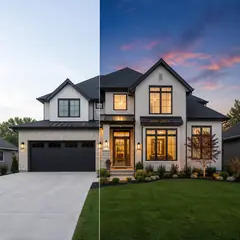
Virtual Staging & Property
AI Real Estate Photo Editor
Edit real-estate photos with AI: add furniture or a TV, paint walls, remove clutter, replace skies, improve landscaping, and create twilight exteriors.
Try it now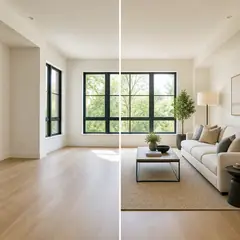
Virtual Staging & Property
Virtual Staging AI
Virtually stage empty rooms with AI furniture for real-estate listings. Create living room, bedroom, office, dining, and luxury concepts.
Try it now
Photo Enhancement
AI Photo Enhancer
Adjust noise, sharpness, color and scale in one enhancement workflow, then compare the result with the original.
Try it nowGuides for this tool
- How to Create Furnishing Proposals for Interior Design Clients with AICreate AI furnishing proposals for interior design clients with Pixoate. Compare room concepts and assemble clear presentation PDFs for discussion.
- Beautifully Staged, Believably Sized: Why Virtual Furniture Must Fit the RoomVirtual furniture needs believable proportions. Explore room-scale reviews and Pixoate comparisons that keep attractive staging concepts grounded in reality.
Watch each transformation land
Every photo crosses the slash untouched and comes out the other side finished.























