
Modern Renovation Style Visualizer
Generative output can vary; review the full result before publishing
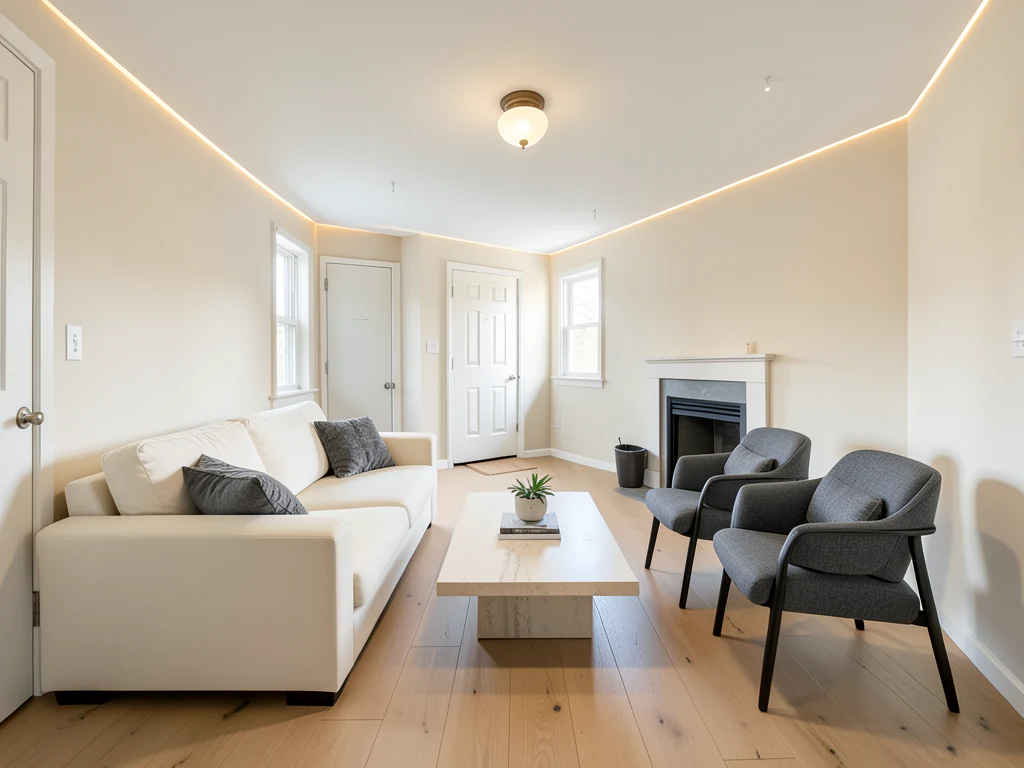
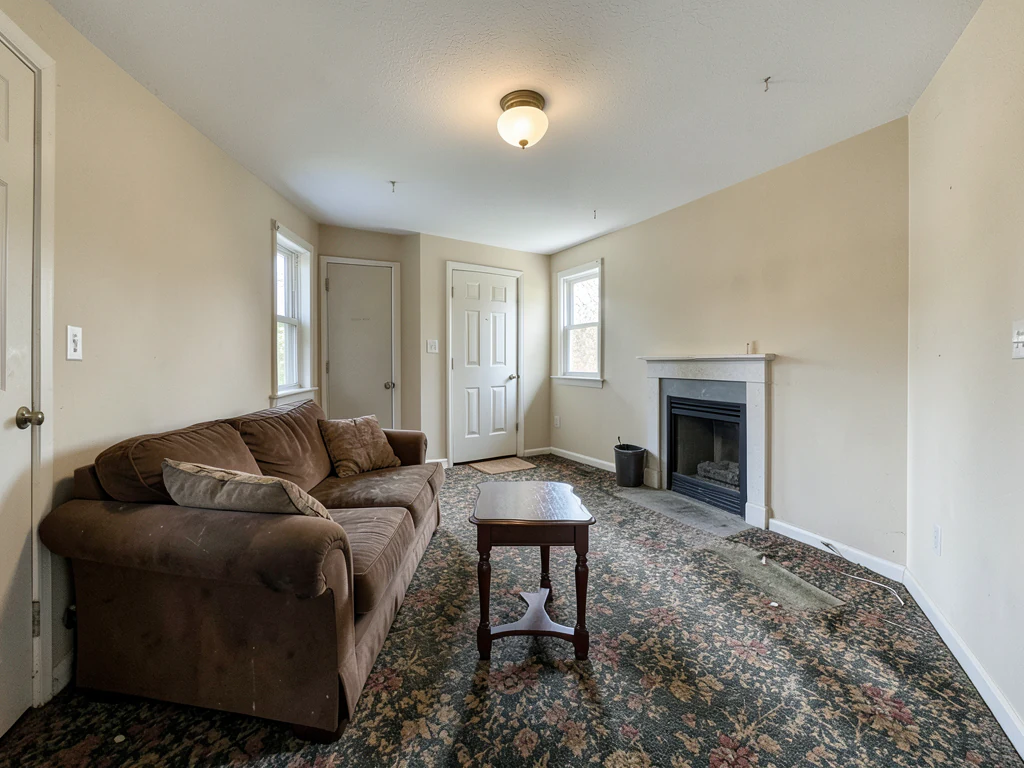
The modern renovation subtracts — trim slimmed, fronts flattened, palette restrained to let space and light carry the design. This direction applies that discipline to your actual room photos: the clean-line conversion previewed on your real architecture, where subtraction either liberates or exposes.
- Prepared Modern direction
- Editable prompt
- Full-result review required
Choose a source image for Modern
JPG, PNG, WebP, HEIC, and other supported formats. Free up to 20 MB; Premium and higher up to 50 MB for this tool.
Converting a room to clean-lined modern without losing its character
Modern renovation removes more than it adds: trim gets simpler, cabinet fronts go flat, and colors narrow to a few. Choose the room whose shape you like most, because modern exposes proportions. A well-lit corner photo with the windows in view gives the AI the clearest structure to work from.
Spell out what modern means for your house: 'flat white walls with slim baseboards, handleless flat-front cabinets, large-format gray floor tile, black window frames'. If there are period details you want to keep, such as a fireplace or crown molding, name them, or the AI may simplify them away.
Check junctions. Flat surfaces and straight lines make small errors obvious, so look for door frames that disappeared, tile lines that drift and shelves with no visible support. Modern finishes depend on careful installation, so share the concept with your contractor as a target for detail, not just color. To furnish a vacant room for a listing in this style instead, see modern virtual staging.
Set up for Modern Renovation Style Visualizer
Prepared settings
- Starting point
- Upload one source image
- The page opens on the correct edit workflow; upload is the only required setup step.
- Prepared workflow
- Prepared Modern style
- Modern Renovation Style Visualizer opens with the Modern direction preselected, so there is no need to find the operation manually.
- Output shape
- Same as your upload
- The result keeps the shape of the image you upload.
- Review rule
- Review the complete generated result before use
- Generated imagery can vary; the final result stays under the user's approval before download.
Best-fit uses
- Traditional-to-modern conversion previews
- Surface-simplification concepts per room
- Restraint-palette planning across a home
Frequently asked questions
- Will modern renovation suit an older house?
- The preview answers per house — some period rooms modernize into serenity, others lose their reason. Rendering the conversion on your photo beats philosophizing about it.
- What does modern demand beneath the surfaces?
- Precision — flat and seamless forgive nothing, so lines and junctions must be true. Budget accordingly: minimal looks cost maximal care, which the preview quietly implies.
- What should I review in a Modern result?
- Inspect faces, hands, object geometry, small details, perspective, readable marks, and any claim implied by the scene. Regenerate or reduce the requested change when something is inaccurate.
- What rights checks apply to a Modern client project?
- Use only source material and references you have rights to, follow the destination platform rules, and obtain any required person or property permissions. Generated output still needs a human accuracy and rights review.
What you can do with AI Real Estate Photo Editor
Review the main capabilities before you begin.
- Stage complete rooms automatically for disclosed concepts
- Add selected TVs, wall colors, or landscaping precisely
- Remove described cables, bins, signs, and distracting clutter
- Replace skies and create realistic twilight exteriors
- Refine automatic edit areas manually when needed
Settings reference
5 settings
Available controls for AI Real Estate Photo Editor.
Tasks
- Edit typeDropdown
- Choose the edit to perform; prompts, selection tools and output controls follow the selected edit type.Options: Text-based editGenerative fillMagic eraserSky replacementRoom staging
- One-tap presetsPresets
- Pick a ready-made direction with one tap; generation uses the selected preset automatically.Options: Add furnitureAdd TVPaint walls warm whiteTwilight skyReplace skyRemove clutterRefresh landscaping
- Custom instructions (optional)Text input
- Describe the requested change, relevant materials, lighting, perspective, and details that must remain unchanged.
Selection
- Selection brush sizeSliderRange: 4–160px · Default: 32px
- Set the brush width used to mark the exact add, fill, or replacement area required before generation.
Output
- Ask AI to preserve subject identity and product detailsOn / Off
- Adds an explicit instruction to retain the main subject, shape, branding, labels, and readable text unless the request changes them.
Related tools for Modern Renovation Style Visualizer
Tools for common next steps after Modern Renovation Style Visualizer.
Virtual Staging & Property
Virtual Staging AI
Virtually stage empty rooms with AI furniture for real-estate listings. Create living room, bedroom, office, dining, and luxury concepts.
Try it now
Virtual Staging & Property
AI Room Staging
Stage empty or dated rooms with AI furniture and décor. Create living rooms, bedrooms, offices, dining rooms, and interior style concepts.
Try it now
Photo Enhancement
AI Photo Enhancer
Adjust noise, sharpness, color and scale in one enhancement workflow, then compare the result with the original.
Try it nowGuides for this tool
- How to Prepare Real Estate Listing Photos in Bulk for an AgencyOrganize bulk real estate photo editing with Pixoate. Keep properties, room sequences and concept images clear across an agency's listing workflow.
- How to Remove Temporary Clutter from Real Estate Photos with AIRemove temporary clutter from real estate photos with Pixoate. Review cables and stray objects while preserving the property's actual condition.
Watch each transformation land
Every photo crosses the slash untouched and comes out the other side finished.























