


Landscaping Real Estate Photo Editor
Generative output can vary; review the full result before publishing
Listings shot in the wrong season pay a curb-appeal tax — brown midsummer lawns and bare March beds photograph as neglect that is really just calendar. This direction asks the AI to revive your exterior photo to healthy-season condition — grass greened, beds tidied, plausible growth — without inventing gardens, trees, or hardscape the buyer will not find. Check that it added nothing new.
- Prepared Landscaping direction
- Editable prompt
- Full-result review required
Choose a source image for Landscaping
JPG, PNG, WebP, HEIC, and other supported formats. Free up to 20 MB; Premium and higher up to 50 MB for this tool.
Correcting an off-season lawn without planting a garden that is not there
Listing exteriors are often shot in the wrong month: brown grass in August, bare beds in March, leaves across the lawn in November. This direction is meant to show the yard as it looks in an ordinary growing season. Tell it what that means for this property: 'green the lawn, tidy the edges of the front beds, keep the existing shrubs and the bare maple'.
The line to hold is between reviving and installing. Greener grass and trimmed beds describe the same yard in season; new flower borders, mature hedges, a stone path or an extra tree describe a yard the buyer will not get. Compare planting shapes in the before-and-after slider, count the shrubs, and confirm the driveway and walkway edges did not move.
Snow cannot honestly become summer, and a heavy-snow shot is usually better retaken in spring. Neighboring yards and street trees in the background should stay as they are, since the edit can spill over. To show buyers what a redesign could look like, create a garden design concept or preview a landscaping makeover, and label either one as a concept next to the real photo.
Set up for Landscaping Real Estate Photo Editor
Prepared settings
- Starting point
- Upload one source image
- The page opens on the correct edit workflow; upload is the only required setup step.
- Prepared workflow
- Prepared Landscaping use case
- Landscaping Real Estate Photo Editor opens with the Landscaping direction preselected, so there is no need to find the operation manually.
- Output shape
- Same as your upload
- The result keeps the shape of the image you upload.
- Review rule
- Review the complete generated result before use
- Generated imagery can vary; the final result stays under the user's approval before download.
Best-fit uses
- Correcting off-season shoots to fair growing condition
- Reviving drought-browned lawns to healthy green
- Tidying overgrown beds without replanting claims
Frequently asked questions
- How much landscaping improvement is honest?
- Restoring what the property genuinely looks like in season — green lawn, maintained beds — is fair presentation. Adding plantings, mature trees, or hardscape that do not exist misstates what the buyer inherits. The direction asks the AI to revive, not install; check the result for anything new.
- Does lawn color really matter in a listing photo?
- Curb photos are the gallery's first impression, and buyers read lawn condition as a proxy for maintenance overall. A brown-to-green correction on the cover shot is one of the simplest exterior edits worth trying.
- What should I review in a Landscaping result?
- Inspect faces, hands, object geometry, small details, perspective, readable marks, and any claim implied by the scene. Regenerate or reduce the requested change when something is inaccurate.
- What rights checks apply to a Landscaping client project?
- Use only source material and references you have rights to, follow the destination platform rules, and obtain any required person or property permissions. Generated output still needs a human accuracy and rights review.
What you can do with AI Real Estate Photo Editor
Review the main capabilities before you begin.
- Stage complete rooms automatically for disclosed concepts
- Add selected TVs, wall colors, or landscaping precisely
- Remove described cables, bins, signs, and distracting clutter
- Replace skies and create realistic twilight exteriors
- Refine automatic edit areas manually when needed
Settings reference
5 settings
Available controls for AI Real Estate Photo Editor.
Tasks
- Edit typeDropdown
- Choose the edit to perform; prompts, selection tools and output controls follow the selected edit type.Options: Text-based editGenerative fillMagic eraserSky replacementRoom staging
- One-tap presetsPresets
- Pick a ready-made direction with one tap; generation uses the selected preset automatically.Options: Add furnitureAdd TVPaint walls warm whiteTwilight skyReplace skyRemove clutterRefresh landscaping
- Custom instructions (optional)Text input
- Describe the requested change, relevant materials, lighting, perspective, and details that must remain unchanged.
Selection
- Selection brush sizeSliderRange: 4–160px · Default: 32px
- Set the brush width used to mark the exact add, fill, or replacement area required before generation.
Output
- Ask AI to preserve subject identity and product detailsOn / Off
- Adds an explicit instruction to retain the main subject, shape, branding, labels, and readable text unless the request changes them.
Related tools for Landscaping Real Estate Photo Editor
Tools for common next steps after Landscaping Real Estate Photo Editor.
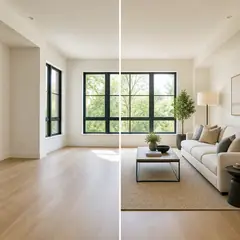
Virtual Staging & Property
Virtual Staging AI
Virtually stage empty rooms with AI furniture for real-estate listings. Create living room, bedroom, office, dining, and luxury concepts.
Try it now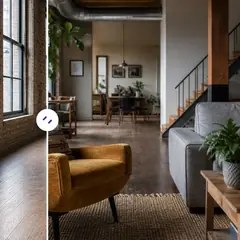
Virtual Staging & Property
AI Room Staging
Stage empty or dated rooms with AI furniture and décor. Create living rooms, bedrooms, offices, dining rooms, and interior style concepts.
Try it now
Photo Enhancement
AI Photo Enhancer
Adjust noise, sharpness, color and scale in one enhancement workflow, then compare the result with the original.
Try it nowGuides for this tool
- How to Prepare Real Estate Listing Photos in Bulk for an AgencyOrganize bulk real estate photo editing with Pixoate. Keep properties, room sequences and concept images clear across an agency's listing workflow.
- How to Remove Temporary Clutter from Real Estate Photos with AIRemove temporary clutter from real estate photos with Pixoate. Review cables and stray objects while preserving the property's actual condition.
Watch each transformation land
Every photo crosses the slash untouched and comes out the other side finished.























