

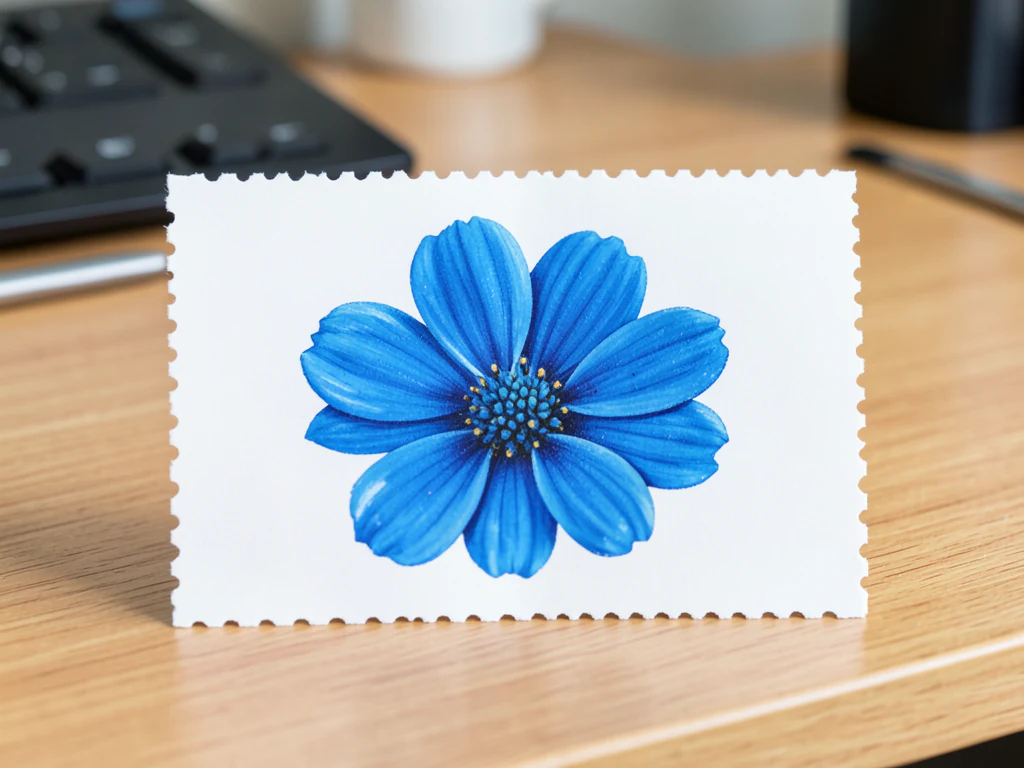
Remove Background from Stamp Photos
Works with JPG, PNG, WEBP and more
Remove the background from stamp photos automatically. Fine perforations and edges are kept intact. Upload a photo and the AI cuts out the stamp with pixel-precise edges, then keep a transparent PNG or add a white, blurred, or custom background — ready for collections, listings and documents. Files auto-delete after processing.
- Pixel-precise edges — even hair and fine detail
- Get a transparent PNG, ready to drop into any design
- No manual masking, and no halo to clean up afterwards
Drop a photo here — get a transparent PNG back
Choose your settings before you upload
Choose your settings before adding a file. They will apply when processing starts.
Engine
Background Removal Tips
• Sharp, well-lit photos give the crispest edges
• Busy backgrounds are fine — low contrast between subject and backdrop is what causes trouble
• Zoom in on hair and thin edges before you download, not after
• Save as PNG — a JPG cannot hold transparency and fills it with white
About AI Background Removal
A cutout with a white halo or chewed-up hair is worse than no cutout — someone has to fix it by hand before it can be used. This one holds hair and fine edges, and exports a transparent PNG ready for product listings, profile pictures and marketing graphics.
How It Works
1. Upload the photo you need cut out
2. Check the edges — hair and thin detail first
3. Add a color, photo or blurred background if you need one
4. Download the transparent PNG
Perfect For
• Product photos a marketplace keeps rejecting
• Portraits where the room behind you is distracting
• E-commerce listings that need one consistent background
• Social media content that has to sit on any color
• Design work where the subject drops onto a new layout
Cutting out postage stamps, seals and rubber stamp impressions
Collectors and dealers listing postage stamps need the perforated edge to stay intact, because the teeth tell a buyer about condition. Scan each stamp or photograph it flat on a dark, plain card, which contrasts with most stamp paper, and handle it with tongs so no fingers or shadows touch the edge. Shoot straight down to avoid a tapered outline.
This page opens with a transparent background, useful for album pages, sale sheets and listing collages. Zoom in along the perforations: each tooth should keep its shape and the notches between teeth should be clear, so use Erase for leftover card and Restore for a clipped tooth. Hinge marks, tears and thin spots belong in a listing photo; a cut-out should not hide them.
The same steps work for a rubber stamp or company seal pressed on paper, provided you are authorized to use it: stamp onto clean white paper, photograph it flat and download the transparent PNG to add the seal to a PDF document. For a dealer sale sheet, arrange several stamps in one image.
Set up for Remove Background from Stamp Photos
Prepared settings
- Starting point
- One clear stamp image
- Upload is the only required setup step; edge detection starts from the use case selected by this page.
- Prepared workflow
- Remove the background from stamp
- The page opens on the correct cutout workflow instead of making the user find the operation manually.
- Background output
- Transparent mode selected
- Transparent, white, blurred, photo, and design backgrounds remain available before download.
- Review rule
- Inspect every edge around the stamp
- Check hair, glass, thin parts, shadows, and low-contrast edges at full preview size before publishing.
Best-fit uses
- Transparent stamp cutouts
- White, blurred, or custom backgrounds for stamp
- Reusable stamp assets for listings, profiles, documents, or designs
Frequently asked questions
- How do I remove the background from a stamp photo?
- Upload your stamp photo and the AI removes the background automatically — no manual selection needed. Keep a transparent PNG, or add a white, blurred or custom background before you download.
- What background is best for stamp photos?
- It depends on where you use them: a transparent PNG drops cleanly into any layout or design. You can switch between transparent, solid color, blurred and custom backgrounds in one click.
- Is the stamp background remover free?
- Yes — preview and download the clean web-size result without creating an account. Batch processing and the original-resolution result are on Premium. Uploads are processed securely and auto-deleted afterwards.
- What photo gives the cleanest stamp cutout?
- Use a sharp, well-lit photo where the stamp is clearly separated from the background. Review thin, reflective, transparent, or low-contrast edges in the preview before publishing the result.
What you can do with Background Remover
Review the main capabilities before you begin.
- Remove backgrounds without masking hair by hand
- Get a transparent PNG that shows no white box in slides
- Get clean cutouts around hair and fine edges
- Replace the background with a color, photo or design
- Blur a distracting room behind your subject
- Prepare product photos for e-commerce listings
- Batch-remove backgrounds from many images
Settings reference
24 settings
Available controls for Background Remover.
Mode
- Single image / BatchPresets
- Switch between cutting out one photo at a time and processing many photos in one go, with every batch result delivered together as a single ZIP download.Options: Single imageBatch
Background
- BackgroundPresets
- Choose what appears behind your cutout: keep it transparent, add a solid color, a blurred copy of the original photo, your own uploaded photo, or a designed backdrop.Options: NoneColorBlurPhotoDesign
- ColorColor picker
- Pick the solid color placed behind your subject — tap one of six quick swatches (white, black, light gray, blue, green, red) or use the Custom picker for any exact shade.
- Background blur intensitySliderRange: 2–30px · Default: 12px
- In Blur mode, the Blur slider controls how strongly a copy of your original photo is blurred behind the subject; higher values give a stronger depth-of-field, portrait-style look.
- Upload a background photoFile input
- In Photo mode, choose an image from your device to place behind the cutout subject, replacing the removed background with a scene of your own.
- Background photo blurSliderRange: 0–30px · Default: 0px
- In Photo mode, the Blur slider softens your uploaded background photo so a busy scene doesn't compete with the subject; leave at 0 to keep the new background fully sharp.
- DesignPresets
- Pick a ready-made backdrop for your cutout — browse curated gradient swatches or the background library of patterns and studio-style designs, applied instantly in the preview.Options: GradientsBackgrounds
- Refine edgesDraw on image
- Opens a brush editor to manually touch up the cutout when the automatic result leaves background behind or trims too much, such as hair or fine edge detail.
Refine edges
- Erase / RestorePresets
- Erase paints away leftover background the automatic cutout missed; Restore paints the original photo back where too much was removed, ideal for hair strands or jewellery.Options: EraseRestore
- BrushSliderRange: 2–20 · Default: 6
- Sets the brush size for erasing or restoring, scaled to the image's size so strokes stay proportionate on both small photos and very high-resolution ones.
Product photos (e-commerce)
- Product photos (e-commerce)On / Off
- In Batch mode, standardizes every cutout for marketplace listings by trimming, centering, padding and resizing each product onto a uniform square background so a whole catalog looks consistent.
- Output sizePresets
- The square pixel size every product image is resized to (1000² by default); pick a larger size for zoom-friendly marketplace listings, smaller for faster-loading pages.Options: 1000²1200²2000²
- PaddingSliderRange: 0–30% · Default: 5%
- How much empty margin surrounds each product inside its square, as a percentage of the frame — more padding gives products consistent breathing room across a listing grid.
Resize output
- Resize outputOn / Off
- Exports the finished result at an exact pixel size you choose — the cutout, background and shadow are produced first and then scaled, so single downloads and whole batch ZIPs arrive ready to use. Included with Premium.
- Width (px)Number inputRange: 1–8192px
- Sets the exact output width in pixels, up to 8192; with the aspect-ratio lock on, the height updates automatically to match the image's proportions.
- Height (px)Number inputRange: 1–8192px
- Sets the exact output height in pixels, up to 8192; with the aspect-ratio lock on, the width updates automatically to match the image's proportions.
- Maintain aspect ratioOn / Off
- Keeps the result in proportion so nothing is stretched — each image fits inside the chosen width and height at its own ratio, which also keeps mixed-size batches looking natural. On by default.
Watermark output
- Watermark outputOn / Off
- Stamps your own text over the finished result — studios and agencies mark preview cut-outs before sending them to clients so the work stays theirs until it is approved. Applied after any background, shadow or resize. Included with Premium.
- Text / LogoPresets
- What the mark is made of: Text stamps a line you type, Logo stamps an image you upload — a PNG logo with transparency works best for a clean brand mark.Options: TextLogo
- Watermark textText input
- The text stamped over the image, up to 60 characters — your studio or agency name, or a stock proofing word like PREVIEW, DRAFT or SAMPLE.
- Upload your logoFile input
- In Logo mode, choose the image stamped over the result — your agency or studio logo — sized relative to the photo and placed at the chosen position and opacity.
- PlacementPresets
- Where the mark sits: Tiled repeats it diagonally across the whole image so it cannot be cropped out, Center puts one mark across the middle, and Bottom right keeps a discreet corner credit.Options: TiledCenterBottom right
- OpacitySliderRange: 10–80% · Default: 35%
- How strongly the mark shows over the image — lower values stay subtle enough to judge the result, higher values make the proof harder to ignore or remove.
- Watermark colorColor picker
- The text color of the mark — white or black one-tap swatches cover most photos, with a custom picker for matching a brand color.
Popular presets
Related tools for Remove Background from Stamp Photos
Tools for common next steps after Remove Background from Stamp Photos.

Background Studio
White Background Maker
Replace a photo background with white for product listings.
Try it now
Background Studio
Background Changer
Replace a background with a photo, color, gradient or library design. Choose from 21,000+ backgrounds.
Try it now
Background Studio
Blur Image Background
Blur the background while keeping the detected subject sharp.
Try it nowHow Background Remover helps you get it done
Real problems it solves every day — for businesses, creators, and everyday tasks. Find the use case that fits you and start.
Amazon & eBay Product Listings
Meet the pure-white background rule that keeps getting your Amazon and eBay listings rejected
LinkedIn & Professional Headshots
Create clean professional headshots by removing office backgrounds, walls, and clutter. Useful for LinkedIn profiles, resumes, and corporate websites.
Instagram Stories & Social Media
Remove backgrounds for creative Instagram stories, TikTok videos, and social media posts. Place subjects on colorful backgrounds or overlay on other images.
E-commerce & Online Stores
Create consistent product photos with transparent backgrounds for Shopify, WooCommerce, and online stores. Professional product images increase customer trust.
Marketing & Advertising
Drop a product into any Facebook or Google ad layout without the original backdrop coming with it
Logo Design & Branding
Remove backgrounds from logos, icons, and brand elements for versatile use across websites, business cards, and marketing materials. Transparent PNGs work everywhere.
Wedding & Event Photography
Remove backgrounds from wedding photos and event pictures for creative albums, invitations, and announcements. Create artistic compositions with transparent subjects.
Real Estate & Property Photos
Remove distracting backgrounds from property photos for clean real estate listings. Focus attention on the property itself for better buyer engagement.
Restaurant & Food Marketing
Remove backgrounds from food photos for restaurant menus, websites, and delivery apps. Clean food images increase appetite appeal and customer orders.
Fashion & Clothing Catalogs
Remove backgrounds from fashion photos and clothing images for online catalogs. Transparent backgrounds let customers focus on the product details.
YouTube Thumbnails & Covers
Cut yourself out of a messy room so a YouTube thumbnail shows you, not the laundry
Print & Design Projects
Remove backgrounds for print materials, business cards, flyers, and design projects. Transparent images provide flexibility in layout and composition.
Recover Fine Hair and Fur Detail
Use the Refine edges brush's Restore mode to paint back whiskers, loose hair strands or fur the AI trimmed too aggressively — ideal for pet portraits and close-up headshots.
Instant Studio-Style Profile Picture
Pick Blur mode to turn any phone snapshot into a softly blurred, professional-looking profile photo without booking a studio session.
Standardize a Whole Product Catalog in One Pass
Turn on the e-commerce Batch tier to trim, centre, pad and resize every photo in a shoot to the same square size and background — Amazon, Etsy and Shopify listing-ready with zero manual editing per image.
Composite a Subject onto Any Scene
Upload your own background photo in Photo mode to place a product or person into a lifestyle scene or destination backdrop, for mockups and campaign visuals.
Full-Resolution Cutouts for Print and Merch
Unlock every detail from the original photo for large posters, canvas prints and apparel transfers.
Guides for this tool
- Why Shopify Product Thumbnails Look Uneven and How to Fix ThemFix uneven Shopify product thumbnails with Pixoate. Align canvas sizes, product placement and surrounding space for easier catalogue comparisons.
- One Store, Five Photography Styles: Why Your Shopify Catalogue Feels InconsistentAn inconsistent Shopify catalogue makes products harder to compare. Use Pixoate to coordinate backgrounds, framing and scale across related listings.
Watch each transformation land
Every photo crosses the slash untouched and comes out the other side finished.























