
Put Furniture in a Room
Generative output can vary; review the full result before publishing
Judging one piece at a time is how rooms end up as collections of individually good decisions that do not work together. This direction furnishes a whole room at once — seating, tables, storage, soft furnishing — at consistent scale and in a coherent style, and asks the AI to keep the room's architecture and camera view as photographed. It redraws the whole photo, so compare walls, windows and floor with the original.
- Prepared Put Furniture in a Room direction
- Editable prompt
- Full-result review required
Choose a source image for Put Furniture in a Room
JPG, PNG, WebP, HEIC, and other supported formats. Free up to 20 MB; Premium and higher up to 50 MB for this tool.
Laying out a whole room of furniture from one photo instead of piece by piece
A full layout works best on a room that is empty or nearly so. When the photo still shows the previous owner's sofa, boxes or bags, the AI has to plan around them and the result gets muddled, so clear the existing pieces out of the photo or tidy away loose clutter before you start here.
Write the instruction as a short list in order of importance: the anchor piece first, then the rug, tables, storage and lighting. Four or five items give a layout space to breathe; a long shopping list tends to crowd the frame with pieces the room cannot hold. Name what must stay clear too, such as "keep the path from the door to the balcony open".
Run two or three different directions on the same photo and compare them. In each one, check the fixed parts of the room against the original: the door should still open without hitting anything, windows should keep their size and position, and floorboards or tiles should run in the same direction under the new rug. If walls start shifting, paint the area where furniture may go with Refine area manually so the rest of the photo is left alone. Planning your own home is a different job from marketing a property; for a sale or rental, stage the living room for a listing and label the photo as staged where your platform asks.
Decide these before you write the list
- Which piece anchors the room and which wall it faces
- Which routes through the room must stay open
- What you already own and plan to keep
- Whether the result is for planning or for a listing
Put furniture in a room photo and plan the whole layout before you shop
Where the sofa and chair pages test one piece, this page furnishes the whole room in one pass: seating, tables, storage and soft furnishings at a consistent scale and style. You upload one photo of the room and describe the layout you want. The AI plans where each piece goes while the walls, windows and camera view are meant to stay as photographed.
Describe the layout in zones
A room reads as zones: a seating group, a dining spot, a sleeping area, a place to work. Write one short phrase per zone with one anchor piece each, such as a three-seat sofa facing the window, a round table for four by the door and a desk in the far corner. The box holds up to 1,000 characters, which is plenty for a zone list, and naming each anchor piece leaves the AI less to improvise.
Furnish a room in five steps
The page starts from a sentence that asks for a coherent furniture layout while keeping the structure and the camera perspective. A first run without edits shows what the AI would choose, which is a useful baseline before you add your own zones.
- Upload a photo of the whole room, taken from a corner with the floor in view.
- Use Custom instructions (optional) to list each zone with one anchor piece.
- Press Generate Room staging.
- Check doors, windows and walking paths against the original in the slider.
- Run another layout and keep both downloads to compare.
Layout, purpose or listing: which page fits
This page is for planning your own space. The empty room converter answers a different question, what a spare room should become. Virtual staging prepares photos for a sale with one-click room types and a disclosure note. AI Room Staging restyles furnished or empty rooms with styles such as Scandinavian, Luxury interior and Home office. Pick by the question you are asking, since the editing engine underneath is shared.
Carry the picture into real shopping
The pieces in the result are representative designs, not products. Turn the picture into a brief by listing each piece by type and rough proportion, then measure your own floor and walls to set real sizes. Cut cardboard to each footprint and lay it down before you order, so you can walk the route from the door to every zone.
Open-plan rooms and awkward shapes
In an open-plan room, say where each zone ends, such as the living area up to the kitchen island, and what stays untouched. If a piece lands where you do not want it, choose Refine area manually and paint only the floor and wall space the furniture may use. A mark that covers almost the whole photo, or that is too small for the furniture you named, is refused with a note saying which to fix.
Set up for Put Furniture in a Room
Prepared settings
- Starting point
- Upload one source image
- The page opens on the correct edit workflow; upload is the only required setup step.
- Prepared workflow
- Prepared Put Furniture in a Room staging direction
- Put Furniture in a Room opens with the Put Furniture in a Room direction preselected, so there is no need to find the operation manually.
- Output shape
- Same as your upload
- The result keeps the shape of the image you upload.
- Review rule
- Review the complete generated result before use
- Generated imagery can vary; the final result stays under the user's approval before download.
Best-fit uses
- Furnishing an empty room before moving in
- Comparing complete layout directions rather than single pieces
- Showing a client a finished scheme from an empty shell
Frequently asked questions
- How do I plan a furniture layout for an awkward room?
- Start from what cannot move — doors, windows, radiators, the fireplace — and place the largest piece first against the longest usable wall. Everything else works around that. Visualizing complete layouts rather than individual pieces is what exposes an awkward room's real constraints.
- Does it keep the room's actual dimensions?
- The prompt asks the AI to keep the room's structure and perspective, and furniture is scaled to look believable within it, but this is a visualization rather than a measured plan, and walls or windows can shift slightly. For anything you are about to buy, confirm dimensions against a tape measure or a proper floor-planning tool.
- Can I use this for a room I have not moved into yet?
- Yes, and it is one of the most useful cases — photograph the empty room during a viewing or handover and plan against reality instead of a floorplan. Take a corner-on photo with two walls visible so the layout has proper perspective to build against.
- Is this the same as virtual staging for a listing?
- The mechanics overlap but the purpose differs. Staging is for selling a property and carries disclosure obligations. This is for planning your own space, where no one is being sold anything and accuracy matters to you rather than to a buyer.
- How many pieces should I ask for in one layout?
- Four to six anchor pieces give a layout room to breathe, and the AI fills in small items around them. A long shopping list crowds the frame with pieces the room cannot hold. List what you must have, run it, then add a second run for extras once you have seen how the room takes the first set.
- Can I keep some furniture that is already in the photo?
- Yes. Say which pieces stay, for example keep the bookcase and the rug and add a sofa and a table, and the AI plans the new pieces around them. Check the kept pieces in the result, since the whole photo is redrawn and they can shift. For a clean start, clear the room first.
- Can I get a top-down floor plan from the photo?
- The page draws the furnished room from the camera's point of view and produces no plan view, measurements or product list. Sketch the plan on paper or in a floor-planning tool with your own measurements, and use the picture to judge how the layout feels from the doorway.
- Which interior styles can I ask for?
- Any style you can describe in plain words. Ten named styles also have their own pages under the furniture visualizer: Modern, Minimalist, Scandinavian, Farmhouse, Luxury, Industrial, Coastal, Bohemian, Mid-Century Modern and Traditional. Pair a style with a palette, such as pale oak and warm gray, to make the sentence specific.
- Will the same sentence give me the same layout twice?
- Not exactly. Each run is a new draw, so furniture can shift, change shape or swap sides. Keep the sentences you like, change one clause between runs and download the versions worth keeping. The compare slider against your original is where you check that the room itself has not changed.
What you can do with AI Room Staging
Review the main capabilities before you begin.
- Plan complete-room furniture placement automatically
- Restyle living rooms, bedrooms, offices, and dining rooms
- Preserve fixed architecture and camera perspective
- Process property sets in Premium batch mode
Settings reference
5 settings
Available controls for AI Room Staging.
Workflow
- Single image or Batch imagesPresets
- Process one image, or use Premium Batch images to apply the same automatic recipe to a set and download one ZIP.Options: Single imageBatch images
Styles
- One-tap presetsPresets
- Pick a ready-made direction with one tap; generation uses the selected preset automatically.Options: Modern living roomScandinavianLuxury interiorHome officeBedroomDining room
- Custom instructions (optional)Text input
- Describe the requested change, relevant materials, lighting, perspective, and details that must remain unchanged.
Selection
- Selection brush sizeSliderRange: 4–160px · Default: 32px
- Automatic selection is the default. Open Refine area manually and set this brush width only when the image needs a tighter edit boundary.
Output
- Ask AI to preserve subject identity and product detailsOn / Off
- Adds an explicit instruction to retain the main subject, shape, branding, labels, and readable text unless the request changes them.
Related tools for Put Furniture in a Room
Tools for common next steps after Put Furniture in a Room.
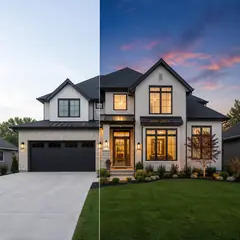
Virtual Staging & Property
AI Real Estate Photo Editor
Edit real-estate photos with AI: add furniture or a TV, paint walls, remove clutter, replace skies, improve landscaping, and create twilight exteriors.
Try it now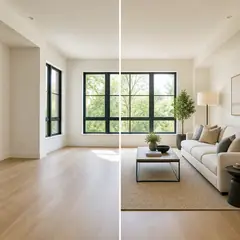
Virtual Staging & Property
Virtual Staging AI
Virtually stage empty rooms with AI furniture for real-estate listings. Create living room, bedroom, office, dining, and luxury concepts.
Try it now
Photo Enhancement
AI Photo Enhancer
Adjust noise, sharpness, color and scale in one enhancement workflow, then compare the result with the original.
Try it nowGuides for this tool
- How to Create Furnishing Proposals for Interior Design Clients with AICreate AI furnishing proposals for interior design clients with Pixoate. Compare room concepts and assemble clear presentation PDFs for discussion.
- Beautifully Staged, Believably Sized: Why Virtual Furniture Must Fit the RoomVirtual furniture needs believable proportions. Explore room-scale reviews and Pixoate comparisons that keep attractive staging concepts grounded in reality.
Watch each transformation land
Every photo crosses the slash untouched and comes out the other side finished.























