


Garage Door Visualizer
Generative output can vary; review the full result before publishing
A garage door can take up a large share of what is visible from the street, and it is usually chosen from a thumbnail in a catalog. Upload a photo of the front of the house and see the style, the color and the window layout in the actual opening, next to the siding and the door it has to live with.
- Prepared Garage Door Visualizer direction
- Editable prompt
- Full-result review required
Choose a source image for Garage Door Visualizer
JPG, PNG, WebP, HEIC, and other supported formats. Free up to 20 MB; Premium and higher up to 50 MB for this tool.
Choosing panel layout, windows and hardware for the real opening
Start by deciding the count: one wide door or two single doors changes the whole front, and the opening in the photo tells the AI which one you have. Describe the section design next, such as short raised panels, long flush panels or a carriage style with decorative handles and strap hinges, then the color and whether the top row has glass. The prepared direction keeps the surrounding elevation, so say clearly if the trim around the opening should change too.
Color usually falls into one of three choices: match the trim so the door disappears, match the body so it blends, or use a wood tone or bold color so it becomes a feature. Run all three on one photo and decide with the results side by side. If the front door color is also open, repaint the facade and door together so the two are chosen as a pair.
In the result, check the light fixtures beside the opening, the keypad, the house number and the weather seal line at the ground. AI likes to add extra windows or change the section count, which matters when you order. Because the door and the driveway are seen in one glance from the street, preview a new driveway surface on the same photo when both are on the list.
Garage door visualizer: see carriage, panel or full-view doors in your opening
This garage door visualizer fits a new door into the opening in a photo of the front of your house, so you can compare style, color and window layout against the siding, the entry door and the driveway. Upload one photo, describe the door and compare the result with the original. It judges looks. Sizes, insulation, springs and openers are details for the supplier.
Judge the door with the things around it
A garage door never stands alone. It sits beside an entry door, a porch light, house numbers and often a wide stretch of driveway. Photograph the front of the house with those in frame, so the new door is judged in company. Stand centered if you can; a two-bay house gives a symmetrical view that makes proportions easy to read. Close the door and move cars off the apron so nothing is drawn across the panels.
Carriage, flush panel or full-view glass
The three families look nothing alike from the street. A carriage style has the look of side-hinged doors with decorative hardware and often a row of small windows. A flush or raised panel door is plain and works with modern fronts. A full-view door uses aluminum frames with glass panels and suits contemporary houses. Name the family first, then the color, then the windows, and check each one in the result.
Windows, hardware and a single or double layout
Smaller decisions change the face of the door more than people expect. A row of windows across the top panel brings light and a horizontal line, while a blank door looks heavier. Black hardware and straps feel rustic, and plain pulls feel modern. One double-width door reads as a single block, but two single doors read as two entrances and break up a wide facade. Run each choice on its own so you know which one moved the look.
Test the color against the siding and the entry door
Door color is the cheapest change on the list and the most visible, so test two or three. Keep the style fixed, change only the color, and look at the door against the siding, the trim and the entry door in the same frame. When the two doors should match, say so and check both, since the AI may change one and leave the other. A repaint of walls and trim is the job of the exterior paint page, and a new surface for the apron is a question for the driveway page.
Before you show the picture to a supplier
- The panel layout and the window row match what you described.
- The door fills the opening edge to edge with no gaps.
- The entry door, lights and house numbers are unchanged.
- The color reads correctly against the siding in the same frame.
Set up for Garage Door Visualizer
Prepared settings
- Starting point
- Upload one source image
- The page opens on the correct edit workflow; upload is the only required setup step.
- Prepared workflow
- Prepared Garage Door Visualizer workflow
- Garage Door Visualizer opens with the Garage Door Visualizer direction preselected, so there is no need to find the operation manually.
- Output shape
- Same as your upload
- The result keeps the shape of the image you upload.
- Review rule
- Review the complete generated result before use
- Generated imagery can vary; the final result stays under the user's approval before download.
Best-fit uses
- Choosing between a carriage style and a flush panel on the real facade
- Checking a door color against existing siding and trim
- Showing a window row option before the door is ordered
Frequently asked questions
- Will it fit the door to my actual opening?
- It draws the door into the opening that is in the photograph, so the proportions follow your house rather than a template. The opening still has to be measured properly before ordering, because a door is made to a size and a picture does not measure anything.
- Can I see windows in the top section?
- Yes. Describe the window row you want and it appears in place, which is the fastest way to settle whether glazing suits the house or overwhelms it. Exact pane divisions and hardware detail are indicative of the style rather than a specific model.
- Does it show insulated versus non-insulated doors?
- No, and nothing visual could. Insulation, R-value, spring life, opener compatibility and wind rating all sit behind the face of the door. The visualization settles the appearance; the specification settles everything that matters after the first winter.
- Should I photograph the door open or closed?
- Closed, straight on, from far enough back that the door and the wall around it are both in frame. A shot taken at a sharp angle foreshortens the panels and makes proportions hard to judge, which is the one thing you are trying to see.
- Can I show two single doors instead of one double door?
- Yes. Describe it as two single-width doors with a pillar between them, same style and color. The picture follows the opening in your photo, so check that the two doors fill it evenly and that the pillar is not drawn wider than the one in the original. Real door widths come from the opening dimensions.
- Will the entry door and the house numbers stay the same?
- They should, because the prepared sentence asks the AI to keep the surrounding elevation, but small details such as numbers, lights and hardware are easy to change by accident. Zoom in on them in the result. If they changed, paint only the garage door with Refine area manually and run it again.
- Can I show a wood-look door in a steel or aluminum style?
- You can describe the look, such as a dark walnut wood-look finish on a flush panel. The picture shows appearance only, so it cannot tell you whether the real product is wood, steel, composite or a printed finish. Ask the supplier for a sample of the finish and a description of how it ages.
- How do I compare three garage doors quickly?
- Run each door from the same upload and keep the instruction the same except for the style or color word. Put the three results in a collage so the doors sit beside each other with the same house behind them. Name each file after the door so you remember which is which.
- Does the visualizer show brand or model names?
- No. It draws a style, not a catalog model, so the result cannot name a product, a series or a hardware set. Take the picture to a supplier, ask for the nearest real range, and then check its color and window options against what you saw.
- Can a garage door dealer show this picture to customers?
- Yes, as an illustration of the style and color, labeled as a visualization. It is not a quote and does not describe a product, so write the model, size and finish on the paperwork separately and let the customer see the real sample.
What you can do with AI Real Estate Photo Editor
Review the main capabilities before you begin.
- Stage complete rooms automatically for disclosed concepts
- Add selected TVs, wall colors, or landscaping precisely
- Remove described cables, bins, signs, and distracting clutter
- Replace skies and create realistic twilight exteriors
- Refine automatic edit areas manually when needed
Settings reference
5 settings
Available controls for AI Real Estate Photo Editor.
Tasks
- Edit typeDropdown
- Choose the edit to perform; prompts, selection tools and output controls follow the selected edit type.Options: Text-based editGenerative fillMagic eraserSky replacementRoom staging
- One-tap presetsPresets
- Pick a ready-made direction with one tap; generation uses the selected preset automatically.Options: Add furnitureAdd TVPaint walls warm whiteTwilight skyReplace skyRemove clutterRefresh landscaping
- Custom instructions (optional)Text input
- Describe the requested change, relevant materials, lighting, perspective, and details that must remain unchanged.
Selection
- Selection brush sizeSliderRange: 4–160px · Default: 32px
- Set the brush width used to mark the exact add, fill, or replacement area required before generation.
Output
- Ask AI to preserve subject identity and product detailsOn / Off
- Adds an explicit instruction to retain the main subject, shape, branding, labels, and readable text unless the request changes them.
Related tools for Garage Door Visualizer
Tools for common next steps after Garage Door Visualizer.
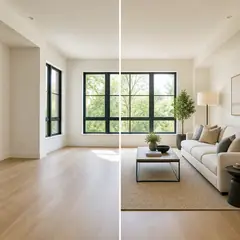
Virtual Staging & Property
Virtual Staging AI
Virtually stage empty rooms with AI furniture for real-estate listings. Create living room, bedroom, office, dining, and luxury concepts.
Try it now
Virtual Staging & Property
AI Room Staging
Stage empty or dated rooms with AI furniture and décor. Create living rooms, bedrooms, offices, dining rooms, and interior style concepts.
Try it now
Photo Enhancement
AI Photo Enhancer
Adjust noise, sharpness, color and scale in one enhancement workflow, then compare the result with the original.
Try it nowGuides for this tool
- How to Prepare Real Estate Listing Photos in Bulk for an AgencyOrganize bulk real estate photo editing with Pixoate. Keep properties, room sequences and concept images clear across an agency's listing workflow.
- How to Remove Temporary Clutter from Real Estate Photos with AIRemove temporary clutter from real estate photos with Pixoate. Review cables and stray objects while preserving the property's actual condition.
Watch each transformation land
Every photo crosses the slash untouched and comes out the other side finished.























