
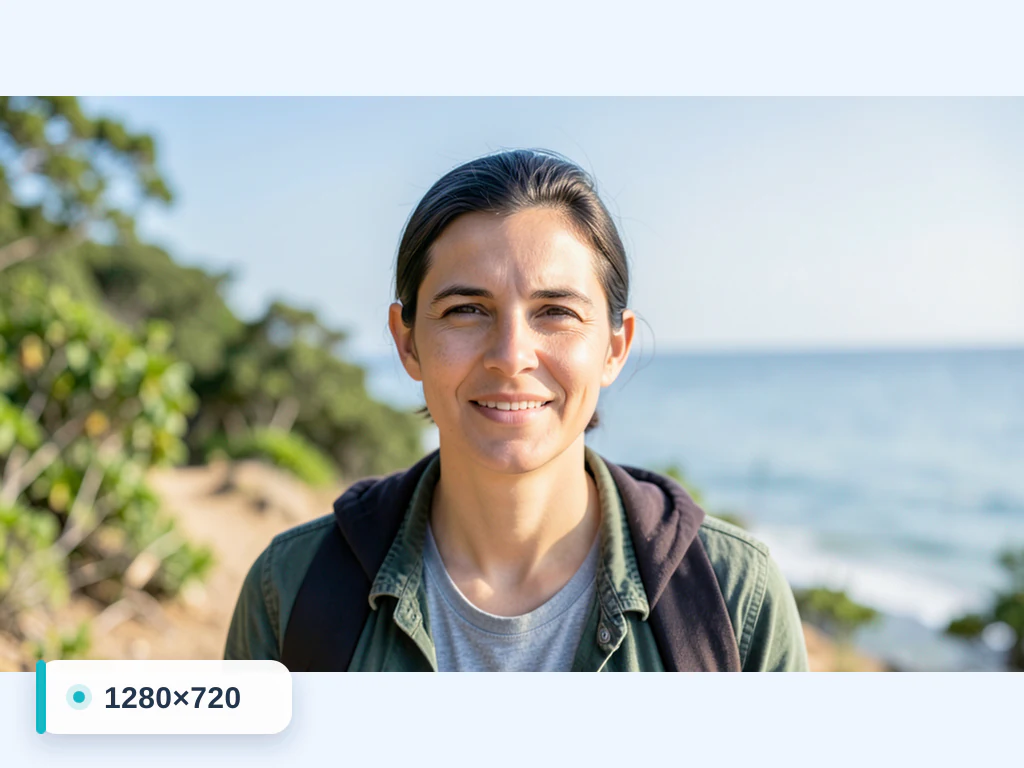

Resize Image to 1280×720 px
Dimensions loaded automatically
Resize any image to exactly 1280×720 pixels online — ideal for HD video thumbnails and slides. Upload a JPG, PNG or WebP and the tool is pre-set to 1280×720; keep the aspect ratio or fill the frame with a blurred background. Free, fast and processed securely.
- Exact 1280 × 720 px upload requirements
- Social, listing, thumbnail, or presentation canvases
- Consistent image dimensions without silent stretching
Drop an image — set exact dimensions and download the resized file
Resizing to 1280 × 720 for HD thumbnails, slides and banners
1280 × 720 is HD, also called 720p. It shares the 16:9 shape of Full HD at two-thirds of the width, which makes it a lighter file for video thumbnails, slide images and web banners where 1920 pixels is more than the layout needs.
For YouTube, the help center recommends 16:9 video thumbnails with a minimum width of 640 pixels and currently suggests 3840 × 2160 for the sharpest result. 1280 × 720 clears that minimum but is not the largest option, so keep a bigger master if you may reuse the image on large screens. When the thumbnail needs a headline, design a 1280 × 720 thumbnail with text instead of resizing a plain frame.
A screenshot of widescreen video is already 16:9 and scales into the frame exactly. Other shapes need a choice: keep the aspect lock on and pick Blur, the default, which carries the photo's colors into the side strips, or a solid color for a cleaner look behind slide text. Extend background with AI also accepts 16:9. Afterward, view small text at actual size, because 720 rows of pixels can blur fine print taken from a larger screenshot.
Set up for Resize Image to 1280×720 px
Prepared settings
- Starting point
- One source image at its original dimensions
- Upload a JPG, PNG, or WebP; the exact output canvas is already entered.
- Prepared target
- 1280 × 720 px
- Width and height are prefilled from this page, so neither number needs to be entered manually.
- Composition
- Aspect lock and background fill remain adjustable
- Keep proportions, crop, or add a fill treatment instead of silently stretching the subject.
- Review rule
- Verify a 1280 × 720 px download
- Inspect framing and edge treatment in the preview before using the image on its destination.
Best-fit uses
- Exact 1280 × 720 px upload requirements
- Social, listing, thumbnail, or presentation canvases
- Consistent image dimensions without silent stretching
Frequently asked questions
- How do I resize an image to 1280x720?
- Upload your image — the resizer is pre-set to 1280×720px. Keep "maintain aspect ratio" on for an exact 1280x720 canvas with a background fill, or turn it off to stretch the picture to 1280x720, then download.
- What is 1280x720 used for?
- 1280×720 is commonly used for HD video thumbnails and slides.
- Will resizing to 1280x720 stretch my photo?
- Only if you turn off "maintain aspect ratio". With it on, your subject stays undistorted and the background fills the rest of the 1280x720 frame.
- Is the 1280x720 resizer free?
- Yes — resize and download without creating an account. Images are auto-deleted after processing.
What you can do with Image Resizer
Review the main capabilities before you begin.
- Resize images to an exact width and height
- Scale photos up or down by percentage
- Fit ready-made social media dimensions
- Create passport and ID photo sizes
- Keep the aspect ratio while resizing
- Add a solid or blurred background to fill space
- Bulk-resize many images into one ZIP
Settings reference
14 settings
Available controls for Image Resizer.
Mode
- Single image / BatchPresets
- Switches between resizing one photo and resizing many at once — Batch applies the same size and output settings to every image and downloads the results together as a ZIP.Options: Single imageBatch
Size
- Width (px)Number inputRange: 1–8192px
- Sets the exact output width in pixels, up to 8192; with the aspect-ratio lock on, the height updates automatically to match.
- Height (px)Number inputRange: 1–8192px
- Sets the exact output height in pixels, up to 8192; with the aspect-ratio lock on, the width updates automatically to match.
- Maintain aspect ratioOn / Off
- Keeps width and height in proportion so the photo is not stretched — edit one dimension and the other adjusts to preserve the original shape. On by default.
- Resize by PercentagePresets
- Scales the image relative to its own size — pick a percentage instead of calculating exact pixels; in Batch mode each image is scaled from its own dimensions.Options: 25%Half (50%)75%Original (100%)2x (200%) Enlarge
- Social Media SizesPresets
- One-click presets that fill in the exact pixel dimensions for Facebook, Instagram, Twitter and YouTube profile pictures, posts, stories and covers.Options: Facebook ProfileFacebook ImageFacebook CoverFacebook Event ImageFacebook Group PhotoInstagram PostInstagram StoryTwitter PostTwitter ProfileTwitter Header CoverYouTube ProfileYouTube Cover
- Passport SizesPresets
- Starting presets for common passport and ID photo dimensions. Use one only when it matches the receiving authority's current size and delivery instructions.Options: 2.5cm x 3.5cm3.5cm x 3.5cm3.5cm x 4.5cm
Background
- Add Background ColorOn / Off
- Pads empty space with a solid color when the target size does not match the photo's proportions, instead of stretching or cropping; choose Color in the Background tab, since only one fill is active at a time.
- Background colorColor picker
- Picks the fill color for the padded area — use the color picker or tap a swatch. Shown while Color is the selected background.
- Blur backgroundOn / Off
- Choose Blur in the Background tab to fill empty space with a softly blurred, zoomed copy of the photo itself so mismatched aspect ratios look natural; it keeps the photo's proportions, and only one fill is active at a time.
- Blur IntensitySliderRange: 5–50 · Default: 20
- Controls how soft the blurred background fill looks, from 5 (light) to 50 (heavy); higher values make the padding more abstract so the subject stands out. Shown while Blur is the selected background.
Output
- QualitySliderRange: 10–100% · Default: 92%
- Sets compression for the resized output — higher keeps more detail with a larger file, lower gives smaller files for faster uploads and sharing.
- Output FormatDropdown
- Chooses the file type of the resized image independently of the source format — JPEG for small photos, PNG for graphics, WebP for modern web use, or GIF.Options: JPEGPNGWebPGIF
AI extension
- Extend background with AIOne-click
- Continue the scene into the selected size with AI while keeping the prepared source photo. Free downloads are web size. Premium or credits unlock full resolution. Supported ratios require maintaining aspect ratio. In Batch, every queued image is extended and delivered at the size and format you chose.
Resize to a popular size
Related tools for Resize Image to 1280×720 px
Tools for common next steps after Resize Image to 1280×720 px.
Photo Editing & Utilities
Crop Image
Drag to crop an image. Choose a preset ratio or enter exact dimensions.
Try it now
Photo Editing & Utilities
Compress Image to KB
Compress JPG, PNG or WebP files toward a chosen size such as 20KB, 50KB or 100KB, then review the result.
Try it now
Image Conversion
Image Format Converter
Convert between supported PNG, JPG, WebP, AVIF and GIF formats, then review and download the result.
Try it nowHow Image Resizer helps you get it done
Real problems it solves every day — for businesses, creators, and everyday tasks. Find the use case that fits you and start.
Website Optimization
Resize JPG, PNG, WEBP, GIF, SVG images for optimal website performance and faster loading times.. Supports all major image formats for professional web design and e-commerce platforms.
Email Marketing
Resize images to meet email size limits while maintaining quality for businesses. Useful for marketing campaigns, newsletters, and professional communications. Supports JPG, PNG, WEBP, GIF formats for optimal email delivery and engagement.
Social Media Marketing
Resize images to fit different social media platform requirements for businesses. Optimize content for Instagram, Facebook, LinkedIn, Twitter, and YouTube with precise dimensions. Supports all major formats for professional social media management.
Print Sizing
Resize images to specific dimensions for printing and physical displays for businesses. Useful for marketing materials, brochures, banners, and professional presentations. Maintains quality for high-resolution printing requirements.
Mobile Optimization
Optimize images for mobile devices and apps with appropriate sizing for businesses. Improve mobile user experience, reduce bandwidth usage, and enhance app performance. Supports all major formats for responsive web and mobile app design.
Storage Management
Reduce image file sizes to save storage space on devices and cloud storage for businesses.. Supports JPG, PNG, WEBP, GIF, SVG formats.
Common ID-Photo Size Starting Points
Use the 2.5x3.5cm, 3.5x3.5cm or 3.5x4.5cm presets when they match a requested image size. This general resizer does not check identity-photo rules; verify dimensions, editing and delivery with the receiving organization.
Batch-Resize an Entire Shoot for Delivery
Switch to Batch mode and apply a single percentage or pixel target across dozens of photos at once, then hand a client a ready-to-use ZIP instead of resizing each image by hand.
Square Thumbnails Without Cropping the Subject
Choose Color or Blur in the Background tab so a photo with the 'wrong' aspect ratio still fills a square product-grid or app-icon slot without chopping off part of the subject.
Shrink Page Weight by Converting Format on the Fly
Combine the Output Format switch (to WebP) with the Quality slider while resizing so the same step that fits your layout also cuts file size for faster Core Web Vitals scores.
One-Click Sizing for Every Social Platform
Pick a built-in Facebook, Instagram, Twitter or YouTube preset (profile, cover, post or story) to get the exact pixel dimensions each platform recommends in a single click, instead of looking up and typing each network's spec by hand.
Guides for this tool
- Why Shopify Product Images Look Blurry on MobileFind whether a blurry Shopify product photo comes from the source, export or theme. Check dimensions, crop and compression before replacing every image.
- realestate.com.au Photo Upload Rejected? What to CheckCheck dimensions, file type, RGB colour and file size when realestate.com.au rejects a listing photo. Separate file problems from image-content rules.
Use this tool in a photo workflow
- Resize Shopify Product Images Without Stretching
- Resize Etsy Listing Photos Without Cutting Off the Product
- Prepare Property Photos for UK Estate Agent Listings
- Resize Photos for realestate.com.au Listings
- Convert iPhone HEIC Photos to JPG on Windows
- Resize Photos for Google Business Profile
- Prepare Property Photos for Trade Me Property
Watch each transformation land
Every photo crosses the slash untouched and comes out the other side finished.























