
For creators, teams and anyone sharing video
Free Online Video Tools — Trim, Compress, Merge and Edit Video
The video fix you need right now — shorter, smaller, joined or captioned — done in your browser.
Edit videos
Trim, merge, crop, rotate, flip, resize and compress, or add text and effects.
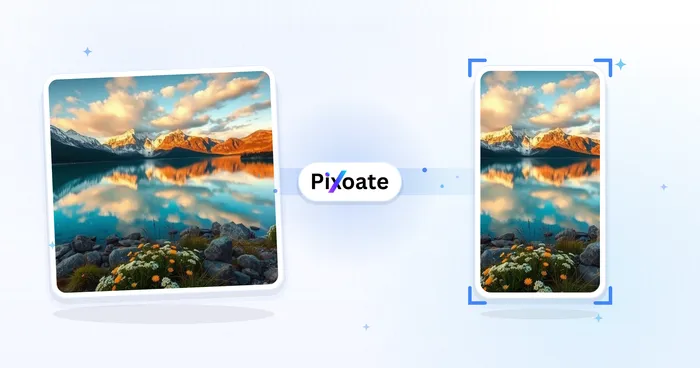
Portrait & Landscape Video Converter
Convert videos between portrait, landscape, square, and custom sizes. Keep the whole frame, crop, add backgrounds, and download MP4 free without a watermark.
Try it now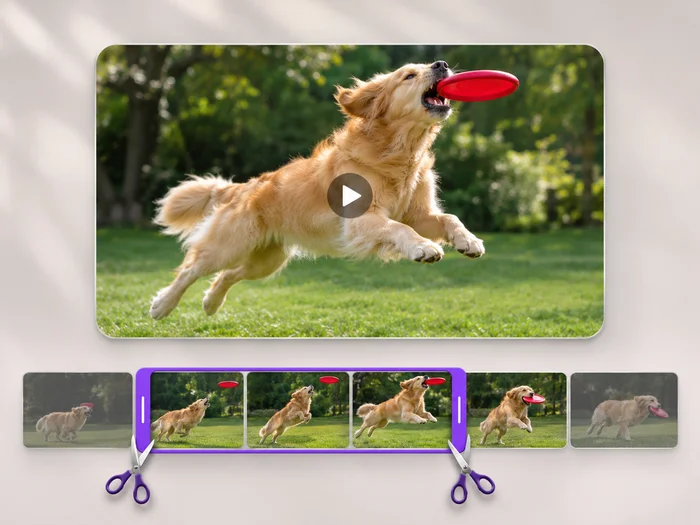
Video Trimmer
Cut the start, the end or a section from the middle of your video. Preview the exact part you keep, then download an MP4 without a watermark.
Try it now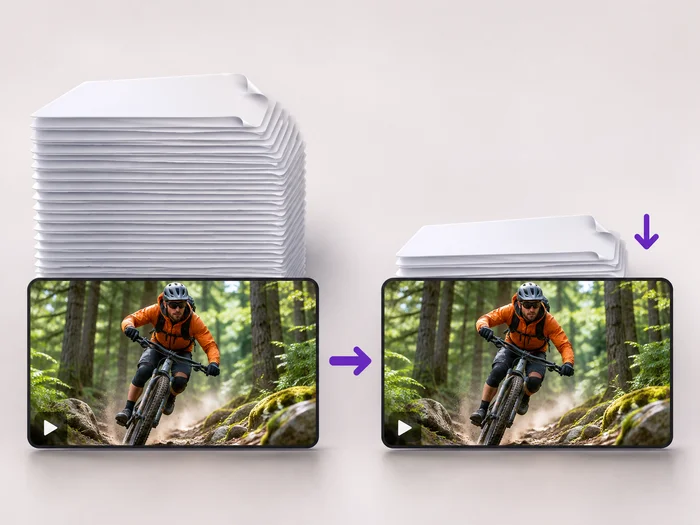
Video Compressor
Make a video file smaller so it fits email, chat and upload limits. Choose how much to shrink it and keep the picture sharp.
Try it now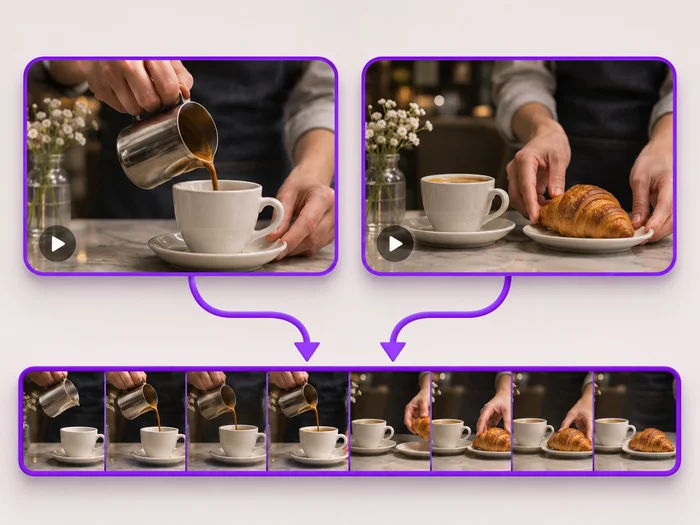
Video Merger
Join clips into one MP4 in the order you choose. Clips of different shapes are fitted onto one frame, so nothing is stretched.
Try it now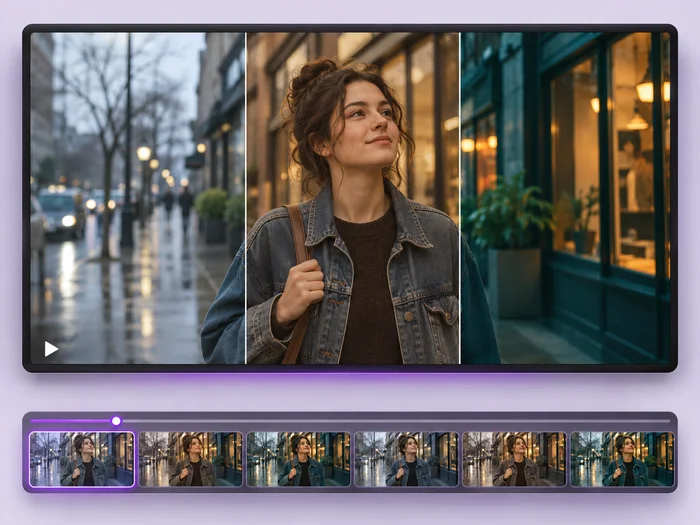
Video Effects
Give a video a new look: color filters, brightness and contrast, blur, speed changes and fade in or out. See every change live before you export.
Try it now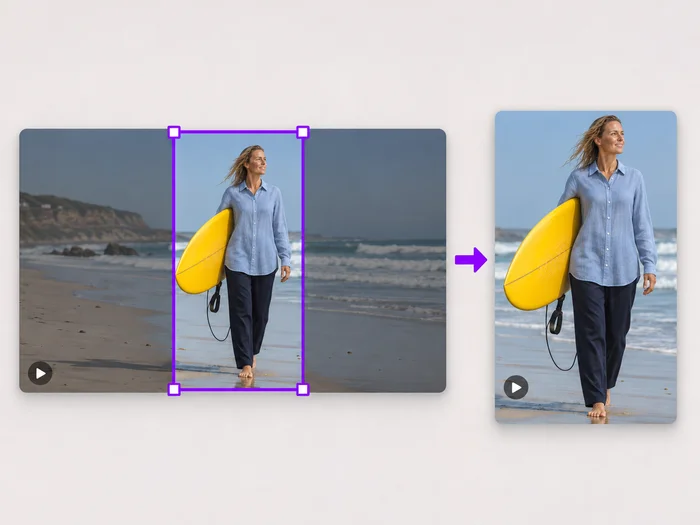
Video Cropper
Drag a box over your video to cut away edges, black bars or anything in the background. Lock it to square, vertical or wide for social posts.
Try it now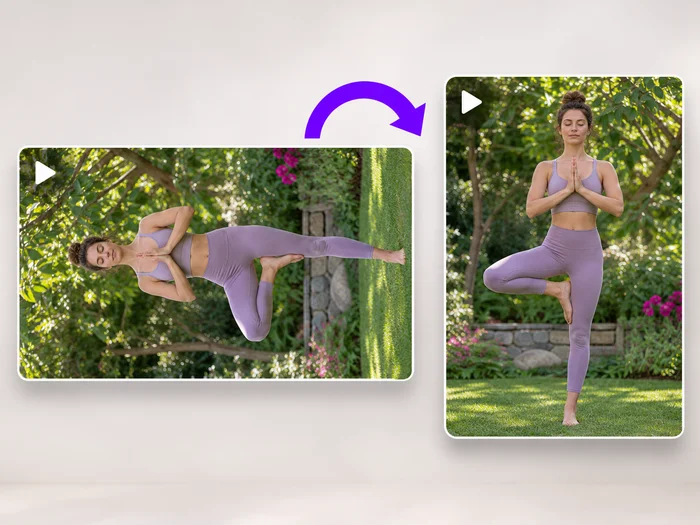
Video Rotator
Turn a video 90 degrees left or right, or 180 degrees, so it plays the right way up on every phone and computer.
Try it now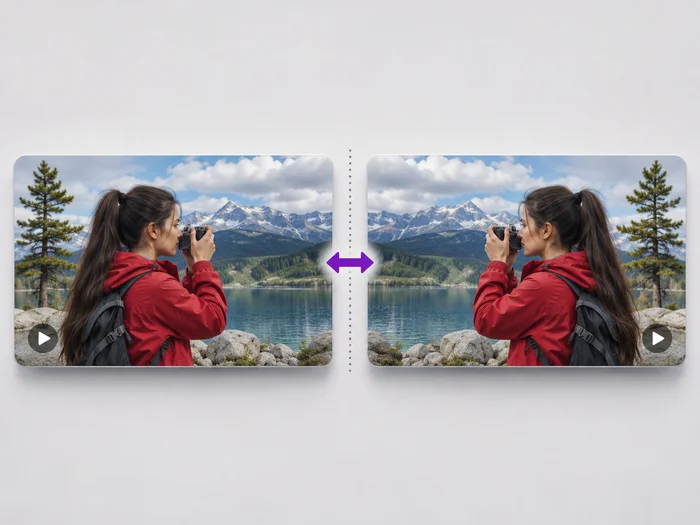
Video Flipper
Undo the mirror effect of a front camera, or flip a video upside down. See the flipped video before you download it.
Try it now
Add Text to Video
Write on your video in many fonts, with colors, outlines and backgrounds. Drag the text where you want it and see it on the video before you export.
Try it now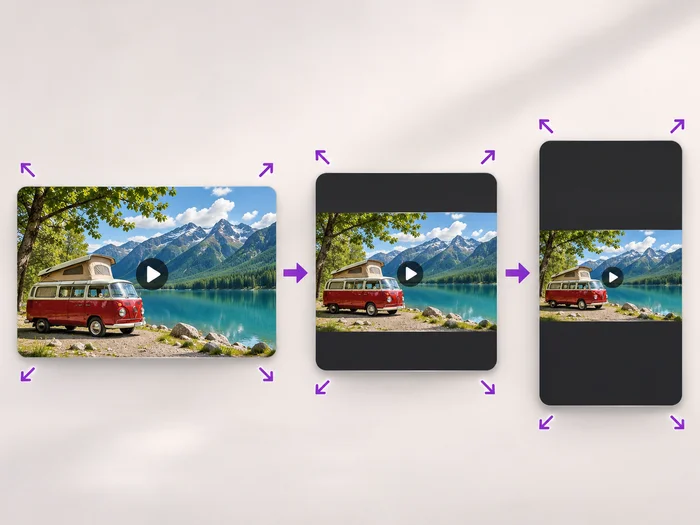
Video Resizer
Scale a video down to a smaller size, or set an exact width and height and choose whether to add bars, fill the frame or stretch.
Try it now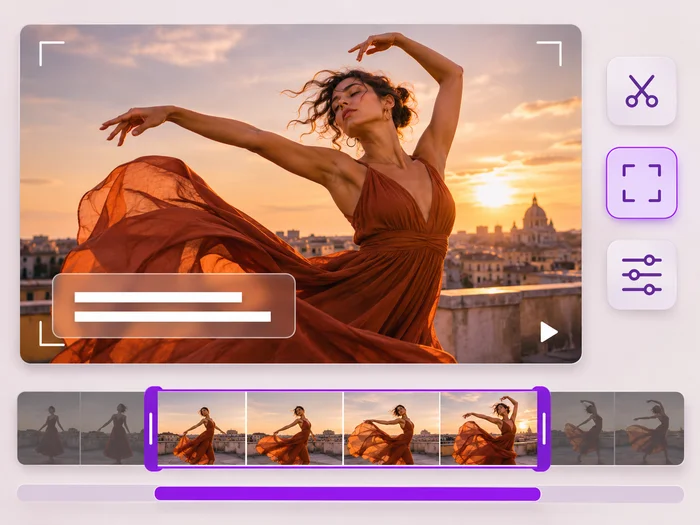
Video Editor
Make every common edit in one go: cut, crop, rotate, flip, add text and effects, change speed, then resize or compress. Preview it all before you export.
Try it nowPick the right video tool: trim, compress, merge, crop or edit a video
These online video tools each solve one common problem with a clip: too long, too large, in pieces, the wrong shape, sideways, mirrored or missing a title. Each tool page opens with its main change already chosen, so one upload and one click often finish the job. The sections below say which tool fits which problem and when the all-in-one editor is the better start.
Too long or too large to send
A recording that runs on is fixed with the video trimmer, which keeps a selection or cuts a middle section out. A file that is too large for email or chat goes through the video compressor, and a site that asks for set dimensions needs the video resizer. Trimming first always helps, because fewer seconds means a smaller file.
Several clips that belong together
Recordings that stopped and started, a set of highlights or an intro in front of the main clip can be joined in order with the video merger. Portrait and landscape clips mix without stretching, because each is fitted inside the shape of the first clip.
The wrong shape or the wrong way round
To keep a square, vertical or wide area, crop the video. To keep the whole picture in a new shape with a background, convert between portrait and landscape. A clip lying on its side needs the video rotator, and a mirrored selfie clip needs the video flipper.
A title, a look or several fixes at once
Write titles and labels onto the picture with the video text tool, and change colors, speed and fades with video effects. When a clip needs three or four of these changes, the online video editor applies them all in one export so you only wait once.
What every video tool has in common
- Upload MP4, MOV or WebM and download an MP4 with no watermark.
- Every tool can also trim the clip and remove its sound in the same export.
- Free exports are short clips at web size; paid plans export longer videos in Full HD.
- Uploads and results are deleted automatically within a day.
Frequently asked questions
- Which video tool should I use to make a video smaller?
- To make the file smaller, use the compressor; to make the picture smaller, use the resizer. Trimming helps both, because cutting unneeded seconds reduces the file size more than any setting.
- Do the video tools add a watermark?
- None of the video tools adds a watermark, on free or paid plans. The only text on your video is the text you add yourself with the video text tool or the editor.
- Can I use the video tools on a phone?
- Yes. Every tool works in mobile browsers on iPhone and Android. Choose a video from your gallery, make the change with touch controls and the finished MP4 downloads to your phone.
- What happens to the videos I upload?
- Videos are uploaded for processing and both the upload and the result are deleted automatically within 24 hours. Download the finished video before you leave the page so you have your copy.
Watch each transformation land
Every photo crosses the slash untouched and comes out the other side finished.























