
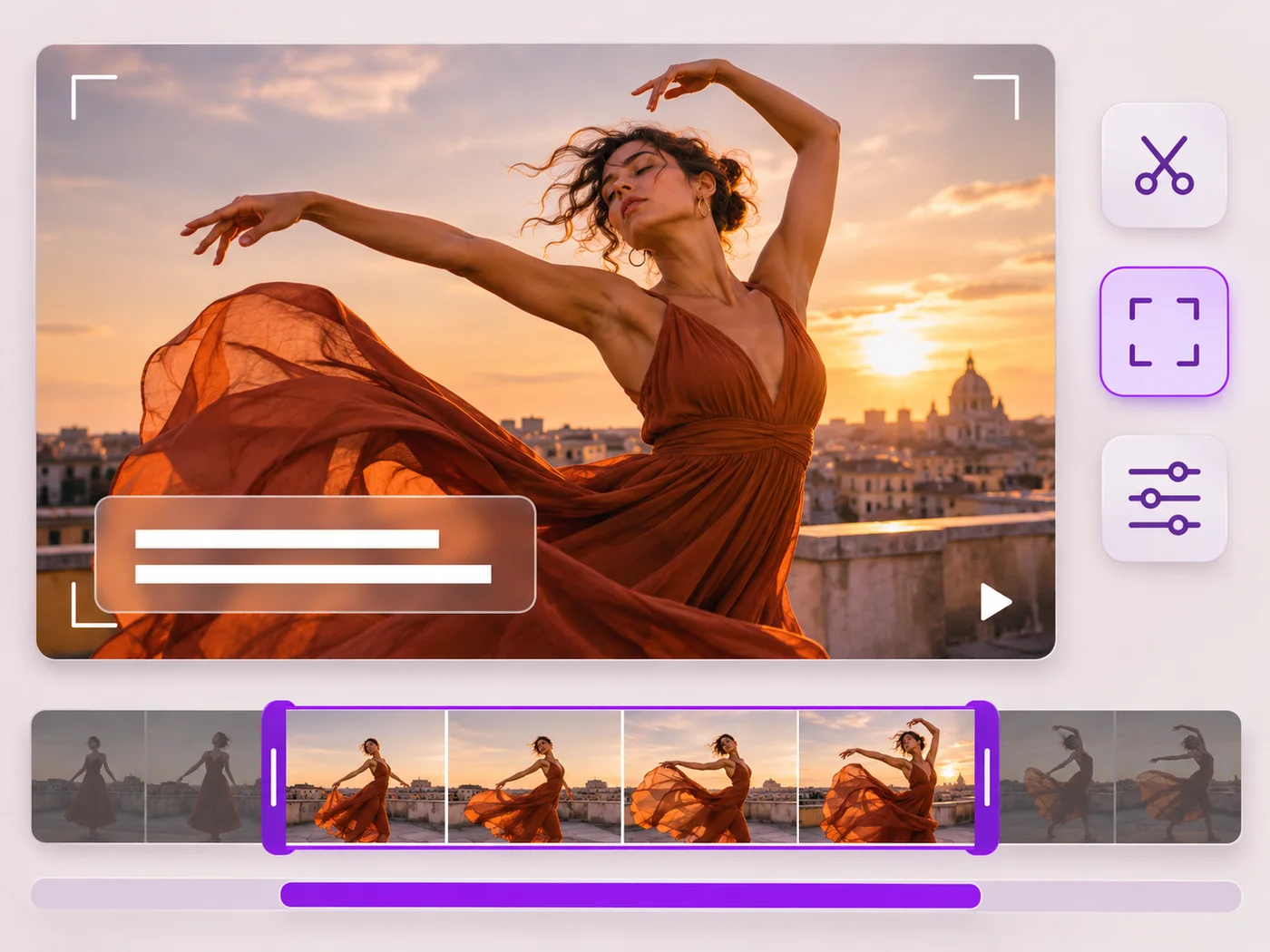
Illustrative preview
Online Video Editor — Trim, Crop, Text and Effects in One Place
MP4, MOV, WebM · Free short clips at web size · No watermark
Make every common edit in one go: cut, crop, rotate, flip, add text and effects, change speed, then resize or compress. Preview it all before you export.
- Trim, crop, rotate and flip
- Text, effects, speed and fades
- Resize or compress before you download
Upload your video
MP4, MOV, WebM · Checking your upload limit…
Files are uploaded for processing. Uploads and finished videos are automatically deleted within 24 hours.
How to edit a video online
- Upload your video.
- Use the tabs to trim, crop, add text, apply effects and more.
- Play the preview to check every change.
- Press Export video and download your MP4.
Every quick edit, one export
Most videos need a few small fixes rather than a full editing suite: a trim, a crop, a title and a better look. The video editor puts them together and exports them in one step, so you only wait once.
Free online video editor: trim, crop, add text and effects in one export
This online video editor puts the everyday fixes in one place. Upload an MP4, MOV or WebM and move between tabs to trim, crop, rotate, flip, apply effects, add text, resize, compress and remove sound. Every change shows on the preview as you make it, and they are all applied together when you press Export video, so you upload once and wait once for an MP4 without a watermark.
A typical edit, start to finish
Most clips need a short list of changes rather than a timeline full of tracks. Cut the start and end on the Trim tab, crop to the shape you will post, add a title on the Text tab, give it a look on the Effects tab, and pick a size or compression level last so the file is ready to share.
- Upload the video you want to edit.
- Trim it, then crop, rotate or flip if needed.
- Add text and an effect, and change the speed or fades if you like.
- Choose a size or compression level and press Export video.
Which tab to use for which fix
Trim keeps or cuts out a selection. Crop keeps an area, with square, vertical, wide and portrait shapes. Rotate and Flip fix sideways and mirrored recordings. Effects holds the looks, sliders, speed and fades. Text adds titles and labels. Resize changes the dimensions, Compress makes the file smaller, and Sound removes the audio.
When a single-task tool is quicker
If one change is all you need, a focused page opens with it already chosen. Shorten a clip with the video trimmer, shrink a file with the video compressor, or write a title with the video text tool. The editor works on one video at a time, so to combine recordings merge the clips into one video first and then open the result here.
What this editor does not do
There is no multi-track timeline, music library or timed captions: every change covers the whole exported clip. That keeps editing quick in a browser on a phone or laptop. For a new shape with a blurred or colored background rather than a crop, change between portrait and landscape, and for a quick loop, turn a few seconds into a GIF.
Order of changes that saves time
- Trim first so you only crop and style the part you keep.
- Crop and rotate before adding text, so the text sits on the final frame.
- Pick a size or compression level last, once the picture is final.
- Play the preview once from start to end before exporting.
Single-task video tools
Popular single jobs open with their setting already chosen: remove part of a video, compress a video for WhatsApp, make a slow motion clip or add a title. To mirror a clip, use the video flipper.
Questions about this tool
What can I do with the online video editor?
Trim or cut out parts, crop, rotate, flip, add text, apply effects, change speed, fade in and out, remove sound, resize and compress, all in one export.
Do I need to install anything?
No. You edit in your browser; the video is processed on our servers and deleted automatically within 24 hours.
Is the video editor free?
Yes, with no watermark. Free exports are short clips at web size; paid plans export longer videos in Full HD and accept larger uploads.
Can I join several clips?
Use Merge videos to join clips into one video, then open the result here for other edits.
Is this a good free alternative to a desktop video editor?
For quick fixes, yes: trimming, cropping, rotating, adding a title, a filter and a smaller file are all here without installing anything. Projects that need several tracks, music beds or timed captions are better suited to a desktop editor.
Can I undo a change before exporting?
Yes. Nothing is applied until you press Export video. Each tab has its own reset, such as Reset trim, Reset crop and Reset effects, and you can untick or change any setting while you watch the preview.
Does the editor work on a phone?
Yes. The tabs, sliders and crop box work with touch on iPhone and Android browsers, and the exported MP4 downloads straight to your phone. A larger screen makes placing text and the crop box a little easier.
Why does the editor say Choose what to change first?
Exporting the same video unchanged would only cost you a wait. Make at least one change on any tab, such as a trim, an effect or a new size, and press Export video again.
How long does an export take?
Short clips are usually ready quickly, while long Full HD videos take a few minutes, plus any wait while other videos are processed. All the changes you choose are applied in one pass, so adding text and an effect costs far less time than exporting twice.
Related tools for Video Editor
Tools for common next steps after Video Editor.
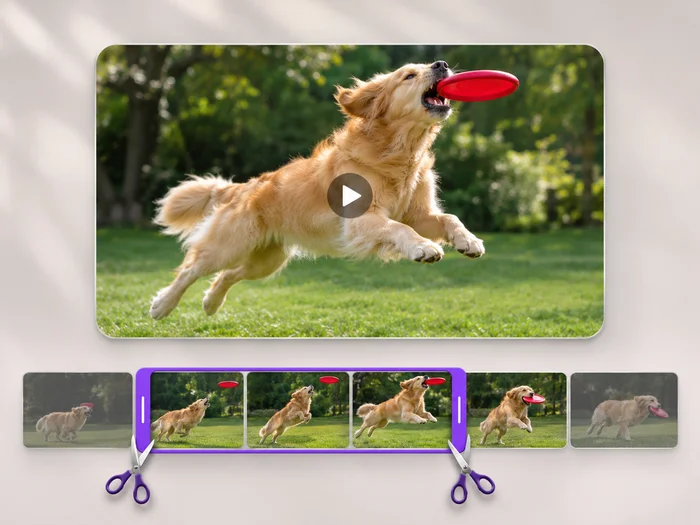
Video Tools
Video Trimmer
Cut the start, the end or a section from the middle of your video. Preview the exact part you keep, then download an MP4 without a watermark.
Try it now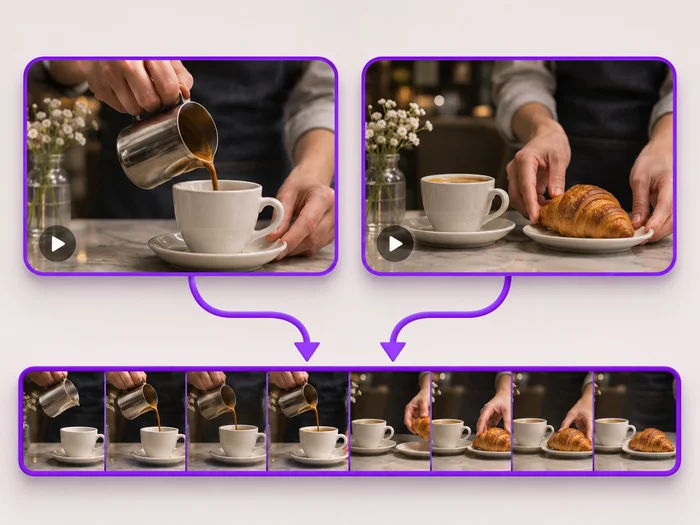
Video Tools
Video Merger
Join clips into one MP4 in the order you choose. Clips of different shapes are fitted onto one frame, so nothing is stretched.
Try it now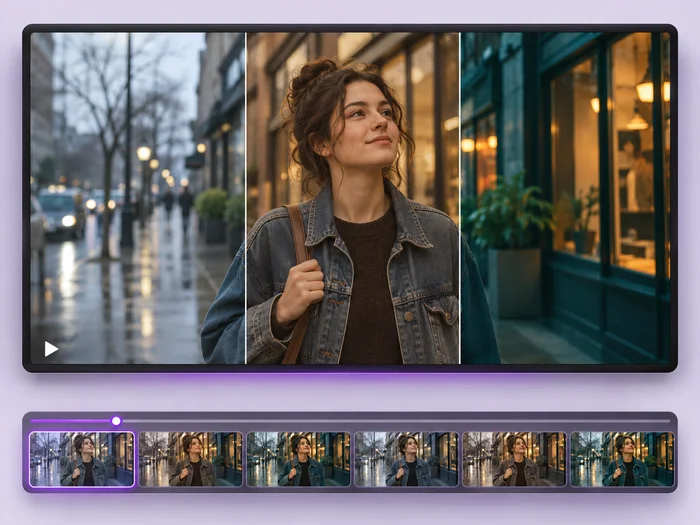
Video Tools
Video Effects
Give a video a new look: color filters, brightness and contrast, blur, speed changes and fade in or out. See every change live before you export.
Try it nowWatch each transformation land
Every photo crosses the slash untouched and comes out the other side finished.























