

Illustrative preview
Add Text to Video — Titles, Captions and Labels
MP4, MOV, WebM · Free short clips at web size · No watermark
Write on your video in many fonts, with colors, outlines and backgrounds. Drag the text where you want it and see it on the video before you export.
- Many fonts, colors, outlines and backgrounds
- Drag and resize text right on the video
- Text stays on screen for the whole video
Upload your video
MP4, MOV, WebM · Checking your upload limit…
Files are uploaded for processing. Uploads and finished videos are automatically deleted within 24 hours.
How to add text to a video
- Upload your video.
- Type your text and choose a font, size and color.
- Drag the text into place on the video.
- Press Add text to video and download your MP4.
Titles and labels that stay readable
Add a title to a clip, label a product, or put your handle on a video. An outline or a background behind the text keeps it readable over busy footage.
Add text to a video online: titles, labels and on-screen captions
This video text editor writes titles and labels onto your video. Upload an MP4, MOV or WebM, type in the text box that is already on the picture, and choose a Font, Size, Text color, Outline color and Background. Drag the text where you want it and resize it from the corners. What you see over the preview is what is written into the exported MP4, with no watermark added.
Put a title on a video
A title at the top of the frame tells viewers what they are watching before the sound is on. Type it into the first text layer, choose Bold and a larger Size, and place it where it does not cover a face. Double-click the text on the preview to edit it in place.
- Upload the clip that needs a title or label.
- Type your title in the text layer on the picture.
- Pick a font, size and color, then drag it into place.
- Press Add text to video and download the MP4.
Keep text readable over busy footage
White text disappears against snow and black text against a night sky. An Outline color with a wider Outline width keeps letters crisp over any background, and a Background color behind the words reads like a caption bar. Check the text while the video plays, because the scene behind it changes from frame to frame.
Several labels on one video
Press Add text for each new layer; each one has its own font, color and position. Use one for a title and another for your handle or a product name in a corner. Text stays on screen for the whole exported clip, so cut the video to the part you need in the same step if a label should only cover a short moment.
Text with other edits
Text keeps its place when you crop or change the size in the online video editor, which also rotates and trims in the same export. For a finished look, add a filter or a fade to the clip. Writing on a single photo instead? Add text to an image with the same fonts and outline styles.
Before you export
- Play the clip through to check no text covers a face or key action.
- Keep important words away from the bottom edge, where apps place their buttons.
- Use an outline or background when the footage is bright or busy.
- Read every layer once more for typos; the text is part of the picture after export.
Give the captioned clip a finished look
A title reads best on a clip that fills a phone screen at 9:16. For a timeless look, turn the clip black and white before adding text, and rotate a sideways recording first so the text sits upright on the final picture. Choosing a new frame with a crop and setting the final size also belong before the text.
Questions about this tool
Can I add more than one text to a video?
Yes. Press Add text for each new title or label, and style each one separately.
How long does the text stay on screen?
The text shows for the whole exported video. Trim the video in the same step if you want a shorter clip.
Can I add text to a portrait video?
Yes. Text works on portrait, landscape and square videos and keeps its place on the picture.
Is adding text to a video free?
Yes, with no watermark. Free exports are short clips at web size; paid plans export longer videos in Full HD and accept larger uploads.
Can I make text appear only at certain times in the video?
Each text layer is shown for the whole exported clip. To show a title only at the start, trim that part, add the title and export it, then join it to the rest of the video with the video merger.
Which fonts can I use on my video?
The Font list includes clean sans fonts, bold display fonts for titles, handwritten and script styles, and typewriter-style monospace fonts. Bold and Italic work with most of them, and the text on the preview updates as soon as you pick one.
Can I add my username or a text watermark to a video?
Yes. Add a small text layer with your handle, place it in a corner and give it a light outline so it stays readable. It is written into every frame of the exported MP4.
Why does my text look smaller on the downloaded video?
Text is scaled with the picture, so it keeps the same size relative to the video. If it looks small on a phone, increase Size before exporting; a title should take up a clear share of the frame width.
Can I edit the text after downloading?
Once exported, the text is part of the picture. Keep the original video so you can upload it again and export a new version with corrected or updated text.
Related tools for Add Text to Video
Tools for common next steps after Add Text to Video.
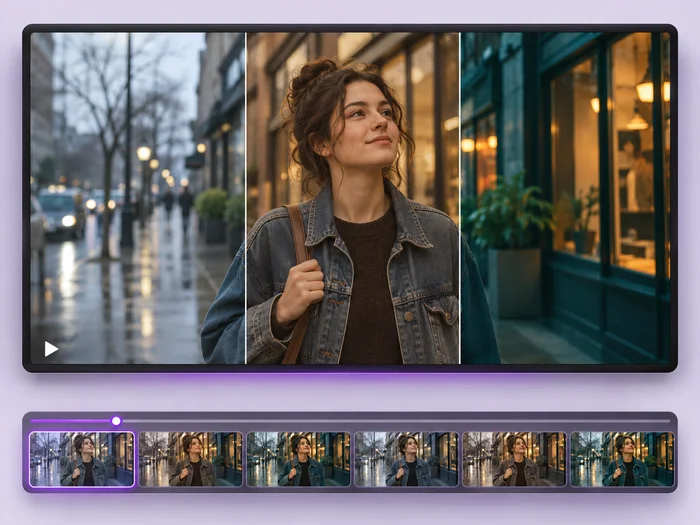
Video Tools
Video Effects
Give a video a new look: color filters, brightness and contrast, blur, speed changes and fade in or out. See every change live before you export.
Try it now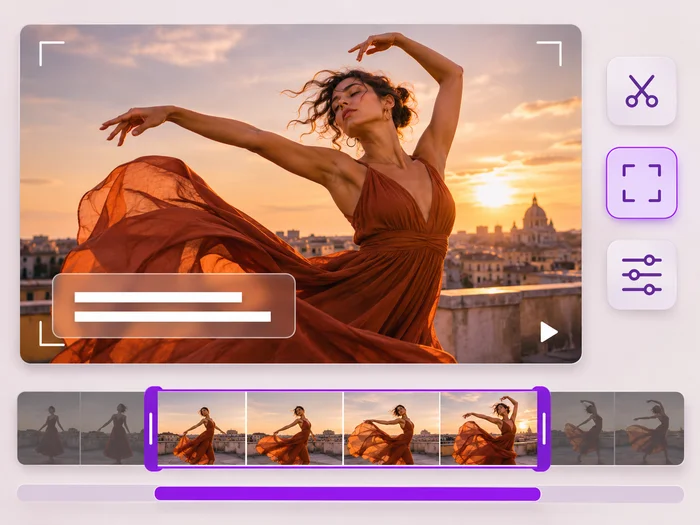
Video Tools
Video Editor
Make every common edit in one go: cut, crop, rotate, flip, add text and effects, change speed, then resize or compress. Preview it all before you export.
Try it now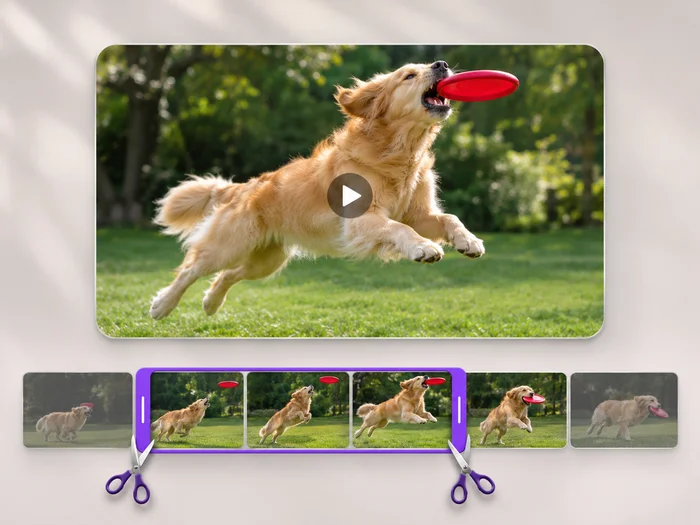
Video Tools
Video Trimmer
Cut the start, the end or a section from the middle of your video. Preview the exact part you keep, then download an MP4 without a watermark.
Try it nowWatch each transformation land
Every photo crosses the slash untouched and comes out the other side finished.























