
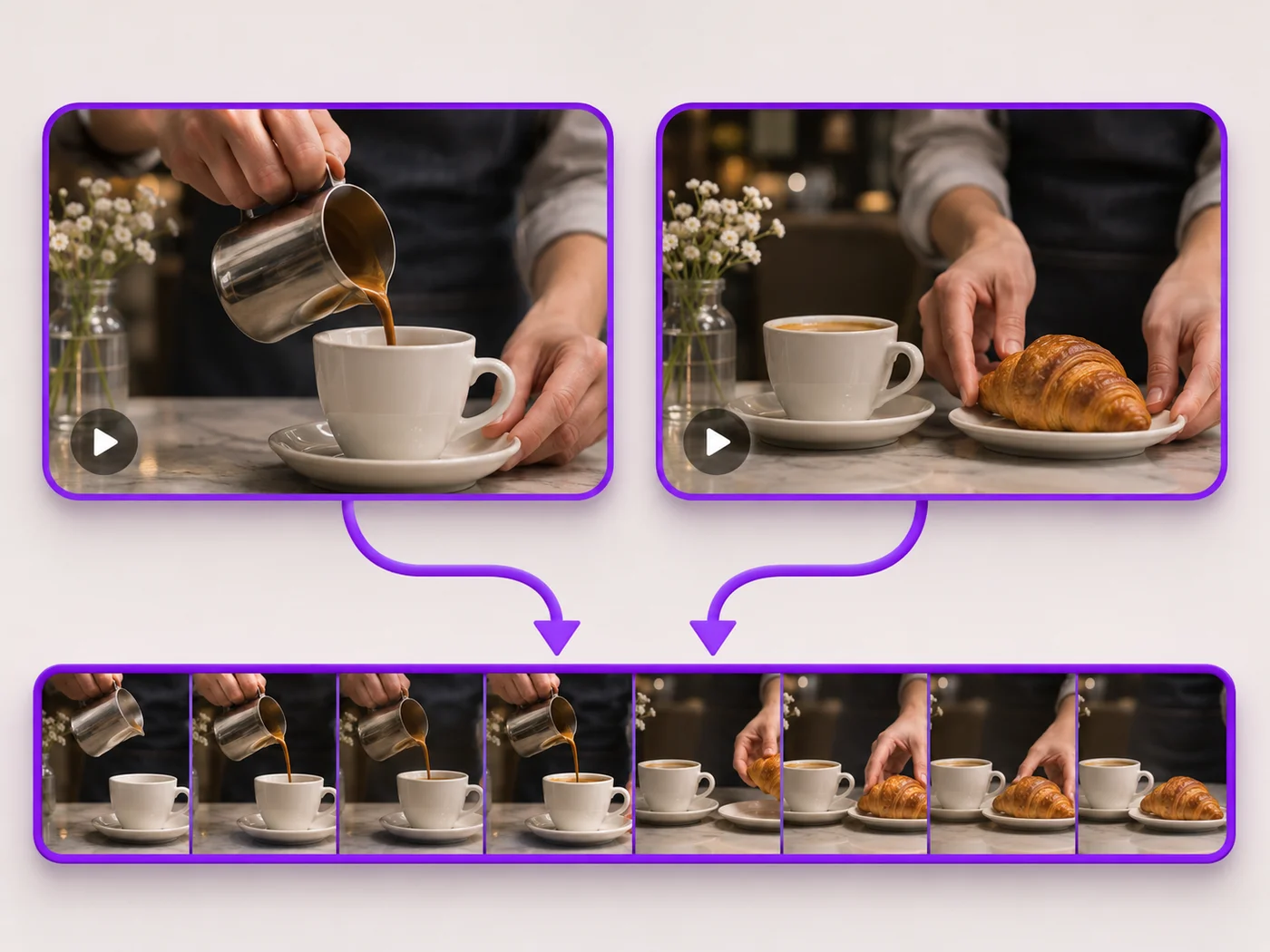
Illustrative preview
Merge Videos Online — Combine Clips into One Video
MP4, MOV, WebM · Free short clips at web size · No watermark
Join clips into one MP4 in the order you choose. Clips of different shapes are fitted onto one frame, so nothing is stretched.
- Put clips in any order before you merge
- Portrait and landscape clips fit one frame
- Keep the sound, or remove it in one click
Upload your clips
MP4, MOV, WebM · Checking your upload limit…
Files are uploaded for processing. Uploads and finished videos are automatically deleted within 24 hours.
How to merge videos
- Upload two or more clips.
- Move clips up or down to set the order.
- Choose a bar color and whether to keep the sound.
- Press Merge videos and download one MP4.
One video from several clips
Combine highlights, join recordings that stopped and started, or put an intro in front of your main clip. Every clip is fitted to the shape of the first clip so nothing is stretched, and clips without sound stay in sync.
Merge videos online: join clips into one MP4 in the order you want
This video merger joins several clips into a single MP4. Upload MP4, MOV or WebM files together, set the order with Move up and Move down, choose a bar color and whether to keep the sound, and press Merge videos. The total length is shown as you add clips. Portrait and landscape clips can be mixed, because each one is fitted onto one frame instead of being stretched.
Put the clips in order and merge them
Clips appear in the order you add them. Each row has Move up, Move down and Remove clip, so you can fix the sequence without uploading again. Add clips brings in more files at any point before you merge, and the total length under the list helps you keep the finished video within the length your plan exports.
- Press Upload clips and choose two or more videos.
- Use Move up and Move down until the order is right.
- Choose a bar color and whether to keep the sound.
- Press Merge videos and download one MP4.
Combine portrait and landscape videos
The first clip in the list sets the shape of the merged video. A vertical clip after a landscape one is placed in the middle of the landscape frame with bars at the sides in the color you pick, so faces and text are never stretched. To make every clip fill the frame, put a clip with the shape you want first, or convert one clip between portrait and landscape before merging.
Prepare each clip before you join them
Joining works best with clips that already start and end where you want. Remove a slow beginning with the video trimmer, and turn a clip that was filmed sideways with a quarter turn of the picture. After merging, shrink the joined file for sharing if it is too large to send, or add a title over the whole video.
Sound across merged clips
Each clip keeps its own sound, and a clip recorded without sound plays silently in its place, so the following clips stay in sync. Tick Remove sound to export the whole merged video silent, which is handy when you plan to add music in another app. Different recording volumes are kept as they are, so check loud and quiet clips next to each other in the result.
Before you merge
- Put the clip with the shape you want for the final video first.
- Trim each clip separately if it starts or ends with dead air.
- Keep the page open while the clips upload one after another.
- Play the merged video through once to check the order.
Tidy each clip before you join them
Before joining, cut a mistake out of the middle of a clip and turn an upside-down recording the right way up. Afterward, fade the joined video in and out, give it one consistent look or put a title at the start.
Questions about this tool
Can I merge videos for free?
Yes, with no watermark. Free merges short clips into one video at web size; paid plans merge more clips at once, longer videos and Full HD.
Can I merge portrait and landscape videos?
Yes. The merged video takes the shape of the first clip, and the other clips are fitted inside it with bars in the color you choose, so nothing is stretched or cut off.
Can I change the order of the clips?
Yes. Use the up and down arrows next to each clip. The clips play in the order shown.
Which formats can I merge?
You can mix MP4, MOV and WebM clips. The merged video downloads as one MP4.
How many clips can I merge at once?
Free merges a couple of short clips into one video at web size. Paid plans merge more clips at once, longer totals and Full HD. If you choose more clips than your plan allows, the page tells you before anything uploads.
Will merged clips with different sizes look stretched?
They are fitted, never stretched. Every clip keeps its proportions inside the frame set by the first clip, and any leftover space shows the bar color you picked, black by default.
Can I merge an iPhone MOV with an Android MP4?
Yes. MP4, MOV and WebM clips can be mixed in one merge, whatever phone or camera recorded them, and the merged result downloads as a single MP4 that plays everywhere.
Why is my merged video taking a while?
Each clip uploads separately and the joined video is processed as one export, so several long clips take longer than a single short one. The status line shows which clip is uploading and when your video is next in line.
Can I add a transition between clips?
Clips are joined with a straight cut. For a softer start or end of the finished video, open the merged MP4 in the video effects tool and add a fade in or fade out of up to a few seconds.
Related tools for Video Merger
Tools for common next steps after Video Merger.

Video Tools
Video Trimmer
Cut the start, the end or a section from the middle of your video. Preview the exact part you keep, then download an MP4 without a watermark.
Try it now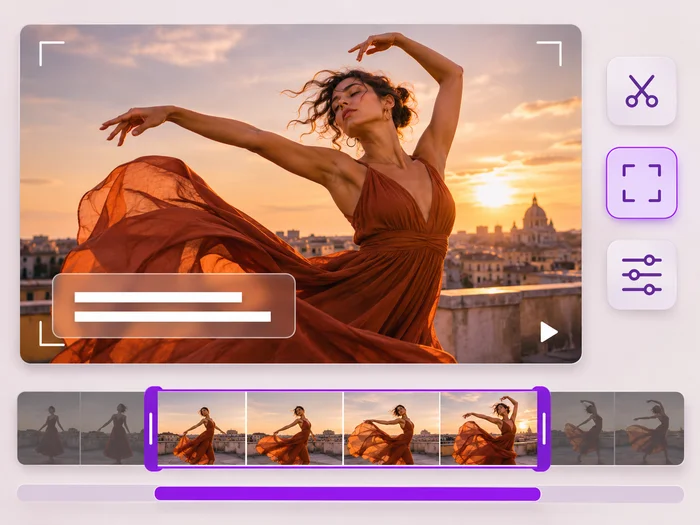
Video Tools
Video Editor
Make every common edit in one go: cut, crop, rotate, flip, add text and effects, change speed, then resize or compress. Preview it all before you export.
Try it now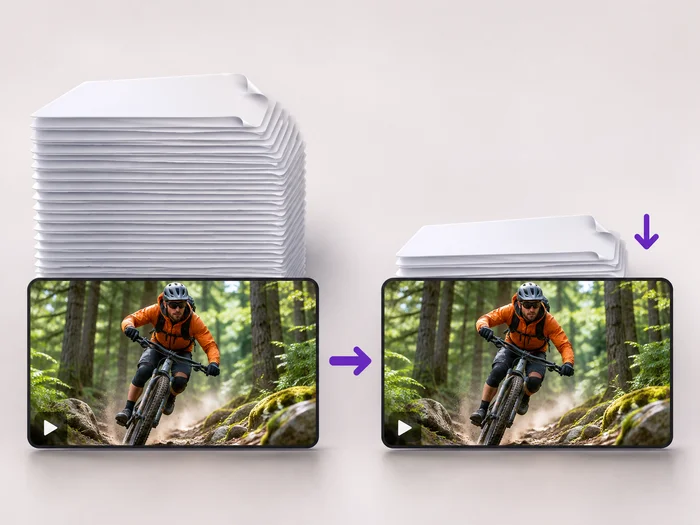
Video Tools
Video Compressor
Make a video file smaller so it fits email, chat and upload limits. Choose how much to shrink it and keep the picture sharp.
Try it nowWatch each transformation land
Every photo crosses the slash untouched and comes out the other side finished.























