
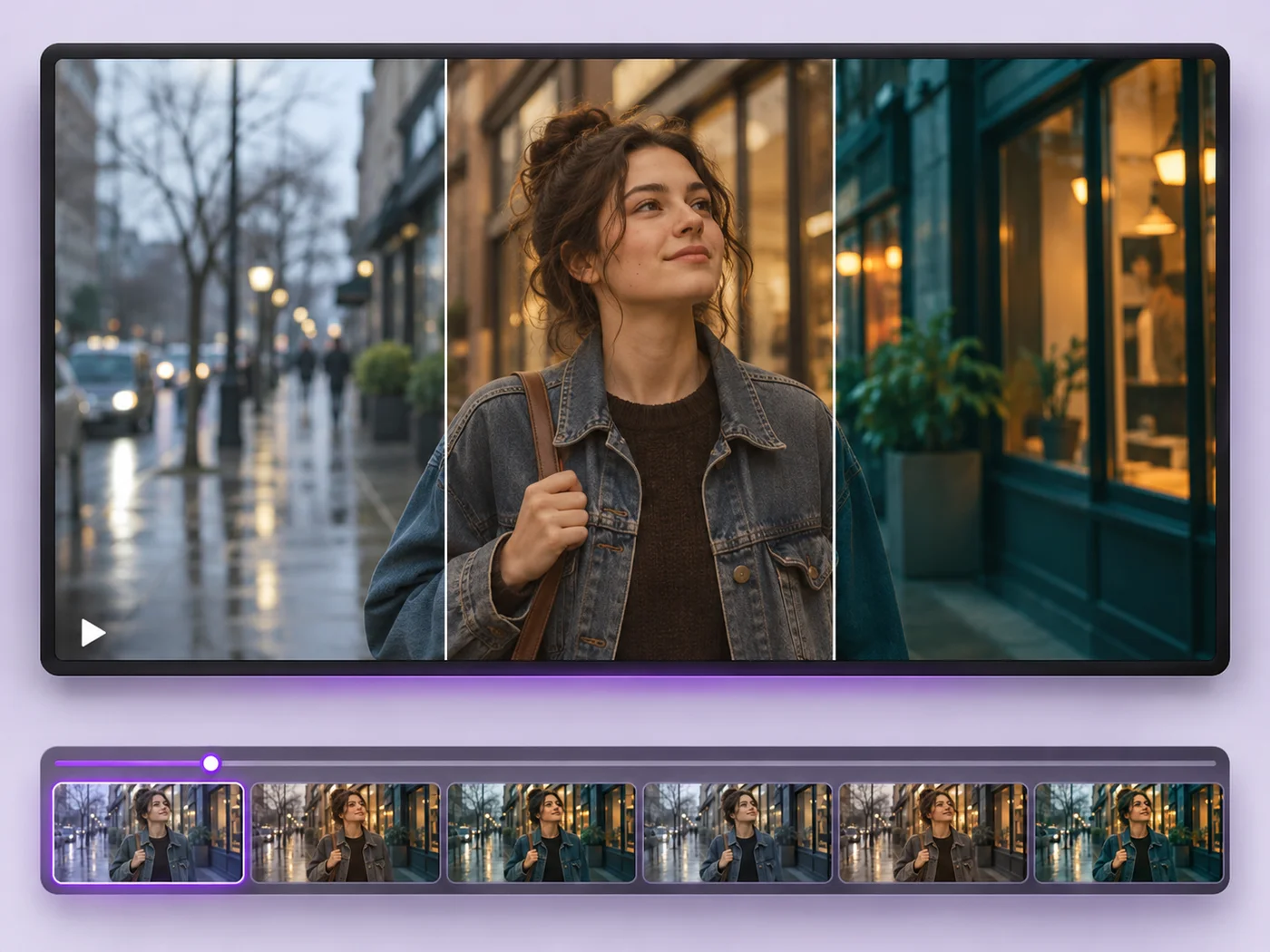
Illustrative preview
Video Effects — Add Filters, Speed and Fades to a Clip
MP4, MOV, WebM · Free short clips at web size · No watermark
Give a video a new look: color filters, brightness and contrast, blur, speed changes and fade in or out. See every change live before you export.
- Black and white, sepia, vintage, vivid, warm and cool looks
- Adjust brightness, contrast, saturation and blur
- Slow down, speed up and fade in or out
Upload your video
MP4, MOV, WebM · Checking your upload limit…
Files are uploaded for processing. Uploads and finished videos are automatically deleted within 24 hours.
How to add effects to a video
- Upload your video.
- Pick an effect and fine-tune it with the sliders.
- Change the speed or add a fade if you like.
- Press Apply effects and download your MP4.
Quick looks, previewed live
Every effect plays live on your video, so you can try a look before anything is uploaded. Effects are applied in the same step as the export, so they add very little waiting time.
Add effects to a video online: filters, speed, fades and color
This video effects tool changes how a clip looks and moves. Upload an MP4, MOV or WebM, pick a look such as Black & white, Sepia, Vintage or Vivid, and fine-tune Brightness, Contrast, Saturation and Blur with sliders. Speed runs from half speed to double speed, and Fade in and Fade out soften the start and end. Every change plays live on your video before you press Apply effects.
Apply a filter to a video
Seven looks sit under Effect: Black & white, Sepia, Vintage, Vivid, Warm, Cool and Muted, plus Original to start from the untouched colors. The page opens on Vintage so you can see an effect straight away. The sliders work on top of the chosen look, so a Warm clip can still be brightened or a Black & white clip given more contrast. Reset effects returns everything to the original.
- Upload the video and pick a look under Effect.
- Move Brightness, Contrast, Saturation or Blur to adjust it.
- Play the preview to see the look across the whole clip.
- Press Apply effects and download the MP4.
Make a slow-motion or sped-up video
Speed has six steps from half speed to double speed. Slowing a clip down makes a jump, a pour or a pet trick easier to follow; speeding it up turns a long process into a quick time-lapse style clip. The sound plays at the new speed as well and keeps its pitch, so voices stay natural, just slower or faster; remove it on the Sound tab if you plan to add music.
Fade a video in and out
Fade in brings the picture up from black and the sound up from silence at the start, and Fade out takes both down at the end, each for up to a few seconds. Fades help when a clip starts mid-action or will be joined to other recordings. For a finished look, put a title on the clip, or make every edit in one export with the online video editor.
How close the preview is to the export
The preview is drawn by your browser and the export is made on our servers with matching settings, so colors are very close but can differ slightly between screens. Blur is scaled to the picture size, so a soft background looks the same at web size and in Full HD. Play the downloaded clip on the device your audience uses before posting it.
Getting a clean look
- Start with a look, then make small slider changes rather than large ones.
- Trim the clip on the Trim tab so the effect covers only the part you keep.
- Use a short fade on clips that start or stop abruptly.
- For a still image with the same look, try photo effects.
Finish the look of your video
A finished look pairs well with a bold title over the clip or your handle as a small watermark. For a feed post, crop the styled clip to a 4:5 portrait, or mirror a selfie clip so writing reads the right way. Styling each clip the same way first makes them sit well together in one merged video.
Questions about this tool
Which video effects are available?
Black and white, sepia, vintage, vivid, warm, cool and muted, plus sliders for brightness, contrast, saturation and blur. You can also change the speed and add fades.
Can I make a slow-motion or sped-up video?
Yes. Choose a speed from half speed to double speed. The sound plays at the new speed too.
Does the preview match the final video?
The preview shows each effect live on your video, and the exported colors are very close to it. Play the finished video before you share it.
Are the video effects free?
Yes, with no watermark. Free exports are short clips at web size; paid plans export longer videos in Full HD and accept larger uploads.
Can I make a black and white video?
Yes. Choose Black & white under Effect, then raise Contrast for a punchier picture or Brightness for a lighter one. The preview plays in black and white straight away, so you can check it before exporting.
Can I speed up only part of a video?
Speed applies to the whole exported clip. To speed up one section, select that part on the Trim tab and export it, then join it with the rest of the recording using the video merger.
Do effects make the export take longer?
Very little. Effects are applied in the same pass as the export, so a filtered clip takes about as long as an unfiltered one. Slow motion makes the clip longer, which adds a little time.
Can I combine several effects?
Yes. One look from the Effect list works together with all four sliders, a speed change and fades in a single export. Pick the look first, then adjust the sliders on top of it.
Why does the exported color look a little different from the preview?
Screens and players show color slightly differently, and the preview is drawn by the browser rather than the export itself. Compare the downloaded MP4 on the device your viewers use, and nudge Saturation or Brightness if it needs it.
Related tools for Video Effects
Tools for common next steps after Video Effects.
Video Tools
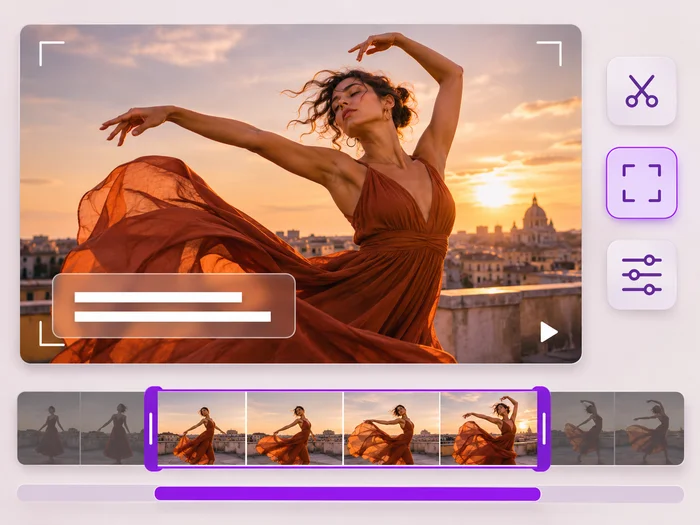
Video Editor
Make every common edit in one go: cut, crop, rotate, flip, add text and effects, change speed, then resize or compress. Preview it all before you export.
Try it now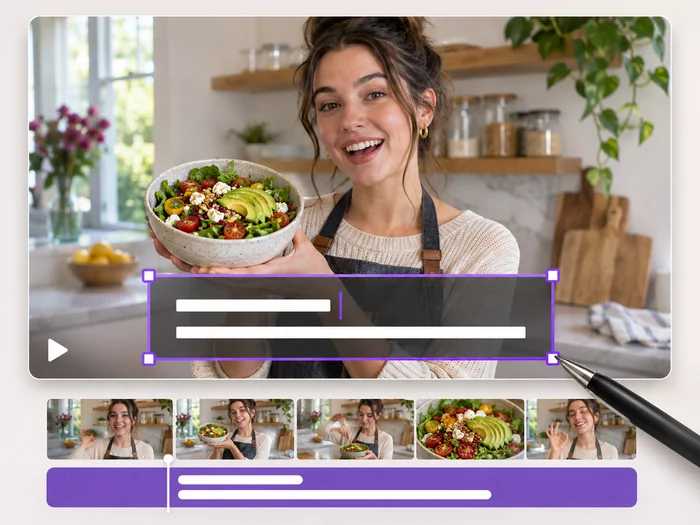
Video Tools
Add Text to Video
Write on your video in many fonts, with colors, outlines and backgrounds. Drag the text where you want it and see it on the video before you export.
Try it now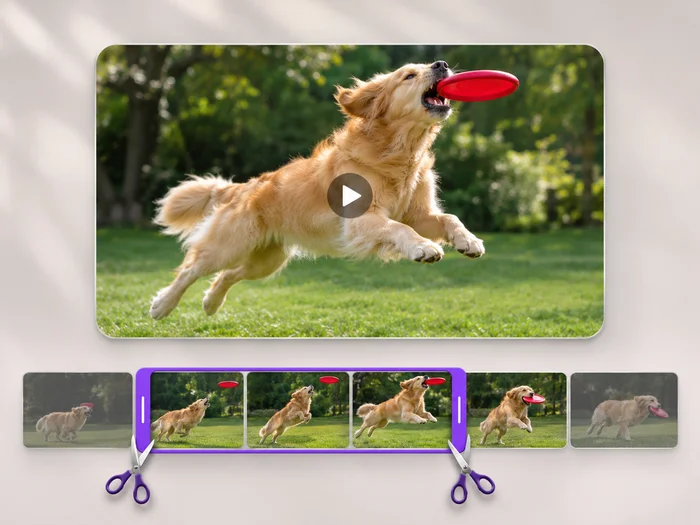
Video Tools
Video Trimmer
Cut the start, the end or a section from the middle of your video. Preview the exact part you keep, then download an MP4 without a watermark.
Try it nowWatch each transformation land
Every photo crosses the slash untouched and comes out the other side finished.























