
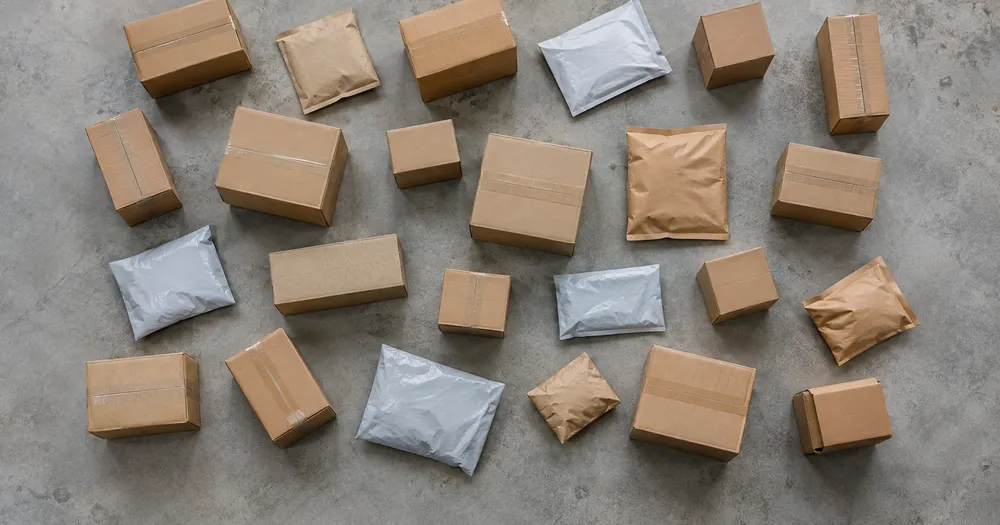
Count parcels in a cage or van from a photo
Works with JPG, PNG, WEBP · Free up to 20 MB, Premium 50 MB
Spread the parcels so they overlap as little as possible — one layer deep is ideal — and photograph from above in even light. Built for warehouses, hauliers and logistics yards — review and correct each photo before adding it to a CSV or PDF tally.
- Review the photo, then count visible parcels
- Upload a photo and get an automatic count
- Review the markers to catch parcels counted twice or missed
- Free to use · No signup required · Without watermark
Upload Image
Tips for an accurate count
• Use an even, well-lit photo with the parcels fully in frame
• Keep your parcels visible and avoid overlapping items
• Dots and heatmap show retained detections — review and correct the tally
About the Parcels Counter
The parcels counter counts visible parcels from your photo and marks detections for review. Counting starts automatically once the photo and item are ready. Visibility, overlap and similar-looking items can affect the total. Built for warehouses, hauliers and logistics yards.
How It Works
1. Photograph your parcels
2. Upload your photo to count parcels automatically
3. Review the markers and correct the tally if needed
4. Add to the tally sheet and export your count as CSV
Perfect For
• Loading and unloading checks against the manifest
• Depot cage counts during a sortation shift
• Driver handover tallies at the start of a round
• Evidence photos for a disputed consignment count
Counting parcels in a cage, a van or a staging lane
Couriers and depots count parcels when loading and unloading against the manifest, at driver handover before a round starts and during sortation shifts when cages fill fast. The easiest scene is a staging lane where parcels sit on the floor in one layer, photographed from a raised position or from above. Inside a van or a roll cage, parcels pile up and hide each other, so count them in layers as they come off, or photograph each shelf of the cage.
Parcels come in many shapes: cardboard boxes, poly mailers, padded envelopes and tubes. Mark one example of each main kind, up to three, so soft mailers are not skipped next to boxes. Shipping labels look alike on every parcel and may attract dots of their own, so check that each parcel carries one dot, not two. Cage mesh and van shelving in front of parcels cut them into pieces; open the cage or shoot through the gap.
Name each tally row after the route, the cage or the van, and keep the marked image if a consignment count is disputed. Cardboard boxes on a pallet are handled on the box counter, and loose letters for a postal collection on the envelope counter.
Frequently asked questions
- Does it work on a loose pile?
- It can only mark the visible layer. Spread items one layer deep, mark a clear example, and review and correct the result markers. Treat a visible-face count on a large pile as an estimate and use the same framing between checks.
- What if the photo has more than just parcels in it?
- The counter automatically looks for parcels in your photo. Similar-looking distractors can still affect the result, so review every marker before using the total.
- Can I count several photos into one total?
- Yes — count each photo and add every reviewed result to the tally sheet as a labelled row. Export the tally as CSV or a PDF report, or save it to your account.
- Is it free and private?
- Yes. You can count, review and download a free result without an account. Downloads are free without a watermark. No signup required. Server-processed photos are encrypted in transit and removed under our Security policy.
What you can do with Box & Carton Counter
Review the main capabilities before you begin.
- Count boxes and cartons on pallets and stacks
- Review truck-load and inbound-shipment estimates fast
- Inspect each counted-carton marker and correct the total
- Run a bulk audit across a warehouse photo set
- Add multiple stacks to one running tally
- Ignore small stray detections for accuracy
Settings reference
14 settings
Available controls for Box & Carton Counter.
Upload
- Single photo / Bulk auditPresets
- Choose a single-photo count or a Premium bulk audit. Review every result.Options: Single photoBulk audit
Count
- Included markersSliderRange: 0–1 · Default: 0.21
- Starts at 21%; slide toward Show more to include weaker markers or Only strongest to hide them.
- Overlay stylePresets
- Choose dots, a heatmap, both or a clean preview.Options: BothDotsHeatNone
Advanced
- Result overlayDropdown
- Choose how count markers appear in the on-screen preview; the download keeps its own markers.Options: Dots + heatmapDots onlyHeatmap only
Tally
- Add to tallyOne-click
- Add this count to the tally sheet under the name of the object that was counted. Signed-in accounts add finished counts automatically unless that is turned off under Account settings; in bulk mode every photo also has its own Add to tally button.
- LabelText input
- Rename a tally row. Edits and removals wait until you choose Save changes, so you can fix several rows at once.
- CountNumber input
- Correct a row's count; totals, the chart and exports follow once the change is saved.
- Save changesOne-click
- Apply every edited or removed tally row in one step, or choose Discard changes to leave the sheet as it was.
Chart
- By objectPresets
- The chart is the same in every counting tool and covers the tallies of all of them. By object draws a separate line chart for each tally name, such as pipes and people. By tool draws a chart for each counting tool.Options: By objectBy tool
- PeriodPresets
- Choose how far back the chart looks. Days without a count appear as zero.Options: 7 days30 days90 days12 months
History
- Counting setupGallery
- Keep comparable counts together. A first setup is created for you, so the first count can be saved straight away.
- Observed atText input
- The date and time of the count, shown as a date and a time field.
- NotesText input
- Starts with every detected object and its count, one per line, such as Pipes - 11. Edit it before saving.
- Save countOne-click
- Save the count to your account history. Open a saved count later to correct it or download its source photo.
Related tools for Box & Carton Counter
Tools for common next steps after Box & Carton Counter.
Counting & Inventory
Object Counter
Estimate an object count from a photo. Review and correct the numbered markers before using the count.
Try it now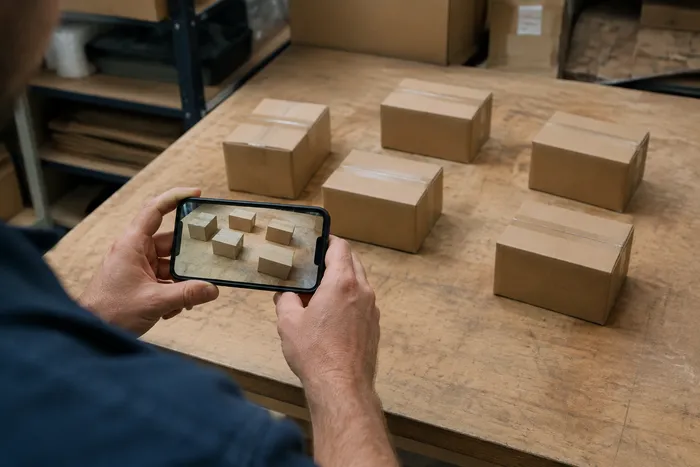
Counting & Inventory
Live Object Counter
Aim your phone at separated, fully visible items and review the detector markers as the count updates in real time.
Try it now
Counting & Inventory
Bottle Counter
Count bottles on shelves, in crates, or in cold rooms from one photo, with counted detections marked for review.
Try it nowHow Box & Carton Counter helps you get it done
Real problems it solves every day — for businesses, creators, and everyday tasks. Find the use case that fits you and start.
Check In a Truck Load Against the Manifest
Photograph each pallet for a draft carton tally, then review the physical load, correct the markers, and complete the normal manifest check before goods-in sign-off.
Run Warehouse Cycle Counts from a Phone
Walk the aisles snapping each stack with your phone camera, add every count to the Tally sheet, and export the whole cycle count as a CSV or branded PDF at the end of the round.
Count a Multi-Site Dispatch in One Batch
Open Bulk audit to run Distinct objects mode across every pallet photo, then review every result before using the dispatch total.
Isolate One SKU on a Mixed Pallet
For one carton size or SKU, mark a complete carton in the Examples setting before counting, then review every marker for similar-looking boxes on the pallet.
Hand Off a Reviewed Count to Goods-In
After checking and correcting the tally against physical stock, save it and share a read-only link so the goods-in supervisor can review it. The marked image is not proof of quantity by itself.
Review an Outgoing Wholesale Order Before It Ships
Photograph packed cartons for a draft tally, then review the physical order, correct the markers, and complete the normal dispatch check before shipment.
Watch each transformation land
Every photo crosses the slash untouched and comes out the other side finished.























