
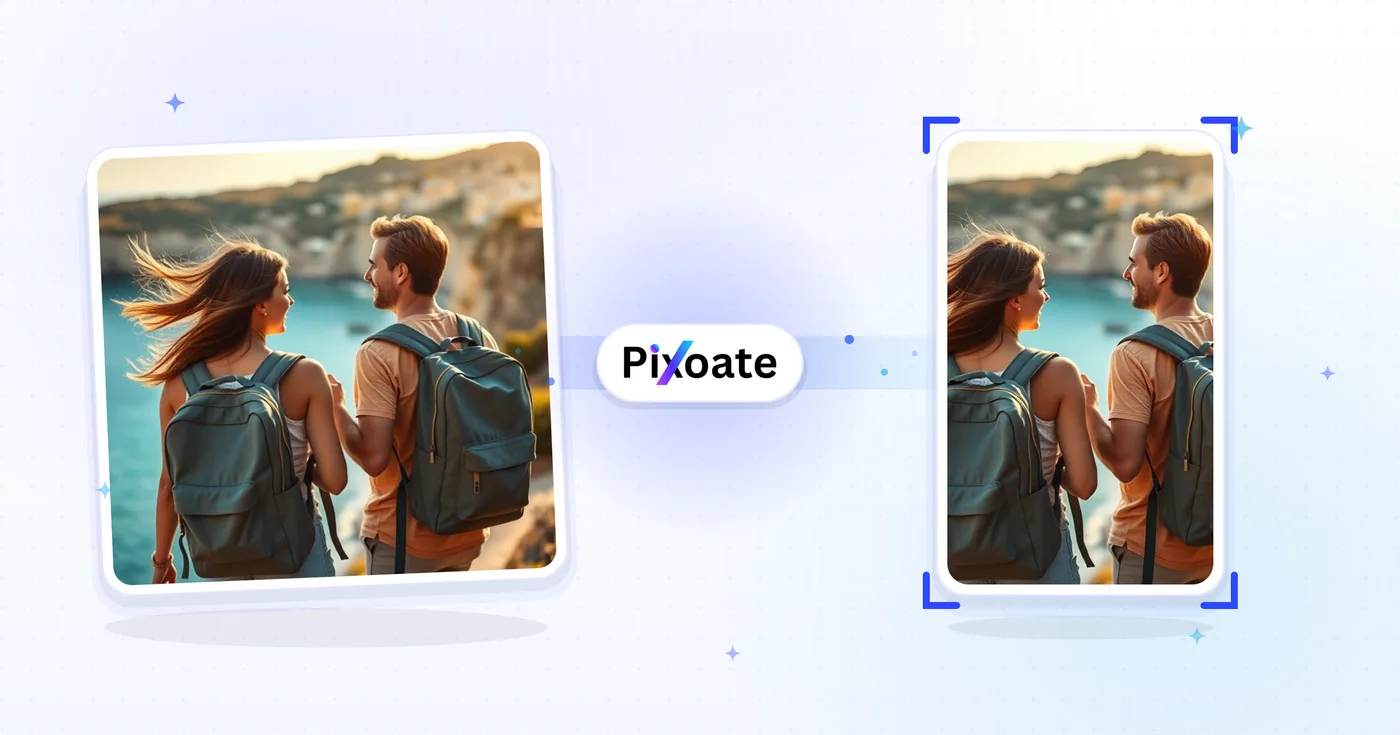
Landscape & Portrait Converter — Change Orientation Without Cropping
Convert landscape to portrait or portrait to landscape using fast background fills or AI-generated scenery, while keeping the complete prepared photo.
Drop a photo — pick landscape or portrait and download the refitted image
After uploading, choose AI extension, background fill, or cropping. AI extension uses your AI allowance.
Orientation Options
Portrait to Landscape
Convert vertical images to horizontal format. Perfect for social media and printing.
Landscape to Portrait
Convert horizontal images to vertical format. Ideal for mobile displays and stories.
How to Use
Upload your photo, choose a method and target frame, then review the result before downloading.
Orientation conversion capabilities
Choose how your photo fits
AI extends the surroundings, background fill keeps the whole photo, and cropping removes edges to fit. Review generated details before sharing.
Direct controls
Use the controls in your browser to set the frame, adjust your background or crop, and review the processed photo.
Security and retention
Server-processed files are handled under our Security policy.
How do I change a landscape photo to portrait?
Upload the photo and choose a portrait frame such as 4:5, 3:4 or 9:16. Then pick how it should fit: Crop to fit keeps a vertical slice you choose, Add background keeps the whole photo on a blurred, color, gradient or photo background, and Extend scene with AI generates new surroundings above and below. Preview, then download.
| Ways to fit the new frame | Crop to fit, Add background (blur, color, gradient, design or your own photo), or Extend scene with AI |
|---|---|
| Portrait frames | 4:5, 3:4, 2:3, 9:16, A-series paper, or a custom width and height |
| Landscape frames | 4:3, 16:9, 16:10, 1.91:1, 21:9 and 5:2 |
| AI scene extension ratios | 1:1, 3:4, 4:3, 4:5, 5:4, 9:16 and 16:9 (PNG download, uses your AI allowance) |
| Download formats | JPEG, PNG or WebP for crop and background fill |
| Many photos at once | Paid plans: up to 60 files per batch on Premium and 200 on Pro, downloaded as one ZIP |
Convert landscape to portrait or portrait to landscape: fill, extend or crop
Landscape is a picture that is wider than it is tall, and portrait is taller than it is wide. This Landscape & Portrait Converter changes a landscape photo to portrait, or a portrait picture to landscape, and you choose how the photo fits the new frame: add a background around the whole picture, let AI extend the scene, or crop to the new shape. Pick a frame size, choose a method, and review the result before you download.
How to convert landscape to portrait, step by step
Upload the photo to this landscape to portrait converter and it starts on the opposite frame: a wide photo gets Portrait (3:4), 900 × 1200 pixels. Choose Add background to keep the whole picture on a blur, color, gradient, design or photo backdrop, Extend scene with AI to generate new surroundings above and below, or Crop to fit to cut the photo down to the new shape. To turn a sideways photo upright instead, use the rotate tool.
- Upload the landscape photo.
- Choose Add background, Extend scene with AI or Crop to fit.
- Pick a portrait size such as 4:5, 3:4 or 9:16.
- Adjust the background or the crop box in the preview.
- Select the main button, then download the result.
How to change a portrait photo to landscape
Upload the tall photo to this portrait to landscape image converter and it starts on Landscape (4:3), 1200 × 900 pixels; you can switch to any wider frame. Add background fills the sides with a blur, color, gradient or design, so faces and the full height of the picture stay intact. Extend scene with AI generates new scenery at the sides for the supported shapes, and Crop to fit keeps one horizontal slice that you position yourself. A square photo has no opposite shape, so pick the landscape frame you want. For a video clip, convert it with the video converter.
Which method suits your photo: add background, extend with AI or crop
The image landscape converter offers three methods, so pick one by what you can afford to lose. Add background loses nothing: the whole photo stays and the new space is filled. Extend scene with AI also keeps the whole photo and generates new scenery, which suits a wide frame around a tall subject, but the generated areas need a close look. Crop to fit removes the edges you do not choose, keeps the pixels of your selection and needs no background. If a person or a sign sits near the edge, avoid cropping and choose one of the first two.
Landscape photo size and portrait size in pixels
The Size tab works in pixels, and a landscape photo size is a width and height with the wider side first. Use Preset lists 12 frame sizes, and 6 of them are landscape: Landscape (4:3) at 1200 × 900, Horizontal Landscape (1.91:1) at 1910 × 1000, Wide (16:9) at 1920 × 1080, Productivity Widescreen (16:10) at 1920 × 1200, Ultrawide (21:9) at 2100 × 900 and Panoramic (5:2) at 2500 × 1000. For any other landscape image size, choose Use Custom and type a width and height from 100 to 8000 pixels.
The portrait sizes are Portrait (3:4) at 900 × 1200, Vertical Portrait (4:5) at 1080 × 1350, Classic Movie Poster (2:3) at 1200 × 1800, ISO A-Series (1:1.414) at 1000 × 1414 and Tall (9:16) at 1080 × 1920. Square (1:1) is 1080 × 1080. Whichever photo landscape size or portrait size you pick, free downloads of background-fill and AI results come at web size, so the saved file can have fewer pixels than the frame size above.
Convert image to 5:2 landscape with the Panoramic preset
Some upload forms ask for a 5:2 landscape image, which is 2.5 times as wide as it is tall; the ratio is sometimes written 5.2, as in a landscape 5.2 size converter. To make an image 5:2 landscape, choose the Panoramic (5:2 / 2.5:1) preset, which gives a 2500 × 1000 pixel canvas. Choose it with Add background to keep the whole photo. Crop to fit cuts the photo to the same shape but keeps the pixels of your selection, so that file is not exactly 2500 × 1000. For another image landscape size at 5:2, such as 1000 × 400, choose Use Custom. The AI method has no 5:2 option.
Change a photo from horizontal to vertical, or back
Horizontal means landscape and vertical means portrait, so going from horizontal to vertical means choosing a portrait frame, and going from vertical to horizontal means choosing a landscape frame. Only the target frame changes: pick it under Size, then choose one of the 3 methods.
Portrait landscape mode: which orientation to choose
Landscape format suits screens that are wider than tall, such as slides, desktop wallpapers, YouTube and website banners. Portrait suits phone screens and Stories, Reels and TikTok, as well as posters and documents. In portrait vs landscape, the screen you are aiming at decides, so convert the original photo once for each frame rather than re-editing a converted copy. This tool changes the frame of a photo, not the screen rotation of a phone or the page orientation of a document. To keep the picture's pixels and only trim it, use the image cropper.
Change a photo to 1:1, 4:5, 16:9 or 9:16
To use it as an aspect ratio converter, pick Square (1:1), Vertical Portrait (4:5), Wide (16:9) or Tall (9:16) under Use Preset, or type a size under Use Custom, and the picture is refitted to that shape. To change the aspect ratio without adding anything new, choose Crop to fit and position the box over the part you want to keep.
Before you convert
- Choose the frame size first, because AI extension works only for 1:1, 3:4, 4:3, 4:5, 5:4, 9:16 and 16:9.
- Add background and cropping do not generate new scenery, while Extend scene with AI does, so review generated details.
- Free downloads of background-fill and AI results come at web size, and Crop to fit keeps the pixels of your selection.
- Unticking Maintain aspect ratio and fill with a background stretches the photo to the exact size instead of fitting it.
- Keep the original file, because every method makes a separate copy.
Matching the new orientation to a platform
Once the photo is vertical, size it as a 1080×1920 TikTok cover or fit it to a 1000×1500 Pinterest pin; when only the pixel count needs to change, resize to a custom width and height. Video clips go through the portrait and landscape video converter instead.
What you can do with Landscape & Portrait Converter
Review the main capabilities before you begin.
- Switch a photo between landscape and portrait
- Generate matching scenery beyond the original frame
- Fit any image to a target width and height
- Fill empty space with a blurred backdrop
- Add a solid or gradient background behind the photo
- Drop in a background from the design library
- Remove the photo background automatically
- Resize for social media and print presets
Settings reference
24 settings
Available controls for Landscape & Portrait Converter.
Method
- What result do you want?Presets
- Choose a method after uploading. AI generates new surroundings, with free downloads at web size; background fill keeps the whole photo; cropping removes edges to fit the frame. You can change methods before downloading.Options: Extend scene with AIAdd backgroundCrop to fit
- ModeDropdown
- Switches between converting one photo at a time and converting many photos with the same size, background and quality settings, downloaded together as one ZIP; Batch is a Premium feature.Options: Single imageBatch
Size
- SizePresets
- Chooses a preset or custom target frame. Background fill uses these pixel sizes. Single-image AI uses supported ratios and shows the actual PNG dimensions with the result. Cropping keeps the selected source pixels; batch AI uses the chosen output size.Options: Use PresetUse Custom
- Use PresetPresets
- Background sizes: Portrait 900×1200; Vertical Portrait 1080×1350; Classic Movie Poster 1200×1800; ISO A-Series 1000×1414; Landscape 1200×900; Square 1080×1080; Horizontal Landscape 1910×1000; Wide 1920×1080; Productivity Widescreen 1920×1200; Ultrawide 2100×900; Panoramic 2500×1000; Tall 1080×1920.Options: Portrait (3:4)Vertical Portrait (4:5)Classic Movie Poster (2:3)ISO A-Series (1:1.414)Landscape (4:3)Square (1:1)Horizontal Landscape (1.91:1)Wide (16:9)Productivity Widescreen (16:10)Ultrawide (21:9)Panoramic (5:2 / 2.5:1)Tall (9:16)
- WidthNumber inputRange: 100–8000px · Default: 1200px
- Sets the exact output width in pixels when Use Custom is selected, from 100 up to 8000.
- HeightNumber inputRange: 100–8000px · Default: 900px
- Sets the exact output height in pixels when Use Custom is selected, from 100 up to 8000.
Background
- BackgroundPresets
- Chooses the fill around your photo when Add background is selected. For generated surroundings, choose Extend scene with AI under Method. These options work for one image or a whole batch.Options: BlurColorGradientDesignsPhoto
- Blur IntensitySliderRange: 5–50 · Default: 20
- Controls how strongly the blurred backdrop copy of your photo is softened; higher values look smoother and more abstract. Appears when Background is set to Blur.
- Background colorColor picker
- Picks the solid color that fills the area around your photo when Background is set to Color; the default is white.
- ColorColor picker
- Sets each numbered gradient color stop; the gradient blends 2 to 6 evenly spaced stops, and extra stops can be removed with their X button.
- Add colorOne-click
- Adds another color stop to the gradient background, up to a maximum of six stops.
- DirectionDropdown
- Sets which way the gradient background flows: top to bottom, left to right, or corner to corner. Vertical is the default.Options: VerticalHorizontalDiagonal
- DesignsGallery
- Shows the background design library so you can fill the space around your photo with a ready-made design; some designs require a Premium plan.
- Search backgroundsText input
- Filters the design library by keyword so you can quickly find a background style that suits your photo.
- Background categoriesGallery
- Narrows the design library to one category chip at a time, with an All chip showing every design; the category list comes from the background catalog.
- Free onlyOn / Off
- Limits the design library to free backgrounds, hiding designs that require a Premium plan.
- Upload a background imageFile input
- Uploads your own photo to use as the background fill behind the converted image; a Change background image button lets you swap it out later.
- Edge softeningSliderRange: 0–100 · Default: 0
- Feathers the photo edges so they blend into the background fill instead of ending in a hard rectangle; leave at 0 for a crisp edge.
- Remove photo background (AI)On / Off
- Cuts out the subject and places it on your chosen background fill for a clean, natural composite.
AI extension
- Extend scene with AIOne-click
- Continue the scene into the selected size with AI while keeping the prepared source photo. Free downloads are web size. Premium or credits unlock full resolution. Supported ratios require maintaining aspect ratio. In Batch, every queued image is extended and delivered at the size and format you chose.
Crop
- Crop sizeSlider
- Resize the crop area while keeping the chosen aspect ratio. Drag the box to reposition it, or use arrow keys to move it and plus or minus to resize.
Output
- QualitySliderRange: 10–100% · Default: 92%
- Balances sharpness against file size for the converted image; higher values keep more detail but produce larger files.
- Maintain aspect ratio and fill with a backgroundOn / Off
- When on (the default), fits your photo inside the target size and fills leftover space with the chosen background; when off, the photo is stretched to the exact dimensions.
- Output FormatDropdown
- Chooses the file type of the converted image: JPEG for small photo files, PNG for lossless quality, or WebP for modern compact files. JPEG is the default.Options: JPEGPNGWebP
Related tools for Landscape & Portrait Converter
Tools for common next steps after Landscape & Portrait Converter.
Social Publishing
Portrait & Landscape Video Converter
Convert videos between portrait, landscape, square, and custom sizes. Keep the whole frame, crop, add backgrounds, and download MP4 free without a watermark.
Try it nowAI Image Studio
AI Image Expander
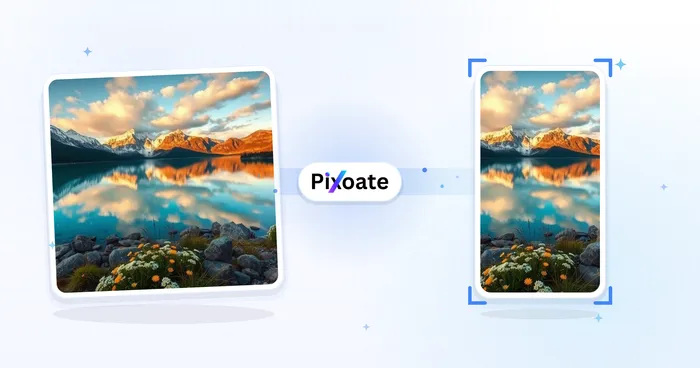
Choose an aspect ratio and generate new scenery around the original image.
Try it now
AI Image Studio
AI Image Extender
Expand an image beyond its borders with AI. Convert photos to square, portrait, story, or widescreen layouts without cropping the original frame.
Try it nowFrequently Asked Questions
How Landscape & Portrait Converter helps you get it done
Real problems it solves every day — for businesses, creators, and everyday tasks. Find the use case that fits you and start.
Instagram Stories 9:16 Vertical Format
Convert landscape photos to Instagram Stories vertical 1080x1920 format for better engagement and full-screen display
YouTube Shorts & TikTok Vertical Videos
Transform horizontal videos and images to vertical 9:16 format for YouTube Shorts, TikTok, and Instagram Reels
iPhone & Android Wallpaper Sizes
Convert photos to iPhone wallpaper (1170x2532) and Android wallpaper sizes for perfect mobile screen fit
Facebook Cover Photo 820x312 Size
Resize landscape photos to Facebook cover photo dimensions 820x312 for business pages and personal profiles
PowerPoint & Keynote Presentation
Convert portrait images to landscape 16:9 format for PowerPoint slides, Keynote presentations, and business reports
Website Header & Banner Images
Transform portrait photos to wide landscape format for website headers, banner images, and hero sections
Generate Missing Scenery Instead of Cropping
Choose AI Generate to turn a landscape photo into portrait or a portrait photo into landscape while preserving the full source frame and creating coherent scenery around it.
Studio-Style Product Shots Without a Studio
Run AI background removal, then drop the cutout onto a solid color or gradient backdrop at any orientation — turning a phone photo shot at home into an e-commerce-ready listing image.
Branded Gradient Covers for Reels & Thumbnails
Build a multi-stop gradient in your brand colors as the background, then convert to a 9:16 or 16:9 frame for a cohesive-looking Reels cover or YouTube thumbnail series.
Batch-Reformat an Entire Photo Shoot
Queue a whole shoot in Batch mode and convert every photo to the same size, background and quality settings in one pass, downloading the finished set as a single ZIP.
Clean Headshot Backdrops for Team Pages
Cut out the subject with AI background removal and composite them onto a neutral color background at a square crop, giving a scattered team-photo folder a consistent look for an "About us" grid.
Turn Vertical Phone Photos into Desktop Wallpaper
Pick the Wide 16:9 preset with a Blur background to pad a tall phone photo into a full desktop-wallpaper frame — the subject stays uncropped and unstretched while the blurred edges fill the extra space naturally.
Guides for this tool
- The Crop That Cut Out the Selling Point: Why Product Images Need Room to AdaptA social ad crop can hide the feature that makes a product worth buying. Explore portrait layouts and Pixoate editing that give important details room.
- Make a Landscape Photo Portrait Without Cropping PeopleFit a horizontal group photo into a vertical canvas with background fills. Keep faces visible, choose suitable dimensions and review generated scenery carefully.
Watch each transformation land
Every photo crosses the slash untouched and comes out the other side finished.























