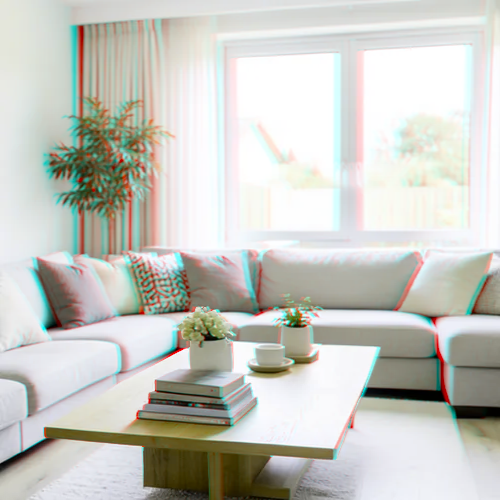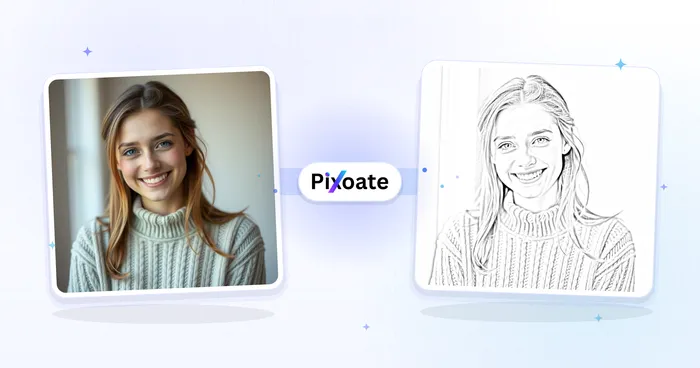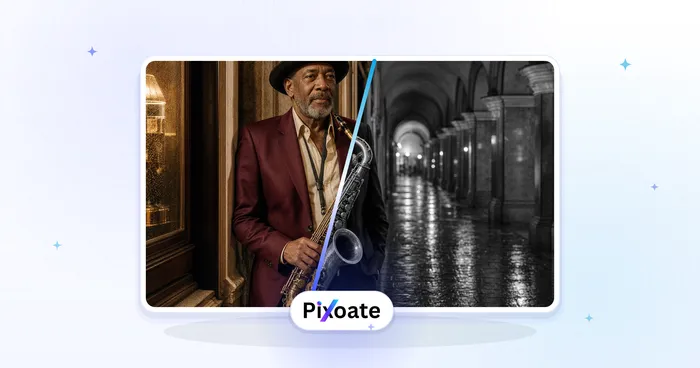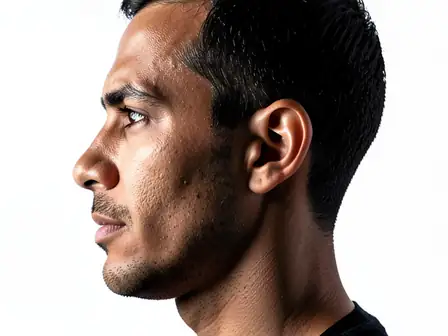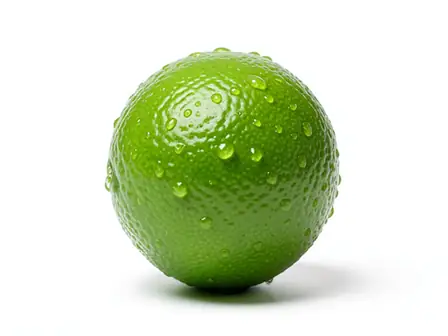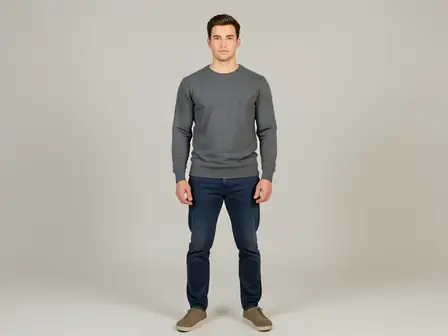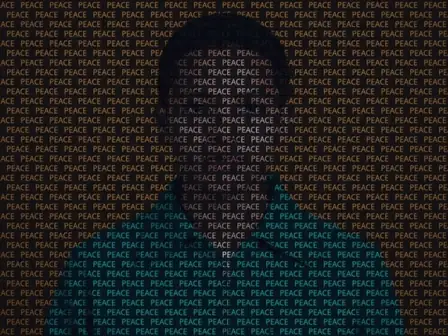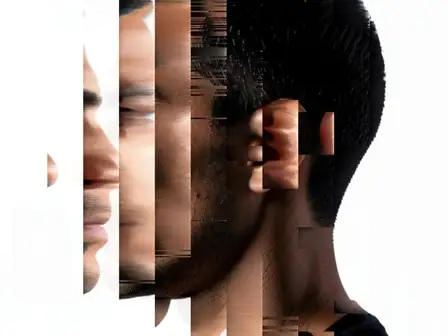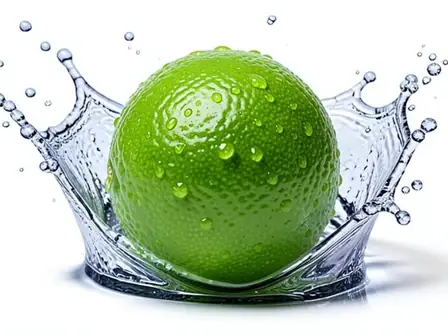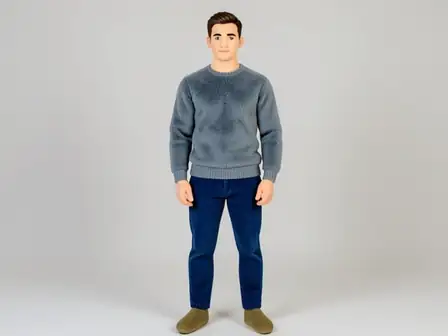
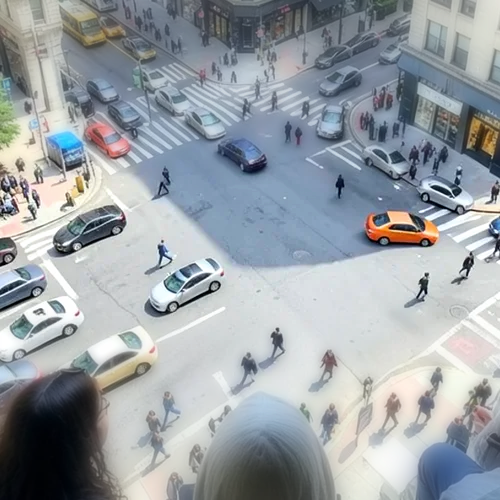
The same source image before and after applying Wigglegram · Group · Chrome Material.
Wigglegram · Group · Chrome Material applied to the same source image
Original source image before Wigglegram · Group · Chrome Material

Wigglegram + Group + Chrome 3D Photo Effect

Start with Wigglegram, shape it with Group, and close with Chrome in one adjustable dimensional-imaging recipe.

Upload a photo for the Wigglegram · Group · Chrome Material effect

What you can do with the Wigglegram · Group · Chrome Material effect

Review the available effect capabilities before you begin.

  • Apply the Wigglegram · Group · Chrome Material effect to any photo
  • Fine-tune the effect strength to taste
  • Preview your photo live as you edit
  • Download your edited photo in high quality
  • Apply Wigglegram · Group · Chrome Material to many photos at once

How it works

The renderer first applies Wigglegram, then introduces Group, and finally uses Chrome Material. Each stage has a distinct role in the dimensional-imaging recipe, while the intensity control blends the completed recipe against the source.

Processing

Wigglegram · Group · Chrome Material uses an AI action. Any separate allowance is shown before this effect starts processing.

Best for

The exact Wigglegram, Group, and Chrome Material recipe works best for pet photographs with a clean silhouette, portraits with clear subject separation, and product and food hero images.

Less suited to: Wigglegram, Group, and Chrome Material needs extra care with flat low-contrast scenes, overlapping transparent objects, cropped subjects, or images with too little information to infer stable depth.

Ways to use Wigglegram · Group · Chrome Material

  • Use the Wigglegram foundation with Group and Chrome for pet photographs with a clean silhouette.
  • Apply the Wigglegram, Group, and Chrome Material combination to portraits with clear subject separation.
  • Choose Chrome when preparing product and food hero images through the Wigglegram and Group recipe.

Wigglegram · Group · Chrome Material questions

How does the Wigglegram · Group · Chrome Material recipe work?
Wigglegram provides the starting structure, Group supplies the middle treatment, and Chrome Material determines the final rendering character. Intensity blends all three stages together against the source photo.
When should I use Wigglegram with Group and Chrome Material?
Use the Wigglegram, Group, and Chrome Material combination for pet photographs with a clean silhouette, portraits with clear subject separation, or product and food hero images. Reduce its intensity when the source contains flat low-contrast scenes, overlapping transparent objects, cropped subjects, or images with too little information to infer stable depth.

More Depth & Dimension effects

Smart Refocus

Depth & DimensionAdvanced AI

Keep one automatically detected main subject sharp with clean depth-aware background blur

Click to visit

Tilt-Shift Diorama

Depth & DimensionAdvanced AI

Turn elevated streets and landscapes into miniature scenes with a clean depth-assisted focus band

Click to visit

Wigglegram 3D

Depth & DimensionAdvanced AI

Create a clean eight-frame depth loop with visibility-resolved parallax motion

Click to visit

Depth Anaglyph 3D

Depth & DimensionAdvanced AI

Create a comfort-capped red-cyan 3D view with depth-scaled bilinear reprojection

Click to visit

Crystal Refraction

Depth & DimensionAdvanced AI

Refract only the model-cleared background through bounded crystal facets while keeping the detected subject fixed

Click to visit

Parallax Cutout Poster

Depth & DimensionAdvanced AI

Build five broad source-aligned paper planes without duplicating people or objects

Click to visit

Topographic Depth Lines

Depth & DimensionAdvanced AI

Trace 18 clean source-aligned depth bands without moving people or objects

Click to visit

Paper Depth Diorama

Depth & DimensionAdvanced AI

Style the frame as up to seven source-aligned paper layers without duplicating people or objects

Click to visit

Atmospheric Depth Fog

Depth & DimensionAdvanced AI

Add source-aligned linear-light haze from model-estimated relative depth

Click to visit

Near–Far Split Tone

Depth & DimensionAdvanced AI

Apply source-aligned cool-far and warm-near color grading from model-estimated depth

Click to visit

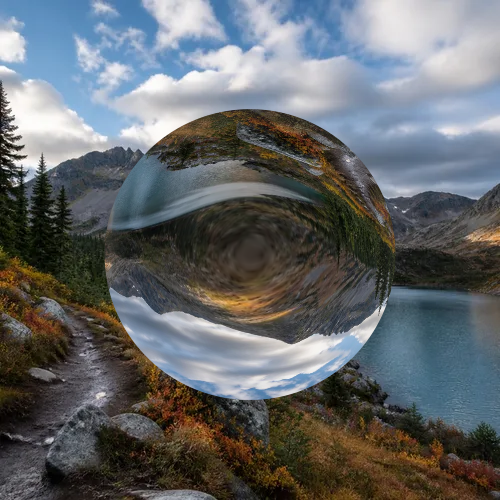
Lensball World

Depth & Dimension

Compress and invert the scene inside one bounded glass sphere while keeping every outside pixel fixed

Click to visit

Lenticular Depth Print

Depth & DimensionAdvanced AI

Interlace depth-shifted strips only across model-cleared background while keeping the detected subject fixed

Click to visit

See the featured effects in motion

The strongest effect picks lead this belt before the rest of the catalog.