Social feeds
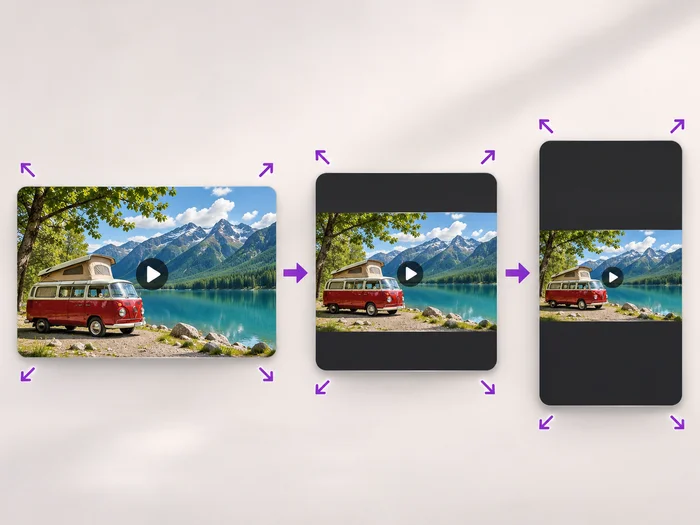
A square video takes up more of a phone feed than a landscape one and looks tidy next to square photos.
Illustrative preview
Starts with a Square 1:1 crop
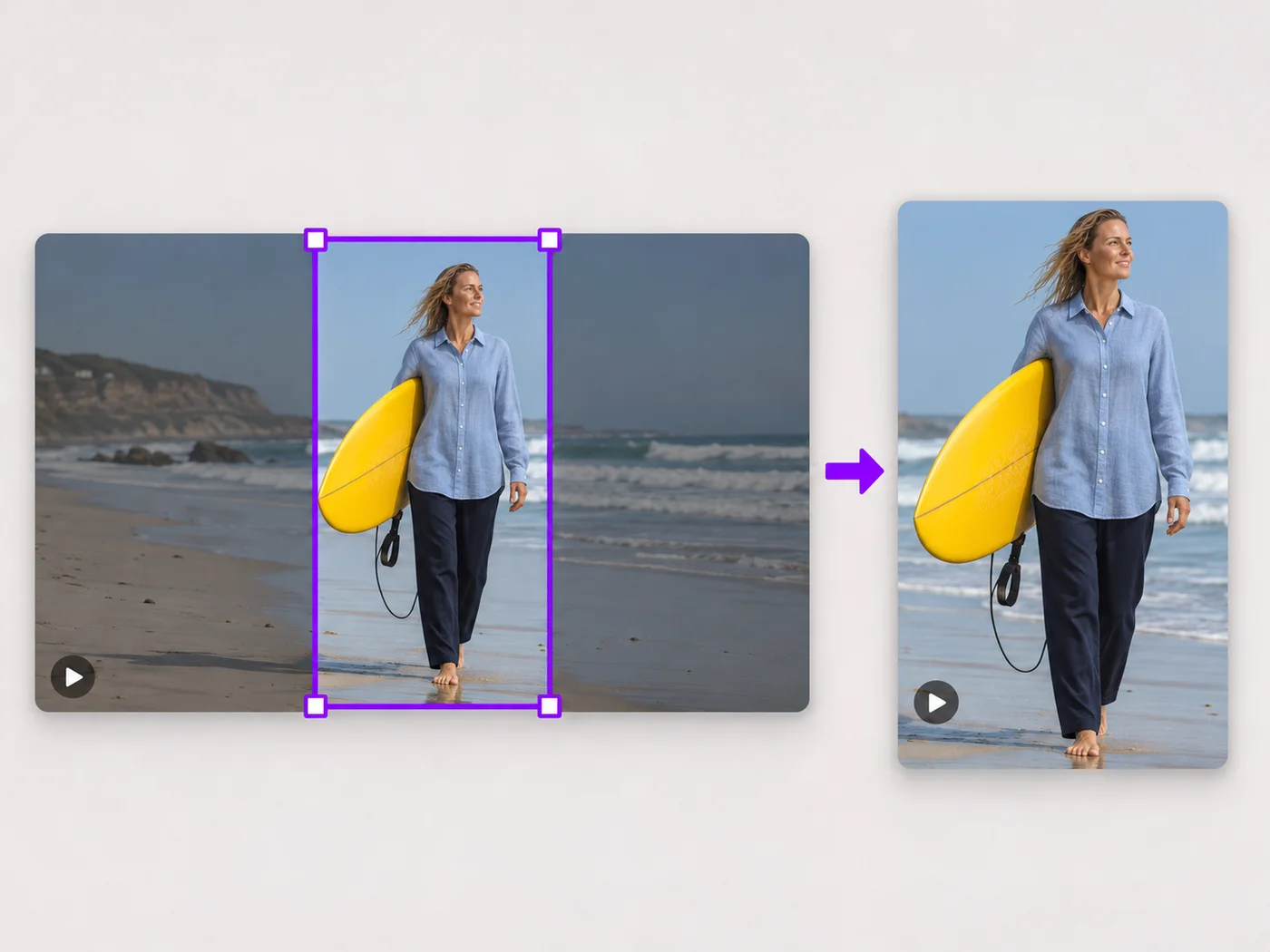
Turn a landscape or vertical video into a square. The largest square that fits your video is chosen; drag it over your subject and export an MP4.
MP4, MOV, WebM · Checking your upload limit…
Files are uploaded for processing. Uploads and finished videos are automatically deleted within 24 hours.
As soon as the video loads, the largest square that fits it appears in the middle of the picture, locked to Square 1:1 under Shape.
Drag the box toward your subject, or use the arrow keys for small steps. It keeps its square shape while you move or resize it.
The square stays in one place for the whole video, so check that a moving subject does not leave the frame.
Press Crop video. The download is a square MP4 ready for a feed, a profile or a product grid.
A square video takes up more of a phone feed than a landscape one and looks tidy next to square photos.
Give every product video the same square shape so a shop page or catalog grid lines up neatly.
Cut a talking-head clip down to a centered square for profile videos and speaker introductions.
Cropping removes the sides. To keep the whole picture, use the portrait and landscape video converter, which places the full video on a square canvas with a background.
Yes. Drag a corner of the box inward to make a smaller square; it stays square. A smaller box shows a tighter view of the subject.
The square keeps the detail of the part you crop. A tight crop of a small video has fewer pixels to show, so start from the original recording.
Yes. Open the Trim tab before exporting and drag the handles to the part you want; the crop and the trim are applied together.
Every setting is also on the main page: Crop Video Online.
Tools for common next steps after Video Cropper.
Video Tools
Scale a video down to a smaller size, or set an exact width and height and choose whether to add bars, fill the frame or stretch.
Try it nowVideo Tools
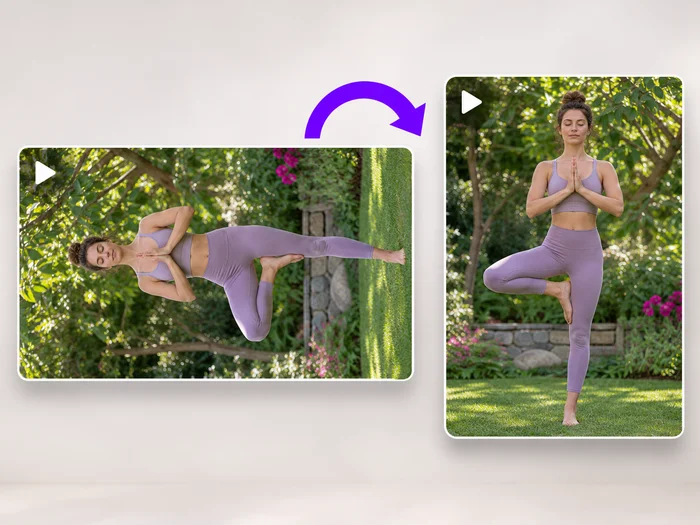
Turn a video 90 degrees left or right, or 180 degrees, so it plays the right way up on every phone and computer.
Try it nowSocial Publishing
Convert videos between portrait, landscape, square, and custom sizes. Keep the whole frame, crop, add backgrounds, and download MP4 free without a watermark.
Try it nowEvery photo crosses the slash untouched and comes out the other side finished.