Photo Effects and Filters — Free Online Photo Filter Editor
JPG, PNG, WEBP and more
The shot is fine and completely flat. Try a cinematic, vintage, glitch or beauty photo effect against the original and keep the one that lands.
- Rescue a photo that is technically fine and visually dull
- 100+ photo filters and creative effects in one place
- Compare against your original before anything is applied
JPG, PNG, WEBP and more
Drop a photo — choose settings, then apply your favorite look.
Photo Effects
Photo Effects
Apply beautiful photo effects and filters to enhance your images.
How to Use
Upload your photo, choose an effect and settings, apply it when ready, then download the result.
Photo effect capabilities
Artistic Effects
Apply the selected effect and review the visual result in the preview.
Direct controls
Stage the original, adjust settings, then apply one effect when ready.
Private processing
Server-processed files are encrypted in transit and removed under our Security policy.
All Photo Effects & Filters
Browse all 6,540 fully implemented effects.
6,540 unique effect pages
See visual preview galleryPhoto Effects
Apply, compare, and download any effect.

AI Enhance
AI Enhance analyzes degraded or undersized image detail and reconstructs a cleaner result, targeting the named defect while protecting recognizable content from unnecessary change

Natural Beauty
Natural Beauty finds one complete, near-front face and gently evens out medium-sized tone and color variation only on the forehead and both cheeks while keeping fine skin detail, eyes, brows, nose, lips, hair, beard, face shape, lighting, background, and transparency unchanged
Disposable Direct Flash
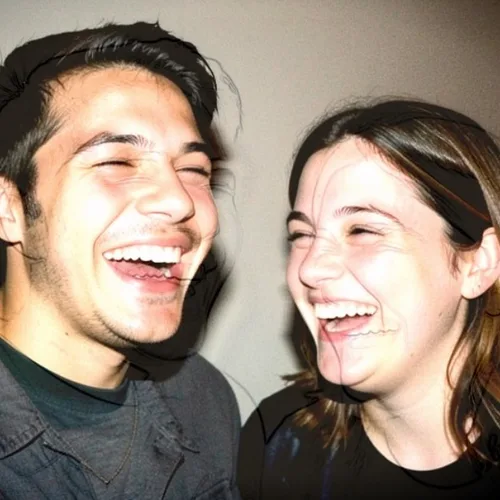
Recreate the punchy frontal light and hard shadow of a disposable camera

True Golden-Hour Relight
Simulate warm golden-hour light from the estimated depth of your photo without repainting it

Smart Refocus
Keep one automatically detected main subject sharp with clean depth-aware background blur
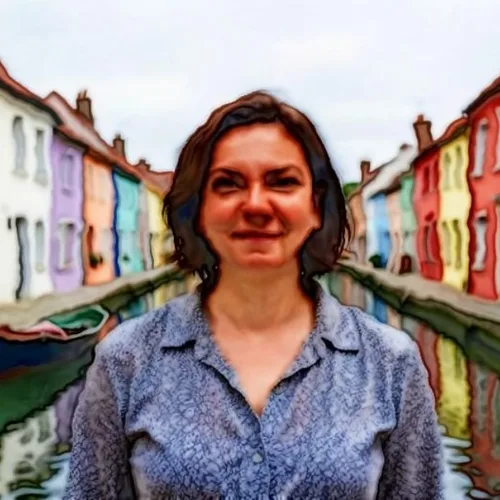
Watercolor
Turn photos into soft, hand-painted watercolor art

Photo Booth Layout
Photo Booth Layout arranges source imagery into a deliberate multi-panel composition, using spacing, crop, and alignment rules that remain readable at common export sizes
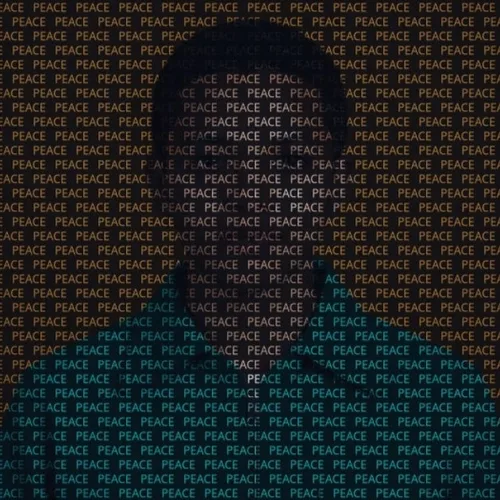
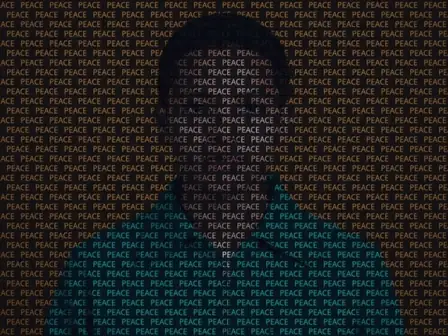
Text Painting
Rebuild a photo from a repeated word or name whose glyph color and opacity follow the original image
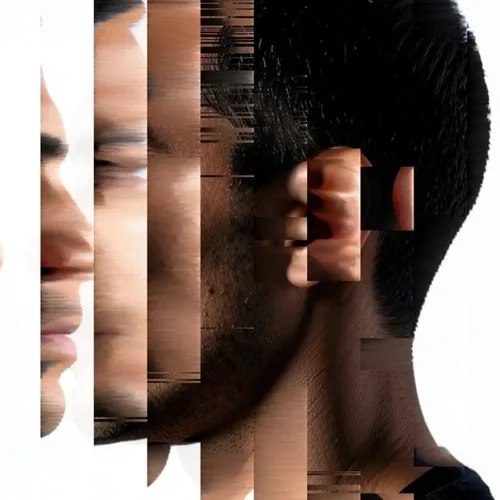
Pixel Sorting
Sort controlled pixel runs into sleek directional color streams
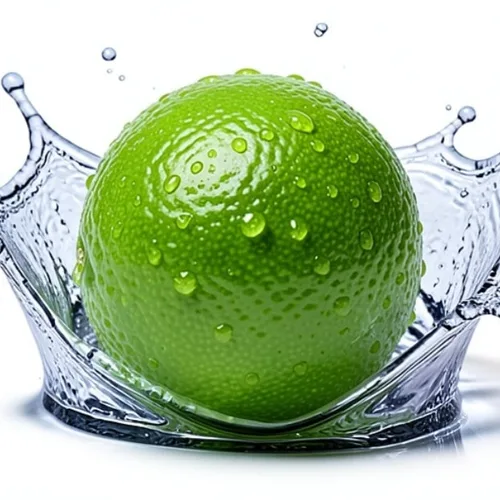
Product Splash Freeze
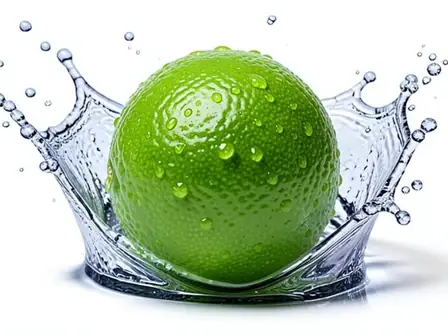
Surround a product with a studio-quality frozen liquid splash
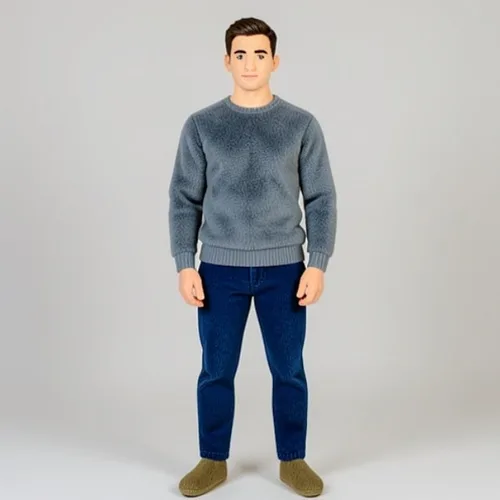
Plush-Toy Transform
Turn a person, pet, or object into a recognizable plush collectible

Black & White
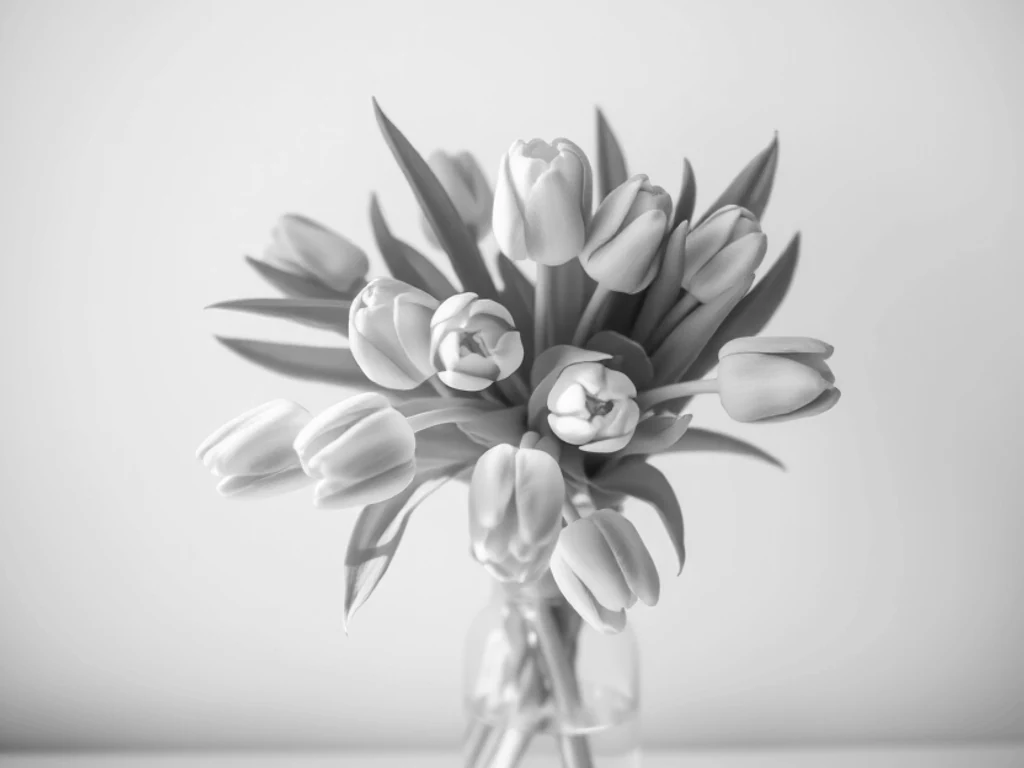
Black & White converts the image into a deliberately shaped grayscale response, balancing channel luminance so texture, edges, and subject separation remain readable

AI Object Removal
AI Object Removal identifies the requested semantic region and produces a precise mask or edit, using scene context to protect nearby edges, texture, and unrelated subjects

AI Restore
AI Restore analyzes degraded or undersized image detail and reconstructs a cleaner result, targeting the named defect while protecting recognizable content from unnecessary change

Blemish Remove
Blemish Remove requires exactly one complete, near-front face and repairs only small red spots that clearly differ from the skin around them while keeping dark-only moles, freckles, scars, broad redness, pores, stubble, wrinkles, every facial feature, face shape, body, clothing, background, framing, and transparency

Soft Glam
Soft Glam finds one complete, near-front face and combines texture-preserving forehead-and-cheek skin polish with coordinated color on the two upper eyelids, two upper cheeks, and outer lips while keeping the eyes, brows, nose, inner mouth, hair, beard, face shape, scene lighting, background, and transparency

Natural Vibrance
Skin-Protected Vibrance adjusts the photo's color balance and chroma distribution, concentrating the correction where it is useful while avoiding unnecessary structural changes

Teal & Orange
Teal and Orange applies a scene-wide color grade with controlled shadow, midtone, and highlight behavior, preserving the source composition beneath the new tonal character
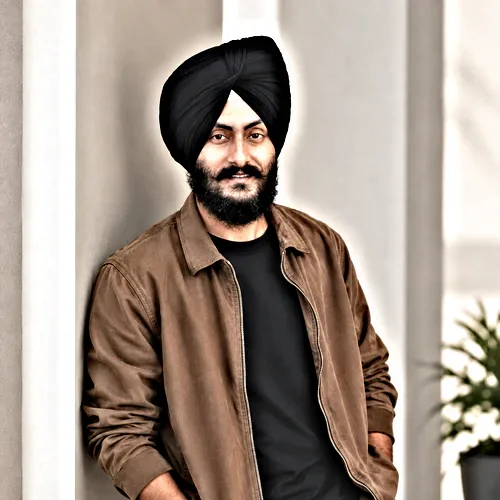
Backlight Rescue
Backlight Rescue targets difficult exposure or atmospheric contrast, recovering more readable tonal separation while protecting already well-exposed areas from overcorrection

Natural HDR
Natural HDR compresses and redistributes scene luminance to reveal usable shadow and highlight detail, while local contrast keeps the result from looking uniformly flat

CCD Digicam with Date Stamp
Date Stamp completes a CCD Digicam capture response biased by Tungsten Night, adding the named optical or lab character to the simulated exposure
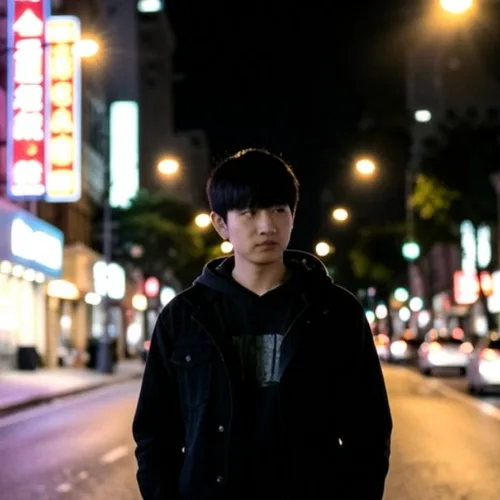
35mm Halation
Add authentic red-orange bloom around the brightest highlights
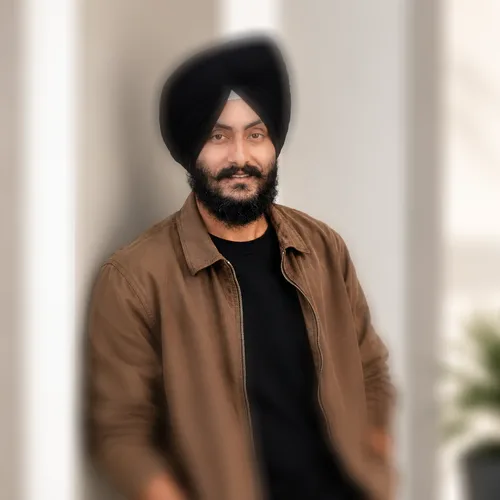
Portrait Blur
Portrait Blur confines softening to the intended semantic or depth region, keeping protected subjects and boundaries clearer than a uniform whole-frame blur
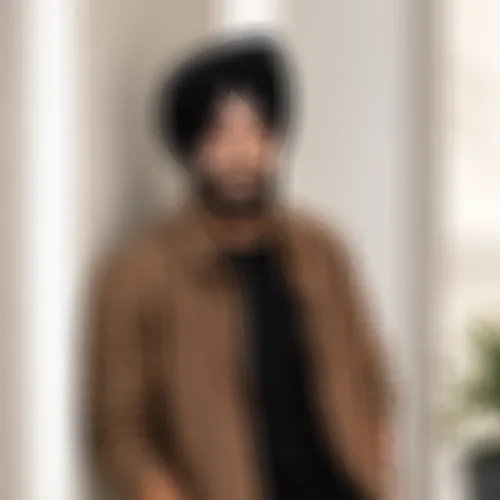
Bokeh Blur
Bokeh Blur applies its named blur kernel and direction to the image, with adjustable radius and source blending for either subtle softening or an obvious motion treatment
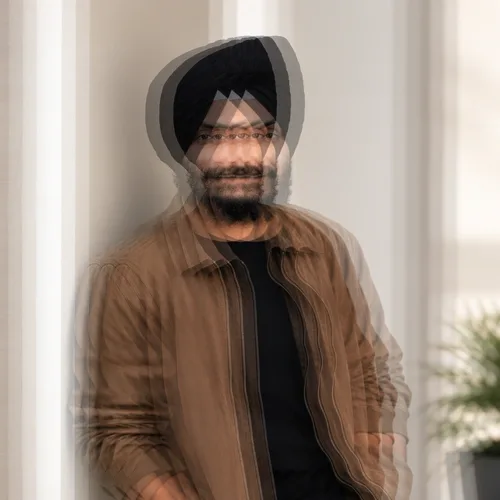
Motion Blur
Motion Blur applies its named blur kernel and direction to the image, with adjustable radius and source blending for either subtle softening or an obvious motion treatment
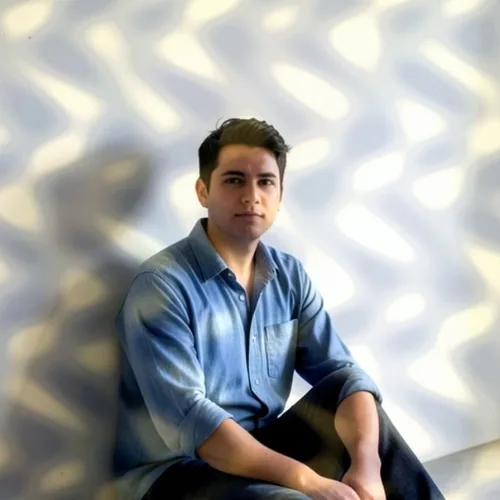
Dappled Sunlight
Cast broken leaf-filtered sunlight naturally across the photograph
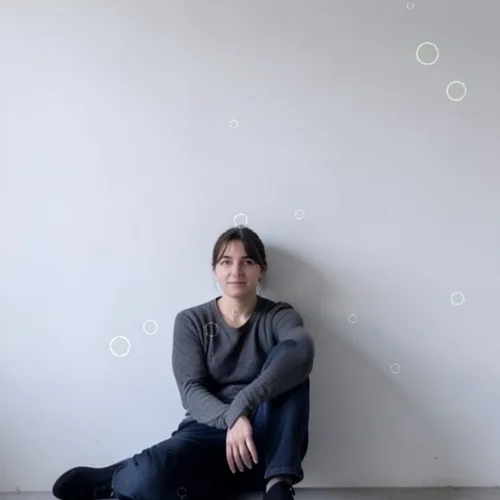
Rainy Window Refraction
Place refractive droplets and streaking rain between camera and subject

Light Leak Overlay
Light Leak Overlay introduces a shaped light or shadow layer with controlled direction and falloff, integrating the overlay with the photograph instead of masking it uniformly

Pencil Sketch
Convert photos into detailed graphite pencil drawings

3D Cartoon
3D Cartoon simplifies the source into a distinct illustration language, organizing outlines, color regions, and shading so the result reads as designed artwork
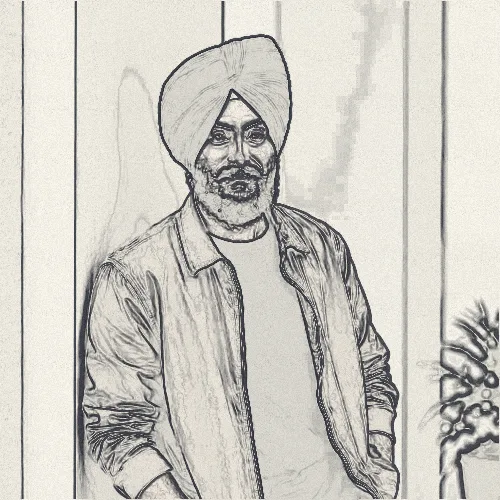
Comic Inking
Comic Inking traces meaningful boundaries and tonal changes as deliberate linework, reducing surface noise while keeping the subject's recognizable silhouette and features
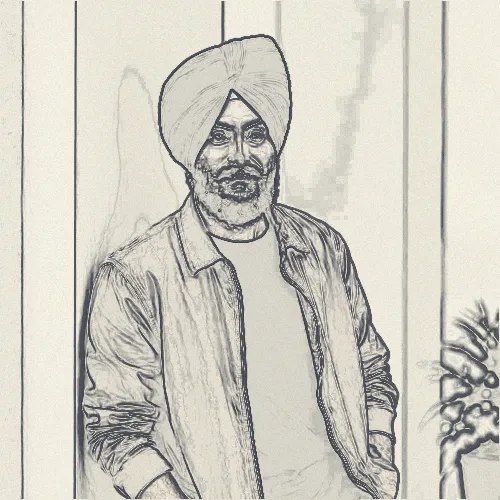
Coloring Book
Coloring Book rebuilds the photograph through an organized line pattern, using source edges and luminance to control each mark's direction, spacing, and prominence

Halftone Newsprint
Newsprint gives the final surface to Halftone marks rendered with Graphite Pigment, preserving the chosen line structure and ink character
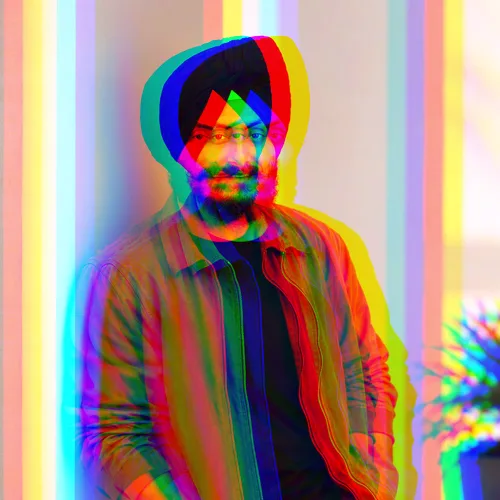
RGB Split
RGB Split warps image coordinates through the named geometric transform, blending displaced pixels back over the source for an adjustable distortion rather than a fixed preset
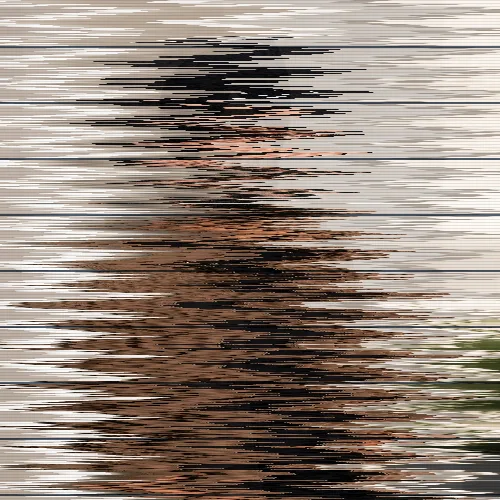
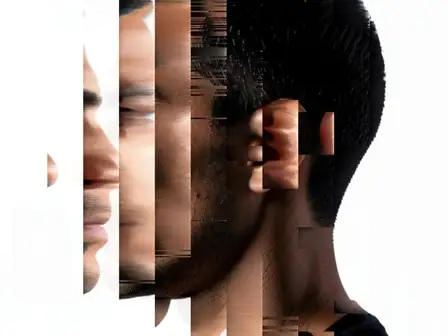
VHS Tracking
VHS Tracking reorganizes pixel rows, channels, or signal blocks into a deliberate digital failure pattern, while intensity controls how much source structure remains intact
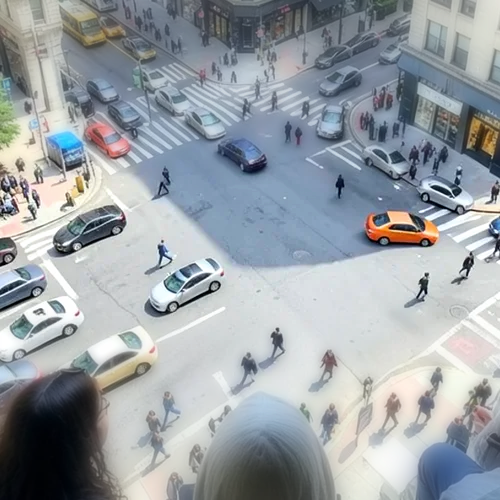
Tilt-Shift Diorama
Turn elevated streets and landscapes into miniature scenes with a clean depth-assisted focus band

Wigglegram 3D
Create a clean eight-frame depth loop where nearer and farther parts move by different amounts
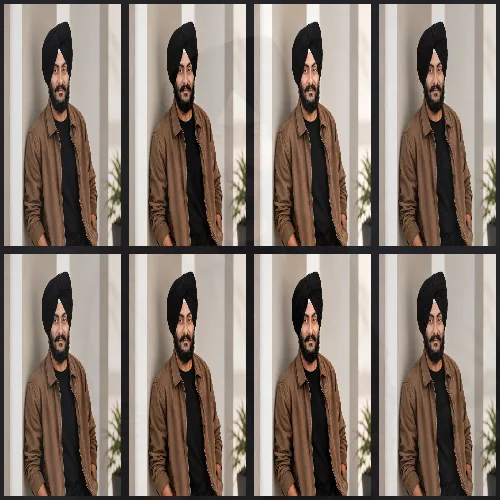
Collage Grid
Collage Grid arranges source imagery into a deliberate multi-panel composition, using spacing, crop, and alignment rules that remain readable at common export sizes

Instant Frame
Instant Frame places the image inside a structured edge, frame, or dimensional treatment, adding separation and presentation detail without permanently cropping the source

Name Painting Portrait
Name Painting Portrait rebuilds the photograph from a repeated personal name, sampling local source color and luminance so the letters collectively reproduce the subject

Mantra Text Mosaic
Mantra Text Mosaic forms the image from a repeated meaningful word or phrase, letting glyph density, color, and opacity follow the original photo's light and detail

Action-Figure Packaging
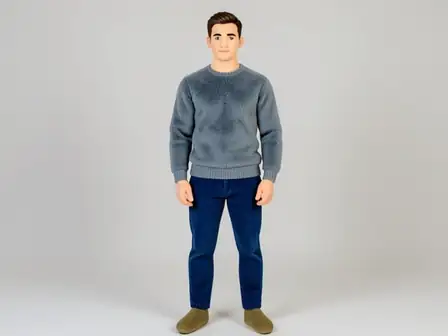
Create a collectible action figure displayed in editable retail packaging
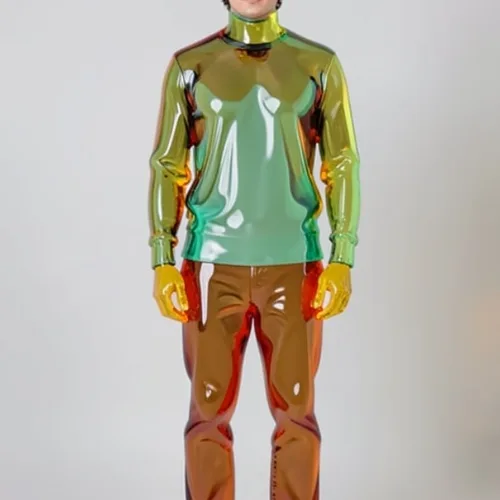
Gummy-Glass Subject
Transform the subject into translucent colored glass or gummy material
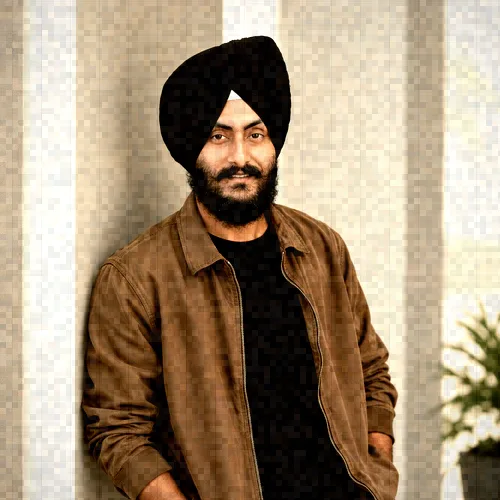
16mm Still
16mm Still models the tonal response, color handling, sharpness, and texture associated with that capture medium, using an original clean-room digital recipe

35mm Negative · Cool Overcast · Coarse Grain
Coarse Grain completes a 35mm Negative capture response biased by Cool Overcast, adding the named optical or lab character to the simulated exposure

35mm Negative · Cool Overcast · Optical Vignette
Optical Vignette completes a 35mm Negative capture response biased by Cool Overcast, adding the named optical or lab character to the simulated exposure

35mm Negative · Cross Process · Coarse Grain
Coarse Grain completes a 35mm Negative capture response biased by Cross Process, adding the named optical or lab character to the simulated exposure

35mm Negative · Silver Monochrome · Halation
Halation completes a 35mm Negative capture response biased by Silver Monochrome, adding the named optical or lab character to the simulated exposure

3D Face Refine
3D Face Refine combines face-aware masks with restrained tonal and texture adjustments, refining the requested portrait feature without replacing the subject's identity

8mm Cartridge Still
8mm Cartridge Still models the tonal response, color handling, sharpness, and texture associated with that capture medium, using an original clean-room digital recipe

Affirmation Field · Aura Spectrum · Embossed Ink
Embossed Ink completes a Affirmation Field reconstruction colored by Aura Spectrum, controlling repeated-type density, surface, and glow

AI Night
AI Night performs a scene-aware generative edit guided by the source image, changing the requested area while aiming for coherent perspective, lighting, and identity

AI Ink Wash
AI Ink Wash reinterprets the photograph through a guided AI transformation, preserving important identity and composition cues while creating the requested visual result
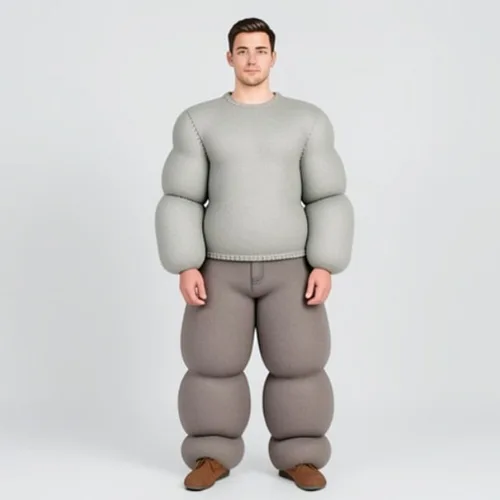
Inflatable Puffy Subject
Inflate the subject into soft rounded volumes with realistic seams
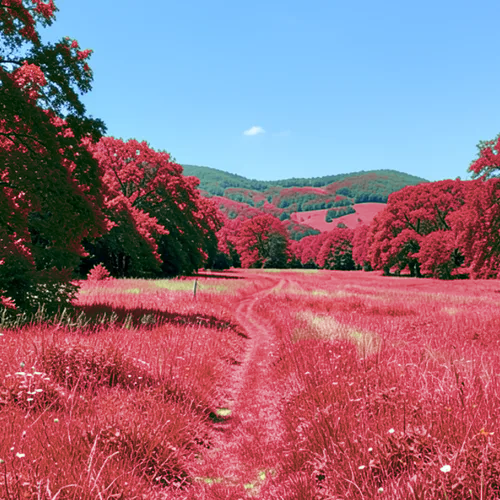
Infrared Aerochrome
Transform vegetation into vivid infrared reds while protecting other subjects
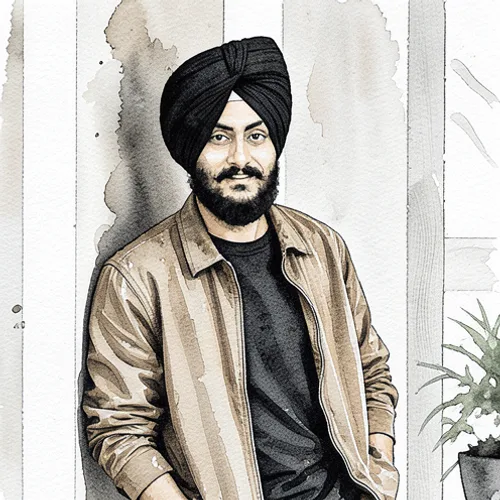
Ink Wash
Ink Wash translates photographic edges, colors, and values into the marks and surface behavior of the named art medium, while retaining the source composition

Ink Wash AI
Reduce the photograph to expressive ink, tonal washes, and negative space

Instant Print · Faded Summer · Coarse Grain
Coarse Grain completes a Instant Print capture response biased by Faded Summer, adding the named optical or lab character to the simulated exposure
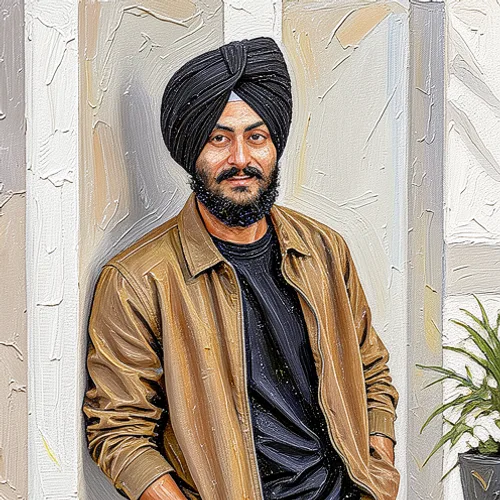
Impasto
Impasto translates photographic edges, colors, and values into the marks and surface behavior of the named art medium, while retaining the source composition

Indian Cartoon AI
Create original Indian visual storytelling with lively shapes, color, and character
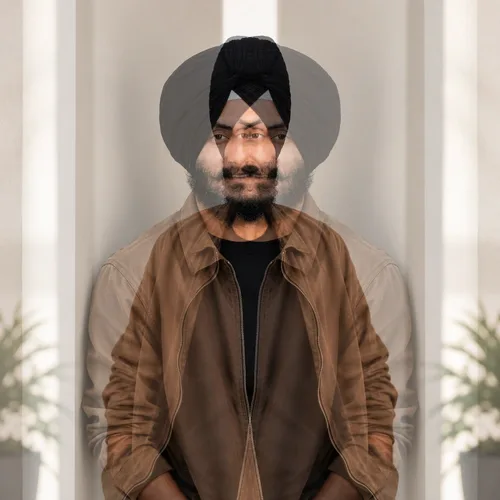
Image Blend
Image Blend combines image layers with the named tonal relationship, exposing useful interactions between highlights, shadows, color, and transparency

Ice Crystals
Ice Crystals layers the named weather element with depth-aware opacity, scale, and light response, adding atmosphere while leaving important subjects readable
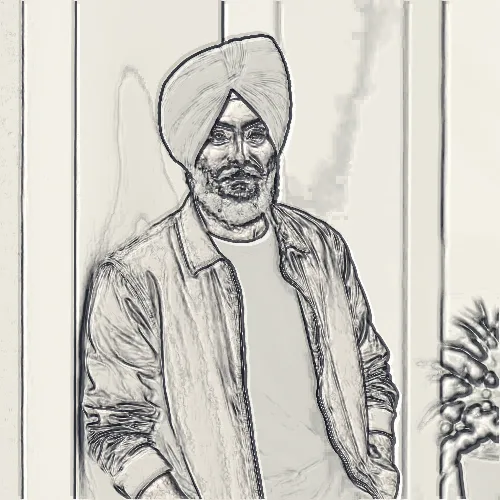
Horizontal Lines
Horizontal Lines rebuilds the photograph through an organized line pattern, using source edges and luminance to control each mark's direction, spacing, and prominence
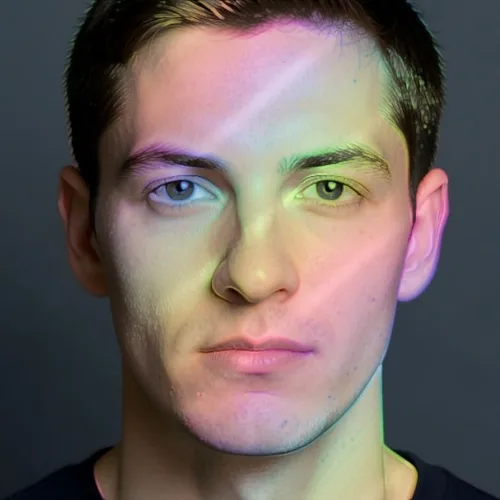
Holographic Foil Print
Overlay selected forms with angle-shifting diffraction colors
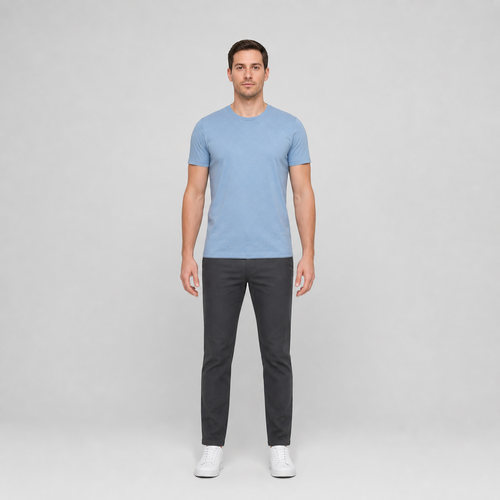
Height Adjust
Height Adjust finds one complete figure from the shoulders to the shoes, then proportionally lengthens the body below the shoulders and moves the complete shoes down into checked clear background
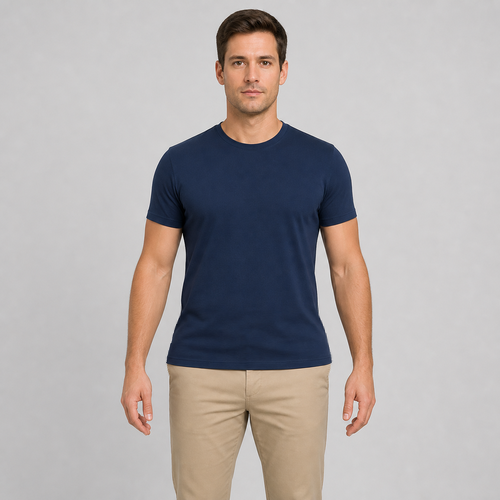
Hip Adjust
Hip Adjust finds one lower hip and pelvis clothing band, requires clear background beside both hands, then gently broadens only that band while keeping the rest of the photo unchanged
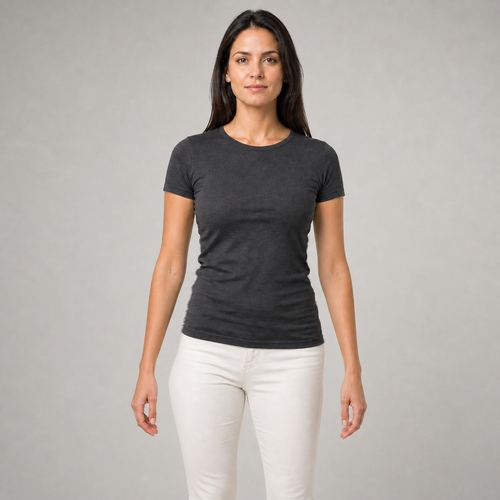
Posture Correct
Posture Correct finds a mild sideways lean between the shoulders and hips, then moves only the torso and pelvis below the sleeves while keeping both complete arms and hands exactly as photographed and adjusting only the clear background between each arm and the body
Clothes Smooth
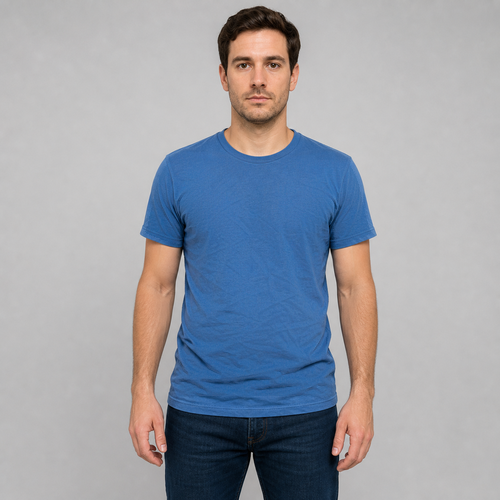
Clothes Smooth finds one front-facing top or jacket and softens only its medium-sized wrinkles, slightly inside the garment edge, while keeping fine fabric weave, strong seams and logos, skin, arms, lower body, background, and transparency unchanged

One-Tap Makeup
One-Tap Makeup finds one complete, near-front face and adds coordinated color only to the two upper eyelids, two upper cheeks, and outer lips while keeping the eyes, brows, inner mouth, hair, beard, face shape, pores, lighting, background, and transparency unchanged
Hatching
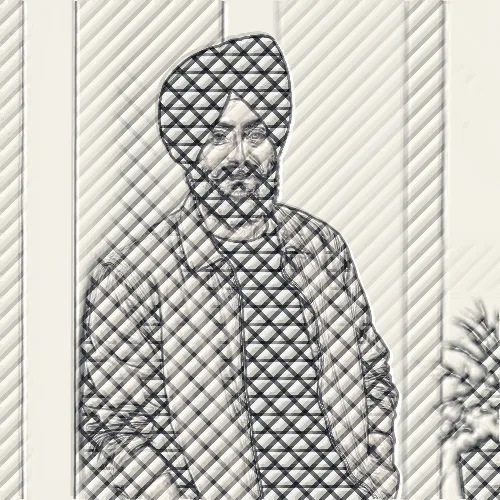
Hatching translates local brightness into a controlled field of drawn marks, varying spacing and density so shading remains legible as a handmade print texture
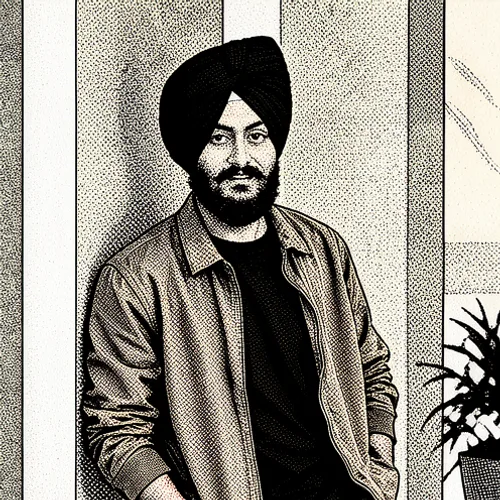
Halftone Comic
Halftone Comic simplifies the source into a distinct illustration language, organizing outlines, color regions, and shading so the result reads as designed artwork

HDR Effect
High dynamic range with enhanced contrast and saturation

Halftone · Vermilion Ink · Newsprint
Newsprint gives the final surface to Halftone marks rendered with Vermilion Ink, preserving the chosen line structure and ink character
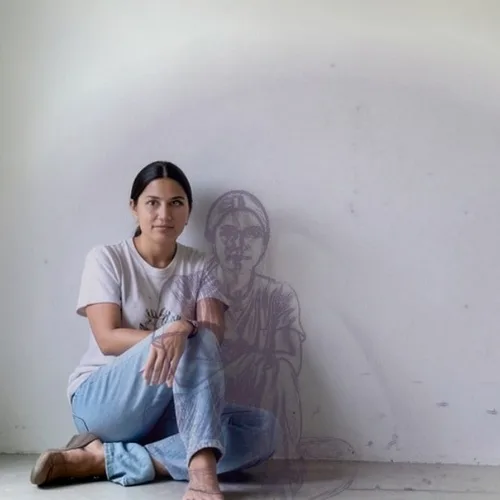
Graphic Cast Shadow
Project a bold editorial shadow from the photographed subject
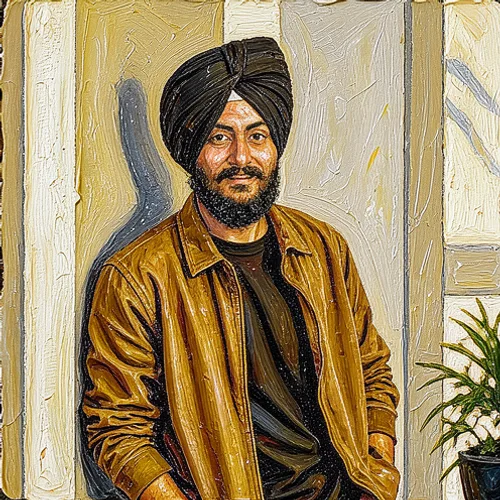
Encaustic Wax
Encaustic Wax translates photographic edges, colors, and values into the marks and surface behavior of the named art medium, while retaining the source composition

Engraving · Black and Gold · Blueprint Grid
Blueprint Grid gives the final surface to Engraving marks rendered with Black and Gold, preserving the chosen line structure and ink character
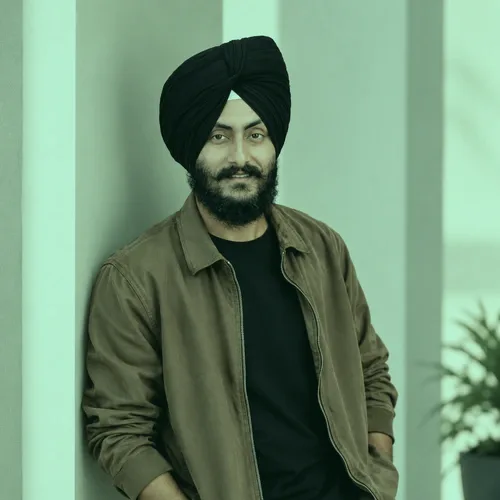
Emerald Wash
Emerald Wash lays a emerald tint through neutrals and highlights, with luminance-aware blending that keeps local contrast and photographic detail visible
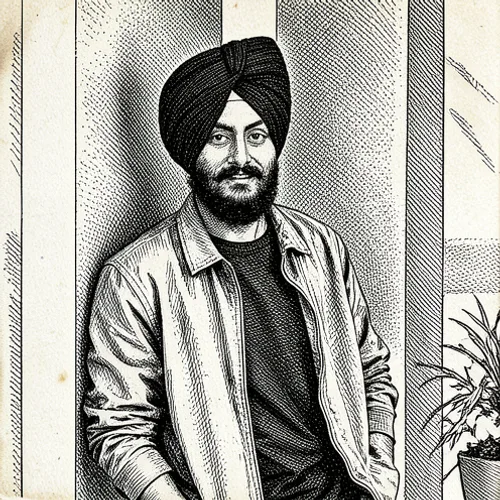
Etching Print
Etching Print separates photographic tone into an original print-inspired ink or plate treatment, including the edge, registration, and surface character associated with the medium
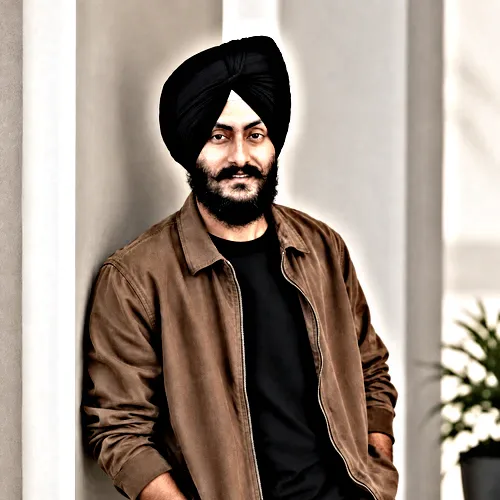
Exposure Fusion
Exposure Fusion compresses and redistributes scene luminance to reveal usable shadow and highlight detail, while local contrast keeps the result from looking uniformly flat
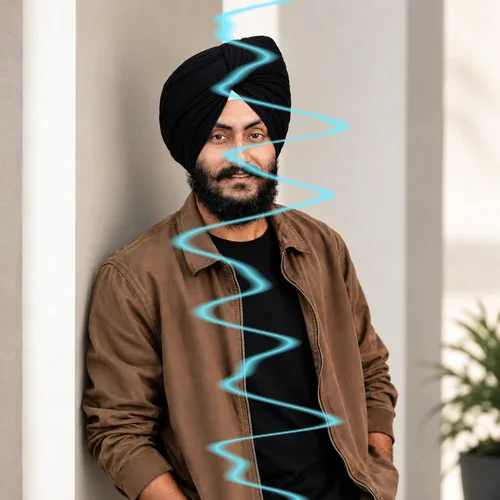
Electric Arc
Electric Arc places an energetic light-emitting overlay into the scene, balancing glow, color spill, and particle detail against the source exposure
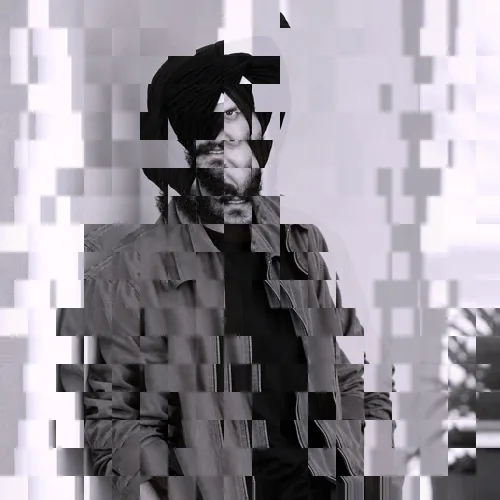
Emboss
Emboss groups local pixels into a stylized surface treatment, simplifying tone or texture while retaining enough edge information for the subject to remain recognizable
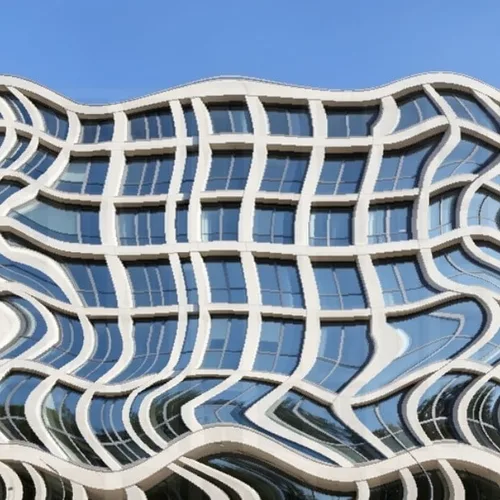
Elastic Reality Warp
Bend the scene dramatically while protecting faces, text, and logos

Effect DNA · Cinematic Intent · Identity-Locked Policy
Identity-Locked Policy governs a Effect DNA treatment with Cinematic Intent, applying the preservation and consistency rules that shape the final render
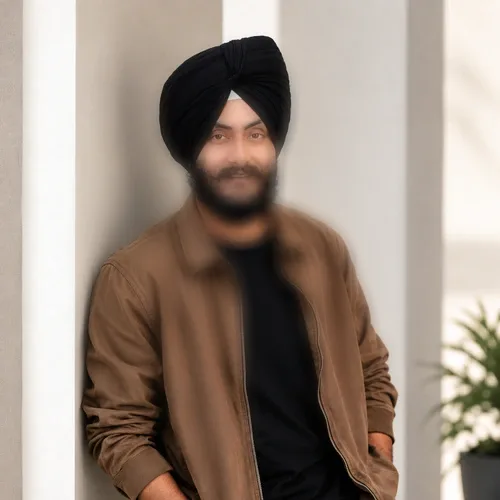
Edge Focus
Edge Focus redistributes sharpness across the frame to guide attention toward the chosen region, with a graduated transition that avoids a hard cutout edge

Editorial Beauty
Editorial Beauty finds one complete, near-front face and combines texture-preserving forehead-and-cheek skin polish with a stronger plum eyeshadow, rose blush, and berry lip color while keeping the eyes, brows, nose, inner mouth, hair, beard, face shape, scene lighting, background, and transparency
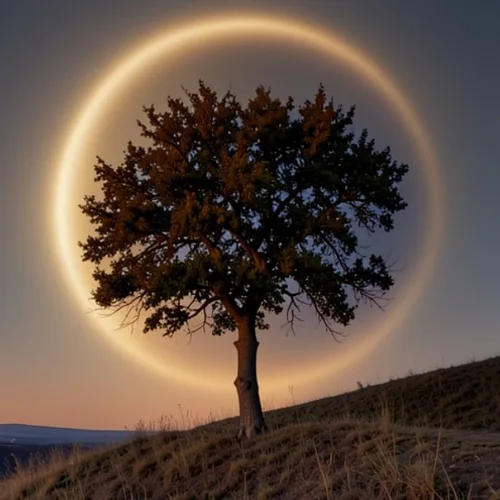
Eclipse Corona
Stage a luminous solar eclipse with physically shaped corona light

DV Camcorder
DV Camcorder models the tonal response, color handling, sharpness, and texture associated with that capture medium, using an original clean-room digital recipe
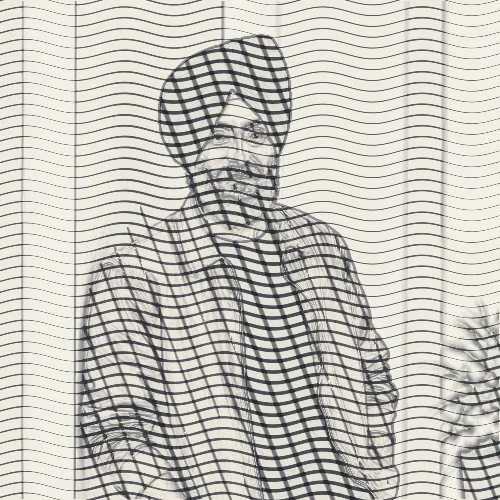
Drypoint
Drypoint converts edges and tone into cut or incised linework, using directional mark density to reproduce form with a printmaking character

Dry Watercolor
Dry Watercolor translates photographic edges, colors, and values into the marks and surface behavior of the named art medium, while retaining the source composition

Dual-Neon Relight
Illuminate the subject from opposite sides with two neon colors
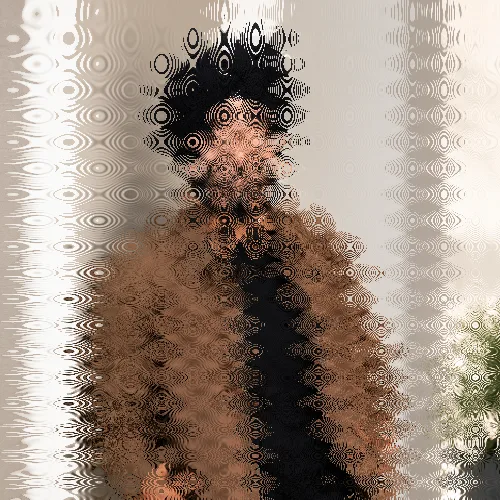
Drip Melt
Drip Melt warps image coordinates through the named geometric transform, blending displaced pixels back over the source for an adjustable distortion rather than a fixed preset
Dream Blur
Dream Blur diffuses bright detail into a controlled soft halo, blending the glow with a sharper base so highlights feel luminous rather than simply unfocused
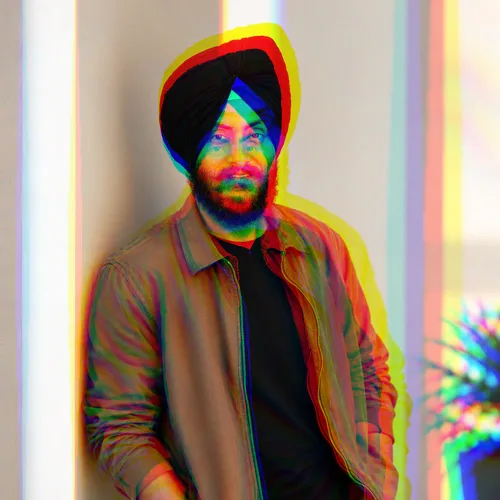
Double Vision
Double Vision separates spatial or color information into layered offsets and fragments, creating depth or motion cues from a single still image
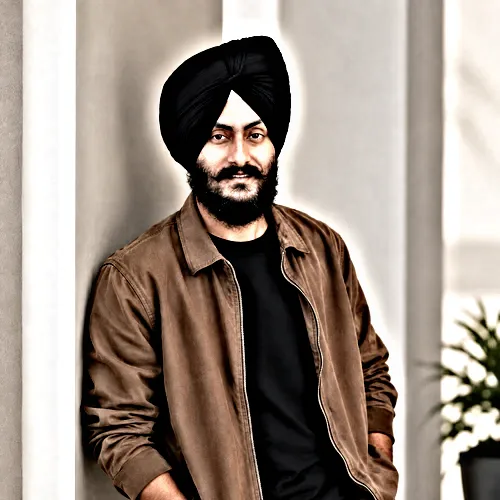
Dramatic HDR
Dramatic HDR compresses and redistributes scene luminance to reveal usable shadow and highlight detail, while local contrast keeps the result from looking uniformly flat
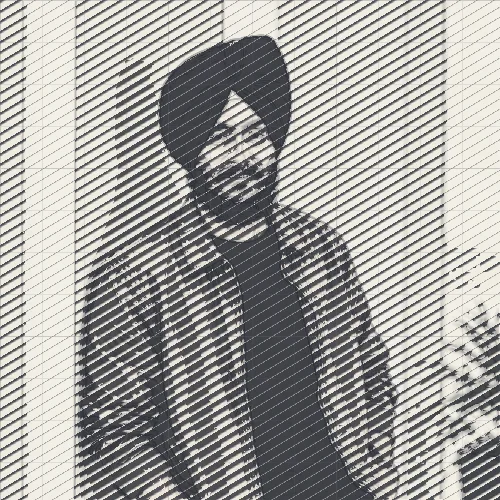
Dither Lines
Dither Lines translates local brightness into a controlled field of drawn marks, varying spacing and density so shading remains legible as a handmade print texture

Different Tones
Multiple tone zones with various color effects
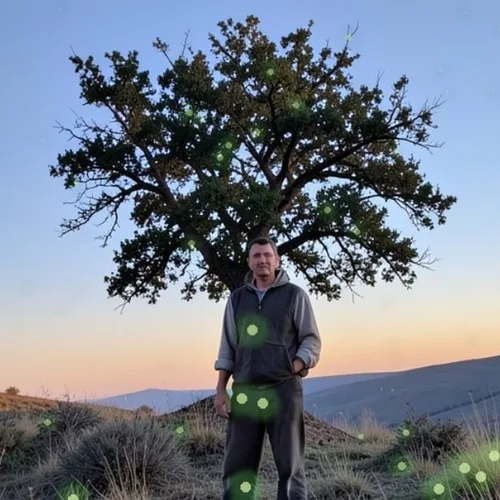
Depth Fireflies
Place luminous fireflies naturally in front of and behind the subject

Depth Anaglyph 3D
Create a comfortable red-cyan 3D view for standard glasses from the estimated depth of your photo
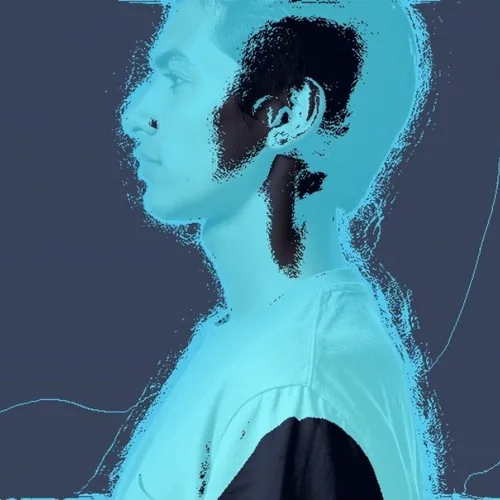
Depth Wireframe Scan
Trace scene depth as a futuristic hidden-line wireframe

Depth Parallax · Portrait · Glass Material
Glass Material completes a Depth Parallax transformation tuned for Portrait, supplying the final spatial material and depth response
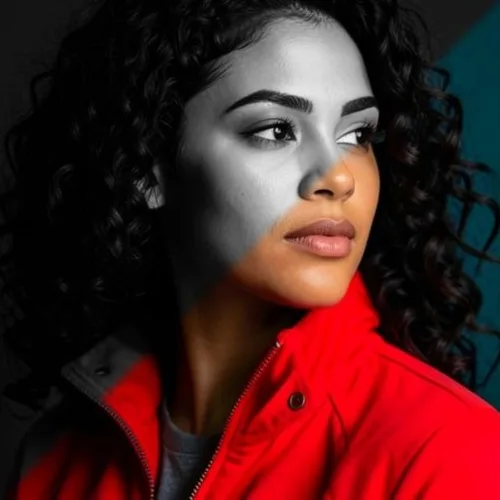
Diagonal Cut
Cut image diagonally with color and black & white sections
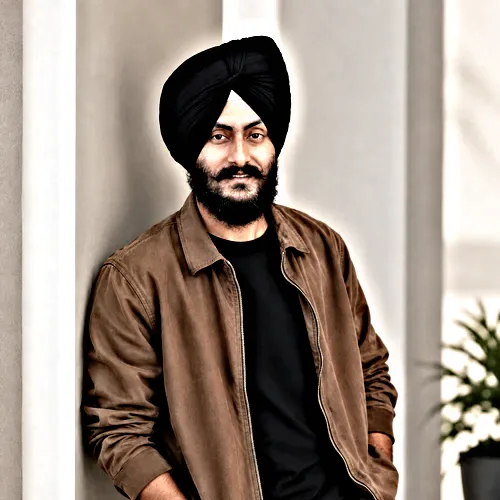
Detail HDR
Detail HDR compresses and redistributes scene luminance to reveal usable shadow and highlight detail, while local contrast keeps the result from looking uniformly flat

Datamosh Still · Wave · Clean Signal
Clean Signal completes a Datamosh Still displacement directed by Wave, controlling the final signal character and source visibility

Crystal Refraction
Refract only the background through bounded crystal facets while keeping the detected subject fixed
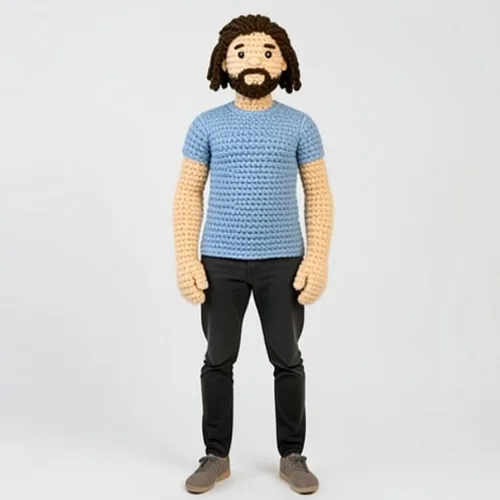
Crochet-Doll Transform
Recreate the subject as a handmade crochet doll with visible stitches
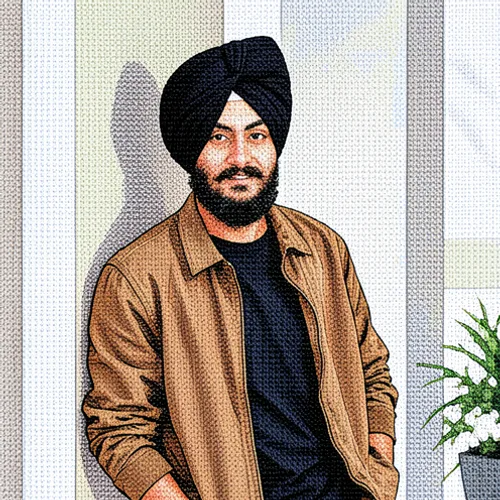
Cross Stitch
Cross Stitch reconstructs color and form as tactile craft elements, using source edges and luminance to place material detail while preserving the main silhouette
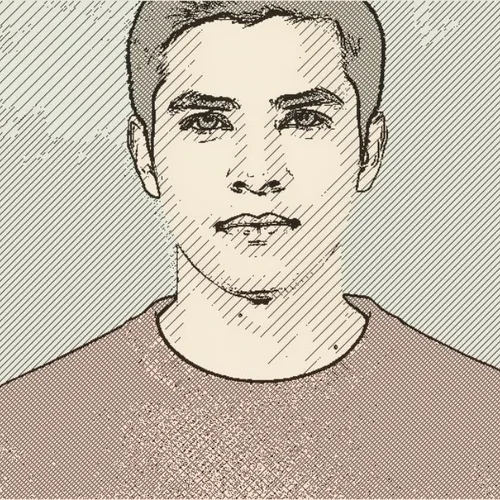
Copperplate Engraving
Draw tonal form with curved engraved lines and cross-hatching

Contact Lens
Contact Lens identifies the relevant facial feature and applies a controllable cosmetic or corrective treatment aligned to its existing shape, light, and texture
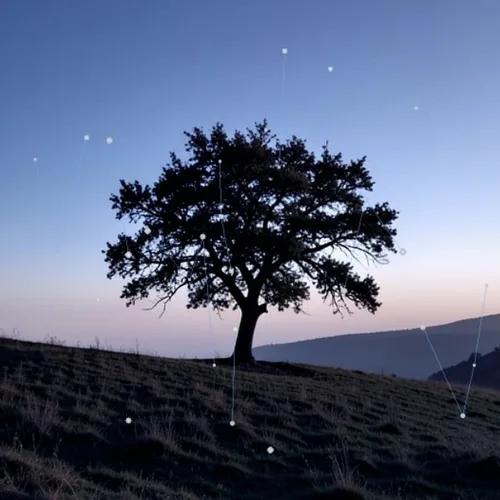
Constellation Silhouette
Fill or outline the subject with stars and connected constellations
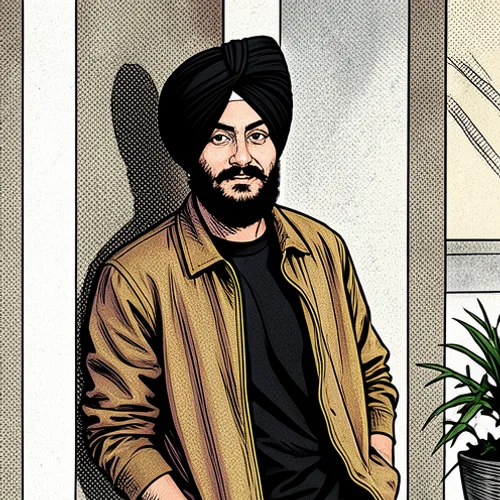
Comic Book
Comic Book simplifies the source into a distinct illustration language, organizing outlines, color regions, and shading so the result reads as designed artwork

Concealer
Concealer identifies the relevant facial feature and applies a controllable cosmetic or corrective treatment aligned to its existing shape, light, and texture

Colored Pencil Sketch
Keep the photo colors in hand-drawn colored-pencil strokes
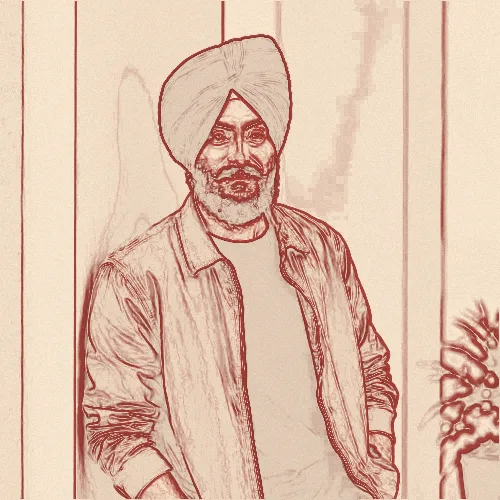
Colored Outline
Colored Outline traces meaningful boundaries and tonal changes as deliberate linework, reducing surface noise while keeping the subject's recognizable silhouette and features
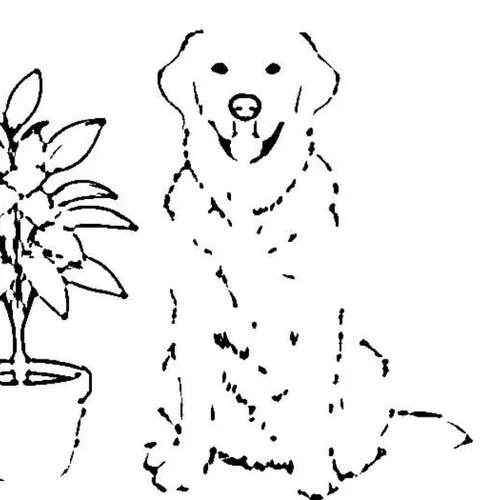
Coloring Page
Create crisp black-and-white line art ready to print and color

Color Splash · Sage and Cream · High Contrast
High Contrast completes a Color Splash tonal map shaped by Sage and Cream, controlling surface and contrast in this three-stage color recipe
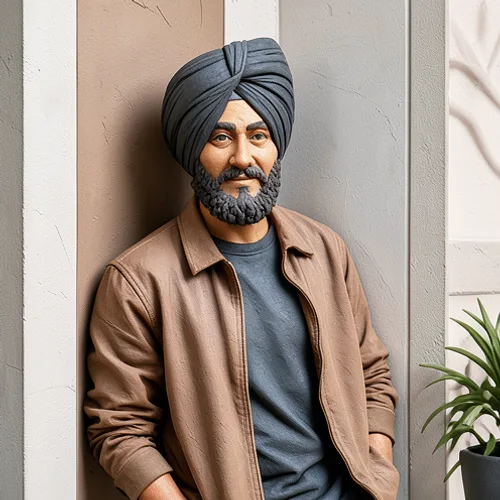
Clay Relief
Clay Relief reconstructs color and form as tactile craft elements, using source edges and luminance to place material detail while preserving the main silhouette

Clay Sculpture
Clay Sculpture reconstructs color and form as tactile craft elements, using source edges and luminance to place material detail while preserving the main silhouette

Claymation AI
Sculpt the subject as a handcrafted stop-motion clay character

Chromatic Warp · Vertical · Noisy Signal
Noisy Signal completes a Chromatic Warp displacement directed by Vertical, controlling the final signal character and source visibility

Chibi Cartoon AI
Create a cute big-headed character while keeping signature features recognizable

CCD Digicam · Tungsten Night · Optical Vignette
Optical Vignette completes a CCD Digicam capture response biased by Tungsten Night, adding the named optical or lab character to the simulated exposure
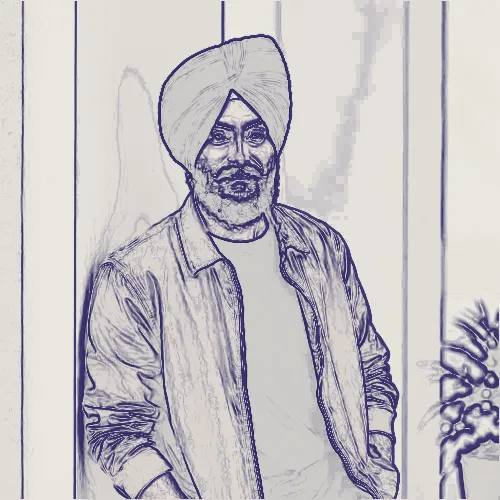
Blueprint
Blueprint extracts structural edges into precise technical marks, simplifying photographic texture so geometry and construction lines become the visual focus
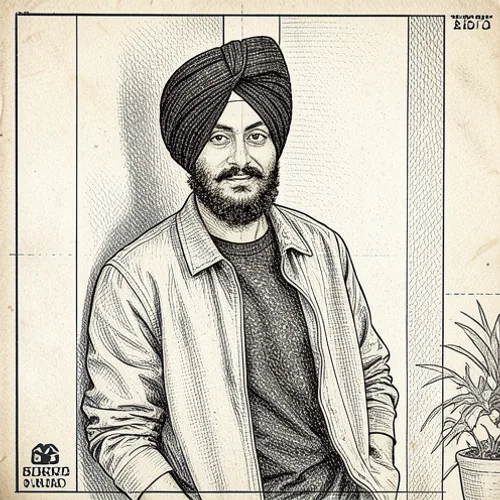
Blueprint Print
Blueprint Print separates photographic tone into an original print-inspired ink or plate treatment, including the edge, registration, and surface character associated with the medium

Bollywood Poster AI
Create an original dramatic Indian cinema-poster composition with no invented titles

Brick Art AI
Rebuild the scene as interlocking toy-brick art without brand marks
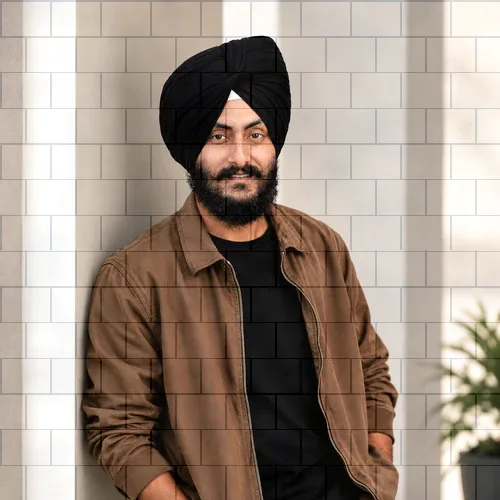
Brick Texture
Brick Texture blends a tactile surface response over the photograph, using tonal interaction so the material reads through both light and dark image regions
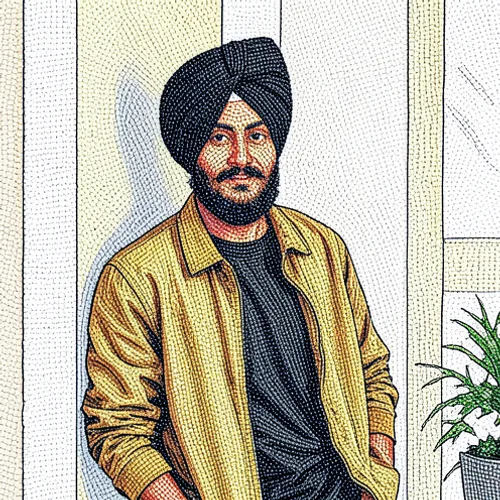
Beaded Art
Beaded Art reconstructs color and form as tactile craft elements, using source edges and luminance to place material detail while preserving the main silhouette
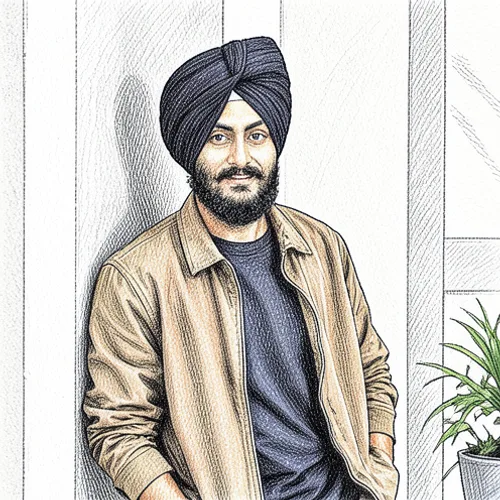
Ballpoint Drawing
Ballpoint Drawing translates photographic edges, colors, and values into the marks and surface behavior of the named art medium, while retaining the source composition

35mm Negative · Cross Process · Optical Vignette
Optical Vignette completes a 35mm Negative capture response biased by Cross Process, adding the named optical or lab character to the simulated exposure

Window Light · with Smoke · High-Key Finish
High-Key Finish completes Window Light illumination layered with Smoke, determining the combined scene contrast and atmospheric mood

Window Light · with Smoke · Silhouette Finish
Silhouette Finish completes Window Light illumination layered with Smoke, determining the combined scene contrast and atmospheric mood

Xerox Zine
Create a raw photocopied zine image with toner and scanner defects

VHS Tracking · Wave · Subtle Signal
Subtle Signal completes a VHS Tracking displacement directed by Wave, controlling the final signal character and source visibility

Window Light · with Snow · High-Key Finish
High-Key Finish completes Window Light illumination layered with Snow, determining the combined scene contrast and atmospheric mood
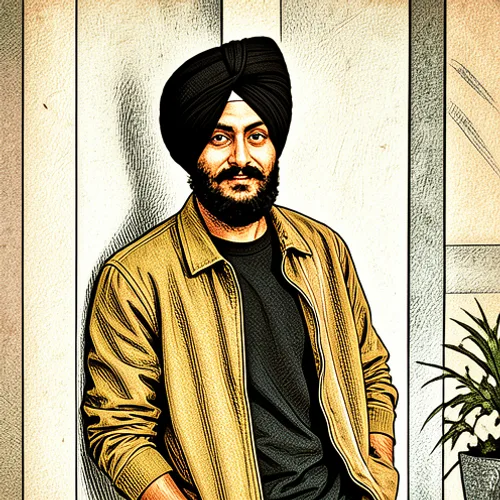
Woodblock
Woodblock separates photographic tone into an original print-inspired ink or plate treatment, including the edge, registration, and surface character associated with the medium

Window Light · with Bokeh · Silhouette Finish
Silhouette Finish completes Window Light illumination layered with Bokeh, determining the combined scene contrast and atmospheric mood

Watercolor · Serene · Luminous Finish
Luminous Finish completes a Watercolor interpretation guided by a Serene mood, determining the rendered palette, material, and surface character

Watercolor AI
Paint the photograph with expressive transparent washes and paper texture
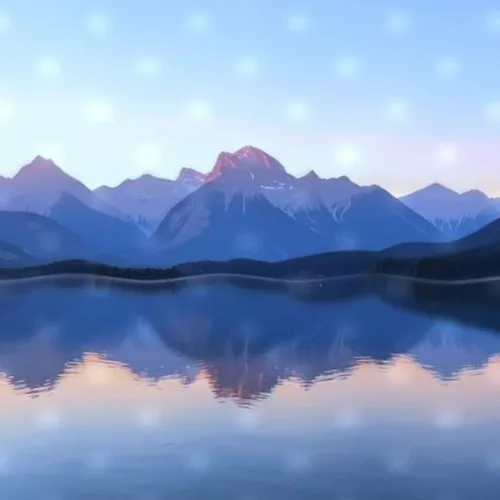
Water Effect
Apply water-like blue tones and wave distortion
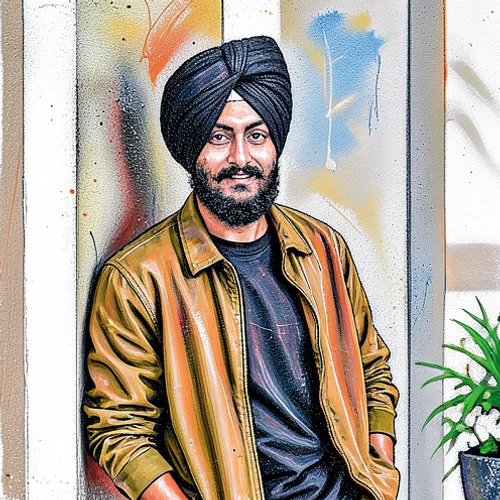
Spray Paint
Spray Paint translates photographic edges, colors, and values into the marks and surface behavior of the named art medium, while retaining the source composition

Stained Glass Art
Stained Glass Art translates photographic edges, colors, and values into the marks and surface behavior of the named art medium, while retaining the source composition
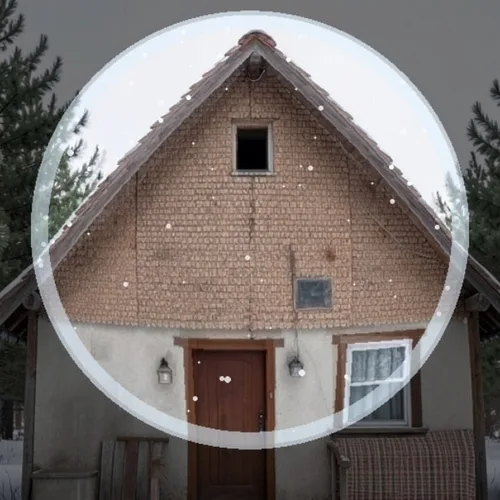
Snow-Globe Scene
Place the subject inside refractive glass with layered falling snow

Smile Adjust
Smile Adjust combines face-aware masks with restrained tonal and texture adjustments, refining the requested portrait feature without replacing the subject's identity

Rajasthani Art AI
Create an original illustration informed by Rajasthani miniature color and ornament

Quadtone · Cyan and Copper · Metallic
Metallic completes a Quadtone tonal map shaped by Cyan and Copper, controlling surface and contrast in this three-stage color recipe
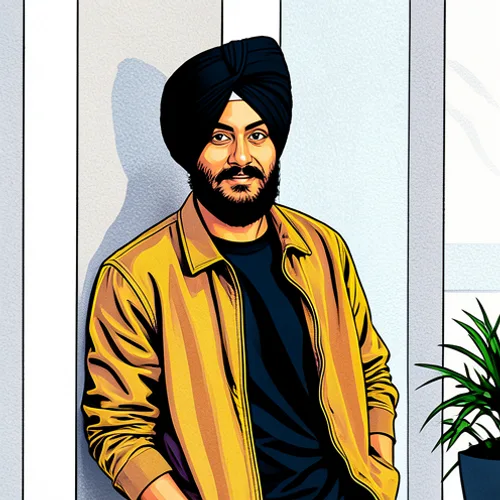
Pop Art
Pop Art simplifies the source into a distinct illustration language, organizing outlines, color regions, and shading so the result reads as designed artwork

Porcelain Figurine
Sculpt the subject as a glossy handcrafted porcelain collectible
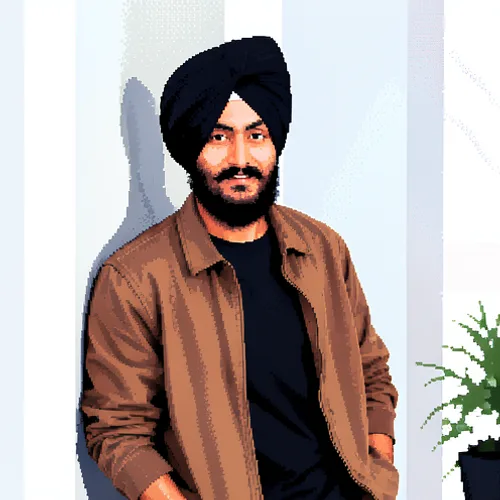
Pixel Art
Pixel Art translates photographic edges, colors, and values into the marks and surface behavior of the named art medium, while retaining the source composition

Pixel Art AI
Rebuild the subject as deliberate sprite-like pixel artwork
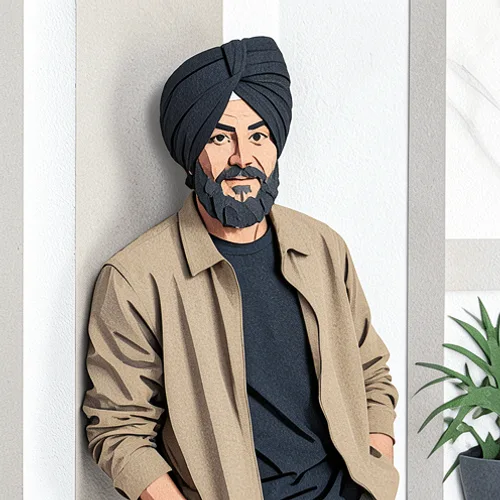
Paper Sculpture
Paper Sculpture reconstructs color and form as tactile craft elements, using source edges and luminance to place material detail while preserving the main silhouette
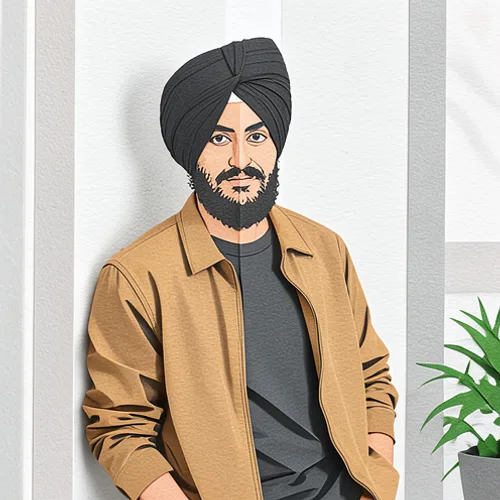
Origami Fold
Origami Fold reconstructs color and form as tactile craft elements, using source edges and luminance to place material detail while preserving the main silhouette

Neon Rim Light · with Snow · Cinematic Finish
Cinematic Finish completes Neon Rim Light illumination layered with Snow, determining the combined scene contrast and atmospheric mood
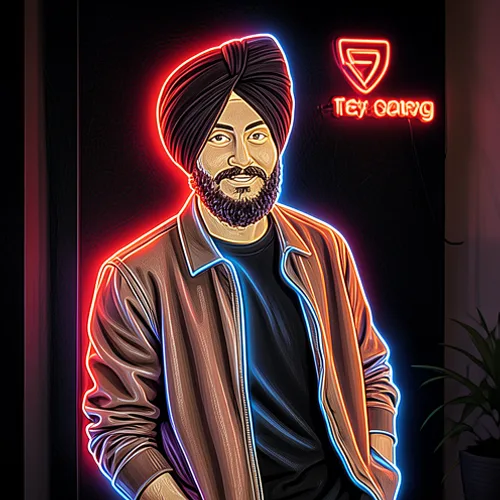
Neon Sign
Neon Sign simplifies the source into a distinct illustration language, organizing outlines, color regions, and shading so the result reads as designed artwork

Neon Rim Light · with Snow · HDR Finish
HDR Finish completes Neon Rim Light illumination layered with Snow, determining the combined scene contrast and atmospheric mood

Neon Rim Light · with Snow · High-Key Finish
High-Key Finish completes Neon Rim Light illumination layered with Snow, determining the combined scene contrast and atmospheric mood

Neon Rim Light · with Prism Light · Soft Finish
Soft Finish completes Neon Rim Light illumination layered with Prism Light, determining the combined scene contrast and atmospheric mood

Neon Rim Light · with Prism Light · High-Key Finish
High-Key Finish completes Neon Rim Light illumination layered with Prism Light, determining the combined scene contrast and atmospheric mood

Neon Rim Light · with Haze · High-Key Finish
High-Key Finish completes Neon Rim Light illumination layered with Haze, determining the combined scene contrast and atmospheric mood

Natural HDR · for Portrait · Realistic Finish
Realistic Finish completes Natural HDR recovery tuned for Portrait, setting the scene's final local contrast, color response, and detail emphasis

Moonlight · with Haze · Soft Finish
Soft Finish completes Moonlight illumination layered with Haze, determining the combined scene contrast and atmospheric mood

Minimal Ink Painting
Minimal Ink Painting translates photographic edges, colors, and values into the marks and surface behavior of the named art medium, while retaining the source composition

Milky-Way Reveal
Reveal a detailed galaxy with atmospheric and exposure matching
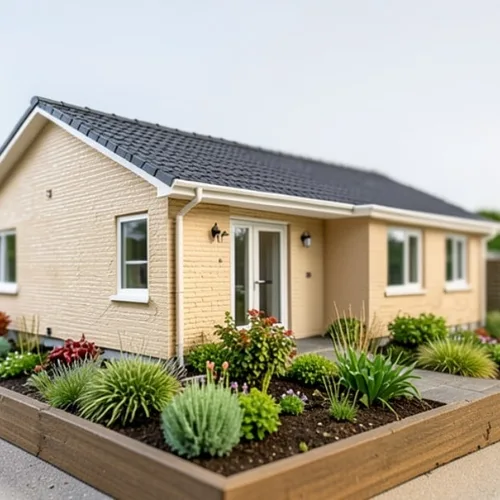
Miniature World Builder
Convert the whole scene into a handcrafted miniature environment

Gradient Map · Plum and Gold · Paper Ink
Paper Ink completes a Gradient Map tonal map shaped by Plum and Gold, controlling surface and contrast in this three-stage color recipe

Golden Hour · with Haze · HDR Finish
HDR Finish completes Golden Hour illumination layered with Haze, determining the combined scene contrast and atmospheric mood

Golden Hour · with Dust Motes · Dramatic Finish
Dramatic Finish completes Golden Hour illumination layered with Dust Motes, determining the combined scene contrast and atmospheric mood
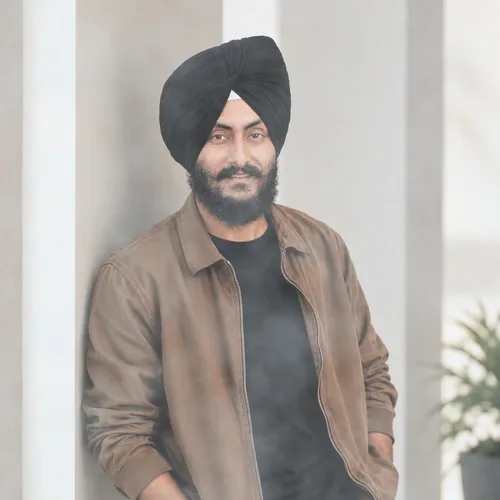
Fog
Fog layers the named weather element with depth-aware opacity, scale, and light response, adding atmosphere while leaving important subjects readable

Flames
Flames places an energetic light-emitting overlay into the scene, balancing glow, color spill, and particle detail against the source exposure

Fire Effect
Intense fire effect with flickering red and yellow tones
All photo effects
6,540 effects
Every effect, grouped by style. Each name opens its own page, where you can try it on your photo. See them with preview images
Aesthetic
1
AI Materials
10
AI Transform & Repair
82
- AI Enhance
- AI Object Removal
- AI Restore
- AI Night
- AI Ink Wash
- AI 3D Character
- AI Accessory Try-On
- AI Age Progression
- AI Age Regression
- AI Anime
- AI Avatar
- AI Background Remove
- AI Background Replace
- AI Camera Angle
- AI Cartoon
- AI Character Transformation
- AI Clay
- AI Collage
- AI Color Grade Match
- AI Colorize
- AI Comic
- AI Deblur
- AI Denoise
- AI Depth Map
- AI Dust Removal
- AI Embroidery
- AI Expression Change
- AI Eyes Open
- AI Face Restore
- AI Filter Match
- AI Food Styling
- AI Garment Segmentation
- AI Gaze Change
- AI Generative Expand
- AI Generative Fill
- AI Golden Hour
- AI Hair Color
- AI Hair Segmentation
- AI Hairstyle
- AI Headshot
- AI Image to Video
- AI Lens Blur
- AI Lighting Design
- AI Makeup
- AI Material Transfer
- AI Motion Portrait
- AI Normal Map
- AI Object Replace
- AI Oil Painting
- AI Old Photo Animate
- AI Outfit Change
- AI Palette Transfer
- AI Paper Cut
- AI People Removal
- AI Pixel Art
- AI Product Scene
- AI Prompt Edit
- AI Reflection Removal
- AI Relight
- AI Room Restage
- AI Scene Recompose
- AI Scratch Repair
- AI Season Change
- AI Series Consistency
- AI Sharpen
- AI Sketch
- AI Skin Segmentation
- AI Sky Replace
- AI Smile
- AI Stained Glass
- AI Style Transfer
- AI Subject Select
- AI Tattoo Preview
- AI Texture Transfer
- AI Time of Day
- AI Upscale 2x
- AI Upscale 4x
- AI Upscale 8x
- AI Virtual Try-On
- AI Watercolor
- AI Weather Change
- Portrait Photo Finish
Art & Print
571
- 3D Cartoon
- Ink Wash
- Impasto
- Halftone Comic
- Encaustic Wax
- Etching Print
- Dry Watercolor
- Cross Stitch
- Comic Book
- Clay Relief
- Clay Sculpture
- Blueprint Print
- Beaded Art
- Ballpoint Drawing
- Woodblock
- Watercolor · Serene · Luminous Finish
- Spray Paint
- Stained Glass Art
- Pop Art
- Pixel Art
- Paper Sculpture
- Origami Fold
- Neon Sign
- Minimal Ink Painting
- Acrylic Paint
- Airbrush
- Ceramic Glaze
- Chalk Drawing
- Charcoal Drawing
- Clay Sculpture · Botanical · Antique Finish
- Clay Sculpture · Botanical · Iridescent Finish
- Clay Sculpture · Botanical · Jewel-Tone Finish
- Clay Sculpture · Botanical · Luminous Finish
- Clay Sculpture · Botanical · Maximal Finish
- Clay Sculpture · Botanical · Minimal Finish
- Clay Sculpture · Botanical · Monochrome Finish
- Clay Sculpture · Botanical · Pastel Finish
- Clay Sculpture · Cosmic · Antique Finish
- Clay Sculpture · Cosmic · Iridescent Finish
- Clay Sculpture · Cosmic · Jewel-Tone Finish
- Clay Sculpture · Cosmic · Luminous Finish
- Clay Sculpture · Cosmic · Maximal Finish
- Clay Sculpture · Cosmic · Minimal Finish
- Clay Sculpture · Cosmic · Monochrome Finish
- Clay Sculpture · Cosmic · Pastel Finish
- Clay Sculpture · Dramatic · Antique Finish
- Clay Sculpture · Dramatic · Iridescent Finish
- Clay Sculpture · Dramatic · Jewel-Tone Finish
- Clay Sculpture · Dramatic · Luminous Finish
- Clay Sculpture · Dramatic · Maximal Finish
- Clay Sculpture · Dramatic · Minimal Finish
- Clay Sculpture · Dramatic · Monochrome Finish
- Clay Sculpture · Dramatic · Pastel Finish
- Clay Sculpture · Geometric · Antique Finish
- Clay Sculpture · Geometric · Iridescent Finish
- Clay Sculpture · Geometric · Jewel-Tone Finish
- Clay Sculpture · Geometric · Luminous Finish
- Clay Sculpture · Geometric · Maximal Finish
- Clay Sculpture · Geometric · Minimal Finish
- Clay Sculpture · Geometric · Monochrome Finish
- Clay Sculpture · Geometric · Pastel Finish
- Clay Sculpture · Joyful · Antique Finish
- Clay Sculpture · Joyful · Iridescent Finish
- Clay Sculpture · Joyful · Jewel-Tone Finish
- Clay Sculpture · Joyful · Luminous Finish
- Clay Sculpture · Joyful · Maximal Finish
- Clay Sculpture · Joyful · Minimal Finish
- Clay Sculpture · Joyful · Monochrome Finish
- Clay Sculpture · Joyful · Pastel Finish
- Clay Sculpture · Mysterious · Antique Finish
- Clay Sculpture · Mysterious · Iridescent Finish
- Clay Sculpture · Mysterious · Jewel-Tone Finish
- Clay Sculpture · Mysterious · Luminous Finish
- Clay Sculpture · Mysterious · Maximal Finish
- Clay Sculpture · Mysterious · Minimal Finish
- Clay Sculpture · Mysterious · Monochrome Finish
- Clay Sculpture · Mysterious · Pastel Finish
- Clay Sculpture · Serene · Antique Finish
- Clay Sculpture · Serene · Iridescent Finish
- Clay Sculpture · Serene · Jewel-Tone Finish
- Clay Sculpture · Serene · Luminous Finish
- Clay Sculpture · Serene · Maximal Finish
- Clay Sculpture · Serene · Minimal Finish
- Clay Sculpture · Serene · Monochrome Finish
- Clay Sculpture · Serene · Pastel Finish
- Clay Sculpture · Whimsical · Antique Finish
- Clay Sculpture · Whimsical · Iridescent Finish
- Clay Sculpture · Whimsical · Jewel-Tone Finish
- Clay Sculpture · Whimsical · Luminous Finish
- Clay Sculpture · Whimsical · Maximal Finish
- Clay Sculpture · Whimsical · Minimal Finish
- Clay Sculpture · Whimsical · Monochrome Finish
- Clay Sculpture · Whimsical · Pastel Finish
- Collage Art
- Color Pencil
- Crochet
- Cyanotype Art
- Embroidery
- Flat Vector Art
- Foil Stamp
- Fresco
- Gold Leaf
- Gouache
- Gouache · Botanical · Antique Finish
- Gouache · Botanical · Iridescent Finish
- Gouache · Botanical · Jewel-Tone Finish
- Gouache · Botanical · Luminous Finish
- Gouache · Botanical · Maximal Finish
- Gouache · Botanical · Minimal Finish
- Gouache · Botanical · Monochrome Finish
- Gouache · Botanical · Pastel Finish
- Gouache · Cosmic · Antique Finish
- Gouache · Cosmic · Iridescent Finish
- Gouache · Cosmic · Jewel-Tone Finish
- Gouache · Cosmic · Luminous Finish
- Gouache · Cosmic · Maximal Finish
- Gouache · Cosmic · Minimal Finish
- Gouache · Cosmic · Monochrome Finish
- Gouache · Cosmic · Pastel Finish
- Gouache · Dramatic · Antique Finish
- Gouache · Dramatic · Iridescent Finish
- Gouache · Dramatic · Jewel-Tone Finish
- Gouache · Dramatic · Luminous Finish
- Gouache · Dramatic · Maximal Finish
- Gouache · Dramatic · Minimal Finish
- Gouache · Dramatic · Monochrome Finish
- Gouache · Dramatic · Pastel Finish
- Gouache · Geometric · Antique Finish
- Gouache · Geometric · Iridescent Finish
- Gouache · Geometric · Jewel-Tone Finish
- Gouache · Geometric · Luminous Finish
- Gouache · Geometric · Maximal Finish
- Gouache · Geometric · Minimal Finish
- Gouache · Geometric · Monochrome Finish
- Gouache · Geometric · Pastel Finish
- Gouache · Joyful · Antique Finish
- Gouache · Joyful · Iridescent Finish
- Gouache · Joyful · Jewel-Tone Finish
- Gouache · Joyful · Luminous Finish
- Gouache · Joyful · Maximal Finish
- Gouache · Joyful · Minimal Finish
- Gouache · Joyful · Monochrome Finish
- Gouache · Joyful · Pastel Finish
- Gouache · Mysterious · Antique Finish
- Gouache · Mysterious · Iridescent Finish
- Gouache · Mysterious · Jewel-Tone Finish
- Gouache · Mysterious · Luminous Finish
- Gouache · Mysterious · Maximal Finish
- Gouache · Mysterious · Minimal Finish
- Gouache · Mysterious · Monochrome Finish
- Gouache · Mysterious · Pastel Finish
- Gouache · Serene · Antique Finish
- Gouache · Serene · Iridescent Finish
- Gouache · Serene · Jewel-Tone Finish
- Gouache · Serene · Luminous Finish
- Gouache · Serene · Maximal Finish
- Gouache · Serene · Minimal Finish
- Gouache · Serene · Monochrome Finish
- Gouache · Serene · Pastel Finish
- Gouache · Whimsical · Antique Finish
- Gouache · Whimsical · Iridescent Finish
- Gouache · Whimsical · Jewel-Tone Finish
- Gouache · Whimsical · Luminous Finish
- Gouache · Whimsical · Maximal Finish
- Gouache · Whimsical · Minimal Finish
- Gouache · Whimsical · Monochrome Finish
- Gouache · Whimsical · Pastel Finish
- Graffiti
- Graphite Drawing
- Ink Wash · Botanical · Antique Finish
- Ink Wash · Botanical · Iridescent Finish
- Ink Wash · Botanical · Jewel-Tone Finish
- Ink Wash · Botanical · Luminous Finish
- Ink Wash · Botanical · Maximal Finish
- Ink Wash · Botanical · Minimal Finish
- Ink Wash · Botanical · Monochrome Finish
- Ink Wash · Botanical · Pastel Finish
- Ink Wash · Cosmic · Antique Finish
- Ink Wash · Cosmic · Iridescent Finish
- Ink Wash · Cosmic · Jewel-Tone Finish
- Ink Wash · Cosmic · Luminous Finish
- Ink Wash · Cosmic · Maximal Finish
- Ink Wash · Cosmic · Minimal Finish
- Ink Wash · Cosmic · Monochrome Finish
- Ink Wash · Cosmic · Pastel Finish
- Ink Wash · Dramatic · Antique Finish
- Ink Wash · Dramatic · Iridescent Finish
- Ink Wash · Dramatic · Jewel-Tone Finish
- Ink Wash · Dramatic · Luminous Finish
- Ink Wash · Dramatic · Maximal Finish
- Ink Wash · Dramatic · Minimal Finish
- Ink Wash · Dramatic · Monochrome Finish
- Ink Wash · Dramatic · Pastel Finish
- Ink Wash · Geometric · Antique Finish
- Ink Wash · Geometric · Iridescent Finish
- Ink Wash · Geometric · Jewel-Tone Finish
- Ink Wash · Geometric · Luminous Finish
- Ink Wash · Geometric · Maximal Finish
- Ink Wash · Geometric · Minimal Finish
- Ink Wash · Geometric · Monochrome Finish
- Ink Wash · Geometric · Pastel Finish
- Ink Wash · Joyful · Antique Finish
- Ink Wash · Joyful · Iridescent Finish
- Ink Wash · Joyful · Jewel-Tone Finish
- Ink Wash · Joyful · Luminous Finish
- Ink Wash · Joyful · Maximal Finish
- Ink Wash · Joyful · Minimal Finish
- Ink Wash · Joyful · Monochrome Finish
- Ink Wash · Joyful · Pastel Finish
- Ink Wash · Mysterious · Antique Finish
- Ink Wash · Mysterious · Iridescent Finish
- Ink Wash · Mysterious · Jewel-Tone Finish
- Ink Wash · Mysterious · Luminous Finish
- Ink Wash · Mysterious · Maximal Finish
- Ink Wash · Mysterious · Minimal Finish
- Ink Wash · Mysterious · Monochrome Finish
- Ink Wash · Mysterious · Pastel Finish
- Ink Wash · Serene · Antique Finish
- Ink Wash · Serene · Iridescent Finish
- Ink Wash · Serene · Jewel-Tone Finish
- Ink Wash · Serene · Luminous Finish
- Ink Wash · Serene · Maximal Finish
- Ink Wash · Serene · Minimal Finish
- Ink Wash · Serene · Monochrome Finish
- Ink Wash · Serene · Pastel Finish
- Ink Wash · Whimsical · Antique Finish
- Ink Wash · Whimsical · Iridescent Finish
- Ink Wash · Whimsical · Jewel-Tone Finish
- Ink Wash · Whimsical · Luminous Finish
- Ink Wash · Whimsical · Maximal Finish
- Ink Wash · Whimsical · Minimal Finish
- Ink Wash · Whimsical · Monochrome Finish
- Ink Wash · Whimsical · Pastel Finish
- Isometric Art
- Knitted Textile
- Letterpress
- Lithograph
- Low Poly
- Marker Drawing
- Monoprint
- Mosaic Tile
- Needlepoint
- Oil Impasto · Botanical · Antique Finish
- Oil Impasto · Botanical · Iridescent Finish
- Oil Impasto · Botanical · Jewel-Tone Finish
- Oil Impasto · Botanical · Luminous Finish
- Oil Impasto · Botanical · Maximal Finish
- Oil Impasto · Botanical · Minimal Finish
- Oil Impasto · Botanical · Monochrome Finish
- Oil Impasto · Botanical · Pastel Finish
- Oil Impasto · Cosmic · Antique Finish
- Oil Impasto · Cosmic · Iridescent Finish
- Oil Impasto · Cosmic · Jewel-Tone Finish
- Oil Impasto · Cosmic · Luminous Finish
- Oil Impasto · Cosmic · Maximal Finish
- Oil Impasto · Cosmic · Minimal Finish
- Oil Impasto · Cosmic · Monochrome Finish
- Oil Impasto · Cosmic · Pastel Finish
- Oil Impasto · Dramatic · Antique Finish
- Oil Impasto · Dramatic · Iridescent Finish
- Oil Impasto · Dramatic · Jewel-Tone Finish
- Oil Impasto · Dramatic · Luminous Finish
- Oil Impasto · Dramatic · Maximal Finish
- Oil Impasto · Dramatic · Minimal Finish
- Oil Impasto · Dramatic · Monochrome Finish
- Oil Impasto · Dramatic · Pastel Finish
- Oil Impasto · Geometric · Antique Finish
- Oil Impasto · Geometric · Iridescent Finish
- Oil Impasto · Geometric · Jewel-Tone Finish
- Oil Impasto · Geometric · Luminous Finish
- Oil Impasto · Geometric · Maximal Finish
- Oil Impasto · Geometric · Minimal Finish
- Oil Impasto · Geometric · Monochrome Finish
- Oil Impasto · Geometric · Pastel Finish
- Oil Impasto · Joyful · Antique Finish
- Oil Impasto · Joyful · Iridescent Finish
- Oil Impasto · Joyful · Jewel-Tone Finish
- Oil Impasto · Joyful · Luminous Finish
- Oil Impasto · Joyful · Maximal Finish
- Oil Impasto · Joyful · Minimal Finish
- Oil Impasto · Joyful · Monochrome Finish
- Oil Impasto · Joyful · Pastel Finish
- Oil Impasto · Mysterious · Antique Finish
- Oil Impasto · Mysterious · Iridescent Finish
- Oil Impasto · Mysterious · Jewel-Tone Finish
- Oil Impasto · Mysterious · Luminous Finish
- Oil Impasto · Mysterious · Maximal Finish
- Oil Impasto · Mysterious · Minimal Finish
- Oil Impasto · Mysterious · Monochrome Finish
- Oil Impasto · Mysterious · Pastel Finish
- Oil Impasto · Serene · Antique Finish
- Oil Impasto · Serene · Iridescent Finish
- Oil Impasto · Serene · Jewel-Tone Finish
- Oil Impasto · Serene · Luminous Finish
- Oil Impasto · Serene · Maximal Finish
- Oil Impasto · Serene · Minimal Finish
- Oil Impasto · Serene · Monochrome Finish
- Oil Impasto · Serene · Pastel Finish
- Oil Impasto · Whimsical · Antique Finish
- Oil Impasto · Whimsical · Iridescent Finish
- Oil Impasto · Whimsical · Jewel-Tone Finish
- Oil Impasto · Whimsical · Luminous Finish
- Oil Impasto · Whimsical · Maximal Finish
- Oil Impasto · Whimsical · Minimal Finish
- Oil Impasto · Whimsical · Monochrome Finish
- Oil Impasto · Whimsical · Pastel Finish
- Paper Cut
- Paper Cut · Botanical · Antique Finish
- Paper Cut · Botanical · Iridescent Finish
- Paper Cut · Botanical · Jewel-Tone Finish
- Paper Cut · Botanical · Luminous Finish
- Paper Cut · Botanical · Maximal Finish
- Paper Cut · Botanical · Minimal Finish
- Paper Cut · Botanical · Monochrome Finish
- Paper Cut · Botanical · Pastel Finish
- Paper Cut · Cosmic · Antique Finish
- Paper Cut · Cosmic · Iridescent Finish
- Paper Cut · Cosmic · Jewel-Tone Finish
- Paper Cut · Cosmic · Luminous Finish
- Paper Cut · Cosmic · Maximal Finish
- Paper Cut · Cosmic · Minimal Finish
- Paper Cut · Cosmic · Monochrome Finish
- Paper Cut · Cosmic · Pastel Finish
- Paper Cut · Dramatic · Antique Finish
- Paper Cut · Dramatic · Iridescent Finish
- Paper Cut · Dramatic · Jewel-Tone Finish
- Paper Cut · Dramatic · Luminous Finish
- Paper Cut · Dramatic · Maximal Finish
- Paper Cut · Dramatic · Minimal Finish
- Paper Cut · Dramatic · Monochrome Finish
- Paper Cut · Dramatic · Pastel Finish
- Paper Cut · Geometric · Antique Finish
- Paper Cut · Geometric · Iridescent Finish
- Paper Cut · Geometric · Jewel-Tone Finish
- Paper Cut · Geometric · Luminous Finish
- Paper Cut · Geometric · Maximal Finish
- Paper Cut · Geometric · Minimal Finish
- Paper Cut · Geometric · Monochrome Finish
- Paper Cut · Geometric · Pastel Finish
- Paper Cut · Joyful · Antique Finish
- Paper Cut · Joyful · Iridescent Finish
- Paper Cut · Joyful · Jewel-Tone Finish
- Paper Cut · Joyful · Luminous Finish
- Paper Cut · Joyful · Maximal Finish
- Paper Cut · Joyful · Minimal Finish
- Paper Cut · Joyful · Monochrome Finish
- Paper Cut · Joyful · Pastel Finish
- Paper Cut · Mysterious · Antique Finish
- Paper Cut · Mysterious · Iridescent Finish
- Paper Cut · Mysterious · Jewel-Tone Finish
- Paper Cut · Mysterious · Luminous Finish
- Paper Cut · Mysterious · Maximal Finish
- Paper Cut · Mysterious · Minimal Finish
- Paper Cut · Mysterious · Monochrome Finish
- Paper Cut · Mysterious · Pastel Finish
- Paper Cut · Serene · Antique Finish
- Paper Cut · Serene · Iridescent Finish
- Paper Cut · Serene · Jewel-Tone Finish
- Paper Cut · Serene · Luminous Finish
- Paper Cut · Serene · Maximal Finish
- Paper Cut · Serene · Minimal Finish
- Paper Cut · Serene · Monochrome Finish
- Paper Cut · Serene · Pastel Finish
- Paper Cut · Whimsical · Antique Finish
- Paper Cut · Whimsical · Iridescent Finish
- Paper Cut · Whimsical · Jewel-Tone Finish
- Paper Cut · Whimsical · Luminous Finish
- Paper Cut · Whimsical · Maximal Finish
- Paper Cut · Whimsical · Minimal Finish
- Paper Cut · Whimsical · Monochrome Finish
- Paper Cut · Whimsical · Pastel Finish
- Pastel Drawing
- Risograph
- Screenprint
- Sequin Art
- Stained Glass · Botanical · Antique Finish
- Stained Glass · Botanical · Iridescent Finish
- Stained Glass · Botanical · Jewel-Tone Finish
- Stained Glass · Botanical · Luminous Finish
- Stained Glass · Botanical · Maximal Finish
- Stained Glass · Botanical · Minimal Finish
- Stained Glass · Botanical · Monochrome Finish
- Stained Glass · Botanical · Pastel Finish
- Stained Glass · Cosmic · Antique Finish
- Stained Glass · Cosmic · Iridescent Finish
- Stained Glass · Cosmic · Jewel-Tone Finish
- Stained Glass · Cosmic · Luminous Finish
- Stained Glass · Cosmic · Maximal Finish
- Stained Glass · Cosmic · Minimal Finish
- Stained Glass · Cosmic · Monochrome Finish
- Stained Glass · Cosmic · Pastel Finish
- Stained Glass · Dramatic · Antique Finish
- Stained Glass · Dramatic · Iridescent Finish
- Stained Glass · Dramatic · Jewel-Tone Finish
- Stained Glass · Dramatic · Luminous Finish
- Stained Glass · Dramatic · Maximal Finish
- Stained Glass · Dramatic · Minimal Finish
- Stained Glass · Dramatic · Monochrome Finish
- Stained Glass · Dramatic · Pastel Finish
- Stained Glass · Geometric · Antique Finish
- Stained Glass · Geometric · Iridescent Finish
- Stained Glass · Geometric · Jewel-Tone Finish
- Stained Glass · Geometric · Luminous Finish
- Stained Glass · Geometric · Maximal Finish
- Stained Glass · Geometric · Minimal Finish
- Stained Glass · Geometric · Monochrome Finish
- Stained Glass · Geometric · Pastel Finish
- Stained Glass · Joyful · Antique Finish
- Stained Glass · Joyful · Iridescent Finish
- Stained Glass · Joyful · Jewel-Tone Finish
- Stained Glass · Joyful · Luminous Finish
- Stained Glass · Joyful · Maximal Finish
- Stained Glass · Joyful · Minimal Finish
- Stained Glass · Joyful · Monochrome Finish
- Stained Glass · Joyful · Pastel Finish
- Stained Glass · Mysterious · Antique Finish
- Stained Glass · Mysterious · Iridescent Finish
- Stained Glass · Mysterious · Jewel-Tone Finish
- Stained Glass · Mysterious · Luminous Finish
- Stained Glass · Mysterious · Maximal Finish
- Stained Glass · Mysterious · Minimal Finish
- Stained Glass · Mysterious · Monochrome Finish
- Stained Glass · Mysterious · Pastel Finish
- Stained Glass · Serene · Antique Finish
- Stained Glass · Serene · Iridescent Finish
- Stained Glass · Serene · Jewel-Tone Finish
- Stained Glass · Serene · Luminous Finish
- Stained Glass · Serene · Maximal Finish
- Stained Glass · Serene · Minimal Finish
- Stained Glass · Serene · Monochrome Finish
- Stained Glass · Serene · Pastel Finish
- Stained Glass · Whimsical · Antique Finish
- Stained Glass · Whimsical · Iridescent Finish
- Stained Glass · Whimsical · Jewel-Tone Finish
- Stained Glass · Whimsical · Luminous Finish
- Stained Glass · Whimsical · Maximal Finish
- Stained Glass · Whimsical · Minimal Finish
- Stained Glass · Whimsical · Monochrome Finish
- Stained Glass · Whimsical · Pastel Finish
- Storybook Illustration
- Tempera
- Watercolor
- Watercolor · Botanical · Antique Finish
- Watercolor · Botanical · Iridescent Finish
- Watercolor · Botanical · Jewel-Tone Finish
- Watercolor · Botanical · Luminous Finish
- Watercolor · Botanical · Maximal Finish
- Watercolor · Botanical · Minimal Finish
- Watercolor · Botanical · Monochrome Finish
- Watercolor · Botanical · Pastel Finish
- Watercolor · Cosmic · Antique Finish
- Watercolor · Cosmic · Iridescent Finish
- Watercolor · Cosmic · Jewel-Tone Finish
- Watercolor · Cosmic · Luminous Finish
- Watercolor · Cosmic · Maximal Finish
- Watercolor · Cosmic · Minimal Finish
- Watercolor · Cosmic · Monochrome Finish
- Watercolor · Cosmic · Pastel Finish
- Watercolor · Dramatic · Antique Finish
- Watercolor · Dramatic · Iridescent Finish
- Watercolor · Dramatic · Jewel-Tone Finish
- Watercolor · Dramatic · Luminous Finish
- Watercolor · Dramatic · Maximal Finish
- Watercolor · Dramatic · Minimal Finish
- Watercolor · Dramatic · Monochrome Finish
- Watercolor · Dramatic · Pastel Finish
- Watercolor · Geometric · Antique Finish
- Watercolor · Geometric · Iridescent Finish
- Watercolor · Geometric · Jewel-Tone Finish
- Watercolor · Geometric · Luminous Finish
- Watercolor · Geometric · Maximal Finish
- Watercolor · Geometric · Minimal Finish
- Watercolor · Geometric · Monochrome Finish
- Watercolor · Geometric · Pastel Finish
- Watercolor · Joyful · Antique Finish
- Watercolor · Joyful · Iridescent Finish
- Watercolor · Joyful · Jewel-Tone Finish
- Watercolor · Joyful · Luminous Finish
- Watercolor · Joyful · Maximal Finish
- Watercolor · Joyful · Minimal Finish
- Watercolor · Joyful · Monochrome Finish
- Watercolor · Joyful · Pastel Finish
- Watercolor · Mysterious · Antique Finish
- Watercolor · Mysterious · Iridescent Finish
- Watercolor · Mysterious · Jewel-Tone Finish
- Watercolor · Mysterious · Luminous Finish
- Watercolor · Mysterious · Maximal Finish
- Watercolor · Mysterious · Minimal Finish
- Watercolor · Mysterious · Monochrome Finish
- Watercolor · Mysterious · Pastel Finish
- Watercolor · Serene · Antique Finish
- Watercolor · Serene · Iridescent Finish
- Watercolor · Serene · Jewel-Tone Finish
- Watercolor · Serene · Maximal Finish
- Watercolor · Serene · Minimal Finish
- Watercolor · Serene · Monochrome Finish
- Watercolor · Serene · Pastel Finish
- Watercolor · Whimsical · Antique Finish
- Watercolor · Whimsical · Iridescent Finish
- Watercolor · Whimsical · Jewel-Tone Finish
- Watercolor · Whimsical · Luminous Finish
- Watercolor · Whimsical · Maximal Finish
- Watercolor · Whimsical · Minimal Finish
- Watercolor · Whimsical · Monochrome Finish
- Watercolor · Whimsical · Pastel Finish
- Wet Watercolor
- Woven Textile
- Woven Textile · Botanical · Antique Finish
- Woven Textile · Botanical · Iridescent Finish
- Woven Textile · Botanical · Jewel-Tone Finish
- Woven Textile · Botanical · Luminous Finish
- Woven Textile · Botanical · Maximal Finish
- Woven Textile · Botanical · Minimal Finish
- Woven Textile · Botanical · Monochrome Finish
- Woven Textile · Botanical · Pastel Finish
- Woven Textile · Cosmic · Antique Finish
- Woven Textile · Cosmic · Iridescent Finish
- Woven Textile · Cosmic · Jewel-Tone Finish
- Woven Textile · Cosmic · Luminous Finish
- Woven Textile · Cosmic · Maximal Finish
- Woven Textile · Cosmic · Minimal Finish
- Woven Textile · Cosmic · Monochrome Finish
- Woven Textile · Cosmic · Pastel Finish
- Woven Textile · Dramatic · Antique Finish
- Woven Textile · Dramatic · Iridescent Finish
- Woven Textile · Dramatic · Jewel-Tone Finish
- Woven Textile · Dramatic · Luminous Finish
- Woven Textile · Dramatic · Maximal Finish
- Woven Textile · Dramatic · Minimal Finish
- Woven Textile · Dramatic · Monochrome Finish
- Woven Textile · Dramatic · Pastel Finish
- Woven Textile · Geometric · Antique Finish
- Woven Textile · Geometric · Iridescent Finish
- Woven Textile · Geometric · Jewel-Tone Finish
- Woven Textile · Geometric · Luminous Finish
- Woven Textile · Geometric · Maximal Finish
- Woven Textile · Geometric · Minimal Finish
- Woven Textile · Geometric · Monochrome Finish
- Woven Textile · Geometric · Pastel Finish
- Woven Textile · Joyful · Antique Finish
- Woven Textile · Joyful · Iridescent Finish
- Woven Textile · Joyful · Jewel-Tone Finish
- Woven Textile · Joyful · Luminous Finish
- Woven Textile · Joyful · Maximal Finish
- Woven Textile · Joyful · Minimal Finish
- Woven Textile · Joyful · Monochrome Finish
- Woven Textile · Joyful · Pastel Finish
- Woven Textile · Mysterious · Antique Finish
- Woven Textile · Mysterious · Iridescent Finish
- Woven Textile · Mysterious · Jewel-Tone Finish
- Woven Textile · Mysterious · Luminous Finish
- Woven Textile · Mysterious · Maximal Finish
- Woven Textile · Mysterious · Minimal Finish
- Woven Textile · Mysterious · Monochrome Finish
- Woven Textile · Mysterious · Pastel Finish
- Woven Textile · Serene · Antique Finish
- Woven Textile · Serene · Iridescent Finish
- Woven Textile · Serene · Jewel-Tone Finish
- Woven Textile · Serene · Luminous Finish
- Woven Textile · Serene · Maximal Finish
- Woven Textile · Serene · Minimal Finish
- Woven Textile · Serene · Monochrome Finish
- Woven Textile · Serene · Pastel Finish
- Woven Textile · Whimsical · Antique Finish
- Woven Textile · Whimsical · Iridescent Finish
- Woven Textile · Whimsical · Jewel-Tone Finish
- Woven Textile · Whimsical · Luminous Finish
- Woven Textile · Whimsical · Maximal Finish
- Woven Textile · Whimsical · Minimal Finish
- Woven Textile · Whimsical · Monochrome Finish
- Woven Textile · Whimsical · Pastel Finish
Artistic
10
Atmosphere
3
Atmosphere & Overlays
575
- Light Leak Overlay
- Ice Crystals
- Electric Arc
- Brick Texture
- Window Light · with Smoke · High-Key Finish
- Window Light · with Smoke · Silhouette Finish
- Window Light · with Snow · High-Key Finish
- Window Light · with Bokeh · Silhouette Finish
- Neon Rim Light · with Snow · Cinematic Finish
- Neon Rim Light · with Snow · HDR Finish
- Neon Rim Light · with Snow · High-Key Finish
- Neon Rim Light · with Prism Light · Soft Finish
- Neon Rim Light · with Prism Light · High-Key Finish
- Neon Rim Light · with Haze · High-Key Finish
- Moonlight · with Haze · Soft Finish
- Golden Hour · with Haze · HDR Finish
- Golden Hour · with Dust Motes · Dramatic Finish
- Fog
- Flames
- Aura
- Blind Shadows
- Blizzard
- Bokeh Overlay
- Butterflies
- Candlelight · with Bokeh · Cinematic Finish
- Candlelight · with Bokeh · Dramatic Finish
- Candlelight · with Bokeh · Dream Finish
- Candlelight · with Bokeh · HDR Finish
- Candlelight · with Bokeh · High-Key Finish
- Candlelight · with Bokeh · Low-Key Finish
- Candlelight · with Bokeh · Silhouette Finish
- Candlelight · with Bokeh · Soft Finish
- Candlelight · with Dust Motes · Cinematic Finish
- Candlelight · with Dust Motes · Dramatic Finish
- Candlelight · with Dust Motes · Dream Finish
- Candlelight · with Dust Motes · HDR Finish
- Candlelight · with Dust Motes · High-Key Finish
- Candlelight · with Dust Motes · Low-Key Finish
- Candlelight · with Dust Motes · Silhouette Finish
- Candlelight · with Dust Motes · Soft Finish
- Candlelight · with Fog · Cinematic Finish
- Candlelight · with Fog · Dramatic Finish
- Candlelight · with Fog · Dream Finish
- Candlelight · with Fog · HDR Finish
- Candlelight · with Fog · High-Key Finish
- Candlelight · with Fog · Low-Key Finish
- Candlelight · with Fog · Silhouette Finish
- Candlelight · with Fog · Soft Finish
- Candlelight · with Haze · Cinematic Finish
- Candlelight · with Haze · Dramatic Finish
- Candlelight · with Haze · Dream Finish
- Candlelight · with Haze · HDR Finish
- Candlelight · with Haze · High-Key Finish
- Candlelight · with Haze · Low-Key Finish
- Candlelight · with Haze · Silhouette Finish
- Candlelight · with Haze · Soft Finish
- Candlelight · with Prism Light · Cinematic Finish
- Candlelight · with Prism Light · Dramatic Finish
- Candlelight · with Prism Light · Dream Finish
- Candlelight · with Prism Light · HDR Finish
- Candlelight · with Prism Light · High-Key Finish
- Candlelight · with Prism Light · Low-Key Finish
- Candlelight · with Prism Light · Silhouette Finish
- Candlelight · with Prism Light · Soft Finish
- Candlelight · with Rain · Cinematic Finish
- Candlelight · with Rain · Dramatic Finish
- Candlelight · with Rain · Dream Finish
- Candlelight · with Rain · HDR Finish
- Candlelight · with Rain · High-Key Finish
- Candlelight · with Rain · Low-Key Finish
- Candlelight · with Rain · Silhouette Finish
- Candlelight · with Rain · Soft Finish
- Candlelight · with Smoke · Cinematic Finish
- Candlelight · with Smoke · Dramatic Finish
- Candlelight · with Smoke · Dream Finish
- Candlelight · with Smoke · HDR Finish
- Candlelight · with Smoke · High-Key Finish
- Candlelight · with Smoke · Low-Key Finish
- Candlelight · with Smoke · Silhouette Finish
- Candlelight · with Smoke · Soft Finish
- Candlelight · with Snow · Cinematic Finish
- Candlelight · with Snow · Dramatic Finish
- Candlelight · with Snow · Dream Finish
- Candlelight · with Snow · HDR Finish
- Candlelight · with Snow · High-Key Finish
- Candlelight · with Snow · Low-Key Finish
- Candlelight · with Snow · Silhouette Finish
- Candlelight · with Snow · Soft Finish
- Canvas Texture
- Cardboard
- Cellophane
- Clouds
- Colored Gel Light · with Bokeh · Cinematic Finish
- Colored Gel Light · with Bokeh · Dramatic Finish
- Colored Gel Light · with Bokeh · Dream Finish
- Colored Gel Light · with Bokeh · HDR Finish
- Colored Gel Light · with Bokeh · High-Key Finish
- Colored Gel Light · with Bokeh · Low-Key Finish
- Colored Gel Light · with Bokeh · Silhouette Finish
- Colored Gel Light · with Bokeh · Soft Finish
- Colored Gel Light · with Dust Motes · Cinematic Finish
- Colored Gel Light · with Dust Motes · Dramatic Finish
- Colored Gel Light · with Dust Motes · Dream Finish
- Colored Gel Light · with Dust Motes · HDR Finish
- Colored Gel Light · with Dust Motes · High-Key Finish
- Colored Gel Light · with Dust Motes · Low-Key Finish
- Colored Gel Light · with Dust Motes · Silhouette Finish
- Colored Gel Light · with Dust Motes · Soft Finish
- Colored Gel Light · with Fog · Cinematic Finish
- Colored Gel Light · with Fog · Dramatic Finish
- Colored Gel Light · with Fog · Dream Finish
- Colored Gel Light · with Fog · HDR Finish
- Colored Gel Light · with Fog · High-Key Finish
- Colored Gel Light · with Fog · Low-Key Finish
- Colored Gel Light · with Fog · Silhouette Finish
- Colored Gel Light · with Fog · Soft Finish
- Colored Gel Light · with Haze · Cinematic Finish
- Colored Gel Light · with Haze · Dramatic Finish
- Colored Gel Light · with Haze · Dream Finish
- Colored Gel Light · with Haze · HDR Finish
- Colored Gel Light · with Haze · High-Key Finish
- Colored Gel Light · with Haze · Low-Key Finish
- Colored Gel Light · with Haze · Silhouette Finish
- Colored Gel Light · with Haze · Soft Finish
- Colored Gel Light · with Prism Light · Cinematic Finish
- Colored Gel Light · with Prism Light · Dramatic Finish
- Colored Gel Light · with Prism Light · Dream Finish
- Colored Gel Light · with Prism Light · HDR Finish
- Colored Gel Light · with Prism Light · High-Key Finish
- Colored Gel Light · with Prism Light · Low-Key Finish
- Colored Gel Light · with Prism Light · Silhouette Finish
- Colored Gel Light · with Prism Light · Soft Finish
- Colored Gel Light · with Rain · Cinematic Finish
- Colored Gel Light · with Rain · Dramatic Finish
- Colored Gel Light · with Rain · Dream Finish
- Colored Gel Light · with Rain · HDR Finish
- Colored Gel Light · with Rain · High-Key Finish
- Colored Gel Light · with Rain · Low-Key Finish
- Colored Gel Light · with Rain · Silhouette Finish
- Colored Gel Light · with Rain · Soft Finish
- Colored Gel Light · with Smoke · Cinematic Finish
- Colored Gel Light · with Smoke · Dramatic Finish
- Colored Gel Light · with Smoke · Dream Finish
- Colored Gel Light · with Smoke · HDR Finish
- Colored Gel Light · with Smoke · High-Key Finish
- Colored Gel Light · with Smoke · Low-Key Finish
- Colored Gel Light · with Smoke · Silhouette Finish
- Colored Gel Light · with Smoke · Soft Finish
- Colored Gel Light · with Snow · Cinematic Finish
- Colored Gel Light · with Snow · Dramatic Finish
- Colored Gel Light · with Snow · Dream Finish
- Colored Gel Light · with Snow · HDR Finish
- Colored Gel Light · with Snow · High-Key Finish
- Colored Gel Light · with Snow · Low-Key Finish
- Colored Gel Light · with Snow · Silhouette Finish
- Colored Gel Light · with Snow · Soft Finish
- Concrete Texture
- Confetti
- Dappled Sun
- Dew
- Dust Motes
- Embers
- Fabric Texture
- Film Dust Overlay
- Floating Hearts
- Floating Particles
- Frost
- Glass Caustics
- God Rays
- Golden Hour · with Bokeh · Cinematic Finish
- Golden Hour · with Bokeh · Dramatic Finish
- Golden Hour · with Bokeh · Dream Finish
- Golden Hour · with Bokeh · HDR Finish
- Golden Hour · with Bokeh · High-Key Finish
- Golden Hour · with Bokeh · Low-Key Finish
- Golden Hour · with Bokeh · Silhouette Finish
- Golden Hour · with Bokeh · Soft Finish
- Golden Hour · with Dust Motes · Cinematic Finish
- Golden Hour · with Dust Motes · Dream Finish
- Golden Hour · with Dust Motes · HDR Finish
- Golden Hour · with Dust Motes · High-Key Finish
- Golden Hour · with Dust Motes · Low-Key Finish
- Golden Hour · with Dust Motes · Silhouette Finish
- Golden Hour · with Dust Motes · Soft Finish
- Golden Hour · with Fog · Cinematic Finish
- Golden Hour · with Fog · Dramatic Finish
- Golden Hour · with Fog · Dream Finish
- Golden Hour · with Fog · HDR Finish
- Golden Hour · with Fog · High-Key Finish
- Golden Hour · with Fog · Low-Key Finish
- Golden Hour · with Fog · Silhouette Finish
- Golden Hour · with Fog · Soft Finish
- Golden Hour · with Haze · Cinematic Finish
- Golden Hour · with Haze · Dramatic Finish
- Golden Hour · with Haze · Dream Finish
- Golden Hour · with Haze · High-Key Finish
- Golden Hour · with Haze · Low-Key Finish
- Golden Hour · with Haze · Silhouette Finish
- Golden Hour · with Haze · Soft Finish
- Golden Hour · with Prism Light · Cinematic Finish
- Golden Hour · with Prism Light · Dramatic Finish
- Golden Hour · with Prism Light · Dream Finish
- Golden Hour · with Prism Light · HDR Finish
- Golden Hour · with Prism Light · High-Key Finish
- Golden Hour · with Prism Light · Low-Key Finish
- Golden Hour · with Prism Light · Silhouette Finish
- Golden Hour · with Prism Light · Soft Finish
- Golden Hour · with Rain · Cinematic Finish
- Golden Hour · with Rain · Dramatic Finish
- Golden Hour · with Rain · Dream Finish
- Golden Hour · with Rain · HDR Finish
- Golden Hour · with Rain · High-Key Finish
- Golden Hour · with Rain · Low-Key Finish
- Golden Hour · with Rain · Silhouette Finish
- Golden Hour · with Rain · Soft Finish
- Golden Hour · with Smoke · Cinematic Finish
- Golden Hour · with Smoke · Dramatic Finish
- Golden Hour · with Smoke · Dream Finish
- Golden Hour · with Smoke · HDR Finish
- Golden Hour · with Smoke · High-Key Finish
- Golden Hour · with Smoke · Low-Key Finish
- Golden Hour · with Smoke · Silhouette Finish
- Golden Hour · with Smoke · Soft Finish
- Golden Hour · with Snow · Cinematic Finish
- Golden Hour · with Snow · Dramatic Finish
- Golden Hour · with Snow · Dream Finish
- Golden Hour · with Snow · HDR Finish
- Golden Hour · with Snow · High-Key Finish
- Golden Hour · with Snow · Low-Key Finish
- Golden Hour · with Snow · Silhouette Finish
- Golden Hour · with Snow · Soft Finish
- Ground Fog
- Haze
- Heavy Rain
- Holographic Foil
- Lace Shadows
- Leaf Shadows
- Lens Dirt
- Lightning
- Marble Texture
- Metallic Foil
- Milky Way
- Mist
- Moonlight · with Bokeh · Cinematic Finish
- Moonlight · with Bokeh · Dramatic Finish
- Moonlight · with Bokeh · Dream Finish
- Moonlight · with Bokeh · HDR Finish
- Moonlight · with Bokeh · High-Key Finish
- Moonlight · with Bokeh · Low-Key Finish
- Moonlight · with Bokeh · Silhouette Finish
- Moonlight · with Bokeh · Soft Finish
- Moonlight · with Dust Motes · Cinematic Finish
- Moonlight · with Dust Motes · Dramatic Finish
- Moonlight · with Dust Motes · Dream Finish
- Moonlight · with Dust Motes · HDR Finish
- Moonlight · with Dust Motes · High-Key Finish
- Moonlight · with Dust Motes · Low-Key Finish
- Moonlight · with Dust Motes · Silhouette Finish
- Moonlight · with Dust Motes · Soft Finish
- Moonlight · with Fog · Cinematic Finish
- Moonlight · with Fog · Dramatic Finish
- Moonlight · with Fog · Dream Finish
- Moonlight · with Fog · HDR Finish
- Moonlight · with Fog · High-Key Finish
- Moonlight · with Fog · Low-Key Finish
- Moonlight · with Fog · Silhouette Finish
- Moonlight · with Fog · Soft Finish
- Moonlight · with Haze · Cinematic Finish
- Moonlight · with Haze · Dramatic Finish
- Moonlight · with Haze · Dream Finish
- Moonlight · with Haze · HDR Finish
- Moonlight · with Haze · High-Key Finish
- Moonlight · with Haze · Low-Key Finish
- Moonlight · with Haze · Silhouette Finish
- Moonlight · with Prism Light · Cinematic Finish
- Moonlight · with Prism Light · Dramatic Finish
- Moonlight · with Prism Light · Dream Finish
- Moonlight · with Prism Light · HDR Finish
- Moonlight · with Prism Light · High-Key Finish
- Moonlight · with Prism Light · Low-Key Finish
- Moonlight · with Prism Light · Silhouette Finish
- Moonlight · with Prism Light · Soft Finish
- Moonlight · with Rain · Cinematic Finish
- Moonlight · with Rain · Dramatic Finish
- Moonlight · with Rain · Dream Finish
- Moonlight · with Rain · HDR Finish
- Moonlight · with Rain · High-Key Finish
- Moonlight · with Rain · Low-Key Finish
- Moonlight · with Rain · Silhouette Finish
- Moonlight · with Rain · Soft Finish
- Moonlight · with Smoke · Cinematic Finish
- Moonlight · with Smoke · Dramatic Finish
- Moonlight · with Smoke · Dream Finish
- Moonlight · with Smoke · HDR Finish
- Moonlight · with Smoke · High-Key Finish
- Moonlight · with Smoke · Low-Key Finish
- Moonlight · with Smoke · Silhouette Finish
- Moonlight · with Smoke · Soft Finish
- Moonlight · with Snow · Cinematic Finish
- Moonlight · with Snow · Dramatic Finish
- Moonlight · with Snow · Dream Finish
- Moonlight · with Snow · HDR Finish
- Moonlight · with Snow · High-Key Finish
- Moonlight · with Snow · Low-Key Finish
- Moonlight · with Snow · Silhouette Finish
- Moonlight · with Snow · Soft Finish
- Neon Rim Light · with Bokeh · Cinematic Finish
- Neon Rim Light · with Bokeh · Dramatic Finish
- Neon Rim Light · with Bokeh · Dream Finish
- Neon Rim Light · with Bokeh · HDR Finish
- Neon Rim Light · with Bokeh · High-Key Finish
- Neon Rim Light · with Bokeh · Low-Key Finish
- Neon Rim Light · with Bokeh · Silhouette Finish
- Neon Rim Light · with Bokeh · Soft Finish
- Neon Rim Light · with Dust Motes · Cinematic Finish
- Neon Rim Light · with Dust Motes · Dramatic Finish
- Neon Rim Light · with Dust Motes · Dream Finish
- Neon Rim Light · with Dust Motes · HDR Finish
- Neon Rim Light · with Dust Motes · High-Key Finish
- Neon Rim Light · with Dust Motes · Low-Key Finish
- Neon Rim Light · with Dust Motes · Silhouette Finish
- Neon Rim Light · with Dust Motes · Soft Finish
- Neon Rim Light · with Fog · Cinematic Finish
- Neon Rim Light · with Fog · Dramatic Finish
- Neon Rim Light · with Fog · Dream Finish
- Neon Rim Light · with Fog · HDR Finish
- Neon Rim Light · with Fog · High-Key Finish
- Neon Rim Light · with Fog · Low-Key Finish
- Neon Rim Light · with Fog · Silhouette Finish
- Neon Rim Light · with Fog · Soft Finish
- Neon Rim Light · with Haze · Cinematic Finish
- Neon Rim Light · with Haze · Dramatic Finish
- Neon Rim Light · with Haze · Dream Finish
- Neon Rim Light · with Haze · HDR Finish
- Neon Rim Light · with Haze · Low-Key Finish
- Neon Rim Light · with Haze · Silhouette Finish
- Neon Rim Light · with Haze · Soft Finish
- Neon Rim Light · with Prism Light · Cinematic Finish
- Neon Rim Light · with Prism Light · Dramatic Finish
- Neon Rim Light · with Prism Light · Dream Finish
- Neon Rim Light · with Prism Light · HDR Finish
- Neon Rim Light · with Prism Light · Low-Key Finish
- Neon Rim Light · with Prism Light · Silhouette Finish
- Neon Rim Light · with Rain · Cinematic Finish
- Neon Rim Light · with Rain · Dramatic Finish
- Neon Rim Light · with Rain · Dream Finish
- Neon Rim Light · with Rain · HDR Finish
- Neon Rim Light · with Rain · High-Key Finish
- Neon Rim Light · with Rain · Low-Key Finish
- Neon Rim Light · with Rain · Silhouette Finish
- Neon Rim Light · with Rain · Soft Finish
- Neon Rim Light · with Smoke · Cinematic Finish
- Neon Rim Light · with Smoke · Dramatic Finish
- Neon Rim Light · with Smoke · Dream Finish
- Neon Rim Light · with Smoke · HDR Finish
- Neon Rim Light · with Smoke · High-Key Finish
- Neon Rim Light · with Smoke · Low-Key Finish
- Neon Rim Light · with Smoke · Silhouette Finish
- Neon Rim Light · with Smoke · Soft Finish
- Neon Rim Light · with Snow · Dramatic Finish
- Neon Rim Light · with Snow · Dream Finish
- Neon Rim Light · with Snow · Low-Key Finish
- Neon Rim Light · with Snow · Silhouette Finish
- Neon Rim Light · with Snow · Soft Finish
- Newsprint
- Overcast Diffusion · with Bokeh · Cinematic Finish
- Overcast Diffusion · with Bokeh · Dramatic Finish
- Overcast Diffusion · with Bokeh · Dream Finish
- Overcast Diffusion · with Bokeh · HDR Finish
- Overcast Diffusion · with Bokeh · High-Key Finish
- Overcast Diffusion · with Bokeh · Low-Key Finish
- Overcast Diffusion · with Bokeh · Silhouette Finish
- Overcast Diffusion · with Bokeh · Soft Finish
- Overcast Diffusion · with Dust Motes · Cinematic Finish
- Overcast Diffusion · with Dust Motes · Dramatic Finish
- Overcast Diffusion · with Dust Motes · Dream Finish
- Overcast Diffusion · with Dust Motes · HDR Finish
- Overcast Diffusion · with Dust Motes · High-Key Finish
- Overcast Diffusion · with Dust Motes · Low-Key Finish
- Overcast Diffusion · with Dust Motes · Silhouette Finish
- Overcast Diffusion · with Dust Motes · Soft Finish
- Overcast Diffusion · with Fog · Cinematic Finish
- Overcast Diffusion · with Fog · Dramatic Finish
- Overcast Diffusion · with Fog · Dream Finish
- Overcast Diffusion · with Fog · HDR Finish
- Overcast Diffusion · with Fog · High-Key Finish
- Overcast Diffusion · with Fog · Low-Key Finish
- Overcast Diffusion · with Fog · Silhouette Finish
- Overcast Diffusion · with Fog · Soft Finish
- Overcast Diffusion · with Haze · Cinematic Finish
- Overcast Diffusion · with Haze · Dramatic Finish
- Overcast Diffusion · with Haze · Dream Finish
- Overcast Diffusion · with Haze · HDR Finish
- Overcast Diffusion · with Haze · High-Key Finish
- Overcast Diffusion · with Haze · Low-Key Finish
- Overcast Diffusion · with Haze · Silhouette Finish
- Overcast Diffusion · with Haze · Soft Finish
- Overcast Diffusion · with Prism Light · Cinematic Finish
- Overcast Diffusion · with Prism Light · Dramatic Finish
- Overcast Diffusion · with Prism Light · Dream Finish
- Overcast Diffusion · with Prism Light · HDR Finish
- Overcast Diffusion · with Prism Light · High-Key Finish
- Overcast Diffusion · with Prism Light · Low-Key Finish
- Overcast Diffusion · with Prism Light · Silhouette Finish
- Overcast Diffusion · with Prism Light · Soft Finish
- Overcast Diffusion · with Rain · Cinematic Finish
- Overcast Diffusion · with Rain · Dramatic Finish
- Overcast Diffusion · with Rain · Dream Finish
- Overcast Diffusion · with Rain · HDR Finish
- Overcast Diffusion · with Rain · High-Key Finish
- Overcast Diffusion · with Rain · Low-Key Finish
- Overcast Diffusion · with Rain · Silhouette Finish
- Overcast Diffusion · with Rain · Soft Finish
- Overcast Diffusion · with Smoke · Cinematic Finish
- Overcast Diffusion · with Smoke · Dramatic Finish
- Overcast Diffusion · with Smoke · Dream Finish
- Overcast Diffusion · with Smoke · HDR Finish
- Overcast Diffusion · with Smoke · High-Key Finish
- Overcast Diffusion · with Smoke · Low-Key Finish
- Overcast Diffusion · with Smoke · Silhouette Finish
- Overcast Diffusion · with Smoke · Soft Finish
- Overcast Diffusion · with Snow · Cinematic Finish
- Overcast Diffusion · with Snow · Dramatic Finish
- Overcast Diffusion · with Snow · Dream Finish
- Overcast Diffusion · with Snow · HDR Finish
- Overcast Diffusion · with Snow · High-Key Finish
- Overcast Diffusion · with Snow · Low-Key Finish
- Overcast Diffusion · with Snow · Silhouette Finish
- Overcast Diffusion · with Snow · Soft Finish
- Paper Texture
- Petals
- Plastic Wrap
- Pouring Rain
- Prism Rainbow
- Rain
- Raindrops on Glass
- Ripple Reflection
- Rough Paper
- Smoke
- Snow
- Sparks
- Star Field
- Steam
- Sun Rays
- Volumetric Fog
- Volumetric Rays · with Bokeh · Cinematic Finish
- Volumetric Rays · with Bokeh · Dramatic Finish
- Volumetric Rays · with Bokeh · Dream Finish
- Volumetric Rays · with Bokeh · HDR Finish
- Volumetric Rays · with Bokeh · High-Key Finish
- Volumetric Rays · with Bokeh · Low-Key Finish
- Volumetric Rays · with Bokeh · Silhouette Finish
- Volumetric Rays · with Bokeh · Soft Finish
- Volumetric Rays · with Dust Motes · Cinematic Finish
- Volumetric Rays · with Dust Motes · Dramatic Finish
- Volumetric Rays · with Dust Motes · Dream Finish
- Volumetric Rays · with Dust Motes · HDR Finish
- Volumetric Rays · with Dust Motes · High-Key Finish
- Volumetric Rays · with Dust Motes · Low-Key Finish
- Volumetric Rays · with Dust Motes · Silhouette Finish
- Volumetric Rays · with Dust Motes · Soft Finish
- Volumetric Rays · with Fog · Cinematic Finish
- Volumetric Rays · with Fog · Dramatic Finish
- Volumetric Rays · with Fog · Dream Finish
- Volumetric Rays · with Fog · HDR Finish
- Volumetric Rays · with Fog · High-Key Finish
- Volumetric Rays · with Fog · Low-Key Finish
- Volumetric Rays · with Fog · Silhouette Finish
- Volumetric Rays · with Fog · Soft Finish
- Volumetric Rays · with Haze · Cinematic Finish
- Volumetric Rays · with Haze · Dramatic Finish
- Volumetric Rays · with Haze · Dream Finish
- Volumetric Rays · with Haze · HDR Finish
- Volumetric Rays · with Haze · High-Key Finish
- Volumetric Rays · with Haze · Low-Key Finish
- Volumetric Rays · with Haze · Silhouette Finish
- Volumetric Rays · with Haze · Soft Finish
- Volumetric Rays · with Prism Light · Cinematic Finish
- Volumetric Rays · with Prism Light · Dramatic Finish
- Volumetric Rays · with Prism Light · Dream Finish
- Volumetric Rays · with Prism Light · HDR Finish
- Volumetric Rays · with Prism Light · High-Key Finish
- Volumetric Rays · with Prism Light · Low-Key Finish
- Volumetric Rays · with Prism Light · Silhouette Finish
- Volumetric Rays · with Prism Light · Soft Finish
- Volumetric Rays · with Rain · Cinematic Finish
- Volumetric Rays · with Rain · Dramatic Finish
- Volumetric Rays · with Rain · Dream Finish
- Volumetric Rays · with Rain · HDR Finish
- Volumetric Rays · with Rain · High-Key Finish
- Volumetric Rays · with Rain · Low-Key Finish
- Volumetric Rays · with Rain · Silhouette Finish
- Volumetric Rays · with Rain · Soft Finish
- Volumetric Rays · with Smoke · Cinematic Finish
- Volumetric Rays · with Smoke · Dramatic Finish
- Volumetric Rays · with Smoke · Dream Finish
- Volumetric Rays · with Smoke · HDR Finish
- Volumetric Rays · with Smoke · High-Key Finish
- Volumetric Rays · with Smoke · Low-Key Finish
- Volumetric Rays · with Smoke · Silhouette Finish
- Volumetric Rays · with Smoke · Soft Finish
- Volumetric Rays · with Snow · Cinematic Finish
- Volumetric Rays · with Snow · Dramatic Finish
- Volumetric Rays · with Snow · Dream Finish
- Volumetric Rays · with Snow · HDR Finish
- Volumetric Rays · with Snow · High-Key Finish
- Volumetric Rays · with Snow · Low-Key Finish
- Volumetric Rays · with Snow · Silhouette Finish
- Volumetric Rays · with Snow · Soft Finish
- Water Droplets
- Water Reflection
- Watercolor Wash
- Wet Window
- Window Light · with Bokeh · Cinematic Finish
- Window Light · with Bokeh · Dramatic Finish
- Window Light · with Bokeh · Dream Finish
- Window Light · with Bokeh · HDR Finish
- Window Light · with Bokeh · High-Key Finish
- Window Light · with Bokeh · Low-Key Finish
- Window Light · with Bokeh · Soft Finish
- Window Light · with Dust Motes · Cinematic Finish
- Window Light · with Dust Motes · Dramatic Finish
- Window Light · with Dust Motes · Dream Finish
- Window Light · with Dust Motes · HDR Finish
- Window Light · with Dust Motes · High-Key Finish
- Window Light · with Dust Motes · Low-Key Finish
- Window Light · with Dust Motes · Silhouette Finish
- Window Light · with Dust Motes · Soft Finish
- Window Light · with Fog · Cinematic Finish
- Window Light · with Fog · Dramatic Finish
- Window Light · with Fog · Dream Finish
- Window Light · with Fog · HDR Finish
- Window Light · with Fog · High-Key Finish
- Window Light · with Fog · Low-Key Finish
- Window Light · with Fog · Silhouette Finish
- Window Light · with Fog · Soft Finish
- Window Light · with Haze · Cinematic Finish
- Window Light · with Haze · Dramatic Finish
- Window Light · with Haze · Dream Finish
- Window Light · with Haze · HDR Finish
- Window Light · with Haze · High-Key Finish
- Window Light · with Haze · Low-Key Finish
- Window Light · with Haze · Silhouette Finish
- Window Light · with Haze · Soft Finish
- Window Light · with Prism Light · Cinematic Finish
- Window Light · with Prism Light · Dramatic Finish
- Window Light · with Prism Light · Dream Finish
- Window Light · with Prism Light · HDR Finish
- Window Light · with Prism Light · High-Key Finish
- Window Light · with Prism Light · Low-Key Finish
- Window Light · with Prism Light · Silhouette Finish
- Window Light · with Prism Light · Soft Finish
- Window Light · with Rain · Cinematic Finish
- Window Light · with Rain · Dramatic Finish
- Window Light · with Rain · Dream Finish
- Window Light · with Rain · HDR Finish
- Window Light · with Rain · High-Key Finish
- Window Light · with Rain · Low-Key Finish
- Window Light · with Rain · Silhouette Finish
- Window Light · with Rain · Soft Finish
- Window Light · with Smoke · Cinematic Finish
- Window Light · with Smoke · Dramatic Finish
- Window Light · with Smoke · Dream Finish
- Window Light · with Smoke · HDR Finish
- Window Light · with Smoke · Low-Key Finish
- Window Light · with Smoke · Soft Finish
- Window Light · with Snow · Cinematic Finish
- Window Light · with Snow · Dramatic Finish
- Window Light · with Snow · Dream Finish
- Window Light · with Snow · HDR Finish
- Window Light · with Snow · Low-Key Finish
- Window Light · with Snow · Silhouette Finish
- Window Light · with Snow · Soft Finish
- Window Shadows
- Wood Grain
Blur & Focus
36
- Portrait Blur
- Bokeh Blur
- Motion Blur
- Edge Focus
- Dream Blur
- Background Blur
- Bilateral Blur
- Bloom Glow
- Box Blur
- Center Focus
- Depth Blur
- Diffusion Glow
- Directional Blur
- Face Blur
- Focus Pull Still
- Frosted Blur
- Gaussian Blur
- Glow Blur
- Halation Glow
- Jitter Blur
- Lens Blur
- Median Blur
- Miniature Blur
- Mosaic Blur
- Object Blur
- Orton Glow
- Path Blur
- Pixel Blur
- Privacy Blur
- Radial Blur
- Smart Blur
- Soft Focus
- Spin Blur
- Surface Blur
- Tilt-Shift Blur
- Zoom Blur
Classic
1
Color & Tone
610
- Black & White
- Natural Vibrance
- Teal & Orange
- Emerald Wash
- Color Splash · Sage and Cream · High Contrast
- Quadtone · Cyan and Copper · Metallic
- Gradient Map · Plum and Gold · Paper Ink
- Amber Wash
- Auto Color
- Autumn Palette
- Bleach Bypass
- Blue Tone
- Candy Palette
- Channel Invert
- Channel Mix · Cobalt and Peach · Clean Matte
- Channel Mix · Cobalt and Peach · High Contrast
- Channel Mix · Cobalt and Peach · Inverted
- Channel Mix · Cobalt and Peach · Luminous
- Channel Mix · Cobalt and Peach · Metallic
- Channel Mix · Cobalt and Peach · Paper Ink
- Channel Mix · Cobalt and Peach · Pastel Fade
- Channel Mix · Cobalt and Peach · Soft Bloom
- Channel Mix · Coral and Teal · Clean Matte
- Channel Mix · Coral and Teal · High Contrast
- Channel Mix · Coral and Teal · Inverted
- Channel Mix · Coral and Teal · Luminous
- Channel Mix · Coral and Teal · Metallic
- Channel Mix · Coral and Teal · Paper Ink
- Channel Mix · Coral and Teal · Pastel Fade
- Channel Mix · Coral and Teal · Soft Bloom
- Channel Mix · Cyan and Copper · Clean Matte
- Channel Mix · Cyan and Copper · High Contrast
- Channel Mix · Cyan and Copper · Inverted
- Channel Mix · Cyan and Copper · Luminous
- Channel Mix · Cyan and Copper · Metallic
- Channel Mix · Cyan and Copper · Paper Ink
- Channel Mix · Cyan and Copper · Pastel Fade
- Channel Mix · Cyan and Copper · Soft Bloom
- Channel Mix · Ember and Ink · Clean Matte
- Channel Mix · Ember and Ink · High Contrast
- Channel Mix · Ember and Ink · Inverted
- Channel Mix · Ember and Ink · Luminous
- Channel Mix · Ember and Ink · Metallic
- Channel Mix · Ember and Ink · Paper Ink
- Channel Mix · Ember and Ink · Pastel Fade
- Channel Mix · Ember and Ink · Soft Bloom
- Channel Mix · Moss and Rose · Clean Matte
- Channel Mix · Moss and Rose · High Contrast
- Channel Mix · Moss and Rose · Inverted
- Channel Mix · Moss and Rose · Luminous
- Channel Mix · Moss and Rose · Metallic
- Channel Mix · Moss and Rose · Paper Ink
- Channel Mix · Moss and Rose · Pastel Fade
- Channel Mix · Moss and Rose · Soft Bloom
- Channel Mix · Obsidian and Neon · Clean Matte
- Channel Mix · Obsidian and Neon · High Contrast
- Channel Mix · Obsidian and Neon · Inverted
- Channel Mix · Obsidian and Neon · Luminous
- Channel Mix · Obsidian and Neon · Metallic
- Channel Mix · Obsidian and Neon · Paper Ink
- Channel Mix · Obsidian and Neon · Pastel Fade
- Channel Mix · Obsidian and Neon · Soft Bloom
- Channel Mix · Plum and Gold · Clean Matte
- Channel Mix · Plum and Gold · High Contrast
- Channel Mix · Plum and Gold · Inverted
- Channel Mix · Plum and Gold · Luminous
- Channel Mix · Plum and Gold · Metallic
- Channel Mix · Plum and Gold · Paper Ink
- Channel Mix · Plum and Gold · Pastel Fade
- Channel Mix · Plum and Gold · Soft Bloom
- Channel Mix · Sage and Cream · Clean Matte
- Channel Mix · Sage and Cream · High Contrast
- Channel Mix · Sage and Cream · Inverted
- Channel Mix · Sage and Cream · Luminous
- Channel Mix · Sage and Cream · Metallic
- Channel Mix · Sage and Cream · Paper Ink
- Channel Mix · Sage and Cream · Pastel Fade
- Channel Mix · Sage and Cream · Soft Bloom
- Channel Mixer
- Chocolate Tone
- Cobalt Wash
- Coffee Tone
- Color Lookup
- Color Negative
- Color Splash
- Color Splash · Cobalt and Peach · Clean Matte
- Color Splash · Cobalt and Peach · High Contrast
- Color Splash · Cobalt and Peach · Inverted
- Color Splash · Cobalt and Peach · Luminous
- Color Splash · Cobalt and Peach · Metallic
- Color Splash · Cobalt and Peach · Paper Ink
- Color Splash · Cobalt and Peach · Pastel Fade
- Color Splash · Cobalt and Peach · Soft Bloom
- Color Splash · Coral and Teal · Clean Matte
- Color Splash · Coral and Teal · High Contrast
- Color Splash · Coral and Teal · Inverted
- Color Splash · Coral and Teal · Luminous
- Color Splash · Coral and Teal · Metallic
- Color Splash · Coral and Teal · Paper Ink
- Color Splash · Coral and Teal · Pastel Fade
- Color Splash · Coral and Teal · Soft Bloom
- Color Splash · Cyan and Copper · Clean Matte
- Color Splash · Cyan and Copper · High Contrast
- Color Splash · Cyan and Copper · Inverted
- Color Splash · Cyan and Copper · Luminous
- Color Splash · Cyan and Copper · Metallic
- Color Splash · Cyan and Copper · Paper Ink
- Color Splash · Cyan and Copper · Pastel Fade
- Color Splash · Cyan and Copper · Soft Bloom
- Color Splash · Ember and Ink · Clean Matte
- Color Splash · Ember and Ink · High Contrast
- Color Splash · Ember and Ink · Inverted
- Color Splash · Ember and Ink · Luminous
- Color Splash · Ember and Ink · Metallic
- Color Splash · Ember and Ink · Paper Ink
- Color Splash · Ember and Ink · Pastel Fade
- Color Splash · Ember and Ink · Soft Bloom
- Color Splash · Moss and Rose · Clean Matte
- Color Splash · Moss and Rose · High Contrast
- Color Splash · Moss and Rose · Inverted
- Color Splash · Moss and Rose · Luminous
- Color Splash · Moss and Rose · Metallic
- Color Splash · Moss and Rose · Paper Ink
- Color Splash · Moss and Rose · Pastel Fade
- Color Splash · Moss and Rose · Soft Bloom
- Color Splash · Obsidian and Neon · Clean Matte
- Color Splash · Obsidian and Neon · High Contrast
- Color Splash · Obsidian and Neon · Inverted
- Color Splash · Obsidian and Neon · Luminous
- Color Splash · Obsidian and Neon · Metallic
- Color Splash · Obsidian and Neon · Paper Ink
- Color Splash · Obsidian and Neon · Pastel Fade
- Color Splash · Obsidian and Neon · Soft Bloom
- Color Splash · Plum and Gold · Clean Matte
- Color Splash · Plum and Gold · High Contrast
- Color Splash · Plum and Gold · Inverted
- Color Splash · Plum and Gold · Luminous
- Color Splash · Plum and Gold · Metallic
- Color Splash · Plum and Gold · Paper Ink
- Color Splash · Plum and Gold · Pastel Fade
- Color Splash · Plum and Gold · Soft Bloom
- Color Splash · Sage and Cream · Clean Matte
- Color Splash · Sage and Cream · Inverted
- Color Splash · Sage and Cream · Luminous
- Color Splash · Sage and Cream · Metallic
- Color Splash · Sage and Cream · Paper Ink
- Color Splash · Sage and Cream · Pastel Fade
- Color Splash · Sage and Cream · Soft Bloom
- Colorize
- Cool Black & White
- Cool Filter
- Copper Wash
- Coral Wash
- Cream Wash
- Cross Process
- Cyan Wash
- Cyanotype Tone
- Day for Night
- Desaturate
- Duotone
- Duotone · Cobalt and Peach · Clean Matte
- Duotone · Cobalt and Peach · High Contrast
- Duotone · Cobalt and Peach · Inverted
- Duotone · Cobalt and Peach · Luminous
- Duotone · Cobalt and Peach · Metallic
- Duotone · Cobalt and Peach · Paper Ink
- Duotone · Cobalt and Peach · Pastel Fade
- Duotone · Cobalt and Peach · Soft Bloom
- Duotone · Coral and Teal · Clean Matte
- Duotone · Coral and Teal · High Contrast
- Duotone · Coral and Teal · Inverted
- Duotone · Coral and Teal · Luminous
- Duotone · Coral and Teal · Metallic
- Duotone · Coral and Teal · Paper Ink
- Duotone · Coral and Teal · Pastel Fade
- Duotone · Coral and Teal · Soft Bloom
- Duotone · Cyan and Copper · Clean Matte
- Duotone · Cyan and Copper · High Contrast
- Duotone · Cyan and Copper · Inverted
- Duotone · Cyan and Copper · Luminous
- Duotone · Cyan and Copper · Metallic
- Duotone · Cyan and Copper · Paper Ink
- Duotone · Cyan and Copper · Pastel Fade
- Duotone · Cyan and Copper · Soft Bloom
- Duotone · Ember and Ink · Clean Matte
- Duotone · Ember and Ink · High Contrast
- Duotone · Ember and Ink · Inverted
- Duotone · Ember and Ink · Luminous
- Duotone · Ember and Ink · Metallic
- Duotone · Ember and Ink · Paper Ink
- Duotone · Ember and Ink · Pastel Fade
- Duotone · Ember and Ink · Soft Bloom
- Duotone · Moss and Rose · Clean Matte
- Duotone · Moss and Rose · High Contrast
- Duotone · Moss and Rose · Inverted
- Duotone · Moss and Rose · Luminous
- Duotone · Moss and Rose · Metallic
- Duotone · Moss and Rose · Paper Ink
- Duotone · Moss and Rose · Pastel Fade
- Duotone · Moss and Rose · Soft Bloom
- Duotone · Obsidian and Neon · Clean Matte
- Duotone · Obsidian and Neon · High Contrast
- Duotone · Obsidian and Neon · Inverted
- Duotone · Obsidian and Neon · Luminous
- Duotone · Obsidian and Neon · Metallic
- Duotone · Obsidian and Neon · Paper Ink
- Duotone · Obsidian and Neon · Pastel Fade
- Duotone · Obsidian and Neon · Soft Bloom
- Duotone · Plum and Gold · Clean Matte
- Duotone · Plum and Gold · High Contrast
- Duotone · Plum and Gold · Inverted
- Duotone · Plum and Gold · Luminous
- Duotone · Plum and Gold · Metallic
- Duotone · Plum and Gold · Paper Ink
- Duotone · Plum and Gold · Pastel Fade
- Duotone · Plum and Gold · Soft Bloom
- Duotone · Sage and Cream · Clean Matte
- Duotone · Sage and Cream · High Contrast
- Duotone · Sage and Cream · Inverted
- Duotone · Sage and Cream · Luminous
- Duotone · Sage and Cream · Metallic
- Duotone · Sage and Cream · Paper Ink
- Duotone · Sage and Cream · Pastel Fade
- Duotone · Sage and Cream · Soft Bloom
- Dusty Palette
- Earth Palette
- False Color
- Four-Band Quadtone
- Four-Way Color Grade
- Golden Wash
- Gradient Duotone
- Gradient Map
- Gradient Map · Cobalt and Peach · Clean Matte
- Gradient Map · Cobalt and Peach · High Contrast
- Gradient Map · Cobalt and Peach · Inverted
- Gradient Map · Cobalt and Peach · Luminous
- Gradient Map · Cobalt and Peach · Metallic
- Gradient Map · Cobalt and Peach · Paper Ink
- Gradient Map · Cobalt and Peach · Pastel Fade
- Gradient Map · Cobalt and Peach · Soft Bloom
- Gradient Map · Coral and Teal · Clean Matte
- Gradient Map · Coral and Teal · High Contrast
- Gradient Map · Coral and Teal · Inverted
- Gradient Map · Coral and Teal · Luminous
- Gradient Map · Coral and Teal · Metallic
- Gradient Map · Coral and Teal · Paper Ink
- Gradient Map · Coral and Teal · Pastel Fade
- Gradient Map · Coral and Teal · Soft Bloom
- Gradient Map · Cyan and Copper · Clean Matte
- Gradient Map · Cyan and Copper · High Contrast
- Gradient Map · Cyan and Copper · Inverted
- Gradient Map · Cyan and Copper · Luminous
- Gradient Map · Cyan and Copper · Metallic
- Gradient Map · Cyan and Copper · Paper Ink
- Gradient Map · Cyan and Copper · Pastel Fade
- Gradient Map · Cyan and Copper · Soft Bloom
- Gradient Map · Ember and Ink · Clean Matte
- Gradient Map · Ember and Ink · High Contrast
- Gradient Map · Ember and Ink · Inverted
- Gradient Map · Ember and Ink · Luminous
- Gradient Map · Ember and Ink · Metallic
- Gradient Map · Ember and Ink · Paper Ink
- Gradient Map · Ember and Ink · Pastel Fade
- Gradient Map · Ember and Ink · Soft Bloom
- Gradient Map · Moss and Rose · Clean Matte
- Gradient Map · Moss and Rose · High Contrast
- Gradient Map · Moss and Rose · Inverted
- Gradient Map · Moss and Rose · Luminous
- Gradient Map · Moss and Rose · Metallic
- Gradient Map · Moss and Rose · Paper Ink
- Gradient Map · Moss and Rose · Pastel Fade
- Gradient Map · Moss and Rose · Soft Bloom
- Gradient Map · Obsidian and Neon · Clean Matte
- Gradient Map · Obsidian and Neon · High Contrast
- Gradient Map · Obsidian and Neon · Inverted
- Gradient Map · Obsidian and Neon · Luminous
- Gradient Map · Obsidian and Neon · Metallic
- Gradient Map · Obsidian and Neon · Paper Ink
- Gradient Map · Obsidian and Neon · Pastel Fade
- Gradient Map · Obsidian and Neon · Soft Bloom
- Gradient Map · Plum and Gold · Clean Matte
- Gradient Map · Plum and Gold · High Contrast
- Gradient Map · Plum and Gold · Inverted
- Gradient Map · Plum and Gold · Luminous
- Gradient Map · Plum and Gold · Metallic
- Gradient Map · Plum and Gold · Pastel Fade
- Gradient Map · Plum and Gold · Soft Bloom
- Gradient Map · Sage and Cream · Clean Matte
- Gradient Map · Sage and Cream · High Contrast
- Gradient Map · Sage and Cream · Inverted
- Gradient Map · Sage and Cream · Luminous
- Gradient Map · Sage and Cream · Metallic
- Gradient Map · Sage and Cream · Paper Ink
- Gradient Map · Sage and Cream · Pastel Fade
- Gradient Map · Sage and Cream · Soft Bloom
- Green Tone
- Heatmap
- High-Key Black & White
- HSL Shift
- Indigo Wash
- Infrared Monochrome
- Invert
- Iridescent Map
- Jewel Palette
- Lime Wash
- Low-Key Black & White
- Luma Invert
- Magenta Wash
- Matcha Wash
- Midtone Duotone
- Moonlight Palette
- Muted Palette
- Neon Palette
- Neutral Monochrome
- Night for Day
- Night Palette
- Ochre Wash
- Olive Wash
- Pastel Wash
- Peach Wash
- Platinum Tone
- Quadtone
- Quadtone · Cobalt and Peach · Clean Matte
- Quadtone · Cobalt and Peach · High Contrast
- Quadtone · Cobalt and Peach · Inverted
- Quadtone · Cobalt and Peach · Luminous
- Quadtone · Cobalt and Peach · Metallic
- Quadtone · Cobalt and Peach · Paper Ink
- Quadtone · Cobalt and Peach · Pastel Fade
- Quadtone · Cobalt and Peach · Soft Bloom
- Quadtone · Coral and Teal · Clean Matte
- Quadtone · Coral and Teal · High Contrast
- Quadtone · Coral and Teal · Inverted
- Quadtone · Coral and Teal · Luminous
- Quadtone · Coral and Teal · Metallic
- Quadtone · Coral and Teal · Paper Ink
- Quadtone · Coral and Teal · Pastel Fade
- Quadtone · Coral and Teal · Soft Bloom
- Quadtone · Cyan and Copper · Clean Matte
- Quadtone · Cyan and Copper · High Contrast
- Quadtone · Cyan and Copper · Inverted
- Quadtone · Cyan and Copper · Luminous
- Quadtone · Cyan and Copper · Paper Ink
- Quadtone · Cyan and Copper · Pastel Fade
- Quadtone · Cyan and Copper · Soft Bloom
- Quadtone · Ember and Ink · Clean Matte
- Quadtone · Ember and Ink · High Contrast
- Quadtone · Ember and Ink · Inverted
- Quadtone · Ember and Ink · Luminous
- Quadtone · Ember and Ink · Metallic
- Quadtone · Ember and Ink · Paper Ink
- Quadtone · Ember and Ink · Pastel Fade
- Quadtone · Ember and Ink · Soft Bloom
- Quadtone · Moss and Rose · Clean Matte
- Quadtone · Moss and Rose · High Contrast
- Quadtone · Moss and Rose · Inverted
- Quadtone · Moss and Rose · Luminous
- Quadtone · Moss and Rose · Metallic
- Quadtone · Moss and Rose · Paper Ink
- Quadtone · Moss and Rose · Pastel Fade
- Quadtone · Moss and Rose · Soft Bloom
- Quadtone · Obsidian and Neon · Clean Matte
- Quadtone · Obsidian and Neon · High Contrast
- Quadtone · Obsidian and Neon · Inverted
- Quadtone · Obsidian and Neon · Luminous
- Quadtone · Obsidian and Neon · Metallic
- Quadtone · Obsidian and Neon · Paper Ink
- Quadtone · Obsidian and Neon · Pastel Fade
- Quadtone · Obsidian and Neon · Soft Bloom
- Quadtone · Plum and Gold · Clean Matte
- Quadtone · Plum and Gold · High Contrast
- Quadtone · Plum and Gold · Inverted
- Quadtone · Plum and Gold · Luminous
- Quadtone · Plum and Gold · Metallic
- Quadtone · Plum and Gold · Paper Ink
- Quadtone · Plum and Gold · Pastel Fade
- Quadtone · Plum and Gold · Soft Bloom
- Quadtone · Sage and Cream · Clean Matte
- Quadtone · Sage and Cream · High Contrast
- Quadtone · Sage and Cream · Inverted
- Quadtone · Sage and Cream · Luminous
- Quadtone · Sage and Cream · Metallic
- Quadtone · Sage and Cream · Paper Ink
- Quadtone · Sage and Cream · Pastel Fade
- Quadtone · Sage and Cream · Soft Bloom
- Rainbow Map
- Replace Color
- Rose Tone
- Rose Wash
- Sage Wash
- Saturation Boost
- Selective Color
- Selective Color · Cobalt and Peach · Clean Matte
- Selective Color · Cobalt and Peach · High Contrast
- Selective Color · Cobalt and Peach · Inverted
- Selective Color · Cobalt and Peach · Luminous
- Selective Color · Cobalt and Peach · Metallic
- Selective Color · Cobalt and Peach · Paper Ink
- Selective Color · Cobalt and Peach · Pastel Fade
- Selective Color · Cobalt and Peach · Soft Bloom
- Selective Color · Coral and Teal · Clean Matte
- Selective Color · Coral and Teal · High Contrast
- Selective Color · Coral and Teal · Inverted
- Selective Color · Coral and Teal · Luminous
- Selective Color · Coral and Teal · Metallic
- Selective Color · Coral and Teal · Paper Ink
- Selective Color · Coral and Teal · Pastel Fade
- Selective Color · Coral and Teal · Soft Bloom
- Selective Color · Cyan and Copper · Clean Matte
- Selective Color · Cyan and Copper · High Contrast
- Selective Color · Cyan and Copper · Inverted
- Selective Color · Cyan and Copper · Luminous
- Selective Color · Cyan and Copper · Metallic
- Selective Color · Cyan and Copper · Paper Ink
- Selective Color · Cyan and Copper · Pastel Fade
- Selective Color · Cyan and Copper · Soft Bloom
- Selective Color · Ember and Ink · Clean Matte
- Selective Color · Ember and Ink · High Contrast
- Selective Color · Ember and Ink · Inverted
- Selective Color · Ember and Ink · Luminous
- Selective Color · Ember and Ink · Metallic
- Selective Color · Ember and Ink · Paper Ink
- Selective Color · Ember and Ink · Pastel Fade
- Selective Color · Ember and Ink · Soft Bloom
- Selective Color · Moss and Rose · Clean Matte
- Selective Color · Moss and Rose · High Contrast
- Selective Color · Moss and Rose · Inverted
- Selective Color · Moss and Rose · Luminous
- Selective Color · Moss and Rose · Metallic
- Selective Color · Moss and Rose · Paper Ink
- Selective Color · Moss and Rose · Pastel Fade
- Selective Color · Moss and Rose · Soft Bloom
- Selective Color · Obsidian and Neon · Clean Matte
- Selective Color · Obsidian and Neon · High Contrast
- Selective Color · Obsidian and Neon · Inverted
- Selective Color · Obsidian and Neon · Luminous
- Selective Color · Obsidian and Neon · Metallic
- Selective Color · Obsidian and Neon · Paper Ink
- Selective Color · Obsidian and Neon · Pastel Fade
- Selective Color · Obsidian and Neon · Soft Bloom
- Selective Color · Plum and Gold · Clean Matte
- Selective Color · Plum and Gold · High Contrast
- Selective Color · Plum and Gold · Inverted
- Selective Color · Plum and Gold · Luminous
- Selective Color · Plum and Gold · Metallic
- Selective Color · Plum and Gold · Paper Ink
- Selective Color · Plum and Gold · Pastel Fade
- Selective Color · Plum and Gold · Soft Bloom
- Selective Color · Sage and Cream · Clean Matte
- Selective Color · Sage and Cream · High Contrast
- Selective Color · Sage and Cream · Inverted
- Selective Color · Sage and Cream · Luminous
- Selective Color · Sage and Cream · Metallic
- Selective Color · Sage and Cream · Paper Ink
- Selective Color · Sage and Cream · Pastel Fade
- Selective Color · Sage and Cream · Soft Bloom
- Selenium Tone
- Sepia Tone
- Shadow-Highlight Duotone
- Shadow-Midtone-Highlight Tritone
- Silver Monochrome
- Solarized Invert
- Spectral Quadtone
- Split Tone
- Split Tone · Cobalt and Peach · Clean Matte
- Split Tone · Cobalt and Peach · High Contrast
- Split Tone · Cobalt and Peach · Inverted
- Split Tone · Cobalt and Peach · Luminous
- Split Tone · Cobalt and Peach · Metallic
- Split Tone · Cobalt and Peach · Paper Ink
- Split Tone · Cobalt and Peach · Pastel Fade
- Split Tone · Cobalt and Peach · Soft Bloom
- Split Tone · Coral and Teal · Clean Matte
- Split Tone · Coral and Teal · High Contrast
- Split Tone · Coral and Teal · Inverted
- Split Tone · Coral and Teal · Luminous
- Split Tone · Coral and Teal · Metallic
- Split Tone · Coral and Teal · Paper Ink
- Split Tone · Coral and Teal · Pastel Fade
- Split Tone · Coral and Teal · Soft Bloom
- Split Tone · Cyan and Copper · Clean Matte
- Split Tone · Cyan and Copper · High Contrast
- Split Tone · Cyan and Copper · Inverted
- Split Tone · Cyan and Copper · Luminous
- Split Tone · Cyan and Copper · Metallic
- Split Tone · Cyan and Copper · Paper Ink
- Split Tone · Cyan and Copper · Pastel Fade
- Split Tone · Cyan and Copper · Soft Bloom
- Split Tone · Ember and Ink · Clean Matte
- Split Tone · Ember and Ink · High Contrast
- Split Tone · Ember and Ink · Inverted
- Split Tone · Ember and Ink · Luminous
- Split Tone · Ember and Ink · Metallic
- Split Tone · Ember and Ink · Paper Ink
- Split Tone · Ember and Ink · Pastel Fade
- Split Tone · Ember and Ink · Soft Bloom
- Split Tone · Moss and Rose · Clean Matte
- Split Tone · Moss and Rose · High Contrast
- Split Tone · Moss and Rose · Inverted
- Split Tone · Moss and Rose · Luminous
- Split Tone · Moss and Rose · Metallic
- Split Tone · Moss and Rose · Paper Ink
- Split Tone · Moss and Rose · Pastel Fade
- Split Tone · Moss and Rose · Soft Bloom
- Split Tone · Obsidian and Neon · Clean Matte
- Split Tone · Obsidian and Neon · High Contrast
- Split Tone · Obsidian and Neon · Inverted
- Split Tone · Obsidian and Neon · Luminous
- Split Tone · Obsidian and Neon · Metallic
- Split Tone · Obsidian and Neon · Paper Ink
- Split Tone · Obsidian and Neon · Pastel Fade
- Split Tone · Obsidian and Neon · Soft Bloom
- Split Tone · Plum and Gold · Clean Matte
- Split Tone · Plum and Gold · High Contrast
- Split Tone · Plum and Gold · Inverted
- Split Tone · Plum and Gold · Luminous
- Split Tone · Plum and Gold · Metallic
- Split Tone · Plum and Gold · Paper Ink
- Split Tone · Plum and Gold · Pastel Fade
- Split Tone · Plum and Gold · Soft Bloom
- Split Tone · Sage and Cream · Clean Matte
- Split Tone · Sage and Cream · High Contrast
- Split Tone · Sage and Cream · Inverted
- Split Tone · Sage and Cream · Luminous
- Split Tone · Sage and Cream · Metallic
- Split Tone · Sage and Cream · Paper Ink
- Split Tone · Sage and Cream · Pastel Fade
- Split Tone · Sage and Cream · Soft Bloom
- Split Tritone
- Spot Color
- Spring Palette
- Summer Palette
- Sunrise Palette
- Sunset Palette
- Teal Wash
- Thermal Color
- Three-Way Color Grade
- Tritone
- Tritone · Cobalt and Peach · Clean Matte
- Tritone · Cobalt and Peach · High Contrast
- Tritone · Cobalt and Peach · Inverted
- Tritone · Cobalt and Peach · Luminous
- Tritone · Cobalt and Peach · Metallic
- Tritone · Cobalt and Peach · Paper Ink
- Tritone · Cobalt and Peach · Pastel Fade
- Tritone · Cobalt and Peach · Soft Bloom
- Tritone · Coral and Teal · Clean Matte
- Tritone · Coral and Teal · High Contrast
- Tritone · Coral and Teal · Inverted
- Tritone · Coral and Teal · Luminous
- Tritone · Coral and Teal · Metallic
- Tritone · Coral and Teal · Paper Ink
- Tritone · Coral and Teal · Pastel Fade
- Tritone · Coral and Teal · Soft Bloom
- Tritone · Cyan and Copper · Clean Matte
- Tritone · Cyan and Copper · High Contrast
- Tritone · Cyan and Copper · Inverted
- Tritone · Cyan and Copper · Luminous
- Tritone · Cyan and Copper · Metallic
- Tritone · Cyan and Copper · Paper Ink
- Tritone · Cyan and Copper · Pastel Fade
- Tritone · Cyan and Copper · Soft Bloom
- Tritone · Ember and Ink · Clean Matte
- Tritone · Ember and Ink · High Contrast
- Tritone · Ember and Ink · Inverted
- Tritone · Ember and Ink · Luminous
- Tritone · Ember and Ink · Metallic
- Tritone · Ember and Ink · Paper Ink
- Tritone · Ember and Ink · Pastel Fade
- Tritone · Ember and Ink · Soft Bloom
- Tritone · Moss and Rose · Clean Matte
- Tritone · Moss and Rose · High Contrast
- Tritone · Moss and Rose · Inverted
- Tritone · Moss and Rose · Luminous
- Tritone · Moss and Rose · Metallic
- Tritone · Moss and Rose · Paper Ink
- Tritone · Moss and Rose · Pastel Fade
- Tritone · Moss and Rose · Soft Bloom
- Tritone · Obsidian and Neon · Clean Matte
- Tritone · Obsidian and Neon · High Contrast
- Tritone · Obsidian and Neon · Inverted
- Tritone · Obsidian and Neon · Luminous
- Tritone · Obsidian and Neon · Metallic
- Tritone · Obsidian and Neon · Paper Ink
- Tritone · Obsidian and Neon · Pastel Fade
- Tritone · Obsidian and Neon · Soft Bloom
- Tritone · Plum and Gold · Clean Matte
- Tritone · Plum and Gold · High Contrast
- Tritone · Plum and Gold · Inverted
- Tritone · Plum and Gold · Luminous
- Tritone · Plum and Gold · Metallic
- Tritone · Plum and Gold · Paper Ink
- Tritone · Plum and Gold · Pastel Fade
- Tritone · Plum and Gold · Soft Bloom
- Tritone · Sage and Cream · Clean Matte
- Tritone · Sage and Cream · High Contrast
- Tritone · Sage and Cream · Inverted
- Tritone · Sage and Cream · Luminous
- Tritone · Sage and Cream · Metallic
- Tritone · Sage and Cream · Paper Ink
- Tritone · Sage and Cream · Pastel Fade
- Tritone · Sage and Cream · Soft Bloom
- Tropical Palette
- Vermilion Wash
- Vibrance
- Violet Wash
- Warm Black & White
- Warm Filter
- White Balance
- Winter Palette
Commercial Effects
2
Composition & Frames
48
- Photo Booth Layout
- Collage Grid
- Instant Frame
- Image Blend
- 3D Cube
- Album Cover
- Beveled Edge
- Caption
- Censor Bar
- Censor Pixel
- Color Burn Blend
- Color Dodge Blend
- Contact Sheet Layout
- Cutout Shape
- Device Frame
- Difference Blend
- Diptych
- Drop Shadow
- Film Strip Layout
- Freestyle Collage
- Glass Button
- Gradient Blend
- Holiday Card
- Long Shadow
- Magazine Cover
- Masked Blend
- Motivational Poster
- Multiply Blend
- Overlay Blend
- Panorama Collage
- Photo Mosaic
- Photo Spread
- Picture Frame
- Postcard
- Reflection
- Rounded Border
- Screen Blend
- Silhouette
- Speech Bubble
- Split Screen
- Sticker Border
- Taped Photo
- Text Mask
- Torn Frame
- Triptych
- Typography Poster
- Vignette Frame
- Water Reflection Frame
Depth & Dimension
524
- Smart Refocus
- Tilt-Shift Diorama
- Wigglegram 3D
- Depth Anaglyph 3D
- Depth Parallax · Portrait · Glass Material
- Crystal Refraction
- Anaglyph 3D · Architecture · Chrome Material
- Anaglyph 3D · Architecture · Glass Material
- Anaglyph 3D · Architecture · Liquid Material
- Anaglyph 3D · Architecture · Neon Material
- Anaglyph 3D · Architecture · Paper Material
- Anaglyph 3D · Architecture · Particle Material
- Anaglyph 3D · Architecture · Soft Material
- Anaglyph 3D · Architecture · Wireframe Material
- Anaglyph 3D · Food · Chrome Material
- Anaglyph 3D · Food · Glass Material
- Anaglyph 3D · Food · Liquid Material
- Anaglyph 3D · Food · Neon Material
- Anaglyph 3D · Food · Paper Material
- Anaglyph 3D · Food · Particle Material
- Anaglyph 3D · Food · Soft Material
- Anaglyph 3D · Food · Wireframe Material
- Anaglyph 3D · Group · Chrome Material
- Anaglyph 3D · Group · Glass Material
- Anaglyph 3D · Group · Liquid Material
- Anaglyph 3D · Group · Neon Material
- Anaglyph 3D · Group · Paper Material
- Anaglyph 3D · Group · Particle Material
- Anaglyph 3D · Group · Soft Material
- Anaglyph 3D · Group · Wireframe Material
- Anaglyph 3D · Landscape · Chrome Material
- Anaglyph 3D · Landscape · Glass Material
- Anaglyph 3D · Landscape · Liquid Material
- Anaglyph 3D · Landscape · Neon Material
- Anaglyph 3D · Landscape · Paper Material
- Anaglyph 3D · Landscape · Particle Material
- Anaglyph 3D · Landscape · Soft Material
- Anaglyph 3D · Landscape · Wireframe Material
- Anaglyph 3D · Macro · Chrome Material
- Anaglyph 3D · Macro · Glass Material
- Anaglyph 3D · Macro · Liquid Material
- Anaglyph 3D · Macro · Neon Material
- Anaglyph 3D · Macro · Paper Material
- Anaglyph 3D · Macro · Particle Material
- Anaglyph 3D · Macro · Soft Material
- Anaglyph 3D · Macro · Wireframe Material
- Anaglyph 3D · Pet · Chrome Material
- Anaglyph 3D · Pet · Glass Material
- Anaglyph 3D · Pet · Liquid Material
- Anaglyph 3D · Pet · Neon Material
- Anaglyph 3D · Pet · Paper Material
- Anaglyph 3D · Pet · Particle Material
- Anaglyph 3D · Pet · Soft Material
- Anaglyph 3D · Pet · Wireframe Material
- Anaglyph 3D · Portrait · Chrome Material
- Anaglyph 3D · Portrait · Glass Material
- Anaglyph 3D · Portrait · Liquid Material
- Anaglyph 3D · Portrait · Neon Material
- Anaglyph 3D · Portrait · Paper Material
- Anaglyph 3D · Portrait · Particle Material
- Anaglyph 3D · Portrait · Soft Material
- Anaglyph 3D · Portrait · Wireframe Material
- Anaglyph 3D · Product · Chrome Material
- Anaglyph 3D · Product · Glass Material
- Anaglyph 3D · Product · Liquid Material
- Anaglyph 3D · Product · Neon Material
- Anaglyph 3D · Product · Paper Material
- Anaglyph 3D · Product · Particle Material
- Anaglyph 3D · Product · Soft Material
- Anaglyph 3D · Product · Wireframe Material
- Atmospheric Depth Fog
- Body Aura · Architecture · Chrome Material
- Body Aura · Architecture · Glass Material
- Body Aura · Architecture · Liquid Material
- Body Aura · Architecture · Neon Material
- Body Aura · Architecture · Paper Material
- Body Aura · Architecture · Particle Material
- Body Aura · Architecture · Soft Material
- Body Aura · Architecture · Wireframe Material
- Body Aura · Food · Chrome Material
- Body Aura · Food · Glass Material
- Body Aura · Food · Liquid Material
- Body Aura · Food · Neon Material
- Body Aura · Food · Paper Material
- Body Aura · Food · Particle Material
- Body Aura · Food · Soft Material
- Body Aura · Food · Wireframe Material
- Body Aura · Group · Chrome Material
- Body Aura · Group · Glass Material
- Body Aura · Group · Liquid Material
- Body Aura · Group · Neon Material
- Body Aura · Group · Paper Material
- Body Aura · Group · Particle Material
- Body Aura · Group · Soft Material
- Body Aura · Group · Wireframe Material
- Body Aura · Landscape · Chrome Material
- Body Aura · Landscape · Glass Material
- Body Aura · Landscape · Liquid Material
- Body Aura · Landscape · Neon Material
- Body Aura · Landscape · Paper Material
- Body Aura · Landscape · Particle Material
- Body Aura · Landscape · Soft Material
- Body Aura · Landscape · Wireframe Material
- Body Aura · Macro · Chrome Material
- Body Aura · Macro · Glass Material
- Body Aura · Macro · Liquid Material
- Body Aura · Macro · Neon Material
- Body Aura · Macro · Paper Material
- Body Aura · Macro · Particle Material
- Body Aura · Macro · Soft Material
- Body Aura · Macro · Wireframe Material
- Body Aura · Pet · Chrome Material
- Body Aura · Pet · Glass Material
- Body Aura · Pet · Liquid Material
- Body Aura · Pet · Neon Material
- Body Aura · Pet · Paper Material
- Body Aura · Pet · Particle Material
- Body Aura · Pet · Soft Material
- Body Aura · Pet · Wireframe Material
- Body Aura · Portrait · Chrome Material
- Body Aura · Portrait · Glass Material
- Body Aura · Portrait · Liquid Material
- Body Aura · Portrait · Neon Material
- Body Aura · Portrait · Paper Material
- Body Aura · Portrait · Particle Material
- Body Aura · Portrait · Soft Material
- Body Aura · Portrait · Wireframe Material
- Body Aura · Product · Chrome Material
- Body Aura · Product · Glass Material
- Body Aura · Product · Liquid Material
- Body Aura · Product · Neon Material
- Body Aura · Product · Paper Material
- Body Aura · Product · Particle Material
- Body Aura · Product · Soft Material
- Body Aura · Product · Wireframe Material
- Depth Parallax · Architecture · Chrome Material
- Depth Parallax · Architecture · Glass Material
- Depth Parallax · Architecture · Liquid Material
- Depth Parallax · Architecture · Neon Material
- Depth Parallax · Architecture · Paper Material
- Depth Parallax · Architecture · Particle Material
- Depth Parallax · Architecture · Soft Material
- Depth Parallax · Architecture · Wireframe Material
- Depth Parallax · Food · Chrome Material
- Depth Parallax · Food · Glass Material
- Depth Parallax · Food · Liquid Material
- Depth Parallax · Food · Neon Material
- Depth Parallax · Food · Paper Material
- Depth Parallax · Food · Particle Material
- Depth Parallax · Food · Soft Material
- Depth Parallax · Food · Wireframe Material
- Depth Parallax · Group · Chrome Material
- Depth Parallax · Group · Glass Material
- Depth Parallax · Group · Liquid Material
- Depth Parallax · Group · Neon Material
- Depth Parallax · Group · Paper Material
- Depth Parallax · Group · Particle Material
- Depth Parallax · Group · Soft Material
- Depth Parallax · Group · Wireframe Material
- Depth Parallax · Landscape · Chrome Material
- Depth Parallax · Landscape · Glass Material
- Depth Parallax · Landscape · Liquid Material
- Depth Parallax · Landscape · Neon Material
- Depth Parallax · Landscape · Paper Material
- Depth Parallax · Landscape · Particle Material
- Depth Parallax · Landscape · Soft Material
- Depth Parallax · Landscape · Wireframe Material
- Depth Parallax · Macro · Chrome Material
- Depth Parallax · Macro · Glass Material
- Depth Parallax · Macro · Liquid Material
- Depth Parallax · Macro · Neon Material
- Depth Parallax · Macro · Paper Material
- Depth Parallax · Macro · Particle Material
- Depth Parallax · Macro · Soft Material
- Depth Parallax · Macro · Wireframe Material
- Depth Parallax · Pet · Chrome Material
- Depth Parallax · Pet · Glass Material
- Depth Parallax · Pet · Liquid Material
- Depth Parallax · Pet · Neon Material
- Depth Parallax · Pet · Paper Material
- Depth Parallax · Pet · Particle Material
- Depth Parallax · Pet · Soft Material
- Depth Parallax · Pet · Wireframe Material
- Depth Parallax · Portrait · Chrome Material
- Depth Parallax · Portrait · Liquid Material
- Depth Parallax · Portrait · Neon Material
- Depth Parallax · Portrait · Paper Material
- Depth Parallax · Portrait · Particle Material
- Depth Parallax · Portrait · Soft Material
- Depth Parallax · Portrait · Wireframe Material
- Depth Parallax · Product · Chrome Material
- Depth Parallax · Product · Glass Material
- Depth Parallax · Product · Liquid Material
- Depth Parallax · Product · Neon Material
- Depth Parallax · Product · Paper Material
- Depth Parallax · Product · Particle Material
- Depth Parallax · Product · Soft Material
- Depth Parallax · Product · Wireframe Material
- Face Projection · Architecture · Chrome Material
- Face Projection · Architecture · Glass Material
- Face Projection · Architecture · Liquid Material
- Face Projection · Architecture · Neon Material
- Face Projection · Architecture · Paper Material
- Face Projection · Architecture · Particle Material
- Face Projection · Architecture · Soft Material
- Face Projection · Architecture · Wireframe Material
- Face Projection · Food · Chrome Material
- Face Projection · Food · Glass Material
- Face Projection · Food · Liquid Material
- Face Projection · Food · Neon Material
- Face Projection · Food · Paper Material
- Face Projection · Food · Particle Material
- Face Projection · Food · Soft Material
- Face Projection · Food · Wireframe Material
- Face Projection · Group · Chrome Material
- Face Projection · Group · Glass Material
- Face Projection · Group · Liquid Material
- Face Projection · Group · Neon Material
- Face Projection · Group · Paper Material
- Face Projection · Group · Particle Material
- Face Projection · Group · Soft Material
- Face Projection · Group · Wireframe Material
- Face Projection · Landscape · Chrome Material
- Face Projection · Landscape · Glass Material
- Face Projection · Landscape · Liquid Material
- Face Projection · Landscape · Neon Material
- Face Projection · Landscape · Paper Material
- Face Projection · Landscape · Particle Material
- Face Projection · Landscape · Soft Material
- Face Projection · Landscape · Wireframe Material
- Face Projection · Macro · Chrome Material
- Face Projection · Macro · Glass Material
- Face Projection · Macro · Liquid Material
- Face Projection · Macro · Neon Material
- Face Projection · Macro · Paper Material
- Face Projection · Macro · Particle Material
- Face Projection · Macro · Soft Material
- Face Projection · Macro · Wireframe Material
- Face Projection · Pet · Chrome Material
- Face Projection · Pet · Glass Material
- Face Projection · Pet · Liquid Material
- Face Projection · Pet · Neon Material
- Face Projection · Pet · Paper Material
- Face Projection · Pet · Particle Material
- Face Projection · Pet · Soft Material
- Face Projection · Pet · Wireframe Material
- Face Projection · Portrait · Chrome Material
- Face Projection · Portrait · Glass Material
- Face Projection · Portrait · Liquid Material
- Face Projection · Portrait · Neon Material
- Face Projection · Portrait · Paper Material
- Face Projection · Portrait · Particle Material
- Face Projection · Portrait · Soft Material
- Face Projection · Portrait · Wireframe Material
- Face Projection · Product · Chrome Material
- Face Projection · Product · Glass Material
- Face Projection · Product · Liquid Material
- Face Projection · Product · Neon Material
- Face Projection · Product · Paper Material
- Face Projection · Product · Particle Material
- Face Projection · Product · Soft Material
- Face Projection · Product · Wireframe Material
- Hologram · Architecture · Chrome Material
- Hologram · Architecture · Glass Material
- Hologram · Architecture · Liquid Material
- Hologram · Architecture · Neon Material
- Hologram · Architecture · Paper Material
- Hologram · Architecture · Particle Material
- Hologram · Architecture · Soft Material
- Hologram · Architecture · Wireframe Material
- Hologram · Food · Chrome Material
- Hologram · Food · Glass Material
- Hologram · Food · Liquid Material
- Hologram · Food · Neon Material
- Hologram · Food · Paper Material
- Hologram · Food · Particle Material
- Hologram · Food · Soft Material
- Hologram · Food · Wireframe Material
- Hologram · Group · Chrome Material
- Hologram · Group · Glass Material
- Hologram · Group · Liquid Material
- Hologram · Group · Neon Material
- Hologram · Group · Paper Material
- Hologram · Group · Particle Material
- Hologram · Group · Soft Material
- Hologram · Group · Wireframe Material
- Hologram · Landscape · Chrome Material
- Hologram · Landscape · Glass Material
- Hologram · Landscape · Liquid Material
- Hologram · Landscape · Neon Material
- Hologram · Landscape · Paper Material
- Hologram · Landscape · Particle Material
- Hologram · Landscape · Soft Material
- Hologram · Landscape · Wireframe Material
- Hologram · Macro · Chrome Material
- Hologram · Macro · Glass Material
- Hologram · Macro · Liquid Material
- Hologram · Macro · Neon Material
- Hologram · Macro · Paper Material
- Hologram · Macro · Particle Material
- Hologram · Macro · Soft Material
- Hologram · Macro · Wireframe Material
- Hologram · Pet · Chrome Material
- Hologram · Pet · Glass Material
- Hologram · Pet · Liquid Material
- Hologram · Pet · Neon Material
- Hologram · Pet · Paper Material
- Hologram · Pet · Particle Material
- Hologram · Pet · Soft Material
- Hologram · Pet · Wireframe Material
- Hologram · Portrait · Chrome Material
- Hologram · Portrait · Glass Material
- Hologram · Portrait · Liquid Material
- Hologram · Portrait · Neon Material
- Hologram · Portrait · Paper Material
- Hologram · Portrait · Particle Material
- Hologram · Portrait · Soft Material
- Hologram · Portrait · Wireframe Material
- Hologram · Product · Chrome Material
- Hologram · Product · Glass Material
- Hologram · Product · Liquid Material
- Hologram · Product · Neon Material
- Hologram · Product · Paper Material
- Hologram · Product · Particle Material
- Hologram · Product · Soft Material
- Hologram · Product · Wireframe Material
- Lensball World
- Lenticular Depth Print
- Near–Far Split Tone
- Paper Depth Diorama
- Parallax Cutout Poster
- Tiny Planet · Architecture · Chrome Material
- Tiny Planet · Architecture · Glass Material
- Tiny Planet · Architecture · Liquid Material
- Tiny Planet · Architecture · Neon Material
- Tiny Planet · Architecture · Paper Material
- Tiny Planet · Architecture · Particle Material
- Tiny Planet · Architecture · Soft Material
- Tiny Planet · Architecture · Wireframe Material
- Tiny Planet · Food · Chrome Material
- Tiny Planet · Food · Glass Material
- Tiny Planet · Food · Liquid Material
- Tiny Planet · Food · Neon Material
- Tiny Planet · Food · Paper Material
- Tiny Planet · Food · Particle Material
- Tiny Planet · Food · Soft Material
- Tiny Planet · Food · Wireframe Material
- Tiny Planet · Group · Chrome Material
- Tiny Planet · Group · Glass Material
- Tiny Planet · Group · Liquid Material
- Tiny Planet · Group · Neon Material
- Tiny Planet · Group · Paper Material
- Tiny Planet · Group · Particle Material
- Tiny Planet · Group · Soft Material
- Tiny Planet · Group · Wireframe Material
- Tiny Planet · Landscape · Chrome Material
- Tiny Planet · Landscape · Glass Material
- Tiny Planet · Landscape · Liquid Material
- Tiny Planet · Landscape · Neon Material
- Tiny Planet · Landscape · Paper Material
- Tiny Planet · Landscape · Particle Material
- Tiny Planet · Landscape · Soft Material
- Tiny Planet · Landscape · Wireframe Material
- Tiny Planet · Macro · Chrome Material
- Tiny Planet · Macro · Glass Material
- Tiny Planet · Macro · Liquid Material
- Tiny Planet · Macro · Neon Material
- Tiny Planet · Macro · Paper Material
- Tiny Planet · Macro · Particle Material
- Tiny Planet · Macro · Soft Material
- Tiny Planet · Macro · Wireframe Material
- Tiny Planet · Pet · Chrome Material
- Tiny Planet · Pet · Glass Material
- Tiny Planet · Pet · Liquid Material
- Tiny Planet · Pet · Neon Material
- Tiny Planet · Pet · Paper Material
- Tiny Planet · Pet · Particle Material
- Tiny Planet · Pet · Soft Material
- Tiny Planet · Pet · Wireframe Material
- Tiny Planet · Portrait · Chrome Material
- Tiny Planet · Portrait · Glass Material
- Tiny Planet · Portrait · Liquid Material
- Tiny Planet · Portrait · Neon Material
- Tiny Planet · Portrait · Paper Material
- Tiny Planet · Portrait · Particle Material
- Tiny Planet · Portrait · Soft Material
- Tiny Planet · Portrait · Wireframe Material
- Tiny Planet · Product · Chrome Material
- Tiny Planet · Product · Glass Material
- Tiny Planet · Product · Liquid Material
- Tiny Planet · Product · Neon Material
- Tiny Planet · Product · Paper Material
- Tiny Planet · Product · Particle Material
- Tiny Planet · Product · Soft Material
- Tiny Planet · Product · Wireframe Material
- Topographic Depth Lines
- Virtual Lighting · Architecture · Chrome Material
- Virtual Lighting · Architecture · Glass Material
- Virtual Lighting · Architecture · Liquid Material
- Virtual Lighting · Architecture · Neon Material
- Virtual Lighting · Architecture · Paper Material
- Virtual Lighting · Architecture · Particle Material
- Virtual Lighting · Architecture · Soft Material
- Virtual Lighting · Architecture · Wireframe Material
- Virtual Lighting · Food · Chrome Material
- Virtual Lighting · Food · Glass Material
- Virtual Lighting · Food · Liquid Material
- Virtual Lighting · Food · Neon Material
- Virtual Lighting · Food · Paper Material
- Virtual Lighting · Food · Particle Material
- Virtual Lighting · Food · Soft Material
- Virtual Lighting · Food · Wireframe Material
- Virtual Lighting · Group · Chrome Material
- Virtual Lighting · Group · Glass Material
- Virtual Lighting · Group · Liquid Material
- Virtual Lighting · Group · Neon Material
- Virtual Lighting · Group · Paper Material
- Virtual Lighting · Group · Particle Material
- Virtual Lighting · Group · Soft Material
- Virtual Lighting · Group · Wireframe Material
- Virtual Lighting · Landscape · Chrome Material
- Virtual Lighting · Landscape · Glass Material
- Virtual Lighting · Landscape · Liquid Material
- Virtual Lighting · Landscape · Neon Material
- Virtual Lighting · Landscape · Paper Material
- Virtual Lighting · Landscape · Particle Material
- Virtual Lighting · Landscape · Soft Material
- Virtual Lighting · Landscape · Wireframe Material
- Virtual Lighting · Macro · Chrome Material
- Virtual Lighting · Macro · Glass Material
- Virtual Lighting · Macro · Liquid Material
- Virtual Lighting · Macro · Neon Material
- Virtual Lighting · Macro · Paper Material
- Virtual Lighting · Macro · Particle Material
- Virtual Lighting · Macro · Soft Material
- Virtual Lighting · Macro · Wireframe Material
- Virtual Lighting · Pet · Chrome Material
- Virtual Lighting · Pet · Glass Material
- Virtual Lighting · Pet · Liquid Material
- Virtual Lighting · Pet · Neon Material
- Virtual Lighting · Pet · Paper Material
- Virtual Lighting · Pet · Particle Material
- Virtual Lighting · Pet · Soft Material
- Virtual Lighting · Pet · Wireframe Material
- Virtual Lighting · Portrait · Chrome Material
- Virtual Lighting · Portrait · Glass Material
- Virtual Lighting · Portrait · Liquid Material
- Virtual Lighting · Portrait · Neon Material
- Virtual Lighting · Portrait · Paper Material
- Virtual Lighting · Portrait · Particle Material
- Virtual Lighting · Portrait · Soft Material
- Virtual Lighting · Portrait · Wireframe Material
- Virtual Lighting · Product · Chrome Material
- Virtual Lighting · Product · Glass Material
- Virtual Lighting · Product · Liquid Material
- Virtual Lighting · Product · Neon Material
- Virtual Lighting · Product · Paper Material
- Virtual Lighting · Product · Particle Material
- Virtual Lighting · Product · Soft Material
- Virtual Lighting · Product · Wireframe Material
- Wigglegram · Architecture · Chrome Material
- Wigglegram · Architecture · Glass Material
- Wigglegram · Architecture · Liquid Material
- Wigglegram · Architecture · Neon Material
- Wigglegram · Architecture · Paper Material
- Wigglegram · Architecture · Particle Material
- Wigglegram · Architecture · Soft Material
- Wigglegram · Architecture · Wireframe Material
- Wigglegram · Food · Chrome Material
- Wigglegram · Food · Glass Material
- Wigglegram · Food · Liquid Material
- Wigglegram · Food · Neon Material
- Wigglegram · Food · Paper Material
- Wigglegram · Food · Particle Material
- Wigglegram · Food · Soft Material
- Wigglegram · Food · Wireframe Material
- Wigglegram · Group · Chrome Material
- Wigglegram · Group · Glass Material
- Wigglegram · Group · Liquid Material
- Wigglegram · Group · Neon Material
- Wigglegram · Group · Paper Material
- Wigglegram · Group · Particle Material
- Wigglegram · Group · Soft Material
- Wigglegram · Group · Wireframe Material
- Wigglegram · Landscape · Chrome Material
- Wigglegram · Landscape · Glass Material
- Wigglegram · Landscape · Liquid Material
- Wigglegram · Landscape · Neon Material
- Wigglegram · Landscape · Paper Material
- Wigglegram · Landscape · Particle Material
- Wigglegram · Landscape · Soft Material
- Wigglegram · Landscape · Wireframe Material
- Wigglegram · Macro · Chrome Material
- Wigglegram · Macro · Glass Material
- Wigglegram · Macro · Liquid Material
- Wigglegram · Macro · Neon Material
- Wigglegram · Macro · Paper Material
- Wigglegram · Macro · Particle Material
- Wigglegram · Macro · Soft Material
- Wigglegram · Macro · Wireframe Material
- Wigglegram · Pet · Chrome Material
- Wigglegram · Pet · Glass Material
- Wigglegram · Pet · Liquid Material
- Wigglegram · Pet · Neon Material
- Wigglegram · Pet · Paper Material
- Wigglegram · Pet · Particle Material
- Wigglegram · Pet · Soft Material
- Wigglegram · Pet · Wireframe Material
- Wigglegram · Portrait · Chrome Material
- Wigglegram · Portrait · Glass Material
- Wigglegram · Portrait · Liquid Material
- Wigglegram · Portrait · Neon Material
- Wigglegram · Portrait · Paper Material
- Wigglegram · Portrait · Particle Material
- Wigglegram · Portrait · Soft Material
- Wigglegram · Portrait · Wireframe Material
- Wigglegram · Product · Chrome Material
- Wigglegram · Product · Glass Material
- Wigglegram · Product · Liquid Material
- Wigglegram · Product · Neon Material
- Wigglegram · Product · Paper Material
- Wigglegram · Product · Particle Material
- Wigglegram · Product · Soft Material
- Wigglegram · Product · Wireframe Material
Digital
2
Digital & Cyber
12
Distortion & Glitch
571
- RGB Split
- VHS Tracking
- Emboss
- Drip Melt
- Double Vision
- Datamosh Still · Wave · Clean Signal
- Chromatic Warp · Vertical · Noisy Signal
- VHS Tracking · Wave · Subtle Signal
- Algorithmic Oil Paint
- Anaglyph 3D
- Bend
- Bulge
- Chromatic Warp
- Chromatic Warp · Checker · Broken Signal
- Chromatic Warp · Checker · Clean Signal
- Chromatic Warp · Checker · Frozen Signal
- Chromatic Warp · Checker · High-Speed Signal
- Chromatic Warp · Checker · Monochrome Signal
- Chromatic Warp · Checker · Neon Signal
- Chromatic Warp · Checker · Noisy Signal
- Chromatic Warp · Checker · Subtle Signal
- Chromatic Warp · Diagonal · Broken Signal
- Chromatic Warp · Diagonal · Clean Signal
- Chromatic Warp · Diagonal · Frozen Signal
- Chromatic Warp · Diagonal · High-Speed Signal
- Chromatic Warp · Diagonal · Monochrome Signal
- Chromatic Warp · Diagonal · Neon Signal
- Chromatic Warp · Diagonal · Noisy Signal
- Chromatic Warp · Diagonal · Subtle Signal
- Chromatic Warp · Horizontal · Broken Signal
- Chromatic Warp · Horizontal · Clean Signal
- Chromatic Warp · Horizontal · Frozen Signal
- Chromatic Warp · Horizontal · High-Speed Signal
- Chromatic Warp · Horizontal · Monochrome Signal
- Chromatic Warp · Horizontal · Neon Signal
- Chromatic Warp · Horizontal · Noisy Signal
- Chromatic Warp · Horizontal · Subtle Signal
- Chromatic Warp · Radial · Broken Signal
- Chromatic Warp · Radial · Clean Signal
- Chromatic Warp · Radial · Frozen Signal
- Chromatic Warp · Radial · High-Speed Signal
- Chromatic Warp · Radial · Monochrome Signal
- Chromatic Warp · Radial · Neon Signal
- Chromatic Warp · Radial · Noisy Signal
- Chromatic Warp · Radial · Subtle Signal
- Chromatic Warp · Slice · Broken Signal
- Chromatic Warp · Slice · Clean Signal
- Chromatic Warp · Slice · Frozen Signal
- Chromatic Warp · Slice · High-Speed Signal
- Chromatic Warp · Slice · Monochrome Signal
- Chromatic Warp · Slice · Neon Signal
- Chromatic Warp · Slice · Noisy Signal
- Chromatic Warp · Slice · Subtle Signal
- Chromatic Warp · Spiral · Broken Signal
- Chromatic Warp · Spiral · Clean Signal
- Chromatic Warp · Spiral · Frozen Signal
- Chromatic Warp · Spiral · High-Speed Signal
- Chromatic Warp · Spiral · Monochrome Signal
- Chromatic Warp · Spiral · Neon Signal
- Chromatic Warp · Spiral · Noisy Signal
- Chromatic Warp · Spiral · Subtle Signal
- Chromatic Warp · Vertical · Broken Signal
- Chromatic Warp · Vertical · Clean Signal
- Chromatic Warp · Vertical · Frozen Signal
- Chromatic Warp · Vertical · High-Speed Signal
- Chromatic Warp · Vertical · Monochrome Signal
- Chromatic Warp · Vertical · Neon Signal
- Chromatic Warp · Vertical · Subtle Signal
- Chromatic Warp · Wave · Broken Signal
- Chromatic Warp · Wave · Clean Signal
- Chromatic Warp · Wave · Frozen Signal
- Chromatic Warp · Wave · High-Speed Signal
- Chromatic Warp · Wave · Monochrome Signal
- Chromatic Warp · Wave · Neon Signal
- Chromatic Warp · Wave · Noisy Signal
- Chromatic Warp · Wave · Subtle Signal
- Color Glitch
- Crumple
- Crystal Facets
- Datamosh Still
- Datamosh Still · Checker · Broken Signal
- Datamosh Still · Checker · Clean Signal
- Datamosh Still · Checker · Frozen Signal
- Datamosh Still · Checker · High-Speed Signal
- Datamosh Still · Checker · Monochrome Signal
- Datamosh Still · Checker · Neon Signal
- Datamosh Still · Checker · Noisy Signal
- Datamosh Still · Checker · Subtle Signal
- Datamosh Still · Diagonal · Broken Signal
- Datamosh Still · Diagonal · Clean Signal
- Datamosh Still · Diagonal · Frozen Signal
- Datamosh Still · Diagonal · High-Speed Signal
- Datamosh Still · Diagonal · Monochrome Signal
- Datamosh Still · Diagonal · Neon Signal
- Datamosh Still · Diagonal · Noisy Signal
- Datamosh Still · Diagonal · Subtle Signal
- Datamosh Still · Horizontal · Broken Signal
- Datamosh Still · Horizontal · Clean Signal
- Datamosh Still · Horizontal · Frozen Signal
- Datamosh Still · Horizontal · High-Speed Signal
- Datamosh Still · Horizontal · Monochrome Signal
- Datamosh Still · Horizontal · Neon Signal
- Datamosh Still · Horizontal · Noisy Signal
- Datamosh Still · Horizontal · Subtle Signal
- Datamosh Still · Radial · Broken Signal
- Datamosh Still · Radial · Clean Signal
- Datamosh Still · Radial · Frozen Signal
- Datamosh Still · Radial · High-Speed Signal
- Datamosh Still · Radial · Monochrome Signal
- Datamosh Still · Radial · Neon Signal
- Datamosh Still · Radial · Noisy Signal
- Datamosh Still · Radial · Subtle Signal
- Datamosh Still · Slice · Broken Signal
- Datamosh Still · Slice · Clean Signal
- Datamosh Still · Slice · Frozen Signal
- Datamosh Still · Slice · High-Speed Signal
- Datamosh Still · Slice · Monochrome Signal
- Datamosh Still · Slice · Neon Signal
- Datamosh Still · Slice · Noisy Signal
- Datamosh Still · Slice · Subtle Signal
- Datamosh Still · Spiral · Broken Signal
- Datamosh Still · Spiral · Clean Signal
- Datamosh Still · Spiral · Frozen Signal
- Datamosh Still · Spiral · High-Speed Signal
- Datamosh Still · Spiral · Monochrome Signal
- Datamosh Still · Spiral · Neon Signal
- Datamosh Still · Spiral · Noisy Signal
- Datamosh Still · Spiral · Subtle Signal
- Datamosh Still · Vertical · Broken Signal
- Datamosh Still · Vertical · Clean Signal
- Datamosh Still · Vertical · Frozen Signal
- Datamosh Still · Vertical · High-Speed Signal
- Datamosh Still · Vertical · Monochrome Signal
- Datamosh Still · Vertical · Neon Signal
- Datamosh Still · Vertical · Noisy Signal
- Datamosh Still · Vertical · Subtle Signal
- Datamosh Still · Wave · Broken Signal
- Datamosh Still · Wave · Frozen Signal
- Datamosh Still · Wave · High-Speed Signal
- Datamosh Still · Wave · Monochrome Signal
- Datamosh Still · Wave · Neon Signal
- Datamosh Still · Wave · Noisy Signal
- Datamosh Still · Wave · Subtle Signal
- Dispersion
- Dither
- Edge Detect
- Explode
- Fisheye Warp
- Fold
- Frame Slice
- Ghost Echo
- Glass Refraction
- Glass Refraction · Checker · Broken Signal
- Glass Refraction · Checker · Clean Signal
- Glass Refraction · Checker · Frozen Signal
- Glass Refraction · Checker · High-Speed Signal
- Glass Refraction · Checker · Monochrome Signal
- Glass Refraction · Checker · Neon Signal
- Glass Refraction · Checker · Noisy Signal
- Glass Refraction · Checker · Subtle Signal
- Glass Refraction · Diagonal · Broken Signal
- Glass Refraction · Diagonal · Clean Signal
- Glass Refraction · Diagonal · Frozen Signal
- Glass Refraction · Diagonal · High-Speed Signal
- Glass Refraction · Diagonal · Monochrome Signal
- Glass Refraction · Diagonal · Neon Signal
- Glass Refraction · Diagonal · Noisy Signal
- Glass Refraction · Diagonal · Subtle Signal
- Glass Refraction · Horizontal · Broken Signal
- Glass Refraction · Horizontal · Clean Signal
- Glass Refraction · Horizontal · Frozen Signal
- Glass Refraction · Horizontal · High-Speed Signal
- Glass Refraction · Horizontal · Monochrome Signal
- Glass Refraction · Horizontal · Neon Signal
- Glass Refraction · Horizontal · Noisy Signal
- Glass Refraction · Horizontal · Subtle Signal
- Glass Refraction · Radial · Broken Signal
- Glass Refraction · Radial · Clean Signal
- Glass Refraction · Radial · Frozen Signal
- Glass Refraction · Radial · High-Speed Signal
- Glass Refraction · Radial · Monochrome Signal
- Glass Refraction · Radial · Neon Signal
- Glass Refraction · Radial · Noisy Signal
- Glass Refraction · Radial · Subtle Signal
- Glass Refraction · Slice · Broken Signal
- Glass Refraction · Slice · Clean Signal
- Glass Refraction · Slice · Frozen Signal
- Glass Refraction · Slice · High-Speed Signal
- Glass Refraction · Slice · Monochrome Signal
- Glass Refraction · Slice · Neon Signal
- Glass Refraction · Slice · Noisy Signal
- Glass Refraction · Slice · Subtle Signal
- Glass Refraction · Spiral · Broken Signal
- Glass Refraction · Spiral · Clean Signal
- Glass Refraction · Spiral · Frozen Signal
- Glass Refraction · Spiral · High-Speed Signal
- Glass Refraction · Spiral · Monochrome Signal
- Glass Refraction · Spiral · Neon Signal
- Glass Refraction · Spiral · Noisy Signal
- Glass Refraction · Spiral · Subtle Signal
- Glass Refraction · Vertical · Broken Signal
- Glass Refraction · Vertical · Clean Signal
- Glass Refraction · Vertical · Frozen Signal
- Glass Refraction · Vertical · High-Speed Signal
- Glass Refraction · Vertical · Monochrome Signal
- Glass Refraction · Vertical · Neon Signal
- Glass Refraction · Vertical · Noisy Signal
- Glass Refraction · Vertical · Subtle Signal
- Glass Refraction · Wave · Broken Signal
- Glass Refraction · Wave · Clean Signal
- Glass Refraction · Wave · Frozen Signal
- Glass Refraction · Wave · High-Speed Signal
- Glass Refraction · Wave · Monochrome Signal
- Glass Refraction · Wave · Neon Signal
- Glass Refraction · Wave · Noisy Signal
- Glass Refraction · Wave · Subtle Signal
- Glass Tile
- Implode
- Kaleidoscope
- Kaleidoscope · Checker · Broken Signal
- Kaleidoscope · Checker · Clean Signal
- Kaleidoscope · Checker · Frozen Signal
- Kaleidoscope · Checker · High-Speed Signal
- Kaleidoscope · Checker · Monochrome Signal
- Kaleidoscope · Checker · Neon Signal
- Kaleidoscope · Checker · Noisy Signal
- Kaleidoscope · Checker · Subtle Signal
- Kaleidoscope · Diagonal · Broken Signal
- Kaleidoscope · Diagonal · Clean Signal
- Kaleidoscope · Diagonal · Frozen Signal
- Kaleidoscope · Diagonal · High-Speed Signal
- Kaleidoscope · Diagonal · Monochrome Signal
- Kaleidoscope · Diagonal · Neon Signal
- Kaleidoscope · Diagonal · Noisy Signal
- Kaleidoscope · Diagonal · Subtle Signal
- Kaleidoscope · Horizontal · Broken Signal
- Kaleidoscope · Horizontal · Clean Signal
- Kaleidoscope · Horizontal · Frozen Signal
- Kaleidoscope · Horizontal · High-Speed Signal
- Kaleidoscope · Horizontal · Monochrome Signal
- Kaleidoscope · Horizontal · Neon Signal
- Kaleidoscope · Horizontal · Noisy Signal
- Kaleidoscope · Horizontal · Subtle Signal
- Kaleidoscope · Radial · Broken Signal
- Kaleidoscope · Radial · Clean Signal
- Kaleidoscope · Radial · Frozen Signal
- Kaleidoscope · Radial · High-Speed Signal
- Kaleidoscope · Radial · Monochrome Signal
- Kaleidoscope · Radial · Neon Signal
- Kaleidoscope · Radial · Noisy Signal
- Kaleidoscope · Radial · Subtle Signal
- Kaleidoscope · Slice · Broken Signal
- Kaleidoscope · Slice · Clean Signal
- Kaleidoscope · Slice · Frozen Signal
- Kaleidoscope · Slice · High-Speed Signal
- Kaleidoscope · Slice · Monochrome Signal
- Kaleidoscope · Slice · Neon Signal
- Kaleidoscope · Slice · Noisy Signal
- Kaleidoscope · Slice · Subtle Signal
- Kaleidoscope · Spiral · Broken Signal
- Kaleidoscope · Spiral · Clean Signal
- Kaleidoscope · Spiral · Frozen Signal
- Kaleidoscope · Spiral · High-Speed Signal
- Kaleidoscope · Spiral · Monochrome Signal
- Kaleidoscope · Spiral · Neon Signal
- Kaleidoscope · Spiral · Noisy Signal
- Kaleidoscope · Spiral · Subtle Signal
- Kaleidoscope · Vertical · Broken Signal
- Kaleidoscope · Vertical · Clean Signal
- Kaleidoscope · Vertical · Frozen Signal
- Kaleidoscope · Vertical · High-Speed Signal
- Kaleidoscope · Vertical · Monochrome Signal
- Kaleidoscope · Vertical · Neon Signal
- Kaleidoscope · Vertical · Noisy Signal
- Kaleidoscope · Vertical · Subtle Signal
- Kaleidoscope · Wave · Broken Signal
- Kaleidoscope · Wave · Clean Signal
- Kaleidoscope · Wave · Frozen Signal
- Kaleidoscope · Wave · High-Speed Signal
- Kaleidoscope · Wave · Monochrome Signal
- Kaleidoscope · Wave · Neon Signal
- Kaleidoscope · Wave · Noisy Signal
- Kaleidoscope · Wave · Subtle Signal
- Kuwahara Paint
- Liquify Melt
- Liquify Ripple · Checker · Broken Signal
- Liquify Ripple · Checker · Clean Signal
- Liquify Ripple · Checker · Frozen Signal
- Liquify Ripple · Checker · High-Speed Signal
- Liquify Ripple · Checker · Monochrome Signal
- Liquify Ripple · Checker · Neon Signal
- Liquify Ripple · Checker · Noisy Signal
- Liquify Ripple · Checker · Subtle Signal
- Liquify Ripple · Diagonal · Broken Signal
- Liquify Ripple · Diagonal · Clean Signal
- Liquify Ripple · Diagonal · Frozen Signal
- Liquify Ripple · Diagonal · High-Speed Signal
- Liquify Ripple · Diagonal · Monochrome Signal
- Liquify Ripple · Diagonal · Neon Signal
- Liquify Ripple · Diagonal · Noisy Signal
- Liquify Ripple · Diagonal · Subtle Signal
- Liquify Ripple · Horizontal · Broken Signal
- Liquify Ripple · Horizontal · Clean Signal
- Liquify Ripple · Horizontal · Frozen Signal
- Liquify Ripple · Horizontal · High-Speed Signal
- Liquify Ripple · Horizontal · Monochrome Signal
- Liquify Ripple · Horizontal · Neon Signal
- Liquify Ripple · Horizontal · Noisy Signal
- Liquify Ripple · Horizontal · Subtle Signal
- Liquify Ripple · Radial · Broken Signal
- Liquify Ripple · Radial · Clean Signal
- Liquify Ripple · Radial · Frozen Signal
- Liquify Ripple · Radial · High-Speed Signal
- Liquify Ripple · Radial · Monochrome Signal
- Liquify Ripple · Radial · Neon Signal
- Liquify Ripple · Radial · Noisy Signal
- Liquify Ripple · Radial · Subtle Signal
- Liquify Ripple · Slice · Broken Signal
- Liquify Ripple · Slice · Clean Signal
- Liquify Ripple · Slice · Frozen Signal
- Liquify Ripple · Slice · High-Speed Signal
- Liquify Ripple · Slice · Monochrome Signal
- Liquify Ripple · Slice · Neon Signal
- Liquify Ripple · Slice · Noisy Signal
- Liquify Ripple · Slice · Subtle Signal
- Liquify Ripple · Spiral · Broken Signal
- Liquify Ripple · Spiral · Clean Signal
- Liquify Ripple · Spiral · Frozen Signal
- Liquify Ripple · Spiral · High-Speed Signal
- Liquify Ripple · Spiral · Monochrome Signal
- Liquify Ripple · Spiral · Neon Signal
- Liquify Ripple · Spiral · Noisy Signal
- Liquify Ripple · Spiral · Subtle Signal
- Liquify Ripple · Vertical · Broken Signal
- Liquify Ripple · Vertical · Clean Signal
- Liquify Ripple · Vertical · Frozen Signal
- Liquify Ripple · Vertical · High-Speed Signal
- Liquify Ripple · Vertical · Monochrome Signal
- Liquify Ripple · Vertical · Neon Signal
- Liquify Ripple · Vertical · Noisy Signal
- Liquify Ripple · Vertical · Subtle Signal
- Liquify Ripple · Wave · Broken Signal
- Liquify Ripple · Wave · Clean Signal
- Liquify Ripple · Wave · Frozen Signal
- Liquify Ripple · Wave · High-Speed Signal
- Liquify Ripple · Wave · Monochrome Signal
- Liquify Ripple · Wave · Neon Signal
- Liquify Ripple · Wave · Noisy Signal
- Liquify Ripple · Wave · Subtle Signal
- Median Paint
- Mirror
- Mirror Copy
- Mosaic
- Perspective Warp
- Pinch
- Pixel Sort
- Pixel Sort · Checker · Broken Signal
- Pixel Sort · Checker · Clean Signal
- Pixel Sort · Checker · Frozen Signal
- Pixel Sort · Checker · High-Speed Signal
- Pixel Sort · Checker · Monochrome Signal
- Pixel Sort · Checker · Neon Signal
- Pixel Sort · Checker · Noisy Signal
- Pixel Sort · Checker · Subtle Signal
- Pixel Sort · Diagonal · Broken Signal
- Pixel Sort · Diagonal · Clean Signal
- Pixel Sort · Diagonal · Frozen Signal
- Pixel Sort · Diagonal · High-Speed Signal
- Pixel Sort · Diagonal · Monochrome Signal
- Pixel Sort · Diagonal · Neon Signal
- Pixel Sort · Diagonal · Noisy Signal
- Pixel Sort · Diagonal · Subtle Signal
- Pixel Sort · Horizontal · Broken Signal
- Pixel Sort · Horizontal · Clean Signal
- Pixel Sort · Horizontal · Frozen Signal
- Pixel Sort · Horizontal · High-Speed Signal
- Pixel Sort · Horizontal · Monochrome Signal
- Pixel Sort · Horizontal · Neon Signal
- Pixel Sort · Horizontal · Noisy Signal
- Pixel Sort · Horizontal · Subtle Signal
- Pixel Sort · Radial · Broken Signal
- Pixel Sort · Radial · Clean Signal
- Pixel Sort · Radial · Frozen Signal
- Pixel Sort · Radial · High-Speed Signal
- Pixel Sort · Radial · Monochrome Signal
- Pixel Sort · Radial · Neon Signal
- Pixel Sort · Radial · Noisy Signal
- Pixel Sort · Radial · Subtle Signal
- Pixel Sort · Slice · Broken Signal
- Pixel Sort · Slice · Clean Signal
- Pixel Sort · Slice · Frozen Signal
- Pixel Sort · Slice · High-Speed Signal
- Pixel Sort · Slice · Monochrome Signal
- Pixel Sort · Slice · Neon Signal
- Pixel Sort · Slice · Noisy Signal
- Pixel Sort · Slice · Subtle Signal
- Pixel Sort · Spiral · Broken Signal
- Pixel Sort · Spiral · Clean Signal
- Pixel Sort · Spiral · Frozen Signal
- Pixel Sort · Spiral · High-Speed Signal
- Pixel Sort · Spiral · Monochrome Signal
- Pixel Sort · Spiral · Neon Signal
- Pixel Sort · Spiral · Noisy Signal
- Pixel Sort · Spiral · Subtle Signal
- Pixel Sort · Vertical · Broken Signal
- Pixel Sort · Vertical · Clean Signal
- Pixel Sort · Vertical · Frozen Signal
- Pixel Sort · Vertical · High-Speed Signal
- Pixel Sort · Vertical · Monochrome Signal
- Pixel Sort · Vertical · Neon Signal
- Pixel Sort · Vertical · Noisy Signal
- Pixel Sort · Vertical · Subtle Signal
- Pixel Sort · Wave · Broken Signal
- Pixel Sort · Wave · Clean Signal
- Pixel Sort · Wave · Frozen Signal
- Pixel Sort · Wave · High-Speed Signal
- Pixel Sort · Wave · Monochrome Signal
- Pixel Sort · Wave · Neon Signal
- Pixel Sort · Wave · Noisy Signal
- Pixel Sort · Wave · Subtle Signal
- Pixelate
- Polar Coordinates
- Posterize
- Prism Split
- Relief
- RGB Split · Checker · Broken Signal
- RGB Split · Checker · Clean Signal
- RGB Split · Checker · Frozen Signal
- RGB Split · Checker · High-Speed Signal
- RGB Split · Checker · Monochrome Signal
- RGB Split · Checker · Neon Signal
- RGB Split · Checker · Noisy Signal
- RGB Split · Checker · Subtle Signal
- RGB Split · Diagonal · Broken Signal
- RGB Split · Diagonal · Clean Signal
- RGB Split · Diagonal · Frozen Signal
- RGB Split · Diagonal · High-Speed Signal
- RGB Split · Diagonal · Monochrome Signal
- RGB Split · Diagonal · Neon Signal
- RGB Split · Diagonal · Noisy Signal
- RGB Split · Diagonal · Subtle Signal
- RGB Split · Horizontal · Broken Signal
- RGB Split · Horizontal · Clean Signal
- RGB Split · Horizontal · Frozen Signal
- RGB Split · Horizontal · High-Speed Signal
- RGB Split · Horizontal · Monochrome Signal
- RGB Split · Horizontal · Neon Signal
- RGB Split · Horizontal · Noisy Signal
- RGB Split · Horizontal · Subtle Signal
- RGB Split · Radial · Broken Signal
- RGB Split · Radial · Clean Signal
- RGB Split · Radial · Frozen Signal
- RGB Split · Radial · High-Speed Signal
- RGB Split · Radial · Monochrome Signal
- RGB Split · Radial · Neon Signal
- RGB Split · Radial · Noisy Signal
- RGB Split · Radial · Subtle Signal
- RGB Split · Slice · Broken Signal
- RGB Split · Slice · Clean Signal
- RGB Split · Slice · Frozen Signal
- RGB Split · Slice · High-Speed Signal
- RGB Split · Slice · Monochrome Signal
- RGB Split · Slice · Neon Signal
- RGB Split · Slice · Noisy Signal
- RGB Split · Slice · Subtle Signal
- RGB Split · Spiral · Broken Signal
- RGB Split · Spiral · Clean Signal
- RGB Split · Spiral · Frozen Signal
- RGB Split · Spiral · High-Speed Signal
- RGB Split · Spiral · Monochrome Signal
- RGB Split · Spiral · Neon Signal
- RGB Split · Spiral · Noisy Signal
- RGB Split · Spiral · Subtle Signal
- RGB Split · Vertical · Broken Signal
- RGB Split · Vertical · Clean Signal
- RGB Split · Vertical · Frozen Signal
- RGB Split · Vertical · High-Speed Signal
- RGB Split · Vertical · Monochrome Signal
- RGB Split · Vertical · Neon Signal
- RGB Split · Vertical · Noisy Signal
- RGB Split · Vertical · Subtle Signal
- RGB Split · Wave · Broken Signal
- RGB Split · Wave · Clean Signal
- RGB Split · Wave · Frozen Signal
- RGB Split · Wave · High-Speed Signal
- RGB Split · Wave · Monochrome Signal
- RGB Split · Wave · Neon Signal
- RGB Split · Wave · Noisy Signal
- RGB Split · Wave · Subtle Signal
- Ripple
- Rolling Scan
- Scanline Tear
- Shutter Roll
- Signal Glitch
- Skew
- Slit Scan
- Smudge Paint
- Solarize
- Spherize
- Stained Glass
- Stretch
- Swirl
- Symmetry
- Threshold
- Tunnel
- Twirl
- VHS Tracking · Checker · Broken Signal
- VHS Tracking · Checker · Clean Signal
- VHS Tracking · Checker · Frozen Signal
- VHS Tracking · Checker · High-Speed Signal
- VHS Tracking · Checker · Monochrome Signal
- VHS Tracking · Checker · Neon Signal
- VHS Tracking · Checker · Noisy Signal
- VHS Tracking · Checker · Subtle Signal
- VHS Tracking · Diagonal · Broken Signal
- VHS Tracking · Diagonal · Clean Signal
- VHS Tracking · Diagonal · Frozen Signal
- VHS Tracking · Diagonal · High-Speed Signal
- VHS Tracking · Diagonal · Monochrome Signal
- VHS Tracking · Diagonal · Neon Signal
- VHS Tracking · Diagonal · Noisy Signal
- VHS Tracking · Diagonal · Subtle Signal
- VHS Tracking · Horizontal · Broken Signal
- VHS Tracking · Horizontal · Clean Signal
- VHS Tracking · Horizontal · Frozen Signal
- VHS Tracking · Horizontal · High-Speed Signal
- VHS Tracking · Horizontal · Monochrome Signal
- VHS Tracking · Horizontal · Neon Signal
- VHS Tracking · Horizontal · Noisy Signal
- VHS Tracking · Horizontal · Subtle Signal
- VHS Tracking · Radial · Broken Signal
- VHS Tracking · Radial · Clean Signal
- VHS Tracking · Radial · Frozen Signal
- VHS Tracking · Radial · High-Speed Signal
- VHS Tracking · Radial · Monochrome Signal
- VHS Tracking · Radial · Neon Signal
- VHS Tracking · Radial · Noisy Signal
- VHS Tracking · Radial · Subtle Signal
- VHS Tracking · Slice · Broken Signal
- VHS Tracking · Slice · Clean Signal
- VHS Tracking · Slice · Frozen Signal
- VHS Tracking · Slice · High-Speed Signal
- VHS Tracking · Slice · Monochrome Signal
- VHS Tracking · Slice · Neon Signal
- VHS Tracking · Slice · Noisy Signal
- VHS Tracking · Slice · Subtle Signal
- VHS Tracking · Spiral · Broken Signal
- VHS Tracking · Spiral · Clean Signal
- VHS Tracking · Spiral · Frozen Signal
- VHS Tracking · Spiral · High-Speed Signal
- VHS Tracking · Spiral · Monochrome Signal
- VHS Tracking · Spiral · Neon Signal
- VHS Tracking · Spiral · Noisy Signal
- VHS Tracking · Spiral · Subtle Signal
- VHS Tracking · Vertical · Broken Signal
- VHS Tracking · Vertical · Clean Signal
- VHS Tracking · Vertical · Frozen Signal
- VHS Tracking · Vertical · High-Speed Signal
- VHS Tracking · Vertical · Monochrome Signal
- VHS Tracking · Vertical · Neon Signal
- VHS Tracking · Vertical · Noisy Signal
- VHS Tracking · Vertical · Subtle Signal
- VHS Tracking · Wave · Broken Signal
- VHS Tracking · Wave · Clean Signal
- VHS Tracking · Wave · Frozen Signal
- VHS Tracking · Wave · High-Speed Signal
- VHS Tracking · Wave · Monochrome Signal
- VHS Tracking · Wave · Neon Signal
- VHS Tracking · Wave · Noisy Signal
- Vortex
- Wave
Enhancement
1
Everyday Filters
6
Fashion
1
Film & Camera
602
- Disposable Direct Flash
- CCD Digicam with Date Stamp
- 35mm Halation
- 16mm Still
- 35mm Negative · Cool Overcast · Coarse Grain
- 35mm Negative · Cool Overcast · Optical Vignette
- 35mm Negative · Cross Process · Coarse Grain
- 35mm Negative · Silver Monochrome · Halation
- 8mm Cartridge Still
- Infrared Aerochrome
- Instant Print · Faded Summer · Coarse Grain
- DV Camcorder
- CCD Digicam · Tungsten Night · Optical Vignette
- 35mm Negative · Cross Process · Optical Vignette
- 120 Medium Format
- 2000s Webcam
- 2010s Phone Camera
- 35mm Negative
- 35mm Negative · Cool Overcast · Date Stamp
- 35mm Negative · Cool Overcast · Dust and Scratches
- 35mm Negative · Cool Overcast · Fine Grain
- 35mm Negative · Cool Overcast · Halation
- 35mm Negative · Cool Overcast · Light Leak
- 35mm Negative · Cool Overcast · Soft Lens
- 35mm Negative · Cross Process · Date Stamp
- 35mm Negative · Cross Process · Dust and Scratches
- 35mm Negative · Cross Process · Fine Grain
- 35mm Negative · Cross Process · Halation
- 35mm Negative · Cross Process · Light Leak
- 35mm Negative · Cross Process · Soft Lens
- 35mm Negative · Faded Summer · Coarse Grain
- 35mm Negative · Faded Summer · Date Stamp
- 35mm Negative · Faded Summer · Dust and Scratches
- 35mm Negative · Faded Summer · Fine Grain
- 35mm Negative · Faded Summer · Halation
- 35mm Negative · Faded Summer · Light Leak
- 35mm Negative · Faded Summer · Optical Vignette
- 35mm Negative · Faded Summer · Soft Lens
- 35mm Negative · Muted Street · Coarse Grain
- 35mm Negative · Muted Street · Date Stamp
- 35mm Negative · Muted Street · Dust and Scratches
- 35mm Negative · Muted Street · Fine Grain
- 35mm Negative · Muted Street · Halation
- 35mm Negative · Muted Street · Light Leak
- 35mm Negative · Muted Street · Optical Vignette
- 35mm Negative · Muted Street · Soft Lens
- 35mm Negative · Rich Portrait · Coarse Grain
- 35mm Negative · Rich Portrait · Date Stamp
- 35mm Negative · Rich Portrait · Dust and Scratches
- 35mm Negative · Rich Portrait · Fine Grain
- 35mm Negative · Rich Portrait · Halation
- 35mm Negative · Rich Portrait · Light Leak
- 35mm Negative · Rich Portrait · Optical Vignette
- 35mm Negative · Rich Portrait · Soft Lens
- 35mm Negative · Silver Monochrome · Coarse Grain
- 35mm Negative · Silver Monochrome · Date Stamp
- 35mm Negative · Silver Monochrome · Dust and Scratches
- 35mm Negative · Silver Monochrome · Fine Grain
- 35mm Negative · Silver Monochrome · Light Leak
- 35mm Negative · Silver Monochrome · Optical Vignette
- 35mm Negative · Silver Monochrome · Soft Lens
- 35mm Negative · Tungsten Night · Coarse Grain
- 35mm Negative · Tungsten Night · Date Stamp
- 35mm Negative · Tungsten Night · Dust and Scratches
- 35mm Negative · Tungsten Night · Fine Grain
- 35mm Negative · Tungsten Night · Halation
- 35mm Negative · Tungsten Night · Light Leak
- 35mm Negative · Tungsten Night · Optical Vignette
- 35mm Negative · Tungsten Night · Soft Lens
- 35mm Negative · Warm Daylight · Coarse Grain
- 35mm Negative · Warm Daylight · Date Stamp
- 35mm Negative · Warm Daylight · Dust and Scratches
- 35mm Negative · Warm Daylight · Fine Grain
- 35mm Negative · Warm Daylight · Halation
- 35mm Negative · Warm Daylight · Light Leak
- 35mm Negative · Warm Daylight · Optical Vignette
- 35mm Negative · Warm Daylight · Soft Lens
- 35mm Slide
- 8mm Cartridge Still · Cool Overcast · Coarse Grain
- 8mm Cartridge Still · Cool Overcast · Date Stamp
- 8mm Cartridge Still · Cool Overcast · Dust and Scratches
- 8mm Cartridge Still · Cool Overcast · Fine Grain
- 8mm Cartridge Still · Cool Overcast · Halation
- 8mm Cartridge Still · Cool Overcast · Light Leak
- 8mm Cartridge Still · Cool Overcast · Optical Vignette
- 8mm Cartridge Still · Cool Overcast · Soft Lens
- 8mm Cartridge Still · Cross Process · Coarse Grain
- 8mm Cartridge Still · Cross Process · Date Stamp
- 8mm Cartridge Still · Cross Process · Dust and Scratches
- 8mm Cartridge Still · Cross Process · Fine Grain
- 8mm Cartridge Still · Cross Process · Halation
- 8mm Cartridge Still · Cross Process · Light Leak
- 8mm Cartridge Still · Cross Process · Optical Vignette
- 8mm Cartridge Still · Cross Process · Soft Lens
- 8mm Cartridge Still · Faded Summer · Coarse Grain
- 8mm Cartridge Still · Faded Summer · Date Stamp
- 8mm Cartridge Still · Faded Summer · Dust and Scratches
- 8mm Cartridge Still · Faded Summer · Fine Grain
- 8mm Cartridge Still · Faded Summer · Halation
- 8mm Cartridge Still · Faded Summer · Light Leak
- 8mm Cartridge Still · Faded Summer · Optical Vignette
- 8mm Cartridge Still · Faded Summer · Soft Lens
- 8mm Cartridge Still · Muted Street · Coarse Grain
- 8mm Cartridge Still · Muted Street · Date Stamp
- 8mm Cartridge Still · Muted Street · Dust and Scratches
- 8mm Cartridge Still · Muted Street · Fine Grain
- 8mm Cartridge Still · Muted Street · Halation
- 8mm Cartridge Still · Muted Street · Light Leak
- 8mm Cartridge Still · Muted Street · Optical Vignette
- 8mm Cartridge Still · Muted Street · Soft Lens
- 8mm Cartridge Still · Rich Portrait · Coarse Grain
- 8mm Cartridge Still · Rich Portrait · Date Stamp
- 8mm Cartridge Still · Rich Portrait · Dust and Scratches
- 8mm Cartridge Still · Rich Portrait · Fine Grain
- 8mm Cartridge Still · Rich Portrait · Halation
- 8mm Cartridge Still · Rich Portrait · Light Leak
- 8mm Cartridge Still · Rich Portrait · Optical Vignette
- 8mm Cartridge Still · Rich Portrait · Soft Lens
- 8mm Cartridge Still · Silver Monochrome · Coarse Grain
- 8mm Cartridge Still · Silver Monochrome · Date Stamp
- 8mm Cartridge Still · Silver Monochrome · Dust and Scratches
- 8mm Cartridge Still · Silver Monochrome · Fine Grain
- 8mm Cartridge Still · Silver Monochrome · Halation
- 8mm Cartridge Still · Silver Monochrome · Light Leak
- 8mm Cartridge Still · Silver Monochrome · Optical Vignette
- 8mm Cartridge Still · Silver Monochrome · Soft Lens
- 8mm Cartridge Still · Tungsten Night · Coarse Grain
- 8mm Cartridge Still · Tungsten Night · Date Stamp
- 8mm Cartridge Still · Tungsten Night · Dust and Scratches
- 8mm Cartridge Still · Tungsten Night · Fine Grain
- 8mm Cartridge Still · Tungsten Night · Halation
- 8mm Cartridge Still · Tungsten Night · Light Leak
- 8mm Cartridge Still · Tungsten Night · Optical Vignette
- 8mm Cartridge Still · Tungsten Night · Soft Lens
- 8mm Cartridge Still · Warm Daylight · Coarse Grain
- 8mm Cartridge Still · Warm Daylight · Date Stamp
- 8mm Cartridge Still · Warm Daylight · Dust and Scratches
- 8mm Cartridge Still · Warm Daylight · Fine Grain
- 8mm Cartridge Still · Warm Daylight · Halation
- 8mm Cartridge Still · Warm Daylight · Light Leak
- 8mm Cartridge Still · Warm Daylight · Optical Vignette
- 8mm Cartridge Still · Warm Daylight · Soft Lens
- 8mm Still
- Albumen Print
- Anamorphic Lens
- Anamorphic Light Streak
- Autochrome
- Autochrome Color Screen
- Barrel Distortion
- Bleach Bypass Silver
- Bloom
- Box Camera
- Camera Obscura
- CCD Digicam
- CCD Digicam · Cool Overcast · Coarse Grain
- CCD Digicam · Cool Overcast · Date Stamp
- CCD Digicam · Cool Overcast · Dust and Scratches
- CCD Digicam · Cool Overcast · Fine Grain
- CCD Digicam · Cool Overcast · Halation
- CCD Digicam · Cool Overcast · Light Leak
- CCD Digicam · Cool Overcast · Optical Vignette
- CCD Digicam · Cool Overcast · Soft Lens
- CCD Digicam · Cross Process · Coarse Grain
- CCD Digicam · Cross Process · Date Stamp
- CCD Digicam · Cross Process · Dust and Scratches
- CCD Digicam · Cross Process · Fine Grain
- CCD Digicam · Cross Process · Halation
- CCD Digicam · Cross Process · Light Leak
- CCD Digicam · Cross Process · Optical Vignette
- CCD Digicam · Cross Process · Soft Lens
- CCD Digicam · Faded Summer · Coarse Grain
- CCD Digicam · Faded Summer · Date Stamp
- CCD Digicam · Faded Summer · Dust and Scratches
- CCD Digicam · Faded Summer · Fine Grain
- CCD Digicam · Faded Summer · Halation
- CCD Digicam · Faded Summer · Light Leak
- CCD Digicam · Faded Summer · Optical Vignette
- CCD Digicam · Faded Summer · Soft Lens
- CCD Digicam · Muted Street · Coarse Grain
- CCD Digicam · Muted Street · Date Stamp
- CCD Digicam · Muted Street · Dust and Scratches
- CCD Digicam · Muted Street · Fine Grain
- CCD Digicam · Muted Street · Halation
- CCD Digicam · Muted Street · Light Leak
- CCD Digicam · Muted Street · Optical Vignette
- CCD Digicam · Muted Street · Soft Lens
- CCD Digicam · Rich Portrait · Coarse Grain
- CCD Digicam · Rich Portrait · Date Stamp
- CCD Digicam · Rich Portrait · Dust and Scratches
- CCD Digicam · Rich Portrait · Fine Grain
- CCD Digicam · Rich Portrait · Halation
- CCD Digicam · Rich Portrait · Light Leak
- CCD Digicam · Rich Portrait · Optical Vignette
- CCD Digicam · Rich Portrait · Soft Lens
- CCD Digicam · Silver Monochrome · Coarse Grain
- CCD Digicam · Silver Monochrome · Date Stamp
- CCD Digicam · Silver Monochrome · Dust and Scratches
- CCD Digicam · Silver Monochrome · Fine Grain
- CCD Digicam · Silver Monochrome · Halation
- CCD Digicam · Silver Monochrome · Light Leak
- CCD Digicam · Silver Monochrome · Optical Vignette
- CCD Digicam · Silver Monochrome · Soft Lens
- CCD Digicam · Tungsten Night · Coarse Grain
- CCD Digicam · Tungsten Night · Dust and Scratches
- CCD Digicam · Tungsten Night · Fine Grain
- CCD Digicam · Tungsten Night · Halation
- CCD Digicam · Tungsten Night · Light Leak
- CCD Digicam · Tungsten Night · Soft Lens
- CCD Digicam · Warm Daylight · Coarse Grain
- CCD Digicam · Warm Daylight · Date Stamp
- CCD Digicam · Warm Daylight · Dust and Scratches
- CCD Digicam · Warm Daylight · Fine Grain
- CCD Digicam · Warm Daylight · Halation
- CCD Digicam · Warm Daylight · Light Leak
- CCD Digicam · Warm Daylight · Optical Vignette
- CCD Digicam · Warm Daylight · Soft Lens
- Chromatic Aberration
- Coarse Film Grain
- Color Flash
- Compact Camera
- Contact Sheet
- Cross-Processed Slide
- Cyanotype Print
- Daguerreotype
- Date Stamp
- Diffusion Filter
- Disposable Camera
- Disposable Flash · Cool Overcast · Coarse Grain
- Disposable Flash · Cool Overcast · Date Stamp
- Disposable Flash · Cool Overcast · Dust and Scratches
- Disposable Flash · Cool Overcast · Fine Grain
- Disposable Flash · Cool Overcast · Halation
- Disposable Flash · Cool Overcast · Light Leak
- Disposable Flash · Cool Overcast · Optical Vignette
- Disposable Flash · Cool Overcast · Soft Lens
- Disposable Flash · Cross Process · Coarse Grain
- Disposable Flash · Cross Process · Date Stamp
- Disposable Flash · Cross Process · Dust and Scratches
- Disposable Flash · Cross Process · Fine Grain
- Disposable Flash · Cross Process · Halation
- Disposable Flash · Cross Process · Light Leak
- Disposable Flash · Cross Process · Optical Vignette
- Disposable Flash · Cross Process · Soft Lens
- Disposable Flash · Faded Summer · Coarse Grain
- Disposable Flash · Faded Summer · Date Stamp
- Disposable Flash · Faded Summer · Dust and Scratches
- Disposable Flash · Faded Summer · Fine Grain
- Disposable Flash · Faded Summer · Halation
- Disposable Flash · Faded Summer · Light Leak
- Disposable Flash · Faded Summer · Optical Vignette
- Disposable Flash · Faded Summer · Soft Lens
- Disposable Flash · Muted Street · Coarse Grain
- Disposable Flash · Muted Street · Date Stamp
- Disposable Flash · Muted Street · Dust and Scratches
- Disposable Flash · Muted Street · Fine Grain
- Disposable Flash · Muted Street · Halation
- Disposable Flash · Muted Street · Light Leak
- Disposable Flash · Muted Street · Optical Vignette
- Disposable Flash · Muted Street · Soft Lens
- Disposable Flash · Rich Portrait · Coarse Grain
- Disposable Flash · Rich Portrait · Date Stamp
- Disposable Flash · Rich Portrait · Dust and Scratches
- Disposable Flash · Rich Portrait · Fine Grain
- Disposable Flash · Rich Portrait · Halation
- Disposable Flash · Rich Portrait · Light Leak
- Disposable Flash · Rich Portrait · Optical Vignette
- Disposable Flash · Rich Portrait · Soft Lens
- Disposable Flash · Silver Monochrome · Coarse Grain
- Disposable Flash · Silver Monochrome · Date Stamp
- Disposable Flash · Silver Monochrome · Dust and Scratches
- Disposable Flash · Silver Monochrome · Fine Grain
- Disposable Flash · Silver Monochrome · Halation
- Disposable Flash · Silver Monochrome · Light Leak
- Disposable Flash · Silver Monochrome · Optical Vignette
- Disposable Flash · Silver Monochrome · Soft Lens
- Disposable Flash · Tungsten Night · Coarse Grain
- Disposable Flash · Tungsten Night · Date Stamp
- Disposable Flash · Tungsten Night · Dust and Scratches
- Disposable Flash · Tungsten Night · Fine Grain
- Disposable Flash · Tungsten Night · Halation
- Disposable Flash · Tungsten Night · Light Leak
- Disposable Flash · Tungsten Night · Optical Vignette
- Disposable Flash · Tungsten Night · Soft Lens
- Disposable Flash · Warm Daylight · Coarse Grain
- Disposable Flash · Warm Daylight · Date Stamp
- Disposable Flash · Warm Daylight · Dust and Scratches
- Disposable Flash · Warm Daylight · Fine Grain
- Disposable Flash · Warm Daylight · Halation
- Disposable Flash · Warm Daylight · Light Leak
- Disposable Flash · Warm Daylight · Optical Vignette
- Disposable Flash · Warm Daylight · Soft Lens
- Double Exposure
- Early CMOS
- Film Burn
- Film Dust
- Film Scratches
- Film Strip
- Fine Film Grain
- Fisheye Lens
- Frame Jitter
- Gate Weave
- Hair in Gate
- Halation
- Half Frame
- Infrared Camera
- Instant Film Chemistry
- Instant Print
- Instant Print · Cool Overcast · Coarse Grain
- Instant Print · Cool Overcast · Date Stamp
- Instant Print · Cool Overcast · Dust and Scratches
- Instant Print · Cool Overcast · Fine Grain
- Instant Print · Cool Overcast · Halation
- Instant Print · Cool Overcast · Light Leak
- Instant Print · Cool Overcast · Optical Vignette
- Instant Print · Cool Overcast · Soft Lens
- Instant Print · Cross Process · Coarse Grain
- Instant Print · Cross Process · Date Stamp
- Instant Print · Cross Process · Dust and Scratches
- Instant Print · Cross Process · Fine Grain
- Instant Print · Cross Process · Halation
- Instant Print · Cross Process · Light Leak
- Instant Print · Cross Process · Optical Vignette
- Instant Print · Cross Process · Soft Lens
- Instant Print · Faded Summer · Date Stamp
- Instant Print · Faded Summer · Dust and Scratches
- Instant Print · Faded Summer · Fine Grain
- Instant Print · Faded Summer · Halation
- Instant Print · Faded Summer · Light Leak
- Instant Print · Faded Summer · Optical Vignette
- Instant Print · Faded Summer · Soft Lens
- Instant Print · Muted Street · Coarse Grain
- Instant Print · Muted Street · Date Stamp
- Instant Print · Muted Street · Dust and Scratches
- Instant Print · Muted Street · Fine Grain
- Instant Print · Muted Street · Halation
- Instant Print · Muted Street · Light Leak
- Instant Print · Muted Street · Optical Vignette
- Instant Print · Muted Street · Soft Lens
- Instant Print · Rich Portrait · Coarse Grain
- Instant Print · Rich Portrait · Date Stamp
- Instant Print · Rich Portrait · Dust and Scratches
- Instant Print · Rich Portrait · Fine Grain
- Instant Print · Rich Portrait · Halation
- Instant Print · Rich Portrait · Light Leak
- Instant Print · Rich Portrait · Optical Vignette
- Instant Print · Rich Portrait · Soft Lens
- Instant Print · Silver Monochrome · Coarse Grain
- Instant Print · Silver Monochrome · Date Stamp
- Instant Print · Silver Monochrome · Dust and Scratches
- Instant Print · Silver Monochrome · Fine Grain
- Instant Print · Silver Monochrome · Halation
- Instant Print · Silver Monochrome · Light Leak
- Instant Print · Silver Monochrome · Optical Vignette
- Instant Print · Silver Monochrome · Soft Lens
- Instant Print · Tungsten Night · Coarse Grain
- Instant Print · Tungsten Night · Date Stamp
- Instant Print · Tungsten Night · Dust and Scratches
- Instant Print · Tungsten Night · Fine Grain
- Instant Print · Tungsten Night · Halation
- Instant Print · Tungsten Night · Light Leak
- Instant Print · Tungsten Night · Optical Vignette
- Instant Print · Tungsten Night · Soft Lens
- Instant Print · Warm Daylight · Coarse Grain
- Instant Print · Warm Daylight · Date Stamp
- Instant Print · Warm Daylight · Dust and Scratches
- Instant Print · Warm Daylight · Fine Grain
- Instant Print · Warm Daylight · Halation
- Instant Print · Warm Daylight · Light Leak
- Instant Print · Warm Daylight · Optical Vignette
- Instant Print · Warm Daylight · Soft Lens
- Kaleidoscope Lens
- Lab Print Border
- Large Format Plate
- Lens Flare
- Lensball
- Light Leak
- Macro Lens
- Medium Format · Cool Overcast · Coarse Grain
- Medium Format · Cool Overcast · Date Stamp
- Medium Format · Cool Overcast · Dust and Scratches
- Medium Format · Cool Overcast · Fine Grain
- Medium Format · Cool Overcast · Halation
- Medium Format · Cool Overcast · Light Leak
- Medium Format · Cool Overcast · Optical Vignette
- Medium Format · Cool Overcast · Soft Lens
- Medium Format · Cross Process · Coarse Grain
- Medium Format · Cross Process · Date Stamp
- Medium Format · Cross Process · Dust and Scratches
- Medium Format · Cross Process · Fine Grain
- Medium Format · Cross Process · Halation
- Medium Format · Cross Process · Light Leak
- Medium Format · Cross Process · Optical Vignette
- Medium Format · Cross Process · Soft Lens
- Medium Format · Faded Summer · Coarse Grain
- Medium Format · Faded Summer · Date Stamp
- Medium Format · Faded Summer · Dust and Scratches
- Medium Format · Faded Summer · Fine Grain
- Medium Format · Faded Summer · Halation
- Medium Format · Faded Summer · Light Leak
- Medium Format · Faded Summer · Optical Vignette
- Medium Format · Faded Summer · Soft Lens
- Medium Format · Muted Street · Coarse Grain
- Medium Format · Muted Street · Date Stamp
- Medium Format · Muted Street · Dust and Scratches
- Medium Format · Muted Street · Fine Grain
- Medium Format · Muted Street · Halation
- Medium Format · Muted Street · Light Leak
- Medium Format · Muted Street · Optical Vignette
- Medium Format · Muted Street · Soft Lens
- Medium Format · Rich Portrait · Coarse Grain
- Medium Format · Rich Portrait · Date Stamp
- Medium Format · Rich Portrait · Dust and Scratches
- Medium Format · Rich Portrait · Fine Grain
- Medium Format · Rich Portrait · Halation
- Medium Format · Rich Portrait · Light Leak
- Medium Format · Rich Portrait · Optical Vignette
- Medium Format · Rich Portrait · Soft Lens
- Medium Format · Silver Monochrome · Coarse Grain
- Medium Format · Silver Monochrome · Date Stamp
- Medium Format · Silver Monochrome · Dust and Scratches
- Medium Format · Silver Monochrome · Fine Grain
- Medium Format · Silver Monochrome · Halation
- Medium Format · Silver Monochrome · Light Leak
- Medium Format · Silver Monochrome · Optical Vignette
- Medium Format · Silver Monochrome · Soft Lens
- Medium Format · Tungsten Night · Coarse Grain
- Medium Format · Tungsten Night · Date Stamp
- Medium Format · Tungsten Night · Dust and Scratches
- Medium Format · Tungsten Night · Fine Grain
- Medium Format · Tungsten Night · Halation
- Medium Format · Tungsten Night · Light Leak
- Medium Format · Tungsten Night · Optical Vignette
- Medium Format · Tungsten Night · Soft Lens
- Medium Format · Warm Daylight · Coarse Grain
- Medium Format · Warm Daylight · Date Stamp
- Medium Format · Warm Daylight · Dust and Scratches
- Medium Format · Warm Daylight · Fine Grain
- Medium Format · Warm Daylight · Halation
- Medium Format · Warm Daylight · Light Leak
- Medium Format · Warm Daylight · Optical Vignette
- Medium Format · Warm Daylight · Soft Lens
- MiniDV Tape
- Multiple Exposure
- Negative Border
- Night Vision Camera
- Optical Vignette
- Panoramic Film
- Petzval Swirl Lens
- Photo Booth Strip
- Pincushion Distortion
- Pinhole Camera
- Prism Caustic Lens
- Prism Lens
- Salt Print
- Security Camera
- Slide Film · Cool Overcast · Coarse Grain
- Slide Film · Cool Overcast · Date Stamp
- Slide Film · Cool Overcast · Dust and Scratches
- Slide Film · Cool Overcast · Fine Grain
- Slide Film · Cool Overcast · Halation
- Slide Film · Cool Overcast · Light Leak
- Slide Film · Cool Overcast · Optical Vignette
- Slide Film · Cool Overcast · Soft Lens
- Slide Film · Cross Process · Coarse Grain
- Slide Film · Cross Process · Date Stamp
- Slide Film · Cross Process · Dust and Scratches
- Slide Film · Cross Process · Fine Grain
- Slide Film · Cross Process · Halation
- Slide Film · Cross Process · Light Leak
- Slide Film · Cross Process · Optical Vignette
- Slide Film · Cross Process · Soft Lens
- Slide Film · Faded Summer · Coarse Grain
- Slide Film · Faded Summer · Date Stamp
- Slide Film · Faded Summer · Dust and Scratches
- Slide Film · Faded Summer · Fine Grain
- Slide Film · Faded Summer · Halation
- Slide Film · Faded Summer · Light Leak
- Slide Film · Faded Summer · Optical Vignette
- Slide Film · Faded Summer · Soft Lens
- Slide Film · Muted Street · Coarse Grain
- Slide Film · Muted Street · Date Stamp
- Slide Film · Muted Street · Dust and Scratches
- Slide Film · Muted Street · Fine Grain
- Slide Film · Muted Street · Halation
- Slide Film · Muted Street · Light Leak
- Slide Film · Muted Street · Optical Vignette
- Slide Film · Muted Street · Soft Lens
- Slide Film · Rich Portrait · Coarse Grain
- Slide Film · Rich Portrait · Date Stamp
- Slide Film · Rich Portrait · Dust and Scratches
- Slide Film · Rich Portrait · Fine Grain
- Slide Film · Rich Portrait · Halation
- Slide Film · Rich Portrait · Light Leak
- Slide Film · Rich Portrait · Optical Vignette
- Slide Film · Rich Portrait · Soft Lens
- Slide Film · Silver Monochrome · Coarse Grain
- Slide Film · Silver Monochrome · Date Stamp
- Slide Film · Silver Monochrome · Dust and Scratches
- Slide Film · Silver Monochrome · Fine Grain
- Slide Film · Silver Monochrome · Halation
- Slide Film · Silver Monochrome · Light Leak
- Slide Film · Silver Monochrome · Optical Vignette
- Slide Film · Silver Monochrome · Soft Lens
- Slide Film · Tungsten Night · Coarse Grain
- Slide Film · Tungsten Night · Date Stamp
- Slide Film · Tungsten Night · Dust and Scratches
- Slide Film · Tungsten Night · Fine Grain
- Slide Film · Tungsten Night · Halation
- Slide Film · Tungsten Night · Light Leak
- Slide Film · Tungsten Night · Optical Vignette
- Slide Film · Tungsten Night · Soft Lens
- Slide Film · Warm Daylight · Coarse Grain
- Slide Film · Warm Daylight · Date Stamp
- Slide Film · Warm Daylight · Dust and Scratches
- Slide Film · Warm Daylight · Fine Grain
- Slide Film · Warm Daylight · Halation
- Slide Film · Warm Daylight · Light Leak
- Slide Film · Warm Daylight · Optical Vignette
- Slide Film · Warm Daylight · Soft Lens
- Soft-Focus Lens
- Split Diopter
- Sprocket Holes
- Square Film
- Starburst Filter
- Swirl Lens
- Telephoto Compression
- Thermal Camera
- Tilt-Shift Lens
- Timecode
- Tintype
- Toy Camera
- Toy Camera · Cool Overcast · Coarse Grain
- Toy Camera · Cool Overcast · Date Stamp
- Toy Camera · Cool Overcast · Dust and Scratches
- Toy Camera · Cool Overcast · Fine Grain
- Toy Camera · Cool Overcast · Halation
- Toy Camera · Cool Overcast · Light Leak
- Toy Camera · Cool Overcast · Optical Vignette
- Toy Camera · Cool Overcast · Soft Lens
- Toy Camera · Cross Process · Coarse Grain
- Toy Camera · Cross Process · Date Stamp
- Toy Camera · Cross Process · Dust and Scratches
- Toy Camera · Cross Process · Fine Grain
- Toy Camera · Cross Process · Halation
- Toy Camera · Cross Process · Light Leak
- Toy Camera · Cross Process · Optical Vignette
- Toy Camera · Cross Process · Soft Lens
- Toy Camera · Faded Summer · Coarse Grain
- Toy Camera · Faded Summer · Date Stamp
- Toy Camera · Faded Summer · Dust and Scratches
- Toy Camera · Faded Summer · Fine Grain
- Toy Camera · Faded Summer · Halation
- Toy Camera · Faded Summer · Light Leak
- Toy Camera · Faded Summer · Optical Vignette
- Toy Camera · Faded Summer · Soft Lens
- Toy Camera · Muted Street · Coarse Grain
- Toy Camera · Muted Street · Date Stamp
- Toy Camera · Muted Street · Dust and Scratches
- Toy Camera · Muted Street · Fine Grain
- Toy Camera · Muted Street · Halation
- Toy Camera · Muted Street · Light Leak
- Toy Camera · Muted Street · Optical Vignette
- Toy Camera · Muted Street · Soft Lens
- Toy Camera · Rich Portrait · Coarse Grain
- Toy Camera · Rich Portrait · Date Stamp
- Toy Camera · Rich Portrait · Dust and Scratches
- Toy Camera · Rich Portrait · Fine Grain
- Toy Camera · Rich Portrait · Halation
- Toy Camera · Rich Portrait · Light Leak
- Toy Camera · Rich Portrait · Optical Vignette
- Toy Camera · Rich Portrait · Soft Lens
- Toy Camera · Silver Monochrome · Coarse Grain
- Toy Camera · Silver Monochrome · Date Stamp
- Toy Camera · Silver Monochrome · Dust and Scratches
- Toy Camera · Silver Monochrome · Fine Grain
- Toy Camera · Silver Monochrome · Halation
- Toy Camera · Silver Monochrome · Light Leak
- Toy Camera · Silver Monochrome · Optical Vignette
- Toy Camera · Silver Monochrome · Soft Lens
- Toy Camera · Tungsten Night · Coarse Grain
- Toy Camera · Tungsten Night · Date Stamp
- Toy Camera · Tungsten Night · Dust and Scratches
- Toy Camera · Tungsten Night · Fine Grain
- Toy Camera · Tungsten Night · Halation
- Toy Camera · Tungsten Night · Light Leak
- Toy Camera · Tungsten Night · Optical Vignette
- Toy Camera · Tungsten Night · Soft Lens
- Toy Camera · Warm Daylight · Coarse Grain
- Toy Camera · Warm Daylight · Date Stamp
- Toy Camera · Warm Daylight · Dust and Scratches
- Toy Camera · Warm Daylight · Fine Grain
- Toy Camera · Warm Daylight · Halation
- Toy Camera · Warm Daylight · Light Leak
- Toy Camera · Warm Daylight · Optical Vignette
- Toy Camera · Warm Daylight · Soft Lens
- Triple Exposure
- Tungsten 800 Night Film
- Ultra-Wide Lens
- VCR Tape
- VHS Still
- Vignette
- Wet-Plate Collodion
Gaming
1
Generative Cartoon
20
- Ink Wash AI
- Indian Cartoon AI
- Claymation AI
- Chibi Cartoon AI
- Bollywood Poster AI
- Brick Art AI
- Watercolor AI
- Rajasthani Art AI
- Pixel Art AI
- Anime AI
- Caricature AI
- Comic Book AI
- Madhubani Art AI
- Paper-Cut Cartoon AI
- Pencil Sketch AI
- Pixar-Style 3D Cartoon
- Retro Game Avatar AI
- Sticker Toon AI
- Storybook Cartoon AI
- Vector Cartoon AI
Glamour
1
Handmade & Tactile
12
Innovative
1
Light
2
Light & Atmosphere
12
Light & HDR
563
- Backlight Rescue
- Natural HDR
- Exposure Fusion
- Dramatic HDR
- Detail HDR
- Natural HDR · for Portrait · Realistic Finish
- Add Haze
- Backlight Rescue · for Architecture · Cinematic Finish
- Backlight Rescue · for Architecture · Cool Finish
- Backlight Rescue · for Architecture · Crisp Finish
- Backlight Rescue · for Architecture · High-Contrast Finish
- Backlight Rescue · for Architecture · Print-Ready Finish
- Backlight Rescue · for Architecture · Realistic Finish
- Backlight Rescue · for Architecture · Soft Finish
- Backlight Rescue · for Architecture · Warm Finish
- Backlight Rescue · for Food · Cinematic Finish
- Backlight Rescue · for Food · Cool Finish
- Backlight Rescue · for Food · Crisp Finish
- Backlight Rescue · for Food · High-Contrast Finish
- Backlight Rescue · for Food · Print-Ready Finish
- Backlight Rescue · for Food · Realistic Finish
- Backlight Rescue · for Food · Soft Finish
- Backlight Rescue · for Food · Warm Finish
- Backlight Rescue · for Landscape · Cinematic Finish
- Backlight Rescue · for Landscape · Cool Finish
- Backlight Rescue · for Landscape · Crisp Finish
- Backlight Rescue · for Landscape · High-Contrast Finish
- Backlight Rescue · for Landscape · Print-Ready Finish
- Backlight Rescue · for Landscape · Realistic Finish
- Backlight Rescue · for Landscape · Soft Finish
- Backlight Rescue · for Landscape · Warm Finish
- Backlight Rescue · for Macro · Cinematic Finish
- Backlight Rescue · for Macro · Cool Finish
- Backlight Rescue · for Macro · Crisp Finish
- Backlight Rescue · for Macro · High-Contrast Finish
- Backlight Rescue · for Macro · Print-Ready Finish
- Backlight Rescue · for Macro · Realistic Finish
- Backlight Rescue · for Macro · Soft Finish
- Backlight Rescue · for Macro · Warm Finish
- Backlight Rescue · for Portrait · Cinematic Finish
- Backlight Rescue · for Portrait · Cool Finish
- Backlight Rescue · for Portrait · Crisp Finish
- Backlight Rescue · for Portrait · High-Contrast Finish
- Backlight Rescue · for Portrait · Print-Ready Finish
- Backlight Rescue · for Portrait · Realistic Finish
- Backlight Rescue · for Portrait · Soft Finish
- Backlight Rescue · for Portrait · Warm Finish
- Backlight Rescue · for Product · Cinematic Finish
- Backlight Rescue · for Product · Cool Finish
- Backlight Rescue · for Product · Crisp Finish
- Backlight Rescue · for Product · High-Contrast Finish
- Backlight Rescue · for Product · Print-Ready Finish
- Backlight Rescue · for Product · Realistic Finish
- Backlight Rescue · for Product · Soft Finish
- Backlight Rescue · for Product · Warm Finish
- Backlight Rescue · for Sky · Cinematic Finish
- Backlight Rescue · for Sky · Cool Finish
- Backlight Rescue · for Sky · Crisp Finish
- Backlight Rescue · for Sky · High-Contrast Finish
- Backlight Rescue · for Sky · Print-Ready Finish
- Backlight Rescue · for Sky · Realistic Finish
- Backlight Rescue · for Sky · Soft Finish
- Backlight Rescue · for Sky · Warm Finish
- Backlight Rescue · for Street · Cinematic Finish
- Backlight Rescue · for Street · Cool Finish
- Backlight Rescue · for Street · Crisp Finish
- Backlight Rescue · for Street · High-Contrast Finish
- Backlight Rescue · for Street · Print-Ready Finish
- Backlight Rescue · for Street · Realistic Finish
- Backlight Rescue · for Street · Soft Finish
- Backlight Rescue · for Street · Warm Finish
- Black Point Depth
- Bloom Light
- Blue Hour Relight
- Bracket HDR · for Architecture · Cinematic Finish
- Bracket HDR · for Architecture · Cool Finish
- Bracket HDR · for Architecture · Crisp Finish
- Bracket HDR · for Architecture · High-Contrast Finish
- Bracket HDR · for Architecture · Print-Ready Finish
- Bracket HDR · for Architecture · Realistic Finish
- Bracket HDR · for Architecture · Soft Finish
- Bracket HDR · for Architecture · Warm Finish
- Bracket HDR · for Food · Cinematic Finish
- Bracket HDR · for Food · Cool Finish
- Bracket HDR · for Food · Crisp Finish
- Bracket HDR · for Food · High-Contrast Finish
- Bracket HDR · for Food · Print-Ready Finish
- Bracket HDR · for Food · Realistic Finish
- Bracket HDR · for Food · Soft Finish
- Bracket HDR · for Food · Warm Finish
- Bracket HDR · for Landscape · Cinematic Finish
- Bracket HDR · for Landscape · Cool Finish
- Bracket HDR · for Landscape · Crisp Finish
- Bracket HDR · for Landscape · High-Contrast Finish
- Bracket HDR · for Landscape · Print-Ready Finish
- Bracket HDR · for Landscape · Realistic Finish
- Bracket HDR · for Landscape · Soft Finish
- Bracket HDR · for Landscape · Warm Finish
- Bracket HDR · for Macro · Cinematic Finish
- Bracket HDR · for Macro · Cool Finish
- Bracket HDR · for Macro · Crisp Finish
- Bracket HDR · for Macro · High-Contrast Finish
- Bracket HDR · for Macro · Print-Ready Finish
- Bracket HDR · for Macro · Realistic Finish
- Bracket HDR · for Macro · Soft Finish
- Bracket HDR · for Macro · Warm Finish
- Bracket HDR · for Portrait · Cinematic Finish
- Bracket HDR · for Portrait · Cool Finish
- Bracket HDR · for Portrait · Crisp Finish
- Bracket HDR · for Portrait · High-Contrast Finish
- Bracket HDR · for Portrait · Print-Ready Finish
- Bracket HDR · for Portrait · Realistic Finish
- Bracket HDR · for Portrait · Soft Finish
- Bracket HDR · for Portrait · Warm Finish
- Bracket HDR · for Product · Cinematic Finish
- Bracket HDR · for Product · Cool Finish
- Bracket HDR · for Product · Crisp Finish
- Bracket HDR · for Product · High-Contrast Finish
- Bracket HDR · for Product · Print-Ready Finish
- Bracket HDR · for Product · Realistic Finish
- Bracket HDR · for Product · Soft Finish
- Bracket HDR · for Product · Warm Finish
- Bracket HDR · for Sky · Cinematic Finish
- Bracket HDR · for Sky · Cool Finish
- Bracket HDR · for Sky · Crisp Finish
- Bracket HDR · for Sky · High-Contrast Finish
- Bracket HDR · for Sky · Print-Ready Finish
- Bracket HDR · for Sky · Realistic Finish
- Bracket HDR · for Sky · Soft Finish
- Bracket HDR · for Sky · Warm Finish
- Bracket HDR · for Street · Cinematic Finish
- Bracket HDR · for Street · Cool Finish
- Bracket HDR · for Street · Crisp Finish
- Bracket HDR · for Street · High-Contrast Finish
- Bracket HDR · for Street · Print-Ready Finish
- Bracket HDR · for Street · Realistic Finish
- Bracket HDR · for Street · Soft Finish
- Bracket HDR · for Street · Warm Finish
- Brighten
- Butterfly Lighting
- Clarity
- Clarity Recovery · for Architecture · Cinematic Finish
- Clarity Recovery · for Architecture · Cool Finish
- Clarity Recovery · for Architecture · Crisp Finish
- Clarity Recovery · for Architecture · High-Contrast Finish
- Clarity Recovery · for Architecture · Print-Ready Finish
- Clarity Recovery · for Architecture · Realistic Finish
- Clarity Recovery · for Architecture · Soft Finish
- Clarity Recovery · for Architecture · Warm Finish
- Clarity Recovery · for Food · Cinematic Finish
- Clarity Recovery · for Food · Cool Finish
- Clarity Recovery · for Food · Crisp Finish
- Clarity Recovery · for Food · High-Contrast Finish
- Clarity Recovery · for Food · Print-Ready Finish
- Clarity Recovery · for Food · Realistic Finish
- Clarity Recovery · for Food · Soft Finish
- Clarity Recovery · for Food · Warm Finish
- Clarity Recovery · for Landscape · Cinematic Finish
- Clarity Recovery · for Landscape · Cool Finish
- Clarity Recovery · for Landscape · Crisp Finish
- Clarity Recovery · for Landscape · High-Contrast Finish
- Clarity Recovery · for Landscape · Print-Ready Finish
- Clarity Recovery · for Landscape · Realistic Finish
- Clarity Recovery · for Landscape · Soft Finish
- Clarity Recovery · for Landscape · Warm Finish
- Clarity Recovery · for Macro · Cinematic Finish
- Clarity Recovery · for Macro · Cool Finish
- Clarity Recovery · for Macro · Crisp Finish
- Clarity Recovery · for Macro · High-Contrast Finish
- Clarity Recovery · for Macro · Print-Ready Finish
- Clarity Recovery · for Macro · Realistic Finish
- Clarity Recovery · for Macro · Soft Finish
- Clarity Recovery · for Macro · Warm Finish
- Clarity Recovery · for Portrait · Cinematic Finish
- Clarity Recovery · for Portrait · Cool Finish
- Clarity Recovery · for Portrait · Crisp Finish
- Clarity Recovery · for Portrait · High-Contrast Finish
- Clarity Recovery · for Portrait · Print-Ready Finish
- Clarity Recovery · for Portrait · Realistic Finish
- Clarity Recovery · for Portrait · Soft Finish
- Clarity Recovery · for Portrait · Warm Finish
- Clarity Recovery · for Product · Cinematic Finish
- Clarity Recovery · for Product · Cool Finish
- Clarity Recovery · for Product · Crisp Finish
- Clarity Recovery · for Product · High-Contrast Finish
- Clarity Recovery · for Product · Print-Ready Finish
- Clarity Recovery · for Product · Realistic Finish
- Clarity Recovery · for Product · Soft Finish
- Clarity Recovery · for Product · Warm Finish
- Clarity Recovery · for Sky · Cinematic Finish
- Clarity Recovery · for Sky · Cool Finish
- Clarity Recovery · for Sky · Crisp Finish
- Clarity Recovery · for Sky · High-Contrast Finish
- Clarity Recovery · for Sky · Print-Ready Finish
- Clarity Recovery · for Sky · Realistic Finish
- Clarity Recovery · for Sky · Soft Finish
- Clarity Recovery · for Sky · Warm Finish
- Clarity Recovery · for Street · Cinematic Finish
- Clarity Recovery · for Street · Cool Finish
- Clarity Recovery · for Street · Crisp Finish
- Clarity Recovery · for Street · High-Contrast Finish
- Clarity Recovery · for Street · Print-Ready Finish
- Clarity Recovery · for Street · Realistic Finish
- Clarity Recovery · for Street · Soft Finish
- Clarity Recovery · for Street · Warm Finish
- Colored Flash
- Contrast Boost
- Crushed Blacks
- Darken
- Dehaze
- Dehaze · for Architecture · Cinematic Finish
- Dehaze · for Architecture · Cool Finish
- Dehaze · for Architecture · Crisp Finish
- Dehaze · for Architecture · High-Contrast Finish
- Dehaze · for Architecture · Print-Ready Finish
- Dehaze · for Architecture · Realistic Finish
- Dehaze · for Architecture · Soft Finish
- Dehaze · for Architecture · Warm Finish
- Dehaze · for Food · Cinematic Finish
- Dehaze · for Food · Cool Finish
- Dehaze · for Food · Crisp Finish
- Dehaze · for Food · High-Contrast Finish
- Dehaze · for Food · Print-Ready Finish
- Dehaze · for Food · Realistic Finish
- Dehaze · for Food · Soft Finish
- Dehaze · for Food · Warm Finish
- Dehaze · for Landscape · Cinematic Finish
- Dehaze · for Landscape · Cool Finish
- Dehaze · for Landscape · Crisp Finish
- Dehaze · for Landscape · High-Contrast Finish
- Dehaze · for Landscape · Print-Ready Finish
- Dehaze · for Landscape · Realistic Finish
- Dehaze · for Landscape · Soft Finish
- Dehaze · for Landscape · Warm Finish
- Dehaze · for Macro · Cinematic Finish
- Dehaze · for Macro · Cool Finish
- Dehaze · for Macro · Crisp Finish
- Dehaze · for Macro · High-Contrast Finish
- Dehaze · for Macro · Print-Ready Finish
- Dehaze · for Macro · Realistic Finish
- Dehaze · for Macro · Soft Finish
- Dehaze · for Macro · Warm Finish
- Dehaze · for Portrait · Cinematic Finish
- Dehaze · for Portrait · Cool Finish
- Dehaze · for Portrait · Crisp Finish
- Dehaze · for Portrait · High-Contrast Finish
- Dehaze · for Portrait · Print-Ready Finish
- Dehaze · for Portrait · Realistic Finish
- Dehaze · for Portrait · Soft Finish
- Dehaze · for Portrait · Warm Finish
- Dehaze · for Product · Cinematic Finish
- Dehaze · for Product · Cool Finish
- Dehaze · for Product · Crisp Finish
- Dehaze · for Product · High-Contrast Finish
- Dehaze · for Product · Print-Ready Finish
- Dehaze · for Product · Realistic Finish
- Dehaze · for Product · Soft Finish
- Dehaze · for Product · Warm Finish
- Dehaze · for Sky · Cinematic Finish
- Dehaze · for Sky · Cool Finish
- Dehaze · for Sky · Crisp Finish
- Dehaze · for Sky · High-Contrast Finish
- Dehaze · for Sky · Print-Ready Finish
- Dehaze · for Sky · Realistic Finish
- Dehaze · for Sky · Soft Finish
- Dehaze · for Sky · Warm Finish
- Dehaze · for Street · Cinematic Finish
- Dehaze · for Street · Cool Finish
- Dehaze · for Street · Crisp Finish
- Dehaze · for Street · High-Contrast Finish
- Dehaze · for Street · Print-Ready Finish
- Dehaze · for Street · Realistic Finish
- Dehaze · for Street · Soft Finish
- Dehaze · for Street · Warm Finish
- Detail Recovery · for Architecture · Cinematic Finish
- Detail Recovery · for Architecture · Cool Finish
- Detail Recovery · for Architecture · Crisp Finish
- Detail Recovery · for Architecture · High-Contrast Finish
- Detail Recovery · for Architecture · Print-Ready Finish
- Detail Recovery · for Architecture · Realistic Finish
- Detail Recovery · for Architecture · Soft Finish
- Detail Recovery · for Architecture · Warm Finish
- Detail Recovery · for Food · Cinematic Finish
- Detail Recovery · for Food · Cool Finish
- Detail Recovery · for Food · Crisp Finish
- Detail Recovery · for Food · High-Contrast Finish
- Detail Recovery · for Food · Print-Ready Finish
- Detail Recovery · for Food · Realistic Finish
- Detail Recovery · for Food · Soft Finish
- Detail Recovery · for Food · Warm Finish
- Detail Recovery · for Landscape · Cinematic Finish
- Detail Recovery · for Landscape · Cool Finish
- Detail Recovery · for Landscape · Crisp Finish
- Detail Recovery · for Landscape · High-Contrast Finish
- Detail Recovery · for Landscape · Print-Ready Finish
- Detail Recovery · for Landscape · Realistic Finish
- Detail Recovery · for Landscape · Soft Finish
- Detail Recovery · for Landscape · Warm Finish
- Detail Recovery · for Macro · Cinematic Finish
- Detail Recovery · for Macro · Cool Finish
- Detail Recovery · for Macro · Crisp Finish
- Detail Recovery · for Macro · High-Contrast Finish
- Detail Recovery · for Macro · Print-Ready Finish
- Detail Recovery · for Macro · Realistic Finish
- Detail Recovery · for Macro · Soft Finish
- Detail Recovery · for Macro · Warm Finish
- Detail Recovery · for Portrait · Cinematic Finish
- Detail Recovery · for Portrait · Cool Finish
- Detail Recovery · for Portrait · Crisp Finish
- Detail Recovery · for Portrait · High-Contrast Finish
- Detail Recovery · for Portrait · Print-Ready Finish
- Detail Recovery · for Portrait · Realistic Finish
- Detail Recovery · for Portrait · Soft Finish
- Detail Recovery · for Portrait · Warm Finish
- Detail Recovery · for Product · Cinematic Finish
- Detail Recovery · for Product · Cool Finish
- Detail Recovery · for Product · Crisp Finish
- Detail Recovery · for Product · High-Contrast Finish
- Detail Recovery · for Product · Print-Ready Finish
- Detail Recovery · for Product · Realistic Finish
- Detail Recovery · for Product · Soft Finish
- Detail Recovery · for Product · Warm Finish
- Detail Recovery · for Sky · Cinematic Finish
- Detail Recovery · for Sky · Cool Finish
- Detail Recovery · for Sky · Crisp Finish
- Detail Recovery · for Sky · High-Contrast Finish
- Detail Recovery · for Sky · Print-Ready Finish
- Detail Recovery · for Sky · Realistic Finish
- Detail Recovery · for Sky · Soft Finish
- Detail Recovery · for Sky · Warm Finish
- Detail Recovery · for Street · Cinematic Finish
- Detail Recovery · for Street · Cool Finish
- Detail Recovery · for Street · Crisp Finish
- Detail Recovery · for Street · High-Contrast Finish
- Detail Recovery · for Street · Print-Ready Finish
- Detail Recovery · for Street · Realistic Finish
- Detail Recovery · for Street · Soft Finish
- Detail Recovery · for Street · Warm Finish
- Dodge and Burn
- Filmic Curve
- Front Relight
- Gamma Crush
- Gamma Lift
- Glow Light
- Golden Hour Relight
- Harsh Flash
- High Key
- Lifted Shadows
- Light Rays
- Local Contrast
- Local Tone Map · for Architecture · Cinematic Finish
- Local Tone Map · for Architecture · Cool Finish
- Local Tone Map · for Architecture · Crisp Finish
- Local Tone Map · for Architecture · High-Contrast Finish
- Local Tone Map · for Architecture · Print-Ready Finish
- Local Tone Map · for Architecture · Realistic Finish
- Local Tone Map · for Architecture · Soft Finish
- Local Tone Map · for Architecture · Warm Finish
- Local Tone Map · for Food · Cinematic Finish
- Local Tone Map · for Food · Cool Finish
- Local Tone Map · for Food · Crisp Finish
- Local Tone Map · for Food · High-Contrast Finish
- Local Tone Map · for Food · Print-Ready Finish
- Local Tone Map · for Food · Realistic Finish
- Local Tone Map · for Food · Soft Finish
- Local Tone Map · for Food · Warm Finish
- Local Tone Map · for Landscape · Cinematic Finish
- Local Tone Map · for Landscape · Cool Finish
- Local Tone Map · for Landscape · Crisp Finish
- Local Tone Map · for Landscape · High-Contrast Finish
- Local Tone Map · for Landscape · Print-Ready Finish
- Local Tone Map · for Landscape · Realistic Finish
- Local Tone Map · for Landscape · Soft Finish
- Local Tone Map · for Landscape · Warm Finish
- Local Tone Map · for Macro · Cinematic Finish
- Local Tone Map · for Macro · Cool Finish
- Local Tone Map · for Macro · Crisp Finish
- Local Tone Map · for Macro · High-Contrast Finish
- Local Tone Map · for Macro · Print-Ready Finish
- Local Tone Map · for Macro · Realistic Finish
- Local Tone Map · for Macro · Soft Finish
- Local Tone Map · for Macro · Warm Finish
- Local Tone Map · for Portrait · Cinematic Finish
- Local Tone Map · for Portrait · Cool Finish
- Local Tone Map · for Portrait · Crisp Finish
- Local Tone Map · for Portrait · High-Contrast Finish
- Local Tone Map · for Portrait · Print-Ready Finish
- Local Tone Map · for Portrait · Realistic Finish
- Local Tone Map · for Portrait · Soft Finish
- Local Tone Map · for Portrait · Warm Finish
- Local Tone Map · for Product · Cinematic Finish
- Local Tone Map · for Product · Cool Finish
- Local Tone Map · for Product · Crisp Finish
- Local Tone Map · for Product · High-Contrast Finish
- Local Tone Map · for Product · Print-Ready Finish
- Local Tone Map · for Product · Realistic Finish
- Local Tone Map · for Product · Soft Finish
- Local Tone Map · for Product · Warm Finish
- Local Tone Map · for Sky · Cinematic Finish
- Local Tone Map · for Sky · Cool Finish
- Local Tone Map · for Sky · Crisp Finish
- Local Tone Map · for Sky · High-Contrast Finish
- Local Tone Map · for Sky · Print-Ready Finish
- Local Tone Map · for Sky · Realistic Finish
- Local Tone Map · for Sky · Soft Finish
- Local Tone Map · for Sky · Warm Finish
- Local Tone Map · for Street · Cinematic Finish
- Local Tone Map · for Street · Cool Finish
- Local Tone Map · for Street · Crisp Finish
- Local Tone Map · for Street · High-Contrast Finish
- Local Tone Map · for Street · Print-Ready Finish
- Local Tone Map · for Street · Realistic Finish
- Local Tone Map · for Street · Soft Finish
- Local Tone Map · for Street · Warm Finish
- Local Tone Mapping
- Loop Lighting
- Low Key
- Matte Blacks
- Monochrome HDR
- Natural HDR · for Architecture · Cinematic Finish
- Natural HDR · for Architecture · Cool Finish
- Natural HDR · for Architecture · Crisp Finish
- Natural HDR · for Architecture · High-Contrast Finish
- Natural HDR · for Architecture · Print-Ready Finish
- Natural HDR · for Architecture · Realistic Finish
- Natural HDR · for Architecture · Soft Finish
- Natural HDR · for Architecture · Warm Finish
- Natural HDR · for Food · Cinematic Finish
- Natural HDR · for Food · Cool Finish
- Natural HDR · for Food · Crisp Finish
- Natural HDR · for Food · High-Contrast Finish
- Natural HDR · for Food · Print-Ready Finish
- Natural HDR · for Food · Realistic Finish
- Natural HDR · for Food · Soft Finish
- Natural HDR · for Food · Warm Finish
- Natural HDR · for Landscape · Cinematic Finish
- Natural HDR · for Landscape · Cool Finish
- Natural HDR · for Landscape · Crisp Finish
- Natural HDR · for Landscape · High-Contrast Finish
- Natural HDR · for Landscape · Print-Ready Finish
- Natural HDR · for Landscape · Realistic Finish
- Natural HDR · for Landscape · Soft Finish
- Natural HDR · for Landscape · Warm Finish
- Natural HDR · for Macro · Cinematic Finish
- Natural HDR · for Macro · Cool Finish
- Natural HDR · for Macro · Crisp Finish
- Natural HDR · for Macro · High-Contrast Finish
- Natural HDR · for Macro · Print-Ready Finish
- Natural HDR · for Macro · Realistic Finish
- Natural HDR · for Macro · Soft Finish
- Natural HDR · for Macro · Warm Finish
- Natural HDR · for Portrait · Cinematic Finish
- Natural HDR · for Portrait · Cool Finish
- Natural HDR · for Portrait · Crisp Finish
- Natural HDR · for Portrait · High-Contrast Finish
- Natural HDR · for Portrait · Print-Ready Finish
- Natural HDR · for Portrait · Soft Finish
- Natural HDR · for Portrait · Warm Finish
- Natural HDR · for Product · Cinematic Finish
- Natural HDR · for Product · Cool Finish
- Natural HDR · for Product · Crisp Finish
- Natural HDR · for Product · High-Contrast Finish
- Natural HDR · for Product · Print-Ready Finish
- Natural HDR · for Product · Realistic Finish
- Natural HDR · for Product · Soft Finish
- Natural HDR · for Product · Warm Finish
- Natural HDR · for Sky · Cinematic Finish
- Natural HDR · for Sky · Cool Finish
- Natural HDR · for Sky · Crisp Finish
- Natural HDR · for Sky · High-Contrast Finish
- Natural HDR · for Sky · Print-Ready Finish
- Natural HDR · for Sky · Realistic Finish
- Natural HDR · for Sky · Soft Finish
- Natural HDR · for Sky · Warm Finish
- Natural HDR · for Street · Cinematic Finish
- Natural HDR · for Street · Cool Finish
- Natural HDR · for Street · Crisp Finish
- Natural HDR · for Street · High-Contrast Finish
- Natural HDR · for Street · Print-Ready Finish
- Natural HDR · for Street · Realistic Finish
- Natural HDR · for Street · Soft Finish
- Natural HDR · for Street · Warm Finish
- Night Rescue · for Architecture · Cinematic Finish
- Night Rescue · for Architecture · Cool Finish
- Night Rescue · for Architecture · Crisp Finish
- Night Rescue · for Architecture · High-Contrast Finish
- Night Rescue · for Architecture · Print-Ready Finish
- Night Rescue · for Architecture · Realistic Finish
- Night Rescue · for Architecture · Soft Finish
- Night Rescue · for Architecture · Warm Finish
- Night Rescue · for Food · Cinematic Finish
- Night Rescue · for Food · Cool Finish
- Night Rescue · for Food · Crisp Finish
- Night Rescue · for Food · High-Contrast Finish
- Night Rescue · for Food · Print-Ready Finish
- Night Rescue · for Food · Realistic Finish
- Night Rescue · for Food · Soft Finish
- Night Rescue · for Food · Warm Finish
- Night Rescue · for Landscape · Cinematic Finish
- Night Rescue · for Landscape · Cool Finish
- Night Rescue · for Landscape · Crisp Finish
- Night Rescue · for Landscape · High-Contrast Finish
- Night Rescue · for Landscape · Print-Ready Finish
- Night Rescue · for Landscape · Realistic Finish
- Night Rescue · for Landscape · Soft Finish
- Night Rescue · for Landscape · Warm Finish
- Night Rescue · for Macro · Cinematic Finish
- Night Rescue · for Macro · Cool Finish
- Night Rescue · for Macro · Crisp Finish
- Night Rescue · for Macro · High-Contrast Finish
- Night Rescue · for Macro · Print-Ready Finish
- Night Rescue · for Macro · Realistic Finish
- Night Rescue · for Macro · Soft Finish
- Night Rescue · for Macro · Warm Finish
- Night Rescue · for Portrait · Cinematic Finish
- Night Rescue · for Portrait · Cool Finish
- Night Rescue · for Portrait · Crisp Finish
- Night Rescue · for Portrait · High-Contrast Finish
- Night Rescue · for Portrait · Print-Ready Finish
- Night Rescue · for Portrait · Realistic Finish
- Night Rescue · for Portrait · Soft Finish
- Night Rescue · for Portrait · Warm Finish
- Night Rescue · for Product · Cinematic Finish
- Night Rescue · for Product · Cool Finish
- Night Rescue · for Product · Crisp Finish
- Night Rescue · for Product · High-Contrast Finish
- Night Rescue · for Product · Print-Ready Finish
- Night Rescue · for Product · Realistic Finish
- Night Rescue · for Product · Soft Finish
- Night Rescue · for Product · Warm Finish
- Night Rescue · for Sky · Cinematic Finish
- Night Rescue · for Sky · Cool Finish
- Night Rescue · for Sky · Crisp Finish
- Night Rescue · for Sky · High-Contrast Finish
- Night Rescue · for Sky · Print-Ready Finish
- Night Rescue · for Sky · Realistic Finish
- Night Rescue · for Sky · Soft Finish
- Night Rescue · for Sky · Warm Finish
- Night Rescue · for Street · Cinematic Finish
- Night Rescue · for Street · Cool Finish
- Night Rescue · for Street · Crisp Finish
- Night Rescue · for Street · High-Contrast Finish
- Night Rescue · for Street · Print-Ready Finish
- Night Rescue · for Street · Realistic Finish
- Night Rescue · for Street · Soft Finish
- Night Rescue · for Street · Warm Finish
- Recovered Highlights
- Rembrandt Lighting
- Reverse S-Curve
- Rim Light
- S-Curve
- Shadow Recovery
- Side Relight
- Single-Image HDR
- Soft Contrast
- Soft Flash
- Soft HDR
- Split Lighting
- Studio Softbox
- Texture Detail
- Vivid HDR
- Volumetric Light
- White Point Pop
Lines & Drawing
566
- Comic Inking
- Coloring Book
- Halftone Newsprint
- Horizontal Lines
- Hatching
- Halftone · Vermilion Ink · Newsprint
- Engraving · Black and Gold · Blueprint Grid
- Drypoint
- Dither Lines
- Colored Outline
- Blueprint
- Abstract Lines
- Architectural Drawing
- Blind Contour
- Chalk Outline
- Charcoal Contour
- Coarse Crosshatch
- Coarse Stipple
- Concentric Lines
- Continuous One-Line
- Contour Lines
- Contour Lines · Black and Gold · Blueprint Grid
- Contour Lines · Black and Gold · Embossed
- Contour Lines · Black and Gold · Glowing Lines
- Contour Lines · Black and Gold · Inverted Paper
- Contour Lines · Black and Gold · Misregistered
- Contour Lines · Black and Gold · Newsprint
- Contour Lines · Black and Gold · Rough Fiber
- Contour Lines · Black and Gold · Smooth Paper
- Contour Lines · Cyanotype Blue · Blueprint Grid
- Contour Lines · Cyanotype Blue · Embossed
- Contour Lines · Cyanotype Blue · Glowing Lines
- Contour Lines · Cyanotype Blue · Inverted Paper
- Contour Lines · Cyanotype Blue · Misregistered
- Contour Lines · Cyanotype Blue · Newsprint
- Contour Lines · Cyanotype Blue · Rough Fiber
- Contour Lines · Cyanotype Blue · Smooth Paper
- Contour Lines · Forest Ink · Blueprint Grid
- Contour Lines · Forest Ink · Embossed
- Contour Lines · Forest Ink · Glowing Lines
- Contour Lines · Forest Ink · Inverted Paper
- Contour Lines · Forest Ink · Misregistered
- Contour Lines · Forest Ink · Newsprint
- Contour Lines · Forest Ink · Rough Fiber
- Contour Lines · Forest Ink · Smooth Paper
- Contour Lines · Graphite Pigment · Blueprint Grid
- Contour Lines · Graphite Pigment · Embossed
- Contour Lines · Graphite Pigment · Glowing Lines
- Contour Lines · Graphite Pigment · Inverted Paper
- Contour Lines · Graphite Pigment · Misregistered
- Contour Lines · Graphite Pigment · Newsprint
- Contour Lines · Graphite Pigment · Rough Fiber
- Contour Lines · Graphite Pigment · Smooth Paper
- Contour Lines · Indigo Ink · Blueprint Grid
- Contour Lines · Indigo Ink · Embossed
- Contour Lines · Indigo Ink · Glowing Lines
- Contour Lines · Indigo Ink · Inverted Paper
- Contour Lines · Indigo Ink · Misregistered
- Contour Lines · Indigo Ink · Newsprint
- Contour Lines · Indigo Ink · Rough Fiber
- Contour Lines · Indigo Ink · Smooth Paper
- Contour Lines · Neon Ink · Blueprint Grid
- Contour Lines · Neon Ink · Embossed
- Contour Lines · Neon Ink · Glowing Lines
- Contour Lines · Neon Ink · Inverted Paper
- Contour Lines · Neon Ink · Misregistered
- Contour Lines · Neon Ink · Newsprint
- Contour Lines · Neon Ink · Rough Fiber
- Contour Lines · Neon Ink · Smooth Paper
- Contour Lines · Sepia Ink · Blueprint Grid
- Contour Lines · Sepia Ink · Embossed
- Contour Lines · Sepia Ink · Glowing Lines
- Contour Lines · Sepia Ink · Inverted Paper
- Contour Lines · Sepia Ink · Misregistered
- Contour Lines · Sepia Ink · Newsprint
- Contour Lines · Sepia Ink · Rough Fiber
- Contour Lines · Sepia Ink · Smooth Paper
- Contour Lines · Vermilion Ink · Blueprint Grid
- Contour Lines · Vermilion Ink · Embossed
- Contour Lines · Vermilion Ink · Glowing Lines
- Contour Lines · Vermilion Ink · Inverted Paper
- Contour Lines · Vermilion Ink · Misregistered
- Contour Lines · Vermilion Ink · Newsprint
- Contour Lines · Vermilion Ink · Rough Fiber
- Contour Lines · Vermilion Ink · Smooth Paper
- Crosshatch
- Crosshatch · Black and Gold · Blueprint Grid
- Crosshatch · Black and Gold · Embossed
- Crosshatch · Black and Gold · Glowing Lines
- Crosshatch · Black and Gold · Inverted Paper
- Crosshatch · Black and Gold · Misregistered
- Crosshatch · Black and Gold · Newsprint
- Crosshatch · Black and Gold · Rough Fiber
- Crosshatch · Black and Gold · Smooth Paper
- Crosshatch · Cyanotype Blue · Blueprint Grid
- Crosshatch · Cyanotype Blue · Embossed
- Crosshatch · Cyanotype Blue · Glowing Lines
- Crosshatch · Cyanotype Blue · Inverted Paper
- Crosshatch · Cyanotype Blue · Misregistered
- Crosshatch · Cyanotype Blue · Newsprint
- Crosshatch · Cyanotype Blue · Rough Fiber
- Crosshatch · Cyanotype Blue · Smooth Paper
- Crosshatch · Forest Ink · Blueprint Grid
- Crosshatch · Forest Ink · Embossed
- Crosshatch · Forest Ink · Glowing Lines
- Crosshatch · Forest Ink · Inverted Paper
- Crosshatch · Forest Ink · Misregistered
- Crosshatch · Forest Ink · Newsprint
- Crosshatch · Forest Ink · Rough Fiber
- Crosshatch · Forest Ink · Smooth Paper
- Crosshatch · Graphite Pigment · Blueprint Grid
- Crosshatch · Graphite Pigment · Embossed
- Crosshatch · Graphite Pigment · Glowing Lines
- Crosshatch · Graphite Pigment · Inverted Paper
- Crosshatch · Graphite Pigment · Misregistered
- Crosshatch · Graphite Pigment · Newsprint
- Crosshatch · Graphite Pigment · Rough Fiber
- Crosshatch · Graphite Pigment · Smooth Paper
- Crosshatch · Indigo Ink · Blueprint Grid
- Crosshatch · Indigo Ink · Embossed
- Crosshatch · Indigo Ink · Glowing Lines
- Crosshatch · Indigo Ink · Inverted Paper
- Crosshatch · Indigo Ink · Misregistered
- Crosshatch · Indigo Ink · Newsprint
- Crosshatch · Indigo Ink · Rough Fiber
- Crosshatch · Indigo Ink · Smooth Paper
- Crosshatch · Neon Ink · Blueprint Grid
- Crosshatch · Neon Ink · Embossed
- Crosshatch · Neon Ink · Glowing Lines
- Crosshatch · Neon Ink · Inverted Paper
- Crosshatch · Neon Ink · Misregistered
- Crosshatch · Neon Ink · Newsprint
- Crosshatch · Neon Ink · Rough Fiber
- Crosshatch · Neon Ink · Smooth Paper
- Crosshatch · Sepia Ink · Blueprint Grid
- Crosshatch · Sepia Ink · Embossed
- Crosshatch · Sepia Ink · Glowing Lines
- Crosshatch · Sepia Ink · Inverted Paper
- Crosshatch · Sepia Ink · Misregistered
- Crosshatch · Sepia Ink · Newsprint
- Crosshatch · Sepia Ink · Rough Fiber
- Crosshatch · Sepia Ink · Smooth Paper
- Crosshatch · Vermilion Ink · Blueprint Grid
- Crosshatch · Vermilion Ink · Embossed
- Crosshatch · Vermilion Ink · Glowing Lines
- Crosshatch · Vermilion Ink · Inverted Paper
- Crosshatch · Vermilion Ink · Misregistered
- Crosshatch · Vermilion Ink · Newsprint
- Crosshatch · Vermilion Ink · Rough Fiber
- Crosshatch · Vermilion Ink · Smooth Paper
- CRT Scan Lines
- Curved Crosshatch
- Depth Contours
- Diagonal Lines
- Double Outline
- Edge Outline
- Engraving
- Engraving · Black and Gold · Embossed
- Engraving · Black and Gold · Glowing Lines
- Engraving · Black and Gold · Inverted Paper
- Engraving · Black and Gold · Misregistered
- Engraving · Black and Gold · Newsprint
- Engraving · Black and Gold · Rough Fiber
- Engraving · Black and Gold · Smooth Paper
- Engraving · Cyanotype Blue · Blueprint Grid
- Engraving · Cyanotype Blue · Embossed
- Engraving · Cyanotype Blue · Glowing Lines
- Engraving · Cyanotype Blue · Inverted Paper
- Engraving · Cyanotype Blue · Misregistered
- Engraving · Cyanotype Blue · Newsprint
- Engraving · Cyanotype Blue · Rough Fiber
- Engraving · Cyanotype Blue · Smooth Paper
- Engraving · Forest Ink · Blueprint Grid
- Engraving · Forest Ink · Embossed
- Engraving · Forest Ink · Glowing Lines
- Engraving · Forest Ink · Inverted Paper
- Engraving · Forest Ink · Misregistered
- Engraving · Forest Ink · Newsprint
- Engraving · Forest Ink · Rough Fiber
- Engraving · Forest Ink · Smooth Paper
- Engraving · Graphite Pigment · Blueprint Grid
- Engraving · Graphite Pigment · Embossed
- Engraving · Graphite Pigment · Glowing Lines
- Engraving · Graphite Pigment · Inverted Paper
- Engraving · Graphite Pigment · Misregistered
- Engraving · Graphite Pigment · Newsprint
- Engraving · Graphite Pigment · Rough Fiber
- Engraving · Graphite Pigment · Smooth Paper
- Engraving · Indigo Ink · Blueprint Grid
- Engraving · Indigo Ink · Embossed
- Engraving · Indigo Ink · Glowing Lines
- Engraving · Indigo Ink · Inverted Paper
- Engraving · Indigo Ink · Misregistered
- Engraving · Indigo Ink · Newsprint
- Engraving · Indigo Ink · Rough Fiber
- Engraving · Indigo Ink · Smooth Paper
- Engraving · Neon Ink · Blueprint Grid
- Engraving · Neon Ink · Embossed
- Engraving · Neon Ink · Glowing Lines
- Engraving · Neon Ink · Inverted Paper
- Engraving · Neon Ink · Misregistered
- Engraving · Neon Ink · Newsprint
- Engraving · Neon Ink · Rough Fiber
- Engraving · Neon Ink · Smooth Paper
- Engraving · Sepia Ink · Blueprint Grid
- Engraving · Sepia Ink · Embossed
- Engraving · Sepia Ink · Glowing Lines
- Engraving · Sepia Ink · Inverted Paper
- Engraving · Sepia Ink · Misregistered
- Engraving · Sepia Ink · Newsprint
- Engraving · Sepia Ink · Rough Fiber
- Engraving · Sepia Ink · Smooth Paper
- Engraving · Vermilion Ink · Blueprint Grid
- Engraving · Vermilion Ink · Embossed
- Engraving · Vermilion Ink · Glowing Lines
- Engraving · Vermilion Ink · Inverted Paper
- Engraving · Vermilion Ink · Misregistered
- Engraving · Vermilion Ink · Newsprint
- Engraving · Vermilion Ink · Rough Fiber
- Engraving · Vermilion Ink · Smooth Paper
- Etching
- Fashion Illustration Lines
- Fine Crosshatch
- Fine Stipple
- Flow Field Lines
- Gesture Drawing
- Halftone · Black and Gold · Blueprint Grid
- Halftone · Black and Gold · Embossed
- Halftone · Black and Gold · Glowing Lines
- Halftone · Black and Gold · Inverted Paper
- Halftone · Black and Gold · Misregistered
- Halftone · Black and Gold · Newsprint
- Halftone · Black and Gold · Rough Fiber
- Halftone · Black and Gold · Smooth Paper
- Halftone · Cyanotype Blue · Blueprint Grid
- Halftone · Cyanotype Blue · Embossed
- Halftone · Cyanotype Blue · Glowing Lines
- Halftone · Cyanotype Blue · Inverted Paper
- Halftone · Cyanotype Blue · Misregistered
- Halftone · Cyanotype Blue · Newsprint
- Halftone · Cyanotype Blue · Rough Fiber
- Halftone · Cyanotype Blue · Smooth Paper
- Halftone · Forest Ink · Blueprint Grid
- Halftone · Forest Ink · Embossed
- Halftone · Forest Ink · Glowing Lines
- Halftone · Forest Ink · Inverted Paper
- Halftone · Forest Ink · Misregistered
- Halftone · Forest Ink · Newsprint
- Halftone · Forest Ink · Rough Fiber
- Halftone · Forest Ink · Smooth Paper
- Halftone · Graphite Pigment · Blueprint Grid
- Halftone · Graphite Pigment · Embossed
- Halftone · Graphite Pigment · Glowing Lines
- Halftone · Graphite Pigment · Inverted Paper
- Halftone · Graphite Pigment · Misregistered
- Halftone · Graphite Pigment · Rough Fiber
- Halftone · Graphite Pigment · Smooth Paper
- Halftone · Indigo Ink · Blueprint Grid
- Halftone · Indigo Ink · Embossed
- Halftone · Indigo Ink · Glowing Lines
- Halftone · Indigo Ink · Inverted Paper
- Halftone · Indigo Ink · Misregistered
- Halftone · Indigo Ink · Newsprint
- Halftone · Indigo Ink · Rough Fiber
- Halftone · Indigo Ink · Smooth Paper
- Halftone · Neon Ink · Blueprint Grid
- Halftone · Neon Ink · Embossed
- Halftone · Neon Ink · Glowing Lines
- Halftone · Neon Ink · Inverted Paper
- Halftone · Neon Ink · Misregistered
- Halftone · Neon Ink · Newsprint
- Halftone · Neon Ink · Rough Fiber
- Halftone · Neon Ink · Smooth Paper
- Halftone · Sepia Ink · Blueprint Grid
- Halftone · Sepia Ink · Embossed
- Halftone · Sepia Ink · Glowing Lines
- Halftone · Sepia Ink · Inverted Paper
- Halftone · Sepia Ink · Misregistered
- Halftone · Sepia Ink · Newsprint
- Halftone · Sepia Ink · Rough Fiber
- Halftone · Sepia Ink · Smooth Paper
- Halftone · Vermilion Ink · Blueprint Grid
- Halftone · Vermilion Ink · Embossed
- Halftone · Vermilion Ink · Glowing Lines
- Halftone · Vermilion Ink · Inverted Paper
- Halftone · Vermilion Ink · Misregistered
- Halftone · Vermilion Ink · Rough Fiber
- Halftone · Vermilion Ink · Smooth Paper
- Halftone Lines
- Ink Contour
- Isohypse Lines
- Linocut
- Linocut · Black and Gold · Blueprint Grid
- Linocut · Black and Gold · Embossed
- Linocut · Black and Gold · Glowing Lines
- Linocut · Black and Gold · Inverted Paper
- Linocut · Black and Gold · Misregistered
- Linocut · Black and Gold · Newsprint
- Linocut · Black and Gold · Rough Fiber
- Linocut · Black and Gold · Smooth Paper
- Linocut · Cyanotype Blue · Blueprint Grid
- Linocut · Cyanotype Blue · Embossed
- Linocut · Cyanotype Blue · Glowing Lines
- Linocut · Cyanotype Blue · Inverted Paper
- Linocut · Cyanotype Blue · Misregistered
- Linocut · Cyanotype Blue · Newsprint
- Linocut · Cyanotype Blue · Rough Fiber
- Linocut · Cyanotype Blue · Smooth Paper
- Linocut · Forest Ink · Blueprint Grid
- Linocut · Forest Ink · Embossed
- Linocut · Forest Ink · Glowing Lines
- Linocut · Forest Ink · Inverted Paper
- Linocut · Forest Ink · Misregistered
- Linocut · Forest Ink · Newsprint
- Linocut · Forest Ink · Rough Fiber
- Linocut · Forest Ink · Smooth Paper
- Linocut · Graphite Pigment · Blueprint Grid
- Linocut · Graphite Pigment · Embossed
- Linocut · Graphite Pigment · Glowing Lines
- Linocut · Graphite Pigment · Inverted Paper
- Linocut · Graphite Pigment · Misregistered
- Linocut · Graphite Pigment · Newsprint
- Linocut · Graphite Pigment · Rough Fiber
- Linocut · Graphite Pigment · Smooth Paper
- Linocut · Indigo Ink · Blueprint Grid
- Linocut · Indigo Ink · Embossed
- Linocut · Indigo Ink · Glowing Lines
- Linocut · Indigo Ink · Inverted Paper
- Linocut · Indigo Ink · Misregistered
- Linocut · Indigo Ink · Newsprint
- Linocut · Indigo Ink · Rough Fiber
- Linocut · Indigo Ink · Smooth Paper
- Linocut · Neon Ink · Blueprint Grid
- Linocut · Neon Ink · Embossed
- Linocut · Neon Ink · Glowing Lines
- Linocut · Neon Ink · Inverted Paper
- Linocut · Neon Ink · Misregistered
- Linocut · Neon Ink · Newsprint
- Linocut · Neon Ink · Rough Fiber
- Linocut · Neon Ink · Smooth Paper
- Linocut · Sepia Ink · Blueprint Grid
- Linocut · Sepia Ink · Embossed
- Linocut · Sepia Ink · Glowing Lines
- Linocut · Sepia Ink · Inverted Paper
- Linocut · Sepia Ink · Misregistered
- Linocut · Sepia Ink · Newsprint
- Linocut · Sepia Ink · Rough Fiber
- Linocut · Sepia Ink · Smooth Paper
- Linocut · Vermilion Ink · Blueprint Grid
- Linocut · Vermilion Ink · Embossed
- Linocut · Vermilion Ink · Glowing Lines
- Linocut · Vermilion Ink · Inverted Paper
- Linocut · Vermilion Ink · Misregistered
- Linocut · Vermilion Ink · Newsprint
- Linocut · Vermilion Ink · Rough Fiber
- Linocut · Vermilion Ink · Smooth Paper
- Manga Inking
- Marker Outline
- Neon Outline
- Parallel Lines
- Pencil Contour
- Radial Lines
- Scan Lines
- Scratchboard
- Screenprint · Black and Gold · Blueprint Grid
- Screenprint · Black and Gold · Embossed
- Screenprint · Black and Gold · Glowing Lines
- Screenprint · Black and Gold · Inverted Paper
- Screenprint · Black and Gold · Misregistered
- Screenprint · Black and Gold · Newsprint
- Screenprint · Black and Gold · Rough Fiber
- Screenprint · Black and Gold · Smooth Paper
- Screenprint · Cyanotype Blue · Blueprint Grid
- Screenprint · Cyanotype Blue · Embossed
- Screenprint · Cyanotype Blue · Glowing Lines
- Screenprint · Cyanotype Blue · Inverted Paper
- Screenprint · Cyanotype Blue · Misregistered
- Screenprint · Cyanotype Blue · Newsprint
- Screenprint · Cyanotype Blue · Rough Fiber
- Screenprint · Cyanotype Blue · Smooth Paper
- Screenprint · Forest Ink · Blueprint Grid
- Screenprint · Forest Ink · Embossed
- Screenprint · Forest Ink · Glowing Lines
- Screenprint · Forest Ink · Inverted Paper
- Screenprint · Forest Ink · Misregistered
- Screenprint · Forest Ink · Newsprint
- Screenprint · Forest Ink · Rough Fiber
- Screenprint · Forest Ink · Smooth Paper
- Screenprint · Graphite Pigment · Blueprint Grid
- Screenprint · Graphite Pigment · Embossed
- Screenprint · Graphite Pigment · Glowing Lines
- Screenprint · Graphite Pigment · Inverted Paper
- Screenprint · Graphite Pigment · Misregistered
- Screenprint · Graphite Pigment · Newsprint
- Screenprint · Graphite Pigment · Rough Fiber
- Screenprint · Graphite Pigment · Smooth Paper
- Screenprint · Indigo Ink · Blueprint Grid
- Screenprint · Indigo Ink · Embossed
- Screenprint · Indigo Ink · Glowing Lines
- Screenprint · Indigo Ink · Inverted Paper
- Screenprint · Indigo Ink · Misregistered
- Screenprint · Indigo Ink · Newsprint
- Screenprint · Indigo Ink · Rough Fiber
- Screenprint · Indigo Ink · Smooth Paper
- Screenprint · Neon Ink · Blueprint Grid
- Screenprint · Neon Ink · Embossed
- Screenprint · Neon Ink · Glowing Lines
- Screenprint · Neon Ink · Inverted Paper
- Screenprint · Neon Ink · Misregistered
- Screenprint · Neon Ink · Newsprint
- Screenprint · Neon Ink · Rough Fiber
- Screenprint · Neon Ink · Smooth Paper
- Screenprint · Sepia Ink · Blueprint Grid
- Screenprint · Sepia Ink · Embossed
- Screenprint · Sepia Ink · Glowing Lines
- Screenprint · Sepia Ink · Inverted Paper
- Screenprint · Sepia Ink · Misregistered
- Screenprint · Sepia Ink · Newsprint
- Screenprint · Sepia Ink · Rough Fiber
- Screenprint · Sepia Ink · Smooth Paper
- Screenprint · Vermilion Ink · Blueprint Grid
- Screenprint · Vermilion Ink · Embossed
- Screenprint · Vermilion Ink · Glowing Lines
- Screenprint · Vermilion Ink · Inverted Paper
- Screenprint · Vermilion Ink · Misregistered
- Screenprint · Vermilion Ink · Newsprint
- Screenprint · Vermilion Ink · Rough Fiber
- Screenprint · Vermilion Ink · Smooth Paper
- Scribble Lines
- Smudge Hatching
- Stipple
- Stipple · Black and Gold · Blueprint Grid
- Stipple · Black and Gold · Embossed
- Stipple · Black and Gold · Glowing Lines
- Stipple · Black and Gold · Inverted Paper
- Stipple · Black and Gold · Misregistered
- Stipple · Black and Gold · Newsprint
- Stipple · Black and Gold · Rough Fiber
- Stipple · Black and Gold · Smooth Paper
- Stipple · Cyanotype Blue · Blueprint Grid
- Stipple · Cyanotype Blue · Embossed
- Stipple · Cyanotype Blue · Glowing Lines
- Stipple · Cyanotype Blue · Inverted Paper
- Stipple · Cyanotype Blue · Misregistered
- Stipple · Cyanotype Blue · Newsprint
- Stipple · Cyanotype Blue · Rough Fiber
- Stipple · Cyanotype Blue · Smooth Paper
- Stipple · Forest Ink · Blueprint Grid
- Stipple · Forest Ink · Embossed
- Stipple · Forest Ink · Glowing Lines
- Stipple · Forest Ink · Inverted Paper
- Stipple · Forest Ink · Misregistered
- Stipple · Forest Ink · Newsprint
- Stipple · Forest Ink · Rough Fiber
- Stipple · Forest Ink · Smooth Paper
- Stipple · Graphite Pigment · Blueprint Grid
- Stipple · Graphite Pigment · Embossed
- Stipple · Graphite Pigment · Glowing Lines
- Stipple · Graphite Pigment · Inverted Paper
- Stipple · Graphite Pigment · Misregistered
- Stipple · Graphite Pigment · Newsprint
- Stipple · Graphite Pigment · Rough Fiber
- Stipple · Graphite Pigment · Smooth Paper
- Stipple · Indigo Ink · Blueprint Grid
- Stipple · Indigo Ink · Embossed
- Stipple · Indigo Ink · Glowing Lines
- Stipple · Indigo Ink · Inverted Paper
- Stipple · Indigo Ink · Misregistered
- Stipple · Indigo Ink · Newsprint
- Stipple · Indigo Ink · Rough Fiber
- Stipple · Indigo Ink · Smooth Paper
- Stipple · Neon Ink · Blueprint Grid
- Stipple · Neon Ink · Embossed
- Stipple · Neon Ink · Glowing Lines
- Stipple · Neon Ink · Inverted Paper
- Stipple · Neon Ink · Misregistered
- Stipple · Neon Ink · Newsprint
- Stipple · Neon Ink · Rough Fiber
- Stipple · Neon Ink · Smooth Paper
- Stipple · Sepia Ink · Blueprint Grid
- Stipple · Sepia Ink · Embossed
- Stipple · Sepia Ink · Glowing Lines
- Stipple · Sepia Ink · Inverted Paper
- Stipple · Sepia Ink · Misregistered
- Stipple · Sepia Ink · Newsprint
- Stipple · Sepia Ink · Rough Fiber
- Stipple · Sepia Ink · Smooth Paper
- Stipple · Vermilion Ink · Blueprint Grid
- Stipple · Vermilion Ink · Embossed
- Stipple · Vermilion Ink · Glowing Lines
- Stipple · Vermilion Ink · Inverted Paper
- Stipple · Vermilion Ink · Misregistered
- Stipple · Vermilion Ink · Newsprint
- Stipple · Vermilion Ink · Rough Fiber
- Stipple · Vermilion Ink · Smooth Paper
- Technical Drawing
- Topographic Lines
- Topographic Lines · Black and Gold · Blueprint Grid
- Topographic Lines · Black and Gold · Embossed
- Topographic Lines · Black and Gold · Glowing Lines
- Topographic Lines · Black and Gold · Inverted Paper
- Topographic Lines · Black and Gold · Misregistered
- Topographic Lines · Black and Gold · Newsprint
- Topographic Lines · Black and Gold · Rough Fiber
- Topographic Lines · Black and Gold · Smooth Paper
- Topographic Lines · Cyanotype Blue · Blueprint Grid
- Topographic Lines · Cyanotype Blue · Embossed
- Topographic Lines · Cyanotype Blue · Glowing Lines
- Topographic Lines · Cyanotype Blue · Inverted Paper
- Topographic Lines · Cyanotype Blue · Misregistered
- Topographic Lines · Cyanotype Blue · Newsprint
- Topographic Lines · Cyanotype Blue · Rough Fiber
- Topographic Lines · Cyanotype Blue · Smooth Paper
- Topographic Lines · Forest Ink · Blueprint Grid
- Topographic Lines · Forest Ink · Embossed
- Topographic Lines · Forest Ink · Glowing Lines
- Topographic Lines · Forest Ink · Inverted Paper
- Topographic Lines · Forest Ink · Misregistered
- Topographic Lines · Forest Ink · Newsprint
- Topographic Lines · Forest Ink · Rough Fiber
- Topographic Lines · Forest Ink · Smooth Paper
- Topographic Lines · Graphite Pigment · Blueprint Grid
- Topographic Lines · Graphite Pigment · Embossed
- Topographic Lines · Graphite Pigment · Glowing Lines
- Topographic Lines · Graphite Pigment · Inverted Paper
- Topographic Lines · Graphite Pigment · Misregistered
- Topographic Lines · Graphite Pigment · Newsprint
- Topographic Lines · Graphite Pigment · Rough Fiber
- Topographic Lines · Graphite Pigment · Smooth Paper
- Topographic Lines · Indigo Ink · Blueprint Grid
- Topographic Lines · Indigo Ink · Embossed
- Topographic Lines · Indigo Ink · Glowing Lines
- Topographic Lines · Indigo Ink · Inverted Paper
- Topographic Lines · Indigo Ink · Misregistered
- Topographic Lines · Indigo Ink · Newsprint
- Topographic Lines · Indigo Ink · Rough Fiber
- Topographic Lines · Indigo Ink · Smooth Paper
- Topographic Lines · Neon Ink · Blueprint Grid
- Topographic Lines · Neon Ink · Embossed
- Topographic Lines · Neon Ink · Glowing Lines
- Topographic Lines · Neon Ink · Inverted Paper
- Topographic Lines · Neon Ink · Misregistered
- Topographic Lines · Neon Ink · Newsprint
- Topographic Lines · Neon Ink · Rough Fiber
- Topographic Lines · Neon Ink · Smooth Paper
- Topographic Lines · Sepia Ink · Blueprint Grid
- Topographic Lines · Sepia Ink · Embossed
- Topographic Lines · Sepia Ink · Glowing Lines
- Topographic Lines · Sepia Ink · Inverted Paper
- Topographic Lines · Sepia Ink · Misregistered
- Topographic Lines · Sepia Ink · Newsprint
- Topographic Lines · Sepia Ink · Rough Fiber
- Topographic Lines · Sepia Ink · Smooth Paper
- Topographic Lines · Vermilion Ink · Blueprint Grid
- Topographic Lines · Vermilion Ink · Embossed
- Topographic Lines · Vermilion Ink · Glowing Lines
- Topographic Lines · Vermilion Ink · Inverted Paper
- Topographic Lines · Vermilion Ink · Misregistered
- Topographic Lines · Vermilion Ink · Newsprint
- Topographic Lines · Vermilion Ink · Rough Fiber
- Topographic Lines · Vermilion Ink · Smooth Paper
- Vertical Lines
- Wave Lines
- Wireframe
- Woodcut
- Zigzag Lines
Motion
3
Natural
1
Nature & Fantasy
12
PixOate Originals
512
- Effect DNA · Cinematic Intent · Identity-Locked Policy
- Depth Ink · Bold Intent · Archive-Safe Policy
- Depth Ink · Bold Intent · Identity-Locked Policy
- Depth Ink · Bold Intent · Print-Calibrated Policy
- Depth Ink · Bold Intent · Product-Color Policy
- Depth Ink · Bold Intent · Series-Matched Policy
- Depth Ink · Bold Intent · Single-Image Policy
- Depth Ink · Bold Intent · Skin-Protected Policy
- Depth Ink · Bold Intent · Social-Ready Policy
- Depth Ink · Calm Intent · Archive-Safe Policy
- Depth Ink · Calm Intent · Identity-Locked Policy
- Depth Ink · Calm Intent · Print-Calibrated Policy
- Depth Ink · Calm Intent · Product-Color Policy
- Depth Ink · Calm Intent · Series-Matched Policy
- Depth Ink · Calm Intent · Single-Image Policy
- Depth Ink · Calm Intent · Skin-Protected Policy
- Depth Ink · Calm Intent · Social-Ready Policy
- Depth Ink · Cinematic Intent · Archive-Safe Policy
- Depth Ink · Cinematic Intent · Identity-Locked Policy
- Depth Ink · Cinematic Intent · Print-Calibrated Policy
- Depth Ink · Cinematic Intent · Product-Color Policy
- Depth Ink · Cinematic Intent · Series-Matched Policy
- Depth Ink · Cinematic Intent · Single-Image Policy
- Depth Ink · Cinematic Intent · Skin-Protected Policy
- Depth Ink · Cinematic Intent · Social-Ready Policy
- Depth Ink · Editorial Intent · Archive-Safe Policy
- Depth Ink · Editorial Intent · Identity-Locked Policy
- Depth Ink · Editorial Intent · Print-Calibrated Policy
- Depth Ink · Editorial Intent · Product-Color Policy
- Depth Ink · Editorial Intent · Series-Matched Policy
- Depth Ink · Editorial Intent · Single-Image Policy
- Depth Ink · Editorial Intent · Skin-Protected Policy
- Depth Ink · Editorial Intent · Social-Ready Policy
- Depth Ink · Natural Intent · Archive-Safe Policy
- Depth Ink · Natural Intent · Identity-Locked Policy
- Depth Ink · Natural Intent · Print-Calibrated Policy
- Depth Ink · Natural Intent · Product-Color Policy
- Depth Ink · Natural Intent · Series-Matched Policy
- Depth Ink · Natural Intent · Single-Image Policy
- Depth Ink · Natural Intent · Skin-Protected Policy
- Depth Ink · Natural Intent · Social-Ready Policy
- Depth Ink · Nostalgic Intent · Archive-Safe Policy
- Depth Ink · Nostalgic Intent · Identity-Locked Policy
- Depth Ink · Nostalgic Intent · Print-Calibrated Policy
- Depth Ink · Nostalgic Intent · Product-Color Policy
- Depth Ink · Nostalgic Intent · Series-Matched Policy
- Depth Ink · Nostalgic Intent · Single-Image Policy
- Depth Ink · Nostalgic Intent · Skin-Protected Policy
- Depth Ink · Nostalgic Intent · Social-Ready Policy
- Depth Ink · Playful Intent · Archive-Safe Policy
- Depth Ink · Playful Intent · Identity-Locked Policy
- Depth Ink · Playful Intent · Print-Calibrated Policy
- Depth Ink · Playful Intent · Product-Color Policy
- Depth Ink · Playful Intent · Series-Matched Policy
- Depth Ink · Playful Intent · Single-Image Policy
- Depth Ink · Playful Intent · Skin-Protected Policy
- Depth Ink · Playful Intent · Social-Ready Policy
- Depth Ink · Surreal Intent · Archive-Safe Policy
- Depth Ink · Surreal Intent · Identity-Locked Policy
- Depth Ink · Surreal Intent · Print-Calibrated Policy
- Depth Ink · Surreal Intent · Product-Color Policy
- Depth Ink · Surreal Intent · Series-Matched Policy
- Depth Ink · Surreal Intent · Single-Image Policy
- Depth Ink · Surreal Intent · Skin-Protected Policy
- Depth Ink · Surreal Intent · Social-Ready Policy
- Effect DNA · Bold Intent · Archive-Safe Policy
- Effect DNA · Bold Intent · Identity-Locked Policy
- Effect DNA · Bold Intent · Print-Calibrated Policy
- Effect DNA · Bold Intent · Product-Color Policy
- Effect DNA · Bold Intent · Series-Matched Policy
- Effect DNA · Bold Intent · Single-Image Policy
- Effect DNA · Bold Intent · Skin-Protected Policy
- Effect DNA · Bold Intent · Social-Ready Policy
- Effect DNA · Calm Intent · Archive-Safe Policy
- Effect DNA · Calm Intent · Identity-Locked Policy
- Effect DNA · Calm Intent · Print-Calibrated Policy
- Effect DNA · Calm Intent · Product-Color Policy
- Effect DNA · Calm Intent · Series-Matched Policy
- Effect DNA · Calm Intent · Single-Image Policy
- Effect DNA · Calm Intent · Skin-Protected Policy
- Effect DNA · Calm Intent · Social-Ready Policy
- Effect DNA · Cinematic Intent · Archive-Safe Policy
- Effect DNA · Cinematic Intent · Print-Calibrated Policy
- Effect DNA · Cinematic Intent · Product-Color Policy
- Effect DNA · Cinematic Intent · Series-Matched Policy
- Effect DNA · Cinematic Intent · Single-Image Policy
- Effect DNA · Cinematic Intent · Skin-Protected Policy
- Effect DNA · Cinematic Intent · Social-Ready Policy
- Effect DNA · Editorial Intent · Archive-Safe Policy
- Effect DNA · Editorial Intent · Identity-Locked Policy
- Effect DNA · Editorial Intent · Print-Calibrated Policy
- Effect DNA · Editorial Intent · Product-Color Policy
- Effect DNA · Editorial Intent · Series-Matched Policy
- Effect DNA · Editorial Intent · Single-Image Policy
- Effect DNA · Editorial Intent · Skin-Protected Policy
- Effect DNA · Editorial Intent · Social-Ready Policy
- Effect DNA · Natural Intent · Archive-Safe Policy
- Effect DNA · Natural Intent · Identity-Locked Policy
- Effect DNA · Natural Intent · Print-Calibrated Policy
- Effect DNA · Natural Intent · Product-Color Policy
- Effect DNA · Natural Intent · Series-Matched Policy
- Effect DNA · Natural Intent · Single-Image Policy
- Effect DNA · Natural Intent · Skin-Protected Policy
- Effect DNA · Natural Intent · Social-Ready Policy
- Effect DNA · Nostalgic Intent · Archive-Safe Policy
- Effect DNA · Nostalgic Intent · Identity-Locked Policy
- Effect DNA · Nostalgic Intent · Print-Calibrated Policy
- Effect DNA · Nostalgic Intent · Product-Color Policy
- Effect DNA · Nostalgic Intent · Series-Matched Policy
- Effect DNA · Nostalgic Intent · Single-Image Policy
- Effect DNA · Nostalgic Intent · Skin-Protected Policy
- Effect DNA · Nostalgic Intent · Social-Ready Policy
- Effect DNA · Playful Intent · Archive-Safe Policy
- Effect DNA · Playful Intent · Identity-Locked Policy
- Effect DNA · Playful Intent · Print-Calibrated Policy
- Effect DNA · Playful Intent · Product-Color Policy
- Effect DNA · Playful Intent · Series-Matched Policy
- Effect DNA · Playful Intent · Single-Image Policy
- Effect DNA · Playful Intent · Skin-Protected Policy
- Effect DNA · Playful Intent · Social-Ready Policy
- Effect DNA · Surreal Intent · Archive-Safe Policy
- Effect DNA · Surreal Intent · Identity-Locked Policy
- Effect DNA · Surreal Intent · Print-Calibrated Policy
- Effect DNA · Surreal Intent · Product-Color Policy
- Effect DNA · Surreal Intent · Series-Matched Policy
- Effect DNA · Surreal Intent · Single-Image Policy
- Effect DNA · Surreal Intent · Skin-Protected Policy
- Effect DNA · Surreal Intent · Social-Ready Policy
- Light Memory · Bold Intent · Archive-Safe Policy
- Light Memory · Bold Intent · Identity-Locked Policy
- Light Memory · Bold Intent · Print-Calibrated Policy
- Light Memory · Bold Intent · Product-Color Policy
- Light Memory · Bold Intent · Series-Matched Policy
- Light Memory · Bold Intent · Single-Image Policy
- Light Memory · Bold Intent · Skin-Protected Policy
- Light Memory · Bold Intent · Social-Ready Policy
- Light Memory · Calm Intent · Archive-Safe Policy
- Light Memory · Calm Intent · Identity-Locked Policy
- Light Memory · Calm Intent · Print-Calibrated Policy
- Light Memory · Calm Intent · Product-Color Policy
- Light Memory · Calm Intent · Series-Matched Policy
- Light Memory · Calm Intent · Single-Image Policy
- Light Memory · Calm Intent · Skin-Protected Policy
- Light Memory · Calm Intent · Social-Ready Policy
- Light Memory · Cinematic Intent · Archive-Safe Policy
- Light Memory · Cinematic Intent · Identity-Locked Policy
- Light Memory · Cinematic Intent · Print-Calibrated Policy
- Light Memory · Cinematic Intent · Product-Color Policy
- Light Memory · Cinematic Intent · Series-Matched Policy
- Light Memory · Cinematic Intent · Single-Image Policy
- Light Memory · Cinematic Intent · Skin-Protected Policy
- Light Memory · Cinematic Intent · Social-Ready Policy
- Light Memory · Editorial Intent · Archive-Safe Policy
- Light Memory · Editorial Intent · Identity-Locked Policy
- Light Memory · Editorial Intent · Print-Calibrated Policy
- Light Memory · Editorial Intent · Product-Color Policy
- Light Memory · Editorial Intent · Series-Matched Policy
- Light Memory · Editorial Intent · Single-Image Policy
- Light Memory · Editorial Intent · Skin-Protected Policy
- Light Memory · Editorial Intent · Social-Ready Policy
- Light Memory · Natural Intent · Archive-Safe Policy
- Light Memory · Natural Intent · Identity-Locked Policy
- Light Memory · Natural Intent · Print-Calibrated Policy
- Light Memory · Natural Intent · Product-Color Policy
- Light Memory · Natural Intent · Series-Matched Policy
- Light Memory · Natural Intent · Single-Image Policy
- Light Memory · Natural Intent · Skin-Protected Policy
- Light Memory · Natural Intent · Social-Ready Policy
- Light Memory · Nostalgic Intent · Archive-Safe Policy
- Light Memory · Nostalgic Intent · Identity-Locked Policy
- Light Memory · Nostalgic Intent · Print-Calibrated Policy
- Light Memory · Nostalgic Intent · Product-Color Policy
- Light Memory · Nostalgic Intent · Series-Matched Policy
- Light Memory · Nostalgic Intent · Single-Image Policy
- Light Memory · Nostalgic Intent · Skin-Protected Policy
- Light Memory · Nostalgic Intent · Social-Ready Policy
- Light Memory · Playful Intent · Archive-Safe Policy
- Light Memory · Playful Intent · Identity-Locked Policy
- Light Memory · Playful Intent · Print-Calibrated Policy
- Light Memory · Playful Intent · Product-Color Policy
- Light Memory · Playful Intent · Series-Matched Policy
- Light Memory · Playful Intent · Single-Image Policy
- Light Memory · Playful Intent · Skin-Protected Policy
- Light Memory · Playful Intent · Social-Ready Policy
- Light Memory · Surreal Intent · Archive-Safe Policy
- Light Memory · Surreal Intent · Identity-Locked Policy
- Light Memory · Surreal Intent · Print-Calibrated Policy
- Light Memory · Surreal Intent · Product-Color Policy
- Light Memory · Surreal Intent · Series-Matched Policy
- Light Memory · Surreal Intent · Single-Image Policy
- Light Memory · Surreal Intent · Skin-Protected Policy
- Light Memory · Surreal Intent · Social-Ready Policy
- Mood Continuity · Bold Intent · Archive-Safe Policy
- Mood Continuity · Bold Intent · Identity-Locked Policy
- Mood Continuity · Bold Intent · Print-Calibrated Policy
- Mood Continuity · Bold Intent · Product-Color Policy
- Mood Continuity · Bold Intent · Series-Matched Policy
- Mood Continuity · Bold Intent · Single-Image Policy
- Mood Continuity · Bold Intent · Skin-Protected Policy
- Mood Continuity · Bold Intent · Social-Ready Policy
- Mood Continuity · Calm Intent · Archive-Safe Policy
- Mood Continuity · Calm Intent · Identity-Locked Policy
- Mood Continuity · Calm Intent · Print-Calibrated Policy
- Mood Continuity · Calm Intent · Product-Color Policy
- Mood Continuity · Calm Intent · Series-Matched Policy
- Mood Continuity · Calm Intent · Single-Image Policy
- Mood Continuity · Calm Intent · Skin-Protected Policy
- Mood Continuity · Calm Intent · Social-Ready Policy
- Mood Continuity · Cinematic Intent · Archive-Safe Policy
- Mood Continuity · Cinematic Intent · Identity-Locked Policy
- Mood Continuity · Cinematic Intent · Print-Calibrated Policy
- Mood Continuity · Cinematic Intent · Product-Color Policy
- Mood Continuity · Cinematic Intent · Series-Matched Policy
- Mood Continuity · Cinematic Intent · Single-Image Policy
- Mood Continuity · Cinematic Intent · Skin-Protected Policy
- Mood Continuity · Cinematic Intent · Social-Ready Policy
- Mood Continuity · Editorial Intent · Archive-Safe Policy
- Mood Continuity · Editorial Intent · Identity-Locked Policy
- Mood Continuity · Editorial Intent · Print-Calibrated Policy
- Mood Continuity · Editorial Intent · Product-Color Policy
- Mood Continuity · Editorial Intent · Series-Matched Policy
- Mood Continuity · Editorial Intent · Single-Image Policy
- Mood Continuity · Editorial Intent · Skin-Protected Policy
- Mood Continuity · Editorial Intent · Social-Ready Policy
- Mood Continuity · Natural Intent · Archive-Safe Policy
- Mood Continuity · Natural Intent · Identity-Locked Policy
- Mood Continuity · Natural Intent · Print-Calibrated Policy
- Mood Continuity · Natural Intent · Product-Color Policy
- Mood Continuity · Natural Intent · Series-Matched Policy
- Mood Continuity · Natural Intent · Single-Image Policy
- Mood Continuity · Natural Intent · Skin-Protected Policy
- Mood Continuity · Natural Intent · Social-Ready Policy
- Mood Continuity · Nostalgic Intent · Archive-Safe Policy
- Mood Continuity · Nostalgic Intent · Identity-Locked Policy
- Mood Continuity · Nostalgic Intent · Print-Calibrated Policy
- Mood Continuity · Nostalgic Intent · Product-Color Policy
- Mood Continuity · Nostalgic Intent · Series-Matched Policy
- Mood Continuity · Nostalgic Intent · Single-Image Policy
- Mood Continuity · Nostalgic Intent · Skin-Protected Policy
- Mood Continuity · Nostalgic Intent · Social-Ready Policy
- Mood Continuity · Playful Intent · Archive-Safe Policy
- Mood Continuity · Playful Intent · Identity-Locked Policy
- Mood Continuity · Playful Intent · Print-Calibrated Policy
- Mood Continuity · Playful Intent · Product-Color Policy
- Mood Continuity · Playful Intent · Series-Matched Policy
- Mood Continuity · Playful Intent · Single-Image Policy
- Mood Continuity · Playful Intent · Skin-Protected Policy
- Mood Continuity · Playful Intent · Social-Ready Policy
- Mood Continuity · Surreal Intent · Archive-Safe Policy
- Mood Continuity · Surreal Intent · Identity-Locked Policy
- Mood Continuity · Surreal Intent · Print-Calibrated Policy
- Mood Continuity · Surreal Intent · Product-Color Policy
- Mood Continuity · Surreal Intent · Series-Matched Policy
- Mood Continuity · Surreal Intent · Single-Image Policy
- Mood Continuity · Surreal Intent · Skin-Protected Policy
- Mood Continuity · Surreal Intent · Social-Ready Policy
- Palette Echo · Bold Intent · Archive-Safe Policy
- Palette Echo · Bold Intent · Identity-Locked Policy
- Palette Echo · Bold Intent · Print-Calibrated Policy
- Palette Echo · Bold Intent · Product-Color Policy
- Palette Echo · Bold Intent · Series-Matched Policy
- Palette Echo · Bold Intent · Single-Image Policy
- Palette Echo · Bold Intent · Skin-Protected Policy
- Palette Echo · Bold Intent · Social-Ready Policy
- Palette Echo · Calm Intent · Archive-Safe Policy
- Palette Echo · Calm Intent · Identity-Locked Policy
- Palette Echo · Calm Intent · Print-Calibrated Policy
- Palette Echo · Calm Intent · Product-Color Policy
- Palette Echo · Calm Intent · Series-Matched Policy
- Palette Echo · Calm Intent · Single-Image Policy
- Palette Echo · Calm Intent · Skin-Protected Policy
- Palette Echo · Calm Intent · Social-Ready Policy
- Palette Echo · Cinematic Intent · Archive-Safe Policy
- Palette Echo · Cinematic Intent · Identity-Locked Policy
- Palette Echo · Cinematic Intent · Print-Calibrated Policy
- Palette Echo · Cinematic Intent · Product-Color Policy
- Palette Echo · Cinematic Intent · Series-Matched Policy
- Palette Echo · Cinematic Intent · Single-Image Policy
- Palette Echo · Cinematic Intent · Skin-Protected Policy
- Palette Echo · Cinematic Intent · Social-Ready Policy
- Palette Echo · Editorial Intent · Archive-Safe Policy
- Palette Echo · Editorial Intent · Identity-Locked Policy
- Palette Echo · Editorial Intent · Print-Calibrated Policy
- Palette Echo · Editorial Intent · Product-Color Policy
- Palette Echo · Editorial Intent · Series-Matched Policy
- Palette Echo · Editorial Intent · Single-Image Policy
- Palette Echo · Editorial Intent · Skin-Protected Policy
- Palette Echo · Editorial Intent · Social-Ready Policy
- Palette Echo · Natural Intent · Archive-Safe Policy
- Palette Echo · Natural Intent · Identity-Locked Policy
- Palette Echo · Natural Intent · Print-Calibrated Policy
- Palette Echo · Natural Intent · Product-Color Policy
- Palette Echo · Natural Intent · Series-Matched Policy
- Palette Echo · Natural Intent · Single-Image Policy
- Palette Echo · Natural Intent · Skin-Protected Policy
- Palette Echo · Natural Intent · Social-Ready Policy
- Palette Echo · Nostalgic Intent · Archive-Safe Policy
- Palette Echo · Nostalgic Intent · Identity-Locked Policy
- Palette Echo · Nostalgic Intent · Print-Calibrated Policy
- Palette Echo · Nostalgic Intent · Product-Color Policy
- Palette Echo · Nostalgic Intent · Series-Matched Policy
- Palette Echo · Nostalgic Intent · Single-Image Policy
- Palette Echo · Nostalgic Intent · Skin-Protected Policy
- Palette Echo · Nostalgic Intent · Social-Ready Policy
- Palette Echo · Playful Intent · Archive-Safe Policy
- Palette Echo · Playful Intent · Identity-Locked Policy
- Palette Echo · Playful Intent · Print-Calibrated Policy
- Palette Echo · Playful Intent · Product-Color Policy
- Palette Echo · Playful Intent · Series-Matched Policy
- Palette Echo · Playful Intent · Single-Image Policy
- Palette Echo · Playful Intent · Skin-Protected Policy
- Palette Echo · Playful Intent · Social-Ready Policy
- Palette Echo · Surreal Intent · Archive-Safe Policy
- Palette Echo · Surreal Intent · Identity-Locked Policy
- Palette Echo · Surreal Intent · Print-Calibrated Policy
- Palette Echo · Surreal Intent · Product-Color Policy
- Palette Echo · Surreal Intent · Series-Matched Policy
- Palette Echo · Surreal Intent · Single-Image Policy
- Palette Echo · Surreal Intent · Skin-Protected Policy
- Palette Echo · Surreal Intent · Social-Ready Policy
- Scene-Aware Grain · Bold Intent · Archive-Safe Policy
- Scene-Aware Grain · Bold Intent · Identity-Locked Policy
- Scene-Aware Grain · Bold Intent · Print-Calibrated Policy
- Scene-Aware Grain · Bold Intent · Product-Color Policy
- Scene-Aware Grain · Bold Intent · Series-Matched Policy
- Scene-Aware Grain · Bold Intent · Single-Image Policy
- Scene-Aware Grain · Bold Intent · Skin-Protected Policy
- Scene-Aware Grain · Bold Intent · Social-Ready Policy
- Scene-Aware Grain · Calm Intent · Archive-Safe Policy
- Scene-Aware Grain · Calm Intent · Identity-Locked Policy
- Scene-Aware Grain · Calm Intent · Print-Calibrated Policy
- Scene-Aware Grain · Calm Intent · Product-Color Policy
- Scene-Aware Grain · Calm Intent · Series-Matched Policy
- Scene-Aware Grain · Calm Intent · Single-Image Policy
- Scene-Aware Grain · Calm Intent · Skin-Protected Policy
- Scene-Aware Grain · Calm Intent · Social-Ready Policy
- Scene-Aware Grain · Cinematic Intent · Archive-Safe Policy
- Scene-Aware Grain · Cinematic Intent · Identity-Locked Policy
- Scene-Aware Grain · Cinematic Intent · Print-Calibrated Policy
- Scene-Aware Grain · Cinematic Intent · Product-Color Policy
- Scene-Aware Grain · Cinematic Intent · Series-Matched Policy
- Scene-Aware Grain · Cinematic Intent · Single-Image Policy
- Scene-Aware Grain · Cinematic Intent · Skin-Protected Policy
- Scene-Aware Grain · Cinematic Intent · Social-Ready Policy
- Scene-Aware Grain · Editorial Intent · Archive-Safe Policy
- Scene-Aware Grain · Editorial Intent · Identity-Locked Policy
- Scene-Aware Grain · Editorial Intent · Print-Calibrated Policy
- Scene-Aware Grain · Editorial Intent · Product-Color Policy
- Scene-Aware Grain · Editorial Intent · Series-Matched Policy
- Scene-Aware Grain · Editorial Intent · Single-Image Policy
- Scene-Aware Grain · Editorial Intent · Skin-Protected Policy
- Scene-Aware Grain · Editorial Intent · Social-Ready Policy
- Scene-Aware Grain · Natural Intent · Archive-Safe Policy
- Scene-Aware Grain · Natural Intent · Identity-Locked Policy
- Scene-Aware Grain · Natural Intent · Print-Calibrated Policy
- Scene-Aware Grain · Natural Intent · Product-Color Policy
- Scene-Aware Grain · Natural Intent · Series-Matched Policy
- Scene-Aware Grain · Natural Intent · Single-Image Policy
- Scene-Aware Grain · Natural Intent · Skin-Protected Policy
- Scene-Aware Grain · Natural Intent · Social-Ready Policy
- Scene-Aware Grain · Nostalgic Intent · Archive-Safe Policy
- Scene-Aware Grain · Nostalgic Intent · Identity-Locked Policy
- Scene-Aware Grain · Nostalgic Intent · Print-Calibrated Policy
- Scene-Aware Grain · Nostalgic Intent · Product-Color Policy
- Scene-Aware Grain · Nostalgic Intent · Series-Matched Policy
- Scene-Aware Grain · Nostalgic Intent · Single-Image Policy
- Scene-Aware Grain · Nostalgic Intent · Skin-Protected Policy
- Scene-Aware Grain · Nostalgic Intent · Social-Ready Policy
- Scene-Aware Grain · Playful Intent · Archive-Safe Policy
- Scene-Aware Grain · Playful Intent · Identity-Locked Policy
- Scene-Aware Grain · Playful Intent · Print-Calibrated Policy
- Scene-Aware Grain · Playful Intent · Product-Color Policy
- Scene-Aware Grain · Playful Intent · Series-Matched Policy
- Scene-Aware Grain · Playful Intent · Single-Image Policy
- Scene-Aware Grain · Playful Intent · Skin-Protected Policy
- Scene-Aware Grain · Playful Intent · Social-Ready Policy
- Scene-Aware Grain · Surreal Intent · Archive-Safe Policy
- Scene-Aware Grain · Surreal Intent · Identity-Locked Policy
- Scene-Aware Grain · Surreal Intent · Print-Calibrated Policy
- Scene-Aware Grain · Surreal Intent · Product-Color Policy
- Scene-Aware Grain · Surreal Intent · Series-Matched Policy
- Scene-Aware Grain · Surreal Intent · Single-Image Policy
- Scene-Aware Grain · Surreal Intent · Skin-Protected Policy
- Scene-Aware Grain · Surreal Intent · Social-Ready Policy
- Skin-Safe Film · Bold Intent · Archive-Safe Policy
- Skin-Safe Film · Bold Intent · Identity-Locked Policy
- Skin-Safe Film · Bold Intent · Print-Calibrated Policy
- Skin-Safe Film · Bold Intent · Product-Color Policy
- Skin-Safe Film · Bold Intent · Series-Matched Policy
- Skin-Safe Film · Bold Intent · Single-Image Policy
- Skin-Safe Film · Bold Intent · Skin-Protected Policy
- Skin-Safe Film · Bold Intent · Social-Ready Policy
- Skin-Safe Film · Calm Intent · Archive-Safe Policy
- Skin-Safe Film · Calm Intent · Identity-Locked Policy
- Skin-Safe Film · Calm Intent · Print-Calibrated Policy
- Skin-Safe Film · Calm Intent · Product-Color Policy
- Skin-Safe Film · Calm Intent · Series-Matched Policy
- Skin-Safe Film · Calm Intent · Single-Image Policy
- Skin-Safe Film · Calm Intent · Skin-Protected Policy
- Skin-Safe Film · Calm Intent · Social-Ready Policy
- Skin-Safe Film · Cinematic Intent · Archive-Safe Policy
- Skin-Safe Film · Cinematic Intent · Identity-Locked Policy
- Skin-Safe Film · Cinematic Intent · Print-Calibrated Policy
- Skin-Safe Film · Cinematic Intent · Product-Color Policy
- Skin-Safe Film · Cinematic Intent · Series-Matched Policy
- Skin-Safe Film · Cinematic Intent · Single-Image Policy
- Skin-Safe Film · Cinematic Intent · Skin-Protected Policy
- Skin-Safe Film · Cinematic Intent · Social-Ready Policy
- Skin-Safe Film · Editorial Intent · Archive-Safe Policy
- Skin-Safe Film · Editorial Intent · Identity-Locked Policy
- Skin-Safe Film · Editorial Intent · Print-Calibrated Policy
- Skin-Safe Film · Editorial Intent · Product-Color Policy
- Skin-Safe Film · Editorial Intent · Series-Matched Policy
- Skin-Safe Film · Editorial Intent · Single-Image Policy
- Skin-Safe Film · Editorial Intent · Skin-Protected Policy
- Skin-Safe Film · Editorial Intent · Social-Ready Policy
- Skin-Safe Film · Natural Intent · Archive-Safe Policy
- Skin-Safe Film · Natural Intent · Identity-Locked Policy
- Skin-Safe Film · Natural Intent · Print-Calibrated Policy
- Skin-Safe Film · Natural Intent · Product-Color Policy
- Skin-Safe Film · Natural Intent · Series-Matched Policy
- Skin-Safe Film · Natural Intent · Single-Image Policy
- Skin-Safe Film · Natural Intent · Skin-Protected Policy
- Skin-Safe Film · Natural Intent · Social-Ready Policy
- Skin-Safe Film · Nostalgic Intent · Archive-Safe Policy
- Skin-Safe Film · Nostalgic Intent · Identity-Locked Policy
- Skin-Safe Film · Nostalgic Intent · Print-Calibrated Policy
- Skin-Safe Film · Nostalgic Intent · Product-Color Policy
- Skin-Safe Film · Nostalgic Intent · Series-Matched Policy
- Skin-Safe Film · Nostalgic Intent · Single-Image Policy
- Skin-Safe Film · Nostalgic Intent · Skin-Protected Policy
- Skin-Safe Film · Nostalgic Intent · Social-Ready Policy
- Skin-Safe Film · Playful Intent · Archive-Safe Policy
- Skin-Safe Film · Playful Intent · Identity-Locked Policy
- Skin-Safe Film · Playful Intent · Print-Calibrated Policy
- Skin-Safe Film · Playful Intent · Product-Color Policy
- Skin-Safe Film · Playful Intent · Series-Matched Policy
- Skin-Safe Film · Playful Intent · Single-Image Policy
- Skin-Safe Film · Playful Intent · Skin-Protected Policy
- Skin-Safe Film · Playful Intent · Social-Ready Policy
- Skin-Safe Film · Surreal Intent · Archive-Safe Policy
- Skin-Safe Film · Surreal Intent · Identity-Locked Policy
- Skin-Safe Film · Surreal Intent · Print-Calibrated Policy
- Skin-Safe Film · Surreal Intent · Product-Color Policy
- Skin-Safe Film · Surreal Intent · Series-Matched Policy
- Skin-Safe Film · Surreal Intent · Single-Image Policy
- Skin-Safe Film · Surreal Intent · Skin-Protected Policy
- Skin-Safe Film · Surreal Intent · Social-Ready Policy
- Weather Weave · Bold Intent · Archive-Safe Policy
- Weather Weave · Bold Intent · Identity-Locked Policy
- Weather Weave · Bold Intent · Print-Calibrated Policy
- Weather Weave · Bold Intent · Product-Color Policy
- Weather Weave · Bold Intent · Series-Matched Policy
- Weather Weave · Bold Intent · Single-Image Policy
- Weather Weave · Bold Intent · Skin-Protected Policy
- Weather Weave · Bold Intent · Social-Ready Policy
- Weather Weave · Calm Intent · Archive-Safe Policy
- Weather Weave · Calm Intent · Identity-Locked Policy
- Weather Weave · Calm Intent · Print-Calibrated Policy
- Weather Weave · Calm Intent · Product-Color Policy
- Weather Weave · Calm Intent · Series-Matched Policy
- Weather Weave · Calm Intent · Single-Image Policy
- Weather Weave · Calm Intent · Skin-Protected Policy
- Weather Weave · Calm Intent · Social-Ready Policy
- Weather Weave · Cinematic Intent · Archive-Safe Policy
- Weather Weave · Cinematic Intent · Identity-Locked Policy
- Weather Weave · Cinematic Intent · Print-Calibrated Policy
- Weather Weave · Cinematic Intent · Product-Color Policy
- Weather Weave · Cinematic Intent · Series-Matched Policy
- Weather Weave · Cinematic Intent · Single-Image Policy
- Weather Weave · Cinematic Intent · Skin-Protected Policy
- Weather Weave · Cinematic Intent · Social-Ready Policy
- Weather Weave · Editorial Intent · Archive-Safe Policy
- Weather Weave · Editorial Intent · Identity-Locked Policy
- Weather Weave · Editorial Intent · Print-Calibrated Policy
- Weather Weave · Editorial Intent · Product-Color Policy
- Weather Weave · Editorial Intent · Series-Matched Policy
- Weather Weave · Editorial Intent · Single-Image Policy
- Weather Weave · Editorial Intent · Skin-Protected Policy
- Weather Weave · Editorial Intent · Social-Ready Policy
- Weather Weave · Natural Intent · Archive-Safe Policy
- Weather Weave · Natural Intent · Identity-Locked Policy
- Weather Weave · Natural Intent · Print-Calibrated Policy
- Weather Weave · Natural Intent · Product-Color Policy
- Weather Weave · Natural Intent · Series-Matched Policy
- Weather Weave · Natural Intent · Single-Image Policy
- Weather Weave · Natural Intent · Skin-Protected Policy
- Weather Weave · Natural Intent · Social-Ready Policy
- Weather Weave · Nostalgic Intent · Archive-Safe Policy
- Weather Weave · Nostalgic Intent · Identity-Locked Policy
- Weather Weave · Nostalgic Intent · Print-Calibrated Policy
- Weather Weave · Nostalgic Intent · Product-Color Policy
- Weather Weave · Nostalgic Intent · Series-Matched Policy
- Weather Weave · Nostalgic Intent · Single-Image Policy
- Weather Weave · Nostalgic Intent · Skin-Protected Policy
- Weather Weave · Nostalgic Intent · Social-Ready Policy
- Weather Weave · Playful Intent · Archive-Safe Policy
- Weather Weave · Playful Intent · Identity-Locked Policy
- Weather Weave · Playful Intent · Print-Calibrated Policy
- Weather Weave · Playful Intent · Product-Color Policy
- Weather Weave · Playful Intent · Series-Matched Policy
- Weather Weave · Playful Intent · Single-Image Policy
- Weather Weave · Playful Intent · Skin-Protected Policy
- Weather Weave · Playful Intent · Social-Ready Policy
- Weather Weave · Surreal Intent · Archive-Safe Policy
- Weather Weave · Surreal Intent · Identity-Locked Policy
- Weather Weave · Surreal Intent · Print-Calibrated Policy
- Weather Weave · Surreal Intent · Product-Color Policy
- Weather Weave · Surreal Intent · Series-Matched Policy
- Weather Weave · Surreal Intent · Single-Image Policy
- Weather Weave · Surreal Intent · Skin-Protected Policy
- Weather Weave · Surreal Intent · Social-Ready Policy
PixOate Typography Lab
512
- Affirmation Field · Aura Spectrum · Embossed Ink
- Affirmation Field · Aura Spectrum · Airy Typography
- Affirmation Field · Aura Spectrum · Dark Canvas
- Affirmation Field · Aura Spectrum · Dense Microtype
- Affirmation Field · Aura Spectrum · Handwritten Flow
- Affirmation Field · Aura Spectrum · Monumental Type
- Affirmation Field · Aura Spectrum · Soft Glyph Glow
- Affirmation Field · Aura Spectrum · Warm Paper
- Affirmation Field · Copper Night · Airy Typography
- Affirmation Field · Copper Night · Dark Canvas
- Affirmation Field · Copper Night · Dense Microtype
- Affirmation Field · Copper Night · Embossed Ink
- Affirmation Field · Copper Night · Handwritten Flow
- Affirmation Field · Copper Night · Monumental Type
- Affirmation Field · Copper Night · Soft Glyph Glow
- Affirmation Field · Copper Night · Warm Paper
- Affirmation Field · Emerald and Pearl · Airy Typography
- Affirmation Field · Emerald and Pearl · Dark Canvas
- Affirmation Field · Emerald and Pearl · Dense Microtype
- Affirmation Field · Emerald and Pearl · Embossed Ink
- Affirmation Field · Emerald and Pearl · Handwritten Flow
- Affirmation Field · Emerald and Pearl · Monumental Type
- Affirmation Field · Emerald and Pearl · Soft Glyph Glow
- Affirmation Field · Emerald and Pearl · Warm Paper
- Affirmation Field · Gold and Indigo · Airy Typography
- Affirmation Field · Gold and Indigo · Dark Canvas
- Affirmation Field · Gold and Indigo · Dense Microtype
- Affirmation Field · Gold and Indigo · Embossed Ink
- Affirmation Field · Gold and Indigo · Handwritten Flow
- Affirmation Field · Gold and Indigo · Monumental Type
- Affirmation Field · Gold and Indigo · Soft Glyph Glow
- Affirmation Field · Gold and Indigo · Warm Paper
- Affirmation Field · Monochrome Ink · Airy Typography
- Affirmation Field · Monochrome Ink · Dark Canvas
- Affirmation Field · Monochrome Ink · Dense Microtype
- Affirmation Field · Monochrome Ink · Embossed Ink
- Affirmation Field · Monochrome Ink · Handwritten Flow
- Affirmation Field · Monochrome Ink · Monumental Type
- Affirmation Field · Monochrome Ink · Soft Glyph Glow
- Affirmation Field · Monochrome Ink · Warm Paper
- Affirmation Field · Original Photo Palette · Airy Typography
- Affirmation Field · Original Photo Palette · Dark Canvas
- Affirmation Field · Original Photo Palette · Dense Microtype
- Affirmation Field · Original Photo Palette · Embossed Ink
- Affirmation Field · Original Photo Palette · Handwritten Flow
- Affirmation Field · Original Photo Palette · Monumental Type
- Affirmation Field · Original Photo Palette · Soft Glyph Glow
- Affirmation Field · Original Photo Palette · Warm Paper
- Affirmation Field · Rose and Navy · Airy Typography
- Affirmation Field · Rose and Navy · Dark Canvas
- Affirmation Field · Rose and Navy · Dense Microtype
- Affirmation Field · Rose and Navy · Embossed Ink
- Affirmation Field · Rose and Navy · Handwritten Flow
- Affirmation Field · Rose and Navy · Monumental Type
- Affirmation Field · Rose and Navy · Soft Glyph Glow
- Affirmation Field · Rose and Navy · Warm Paper
- Affirmation Field · Saffron and Teal · Airy Typography
- Affirmation Field · Saffron and Teal · Dark Canvas
- Affirmation Field · Saffron and Teal · Dense Microtype
- Affirmation Field · Saffron and Teal · Embossed Ink
- Affirmation Field · Saffron and Teal · Handwritten Flow
- Affirmation Field · Saffron and Teal · Monumental Type
- Affirmation Field · Saffron and Teal · Soft Glyph Glow
- Affirmation Field · Saffron and Teal · Warm Paper
- Gratitude Pattern · Aura Spectrum · Airy Typography
- Gratitude Pattern · Aura Spectrum · Dark Canvas
- Gratitude Pattern · Aura Spectrum · Dense Microtype
- Gratitude Pattern · Aura Spectrum · Embossed Ink
- Gratitude Pattern · Aura Spectrum · Handwritten Flow
- Gratitude Pattern · Aura Spectrum · Monumental Type
- Gratitude Pattern · Aura Spectrum · Soft Glyph Glow
- Gratitude Pattern · Aura Spectrum · Warm Paper
- Gratitude Pattern · Copper Night · Airy Typography
- Gratitude Pattern · Copper Night · Dark Canvas
- Gratitude Pattern · Copper Night · Dense Microtype
- Gratitude Pattern · Copper Night · Embossed Ink
- Gratitude Pattern · Copper Night · Handwritten Flow
- Gratitude Pattern · Copper Night · Monumental Type
- Gratitude Pattern · Copper Night · Soft Glyph Glow
- Gratitude Pattern · Copper Night · Warm Paper
- Gratitude Pattern · Emerald and Pearl · Airy Typography
- Gratitude Pattern · Emerald and Pearl · Dark Canvas
- Gratitude Pattern · Emerald and Pearl · Dense Microtype
- Gratitude Pattern · Emerald and Pearl · Embossed Ink
- Gratitude Pattern · Emerald and Pearl · Handwritten Flow
- Gratitude Pattern · Emerald and Pearl · Monumental Type
- Gratitude Pattern · Emerald and Pearl · Soft Glyph Glow
- Gratitude Pattern · Emerald and Pearl · Warm Paper
- Gratitude Pattern · Gold and Indigo · Airy Typography
- Gratitude Pattern · Gold and Indigo · Dark Canvas
- Gratitude Pattern · Gold and Indigo · Dense Microtype
- Gratitude Pattern · Gold and Indigo · Embossed Ink
- Gratitude Pattern · Gold and Indigo · Handwritten Flow
- Gratitude Pattern · Gold and Indigo · Monumental Type
- Gratitude Pattern · Gold and Indigo · Soft Glyph Glow
- Gratitude Pattern · Gold and Indigo · Warm Paper
- Gratitude Pattern · Monochrome Ink · Airy Typography
- Gratitude Pattern · Monochrome Ink · Dark Canvas
- Gratitude Pattern · Monochrome Ink · Dense Microtype
- Gratitude Pattern · Monochrome Ink · Embossed Ink
- Gratitude Pattern · Monochrome Ink · Handwritten Flow
- Gratitude Pattern · Monochrome Ink · Monumental Type
- Gratitude Pattern · Monochrome Ink · Soft Glyph Glow
- Gratitude Pattern · Monochrome Ink · Warm Paper
- Gratitude Pattern · Original Photo Palette · Airy Typography
- Gratitude Pattern · Original Photo Palette · Dark Canvas
- Gratitude Pattern · Original Photo Palette · Dense Microtype
- Gratitude Pattern · Original Photo Palette · Embossed Ink
- Gratitude Pattern · Original Photo Palette · Handwritten Flow
- Gratitude Pattern · Original Photo Palette · Monumental Type
- Gratitude Pattern · Original Photo Palette · Soft Glyph Glow
- Gratitude Pattern · Original Photo Palette · Warm Paper
- Gratitude Pattern · Rose and Navy · Airy Typography
- Gratitude Pattern · Rose and Navy · Dark Canvas
- Gratitude Pattern · Rose and Navy · Dense Microtype
- Gratitude Pattern · Rose and Navy · Embossed Ink
- Gratitude Pattern · Rose and Navy · Handwritten Flow
- Gratitude Pattern · Rose and Navy · Monumental Type
- Gratitude Pattern · Rose and Navy · Soft Glyph Glow
- Gratitude Pattern · Rose and Navy · Warm Paper
- Gratitude Pattern · Saffron and Teal · Airy Typography
- Gratitude Pattern · Saffron and Teal · Dark Canvas
- Gratitude Pattern · Saffron and Teal · Dense Microtype
- Gratitude Pattern · Saffron and Teal · Embossed Ink
- Gratitude Pattern · Saffron and Teal · Handwritten Flow
- Gratitude Pattern · Saffron and Teal · Monumental Type
- Gratitude Pattern · Saffron and Teal · Soft Glyph Glow
- Gratitude Pattern · Saffron and Teal · Warm Paper
- Mantra Weave · Aura Spectrum · Airy Typography
- Mantra Weave · Aura Spectrum · Dark Canvas
- Mantra Weave · Aura Spectrum · Dense Microtype
- Mantra Weave · Aura Spectrum · Embossed Ink
- Mantra Weave · Aura Spectrum · Handwritten Flow
- Mantra Weave · Aura Spectrum · Monumental Type
- Mantra Weave · Aura Spectrum · Soft Glyph Glow
- Mantra Weave · Aura Spectrum · Warm Paper
- Mantra Weave · Copper Night · Airy Typography
- Mantra Weave · Copper Night · Dark Canvas
- Mantra Weave · Copper Night · Dense Microtype
- Mantra Weave · Copper Night · Embossed Ink
- Mantra Weave · Copper Night · Handwritten Flow
- Mantra Weave · Copper Night · Monumental Type
- Mantra Weave · Copper Night · Soft Glyph Glow
- Mantra Weave · Copper Night · Warm Paper
- Mantra Weave · Emerald and Pearl · Airy Typography
- Mantra Weave · Emerald and Pearl · Dark Canvas
- Mantra Weave · Emerald and Pearl · Dense Microtype
- Mantra Weave · Emerald and Pearl · Embossed Ink
- Mantra Weave · Emerald and Pearl · Handwritten Flow
- Mantra Weave · Emerald and Pearl · Monumental Type
- Mantra Weave · Emerald and Pearl · Soft Glyph Glow
- Mantra Weave · Emerald and Pearl · Warm Paper
- Mantra Weave · Gold and Indigo · Airy Typography
- Mantra Weave · Gold and Indigo · Dark Canvas
- Mantra Weave · Gold and Indigo · Dense Microtype
- Mantra Weave · Gold and Indigo · Embossed Ink
- Mantra Weave · Gold and Indigo · Handwritten Flow
- Mantra Weave · Gold and Indigo · Monumental Type
- Mantra Weave · Gold and Indigo · Soft Glyph Glow
- Mantra Weave · Gold and Indigo · Warm Paper
- Mantra Weave · Monochrome Ink · Airy Typography
- Mantra Weave · Monochrome Ink · Dark Canvas
- Mantra Weave · Monochrome Ink · Dense Microtype
- Mantra Weave · Monochrome Ink · Embossed Ink
- Mantra Weave · Monochrome Ink · Handwritten Flow
- Mantra Weave · Monochrome Ink · Monumental Type
- Mantra Weave · Monochrome Ink · Soft Glyph Glow
- Mantra Weave · Monochrome Ink · Warm Paper
- Mantra Weave · Original Photo Palette · Airy Typography
- Mantra Weave · Original Photo Palette · Dark Canvas
- Mantra Weave · Original Photo Palette · Dense Microtype
- Mantra Weave · Original Photo Palette · Embossed Ink
- Mantra Weave · Original Photo Palette · Handwritten Flow
- Mantra Weave · Original Photo Palette · Monumental Type
- Mantra Weave · Original Photo Palette · Soft Glyph Glow
- Mantra Weave · Original Photo Palette · Warm Paper
- Mantra Weave · Rose and Navy · Airy Typography
- Mantra Weave · Rose and Navy · Dark Canvas
- Mantra Weave · Rose and Navy · Dense Microtype
- Mantra Weave · Rose and Navy · Embossed Ink
- Mantra Weave · Rose and Navy · Handwritten Flow
- Mantra Weave · Rose and Navy · Monumental Type
- Mantra Weave · Rose and Navy · Soft Glyph Glow
- Mantra Weave · Rose and Navy · Warm Paper
- Mantra Weave · Saffron and Teal · Airy Typography
- Mantra Weave · Saffron and Teal · Dark Canvas
- Mantra Weave · Saffron and Teal · Dense Microtype
- Mantra Weave · Saffron and Teal · Embossed Ink
- Mantra Weave · Saffron and Teal · Handwritten Flow
- Mantra Weave · Saffron and Teal · Monumental Type
- Mantra Weave · Saffron and Teal · Soft Glyph Glow
- Mantra Weave · Saffron and Teal · Warm Paper
- Memorial Name Canvas · Aura Spectrum · Airy Typography
- Memorial Name Canvas · Aura Spectrum · Dark Canvas
- Memorial Name Canvas · Aura Spectrum · Dense Microtype
- Memorial Name Canvas · Aura Spectrum · Embossed Ink
- Memorial Name Canvas · Aura Spectrum · Handwritten Flow
- Memorial Name Canvas · Aura Spectrum · Monumental Type
- Memorial Name Canvas · Aura Spectrum · Soft Glyph Glow
- Memorial Name Canvas · Aura Spectrum · Warm Paper
- Memorial Name Canvas · Copper Night · Airy Typography
- Memorial Name Canvas · Copper Night · Dark Canvas
- Memorial Name Canvas · Copper Night · Dense Microtype
- Memorial Name Canvas · Copper Night · Embossed Ink
- Memorial Name Canvas · Copper Night · Handwritten Flow
- Memorial Name Canvas · Copper Night · Monumental Type
- Memorial Name Canvas · Copper Night · Soft Glyph Glow
- Memorial Name Canvas · Copper Night · Warm Paper
- Memorial Name Canvas · Emerald and Pearl · Airy Typography
- Memorial Name Canvas · Emerald and Pearl · Dark Canvas
- Memorial Name Canvas · Emerald and Pearl · Dense Microtype
- Memorial Name Canvas · Emerald and Pearl · Embossed Ink
- Memorial Name Canvas · Emerald and Pearl · Handwritten Flow
- Memorial Name Canvas · Emerald and Pearl · Monumental Type
- Memorial Name Canvas · Emerald and Pearl · Soft Glyph Glow
- Memorial Name Canvas · Emerald and Pearl · Warm Paper
- Memorial Name Canvas · Gold and Indigo · Airy Typography
- Memorial Name Canvas · Gold and Indigo · Dark Canvas
- Memorial Name Canvas · Gold and Indigo · Dense Microtype
- Memorial Name Canvas · Gold and Indigo · Embossed Ink
- Memorial Name Canvas · Gold and Indigo · Handwritten Flow
- Memorial Name Canvas · Gold and Indigo · Monumental Type
- Memorial Name Canvas · Gold and Indigo · Soft Glyph Glow
- Memorial Name Canvas · Gold and Indigo · Warm Paper
- Memorial Name Canvas · Monochrome Ink · Airy Typography
- Memorial Name Canvas · Monochrome Ink · Dark Canvas
- Memorial Name Canvas · Monochrome Ink · Dense Microtype
- Memorial Name Canvas · Monochrome Ink · Embossed Ink
- Memorial Name Canvas · Monochrome Ink · Handwritten Flow
- Memorial Name Canvas · Monochrome Ink · Monumental Type
- Memorial Name Canvas · Monochrome Ink · Soft Glyph Glow
- Memorial Name Canvas · Monochrome Ink · Warm Paper
- Memorial Name Canvas · Original Photo Palette · Airy Typography
- Memorial Name Canvas · Original Photo Palette · Dark Canvas
- Memorial Name Canvas · Original Photo Palette · Dense Microtype
- Memorial Name Canvas · Original Photo Palette · Embossed Ink
- Memorial Name Canvas · Original Photo Palette · Handwritten Flow
- Memorial Name Canvas · Original Photo Palette · Monumental Type
- Memorial Name Canvas · Original Photo Palette · Soft Glyph Glow
- Memorial Name Canvas · Original Photo Palette · Warm Paper
- Memorial Name Canvas · Rose and Navy · Airy Typography
- Memorial Name Canvas · Rose and Navy · Dark Canvas
- Memorial Name Canvas · Rose and Navy · Dense Microtype
- Memorial Name Canvas · Rose and Navy · Embossed Ink
- Memorial Name Canvas · Rose and Navy · Handwritten Flow
- Memorial Name Canvas · Rose and Navy · Monumental Type
- Memorial Name Canvas · Rose and Navy · Soft Glyph Glow
- Memorial Name Canvas · Rose and Navy · Warm Paper
- Memorial Name Canvas · Saffron and Teal · Airy Typography
- Memorial Name Canvas · Saffron and Teal · Dark Canvas
- Memorial Name Canvas · Saffron and Teal · Dense Microtype
- Memorial Name Canvas · Saffron and Teal · Embossed Ink
- Memorial Name Canvas · Saffron and Teal · Handwritten Flow
- Memorial Name Canvas · Saffron and Teal · Monumental Type
- Memorial Name Canvas · Saffron and Teal · Soft Glyph Glow
- Memorial Name Canvas · Saffron and Teal · Warm Paper
- Name Mosaic · Aura Spectrum · Airy Typography
- Name Mosaic · Aura Spectrum · Dark Canvas
- Name Mosaic · Aura Spectrum · Dense Microtype
- Name Mosaic · Aura Spectrum · Embossed Ink
- Name Mosaic · Aura Spectrum · Handwritten Flow
- Name Mosaic · Aura Spectrum · Monumental Type
- Name Mosaic · Aura Spectrum · Soft Glyph Glow
- Name Mosaic · Aura Spectrum · Warm Paper
- Name Mosaic · Copper Night · Airy Typography
- Name Mosaic · Copper Night · Dark Canvas
- Name Mosaic · Copper Night · Dense Microtype
- Name Mosaic · Copper Night · Embossed Ink
- Name Mosaic · Copper Night · Handwritten Flow
- Name Mosaic · Copper Night · Monumental Type
- Name Mosaic · Copper Night · Soft Glyph Glow
- Name Mosaic · Copper Night · Warm Paper
- Name Mosaic · Emerald and Pearl · Airy Typography
- Name Mosaic · Emerald and Pearl · Dark Canvas
- Name Mosaic · Emerald and Pearl · Dense Microtype
- Name Mosaic · Emerald and Pearl · Embossed Ink
- Name Mosaic · Emerald and Pearl · Handwritten Flow
- Name Mosaic · Emerald and Pearl · Monumental Type
- Name Mosaic · Emerald and Pearl · Soft Glyph Glow
- Name Mosaic · Emerald and Pearl · Warm Paper
- Name Mosaic · Gold and Indigo · Airy Typography
- Name Mosaic · Gold and Indigo · Dark Canvas
- Name Mosaic · Gold and Indigo · Dense Microtype
- Name Mosaic · Gold and Indigo · Embossed Ink
- Name Mosaic · Gold and Indigo · Handwritten Flow
- Name Mosaic · Gold and Indigo · Monumental Type
- Name Mosaic · Gold and Indigo · Soft Glyph Glow
- Name Mosaic · Gold and Indigo · Warm Paper
- Name Mosaic · Monochrome Ink · Airy Typography
- Name Mosaic · Monochrome Ink · Dark Canvas
- Name Mosaic · Monochrome Ink · Dense Microtype
- Name Mosaic · Monochrome Ink · Embossed Ink
- Name Mosaic · Monochrome Ink · Handwritten Flow
- Name Mosaic · Monochrome Ink · Monumental Type
- Name Mosaic · Monochrome Ink · Soft Glyph Glow
- Name Mosaic · Monochrome Ink · Warm Paper
- Name Mosaic · Original Photo Palette · Airy Typography
- Name Mosaic · Original Photo Palette · Dark Canvas
- Name Mosaic · Original Photo Palette · Dense Microtype
- Name Mosaic · Original Photo Palette · Embossed Ink
- Name Mosaic · Original Photo Palette · Handwritten Flow
- Name Mosaic · Original Photo Palette · Monumental Type
- Name Mosaic · Original Photo Palette · Soft Glyph Glow
- Name Mosaic · Original Photo Palette · Warm Paper
- Name Mosaic · Rose and Navy · Airy Typography
- Name Mosaic · Rose and Navy · Dark Canvas
- Name Mosaic · Rose and Navy · Dense Microtype
- Name Mosaic · Rose and Navy · Embossed Ink
- Name Mosaic · Rose and Navy · Handwritten Flow
- Name Mosaic · Rose and Navy · Monumental Type
- Name Mosaic · Rose and Navy · Soft Glyph Glow
- Name Mosaic · Rose and Navy · Warm Paper
- Name Mosaic · Saffron and Teal · Airy Typography
- Name Mosaic · Saffron and Teal · Dark Canvas
- Name Mosaic · Saffron and Teal · Dense Microtype
- Name Mosaic · Saffron and Teal · Embossed Ink
- Name Mosaic · Saffron and Teal · Handwritten Flow
- Name Mosaic · Saffron and Teal · Monumental Type
- Name Mosaic · Saffron and Teal · Soft Glyph Glow
- Name Mosaic · Saffron and Teal · Warm Paper
- Prayer Text Portrait · Aura Spectrum · Airy Typography
- Prayer Text Portrait · Aura Spectrum · Dark Canvas
- Prayer Text Portrait · Aura Spectrum · Dense Microtype
- Prayer Text Portrait · Aura Spectrum · Embossed Ink
- Prayer Text Portrait · Aura Spectrum · Handwritten Flow
- Prayer Text Portrait · Aura Spectrum · Monumental Type
- Prayer Text Portrait · Aura Spectrum · Soft Glyph Glow
- Prayer Text Portrait · Aura Spectrum · Warm Paper
- Prayer Text Portrait · Copper Night · Airy Typography
- Prayer Text Portrait · Copper Night · Dark Canvas
- Prayer Text Portrait · Copper Night · Dense Microtype
- Prayer Text Portrait · Copper Night · Embossed Ink
- Prayer Text Portrait · Copper Night · Handwritten Flow
- Prayer Text Portrait · Copper Night · Monumental Type
- Prayer Text Portrait · Copper Night · Soft Glyph Glow
- Prayer Text Portrait · Copper Night · Warm Paper
- Prayer Text Portrait · Emerald and Pearl · Airy Typography
- Prayer Text Portrait · Emerald and Pearl · Dark Canvas
- Prayer Text Portrait · Emerald and Pearl · Dense Microtype
- Prayer Text Portrait · Emerald and Pearl · Embossed Ink
- Prayer Text Portrait · Emerald and Pearl · Handwritten Flow
- Prayer Text Portrait · Emerald and Pearl · Monumental Type
- Prayer Text Portrait · Emerald and Pearl · Soft Glyph Glow
- Prayer Text Portrait · Emerald and Pearl · Warm Paper
- Prayer Text Portrait · Gold and Indigo · Airy Typography
- Prayer Text Portrait · Gold and Indigo · Dark Canvas
- Prayer Text Portrait · Gold and Indigo · Dense Microtype
- Prayer Text Portrait · Gold and Indigo · Embossed Ink
- Prayer Text Portrait · Gold and Indigo · Handwritten Flow
- Prayer Text Portrait · Gold and Indigo · Monumental Type
- Prayer Text Portrait · Gold and Indigo · Soft Glyph Glow
- Prayer Text Portrait · Gold and Indigo · Warm Paper
- Prayer Text Portrait · Monochrome Ink · Airy Typography
- Prayer Text Portrait · Monochrome Ink · Dark Canvas
- Prayer Text Portrait · Monochrome Ink · Dense Microtype
- Prayer Text Portrait · Monochrome Ink · Embossed Ink
- Prayer Text Portrait · Monochrome Ink · Handwritten Flow
- Prayer Text Portrait · Monochrome Ink · Monumental Type
- Prayer Text Portrait · Monochrome Ink · Soft Glyph Glow
- Prayer Text Portrait · Monochrome Ink · Warm Paper
- Prayer Text Portrait · Original Photo Palette · Airy Typography
- Prayer Text Portrait · Original Photo Palette · Dark Canvas
- Prayer Text Portrait · Original Photo Palette · Dense Microtype
- Prayer Text Portrait · Original Photo Palette · Embossed Ink
- Prayer Text Portrait · Original Photo Palette · Handwritten Flow
- Prayer Text Portrait · Original Photo Palette · Monumental Type
- Prayer Text Portrait · Original Photo Palette · Soft Glyph Glow
- Prayer Text Portrait · Original Photo Palette · Warm Paper
- Prayer Text Portrait · Rose and Navy · Airy Typography
- Prayer Text Portrait · Rose and Navy · Dark Canvas
- Prayer Text Portrait · Rose and Navy · Dense Microtype
- Prayer Text Portrait · Rose and Navy · Embossed Ink
- Prayer Text Portrait · Rose and Navy · Handwritten Flow
- Prayer Text Portrait · Rose and Navy · Monumental Type
- Prayer Text Portrait · Rose and Navy · Soft Glyph Glow
- Prayer Text Portrait · Rose and Navy · Warm Paper
- Prayer Text Portrait · Saffron and Teal · Airy Typography
- Prayer Text Portrait · Saffron and Teal · Dark Canvas
- Prayer Text Portrait · Saffron and Teal · Dense Microtype
- Prayer Text Portrait · Saffron and Teal · Embossed Ink
- Prayer Text Portrait · Saffron and Teal · Handwritten Flow
- Prayer Text Portrait · Saffron and Teal · Monumental Type
- Prayer Text Portrait · Saffron and Teal · Soft Glyph Glow
- Prayer Text Portrait · Saffron and Teal · Warm Paper
- Sacred Phrase Painting · Aura Spectrum · Airy Typography
- Sacred Phrase Painting · Aura Spectrum · Dark Canvas
- Sacred Phrase Painting · Aura Spectrum · Dense Microtype
- Sacred Phrase Painting · Aura Spectrum · Embossed Ink
- Sacred Phrase Painting · Aura Spectrum · Handwritten Flow
- Sacred Phrase Painting · Aura Spectrum · Monumental Type
- Sacred Phrase Painting · Aura Spectrum · Soft Glyph Glow
- Sacred Phrase Painting · Aura Spectrum · Warm Paper
- Sacred Phrase Painting · Copper Night · Airy Typography
- Sacred Phrase Painting · Copper Night · Dark Canvas
- Sacred Phrase Painting · Copper Night · Dense Microtype
- Sacred Phrase Painting · Copper Night · Embossed Ink
- Sacred Phrase Painting · Copper Night · Handwritten Flow
- Sacred Phrase Painting · Copper Night · Monumental Type
- Sacred Phrase Painting · Copper Night · Soft Glyph Glow
- Sacred Phrase Painting · Copper Night · Warm Paper
- Sacred Phrase Painting · Emerald and Pearl · Airy Typography
- Sacred Phrase Painting · Emerald and Pearl · Dark Canvas
- Sacred Phrase Painting · Emerald and Pearl · Dense Microtype
- Sacred Phrase Painting · Emerald and Pearl · Embossed Ink
- Sacred Phrase Painting · Emerald and Pearl · Handwritten Flow
- Sacred Phrase Painting · Emerald and Pearl · Monumental Type
- Sacred Phrase Painting · Emerald and Pearl · Soft Glyph Glow
- Sacred Phrase Painting · Emerald and Pearl · Warm Paper
- Sacred Phrase Painting · Gold and Indigo · Airy Typography
- Sacred Phrase Painting · Gold and Indigo · Dark Canvas
- Sacred Phrase Painting · Gold and Indigo · Dense Microtype
- Sacred Phrase Painting · Gold and Indigo · Embossed Ink
- Sacred Phrase Painting · Gold and Indigo · Handwritten Flow
- Sacred Phrase Painting · Gold and Indigo · Monumental Type
- Sacred Phrase Painting · Gold and Indigo · Soft Glyph Glow
- Sacred Phrase Painting · Gold and Indigo · Warm Paper
- Sacred Phrase Painting · Monochrome Ink · Airy Typography
- Sacred Phrase Painting · Monochrome Ink · Dark Canvas
- Sacred Phrase Painting · Monochrome Ink · Dense Microtype
- Sacred Phrase Painting · Monochrome Ink · Embossed Ink
- Sacred Phrase Painting · Monochrome Ink · Handwritten Flow
- Sacred Phrase Painting · Monochrome Ink · Monumental Type
- Sacred Phrase Painting · Monochrome Ink · Soft Glyph Glow
- Sacred Phrase Painting · Monochrome Ink · Warm Paper
- Sacred Phrase Painting · Original Photo Palette · Airy Typography
- Sacred Phrase Painting · Original Photo Palette · Dark Canvas
- Sacred Phrase Painting · Original Photo Palette · Dense Microtype
- Sacred Phrase Painting · Original Photo Palette · Embossed Ink
- Sacred Phrase Painting · Original Photo Palette · Handwritten Flow
- Sacred Phrase Painting · Original Photo Palette · Monumental Type
- Sacred Phrase Painting · Original Photo Palette · Soft Glyph Glow
- Sacred Phrase Painting · Original Photo Palette · Warm Paper
- Sacred Phrase Painting · Rose and Navy · Airy Typography
- Sacred Phrase Painting · Rose and Navy · Dark Canvas
- Sacred Phrase Painting · Rose and Navy · Dense Microtype
- Sacred Phrase Painting · Rose and Navy · Embossed Ink
- Sacred Phrase Painting · Rose and Navy · Handwritten Flow
- Sacred Phrase Painting · Rose and Navy · Monumental Type
- Sacred Phrase Painting · Rose and Navy · Soft Glyph Glow
- Sacred Phrase Painting · Rose and Navy · Warm Paper
- Sacred Phrase Painting · Saffron and Teal · Airy Typography
- Sacred Phrase Painting · Saffron and Teal · Dark Canvas
- Sacred Phrase Painting · Saffron and Teal · Dense Microtype
- Sacred Phrase Painting · Saffron and Teal · Embossed Ink
- Sacred Phrase Painting · Saffron and Teal · Handwritten Flow
- Sacred Phrase Painting · Saffron and Teal · Monumental Type
- Sacred Phrase Painting · Saffron and Teal · Soft Glyph Glow
- Sacred Phrase Painting · Saffron and Teal · Warm Paper
- Source-Color Word Portrait · Aura Spectrum · Airy Typography
- Source-Color Word Portrait · Aura Spectrum · Dark Canvas
- Source-Color Word Portrait · Aura Spectrum · Dense Microtype
- Source-Color Word Portrait · Aura Spectrum · Embossed Ink
- Source-Color Word Portrait · Aura Spectrum · Handwritten Flow
- Source-Color Word Portrait · Aura Spectrum · Monumental Type
- Source-Color Word Portrait · Aura Spectrum · Soft Glyph Glow
- Source-Color Word Portrait · Aura Spectrum · Warm Paper
- Source-Color Word Portrait · Copper Night · Airy Typography
- Source-Color Word Portrait · Copper Night · Dark Canvas
- Source-Color Word Portrait · Copper Night · Dense Microtype
- Source-Color Word Portrait · Copper Night · Embossed Ink
- Source-Color Word Portrait · Copper Night · Handwritten Flow
- Source-Color Word Portrait · Copper Night · Monumental Type
- Source-Color Word Portrait · Copper Night · Soft Glyph Glow
- Source-Color Word Portrait · Copper Night · Warm Paper
- Source-Color Word Portrait · Emerald and Pearl · Airy Typography
- Source-Color Word Portrait · Emerald and Pearl · Dark Canvas
- Source-Color Word Portrait · Emerald and Pearl · Dense Microtype
- Source-Color Word Portrait · Emerald and Pearl · Embossed Ink
- Source-Color Word Portrait · Emerald and Pearl · Handwritten Flow
- Source-Color Word Portrait · Emerald and Pearl · Monumental Type
- Source-Color Word Portrait · Emerald and Pearl · Soft Glyph Glow
- Source-Color Word Portrait · Emerald and Pearl · Warm Paper
- Source-Color Word Portrait · Gold and Indigo · Airy Typography
- Source-Color Word Portrait · Gold and Indigo · Dark Canvas
- Source-Color Word Portrait · Gold and Indigo · Dense Microtype
- Source-Color Word Portrait · Gold and Indigo · Embossed Ink
- Source-Color Word Portrait · Gold and Indigo · Handwritten Flow
- Source-Color Word Portrait · Gold and Indigo · Monumental Type
- Source-Color Word Portrait · Gold and Indigo · Soft Glyph Glow
- Source-Color Word Portrait · Gold and Indigo · Warm Paper
- Source-Color Word Portrait · Monochrome Ink · Airy Typography
- Source-Color Word Portrait · Monochrome Ink · Dark Canvas
- Source-Color Word Portrait · Monochrome Ink · Dense Microtype
- Source-Color Word Portrait · Monochrome Ink · Embossed Ink
- Source-Color Word Portrait · Monochrome Ink · Handwritten Flow
- Source-Color Word Portrait · Monochrome Ink · Monumental Type
- Source-Color Word Portrait · Monochrome Ink · Soft Glyph Glow
- Source-Color Word Portrait · Monochrome Ink · Warm Paper
- Source-Color Word Portrait · Original Photo Palette · Airy Typography
- Source-Color Word Portrait · Original Photo Palette · Dark Canvas
- Source-Color Word Portrait · Original Photo Palette · Dense Microtype
- Source-Color Word Portrait · Original Photo Palette · Embossed Ink
- Source-Color Word Portrait · Original Photo Palette · Handwritten Flow
- Source-Color Word Portrait · Original Photo Palette · Monumental Type
- Source-Color Word Portrait · Original Photo Palette · Soft Glyph Glow
- Source-Color Word Portrait · Original Photo Palette · Warm Paper
- Source-Color Word Portrait · Rose and Navy · Airy Typography
- Source-Color Word Portrait · Rose and Navy · Dark Canvas
- Source-Color Word Portrait · Rose and Navy · Dense Microtype
- Source-Color Word Portrait · Rose and Navy · Embossed Ink
- Source-Color Word Portrait · Rose and Navy · Handwritten Flow
- Source-Color Word Portrait · Rose and Navy · Monumental Type
- Source-Color Word Portrait · Rose and Navy · Soft Glyph Glow
- Source-Color Word Portrait · Rose and Navy · Warm Paper
- Source-Color Word Portrait · Saffron and Teal · Airy Typography
- Source-Color Word Portrait · Saffron and Teal · Dark Canvas
- Source-Color Word Portrait · Saffron and Teal · Dense Microtype
- Source-Color Word Portrait · Saffron and Teal · Embossed Ink
- Source-Color Word Portrait · Saffron and Teal · Handwritten Flow
- Source-Color Word Portrait · Saffron and Teal · Monumental Type
- Source-Color Word Portrait · Saffron and Teal · Soft Glyph Glow
- Source-Color Word Portrait · Saffron and Teal · Warm Paper
Portrait & Beauty
582
- Natural Beauty
- Blemish Remove
- Soft Glam
- 3D Face Refine
- Height Adjust
- Hip Adjust
- Posture Correct
- Clothes Smooth
- One-Tap Makeup
- Editorial Beauty
- Contact Lens
- Concealer
- Smile Adjust
- Acne Remove
- Arm Adjust
- Blemish Cleanup · Editorial · Cool Finish
- Blemish Cleanup · Editorial · Dewy Finish
- Blemish Cleanup · Editorial · Film Finish
- Blemish Cleanup · Editorial · High-Definition Finish
- Blemish Cleanup · Editorial · Matte Finish
- Blemish Cleanup · Editorial · Monochrome Finish
- Blemish Cleanup · Editorial · Radiant Finish
- Blemish Cleanup · Editorial · Warm Finish
- Blemish Cleanup · Flash Portrait · Cool Finish
- Blemish Cleanup · Flash Portrait · Dewy Finish
- Blemish Cleanup · Flash Portrait · Film Finish
- Blemish Cleanup · Flash Portrait · High-Definition Finish
- Blemish Cleanup · Flash Portrait · Matte Finish
- Blemish Cleanup · Flash Portrait · Monochrome Finish
- Blemish Cleanup · Flash Portrait · Radiant Finish
- Blemish Cleanup · Flash Portrait · Warm Finish
- Blemish Cleanup · Mature-Skin · Cool Finish
- Blemish Cleanup · Mature-Skin · Dewy Finish
- Blemish Cleanup · Mature-Skin · Film Finish
- Blemish Cleanup · Mature-Skin · High-Definition Finish
- Blemish Cleanup · Mature-Skin · Matte Finish
- Blemish Cleanup · Mature-Skin · Monochrome Finish
- Blemish Cleanup · Mature-Skin · Radiant Finish
- Blemish Cleanup · Mature-Skin · Warm Finish
- Blemish Cleanup · Natural · Cool Finish
- Blemish Cleanup · Natural · Dewy Finish
- Blemish Cleanup · Natural · Film Finish
- Blemish Cleanup · Natural · High-Definition Finish
- Blemish Cleanup · Natural · Matte Finish
- Blemish Cleanup · Natural · Monochrome Finish
- Blemish Cleanup · Natural · Radiant Finish
- Blemish Cleanup · Natural · Warm Finish
- Blemish Cleanup · No-Makeup · Cool Finish
- Blemish Cleanup · No-Makeup · Dewy Finish
- Blemish Cleanup · No-Makeup · Film Finish
- Blemish Cleanup · No-Makeup · High-Definition Finish
- Blemish Cleanup · No-Makeup · Matte Finish
- Blemish Cleanup · No-Makeup · Monochrome Finish
- Blemish Cleanup · No-Makeup · Radiant Finish
- Blemish Cleanup · No-Makeup · Warm Finish
- Blemish Cleanup · Outdoor · Cool Finish
- Blemish Cleanup · Outdoor · Dewy Finish
- Blemish Cleanup · Outdoor · Film Finish
- Blemish Cleanup · Outdoor · High-Definition Finish
- Blemish Cleanup · Outdoor · Matte Finish
- Blemish Cleanup · Outdoor · Monochrome Finish
- Blemish Cleanup · Outdoor · Radiant Finish
- Blemish Cleanup · Outdoor · Warm Finish
- Blemish Cleanup · Soft Glam · Cool Finish
- Blemish Cleanup · Soft Glam · Dewy Finish
- Blemish Cleanup · Soft Glam · Film Finish
- Blemish Cleanup · Soft Glam · High-Definition Finish
- Blemish Cleanup · Soft Glam · Matte Finish
- Blemish Cleanup · Soft Glam · Monochrome Finish
- Blemish Cleanup · Soft Glam · Radiant Finish
- Blemish Cleanup · Soft Glam · Warm Finish
- Blemish Cleanup · Studio · Cool Finish
- Blemish Cleanup · Studio · Dewy Finish
- Blemish Cleanup · Studio · Film Finish
- Blemish Cleanup · Studio · High-Definition Finish
- Blemish Cleanup · Studio · Matte Finish
- Blemish Cleanup · Studio · Monochrome Finish
- Blemish Cleanup · Studio · Radiant Finish
- Blemish Cleanup · Studio · Warm Finish
- Blush
- Body Proportion · Editorial · Cool Finish
- Body Proportion · Editorial · Dewy Finish
- Body Proportion · Editorial · Film Finish
- Body Proportion · Editorial · High-Definition Finish
- Body Proportion · Editorial · Matte Finish
- Body Proportion · Editorial · Monochrome Finish
- Body Proportion · Editorial · Radiant Finish
- Body Proportion · Editorial · Warm Finish
- Body Proportion · Flash Portrait · Cool Finish
- Body Proportion · Flash Portrait · Dewy Finish
- Body Proportion · Flash Portrait · Film Finish
- Body Proportion · Flash Portrait · High-Definition Finish
- Body Proportion · Flash Portrait · Matte Finish
- Body Proportion · Flash Portrait · Monochrome Finish
- Body Proportion · Flash Portrait · Radiant Finish
- Body Proportion · Flash Portrait · Warm Finish
- Body Proportion · Mature-Skin · Cool Finish
- Body Proportion · Mature-Skin · Dewy Finish
- Body Proportion · Mature-Skin · Film Finish
- Body Proportion · Mature-Skin · High-Definition Finish
- Body Proportion · Mature-Skin · Matte Finish
- Body Proportion · Mature-Skin · Monochrome Finish
- Body Proportion · Mature-Skin · Radiant Finish
- Body Proportion · Mature-Skin · Warm Finish
- Body Proportion · Natural · Cool Finish
- Body Proportion · Natural · Dewy Finish
- Body Proportion · Natural · Film Finish
- Body Proportion · Natural · High-Definition Finish
- Body Proportion · Natural · Matte Finish
- Body Proportion · Natural · Monochrome Finish
- Body Proportion · Natural · Radiant Finish
- Body Proportion · Natural · Warm Finish
- Body Proportion · No-Makeup · Cool Finish
- Body Proportion · No-Makeup · Dewy Finish
- Body Proportion · No-Makeup · Film Finish
- Body Proportion · No-Makeup · High-Definition Finish
- Body Proportion · No-Makeup · Matte Finish
- Body Proportion · No-Makeup · Monochrome Finish
- Body Proportion · No-Makeup · Radiant Finish
- Body Proportion · No-Makeup · Warm Finish
- Body Proportion · Outdoor · Cool Finish
- Body Proportion · Outdoor · Dewy Finish
- Body Proportion · Outdoor · Film Finish
- Body Proportion · Outdoor · High-Definition Finish
- Body Proportion · Outdoor · Matte Finish
- Body Proportion · Outdoor · Monochrome Finish
- Body Proportion · Outdoor · Radiant Finish
- Body Proportion · Outdoor · Warm Finish
- Body Proportion · Soft Glam · Cool Finish
- Body Proportion · Soft Glam · Dewy Finish
- Body Proportion · Soft Glam · Film Finish
- Body Proportion · Soft Glam · High-Definition Finish
- Body Proportion · Soft Glam · Matte Finish
- Body Proportion · Soft Glam · Monochrome Finish
- Body Proportion · Soft Glam · Radiant Finish
- Body Proportion · Soft Glam · Warm Finish
- Body Proportion · Studio · Cool Finish
- Body Proportion · Studio · Dewy Finish
- Body Proportion · Studio · Film Finish
- Body Proportion · Studio · High-Definition Finish
- Body Proportion · Studio · Matte Finish
- Body Proportion · Studio · Monochrome Finish
- Body Proportion · Studio · Radiant Finish
- Body Proportion · Studio · Warm Finish
- Body Slim
- Brow Fill
- Brow Shape
- Cheekbone Sculpt
- Chin Adjust
- Dark Circle Remove
- Eye Bag Reduce
- Eye Brighten
- Eye Brighten · Editorial · Cool Finish
- Eye Brighten · Editorial · Dewy Finish
- Eye Brighten · Editorial · Film Finish
- Eye Brighten · Editorial · High-Definition Finish
- Eye Brighten · Editorial · Matte Finish
- Eye Brighten · Editorial · Monochrome Finish
- Eye Brighten · Editorial · Radiant Finish
- Eye Brighten · Editorial · Warm Finish
- Eye Brighten · Flash Portrait · Cool Finish
- Eye Brighten · Flash Portrait · Dewy Finish
- Eye Brighten · Flash Portrait · Film Finish
- Eye Brighten · Flash Portrait · High-Definition Finish
- Eye Brighten · Flash Portrait · Matte Finish
- Eye Brighten · Flash Portrait · Monochrome Finish
- Eye Brighten · Flash Portrait · Radiant Finish
- Eye Brighten · Flash Portrait · Warm Finish
- Eye Brighten · Mature-Skin · Cool Finish
- Eye Brighten · Mature-Skin · Dewy Finish
- Eye Brighten · Mature-Skin · Film Finish
- Eye Brighten · Mature-Skin · High-Definition Finish
- Eye Brighten · Mature-Skin · Matte Finish
- Eye Brighten · Mature-Skin · Monochrome Finish
- Eye Brighten · Mature-Skin · Radiant Finish
- Eye Brighten · Mature-Skin · Warm Finish
- Eye Brighten · Natural · Cool Finish
- Eye Brighten · Natural · Dewy Finish
- Eye Brighten · Natural · Film Finish
- Eye Brighten · Natural · High-Definition Finish
- Eye Brighten · Natural · Matte Finish
- Eye Brighten · Natural · Monochrome Finish
- Eye Brighten · Natural · Radiant Finish
- Eye Brighten · Natural · Warm Finish
- Eye Brighten · No-Makeup · Cool Finish
- Eye Brighten · No-Makeup · Dewy Finish
- Eye Brighten · No-Makeup · Film Finish
- Eye Brighten · No-Makeup · High-Definition Finish
- Eye Brighten · No-Makeup · Matte Finish
- Eye Brighten · No-Makeup · Monochrome Finish
- Eye Brighten · No-Makeup · Radiant Finish
- Eye Brighten · No-Makeup · Warm Finish
- Eye Brighten · Outdoor · Cool Finish
- Eye Brighten · Outdoor · Dewy Finish
- Eye Brighten · Outdoor · Film Finish
- Eye Brighten · Outdoor · High-Definition Finish
- Eye Brighten · Outdoor · Matte Finish
- Eye Brighten · Outdoor · Monochrome Finish
- Eye Brighten · Outdoor · Radiant Finish
- Eye Brighten · Outdoor · Warm Finish
- Eye Brighten · Soft Glam · Cool Finish
- Eye Brighten · Soft Glam · Dewy Finish
- Eye Brighten · Soft Glam · Film Finish
- Eye Brighten · Soft Glam · High-Definition Finish
- Eye Brighten · Soft Glam · Matte Finish
- Eye Brighten · Soft Glam · Monochrome Finish
- Eye Brighten · Soft Glam · Radiant Finish
- Eye Brighten · Soft Glam · Warm Finish
- Eye Brighten · Studio · Cool Finish
- Eye Brighten · Studio · Dewy Finish
- Eye Brighten · Studio · Film Finish
- Eye Brighten · Studio · High-Definition Finish
- Eye Brighten · Studio · Matte Finish
- Eye Brighten · Studio · Monochrome Finish
- Eye Brighten · Studio · Radiant Finish
- Eye Brighten · Studio · Warm Finish
- Eye Distance
- Eye Resize
- Eye Shadow
- Eyeliner
- Face Contour
- Face Highlight
- Face Relight · Editorial · Cool Finish
- Face Relight · Editorial · Dewy Finish
- Face Relight · Editorial · Film Finish
- Face Relight · Editorial · High-Definition Finish
- Face Relight · Editorial · Matte Finish
- Face Relight · Editorial · Monochrome Finish
- Face Relight · Editorial · Radiant Finish
- Face Relight · Editorial · Warm Finish
- Face Relight · Flash Portrait · Cool Finish
- Face Relight · Flash Portrait · Dewy Finish
- Face Relight · Flash Portrait · Film Finish
- Face Relight · Flash Portrait · High-Definition Finish
- Face Relight · Flash Portrait · Matte Finish
- Face Relight · Flash Portrait · Monochrome Finish
- Face Relight · Flash Portrait · Radiant Finish
- Face Relight · Flash Portrait · Warm Finish
- Face Relight · Mature-Skin · Cool Finish
- Face Relight · Mature-Skin · Dewy Finish
- Face Relight · Mature-Skin · Film Finish
- Face Relight · Mature-Skin · High-Definition Finish
- Face Relight · Mature-Skin · Matte Finish
- Face Relight · Mature-Skin · Monochrome Finish
- Face Relight · Mature-Skin · Radiant Finish
- Face Relight · Mature-Skin · Warm Finish
- Face Relight · Natural · Cool Finish
- Face Relight · Natural · Dewy Finish
- Face Relight · Natural · Film Finish
- Face Relight · Natural · High-Definition Finish
- Face Relight · Natural · Matte Finish
- Face Relight · Natural · Monochrome Finish
- Face Relight · Natural · Radiant Finish
- Face Relight · Natural · Warm Finish
- Face Relight · No-Makeup · Cool Finish
- Face Relight · No-Makeup · Dewy Finish
- Face Relight · No-Makeup · Film Finish
- Face Relight · No-Makeup · High-Definition Finish
- Face Relight · No-Makeup · Matte Finish
- Face Relight · No-Makeup · Monochrome Finish
- Face Relight · No-Makeup · Radiant Finish
- Face Relight · No-Makeup · Warm Finish
- Face Relight · Outdoor · Cool Finish
- Face Relight · Outdoor · Dewy Finish
- Face Relight · Outdoor · Film Finish
- Face Relight · Outdoor · High-Definition Finish
- Face Relight · Outdoor · Matte Finish
- Face Relight · Outdoor · Monochrome Finish
- Face Relight · Outdoor · Radiant Finish
- Face Relight · Outdoor · Warm Finish
- Face Relight · Soft Glam · Cool Finish
- Face Relight · Soft Glam · Dewy Finish
- Face Relight · Soft Glam · Film Finish
- Face Relight · Soft Glam · High-Definition Finish
- Face Relight · Soft Glam · Matte Finish
- Face Relight · Soft Glam · Monochrome Finish
- Face Relight · Soft Glam · Radiant Finish
- Face Relight · Soft Glam · Warm Finish
- Face Relight · Studio · Cool Finish
- Face Relight · Studio · Dewy Finish
- Face Relight · Studio · Film Finish
- Face Relight · Studio · High-Definition Finish
- Face Relight · Studio · Matte Finish
- Face Relight · Studio · Monochrome Finish
- Face Relight · Studio · Radiant Finish
- Face Relight · Studio · Warm Finish
- Face Slim
- Face Symmetry
- Fine Line Soften
- Flyaway Remove
- Forehead Adjust
- Foundation
- Freckle Add
- Freckle Preserve
- Grooming
- Hair Color
- Hair Detail · Editorial · Cool Finish
- Hair Detail · Editorial · Dewy Finish
- Hair Detail · Editorial · Film Finish
- Hair Detail · Editorial · High-Definition Finish
- Hair Detail · Editorial · Matte Finish
- Hair Detail · Editorial · Monochrome Finish
- Hair Detail · Editorial · Radiant Finish
- Hair Detail · Editorial · Warm Finish
- Hair Detail · Flash Portrait · Cool Finish
- Hair Detail · Flash Portrait · Dewy Finish
- Hair Detail · Flash Portrait · Film Finish
- Hair Detail · Flash Portrait · High-Definition Finish
- Hair Detail · Flash Portrait · Matte Finish
- Hair Detail · Flash Portrait · Monochrome Finish
- Hair Detail · Flash Portrait · Radiant Finish
- Hair Detail · Flash Portrait · Warm Finish
- Hair Detail · Mature-Skin · Cool Finish
- Hair Detail · Mature-Skin · Dewy Finish
- Hair Detail · Mature-Skin · Film Finish
- Hair Detail · Mature-Skin · High-Definition Finish
- Hair Detail · Mature-Skin · Matte Finish
- Hair Detail · Mature-Skin · Monochrome Finish
- Hair Detail · Mature-Skin · Radiant Finish
- Hair Detail · Mature-Skin · Warm Finish
- Hair Detail · Natural · Cool Finish
- Hair Detail · Natural · Dewy Finish
- Hair Detail · Natural · Film Finish
- Hair Detail · Natural · High-Definition Finish
- Hair Detail · Natural · Matte Finish
- Hair Detail · Natural · Monochrome Finish
- Hair Detail · Natural · Radiant Finish
- Hair Detail · Natural · Warm Finish
- Hair Detail · No-Makeup · Cool Finish
- Hair Detail · No-Makeup · Dewy Finish
- Hair Detail · No-Makeup · Film Finish
- Hair Detail · No-Makeup · High-Definition Finish
- Hair Detail · No-Makeup · Matte Finish
- Hair Detail · No-Makeup · Monochrome Finish
- Hair Detail · No-Makeup · Radiant Finish
- Hair Detail · No-Makeup · Warm Finish
- Hair Detail · Outdoor · Cool Finish
- Hair Detail · Outdoor · Dewy Finish
- Hair Detail · Outdoor · Film Finish
- Hair Detail · Outdoor · High-Definition Finish
- Hair Detail · Outdoor · Matte Finish
- Hair Detail · Outdoor · Monochrome Finish
- Hair Detail · Outdoor · Radiant Finish
- Hair Detail · Outdoor · Warm Finish
- Hair Detail · Soft Glam · Cool Finish
- Hair Detail · Soft Glam · Dewy Finish
- Hair Detail · Soft Glam · Film Finish
- Hair Detail · Soft Glam · High-Definition Finish
- Hair Detail · Soft Glam · Matte Finish
- Hair Detail · Soft Glam · Monochrome Finish
- Hair Detail · Soft Glam · Radiant Finish
- Hair Detail · Soft Glam · Warm Finish
- Hair Detail · Studio · Cool Finish
- Hair Detail · Studio · Dewy Finish
- Hair Detail · Studio · Film Finish
- Hair Detail · Studio · High-Definition Finish
- Hair Detail · Studio · Matte Finish
- Hair Detail · Studio · Monochrome Finish
- Hair Detail · Studio · Radiant Finish
- Hair Detail · Studio · Warm Finish
- Hair Shine
- Hair Volume
- Hairstyle Preview
- Iris Color
- Jaw Refine
- Lash Enhance
- Leg Length
- Lip Gloss
- Lip Resize
- Lip Tint
- Lipstick
- Mascara
- Mature Skin
- Multi-Face Retouch
- Nose Refine
- Perspective Face Correction
- Pore Refine
- Red Eye Remove
- Shine Remove
- Shoulder Adjust
- Skin Brighten
- Skin Glow
- Skin Smooth
- Skin Tan
- Skin Texture Preserve
- Skin Texture Preserve · Editorial · Cool Finish
- Skin Texture Preserve · Editorial · Dewy Finish
- Skin Texture Preserve · Editorial · Film Finish
- Skin Texture Preserve · Editorial · High-Definition Finish
- Skin Texture Preserve · Editorial · Matte Finish
- Skin Texture Preserve · Editorial · Monochrome Finish
- Skin Texture Preserve · Editorial · Radiant Finish
- Skin Texture Preserve · Editorial · Warm Finish
- Skin Texture Preserve · Flash Portrait · Cool Finish
- Skin Texture Preserve · Flash Portrait · Dewy Finish
- Skin Texture Preserve · Flash Portrait · Film Finish
- Skin Texture Preserve · Flash Portrait · High-Definition Finish
- Skin Texture Preserve · Flash Portrait · Matte Finish
- Skin Texture Preserve · Flash Portrait · Monochrome Finish
- Skin Texture Preserve · Flash Portrait · Radiant Finish
- Skin Texture Preserve · Flash Portrait · Warm Finish
- Skin Texture Preserve · Mature-Skin · Cool Finish
- Skin Texture Preserve · Mature-Skin · Dewy Finish
- Skin Texture Preserve · Mature-Skin · Film Finish
- Skin Texture Preserve · Mature-Skin · High-Definition Finish
- Skin Texture Preserve · Mature-Skin · Matte Finish
- Skin Texture Preserve · Mature-Skin · Monochrome Finish
- Skin Texture Preserve · Mature-Skin · Radiant Finish
- Skin Texture Preserve · Mature-Skin · Warm Finish
- Skin Texture Preserve · Natural · Cool Finish
- Skin Texture Preserve · Natural · Dewy Finish
- Skin Texture Preserve · Natural · Film Finish
- Skin Texture Preserve · Natural · High-Definition Finish
- Skin Texture Preserve · Natural · Matte Finish
- Skin Texture Preserve · Natural · Monochrome Finish
- Skin Texture Preserve · Natural · Radiant Finish
- Skin Texture Preserve · Natural · Warm Finish
- Skin Texture Preserve · No-Makeup · Cool Finish
- Skin Texture Preserve · No-Makeup · Dewy Finish
- Skin Texture Preserve · No-Makeup · Film Finish
- Skin Texture Preserve · No-Makeup · High-Definition Finish
- Skin Texture Preserve · No-Makeup · Matte Finish
- Skin Texture Preserve · No-Makeup · Monochrome Finish
- Skin Texture Preserve · No-Makeup · Radiant Finish
- Skin Texture Preserve · No-Makeup · Warm Finish
- Skin Texture Preserve · Outdoor · Cool Finish
- Skin Texture Preserve · Outdoor · Dewy Finish
- Skin Texture Preserve · Outdoor · Film Finish
- Skin Texture Preserve · Outdoor · High-Definition Finish
- Skin Texture Preserve · Outdoor · Matte Finish
- Skin Texture Preserve · Outdoor · Monochrome Finish
- Skin Texture Preserve · Outdoor · Radiant Finish
- Skin Texture Preserve · Outdoor · Warm Finish
- Skin Texture Preserve · Soft Glam · Cool Finish
- Skin Texture Preserve · Soft Glam · Dewy Finish
- Skin Texture Preserve · Soft Glam · Film Finish
- Skin Texture Preserve · Soft Glam · High-Definition Finish
- Skin Texture Preserve · Soft Glam · Matte Finish
- Skin Texture Preserve · Soft Glam · Monochrome Finish
- Skin Texture Preserve · Soft Glam · Radiant Finish
- Skin Texture Preserve · Soft Glam · Warm Finish
- Skin Texture Preserve · Studio · Cool Finish
- Skin Texture Preserve · Studio · Dewy Finish
- Skin Texture Preserve · Studio · Film Finish
- Skin Texture Preserve · Studio · High-Definition Finish
- Skin Texture Preserve · Studio · Matte Finish
- Skin Texture Preserve · Studio · Monochrome Finish
- Skin Texture Preserve · Studio · Radiant Finish
- Skin Texture Preserve · Studio · Warm Finish
- Skin Tone Even
- Teeth Whiten
- Teeth Whiten · Editorial · Cool Finish
- Teeth Whiten · Editorial · Dewy Finish
- Teeth Whiten · Editorial · Film Finish
- Teeth Whiten · Editorial · High-Definition Finish
- Teeth Whiten · Editorial · Matte Finish
- Teeth Whiten · Editorial · Monochrome Finish
- Teeth Whiten · Editorial · Radiant Finish
- Teeth Whiten · Editorial · Warm Finish
- Teeth Whiten · Flash Portrait · Cool Finish
- Teeth Whiten · Flash Portrait · Dewy Finish
- Teeth Whiten · Flash Portrait · Film Finish
- Teeth Whiten · Flash Portrait · High-Definition Finish
- Teeth Whiten · Flash Portrait · Matte Finish
- Teeth Whiten · Flash Portrait · Monochrome Finish
- Teeth Whiten · Flash Portrait · Radiant Finish
- Teeth Whiten · Flash Portrait · Warm Finish
- Teeth Whiten · Mature-Skin · Cool Finish
- Teeth Whiten · Mature-Skin · Dewy Finish
- Teeth Whiten · Mature-Skin · Film Finish
- Teeth Whiten · Mature-Skin · High-Definition Finish
- Teeth Whiten · Mature-Skin · Matte Finish
- Teeth Whiten · Mature-Skin · Monochrome Finish
- Teeth Whiten · Mature-Skin · Radiant Finish
- Teeth Whiten · Mature-Skin · Warm Finish
- Teeth Whiten · Natural · Cool Finish
- Teeth Whiten · Natural · Dewy Finish
- Teeth Whiten · Natural · Film Finish
- Teeth Whiten · Natural · High-Definition Finish
- Teeth Whiten · Natural · Matte Finish
- Teeth Whiten · Natural · Monochrome Finish
- Teeth Whiten · Natural · Radiant Finish
- Teeth Whiten · Natural · Warm Finish
- Teeth Whiten · No-Makeup · Cool Finish
- Teeth Whiten · No-Makeup · Dewy Finish
- Teeth Whiten · No-Makeup · Film Finish
- Teeth Whiten · No-Makeup · High-Definition Finish
- Teeth Whiten · No-Makeup · Matte Finish
- Teeth Whiten · No-Makeup · Monochrome Finish
- Teeth Whiten · No-Makeup · Radiant Finish
- Teeth Whiten · No-Makeup · Warm Finish
- Teeth Whiten · Outdoor · Cool Finish
- Teeth Whiten · Outdoor · Dewy Finish
- Teeth Whiten · Outdoor · Film Finish
- Teeth Whiten · Outdoor · High-Definition Finish
- Teeth Whiten · Outdoor · Matte Finish
- Teeth Whiten · Outdoor · Monochrome Finish
- Teeth Whiten · Outdoor · Radiant Finish
- Teeth Whiten · Outdoor · Warm Finish
- Teeth Whiten · Soft Glam · Cool Finish
- Teeth Whiten · Soft Glam · Dewy Finish
- Teeth Whiten · Soft Glam · Film Finish
- Teeth Whiten · Soft Glam · High-Definition Finish
- Teeth Whiten · Soft Glam · Matte Finish
- Teeth Whiten · Soft Glam · Monochrome Finish
- Teeth Whiten · Soft Glam · Radiant Finish
- Teeth Whiten · Soft Glam · Warm Finish
- Teeth Whiten · Studio · Cool Finish
- Teeth Whiten · Studio · Dewy Finish
- Teeth Whiten · Studio · Film Finish
- Teeth Whiten · Studio · High-Definition Finish
- Teeth Whiten · Studio · Matte Finish
- Teeth Whiten · Studio · Monochrome Finish
- Teeth Whiten · Studio · Radiant Finish
- Teeth Whiten · Studio · Warm Finish
- Under-Eye Refresh · Editorial · Cool Finish
- Under-Eye Refresh · Editorial · Dewy Finish
- Under-Eye Refresh · Editorial · Film Finish
- Under-Eye Refresh · Editorial · High-Definition Finish
- Under-Eye Refresh · Editorial · Matte Finish
- Under-Eye Refresh · Editorial · Monochrome Finish
- Under-Eye Refresh · Editorial · Radiant Finish
- Under-Eye Refresh · Editorial · Warm Finish
- Under-Eye Refresh · Flash Portrait · Cool Finish
- Under-Eye Refresh · Flash Portrait · Dewy Finish
- Under-Eye Refresh · Flash Portrait · Film Finish
- Under-Eye Refresh · Flash Portrait · High-Definition Finish
- Under-Eye Refresh · Flash Portrait · Matte Finish
- Under-Eye Refresh · Flash Portrait · Monochrome Finish
- Under-Eye Refresh · Flash Portrait · Radiant Finish
- Under-Eye Refresh · Flash Portrait · Warm Finish
- Under-Eye Refresh · Mature-Skin · Cool Finish
- Under-Eye Refresh · Mature-Skin · Dewy Finish
- Under-Eye Refresh · Mature-Skin · Film Finish
- Under-Eye Refresh · Mature-Skin · High-Definition Finish
- Under-Eye Refresh · Mature-Skin · Matte Finish
- Under-Eye Refresh · Mature-Skin · Monochrome Finish
- Under-Eye Refresh · Mature-Skin · Radiant Finish
- Under-Eye Refresh · Mature-Skin · Warm Finish
- Under-Eye Refresh · Natural · Cool Finish
- Under-Eye Refresh · Natural · Dewy Finish
- Under-Eye Refresh · Natural · Film Finish
- Under-Eye Refresh · Natural · High-Definition Finish
- Under-Eye Refresh · Natural · Matte Finish
- Under-Eye Refresh · Natural · Monochrome Finish
- Under-Eye Refresh · Natural · Radiant Finish
- Under-Eye Refresh · Natural · Warm Finish
- Under-Eye Refresh · No-Makeup · Cool Finish
- Under-Eye Refresh · No-Makeup · Dewy Finish
- Under-Eye Refresh · No-Makeup · Film Finish
- Under-Eye Refresh · No-Makeup · High-Definition Finish
- Under-Eye Refresh · No-Makeup · Matte Finish
- Under-Eye Refresh · No-Makeup · Monochrome Finish
- Under-Eye Refresh · No-Makeup · Radiant Finish
- Under-Eye Refresh · No-Makeup · Warm Finish
- Under-Eye Refresh · Outdoor · Cool Finish
- Under-Eye Refresh · Outdoor · Dewy Finish
- Under-Eye Refresh · Outdoor · Film Finish
- Under-Eye Refresh · Outdoor · High-Definition Finish
- Under-Eye Refresh · Outdoor · Matte Finish
- Under-Eye Refresh · Outdoor · Monochrome Finish
- Under-Eye Refresh · Outdoor · Radiant Finish
- Under-Eye Refresh · Outdoor · Warm Finish
- Under-Eye Refresh · Soft Glam · Cool Finish
- Under-Eye Refresh · Soft Glam · Dewy Finish
- Under-Eye Refresh · Soft Glam · Film Finish
- Under-Eye Refresh · Soft Glam · High-Definition Finish
- Under-Eye Refresh · Soft Glam · Matte Finish
- Under-Eye Refresh · Soft Glam · Monochrome Finish
- Under-Eye Refresh · Soft Glam · Radiant Finish
- Under-Eye Refresh · Soft Glam · Warm Finish
- Under-Eye Refresh · Studio · Cool Finish
- Under-Eye Refresh · Studio · Dewy Finish
- Under-Eye Refresh · Studio · Film Finish
- Under-Eye Refresh · Studio · High-Definition Finish
- Under-Eye Refresh · Studio · Matte Finish
- Under-Eye Refresh · Studio · Monochrome Finish
- Under-Eye Refresh · Studio · Radiant Finish
- Under-Eye Refresh · Studio · Warm Finish
- Video Face Retouch
- Waist Adjust
- Wrinkle Soften
Portrait & Fashion
12
Print & Editorial
13
Professional
3
Retro
1
Romantic
1
Shape
1
Special
1
Surreal Geometry
12
Travel
1
Typography & Text Painting
7
Water
1
Photo effects online: browse the list, pick a look and apply it to your photo
This hub collects online photo effects in one workbench: film, vintage, glitch, beauty, 3D and print looks. Upload a photo, search the list or pick a category, choose how strong the effect should be and apply it. You can try image effects online on your own picture before you download, and each effect also has its own page. As a free photo effects tool for standard use it works in a phone or computer browser, so there is no filter app to download.
How to add effects to photos online and apply one look
To put effects on photos, upload one and the Effect tab lists the available looks, each with a thumbnail, its category and a short description. Choose one, then open Options to set Effect Intensity from Subtle to Strong and any controls that effect adds. The result is created when you select Apply, so changing a setting clears the old result until you apply again.
- Upload your photo in the upload area.
- Search the list or choose an effect category.
- Select an effect and set Effect Intensity in Options.
- Select Apply and the effect name, then See result.
- Use Download to save the finished image.
Find the right image effect for your photo
Type a word such as cinematic, sparkle or film into Search effects, or narrow the list with the Effect category menu. The Open effect link on a row takes you to that effect's own page, and the All photo effects directory below the workbench groups every look by style. To compare looks side by side before you pick, see them with preview images.
Add a 3D, film, light or color effect
Depth & Dimension holds looks such as Depth Anaglyph 3D, a red and cyan 3D view for standard glasses, and Wigglegram 3D, a short depth loop. Film & Camera covers 35mm Halation and Disposable Direct Flash, and Light & Atmosphere works as a light filter for photos with studio and golden-hour relights. Everyday Filters is where a color filter for pictures lives, with looks such as Photo Negative and Old Photo, and the classic cinematic look is one tap away.
Go beyond a one-click filter
When a filter is not enough, turn the picture into a cartoon for a redrawn look. For plain monochrome with an intensity slider, convert the photo to black and white. To control light and color yourself, adjust it in the full photo editor.
Before you apply an effect
- Start from a sharp, well-lit original, because effects change color and tone rather than add detail.
- Lower Effect Intensity if the first result looks heavy, and compare it with your original.
- One effect applies per run; to combine 2 looks, download the first result and run the second on it.
- The free download is web-size; Premium unlocks a larger result, and Batch (ZIP) is a Premium option.
Going further than a one-click filter
When a filter is not enough and you want the picture redrawn, turn it into a cartoon in one of 24 styles or give it a linocut or engraving print look.
For plain monochrome with an intensity slider, convert the photo to black and white; for a party-camera finish, add a disposable direct-flash look.
What you can do with Photo Effects
Review the main capabilities before you begin.
- Apply 100+ live artistic and vintage photo effects
- Give photos a retro or film-inspired look
- Create eye-catching graphics for social media
- Search effects by name or browse by category
- Fine-tune how strong each effect appears
- Add creative styles like splits, tones and sparkles
Settings reference
21 settings
Available controls for Photo Effects.
- Processing modePresets
- Process one input, or switch to Premium batch mode to process multiple inputs with shared settings. Available input types depend on the tool.Options: Single imageBatch (ZIP)
Effect
- Search effects...Text input
- Type a name or keyword to filter the effect list and quickly find a specific filter among the dozens available.
- CategoryDropdown
- Narrows the effect list to one style family such as Vintage, Artistic or Beauty; choose All to browse every effect.Options: AllAestheticArtisticAtmosphereBeautyClassicColorDigitalEnhancementFashionFireGamingGlamourInnovativeLightMotionNaturalPixelProfessionalRetroRomanticShapeSpecialSplitTravelVintageWater
- EffectDropdown
- Picks which of the 100+ live photo effects is applied to your image; the live preview updates automatically when you change it.Options: Newspaper EffectClassic CartoonClassic SepiaVibrant ColorsButterfly EffectHalf Black & WhiteImage SplitImage BoxesDifferent TonesSparkle EffectDiagonal CutPoster EffectNight EffectSky EffectBlack & White ClassicRetroBarbie PinkAnime/CartoonBeauty Soft SkinGlitterClarendonSummer TanWebcoreCinematicGlitchNoiseSpeed BlurRunningJumpingIllusionWaterfall IllusionOptical IllusionsOutline EffectGreen ScreenReal FrecklesHeart PhotosPink Mario MakeupNo FilterBeauty Grain LadyGold CoastRetro DVVintage RetroSunshine EffectHDR EffectShape CutRay EffectDiagonal RayBurning EffectWater EffectFire Effect
Options
- Effect IntensitySliderRange: 10–100% · Default: 70%
- Sets how strongly the chosen effect is applied, from a subtle 10% touch to the full 100% look.
- Split DirectionDropdown
- Chooses how the Half Black & White effect divides the photo between the color and black-and-white halves; shown only when that effect is selected.Options: VerticalHorizontalDiagonalRadial
- Number of SplitsSliderRange: 2–6 · Default: 4
- Controls how many panels the Image Split effect divides the photo into, from a simple two-way split to a six-panel layout.
- Box SizeSliderRange: 5–50px · Default: 20px
- Sets the size of each tile in the Image Boxes effect; smaller boxes keep more detail while larger boxes look more abstract.
- Number of ZonesSliderRange: 2–8 · Default: 4
- Sets how many color-tinted zones the Different Tones effect splits the photo into, from two up to eight.
- Tone ColorsPresets
- Tap swatches to choose which color tints fill the Different Tones grid; multiple tones can be combined and at least one must stay selected.Options: VibrantGolden YellowCool BlueRose PinkWarm AmberTealPurpleLime GreenOrangeDeep BlueSepiaBlack & WhitePop Invert
- Sparkle CountSliderRange: 10–200 · Default: 50
- Sets how many sparkle points are scattered across the photo, from a few accents to a dense glittering field.
- Sparkle SizeSliderRange: 1–20 · Default: 10
- Sets how large each individual sparkle appears, from small glints to large bright stars.
- Cut DirectionPresets
- Chooses which corner the Diagonal Cut effect starts from, changing which half of the photo the cut emphasizes.Options: Top LeftTop RightBottom LeftBottom Right
- Color LevelsSliderRange: 2–16 · Default: 2
- Sets how many flat color bands the Poster effect reduces the photo to; fewer levels give a bolder, more graphic look.
- Shape TypeDropdown
- Picks the cutout shape used by the Shape Cut effect to frame your photo.Options: CircleSquareTriangleDiamond
- Ray CountSliderRange: 4–16 · Default: 8
- Slider shown when the Ray effect is selected; in the current version the ray look is driven entirely by Effect Intensity, so moving this slider does not change the output.
- Noise SizeSliderRange: 1–20 · Default: 2
- Controls the grain scale of the Noise effect, from fine pixel noise to large blocky noise.
- Spiral ColorColor picker
- Sets the color of the Optical Illusions spiral pattern; pick one of eight preset swatches or enter any custom hex color.
- DensitySliderRange: 0.3–2x · Default: 1x
- Controls how tightly packed the Optical Illusions spiral rings are, from a sparse 0.3x pattern to a dense 2.0x illusion.
- Outline ColorColor picker
- Sets the color of the traced edge lines the Outline Effect draws over the photo; choose from eight presets or any custom hex color.
- ThicknessSliderRange: 1–5px · Default: 1px
- Sets how bold the Outline Effect's traced lines are, from a thin 1px sketch line to a thick 5px poster line.
Related tools for Photo Effects
Tools for common next steps after Photo Effects.

Creative & Design
Photo to Cartoon
Turn a photo into classic, storybook, sticker, watercolor, or custom cartoon artwork with editable AI directions.
Try it now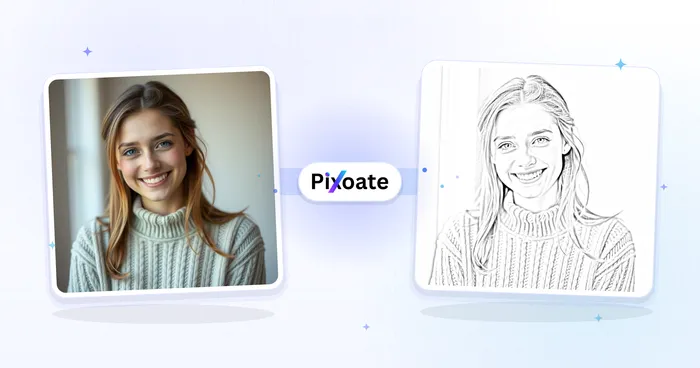
Creative & Design
Pencil Sketch
Convert a photo into a pencil-sketch style image and adjust the shadow depth before download.
Try it now
Photo Editing & Utilities
Black & White Image
Convert an image to black and white. Adjust the intensity and preview the result.
Try it nowFrequently Asked Questions
How Photo Effects helps you get it done
Real problems it solves every day — for businesses, creators, and everyday tasks. Find the use case that fits you and start.
Instagram Feed Aesthetic Filters
Run the same filter across a set so an Instagram feed of mixed photos reads as one series
TikTok & Snapchat Style Filters
Apply popular TikTok and Snapchat-style effects including glitch, vintage, and beauty filters for viral social media content
YouTube Thumbnail Visual Effects
Give a flat YouTube thumbnail contrast and glow so the subject reads at thumbnail size
Wedding & Portrait Photography Enhancement
Apply romantic, vintage, and cinematic effects to wedding photos and portrait sessions for professional photography results
Product Photography & E-commerce
Enhance product photos with clean, professional effects for Amazon listings, Shopify stores, and e-commerce catalogs
Digital Art & NFT Creation
Apply artistic effects for digital art projects, NFT collections, and creative portfolio pieces with unique visual styles
Trippy Optical Illusion Wall Art
Push the Optical Illusions effect's Density and Spiral Color settings to create bold, hypnotic spiral prints for dorm rooms, gallery walls or poster shops.
Neon Outline Posters for Gigs & Events
Use the Outline Effect with a bright color and a thick line to turn a band or event photo into a glowing poster-style graphic for gig flyers and event promotion.
Photo-Split Grids for Social Carousels
Apply the Image Split effect in grid mode to break one photo into a multi-panel layout perfect for an Instagram carousel post or a photo-collage story.
Custom Shape-Cut Profile Icons
Use the Shape Cut effect to crop a photo into a circle, diamond or triangle for a distinctive profile picture or sticker instead of the usual square or circle crop.
Retro Halftone Poster Prints
Lower the Poster effect's Color Levels to 2-4 for a bold, flat-color halftone-style print ready for zines, screen-printed T-shirts or retro concert posters.
Guides for this tool
- One Good Photo, Many Campaigns: The Creative Value of Reusing What You HaveOne good photo can support several campaigns. Explore Pixoate effects, backgrounds and editing choices that turn an existing image into fresh creative work.
- Photo Effects for Small-Business Seasonal PostsRefresh an existing business photo for seasonal announcements. Choose suitable effects, keep product colours accurate and check text and mobile crops.
See the featured effects in motion
The strongest effect picks lead this belt before the rest of the catalog.